Zestard Rental Booking is a WooCommerce extension that transforms products into rentable items. It supports simple and variable products, multiple pricing models (daily/weekly/monthly), booking calendars, buffers, and custom availability logic.
Getting started
↑ Back to topTip: Use the built-in product editor in WooCommerce. The plugin adds new meta fields to the product screen.
Create a simple rental product
↑ Back to top- WP Admin → Products → Add New.
- Title: e.g., “Camera — Rental”.
- Product Data: Select the Simple product.
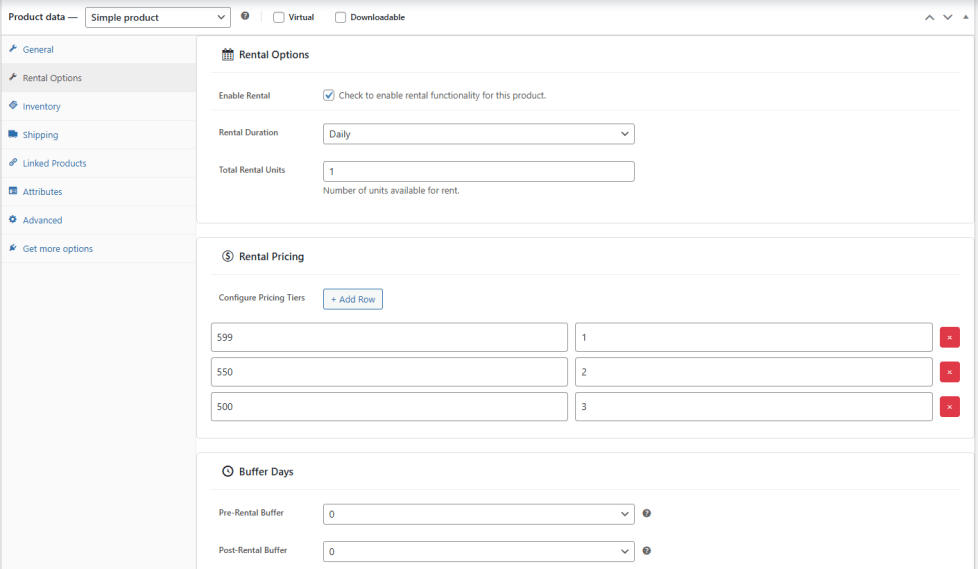
- In the Rental Options tab.
- Check Enable Rental.
- Select Rental Duration (e.g., Daily, Weekly, Monthly).
- Set Total Rent Units (e.g., 5 units available).
- Set rental pricing rows:
- Click “Add Row”
- Enter the Price (e.g., 499, 200, 355).
- Enter the Duration number (e.g., 1, 2, 3).
- Click + Add Row for every rental duration you want to offer.
- Optional: Set Pre-rental Buffer and Post-rental Buffer (days blocked before/after each booking).
- Save/Publish.
Create a variable rental product
↑ Back to top- WP Admin → Products → Add New (or edit existing).
- Product Data: choose Variable product.
- Add attributes (e.g., Color, Size) and configure variations.
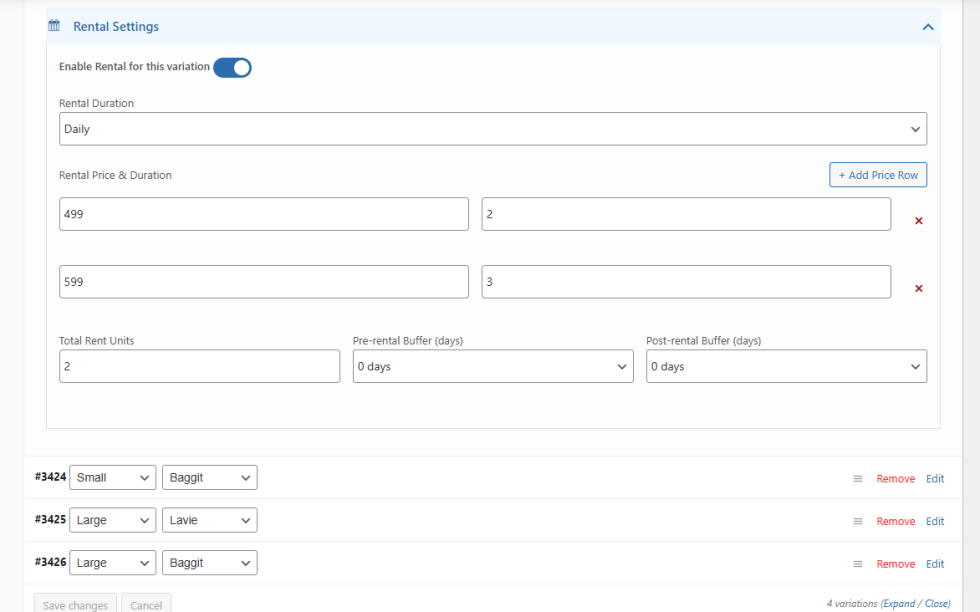
- For each variation, open the variation panel and locate the Rental Settings.
- Toggle Enable Rental for this variation.
- Select Rental Duration (e.g., Daily, Weekly, Monthly).
- Set Rental Price & Duration number.
- Click “Add Price Row”
- Enter the Price (e.g., 45, 199, 300).
- Enter the Duration number (e.g., 1, 2, 3).
- Click + Add price Row for every rental duration you want to offer.
- Example repeater rows:
1 DAY — 45,3 DAYS — 300. - Set Total Rent Units (e.g., 5 units available).
- Optional: Set Pre-rental Buffer and Post-rental Buffer (days blocked before/after each booking).
- Save changes and publish.
Global rental settings
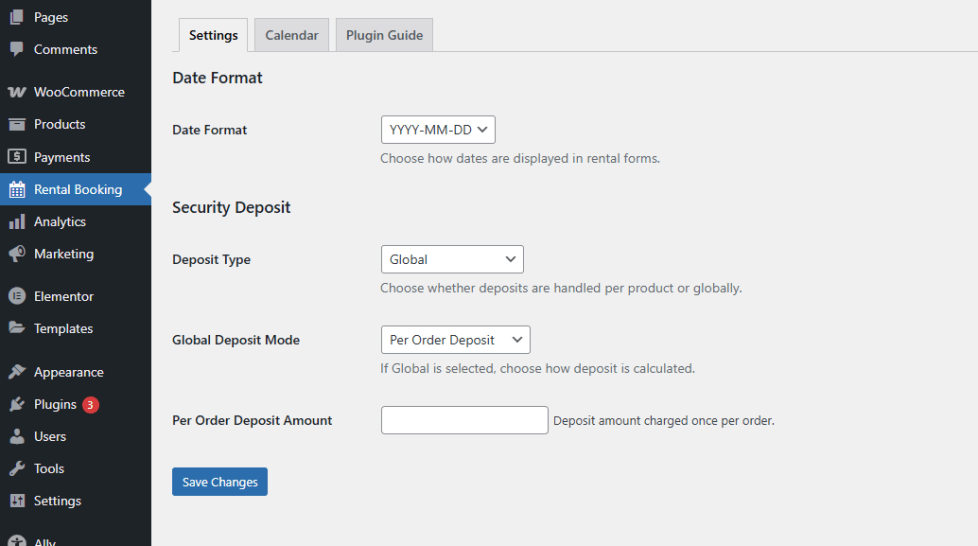
↑ Back to topGo to Rental Booking → Settings.
Security Deposit
The security deposit allows you to collect an amount during checkout. This is added to the cart automatically when renting a product.
Date Format
Set the date format for all rental start/end dates displayed in:
Common formats:
YYYY-MM-DD→ 2025-11-20DD-MM-YYYY→ 20-11-2025MM-DD-YYYY→ 11-20-2025
Choose a format that matches your country or business preference.