
Requirements
↑ Back to topBefore starting, check that you have the minimum characteristics to ensure the correct functioning of DWH B2Bify.
- WordPress: version 6.0 or above
- WooCommerce: version 8.0 or above
- PHP: version 7.4 or above
Installation
↑ Back to topTo start using a product from WooCommerce.com, you can use the “Add to store” functionality on the order confirmation page or the My subscriptions section in your account.
- Navigate to My subscriptions.
- Find the Add to store button next to the product you’re planning to install.
- Follow the instructions on the screen, and the product will be automatically added to your store.
Alternative options and more information at:
Managing WooCommerce.com subscriptions.

Setup and Configuration
↑ Back to topGet started by using DWH B2Bify by configuring your context.
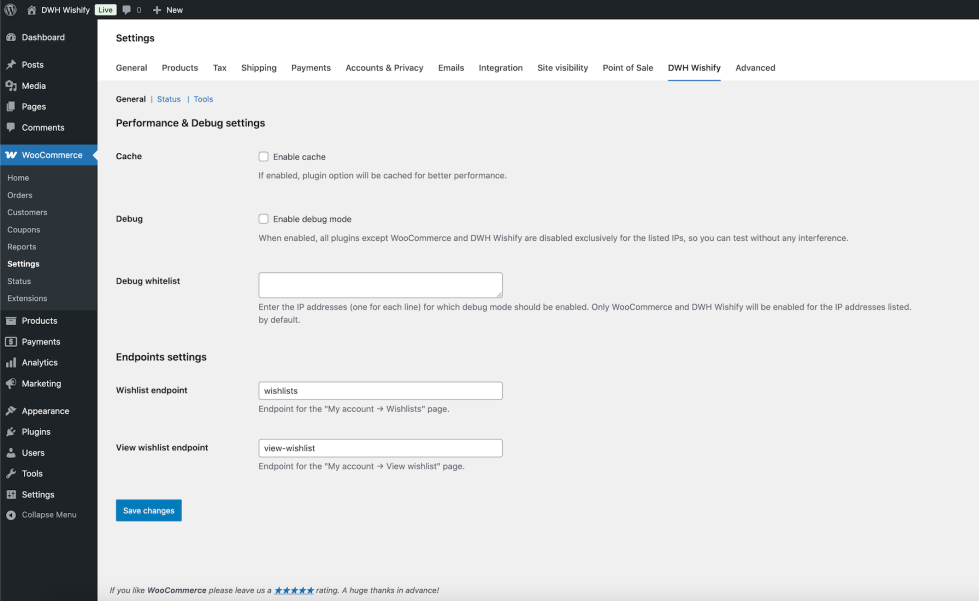
- Go to: WooCommerce > Settings > DWH B2Bify.
- Optionally enable the cache for better performance.
- Choose and set the configuration you prefer, according to your desired scenario.
- Save changes.
To set up your store with DWH B2Bify:
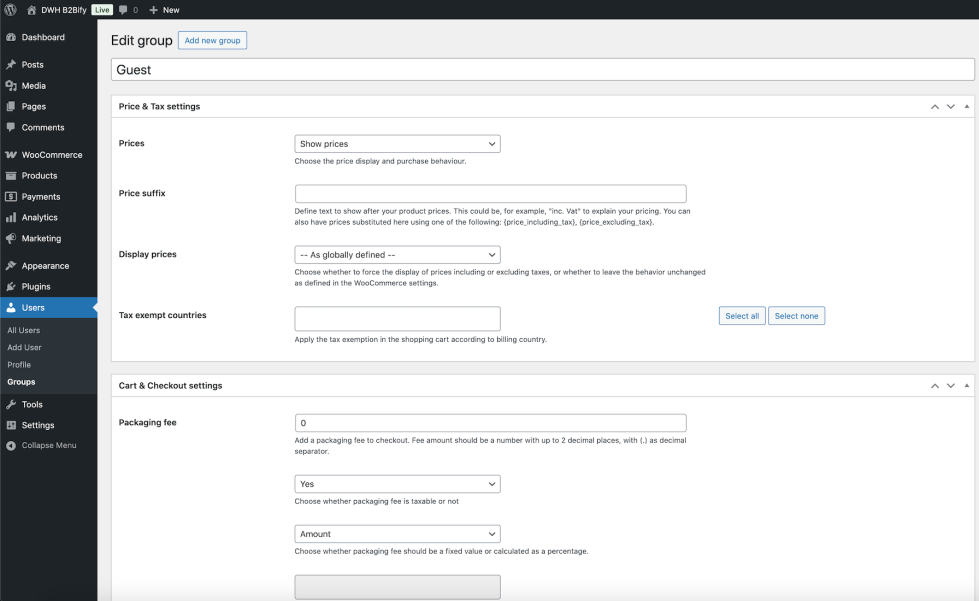
- Go to: Users > All groups.
- Create your desired groups to manage customers rules.
- Set each group according to your desired scenario.
- Save changes.
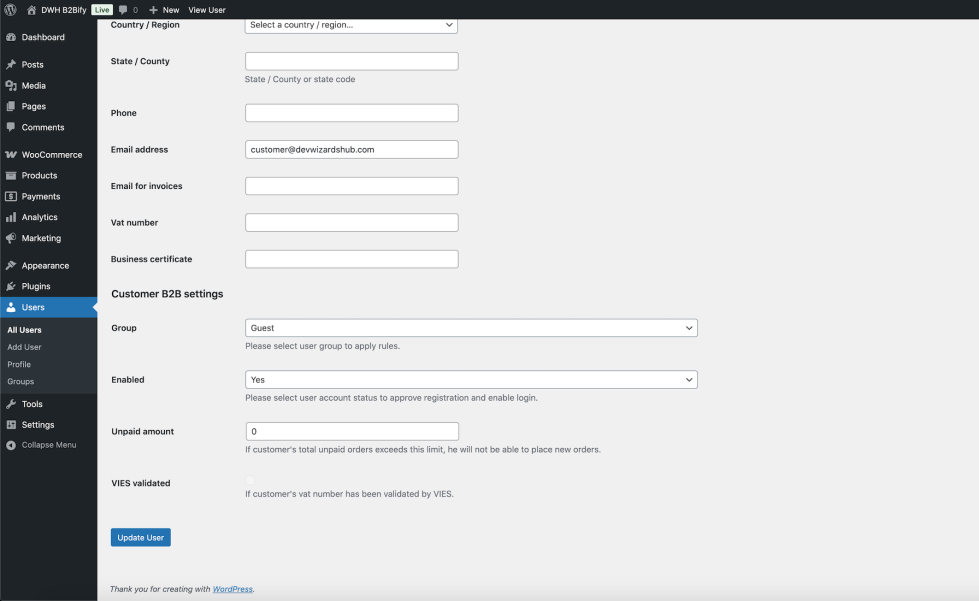
- Go to: Users > All users > {Edit customer}.
- Assign a group.
- Set other options as you prefer, according to your desired scenario.
- Save changes.
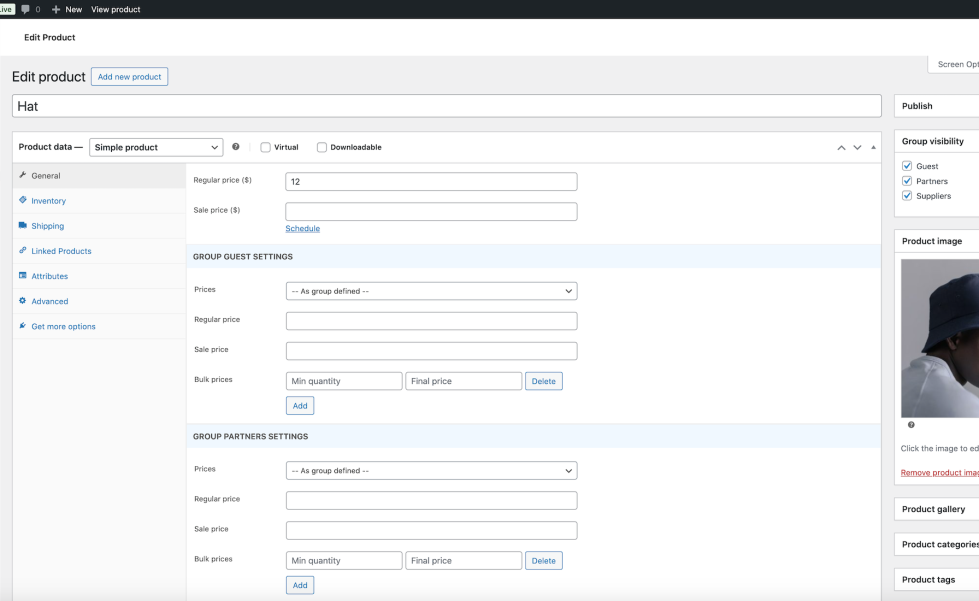
- Go to: Users > All products > {Edit product}.
- Optionally set specific prices and bulk prices rules for groups.
- Optionally set specific inventory rules for groups.
- Optionally set specific visibility rules for groups.
- Save changes.
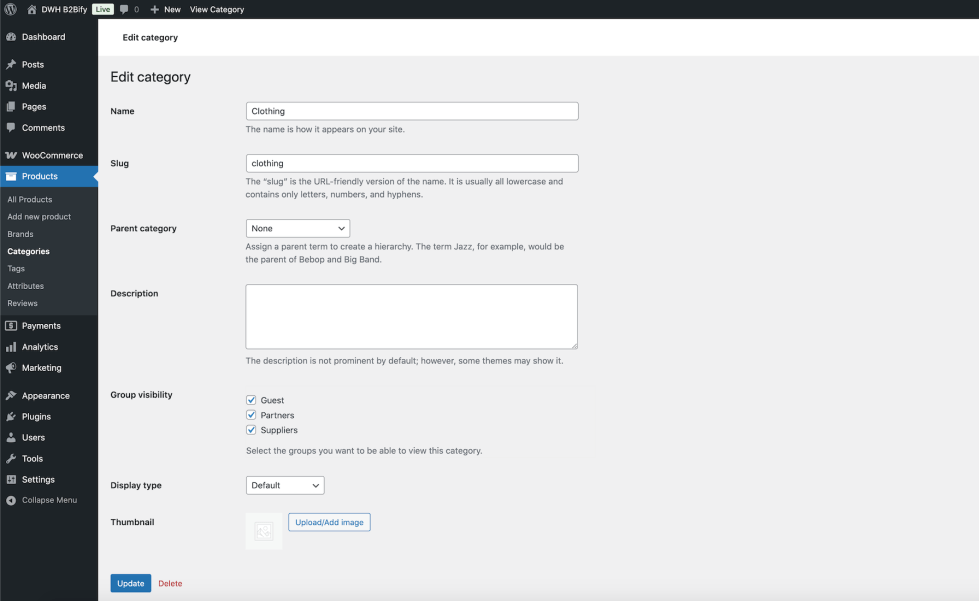
- Go to: Users > All categories > {Edit category}.
- Optionally set specific visibility rules for groups.
- Save changes.
- Go to: Users > All brands > {Edit brand}.
- Optionally set specific visibility rules for groups.
- Save changes.
- Go to: Users > All pages > {Edit page}.
- Optionally set specific visibility rules for groups.
- Save changes.
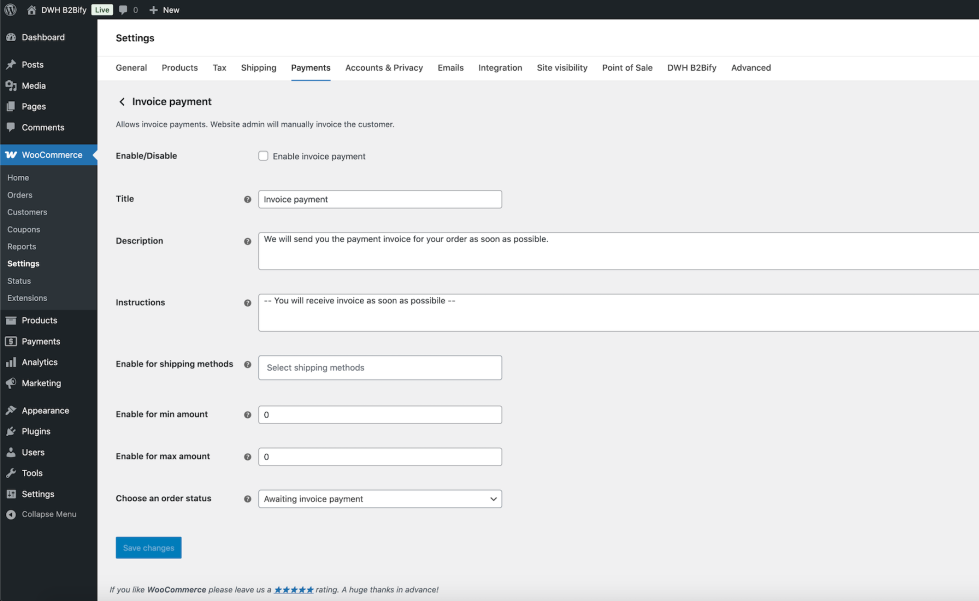
- Go to: WooCommerce > Settings > Payments.
- Optionally enable plugin custom payment methods (Invoice payment, Purchase order payment).
- Configure custom payment methods.
- Save changes.
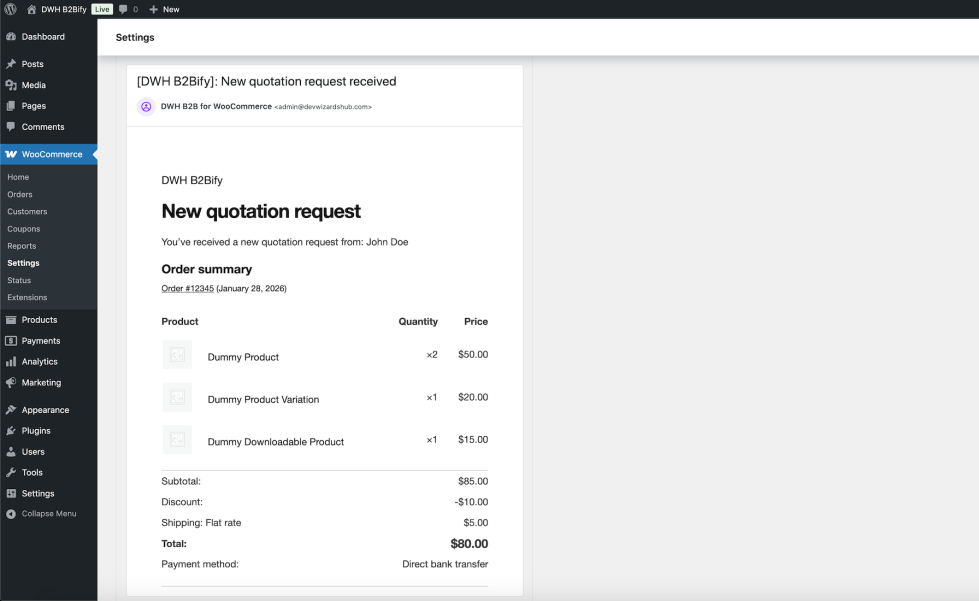
- Go to: WooCommerce > Settings > Emails.
- Optionally enable plugin custom emails (Account approved, New quotation, Order pending quote, Order processed quote).
- Configure custom emails.
- Save changes.
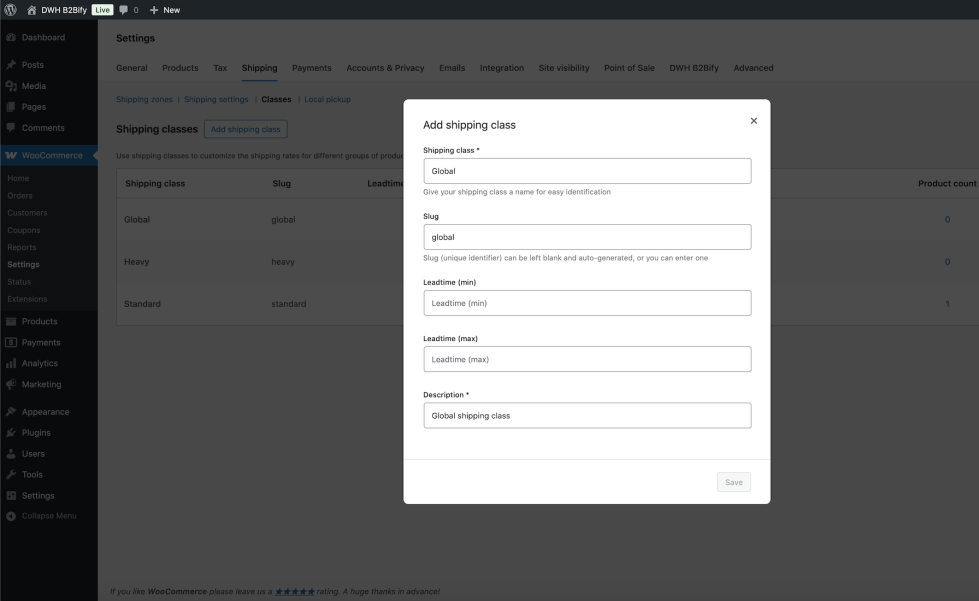
- Go to: WooCommerce > Settings > Shippings > Shipping classes.
- Edit shipping class and optionally set min/max leadtime according to your desired scenario.
- Save changes.
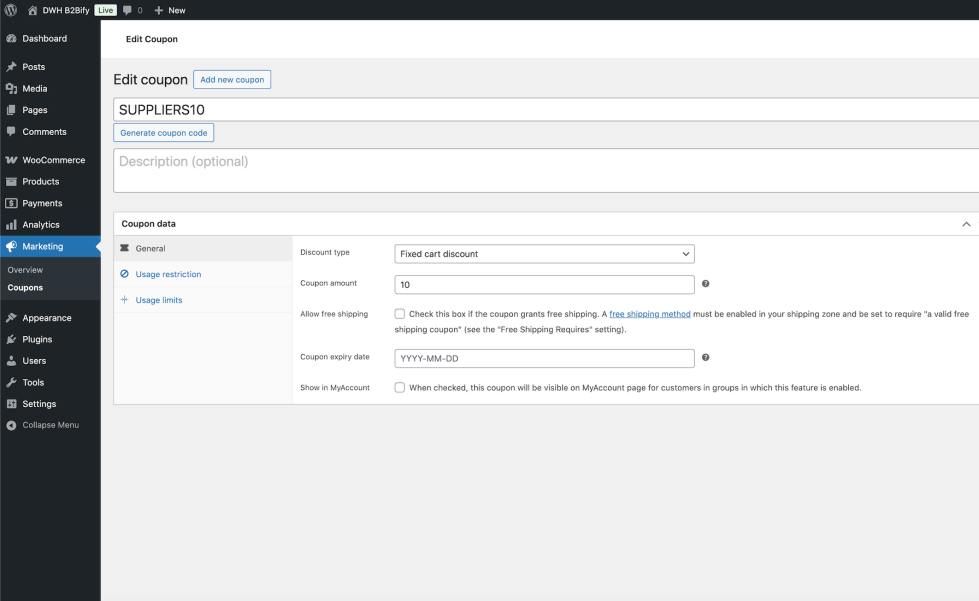
- Go to: Marketing > Coupons > {Edit coupon}.
- Optionally set specific rules for groups.
- Save changes.
Usage
↑ Back to topGet started by using DWH B2Bify by configuring your context.
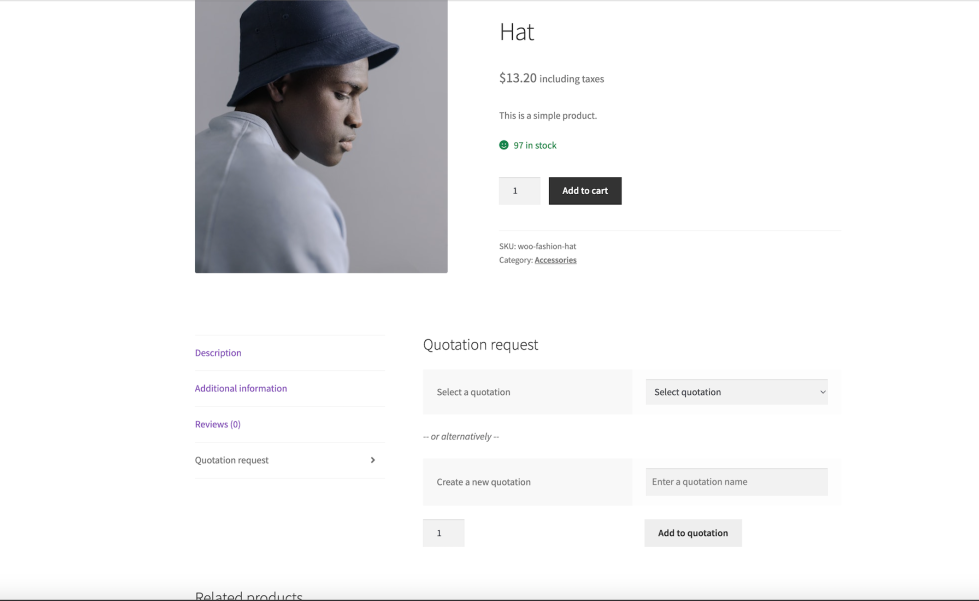
Customers can add products to an existing quotation or to a new one.
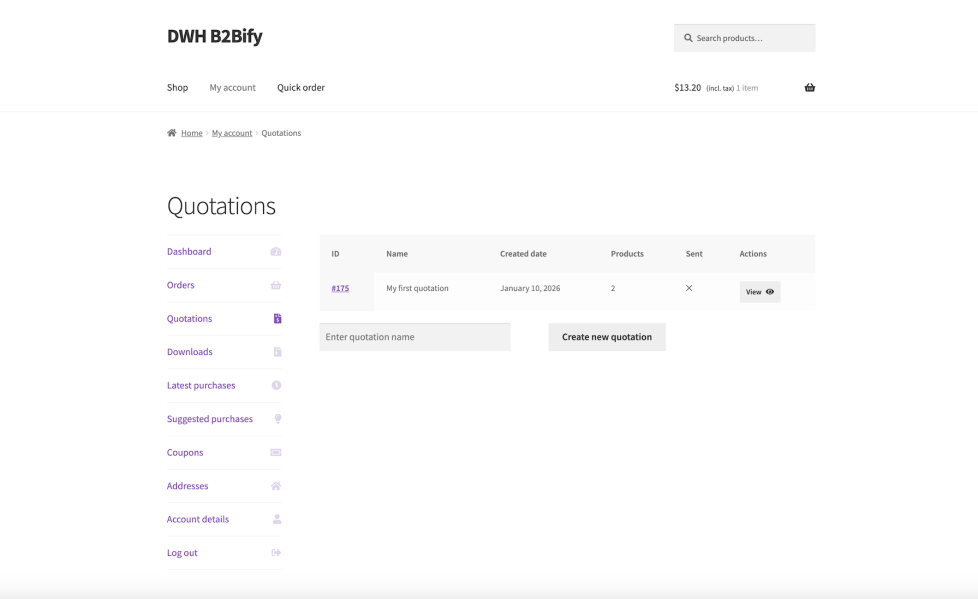
Customers can view and manage their quotations in their MyAccount page.
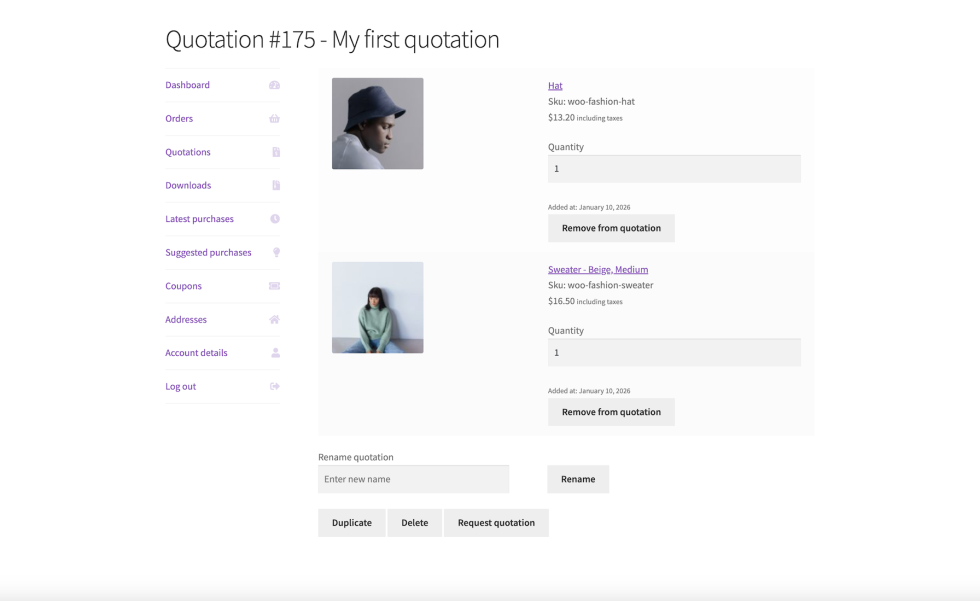
Customers can view quotation details in their MyAccount page.
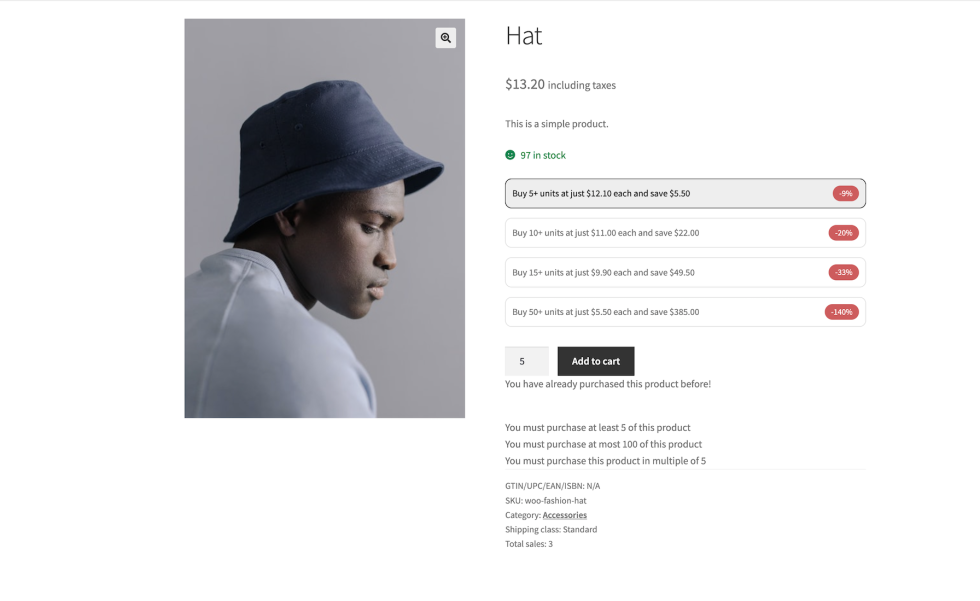
Customers can view their reserved price and bulk price rules in product page.
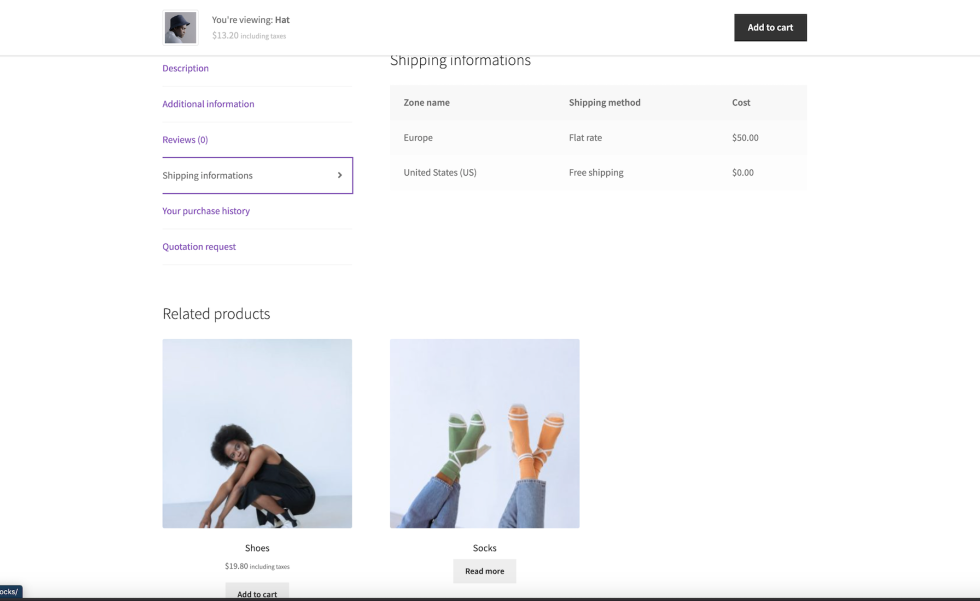
Customers can view additional shipping informations according to group configuration.
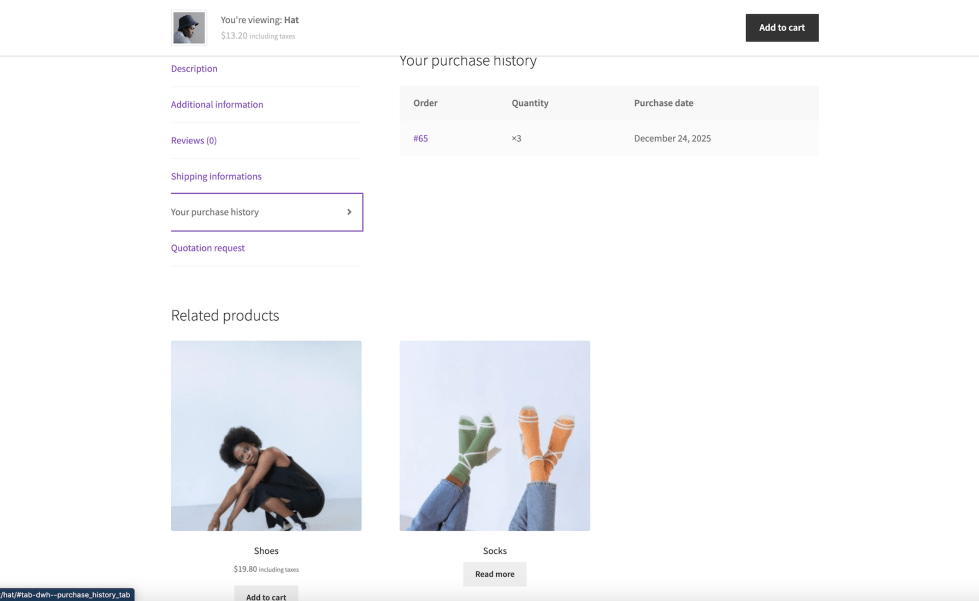
Customers can view additional purchase history according to group configuration.
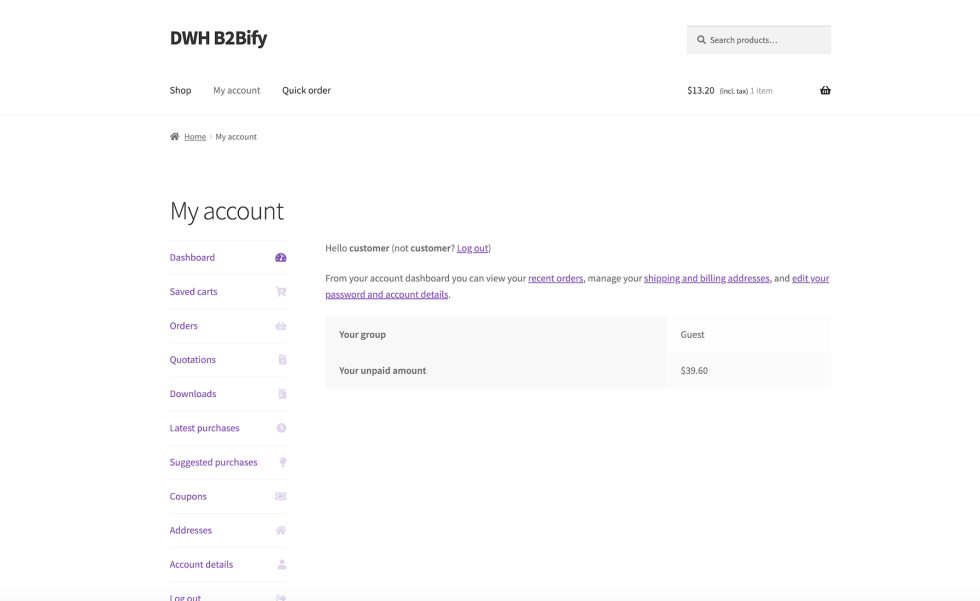
Customers can view their additional data in MyAccount page.
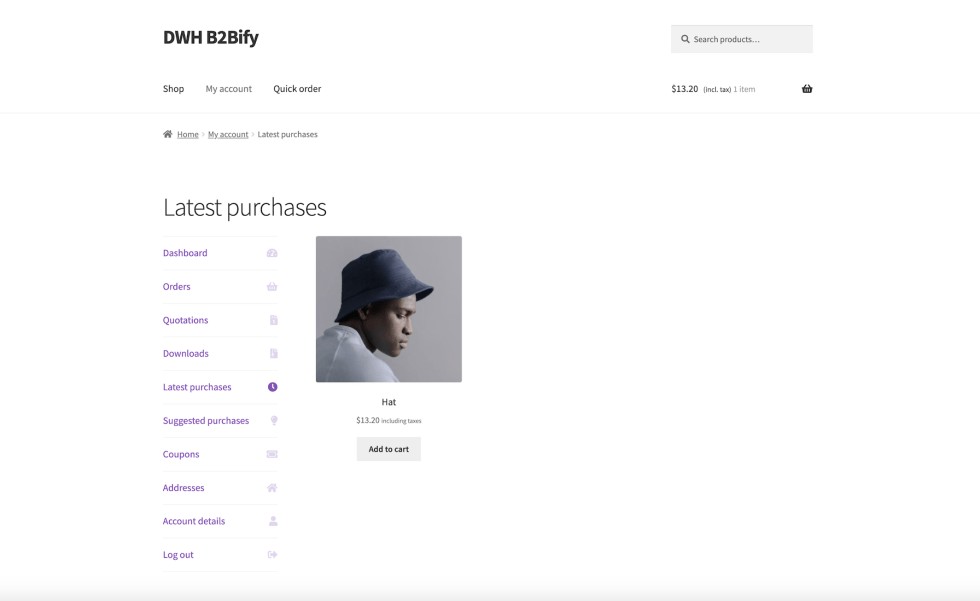
Customers can view latest purchases according to group configuration.
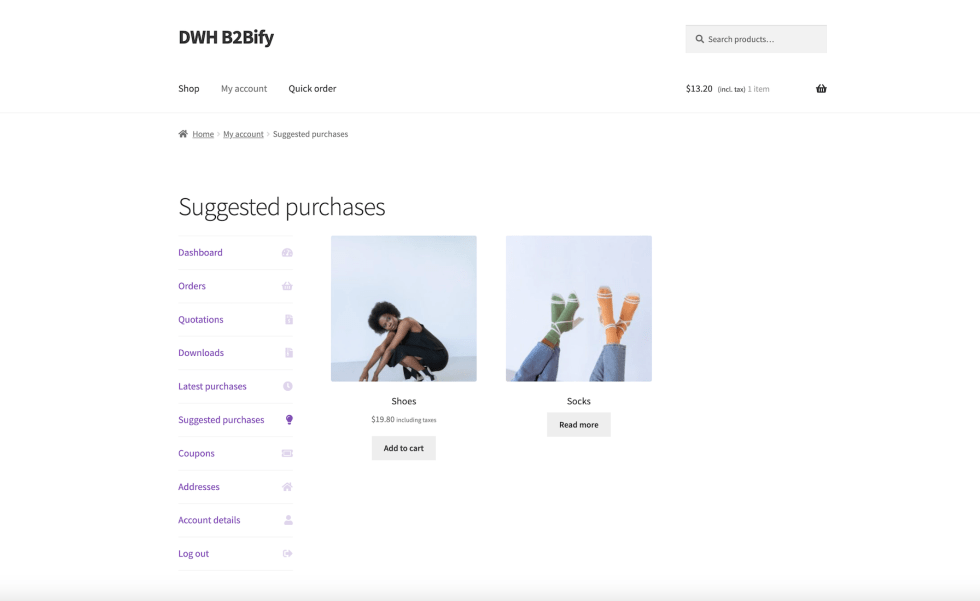
Customers can view suggested purchases according to group configuration.
Plugin options
↑ Back to topDWH B2Bify introduces a large number of features, here a complete list with description to guide you in the configuration.
Settings page
WooCommerce > Settings > DWH B2Bify
:: Performance & Debug settings section ::
Cache
Description
When enabled, plugin options are stored both in memory and in a persistent transient to prevent redundant database queries, to improve performance. It is recommended to disable the cache in development mode and enable it in production.
Specifications
-
Type:
bool -
Default:
false
Debug
Description
When enabled, all plugins except WooCommerce (required) and DWH B2Bify are disabled exclusively for the listed IPs. This allow you to make test without any kind of third part asset interference, but your website customers won't notice anything.
Specifications
-
Type:
bool -
Default:
false
Debug whitelist
Description
Allows you to specify the IP addresses for which to enable debug mode.
Specifications
-
Type:
string - Default:
:: General settings section ::
Private mode
Description
When enabled, all non-logged-in users will be redirected to the WP Login page and will not be able to view other sections of the site.
Specifications
-
Type:
bool -
Default:
false
Quick order page
Description
Page to use for quick orders. By default, when plugin installed, a new page called 'Quick order' is created with required shortcode [dwhb2b__quickorders] in content.
Specifications
-
Type:
integer - Default: {quick order page ID}
:: Checkout settings section ::
Email for invoices
Description
Add an additional field to billing address in checkout, to allow customers to communicate email address where they prefer to receive invoices.
Specifications
-
Type:
enum -
Default:
hidden
Allowed values
- hidden: Don't show the field
- optional: Show the field as not required
- required: Show the field and make it mandatory
Vat number
Description
Add an additional field to billing address in checkout, to allow customers to communicate their VAT number.
Specifications
-
Type:
enum -
Default:
hidden
Allowed values
- hidden: Don't show the field
- optional: Show the field as not required
- required: Show the field and make it mandatory
VIES validation
Description
Enable VAT number VIES validation in checkout for EU customers. VIES validation works with third part WebService. VIES validation requires PHP SOAP extension, please check it is available on your server (contact your server provider to know more). VIES validation response can be viewed in backend user edit page.
Specifications
-
Type:
enum -
Default:
disabled
Allowed values
- disabled: Don't trigger VIES validation
- strict: Enable VIES validation and block purchase if error occurs or validation fails
- lax: Enable VIES validation but allow purchase even if error occurs or validation fails
:: Product settings section ::
Delivery week days
Description
Select week days to be considered working for estimated delivery date calculation.
Specifications
-
Type:
comma separated string - Default: {empty}
Holidays
Description
Comma separated dates to consider as holiday (format dd/mm) for estimated delivery date calculation.
Specifications
-
Type:
comma separated string - Default: {empty}
:: User settings section ::
Has customer role
Description
Choose the roles you consider customers to whom the groups and their settings will apply.
Specifications
-
Type:
comma separated string -
Default:
Customer
Default group
Description
When user register in default WooCommerce registration form, he will be assigned automatically to choosen group.
Specifications
-
Type:
integer - Default: {group ID}
Group change
Description
Set rules to automatically move customer into another group according to total spent.
New registration email
Description
When enabled, send an email to admin to inform him on new customer registration.
Specifications
-
Type:
bool -
Default:
false
:: Endpoint settings section ::
Saved carts endpoint
Description
Choose the endpoint for customer saved carts list in MyAccount page.
Specifications
-
Type:
string -
Default:
saved-carts
Quotations endpoint
Description
Choose the endpoint for customer quotations list in MyAccount page.
Specifications
-
Type:
string -
Default:
quotations
View quotation endpoint
Description
Choose the endpoint for customer single quotation details in MyAccount page.
Specifications
-
Type:
string -
Default:
view-quotation
Latest purchases endpoint
Description
Choose the endpoint for customer latest purchases list in MyAccount page.
Specifications
-
Type:
string -
Default:
latest-purchases
Suggested purchases endpoint
Description
Choose the endpoint for customer suggested purchases list in MyAccount page.
Specifications
-
Type:
string -
Default:
suggested-purchases
Coupons endpoint
Description
Choose the endpoint for public coupons list in MyAccount page.
Specifications
-
Type:
string -
Default:
coupons
Settings page
WooCommerce > Settings > Payments
:: Invoice payment ::
Allows invoice payments. Website admin will manually invoice the customer.
Enable for shipping methods
Description
Select shipping methods that allow this payment method. Leave blank to enable for all methods.
Enable for min amount
Description
Set a minimum cart amount to make this payment method available (set 0 to give no limit).
Enable for max amount
Description
Set a maximum cart amount to make this payment method available (set 0 to give no limit).
Choose an order status
Description
Choose order status you will be set after checkout when the payment method used.
:: Purchase order ::
Allows customers to complete their order using a purchase order. Payment will then be processed according to the agreed terms.
Enable for shipping methods
Description
Select shipping methods that allow this payment method. Leave blank to enable for all methods.
Enable for min amount
Description
Set a minimum cart amount to make this payment method available (set 0 to give no limit).
Enable for max amount
Description
Set a maximum cart amount to make this payment method available (set 0 to give no limit).
Choose an order status
Description
Choose order status you will be set after checkout when the payment method used.
Settings page
WooCommerce > Settings > Shipping
:: Classes ::
Leadtime (min)
Description
The minimum number of days expected for shipping. Only business days (defined in the plugin's general settings) are counted, excluding holidays (defined in the plugin's general settings).
Leadtime (max)
Description
The maximum number of days expected for shipping. Only business days (defined in the plugin's general settings) are counted, excluding holidays (defined in the plugin's general settings).
Settings page
WooCommerce > Settings > Emails
:: Account approved ::
Send an email to customers notifying them when their account has been approved.
:: New quotation ::
Send an email to admin notifying him when a new quotation has been requested.
:: Order pending quote ::
Send an email to customer notifying him when a his quotation has been received.
:: Order processed quote ::
Send an email to customer notifying him when a his quotation has been processed.
Group options
↑ Back to topGroup page
Users > All groups > {Edit group}
:: Price & Tax settings section ::
Prices
Description
Choose how you want to display product prices and the purchase behaviour.
Specifications
-
Type:
enum -
Default:
show
Allowed values
- show: Show products prices
- hide: Hide products prices and make products unpurchasable
Price suffix
Description
Define text to show after your product prices. This could be, for example, 'inc. Vat' to explain your pricing. You can also have prices substituted here using one of the following: {price_including_tax}, {price_excluding_tax}.
Specifications
-
Type:
string - Default: {empty}
Display prices
Description
Choose whether to force the display of prices including or excluding taxes, or whether to leave the behavior unchanged as defined in the WooCommerce settings.
Specifications
-
Type:
enum -
Default:
global
Allowed values
- global: Display prices including or excluding taxes as globally defined in WooCommerce default settings
- incl: Display prices including taxes
- excl: Display prices excluding taxes
Tax exempt countries
Description
Apply the tax exemption in the shopping cart according to customer billing country.
Specifications
-
Type:
enum - Default: {empty}
:: Cart & Checkout settings section ::
Packaging fee – Amount
Description
Add a packaging fee to checkout. Fee amount should be a number with up to 2 decimal places, with (.) as decimal separator.
Specifications
-
Type:
float - Default:
Packaging fee – Taxable
Description
Choose whether packaging fee is taxable or not.
Specifications
-
Type:
enum - Default:
Allowed values
- Packaging fee is not taxable
- 1: Packaging fee is taxable
Packaging fee – Type
Description
Choose whether packaging fee should be a fixed value or calculated as a percentage.
Specifications
-
Type:
enum -
Default:
amount
Allowed values
- amount: Packaging fee is a fixed amount
- percent: Packaging fee is a percentage on order total
Packaging fee – Target
Description
Select the cart values on which packaging fee percentage should be calculated.
Specifications
-
Type:
enum - Default: {empty}
Allowed values
- coupons: Packaging fee percentage will be calculated including coupons values
- fees: Packaging fee percentage will be calculated including fees values
- products: Packaging fee percentage will be calculated including products values
- shippings: Packaging fee percentage will be calculated including shippings values
- taxes: Packaging fee percentage will be calculated including taxes values
Minimum purchase amount
Description
Disables checkout and order completion until the customer reaches the minimum amount by displaying a warning in the cart.
Specifications
-
Type:
float - Default:
Empty cart
Description
Show an additional button in cart to empty it.
Specifications
-
Type:
bool -
Default:
false
Save cart
Description
Allow customers to save their cart contents and restore for future purchases. Saved carts are listed in MyAccount page.
Specifications
-
Type:
bool -
Default:
false
Quotations
Description
Allow customers to create and manage quotation requests. Quotation requests are listed in MyAccount page in 'Pending quote' status until the shop manager processes them and puts them in 'Processed quote' status. At this point, the customer can proceed with payment and close the order.
Specifications
-
Type:
bool -
Default:
false
Quotations validity
Description
Set how many days a quote should be valid after being processed. Calculated validity date is showed in customer quotation summary email.
Specifications
-
Type:
integer - Default:
Disable shipping methods
Description
Set Determine which shipping methods, among those installed and enabled in WooCommerce, should be disabled for the customers in the group.
Specifications
-
Type:
enum - Default: {empty}
Disable payment methods
Description
Determine which payment methods, among those installed and enabled in WooCommerce, should be disabled for the customers in the group.
Specifications
-
Type:
enum - Default: {empty}
Terms & Conditions
Description
Create specific terms and conditions for the group, which you can add wherever you want with the [dwhb2b__conditions] shortcode.
Specifications
-
Type:
string - Default: {empty}
:: Shop & Products settings section ::
Catalog mode
Description
When enabled, it disables purchasing functionality across the store. Products and prices remain visible, but add-to-cart and checkout are disabled.
Specifications
-
Type:
bool -
Default:
false
Stock display format
Description
Choose if and how product stock remaining must be showed in product page.
Specifications
-
Type:
enum -
Default:
global
Allowed values
- global: Display stock as globally defined in WooCommerce default settings
- {empty}: Always show quantity remaining
- low_amount: Only show quantity remaining when low
- no_amount: Never show quantity remaining
GTIN/UPC/EAN/ISBN
Description
When enabled, shows GTIN/UPC/EAN/ISBN to customers in the group in product page.
Specifications
-
Type:
bool -
Default:
false
RRP
Description
When enabled, shows recommended retail price (RRP) to customers in the group in product page. WooCommerce default product retail price is used as RRP.
Specifications
-
Type:
bool -
Default:
false
Estimated delivery
Description
When enabled, shows min/max delivery days per product to customers in the group in product page. Delivery days depend on leadtime set in shipping classes definition in WooCommerce settings.
Specifications
-
Type:
bool -
Default:
false
Shipping class
Description
When enabled, shows shipping class in the product page.
Specifications
-
Type:
bool -
Default:
false
Total sales
Description
When enabled, shows total sales in the product page.
Specifications
-
Type:
bool -
Default:
false
Already bought
Description
When enabled, shows a notice if current customer has already purchased the product.
Specifications
-
Type:
bool -
Default:
false
Shipping informations
Description
When enabled, shows an additional tab on the product page with allowed shipping methods list.
Specifications
-
Type:
bool -
Default:
false
Purchase history
Description
When enabled, shows an additional tab on the product page with a customer previous purchases list of the current product.
Specifications
-
Type:
bool -
Default:
false
:: Login/Registration & MyAccount settings section ::
Registration fields
Description
Add billing address fields also to registration form dedicated to the group.
Specifications
-
Type:
bool -
Default:
false
Business certificate
Description
Add an additional field to registration form dedicated to the group, to allow customers to upload a business certificate.
Specifications
-
Type:
bool -
Default:
false
Email for invoices
Description
Add an additional field to registration form dedicated to the group, to allow customers to communicate email address where they prefer to receive invoices.
Specifications
-
Type:
enum -
Default:
hidden
Allowed values
- hidden: Don't show the field
- optional: Show the field as not required
- required: Show the field and make it mandatory
Vat number
Description
Add an additional field to registration form dedicated to the group, to allow customers to communicate their VAT number.
Specifications
-
Type:
enum -
Default:
hidden
Allowed values
- hidden: Don't show the field
- optional: Show the field as not required
- required: Show the field and make it mandatory
VIES validation
Description
Enable VAT number VIES validation to registration form dedicated to the group, for EU customers. VIES validation works with third part WebService. VIES validation requires PHP SOAP extension, please check it is available on your server (contact your server provider to know more). VIES validation response can be viewed in backend user edit page.
Specifications
-
Type:
enum -
Default:
disabled
Allowed values
- disabled: Don't trigger VIES validation
- strict: Enable VIES validation and block registration if error occurs or validation fails
- lax: Enable VIES validation but allow registration even if error occurs or validation fails
Account approval
Description
Enable account approval for customers in the group. Shop manager can manually approve accounts so customer can login and access. Customer receives an email to inform him when his account approved.
Specifications
-
Type:
bool -
Default:
false
Billing address edit
Description
When enabled, customers cannot edit or change their billing address in MyAccount page, they can only complete empty fields.
Specifications
-
Type:
bool -
Default:
false
Customer group
Description
Display the group that customer is assigned to in MyAccount page.
Specifications
-
Type:
bool -
Default:
false
Unpaid amount
Description
Display customer total orders amount not yet paid in MyAccount page.
Specifications
-
Type:
bool -
Default:
false
Max unpaid amount
Description
Display customer max amount limit allowed for not yet paid orders in MyAccount page.
Specifications
-
Type:
bool -
Default:
false
Latest purchases
Description
Display an additional page in customer MyAccount to show latest 10 purchases from latest 10 orders in paid statuses.
Specifications
-
Type:
bool -
Default:
false
Suggested purchases
Description
Display an additional page in customer MyAccount to show 10 suggested purchases according to lastest 10 purchases.
Specifications
-
Type:
bool -
Default:
false
Coupons
Description
Display an additional page in customer MyAccount to show public coupons
Specifications
-
Type:
bool -
Default:
false
Customer options
↑ Back to topCustomer page
Users > All users > {Edit user}
:: Customer B2B settings section ::
Group
Description
Select the group you want to assign the customer.
Specifications
-
Type:
enum - Default: {GUEST group ID}
Enabled
Description
Select user account status to approve registration and enable login.
Specifications
-
Type:
integer - Default: 1
Allowed values
- Disabled account
- 1: Enabled account
Unpaid amount
Description
If customer's total unpaid orders exceeds this limit, he will not be able to place new orders.
Specifications
-
Type:
integer - Default:
Order options
↑ Back to topOrder page
WooCommerce > Orders > {Edit order}
:: Invoice payment settings ::
Invoice number
Description
If the order is paid by invoice, you can enter the invoice number generated by your invoicing software.
:: Purchase order payment settings ::
Purchase order number
Description
If the order is paid by purchase order, you can enter the purchase order number provided as an accounting or authorization reference.
Product options
↑ Back to topProduct page
Products > All products > {Edit product}
:: General tab – Group settings ::
Prices
Description
Choose how you want to display product prices and the purchase behaviour.
Specifications
-
Type:
enum -
Default:
group
Allowed values
- group: Show products prices according to customer group configuration
- show: Show products prices
- hide: Hide products prices and make products unpurchasable
Regular price
Description
Set product regular price for the group.
Specifications
-
Type:
float - Default: {empty}
Sale price
Description
Set product sale price for the group.
Specifications
-
Type:
float - Default: {empty}
Bulk prices
Description
Set product price to use when a certain quantity is added to cart for the group.
:: Inventory tab – Group settings ::
Stock display format
Description
Choose if and how product stock remaining must be showed in product page.
Specifications
-
Type:
enum -
Default:
group
Allowed values
- group: Show products quantity according to customer group configuration
- {empty}: Always show quantity remaining
- low_amount: Only show quantity remaining when low
- no_amount: Never show quantity remaining
Min quantity
Description
Choose the minimum quantity of the product that customer must purchase.
Specifications
-
Type:
integer - Default: {empty}
Max quantity
Description
Choose the maximum quantity of the product that customer must purchase.
Specifications
-
Type:
integer - Default: {empty}
Multiple quantity
Description
Choose the multiple quantity of the product that customer must purchase.
Specifications
-
Type:
integer - Default: {empty}
:: Visibility settings ::
Group visibility
Description
Choose the groups for which the product is visibile or not.
Product category options
↑ Back to topProduct category page
Products > Categories > {Edit categories}
:: Visibility settings ::
Group visibility
Description
Choose the groups for which the product category is visibile or not.
Product brand options
↑ Back to topProduct brand page
Products > Brand > {Edit brand}
:: Visibility settings ::
Group visibility
Description
Choose the groups for which the product brand is visibile or not.
Page options
↑ Back to topPage page
Pages > All pages > {Edit page}
:: Visibility settings ::
Group visibility
Description
Choose the groups for which the page is visibile or not.
Coupon options
↑ Back to topCoupon page
Marketing > Coupons > {Edit coupon}
:: General tab ::
Show in MyAccount
Description
When checked, the coupon will be visible on MyAccount page for customers in groups in which this feature is enabled.
Specifications
-
Type:
bool -
Default:
false
:: Usage restriction tab ::
Allowed groups
Description
Allow coupon usage to customers assigned to selected groups. No groups selected means no restrictions.
Specifications
-
Type:
enum - Default: {empty}
Total spent
Description
Allow coupon usage to customers who have spent at least the amount indicated.
Specifications
-
Type:
integer - Default:
How to translate
↑ Back to topTranslate DWH B2Bify is very simple.
DWH B2Bify is already provided natively in English. All plugin strings have been localized using the GNU gettex framework to make it completely translation ready, so it can be easly translated in the same way that other WordPress plugins: you can translate DWH B2Bify using special translation plugins, such as WPML or Polylang for example or all other similar plugins.
Here a simple guide to translate DWH B2Bify in the language of your choice without plugins.
:: Translating with POEDIT ::
WordPress, with all its themes and plugins, based translations on GNU gettex framework, that use three types of files:
- PO (Portable Object) files
- MO (Machine Object) files
- POT (Portable Object Template) files
The first step is to get a translation tool able to manage this kind of files; there are many ones available, in this guide we'll use POEDIT, a free open source software, easy to use and available for MacOSX, Windows, Linux.
Create a new translation with Poedit is very simple, here a step-by-step guide to help you to make it.
- Install Poedit
- Open Poedit and go to 'File -> New from POT/PO file'
- In the popup box that appears, navigate into plugin folder and select the file 'dwh-b2bify/i18n/dwh-b2bify.pot'
- When the file is loaded, another box will pop up asking for the language you want to translate. Simply choose your target language
- String by string, enter your translation in the 'Translate box' at bottom
When finished, validate your translation and save the file, named as: dwh-b2bify-it_IT. The name pattern is composed by:
- dwh-b2bify: the plugin domain name, usually the plugin folder name (as described in WordPress i18n standards)
- it: the GNU language code
- IT: the GNU country code
After saving, Poedit will create two files:
- dwh-b2bify-it_IT.po
- dwh-b2bify-it_IT.mo
Your translations are ready! To use them, you just have to move them into the folder:
wp-content/languages/plugins/Now, go to your website and DWH B2Bify is finally translated in your language!
Templates customization
↑ Back to topDWH B2Bify templates can be override to customize as you prefer.
:: Templates override ::
We make use of same WooCommerce override system, so it's possible to create own templates and customize them. All templates are contained into the folder:
wp-content/plugins/dwh-b2bify/templates/Here a list of plugin templates that can be customized:
-
emails/customer-account-approved.phpEmail received from customer when his account is approved and active -
emails/customer-pending-quote-order.phpEmail received from customers when a new quote is created -
emails/customer-processed-quote-order.phpEmail received from customers when a quote is modified and ready to buy -
emails/new-quotation.phpEmail received from admin when a new quote is created -
global/debug-bar.phpDebug bar -
global/group-simulator.phpDropdown to simulate customer group live change in frontend -
global/livesearch-form.phpForm for live search page -
global/livesearch-results.phpLive search single product result -
myaccount/additional-informations.phpCustomer additional informations table in MyAccount main page -
myaccount/coupons.phpCustomer coupons public list in MyAccount page -
myaccount/quotations.phpCustomer quotations list in MyAccount page -
myaccount/saved-carts.phpCustomer saved cart list in MyAccount page -
myaccount/view-quotation.phpCustomer single quotation details in MyAccount page -
order/quickorders-form.phpForm for quick orders page -
single-product/tabs/purchase-history.phpProduct purchase history tab in single product page -
single-product/tabs/quotation.phpProduct tab form in single product page to make quotation request -
single-product/tabs/shipping-informations.phpProduct tab in single product page with shipping methods and costs summary -
single-product/already-bought.phpSection to show 'Already bought' notice in single product page -
single-product/bulk-prices.phpSection to show bulk prices table in single product page -
single-product/estimated-delivery.phpSection to show estimated delivery time in single product page -
single-product/global-unique-id.phpSection to show global unique id in single product page -
single-product/rrp.phpSection to show recommended retail price in single product page -
single-product/shipping-class.phpSection to show shipping class in single product page -
single-product/stock-notices.phpSection to show minimum/maximum/multiple quantity notice to purchase in single product page -
single-product/total-sales.phpSection to show product total sales count notice in single product page
To know more about WooCommerce templates override system, please refer to WooCommerce official documentation.
Template structure & Overriding templates via a theme:: How to override a template ::
Copy the default template from:
wp-content/plugins/dwh-b2bify/templates/{TEMPLATE_PATH}and paste it in your theme folder at:
wp-content/themes/{YOUR_ACTIVE_THEME}/dwh-b2bify/{TEMPLATE_PATH}preserving the same folder tree.
Open the template you pasted into the theme folder with a text editor of choice and perform any changes that you want in your new template file.
:: How to update templates overrides ::
Sometimes we update default templates when a new version of plugin is released. If you are using older templates, you may need to update them. Go to:
DWH B2Bify > Status
Here you can find a list of templates overridden by your parent/child theme and a warning message that they need to be updated.
Save a backup of the outdated template and copy the default template from:
wp-content/plugins/dwh-b2bify/templates/{TEMPLATE_PATH}Paste it in your theme folder at:
wp-content/themes/{YOUR_ACTIVE_THEME}/dwh-b2bify/{TEMPLATE_PATH}preserving the same folder tree.
Open the template you pasted into the theme folder with a text editor of choice and replicate any changes that you had to the previous template in your new, updated template file.
Important notes
As WordPress best practice, we suggest to make use of a WordPress Child Theme to avoid losing customizations in case of theme update. To know more about WordPress Child Theme, please refer to WordPress official documentation.
Child Themes WordPress CodexPluggable functions
↑ Back to topDWH B2Bify provide a large number of pluggable functions to allow developers to extends or customize default behavior.
If you are a developer or you want to go deep in customization, DWH B2Bify give you many possible customizations by using the pluggable functions. All pluggable functions are contained into the file:
wp-content/plugins/dwh-b2bify/includes/pluggable-functions.phpTo know more about WordPress pluggable functions, please refer to WordPress official documentation.
Pluggable Functions WordPress CodexImportant notes
As WordPress best practice, we suggest to make use of a WordPress Child Theme to avoid losing customizations in case of theme update. To know more about WordPress Child Theme, please refer to WordPress official documentation.
Child Themes WordPress CodexREST API
↑ Back to topDWH B2Bify is perfectly integrated and extends default WooCommerce REST API to manage its own custom fields.
Group API
/wp-json/wc/v3/groups/
hidden_pages
Description
Contains all hidden pages for the group.
Specifications
-
Type:
array -
Default:
[]
Each array element is a simple element:
-
id:
integerThe page ID
hidden_products
Description
Contains all hidden products for the group. Each element is:
Specifications
-
Type:
array -
Default:
[]
Each array element is a simple element:
-
id:
integerThe product ID
hidden_pages
Description
Contains all hidden terms (product categories/product brands) for the group. Each element is:
Specifications
-
Type:
array -
Default:
[]
Each array element is a simple element:
-
id:
integerThe term ID
Example schema
[...]
{
    "hidden_pages": [],
    "hidden_products": [],
    "hidden_terms": [
        16
    ],
    "prices_display": "show",
    "price_suffix": "tax incl.",
    "tax_display": "incl",
    "tax_exempt_countries": [
        "CA",
        "US"
    ],
    "packaging_fee": {
        "value": "10",
        "taxable": "1",
        "type": "percent",
        "target": [
            "products",
            "shippings"
        ]
    },
    "min_purchase_amount": 200,
    "empty_cart": true,
    "save_cart": true,
    "quotations": true,
    "quotations_validity": 5,
    "catalog_mode": false,
    "disabled_shipping_methods": [
        "free_shipping:1",
        "free_shipping:4"
    ],
    "disabled_payment_methods": [
        "bacs",
        "cod"
    ],
    "conditions": "This is a custom terms & conditions text specific for suppliers group.",
    "stock_display_format": "no_amount",
    "show_global_unique_id": true,
    "show_rrp": true,
    "show_estimated_delivery": true,
    "show_shipping_class": true,
    "show_total_sales": true,
    "show_already_bought": true,
    "shipping_informations_tab": true,
    "purchase_history_tab": true,
    "billing_fields_on_registration": true,
    "business_certificate": "optional",
    "invoices_email": "required",
    "vat_number": "required",
    "vies_validation": "lax",
    "account_approval": true,
    "disable_billing_address_edit": true,
    "show_customer_group": true,
    "show_unpaid_amount": true,
    "show_max_unpaid_amount_allowed": true,
    "latest_purchases": true,
    "suggested_purchases": true,
    "coupons": true
}
[...]
Customer API
/wp-json/wc/v3/customers/
saved_carts
Description
Contains customer saved carts.
Specifications
-
Type:
array -
Default:
[]
Each array element preserves exactly the same WooCommerce cart item data schema. It is a subarray structured as follow:
-
key:
stringA unique ID to identify the saved cart -
datetime:
stringThe saved cart created datetime, in YmdHis format -
content:
arrayThe products in list. Each subnode contains an array with: -
stringThe cart item hash as key -
arrayCart item info -
key:
stringThe cart item hash -
product_id:
integerThe product ID -
variation_id:
integerThe product variation ID (if any) -
variation:
arrayThe variation data (if any) -
quantity:
integerThe product quantity in cart -
data_hash:
stringA security hash for the entire item -
line_tax_data:
arrayThe cart item tax data -
subtotal:
arrayThe subtotal tax data -
total:
arrayThe total tax data -
line_subtotal:
floatThe cart item subtotal -
line_subtotal_tax:
floatThe cart item subtotal tax -
line_total:
floatThe cart item total -
line_tax:
floatThe cart item total tax -
data:
stringA json string for other cart data
vies_validated
Description
Indicates whether the customer's VAT number has been validated by VIES (depends on whether the option in the group is enabled)
Specifications
-
Type:
bool -
Default:
false
vies_response
Description
Indicates VIES validation response (depends on whether the option in the group is enabled)
Specifications
-
Type:
string - Default: (empty)
Example schema
[...]
{
    "group_id": 184,
    "enabled": true,
    "max_unpaid_amount_allowed": 10000,
}
[...]
Products API
/wp-json/wc/v3/products/
Example schema
[...]
{
    "group": {
        "prices_display": {
            "171": "group",
            "183": "group",
            "184": "group"
        },
        "regular_price": {
            "171": "",
            "183": "",
            "184": ""
        },
        "sale_price": {
            "171": "",
            "183": "",
            "184": ""
        },
        "bulk_prices": {
            "171": [
                {
                    "quantity": 5,
                    "price": 11
                },
                {
                    "quantity": 10,
                    "price": 10
                },
                {
                    "quantity": 15,
                    "price": 9
                },
                {
                    "quantity": 50,
                    "price": 5
                }
            ]
        },
        "stock_display_format": {
            "171": "group",
            "183": "group",
            "184": "group"
        },
        "min_quantity": {
            "171": 5,
            "183": "",
            "184": ""
        },
        "max_quantity": {
            "171": 100,
            "183": "",
            "184": ""
        },
        "multiple_quantity": {
            "171": 5,
            "183": "",
            "184": ""
        },
        "visibility": [
            183,
            184,
            171
        ]
    }
}
[...]
Product categories API
/wp-json/wc/v3/product/categories/
Example schema
[...]
{
    "group": {
        "visibility": [
            171,
            183,
            184
        ]
    }
}
[...]
Product brands API
/wp-json/wc/v3/product/brands/
Example schema
[...]
{
    "group": {
        "visibility": [
            171,
            183,
            184
        ]
    }
}
[...]
Orders API
/wp-json/wc/v3/orders/
group_id
Description
The customer group ID when order placed.
Specifications
-
Type:
integer - Default:
from_quotation_id
Description
If the order came from a quotation request, it indicates the original quote request ID.
Specifications
-
Type:
integer - Default:
quotation_validity
Description
If the order came from a quotation request, it indicates the quotation validity datetime, in Y-m-d format.
Specifications
-
Type:
string - Default: (empty)
Example schema
[...]
{
    "invoice_number": "AB12345",
    "purchaseorder_number": "01306",
    "group_id": 10,
    "from_quotation_id": 2340,
    "quotation_validity": "2026-12-31 23:59:59",
}
[...]
Coupon API
/wp-json/wc/v3/coupons/
Example schema
[...]
{
    "is_public": false,
    "groups": [10, 13, 26, 30],
    "total_spent": 0,
}
[...]
Page API
/wp-json/wp/v2/pages/
Example schema
[...]
{
    "group": {
        "visibility": [
            171,
            183,
            184
        ]
    }
}
[...]
To know more about Rest API, please refer to WordPress and WooCommerce official documentations.
WooCommerce Rest APIWordPress Rest API
