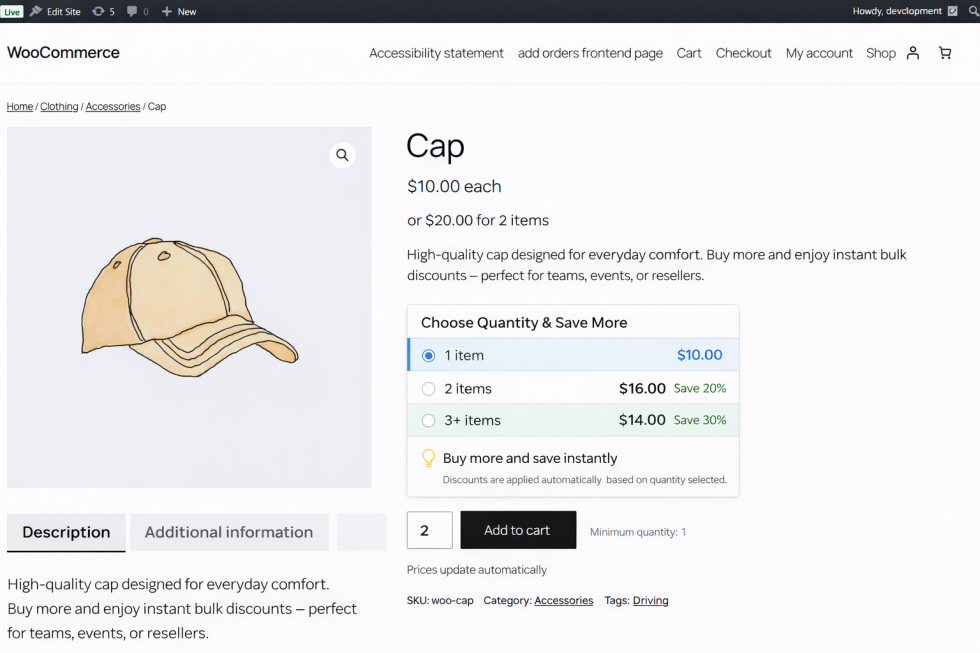
Bulk Quantity Discount Manager is a WooCommerce plugin designed to help store owners create dynamic quantity-based discounts. It supports simple and variable products, allows per-variation discount rules, and offers Cards View or Table View displays. This plugin also provides real-time admin preview, customizable styles, and min-max quantity selection.
Installation
↑ Back to topAutomatic Installation
↑ Back to top- Log in to your WordPress admin panel.
- Navigate to Plugins > Add New.
- Search for Bulk Quantity Discount Manager.
- Click Install Now and then Activate.
Manual Installation
↑ Back to top- Download the plugin
.zipfile. - Log in to your WordPress admin panel.
- Navigate to Plugins > Add New > Upload Plugin.
- Choose the
.zipfile and click Install Now. - Activate the plugin.
Setup and Configuration
↑ Back to top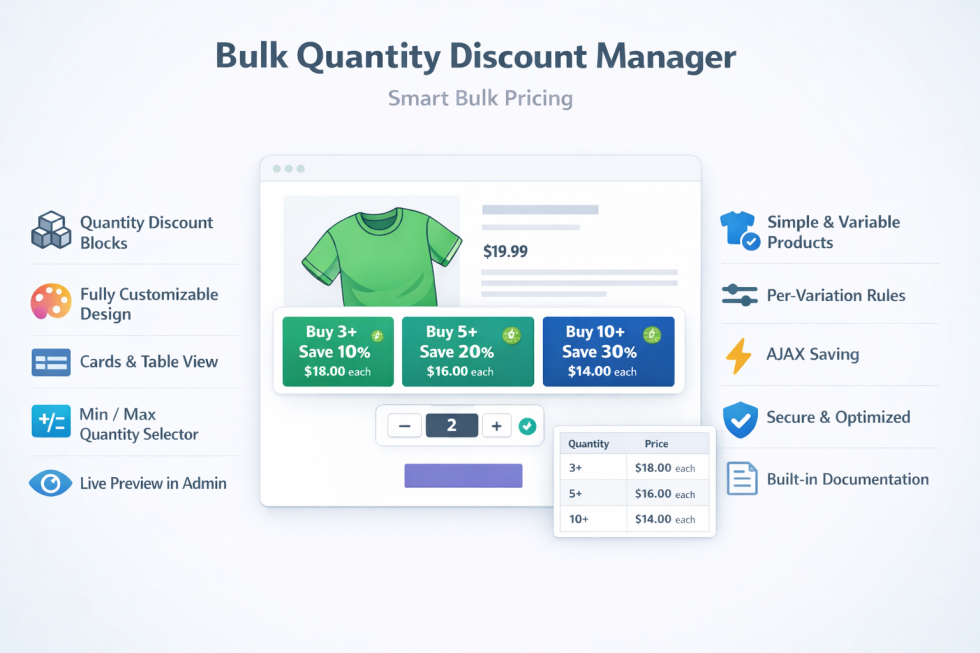
Getting started
↑ Back to topOnce activated, you will find the plugin under: WooCommerce > Quantity Discount
The plugin has three main sections:
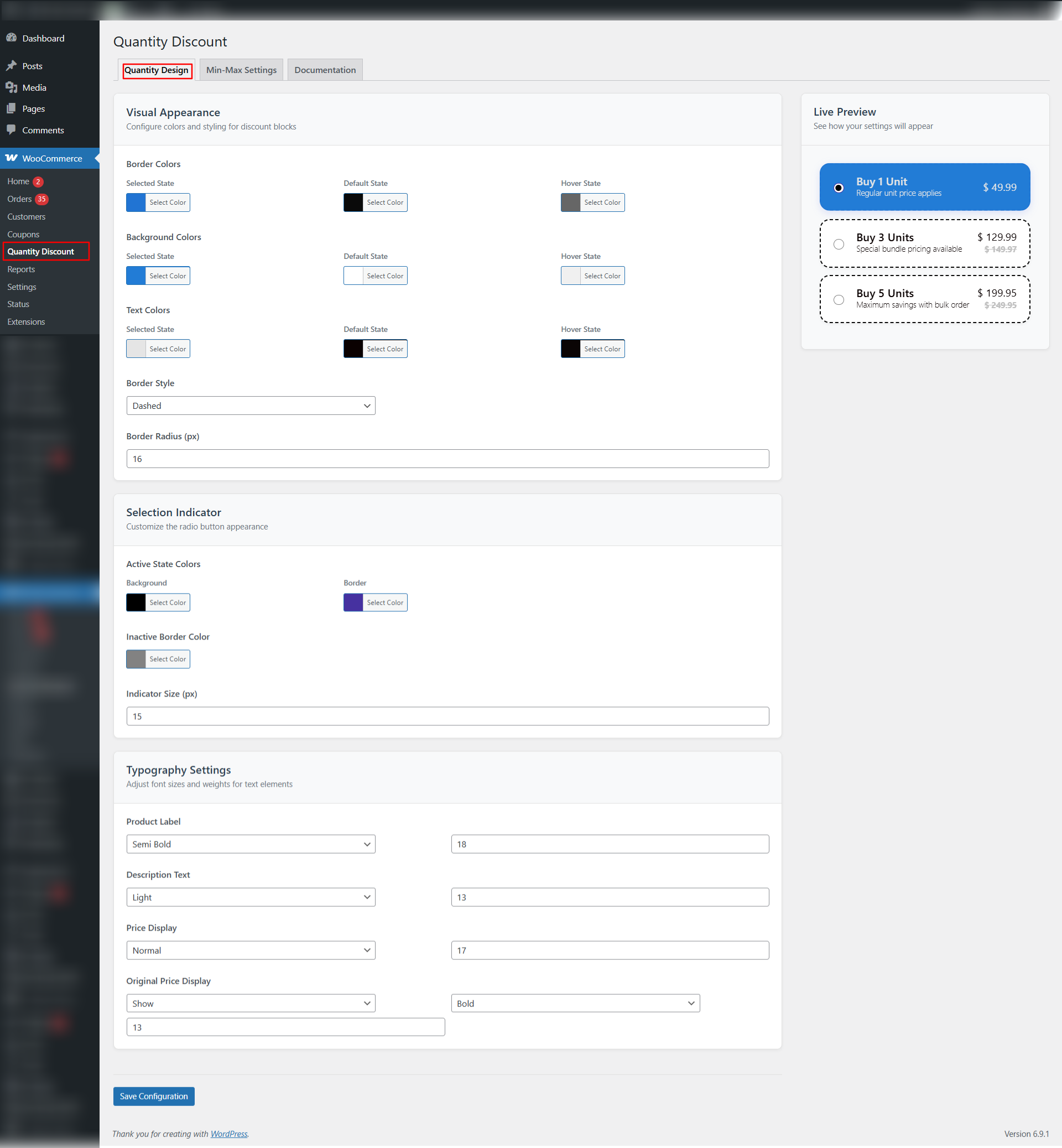
- Quantity Design – Customize colors, fonts, borders, and badges and live preview
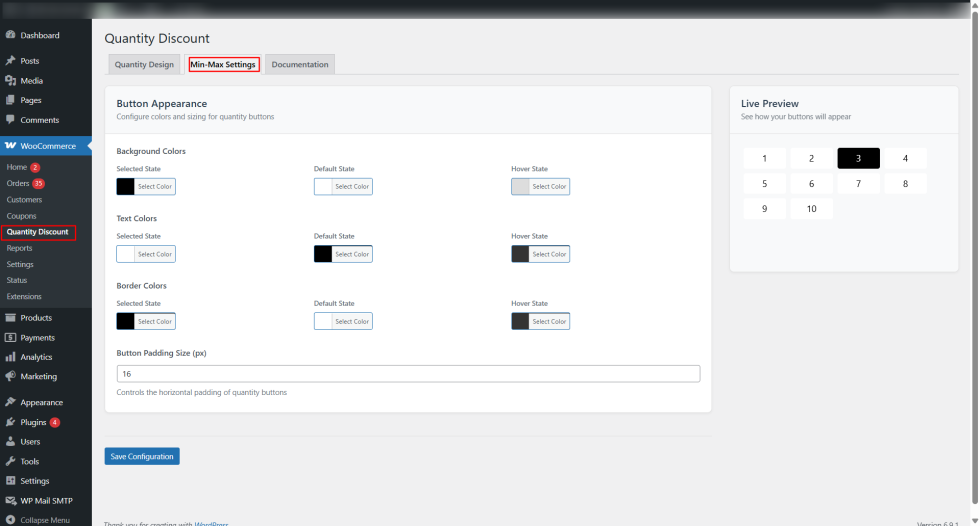
- Min-Max Settings – Configure quantity button styles, colors, and sizes.
- Documentation – Access this guide from the admin panel.
Setting Up Quantity Discounts
↑ Back to topFor Simple Products
↑ Back to top- Go to Products > Edit Product.
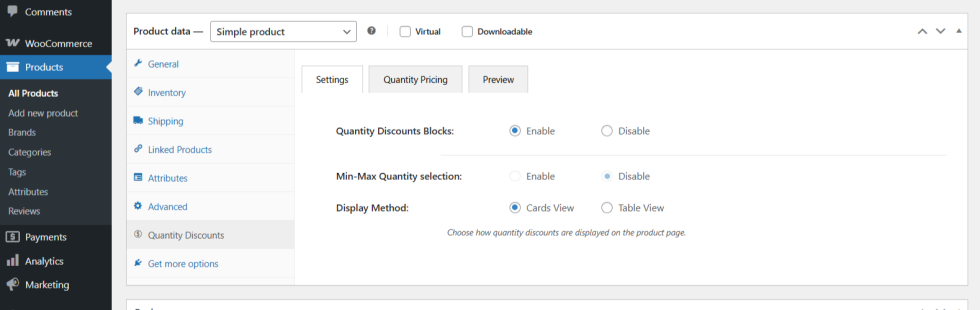
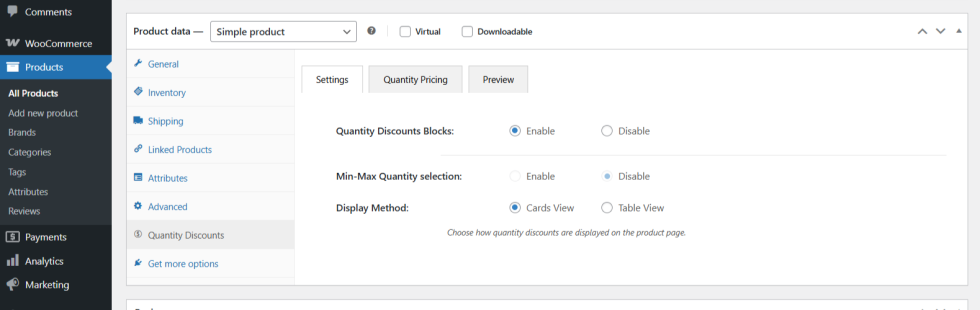
- Locate the Quantity Discounts tab.
- Enable either:
- Quantity Discount Blocks
- Min-Max Quantity Selection
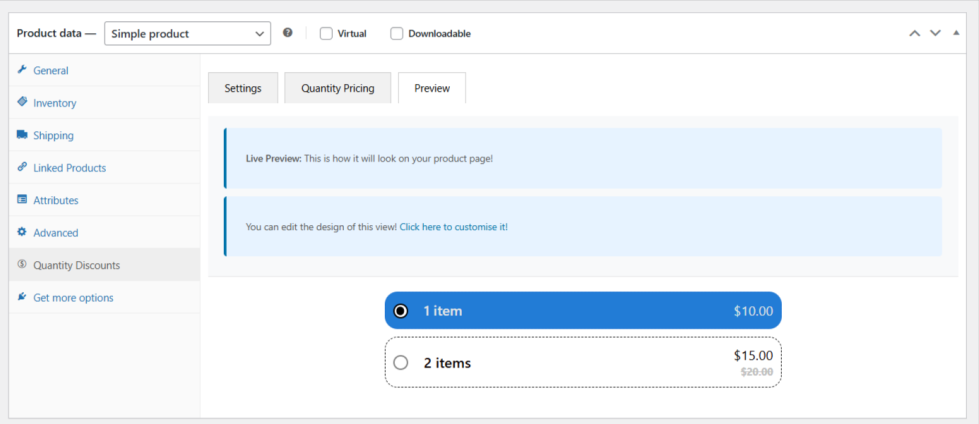
- Add quantity tiers and pricing:
- Example: Buy 3+: 5% off, Buy 5+: 10% off
- Customize labels, badges, and descriptions.
- Choose Cards View or Table View.
- Click Update to save.
For Variable Products
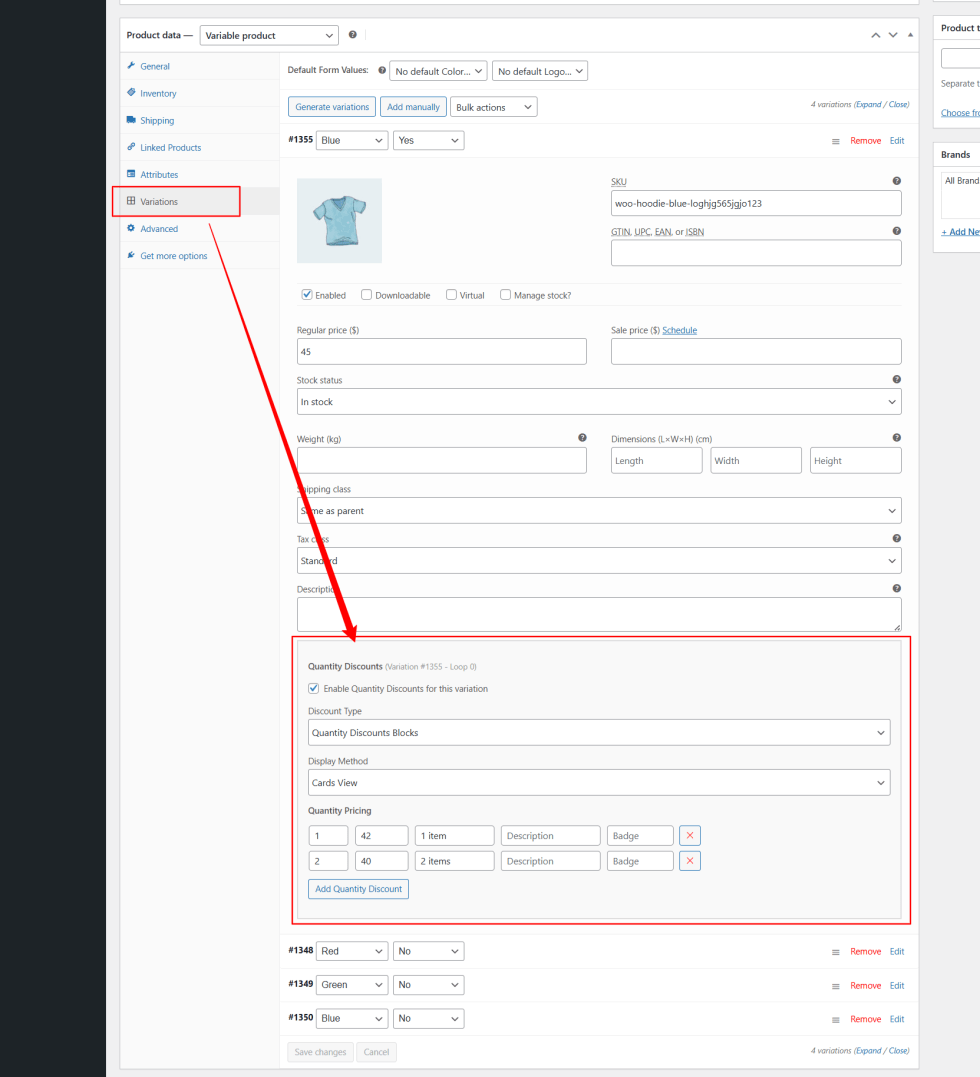
↑ Back to top- Go to Products > Edit Product > Variations.
- Expand each variation.
- Enable Quantity Discounts for this variation.
- Choose Discount Type: Quantity Discount Blocks or Min-Max Quantity Selection.
- Add quantity pricing or min-max values.
- Repeat for all variations.
- Save the product.
Design Customization
↑ Back to topQuantity Design Tab
↑ Back to top- Customize cards or tables:
- Border colors: active, inactive, hover
- Background colors
- Text colors and typography (font, size, weight)
- Badges for special offers
- Real-time preview shows changes instantly.
Min-Max Settings Tab
↑ Back to top- Customize min-max quantity buttons:
- Button colors for all states (default, active, hover)
- Button sizes and border radius
- Typography for quantity labels
Display Options
↑ Back to topCards View
↑ Back to top- Attractive card layout for each discount tier.
- Can include badges and detailed descriptions.
Table View
↑ Back to top- Structured, grid-like display for easy comparison of tiers.
- Ideal for stores with multiple discount levels.