
Email List Cleaner helps you clean and maintain healthier email lists by running Kickbox batch verification against WordPress users, WooCommerce customers, and MailPoet subscribers. You can configure exactly which action should be taken for each list when Kickbox returns risky results, then review and apply those actions in a controlled workflow.
Setup and Configuration
↑ Back to topKickbox Account
↑ Back to topIf you haven’t set up a Kickbox account yet, go to Kickbox.com and sign up for a new account. Once you’ve signed up, you should have access to the Kickbox dashboard, where you can generate your Live and Sandbox API keys.
Kickbox Sandbox Mode
It is highly recommended to test your site in Sandbox mode first. Sandbox Mode lets you test the email verification API without using credits. All results are simulated, and the default result is “deliverable”. Sandbox mode does not impact your Kickbox credits.
Create an API key (we recommend starting with a Sandbox key), then use it in the setup steps below.
Getting started
↑ Back to top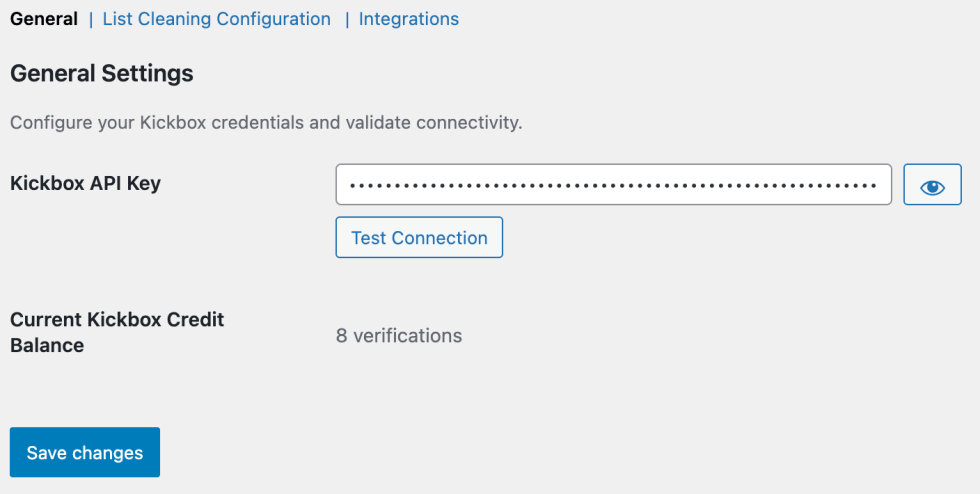
- Go to WooCommerce > Settings > Email List Cleaner.
- In the General section, enter your Kickbox API key.
- Click Test Connection to validate the key and fetch your current Kickbox balance.
- Save changes.
Once the API key is connected, you can configure list-specific cleanup behavior and start running cleanup jobs from the Tools > Email List Cleaner page.
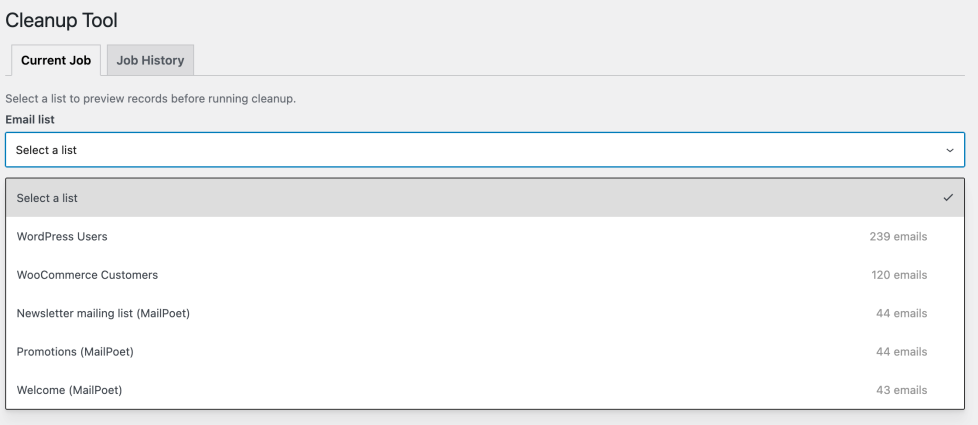
The Cleanup Tool has two tabs: Current Job (run and review active jobs) and Job History (review past jobs, CSV exports, and statuses).
List Cleaning Configuration
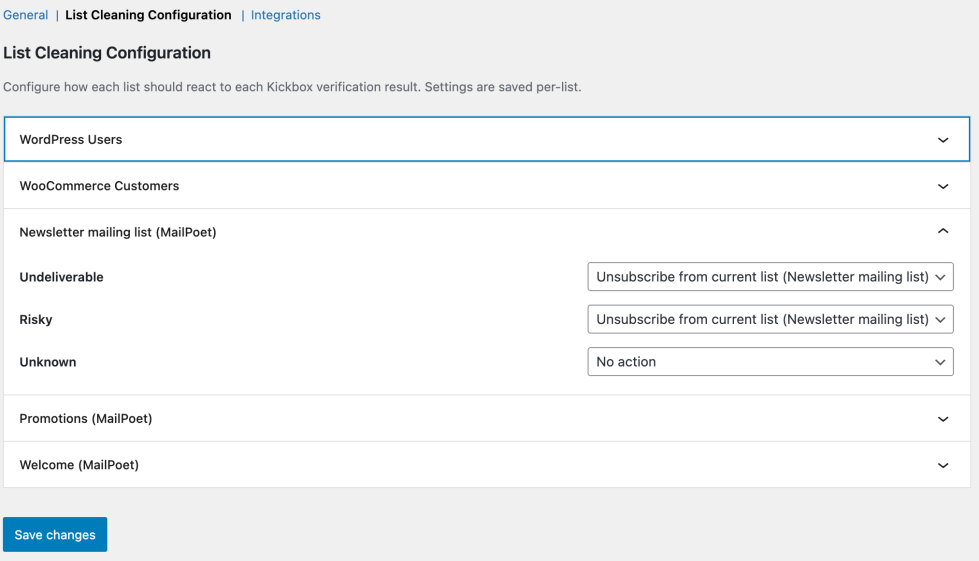
↑ Back to topThe List Cleaning Configuration section controls what happens when Kickbox returns specific result types during cleanup. Configuration is saved per list, so each list can have different behavior.
| Kickbox Result | How Email List Cleaner Uses It |
|---|---|
| Undeliverable | Configurable per list. Choose a cleanup action based on the selected list type. |
| Risky | Configurable per list. Useful when you want stricter cleanup for lower-quality addresses. |
| Unknown | Configurable per list. It lets you decide whether to take action on temporarily unverifiable addresses. |
| Deliverable | Counted and reported in job results. No cleanup action is applied for deliverable emails. |
For more detailed information about each verification result type, see the Kickbox Terminology Documentation.
Available action choices depend on the selected list provider:
| List Type | Action Options |
|---|---|
| WordPress Users | No action, Delete user (administrator accounts are excluded from cleanup lists) |
| WooCommerce Customers | No action, Delete customer |
| MailPoet List | No action, Unsubscribe from current list, Unsubscribe from all lists |
WooCommerce Customers and WordPress Users appear as single selectable lists in the Cleanup Tool when WooCommerce is active. Administrator accounts are excluded from the WordPress Users list, so they are never included in cleanup jobs.
When you run a cleanup job, the plugin first verifies the emails with Kickbox, then opens a Preview Mode view showing each email, its Kickbox result, and the planned action. No changes are applied until you click Approve and Apply Actions.
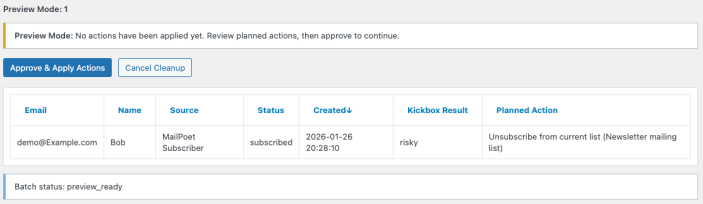
Cleanup jobs can appear with workflow statuses such as preview_ready, cancelled, and completed. Cancelled and preview-ready jobs can be reopened when preview rows still exist; completed jobs cannot be reopened or re-run.
The Job History tab includes a sortable, searchable table with a list cleaned, Kickbox CSV link, processed emails, processed timestamp, and status. Search is focused on the List Cleaned value and can be reflected in the URL with history_search, making filtered history views easier to revisit.
After a successful approval flow, Job History also displays a Job Completed success summary with per-result totals and a direct link to Kickbox terminology so merchants can better interpret outcomes.
MailPoet Integration
↑ Back to topEmail List Cleaner includes a MailPoet integration to clean subscriber lists using Kickbox results.
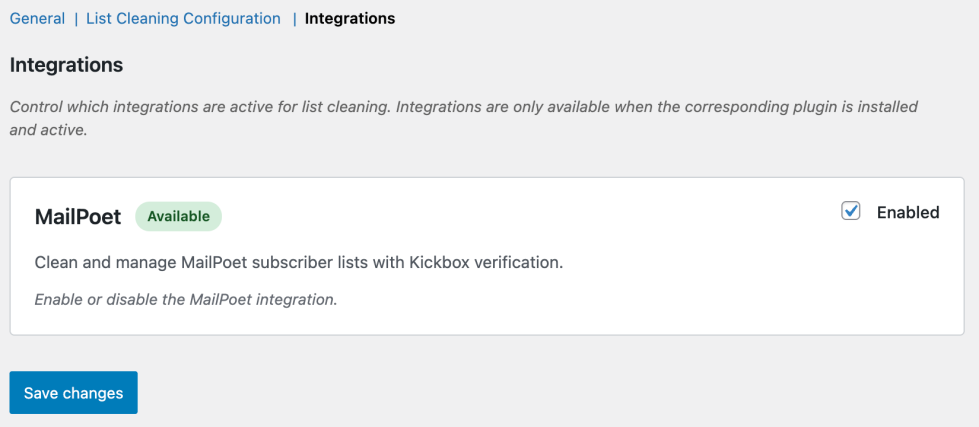
To enable MailPoet integration:
- Make sure MailPoet is installed and active.
- Go to WooCommerce > Settings > Email List Cleaner > Integrations.
- Enable MailPoet and save changes.
How MailPoet cleaning works
- Cleanup Tool flow (recommended): MailPoet lists appear as selectable lists in Tools > Email List Cleaner. You run Kickbox verification, review planned actions in Preview Mode, and then approve to apply actions.
- Action mapping: For each MailPoet list and each Kickbox result (undeliverable, risky, unknown), choose whether to do nothing, unsubscribe from the current list, or unsubscribe from all lists.
- One-click Clean lists button: On MailPoet > Lists, the plugin adds a Clean lists button. This runs a full subscribed-subscriber cleanup job and unsubscribes emails that come back as undeliverable, risky, or unknown.
- Progress and reporting: Jobs show status updates, processed totals, result breakdowns (deliverable, undeliverable, risky, unknown), and unsubscribe counts. A CSV output is saved for each completed job.
Tip
If you want full control before making destructive changes, use the Cleanup Tool workflow with Preview Mode. It lets you review exactly what will happen before any unsubscribe or delete action is executed.
Excluding emails from the job
↑ Back to topBefore starting a cleanup job, you can exclude specific emails so they are not verified and no actions are applied to them. This is useful for VIP subscribers, known-good addresses, or addresses you want to keep regardless of Kickbox results.
- Select a list in Tools > Email List Cleaner (Current Job tab).
- Use the checkboxes to select one or more rows you want to exclude. You can use Shift+click to select a range.
- From the Bulk actions dropdown, select Exclude from cleanup, then click Apply.
- The selected emails are removed from the table and will not be included when you click Clean list. The Emails to clean count updates to reflect the remaining records.
Exclusions apply only to the current session. To reset exclusions, switch to another list, then switch back to the original list.

