
What is WooCommerce Product Comparison?
↑ Back to top- Aicoso Product comparison for woocommerce allows customers to compare products side by side in a structured table. Instead of analyzing different products in multiple tabs and switching between them shoppers can see and analyze the difference between the important product information such as product price, specifications, stock status etc.
- This plugin helps the shoppers in evaluating products and identifying differences before making a final purchase decision.
- It has some additional features like a floating compare bar, AI-Powered analysis, customizable comparison fields etc.
Why Use a Product Comparison Plugin?
↑ Back to topWhen shoppers have a variety of product options to choose from, comparing product features manually can be frustrating and time consuming at the same time. This can lead to burnout or can cause customers to leave your store.
Here, the product comparison plugin comes in your rescue, this plugin simplifies the process of comparison by presenting the product information in easy to read comparison table .
Through this table customers can identify differences and understand which product best meets their needs and make purchasing decisions.
Store owners can create a smoother shopping experience for their customers which will help in increasing customer engagement and improve conversion rates.
Key Benefits
↑ Back to topAicoso Product Comparison plugin offers several advantages for both customers and store owners. Some of them are listed below:
- Simplifies the product selection process by displaying the products attributes in a table side by side.
- Confident the customers with clear product comparison.
- Increase conversion rate
- Select the fields to display in comparison tables
- Customize the look and feel of comparison table
- Highlight product differences in various customizable colors to make comparisons more meaningful.
- Share the comparison results with others through social media or by copying the link.
- Share comparison tables through social media, e-mail or direct links.
- Print comparison tables for customer reference.
- Generate intelligent summaries and suggestions using AI-powered analysis.
Features Overview
↑ Back to topAICOSO Product comparison plugin has a wide set of options which improves product comparison features.
Comparison table
↑ Back to topAn easy to understand comparison tab;e to compare several product attributes in an engaging way.
Comparison Columns that can be customized
↑ Back to topAs a store owner, You can select the product details you want to show the shoppers to compare such as price stick status weight dimensions etc
Feature to Highlight the difference
↑ Back to topYou can highlight the rows with different product details using multiple colors.
Remove Rows with similar information
You can hide the rows with the same product details to eliminate unnecessary information
Floating and draggable Comparison Bar
This plugin provides a floating and draggable compare bar that can be drag and drop.
Social Sharing
↑ Back to topAllows customers to share comparison results via:
- Copy Link
Print Support
↑ Back to topProvide a built-in print option so customers can print comparison tables for future reference.
Customizable Options
↑ Back to topCompare Buttons, Texts, hover effects, Highlight color, etc can be customized.
AI-Powered Product Comparison
Integration of OpenAi is available to generate a comparison summary for making a better purchase decision.
Installation and Activation
↑ Back to top- Download the .zip file of the Aicoso Product comparison plugin from your Woo account.
- Go to WordPress Admin > Plugins > Add New and upload the file you downloaded.
- Activate the plugin.
More information at: Installing and Managing Plugins.
Plugin Settings
↑ Back to topThese are the configuration settings of the plugin. You can access the settings by navigating to the woocommerce > Settings > Product Comparison
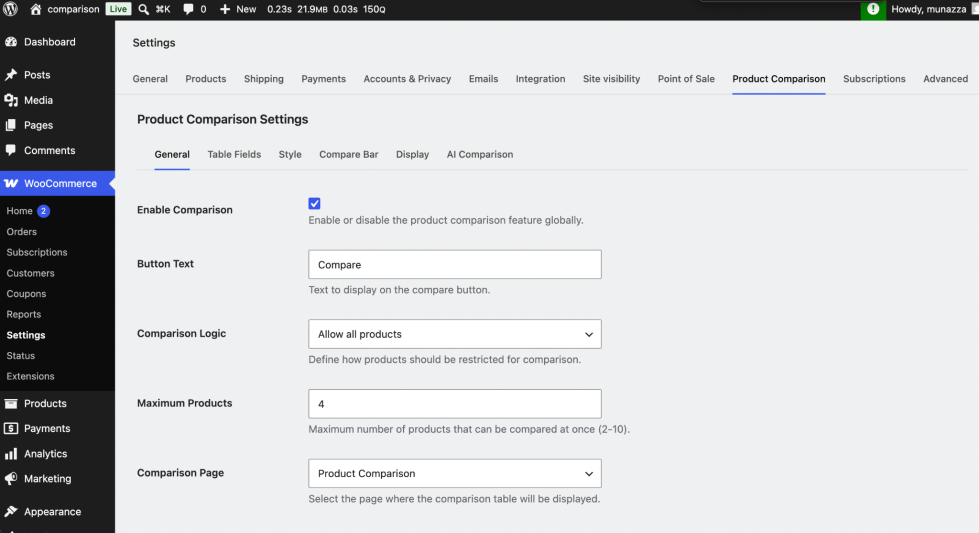
These settings are further divided into subparts for a better navigation and easy access.
- General Settings
- Table Fields
- Style
- Compare Bar
- Display
- AI Comparison
General Settings
↑ Back to topThis General tab has the core settings of the plugin which is responsible for setting up the comparison features on your store.
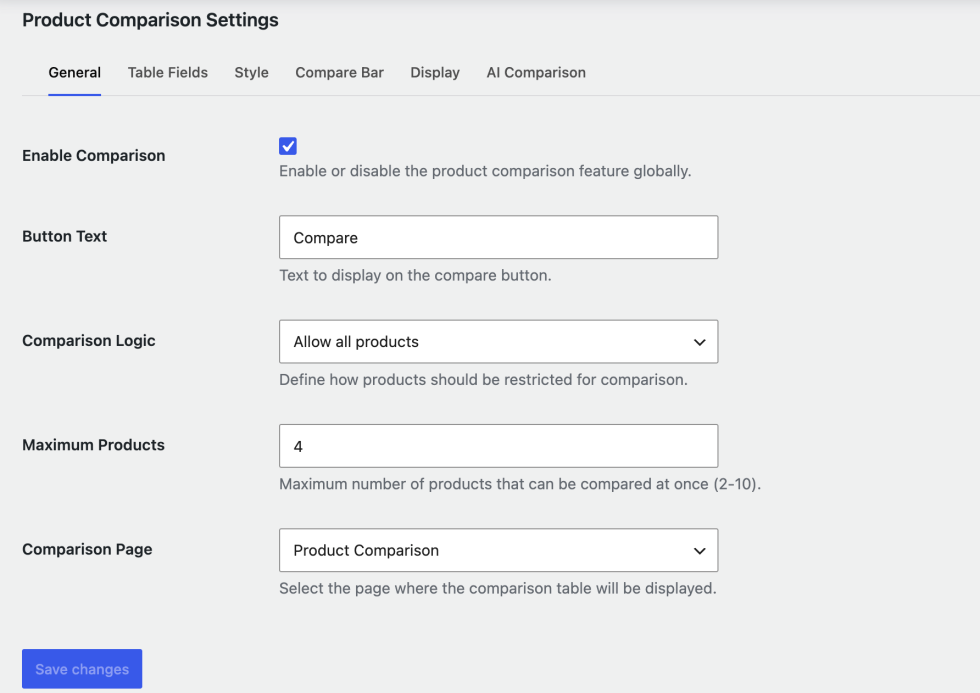
Enable Comparison
↑ Back to topCheck the box to enable the product comparison feature on your woocommerce store Enable or disable the product comparison feature across your WooCommerce store.
Button Text
↑ Back to topThis option is responsible for customizing the label displayed on comparison button.
Eg:
Click to Compare
Compare Now
Comparison Logic
↑ Back to topThis setting is responsible to apply the comparison logic on woocommerce store
Available Option
Allow all products
- Enable the comparison feature to all the products available on woocommerce store
Selective Categories Only
- Choose the specific categories to enable the comparison feature.
Restrict to same category
- Enable the comparison features for the same categories only. Means two products with the same category can be compared only.
Maximum Products
↑ Back to topSpecify the number of products that can be compared at once.
Comparison Page
↑ Back to topSelect the page where the comparison table will be displayed.
On plugin installation, a new product comparison page will be created.
If anyhow this page is deleted you can use the below shortcode to create a page.
[aicoso_woo_pc_comparison_table]
Table Fields
↑ Back to topYou can customize the comparison table using these options. Choose the features to display on comparison tables.
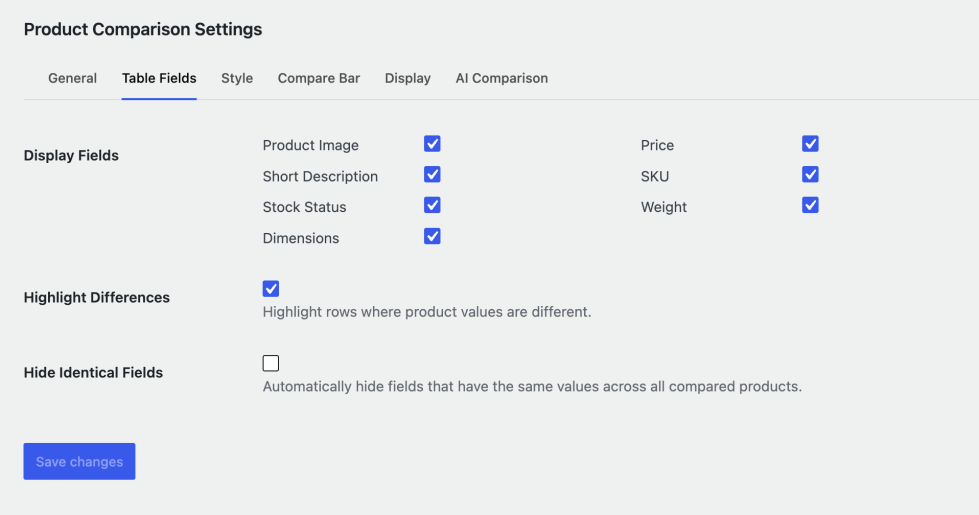
Display fields
↑ Back to topToggle the fields you want to display on the comparison table. These are the criteria on the basis of which products will be compared with each other. Following are the fields given:
- Product Image
- Price
- Short Description
- SKU
- Stock Status
- Weight
- Dimensions
Front-end View of Table
↑ Back to top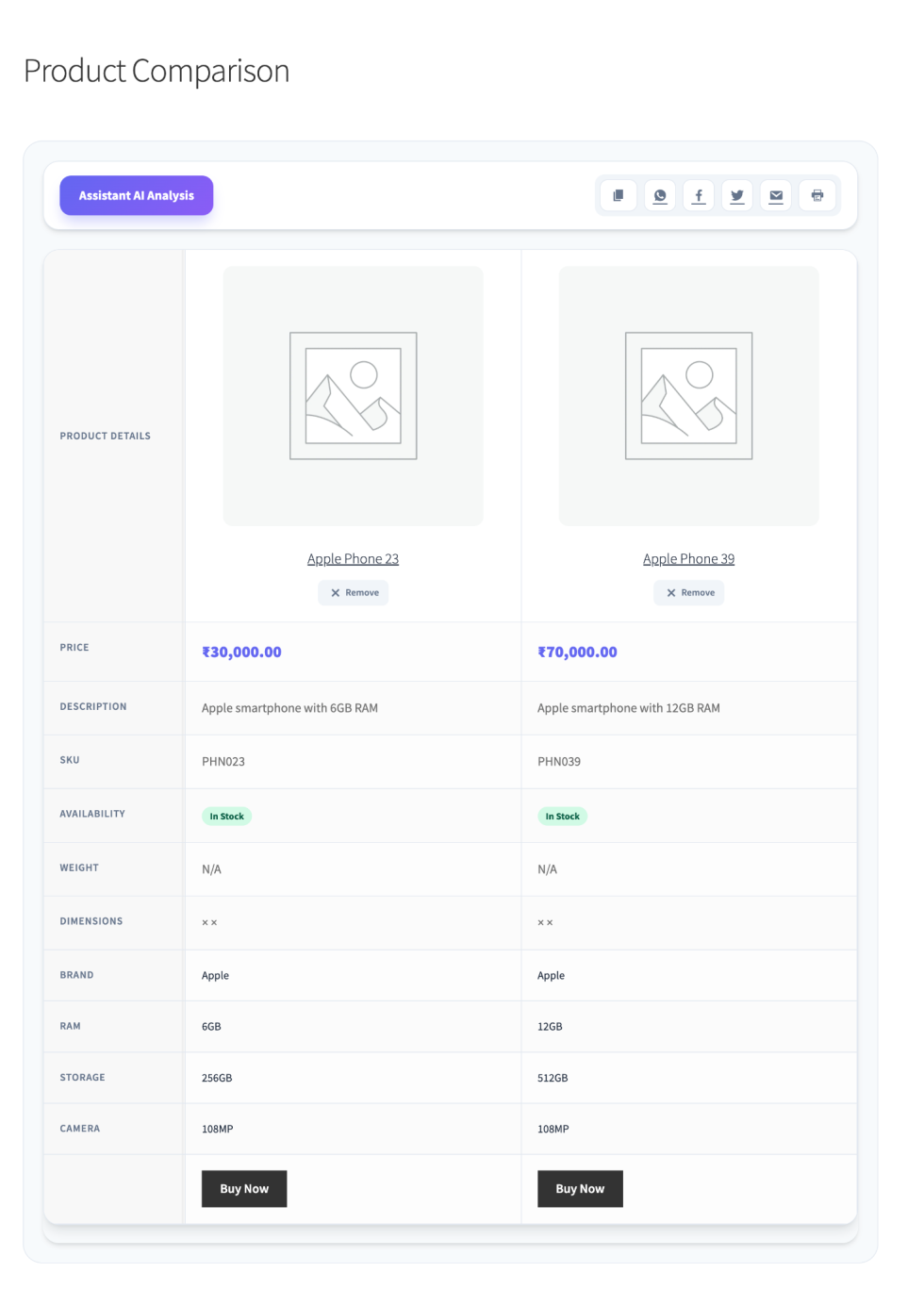
Highlight difference:
↑ Back to topEnable this option if you want to highlight the differences of product attributes using a specific color .
Hide Identical fields
↑ Back to topEnable this option to hide the fields that have the same values across all compared products.
Style Settings
↑ Back to topThis setting allows you to customize the appearance of the comparison button to match with the look and feel of your website. You can change the button color, text color, Hover effect and Highlight color.
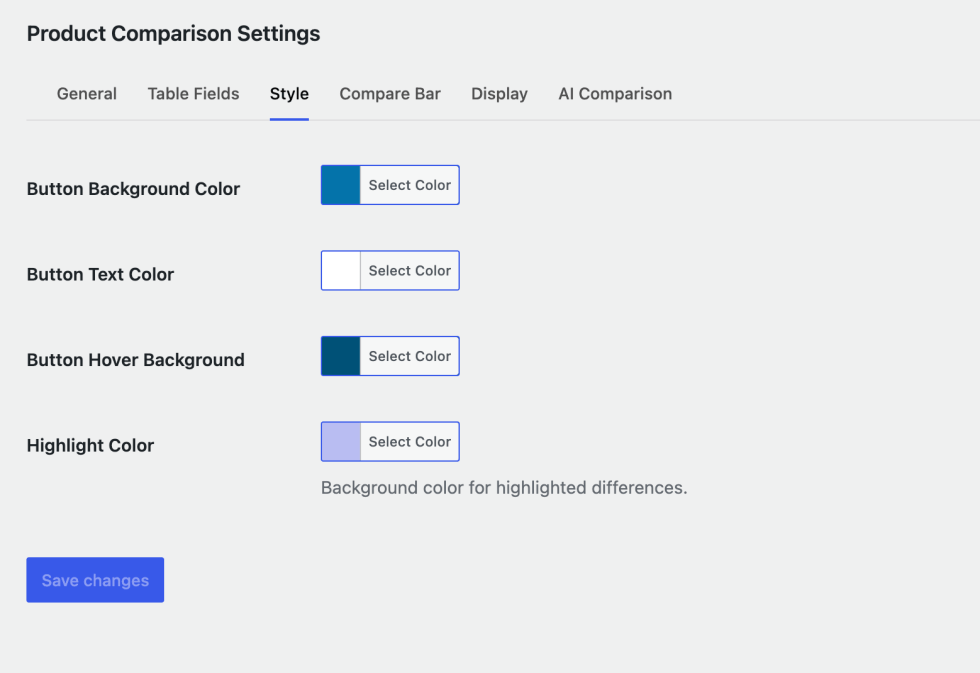
Button Background color
↑ Back to topSelect the background color of the button. You should choose the button background color the same as the website’s primary color.
Button Text Color
↑ Back to topChoose a text color contrast to the button color.
Button Hover Background
↑ Back to topChoose the button background color displayed on hover.
Highlight Difference
↑ Back to topSelect the color to highlight differences in the comparison table.
Compare Bar Settings
↑ Back to topA Compare Bar will appear on screen when customers or shoppers add the products to compare.
These options are responsible for the customization of size, shape, and colors etc for a seamless experience.
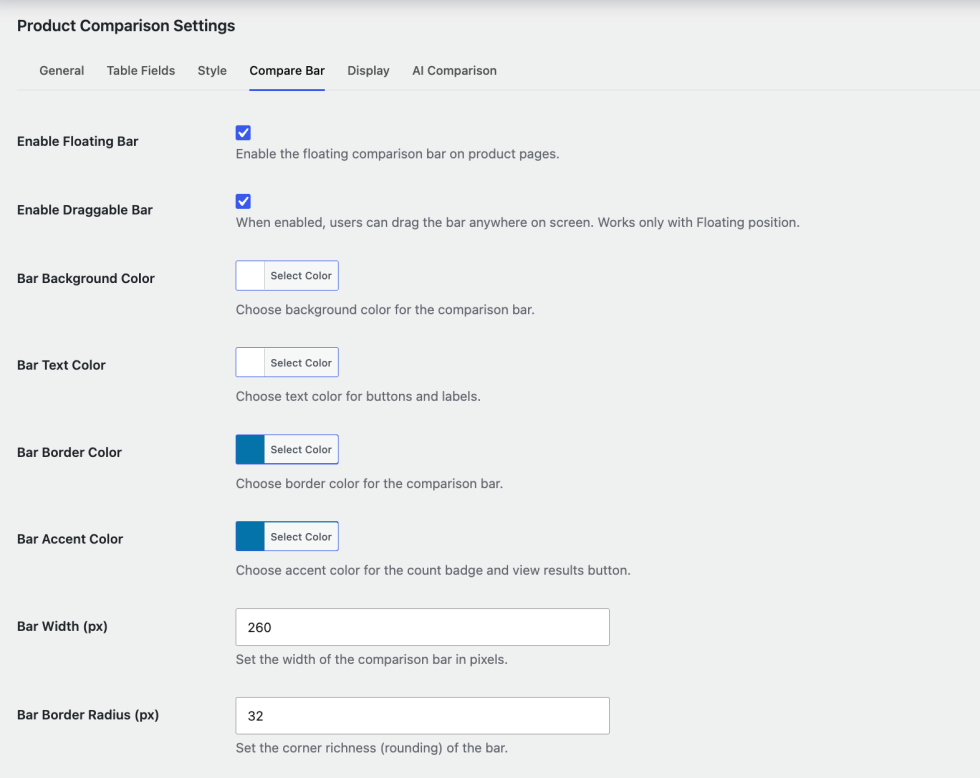
- Enable floating Bar
Toggle to Enable the floating comparison bar on your website.
If enabled, a floating bar will display after a customer adds a product to the comparison list. This bar shows a quick link to the comparison table.
- Enable Draggable Bar
If this option is enabled, the customer can move the floating bar anywhere on the screen.
- Bar background Color
This option is responsible for setting the background color of the floating bar.
- Bar Text Color
This option is responsible for setting the text color of the floating bar.
- Bar Border Color
This option is responsible for setting the border color of the floating bar.
- Bar Accent Color
Select and set the accent color for the floating bar.
- Bar Width
Manage the width of the floating bar according to your needs.
- Bar Radius
This option helps you set the radius of the floating bar
Compare Bar on Front-end
↑ Back to top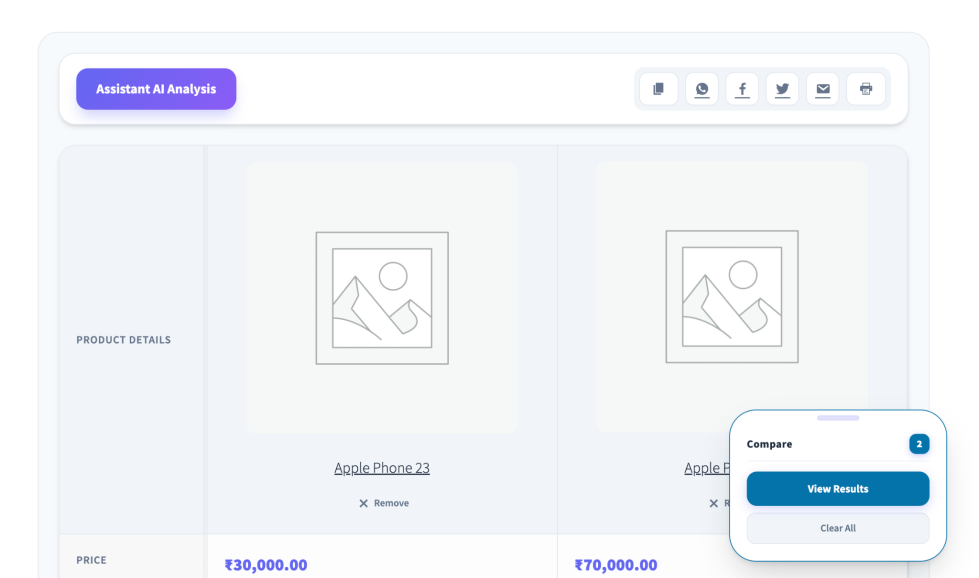
Social Sharing
↑ Back to topThis section allows displaying the social icons on product comparison page for customers to share them with others.
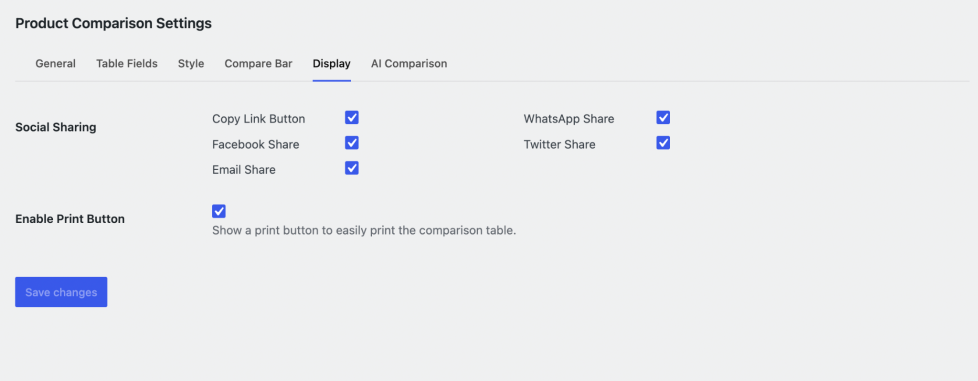
Following are the social platforms can be enabled:
- Copy Link
- Whatsapp Share
- Facebook Share
- Twitter share
- Email Share
Enable Print Button:
↑ Back to topShoppers can print the comparison result for future reference.
AI Assistance Feature
↑ Back to topThis feature helps you analyse the products automatically and generates easy to understand summaries, which helps the shoppers decide better.
Using AI generated insights helps customers quickly understand the key differenvces of the compared products.
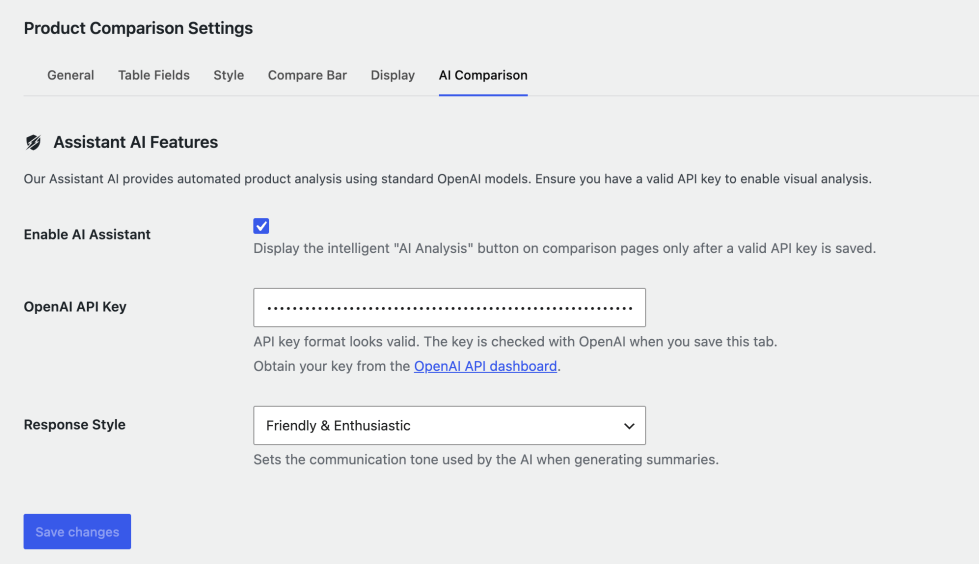
Enable AI Assistant
↑ Back to topEnable the AI Assistant feature by clicking the toggle.
OpenAI API Key
↑ Back to topGenerate the open API key through your open APi Key dashboard, and paste it into the field.
Response Style
↑ Back to topChoose the response style used by AI while generating the product summaries.
Three styles are given, You can choose any of them:
- Professional and Detailed
- Friendly and Enthusiastic
- Minimalist and Direct
When you click the “Save Changes” button, the plugin will validate the API key and the AI Comparison button will start displaying on the product comparison table if the API Key is valid.
Note: The AI Analysis button will only appear after a valid OpenAI API key has been entered and verified.
AI Analysis(Front-end)
↑ Back to top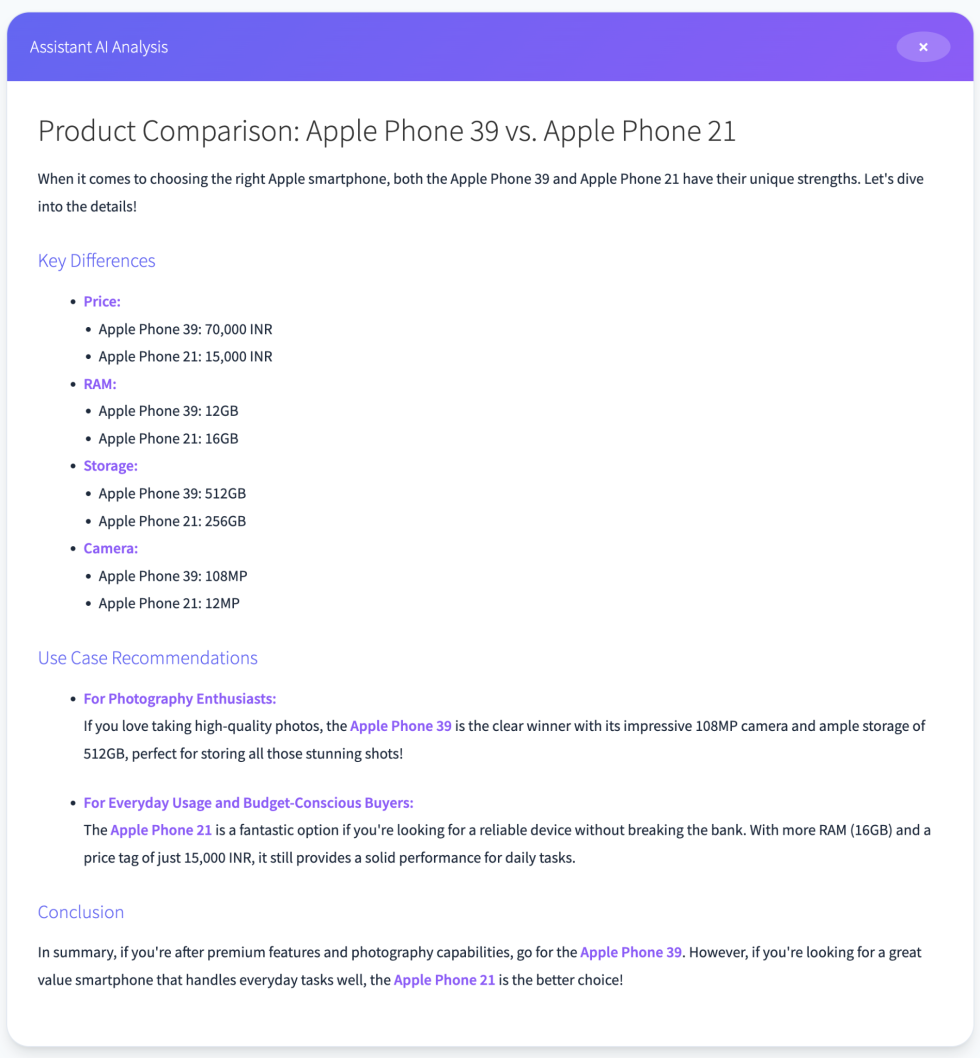
Customer Experience
↑ Back to topAICOSO Product comparison plugin provides a simple and easy to follow workflow. IT allows the customers to make a uniform decision before placing the order.
- Add Products to Comparison
On clicking the Compare button the products will be added to the comparison table.
Once a product is added to the comparison table:
- The label of comparison button will be updated to indicate that this particular product has been selected
- If the floating comparison bar is enabled, it will display the number of selected products.
- Customers can navigate to the comparison page through this floating compare bar.
Note: Customers can add products up to the maximum limit configured in General Settings.
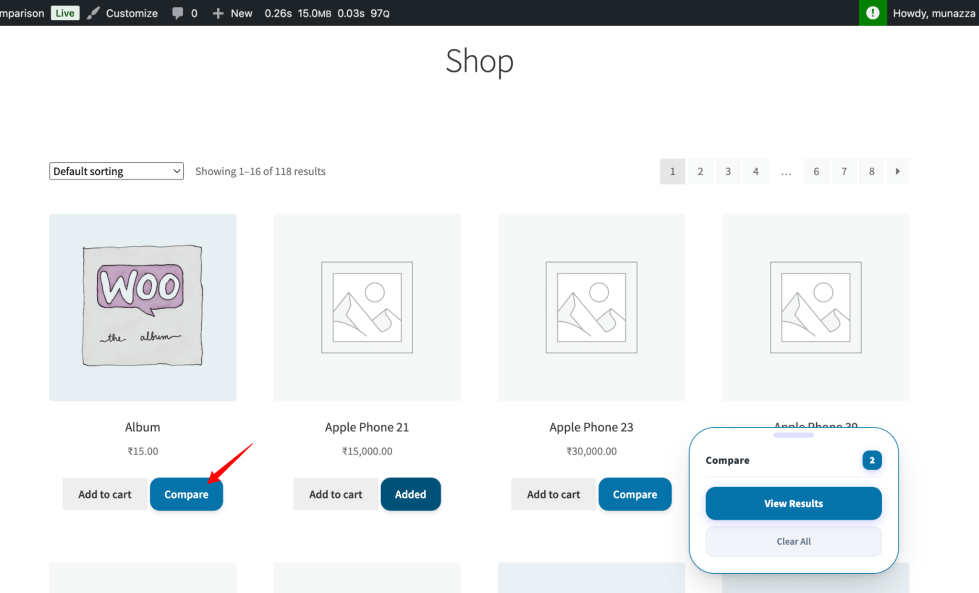
- Remove Products from Compare bar
By using the same “compare” button on the product page at any moment, customers can remove items from the comparison table.
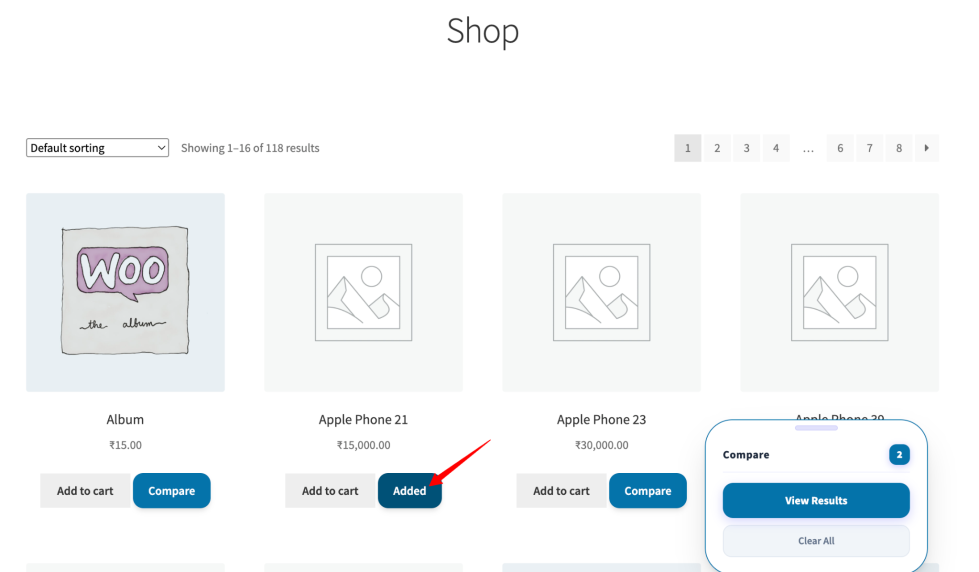
As an alternative, you can click the Remove icon located on the comparison table.
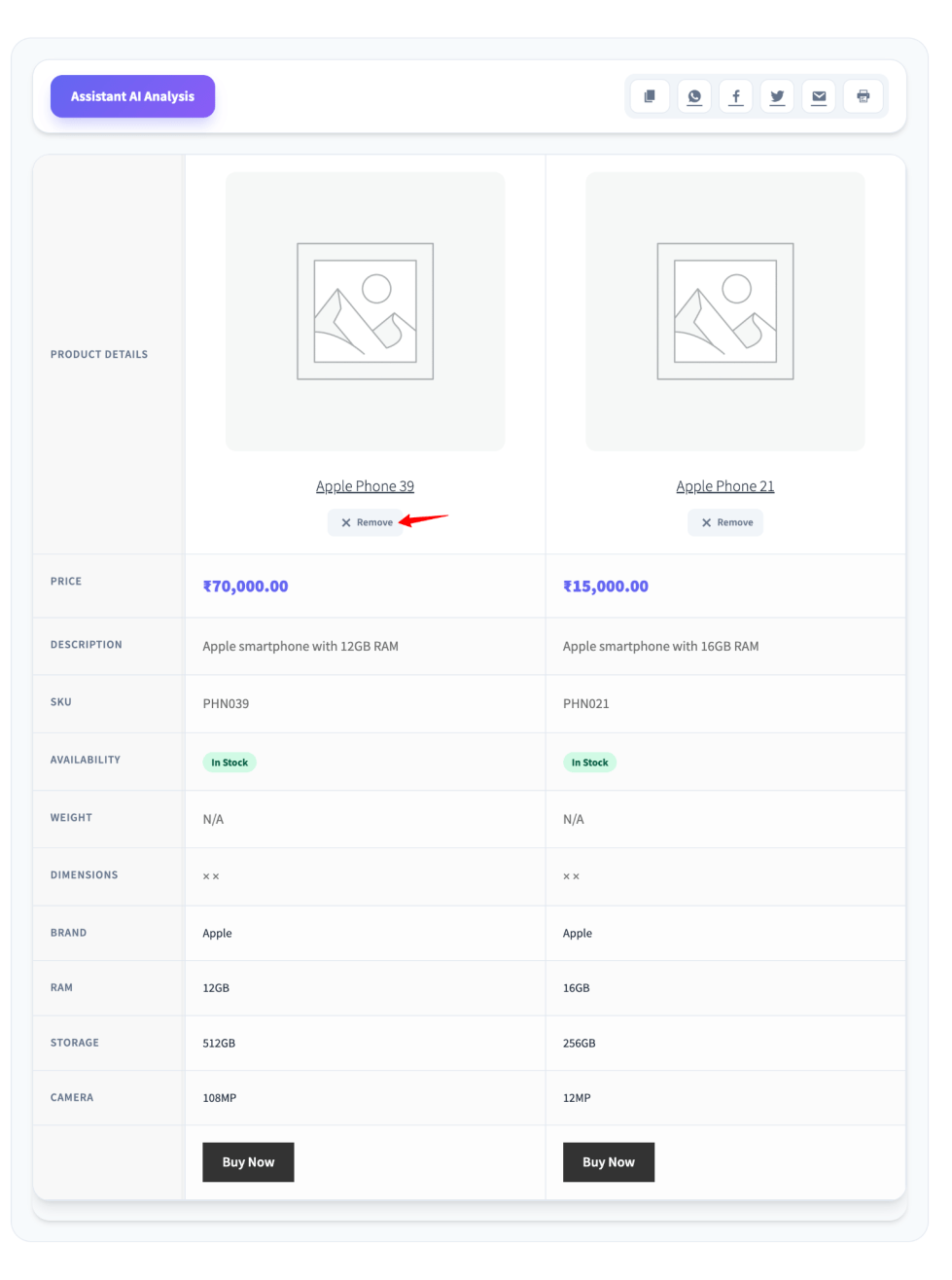
- Open the Comparison Table
Once two or more products are selected for comparison, customers can view the comparison table by clicking the View Result button on the floating compare bar.
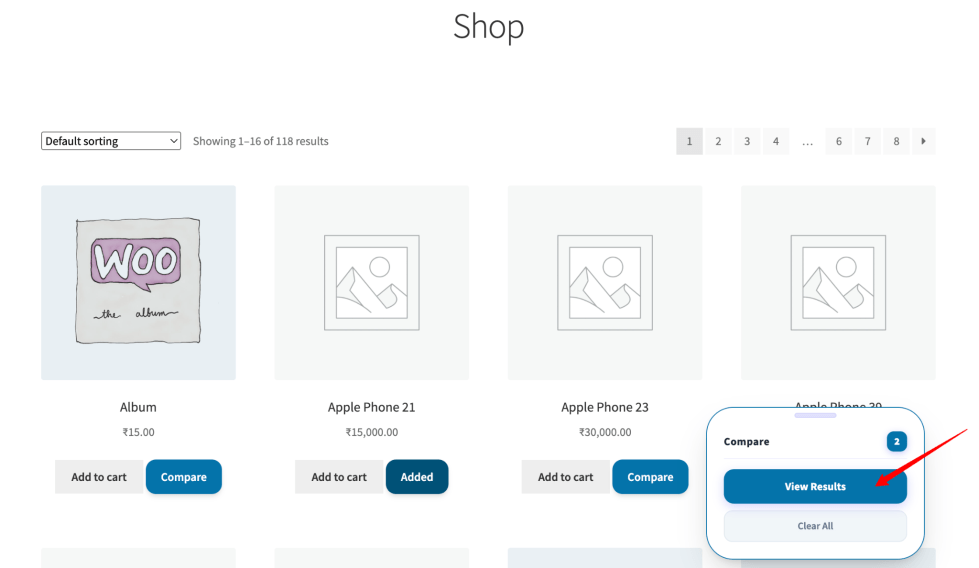
Compare Multiple Products
↑ Back to topComparison table will display the attributes of selected products in different columns, allowing customers to compare the products side by side
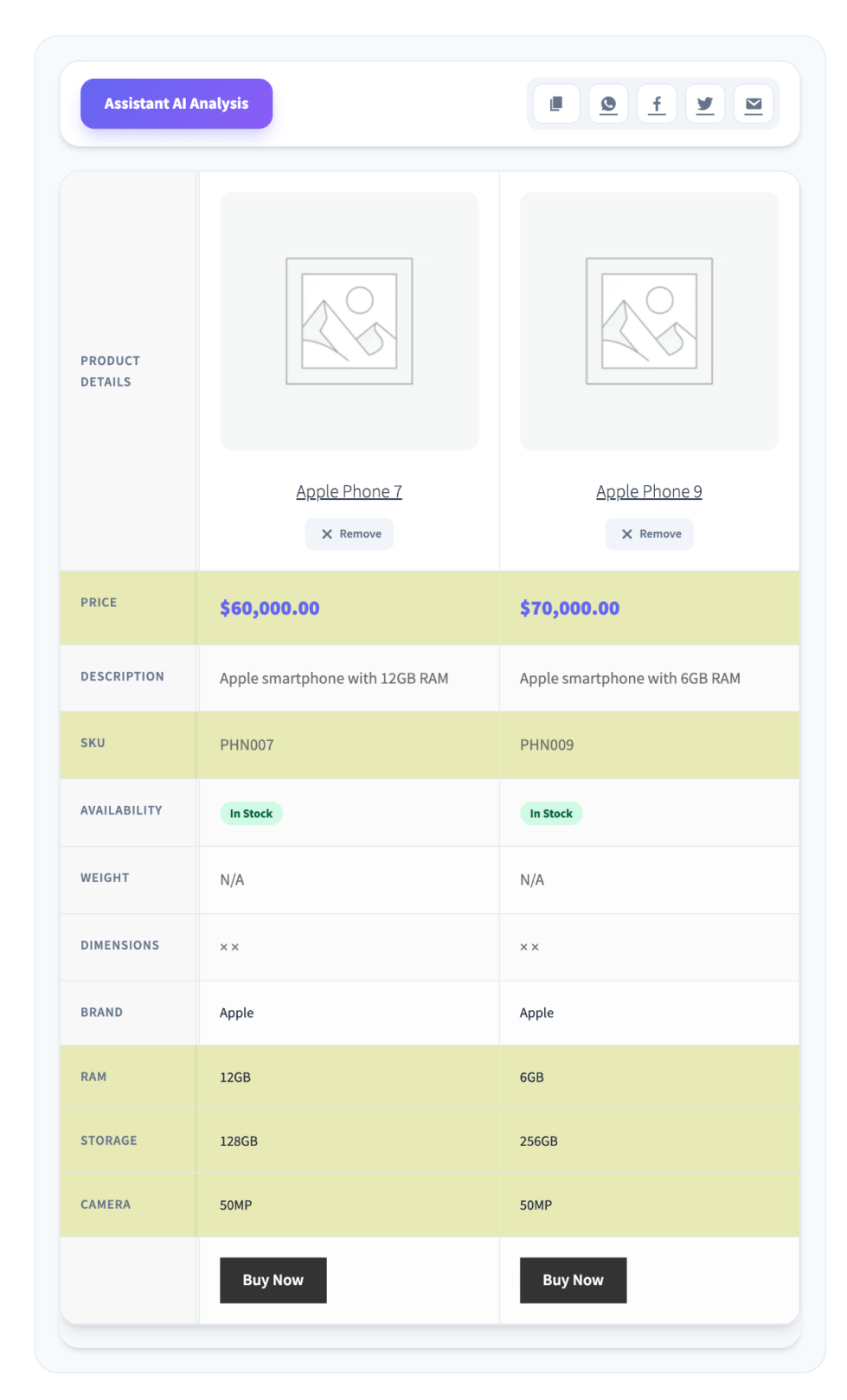
The comparison table will include details such as:
- Product image
- Product name
- Price
- Short description
- SKU
- Stock status
- Weight
- Dimensions
- etc
If the Highlight Differences option is enabled, rows containing different values will be highlighted to help customers quickly identify key distinctions.
Add Products to Cart from the Comparison Table
↑ Back to topProducts can directly be purchased from the comparison page without navigating to individual product pages by clicking the “Buy Now” provided on the comparison table for every product.
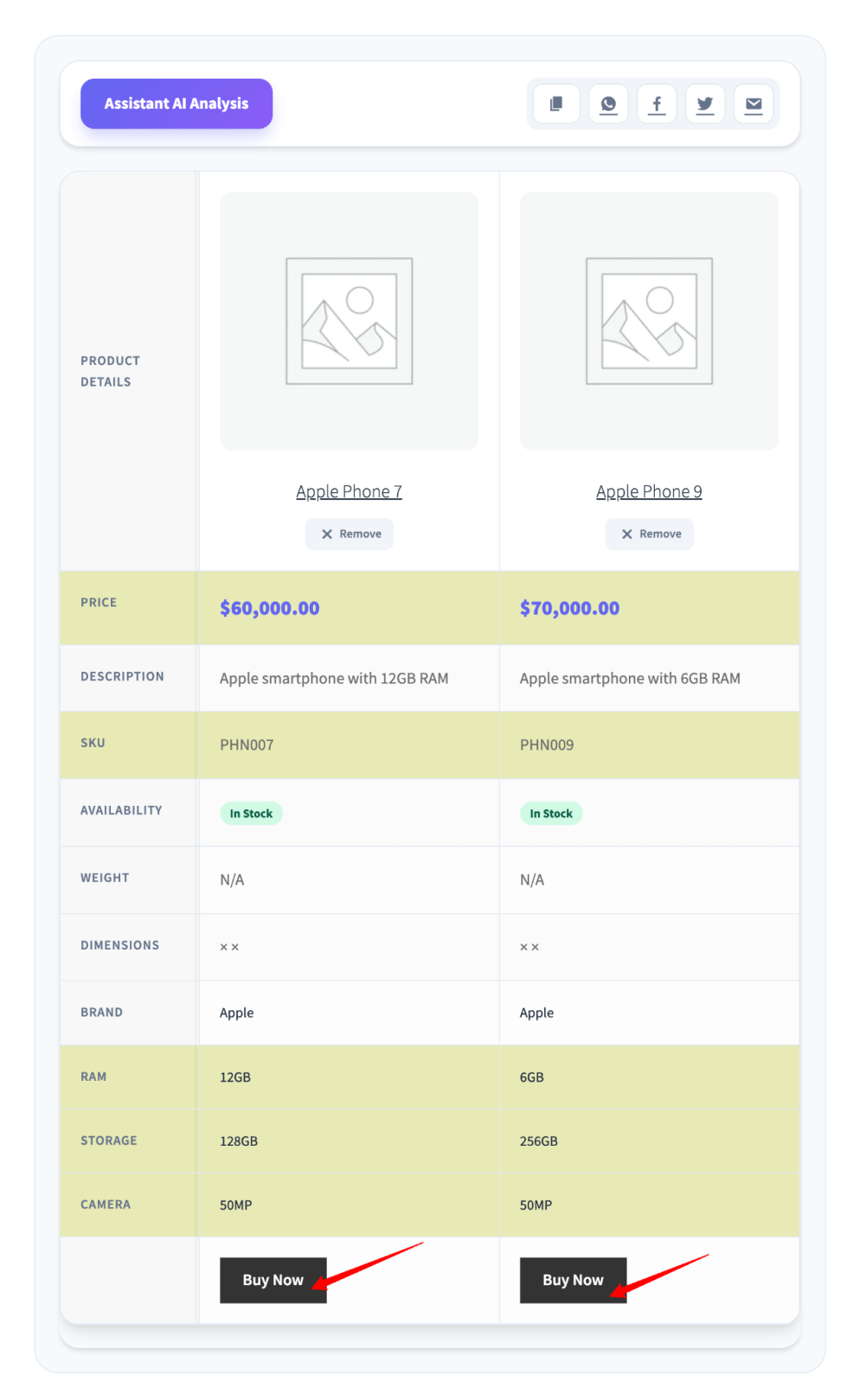
Clear the Comparison List
↑ Back to topAll the selected products for the comparison can be cleared at once by clicking the Clear All button provided on the floating bar.
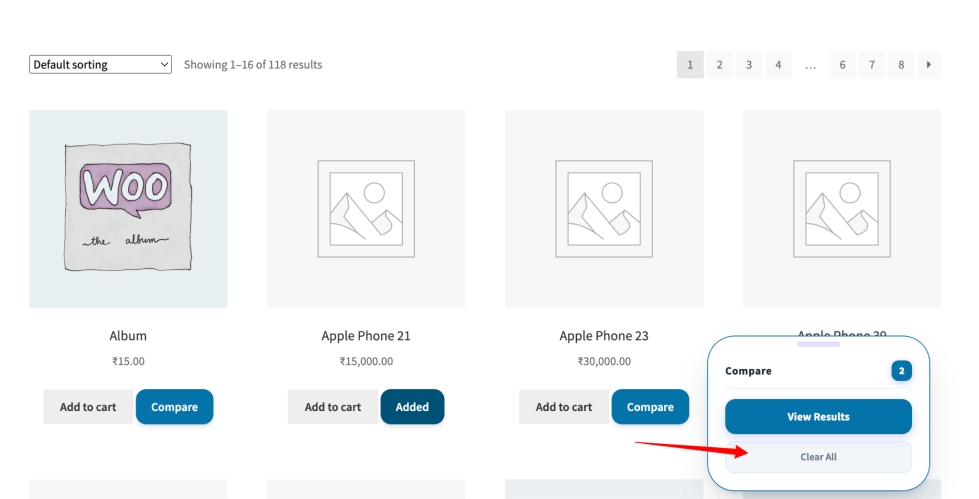
Once the Clear All button is clicked, It will instantly reset the comparison list.

