The WooCommerce Gift Card & Voucher plugin simplifies gifting while keeping it flexible and professional. It lets store owners offer both virtual and physical gift cards, customize codes and messages, and provide handy features such as partial redemption and scheduled delivery.
Installation and Activation
↑ Back to top- Download the gift card .zip file from your WooCommerce account.
- In the WordPress Admin Panel, go to Plugins > Add New and Upload Plugin with the file you downloaded after purchase.
- “Install” and “Activate” the plugin.
General Settings
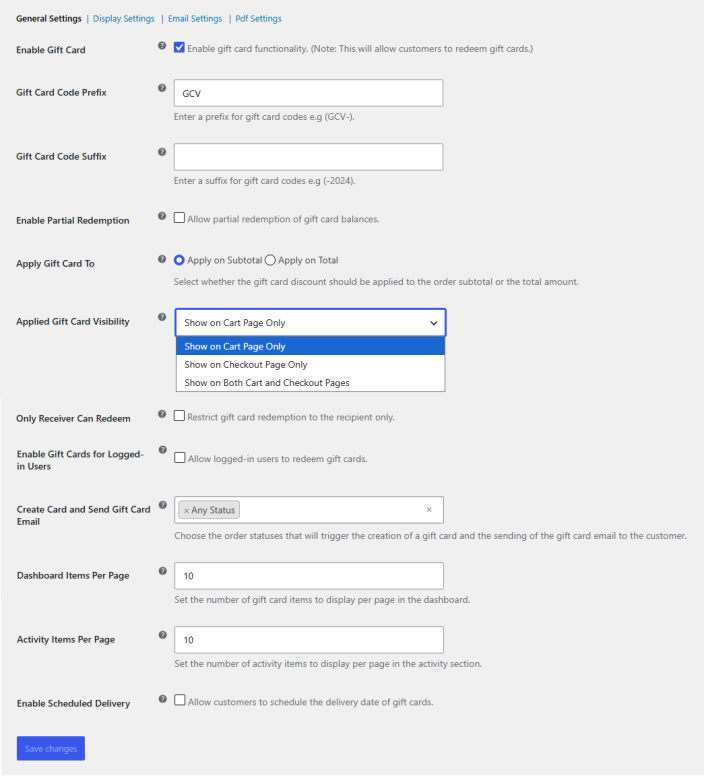
↑ Back to topConfigure the general settings for the gift card and voucher plugin. Go to WooCommerce > Settings > FMA Gift Card > General Settings, and you can configure the following settings:
- Enable Gift Card: Enable gift card functionality. (Note: This allows customers to redeem gift cards.)
- Gift Card Code Prefix: Enter a prefix for gift card codes, e.g., (GCV-).
- Gift Card Code Suffix: Enter a suffix for gift card codes, e.g., (-2024).
- Enable Partial Redemption: Allow customers to redeem gift card balances partially.
- Apply Gift Card To: Select whether the gift card discount should be applied to the order subtotal or the total amount.
- Apply on Subtotal
- Apply on Total
- Applied Gift Card Visibility: Choose where the applied gift card details should appear.
- Show on Cart Page Only
- Show on Checkout Page Only
- Show on both Cart and Checkout Pages
- Only Receiver Can Redeem: Restrict gift card redemption so that only the recipient can use it.
- Enable Gift Cards for Logged-in Users: Allow logged-in users to redeem gift cards.
- Create Card and Send Gift Card Email: Choose the order statuses that trigger gift card creation and the sending of the gift card email to the customer.
- Dashboard Items Per Page: Set the number of gift card items displayed per page in the dashboard.
- Activity Items Per Page: Set the number of activity items displayed per page in the activity section.
- Enable Scheduled Delivery: Allow customers to schedule the delivery date for gift cards.
Display Settings
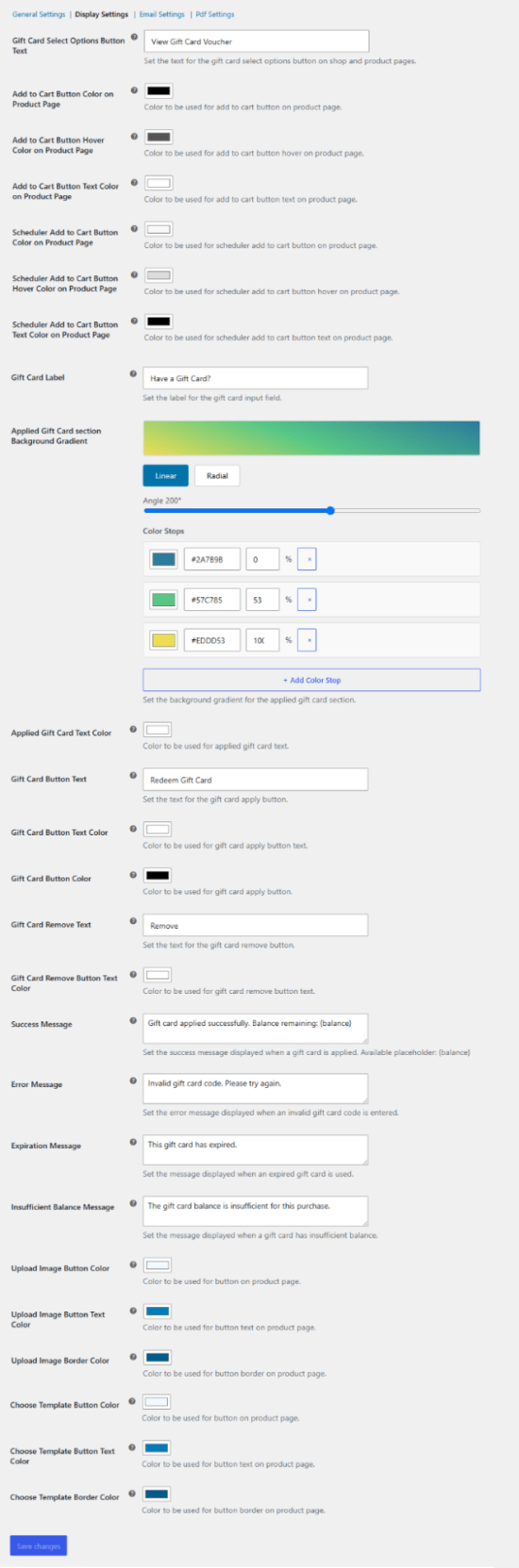
↑ Back to topGo to WooCommerce > Settings > FMA Gift Card > Display Settings to personalize the gift cards, from buttons to colors and text.
- Gift Card Select Options Button Text: Set the text for the gift card “Select Options” button on shop and product pages.
- Add to Cart Button Color on Product Page: Set the color of the Add to Cart button on the product page.
- Add to Cart Button Hover Color on Product Page: Set the hover color for the Add to Cart button on the product page.
- Add to Cart Button Text Color on Product Page: Set the text color of the Add to Cart button on the product page.
- Scheduler Add to Cart Button Color on Product Page: Set the color of the scheduler Add to Cart button on the product page.
- Scheduler Add to Cart Button Hover Color on Product Page: Set the hover color for the scheduler Add to Cart button on the product page.
- Scheduler Add to Cart Button Text Color on Product Page: Set the text color of the scheduler Add to Cart button on the product page.
- Gift Card Label: Set the label for the gift card input field.
- Applied Gift Card Section Background Gradient: Set the background gradient for the applied gift card section. You can select either a linear or radial gradient.
- Applied Gift Card Text Color: Set the text color for the applied gift card details.
- Gift Card Button Text: Set the text for the gift card apply button.
- Gift Card Button Text Color: Set the text color of the gift card apply button.
- Gift Card Button Color: Set the color of the gift card apply button.
- Gift Card Remove Text: Set the text for the gift card remove button.
- Gift Card Remove Button Text Color: Set the text color of the gift card remove button.
- Success Message: Set the success message displayed when a gift card is applied. Available placeholder: {balance}.
- Error Message: Set the error message displayed when an invalid gift card code is entered.
- Expiration Message: Set the message displayed when an expired gift card is used.
- Insufficient Balance Message: Set the message displayed when a gift card has insufficient balance.
- Upload Image Button Color: Set the button color on the product page.
- Upload Image Button Text Color: Set the button text color on the product page.
- Upload Image Border Color: Set the button border color on the product page.
- Choose Template Button Color: Set the button color on the product page.
- Choose Template Button Text Color: Set the button text color on the product page.
- Choose Template Border Color: Set the button border color on the product page.
Email Settings
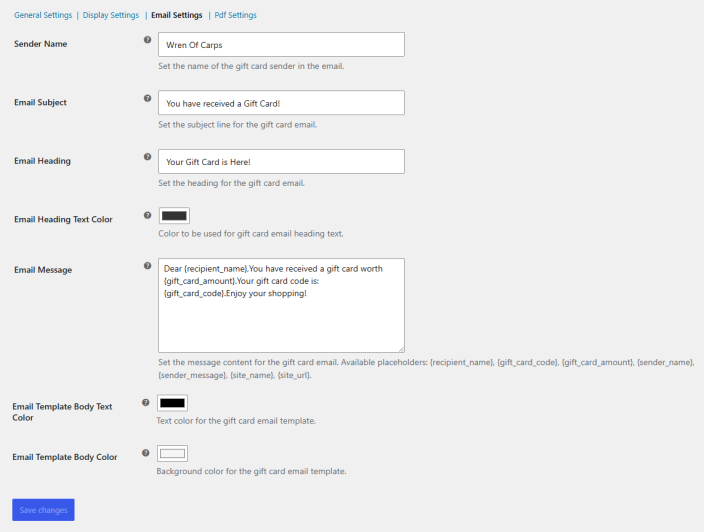
↑ Back to topTo configure the emails for gift cards, go to WooCommerce > Settings > FMA Gift Card > Email Settings and set up the following settings for emails:
- Sender Name: Set the name of the gift card sender displayed in the email.
- Email Subject: Set the subject line for the gift card email.
- Email Heading: Set the heading displayed in the gift card email.
- Email Heading Text Color: Set the color of the gift card email heading text.
- Email Message: Set the message content for the gift card email. Available placeholders: {recipient_name}, {gift_card_code}, {gift_card_amount}, {sender_name}, {sender_message}, {site_name}, {site_url}.
- Email Template Body Text Color: Set the text color for the gift card email template body.
- Email Template Body Color: Set the background color for the gift card email template body.
PDF Settings
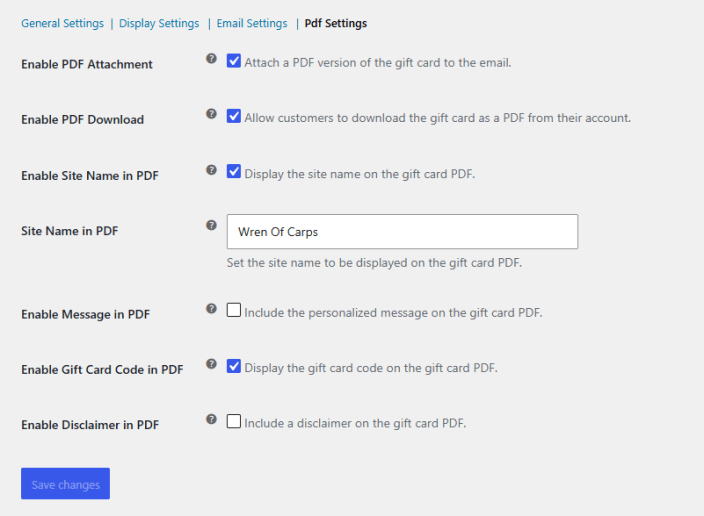
↑ Back to topGo to WooCommerce > Settings > FMA Gift Card > PDF Settings, and here you can configure the settings for the PDF gift cards.
- Enable PDF Attachment: Attach a PDF version of the gift card to the email.
- Enable PDF Download: Allow customers to download the gift card as a PDF from their account.
- Enable Site Name in PDF: Display the site name on the gift card PDF.
- Site Name in PDF: Set the site name to appear on the gift card PDF.
- Enable Message in PDF: Include the personalized message on the gift card PDF.
- Message in PDF: Set the default message displayed on the gift card PDF.
- Enable Gift Card Code in PDF: Display the gift card code on the gift card PDF.
- Enable Disclaimer in PDF: Include a disclaimer on the gift card PDF.
- Disclaimer in PDF: Set the disclaimer text to appear on the gift card PDF.
Product Level Settings for Gift Cards
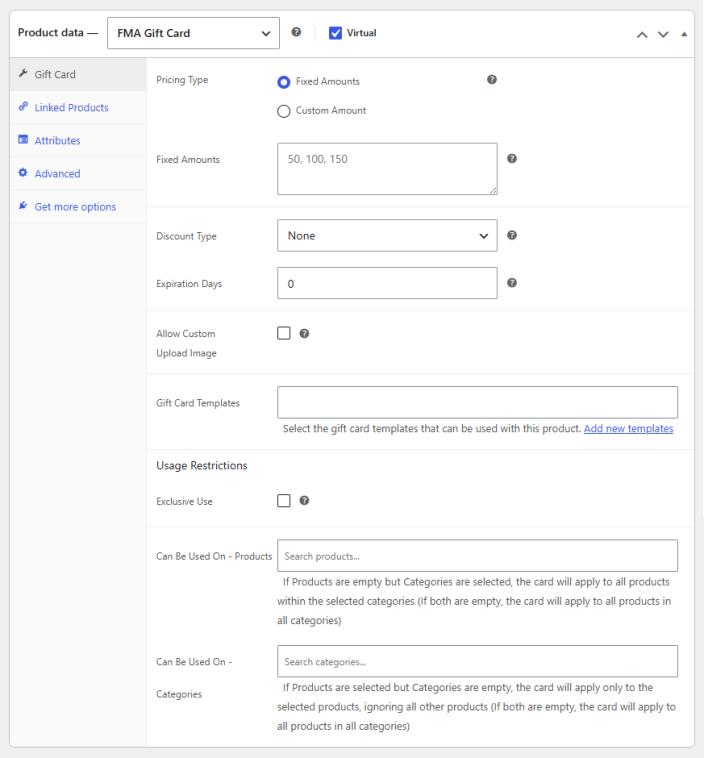
↑ Back to topConfigure gift cards at the product level as well so that you can configure the gift cards and vouchers for individual products as well. Go to Products > Edit Product > Product Data and select the product type as “Gift Card” from the dropdown.
- Pricing Type: Select either Fixed Amounts or Custom Amount for the gift card value.
- Custom Amount Range (when custom amount is selected): Set the minimum and maximum custom amount allowed.
- Discount Type: Choose the type of discount applied when the gift card is used (None, Fixed, or Percentage).
- Discount Value: Enter the discount value based on the selected discount type.
- Expiration Days: Set the number of days after which the gift card will expire.
- Allow Custom Upload Image: Allow customers to upload a custom image for the gift card.
- Upload Button Text: Set the text displayed on the image upload button.
- Gift Card Templates: Select the gift card templates that can be used with this product.
- Exclusive Use: Restrict the gift card so it cannot be used together with other coupons or discounts.
- Can Be Used On – Products: Select specific products on which the gift card can be redeemed.
- Can Be Used On – Categories: Select product categories on which the gift card can be redeemed.
Gift Card Dashboard
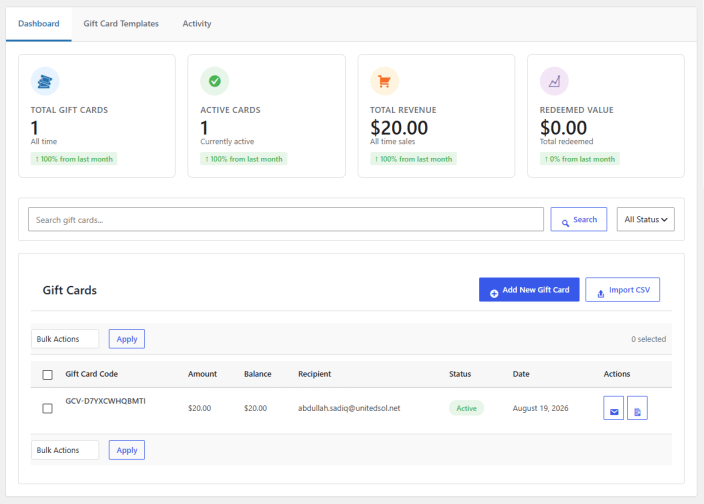
↑ Back to topThe Gift Card Dashboard provides a quick overview and management interface for all your gift cards.
- Total Gift Cards: Displays the total number of gift cards created, along with the percentage change compared to the previous month.
- Active Cards: Shows the number of currently active gift cards and the monthly comparison.
- Total Revenue: Displays total sales generated from gift cards, with a comparison to last month.
- Redeemed Value: Shows the total value redeemed from gift cards and the change from the previous month.
The dashboard also allows you to:
- Search Gift Cards: Quickly locate gift cards by code, recipient, or status.
- Filter by Status: View all gift cards or filter by status (Active, Redeemed, Expired, etc.).
- Add New Gift Card: Create a new gift card directly from the dashboard.
- Import CSV: Bulk import gift cards using a CSV file.
- Bulk Actions: Apply actions such as delete or edit to multiple gift cards at once.
The table lists each gift card with its Code, Amount, Balance, Recipient, Status, Date, and quick Actions (Edit, View, Delete) for efficient management.
Gift Card Template
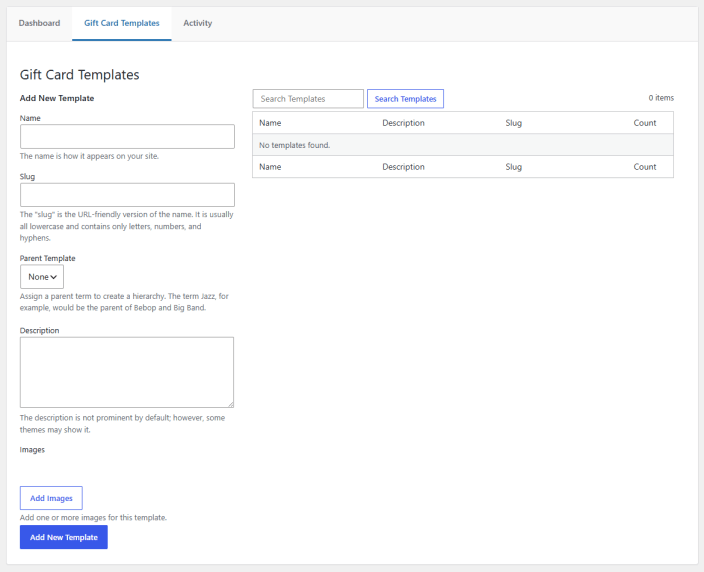
↑ Back to topThe Gift Card Templates section allows you to create and manage templates that customers can use when purchasing gift cards.
- Add New Template: Create a new gift card template for your store.
- Name: Set the name of the template as it will appear on your site.
- Slug: Define the URL-friendly version of the name. Typically, it is lowercase and contains only letters, numbers, and hyphens.
- Parent Template: Assign a parent template to create a hierarchy. For example, “Jazz” can be the parent of “Bebop” and “Big Band.”
- Description: Add a description for the template. While it is not prominently displayed by default, some themes may show it.
- Images: Upload one or more images to visually represent the template. These images will be shown to customers when selecting a gift card design.
Activity
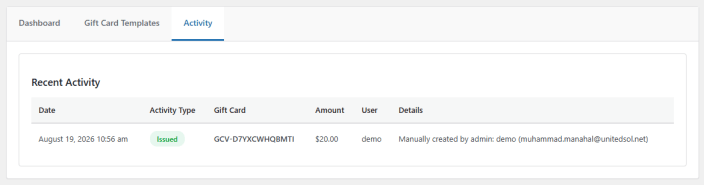
↑ Back to topThe Recent Activity section lets you review all recent gift card actions, including issuance and redemptions. Each entry shows the date, type, amount, user, and related details for easy tracking.
Check Gift Cards in My Account
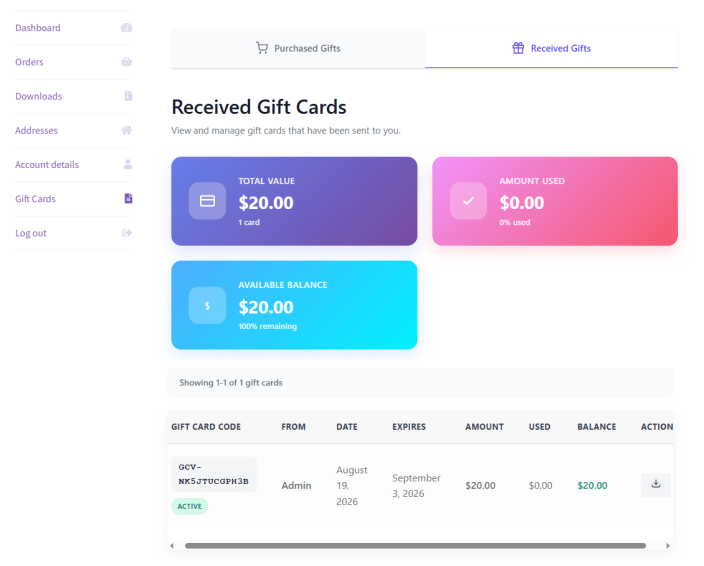
↑ Back to topCustomers can view and manage their gift cards from the Gift Cards tab in their My Account dashboard.
Received Gifts
↑ Back to topDisplays gift cards sent to the customer by others, with the following at-a-glance stats:
- Total Value: Combined value of all gift cards received, with the total count of cards.
- Amount Used: Total amount redeemed so far, with the percentage of total value used.
- Available Balance: Remaining balance across all received gift cards, with the percentage remaining.
Below the stats, a table lists each gift card individually with its Code, From (sender), Date received, Expiration date, Amount, Used amount, Balance, and an Action column to download the gift card.
Purchased Gifts
↑ Back to topDisplays gift cards the customer has bought and sent to others, using the same layout and columns as Received Gifts, so customers can track outgoing gift cards separately from the ones they’ve received.