
GeoShield – Country Restrictions delivers granular, rule-based product catalog visibility and checkout restriction controls by country, continent, or state/region for WooCommerce stores.
Installation
↑ Back to topTo start using a product from WooCommerce.com, you can use the “Add to store” functionality on the order confirmation page or the My subscriptions section in your account.
- Navigate to My subscriptions.
- Find the Add to store button next to the product you’re planning to install.
- Follow the instructions on the screen, and the product will be automatically added to your store.
Alternative options and more information at:
Managing WooCommerce.com subscriptions.

Getting started
↑ Back to topAfter activating GeoShield, the main administration panel is available under:
WordPress Admin > WooCommerce > GeoShield – Country Restrictions. Before configuring your first restriction rule, confirm that WooCommerce Geolocation is enabled:
- Navigate to WooCommerce > Settings > General.
- Scroll down to the General options section.
- Locate Default customer location and select:
- Geolocate (standard IP detection)
- Geolocate (with page caching support) (Recommended if using full-page caching plugins or a CDN)
- Click Save changes.
Note: GeoShield works immediately with native WooCommerce customer geolocation and server/proxy headers (such as Cloudflare). No third-party API keys or external subscriptions are required.
Navigation and dashboard overview
↑ Back to topWhen you open WooCommerce > GeoShield – Country Restrictions, you will find three dedicated management tabs:
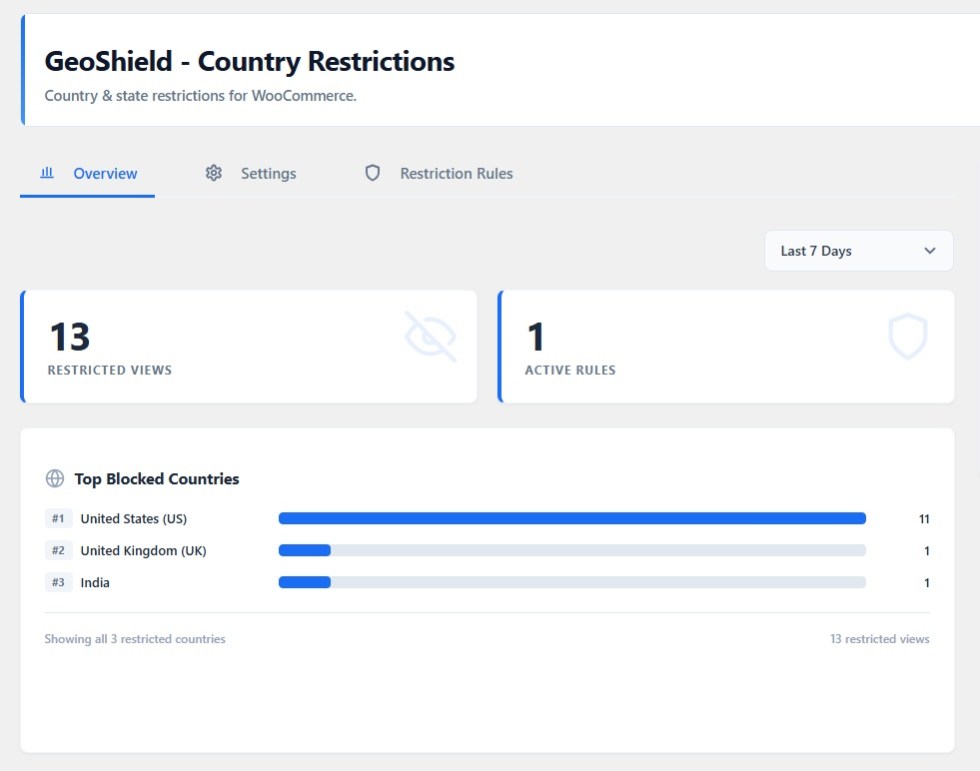
- Overview: Live store restriction analytics, traffic summaries, and top restricted regions.
- Settings: Global store behavior, fallback messaging, privacy retention, and reverse proxy headers.
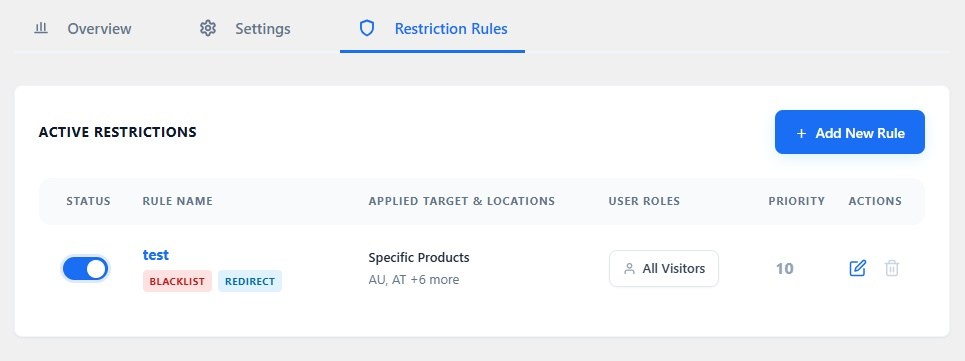
- Restriction rules: Rule-building engine for storewide, category, tag, and shipping class restrictions.
Overview tab: real-time analytics
↑ Back to topThe Overview tab provides immediate visibility into restricted customer traffic without requiring third-party analytics scripts:
- Date range selector: Filter metrics across the Last 7 Days, Last 30 Days, or Last 90 Days.
- Restricted views: The total number of customer visits that triggered a restriction rule or notice banner.
- Active rules: Real-time count of enabled restriction rules currently active across your store catalog.
- Top Blocked Countries chart: Visual ranking of countries and regions attempting to access restricted items most frequently.
Global Settings
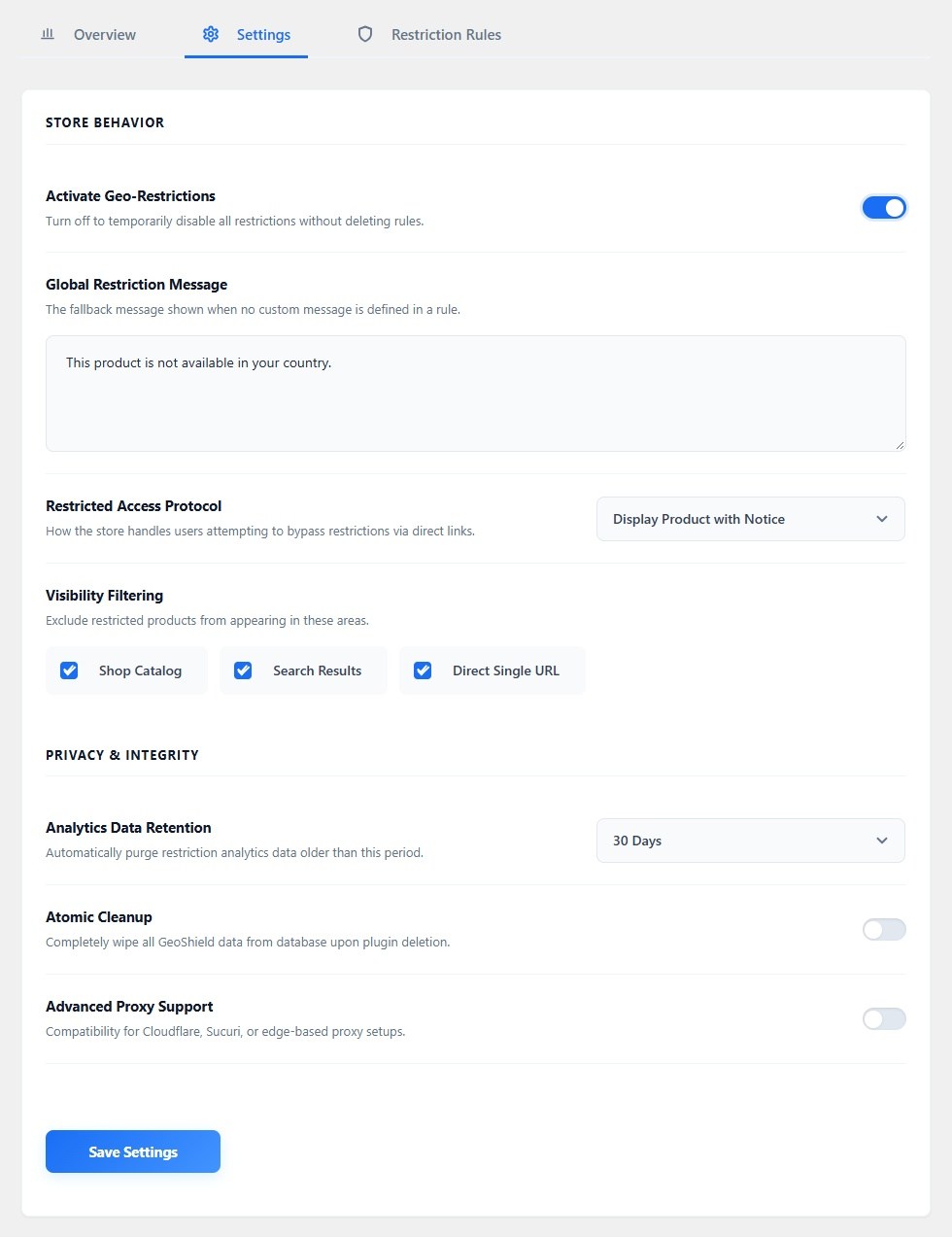
↑ Back to topNavigate to WooCommerce > GeoShield – Country Restrictions > Settings to configure default storefront behaviors, direct URL handling, and privacy compliance.
Store Behavior
↑ Back to top- Activate Geo-Restrictions: Master on/off toggle. Turn off to temporarily suspend all restrictions site-wide without modifying or deleting any configured rules.
- Global restriction message: Default notice shown to visitors in restricted locations when no custom rule-level or product-level message is defined. Supports standard text formatting.
- Restricted access protocol: Controls how your store handles visitors who access a restricted product directly via URL (such as search engine results, bookmarks, or direct links):
- Return 404 (Not Found): Serves the active theme’s native 404 template. The product appears non-existent to restricted visitors.
- Redirect to shop home: Automatically redirects the visitor to your primary WooCommerce Shop archive page via
wp_safe_redirect. - Display product with notice: Allows the single product page to load normally, displaying your custom warning banner while restricting purchasing according to your configured action.
- Visibility filtering: Select the storefront contexts from which hidden products are excluded:
- Shop catalog: Hides restricted products from shop archives, category archives, tag listings, and product grid blocks.
- Search results: Excludes restricted products from WordPress native search and WooCommerce product search queries.
- Direct single URL: Enforces restriction on direct single-product URLs according to your selected Restricted Access Protocol.
Privacy and Data Integrity
↑ Back to topGeoShield adheres to strict privacy and GDPR compliance standards:
- Analytics data retention: Automatically purges logged restriction events older than 30 Days, 60 Days, or 90 Days using an automated background task.
- Atomic cleanup: When enabled, completely removes all GeoShield database tables, options, rules, and transients if the plugin is deleted from the WordPress Plugins screen.
- Advanced proxy support: Enable this option if your store sits behind an edge proxy or CDN (such as Cloudflare, Sucuri, Fastly, or AWS CloudFront).
- Proxied client IP header: Enter the specific HTTP header used by your proxy to pass the authentic visitor IP (e.g.,
HTTP_CF_CONNECTING_IPfor Cloudflare).
Global restriction rules
↑ Back to topThe Restriction Rules tab allows you to create flexible, layered rules that apply across your entire catalog, specific categories, tags, or shipping classes without editing individual products. Navigate to WooCommerce > GeoShield – Country Restrictions > Restriction Rules.
Creating a new rule
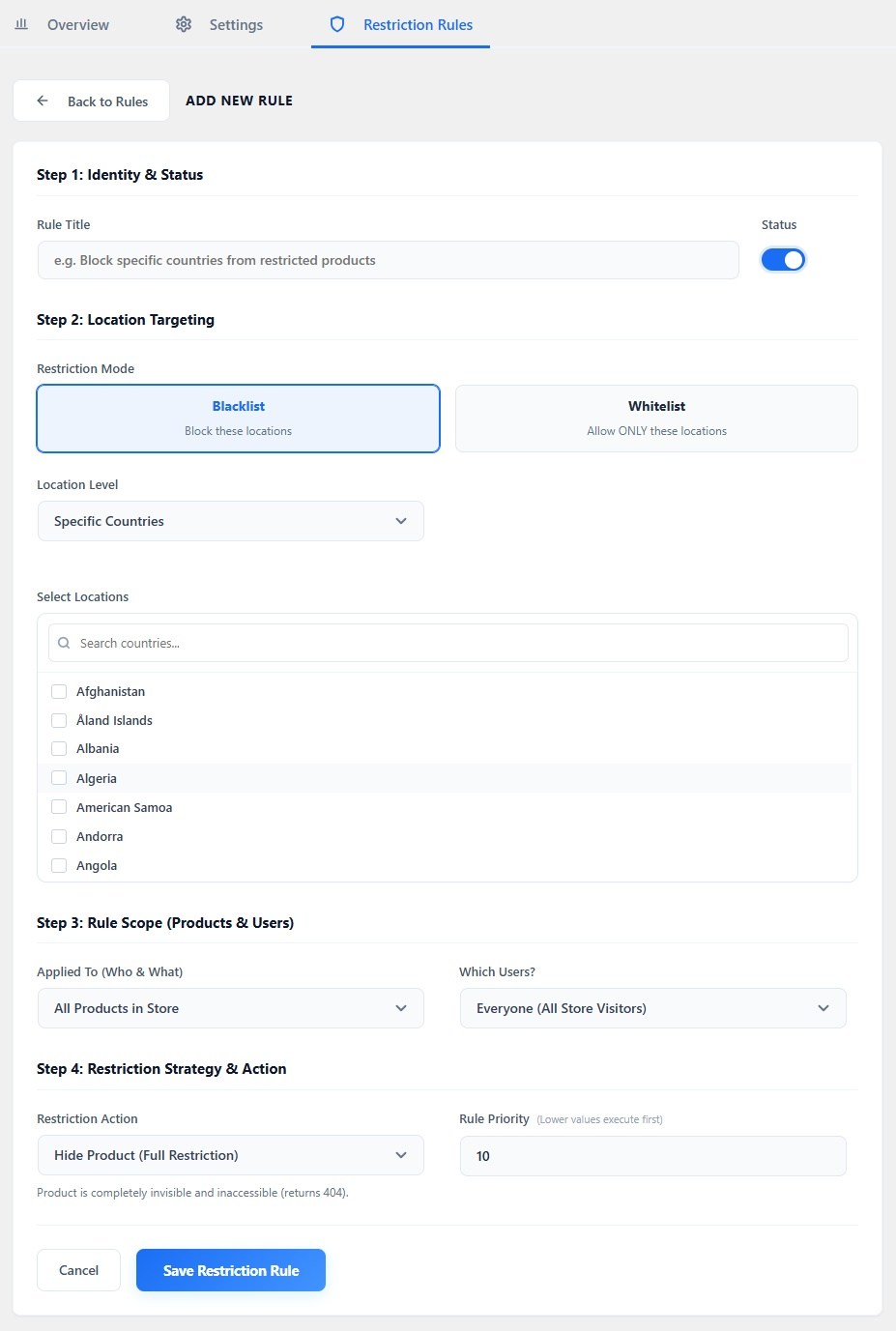
↑ Back to topClick + Add New Rule to open the four-step guided rule builder:
Step 1: Identity and status
- Rule Title: A descriptive name for internal reference (e.g., “Block EU – Heavy Freight Items” or “USA Only – Regulated Products”).
- Status: Toggle between active and inactive. Inactive rules remain saved but are bypassed during evaluation.
Step 2: Location targeting
- Restriction mode:
- Blacklist: Restricts the chosen locations while allowing all other countries.
- Whitelist: Allows only the selected locations and restricts the entire rest of the world.
- Location level:
- Specific countries: Select individual countries from a searchable dropdown.
- Continents: Target entire continents (e.g., Europe, North America, Asia, Oceania).
- States and regions: Select individual states or provinces for hyper-local compliance (e.g., California, Texas, Ontario, Quebec).
- Select locations: Multi-select input to specify the target countries, continents, or states.
Step 3: Rule scope (Products and Users)
- Applied to (Products and Catalog):
- All products in store: Applies storewide across your entire catalog.
- Specific products: Target individual items in your catalog.
- Product categories: Target one or more product categories. Subcategories automatically inherit restrictions unless overridden.
- Product tags: Target products sharing specific tags.
- Shipping Classes: Target items assigned to specific WooCommerce shipping classes (ideal for oversized freight, hazardous materials, or regional supply chains).
- Which Users?:
- Everyone (All Store Visitors): Enforces restrictions on all site visitors.
- Guest Users (Unauthenticated): Targets anonymous visitors only.
- Registered Customers (Logged-in): Targets authenticated accounts only.
- Specific User Roles: Target custom roles (e.g., Wholesale Customer, B2B Buyer, Subscriber).
Step 4: Restriction Strategy and Action
Choose the storefront experience restricted customers encounter:
- Hide Product (Full Restriction): The product is completely excluded from catalog archives, search queries, and direct product URLs (per your selected Access Protocol).
- Hide Price and Cart (Catalog Mode): The product remains browsable, but the price is hidden and the “Add to Cart” button is removed.
- Disable Checkout (Lock Purchase): The product and its regular price remain visible, but the “Add to Cart” button is disabled and unclickable.
- Geo-Forwarding (Auto-Redirect): Automatically forwards visitors to an alternate destination:
- Internal Product: Forwards to an alternate regional product in your catalog.
- External Custom URL: Forwards visitors to an external regional website, partner distributor, or landing page.
- Rule Priority: Numeric priority value from 1 to 100 (lower numbers evaluate first). If a product matches multiple rules, the rule with the lowest priority number takes precedence.
- Custom Notice Message: (Optional) Enter a tailored notice explaining the restriction to the customer (e.g., “This item cannot be shipped to your location due to local regulatory standards.”).
Click Save Restriction Rule to apply the rule immediately.
Product-Level Restrictions
↑ Back to topFor items that require individual rules or exceptions to global store policies, GeoShield provides a dedicated settings panel inside every WooCommerce product edit screen.
Precedence: Product-level settings take precedence over global rules. When product-level restrictions are enabled, they override any matching global rules for that specific item.
How to Configure Product-Level Restrictions
↑ Back to top- Go to Products > All Products and click Edit on the target product.
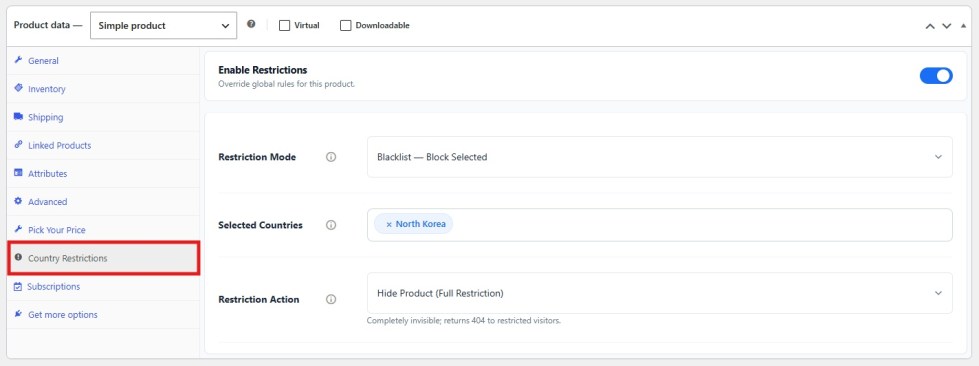
- In the Product Data meta box, click the Country Restrictions tab.
- Review the Global Rules Affecting This Product card to view any global rules currently active on this item.
- Toggle Enable Restrictions to activate product-specific controls.
- Configure your settings:
- Restriction Mode: Select Blacklist (Block Selected) or Whitelist (Allow Selected).
- Selected Countries: Select one or more countries from the searchable country list.
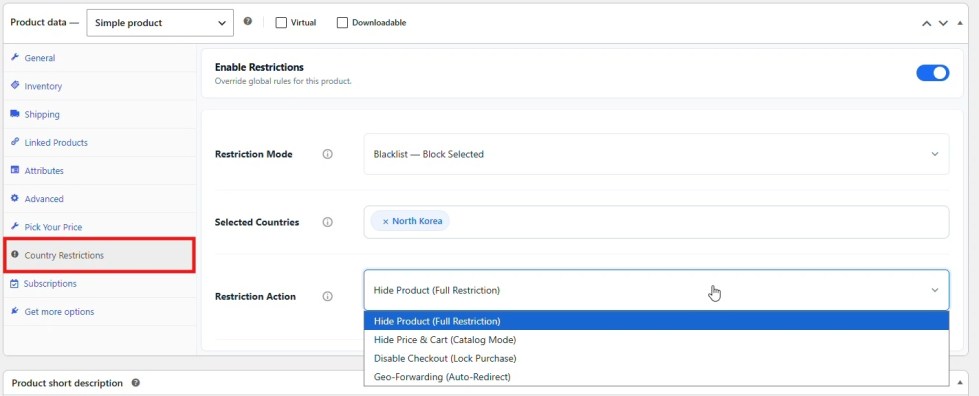
- Restriction Action:
- Hide Product (Full restriction)
- Hide Price and Cart (Catalog mode)
- Disable Checkout (Lock purchase)
- Geo-Forwarding (Auto-redirect)
- Restriction Message: Enter an optional custom notice to display on the product page.
- Redirect Destination: (If Geo-Forwarding is selected) Choose Internal Product (select replacement product) or External URL (enter destination link).
- Click Update to save the product.
Restricting Product Variations
↑ Back to topFor variable products, GeoShield allows you to apply restrictions directly to individual variations. This lets you offer certain sizes, colors, or configurations worldwide while restricting specific restricted variations from selected markets.
- Open a Variable Product and navigate to Product Data > Variations.
- Expand the specific variation you want to restrict.
- Locate the Country Restriction section within the variation row.
- Check Enable.
- Select the Mode (Blacklist or Whitelist).
- Choose the Countries to target.
- Select the Action (Hide Variation, Hide Price and Cart, Disable Checkout, or Geo-Forwarding).
- Enter an optional Message or specify a Redirect Product.
- Click Save Changes in the variations panel, then Update the product.
Tip: Restricted variations are automatically removed from the variation dropdown on the single product page for restricted customers. If all variations of a product are restricted, the entire product automatically adopts the restriction.
Front-End Customer Experience Matrix
↑ Back to topThe table below details exactly what visitors in restricted locations experience across your storefront based on your configured restriction action and access protocol:
| Restriction Strategy | Shop and Category Archives | Search Results | Single Product Page | Price and Add-to-Cart Status |
|---|---|---|---|---|
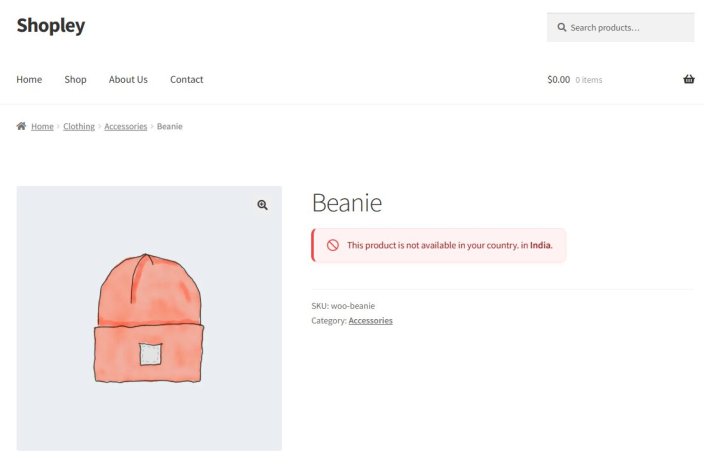
| Hide Product | Completely excluded from product listings | Excluded from search queries | Governed by Access Protocol (404, Redirect to Shop, or Display with Notice) | Not displayed (or Notice banner shown) |
| Hide Price and Cart | Displayed normally without price | Displayed normally without price | Product page loads; price is hidden and replaced by custom notice banner | Add to Cart button stripped; purchasing disabled |
| Disable Checkout | Displayed normally with regular price | Displayed normally with regular price | Product page loads; displays informational notice banner | Add to Cart button greyed out and non-clickable |
| Geo-Forwarding | Normal or hidden per catalog settings | Normal or hidden per catalog settings | Automatically redirected to alternate regional product or external URL | Not applicable. (Visitor forwarded to destination) |
Shipping class restrictions
↑ Back to topGeoShield enables fine-grained geographic control over products with specific logistics requirements:
- Heavy Freight and Bulky Goods: Restrict oversized items from overseas or island regions by assigning them to a dedicated shipping class and targeting those classes in the rule builder.
- Perishable and Cold-Chain Goods: Restrict temperature-sensitive items to local delivery zones or domestic states.
- Hazardous Materials: Comply with air-freight transport laws by restricting flammable, battery-powered, or chemical goods from international destinations.
To apply shipping class restrictions, select Shipping Classes under Applied To in Step 3 of the rule builder and select your target shipping classes.
Compatibility and technical architecture
↑ Back to topHigh-Performance Order Storage (HPOS)
↑ Back to topGeoShield declares full compatibility with WooCommerce High-Performance Order Storage (custom_order_tables). It operates seamlessly in both traditional WordPress posts storage and dedicated HPOS order tables.
Cart and Checkout Blocks
↑ Back to topGeoShield is fully compatible with modern block themes and the block-based Cart and Checkout. It integrates directly with WooCommerce’s Store API (/wc/store/v1/products):
- Restricted items are excluded from Store API collection queries.
- Restricted items cannot be added to the cart or processed via block checkout.
- Direct Store API requests to restricted single products return clean 404 responses.
Page Caching and CDNs
↑ Back to topBecause IP geolocation occurs per request, full-page caching systems (WP Rocket, LiteSpeed Cache, W3 Total Cache, Cloudflare Edge Cache) require proper cache segmentation:
- Recommended Configuration: Navigate to WooCommerce > Settings > General and set Default customer location to Geolocate (with page caching support). This appends a unique country hash to URLs, ensuring caches serve country-specific content.
- If using Cloudflare or an edge proxy, enable Advanced Proxy Support in GeoShield > Settings and set the header to
HTTP_CF_CONNECTING_IP.
Multi-Language Compatibility (WPML and Loco Translate)
↑ Back to topAll GeoShield admin interfaces, restriction notices, and fallback messages are fully localized. Custom restriction messages can be translated using WPML String Translation, Polylang, or Loco Translate.
Frequently Asked Questions (FAQ)
↑ Back to top
Why do restricted products still appear in search or the shop?
Verify that Shop Catalog and Search Results checkboxes are enabled under WooCommerce > GeoShield – Country Restrictions > Settings > Visibility Filtering.
If your rule uses Disable Checkout (Lock Purchase) or Hide Price and Cart (Catalog Mode), products remain browsable in the catalog by design while restricting purchasing. Set the action to Hide Product (Full Restriction) if you want items completely removed from listings.
What is the difference between Blacklist and Whitelist modes?
Blacklist: Restricts visitors in the chosen countries, continents, or states while keeping products accessible to the rest of the world.
Whitelist: Permits access only to visitors from the selected locations, restricting the entire rest of the world.
Can I apply restrictions to specific user roles or guests only?
Yes. In Step 3 of the rule builder (Which Users?), you can apply rules to Everyone (All Store Visitors), Guest Users (Unauthenticated), Registered Customers (Logged-in), or target specific user roles (such as Wholesale, B2B, or Subscriber roles).
Support and assistance
↑ Back to topNeed assistance or have questions about configuring geographic restrictions for your store?
- Help and Support: Navigate to WooCommerce.com Account > My Subscriptions > Get Support to submit a ticket directly to the technical support team.
- Setup Checklist: Before opening a ticket, verify that WooCommerce Geolocation is enabled under WooCommerce > Settings > General.