
Overview
↑ Back to topQuick View, Wishlist & Compare is a WooCommerce plugin that lets shoppers preview products, save favourites, compare products side by side and ask to be emailed when an out-of-stock product returns. Every feature is a separate switch, so you only run what your store needs.
What It Does
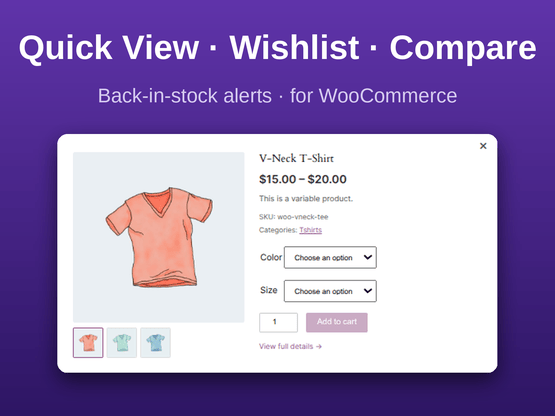
↑ Back to top- Quick View: a popup on shop, category, tag, brand and search pages that shows the product image gallery, price, short description, SKU and categories, with variation dropdowns, quantity and Add to cart inside the popup.
- Wishlist: logged-in customers save products and manage them under My Account → Wishlist, with Add All to Cart and Add All to Cart & Clear List.
- Compare: shoppers (guests included) compare 2 to 6 products in a table showing price, rating, stock, SKU, weight, dimensions and attributes.
- Notify Me: an email form on out-of-stock products. Shoppers confirm their address, then get one email when the product is back in stock.
How It Works
The plugin adds small buttons to your product pages and product lists. Everything runs through WooCommerce’s own cart, emails and My Account area, so your theme styling and email templates apply.
Key Features at a Glance
↑ Back to top- Turn Quick View, Wishlist, Compare and Notify Me on or off independently
- Choose where buttons appear: shop, category, tag, brand, search and product shortcode/block pages
- Buttons on hover or always visible (always visible on touch devices)
- Configurable Compare limit (2 to 6 products)
- Wishlist and Compare tabs inside My Account, plus an auto-created Compare page
- Back-in-stock email with double opt-in, editable under WooCommerce → Settings → Emails
- Every shopper-facing message is editable
- Hidden, private, draft and password-protected products are never exposed
- Anonymous usage counters in QVWC Insights, with no personal data
- Works with WordPress personal-data export and erase tools
- Wishlist and Compare blocks and shortcodes for any page
Installation
↑ Back to topTo start using a product from WooCommerce.com, you can use the “Add to store” functionality on the order confirmation page or the My subscriptions section in your account.
- Navigate to My subscriptions.
- Find the Add to store button next to the product you’re planning to install.
- Follow the instructions on the screen, and the product will be automatically added to your store.
Alternative options and more information at:
Managing WooCommerce.com subscriptions.

Setup and Configuration
↑ Back to topThe plugin works as soon as you activate it. Use these steps to adjust it to your store.
Step 1: Open the settings
↑ Back to top- In WordPress admin, go to WooCommerce → Settings.
- Click the Quick View, Wishlist & Compare tab.
WooCommerce → Settings → Quick View, Wishlist & CompareStep 2: See the settings sections
↑ Back to topThe page has five sections, top to bottom:
- Features: turn each feature on or off.
- Locations: choose where buttons appear.
- Appearance: button visibility, wishlist page size and Compare limit.
- Pages: choose the Compare page.
- Messages: edit every notification and label shoppers see.
Step 3: Choose your features
↑ Back to topFeatures
[x] Quick View Show a Quick View button on product loops
[x] Wishlist Show a Wishlist button on product loops (requires a customer account)
[x] Compare Show a Compare button on product loops
[x] Notify Me Show "Notify me when back in stock" for out-of-stock productsAll four are on by default. Untick any feature you do not want. Its buttons, My Account tab and menu entry disappear.
Step 4: Choose where buttons appear
↑ Back to topLocations → Show on
Shop page
Product category archives
Product tag archives
Brand archives
Search results
Any page using a WooCommerce product shortcode/block (e.g. [recent_products])By default the buttons show on the shop page, category and tag archives, search results and product shortcode/block pages. Add Brand archives if your store uses brands. This setting applies to every enabled feature. Buttons on a single product page are controlled by the feature switches above.
Step 5: Set the appearance
↑ Back to topAppearance
Button visibility Show on hover | Always visible
Wishlist items per page 12 (1 to 100)
Compare: max products per list 3 (2 to 6)- Choose Show on hover or Always visible. On touch devices buttons are always shown, because hover does not exist there.
- Set how many wishlist items appear per page.
- Set how many products a shopper can compare at once.
Step 6: Check the Compare page
↑ Back to topCompare works for guests, who never see My Account, so the plugin creates a Compare page on activation with the Compare Table block already on it. Under Pages → Compare page, you can pick a different page. Wishlist needs no page setting because it always requires an account and lives under My Account → Wishlist.
Step 7: Edit the messages
↑ Back to topUnder Messages, every toast and label is editable. Leave a field blank to use the default. Some messages accept placeholders:
Compare limit reached         {max}
Add All to Cart: all added    {added}
Add All to Cart: some added   {added} and {skipped}
Add All to Cart: none added   {skipped}
You can also rename the Wishlist and Compare menu entries in My Account.
That’s it. Click Save changes and the settings apply immediately.
Advanced Configuration
↑ Back to topFeature #1: Quick View
↑ Back to topLocation: product lists on the pages you chose under Locations
Shoppers click the Quick View button on a product card and a popup opens with the image gallery, price, short description, SKU and categories. Simple products show quantity and Add to cart. Variable products show their option dropdowns inside the popup. Grouped products show a View product link instead of Add to cart.
- Open WooCommerce → Settings → Quick View, Wishlist & Compare.
- Make sure Quick View is ticked under Features.
- Choose your Locations and Button visibility.
- Visit your shop page and click the button on any product.
The popup is keyboard accessible: focus stays inside it while it is open, Esc closes it, and focus returns to the button that opened it.
Feature #2: Wishlist
↑ Back to topLocation: My Account → Wishlist
Wishlist requires a customer account. A logged-out shopper who clicks the heart sees your “Login required” message with a Log In link. Logged-in customers see their saved products under My Account → Wishlist, with remove buttons and two bulk actions:
Add All to Cart
Add All to Cart & Clear List
Products that cannot be added (out of stock, or needing options) are skipped, and the message tells the shopper how many were added and skipped.
To show a wishlist on another page, use the Wishlist block or this shortcode:
[qvwc_wishlist_table]Feature #3: Compare
↑ Back to topLocation: the Compare page you chose under Pages, and My Account → Compare for logged-in customers
Compare works for guests and customers. The table shows image, name, price, rating, availability, SKU, weight, dimensions and product attributes. Set the limit under Appearance (2 to 6 products, default 3).
- Shoppers click Compare on two or more products.
- A message with a View Compare link appears.
- They open the Compare page and review the table. Each column has Add to cart or View product.
Guest compare lists are stored against a random ID in the browser, limited to a fixed number of new lists per hour per visitor, and deleted automatically after 30 days. To place the table on any page, use the Compare Table block or:
[qvwc_compare_table]Feature #4: Notify Me (back-in-stock alerts)
↑ Back to topLocation: single product pages for out-of-stock products
When a product is out of stock, shoppers see a Notify me button next to the other buttons.
- The shopper clicks Notify me and enters an email address. Logged-in customers skip the form and use their account email.
- The plugin emails a confirmation link. The link is valid for 48 hours.
- The shopper clicks the link to confirm.
- When you set the product to In stock, one back-in-stock email goes to each confirmed address, once.
If a shopper signs up again before confirming, the confirmation email is sent again (at most once every 5 minutes). Signups are rate limited per IP address.
Edit the email under WooCommerce → Settings → Emails → Back in Stock Notification. The default subject is {product_name} is back in stock!. To change the layout, copy this file into your theme:
yourtheme/woocommerce/emails/notify-me-back-in-stock.phpFeature #5: Hidden and private products
↑ Back to topLocation: automatic
The plugin never exposes a product the public cannot see. Draft, private, pending, trashed, password-protected and catalog-hidden products are refused by Quick View, Wishlist, Compare and Notify Me. A product variation follows its parent product. A shopper who opens such a product directly sees “Invalid product” if they try Notify Me.
Feature #6: Customer privacy tools
↑ Back to topLocation: Tools → Export Personal Data and Erase Personal Data
The plugin adds its data to the standard WordPress privacy tools: back-in-stock requests (by email), and wishlist and compare lists (by customer account). It also adds suggested text to your Privacy Policy page (Settings → Privacy).
Monitoring and Management
↑ Back to topUsing QVWC Insights
↑ Back to topOpen WooCommerce → QVWC Insights (visible to users who can manage WooCommerce) to see which products shoppers interact with most. It shows the top 10 products for each event over the last 30 days:
Quick View opens     products most often previewed
Wishlist adds        products most often saved
Compare adds         products most often compared
Use it to decide which products deserve better photos, a lower price or a restock. The counters are anonymous daily totals per product. They store no names, emails, IP addresses or user IDs.
Managing customer data
↑ Back to topTools → Export Personal Data includes back-in-stock requests, wishlist and compare lists
Tools → Erase Personal Data removes the same data for the requested email addressBack-in-stock requests are matched by email. Wishlist and compare lists are matched to the customer account that uses that email. Unconfirmed back-in-stock requests are cleaned up automatically after their confirmation link expires, and guest compare lists are removed after 30 days by a daily scheduled task.
When you deactivate or delete the plugin
↑ Back to topDeactivating stops the daily cleanup task. Deleting the plugin from the Plugins screen removes its settings and database tables.
Troubleshooting
↑ Back to topIssue #1: My Account → Wishlist or Compare shows a 404 page
↑ Back to topProblem: The Wishlist or Compare tab opens a “page not found” screen.
Solution:
- Go to Settings → Permalinks.
- Click Save Changes without changing anything.
- Reload the My Account page.
- Make sure the feature is ticked under WooCommerce → Settings → Quick View, Wishlist & Compare.
Why it happened: WordPress caches its URL rules. Saving permalinks rebuilds them so the new tabs are recognised.
Issue #2: Buttons do not appear on my product lists
↑ Back to topProblem: No Quick View, Wishlist or Compare buttons on the shop page.
Solution:
- Check the feature is ticked under Features.
- Check the page type is selected under Locations.
- If Button visibility is Show on hover, move the mouse over a product card.
- Clear any caching plugin and your browser cache.
Why it happened: Buttons only show for enabled features on the selected page types.
Issue #3: Notify Me does not appear on a product
↑ Back to topProblem: An out-of-stock product has no Notify me button.
Solution:
- Confirm Notify Me is ticked under Features.
- Confirm the product’s stock status is Out of stock. The button only shows for out-of-stock products.
- Confirm the product is published and not hidden.
Issue #4: Notify Me says “Invalid product”
↑ Back to topProblem: The email form is rejected.
Solution:
- Open the product in the editor.
- Set Status to Published, remove any password, and set Catalog visibility to something other than Hidden.
- Click Update and try again.
Why it happened: The plugin does not accept requests for products the public cannot see.
Issue #5: Customers do not receive the confirmation or back-in-stock email
↑ Back to topProblem: Emails never arrive.
Solution:
- Check the Spam folder.
- Go to WooCommerce → Settings → Emails → Back in Stock Notification and make sure it is enabled.
- Install an SMTP plugin if your host does not send mail reliably, and send a test order email.
- Remember a back-in-stock email only goes to confirmed addresses, and only when the product’s stock status changes to In stock.
To prevent: Use a reliable SMTP service for all store email.
Issue #6: Shoppers cannot add more products to Compare
↑ Back to topProblem: The “You can compare up to N products” message appears.
Solution:
- Go to Appearance → Compare: max products per list.
- Raise the number (up to 6) and save.
Issue #7: Personal data export fails with “ZipArchive not available”
↑ Back to topProblem: Exporting personal data shows an error about ZipArchive.
Solution: Ask your host to enable the PHP zip extension. This is a WordPress requirement, not a plugin setting.
FAQs
↑ Back to topHelp customers by answering commonly asked questions.
Do shoppers need an account?
Wishlist: yes, so the list follows the customer across devices.
Compare: no. Guests and customers can both compare.
Notify Me: no. Guests enter an email address. Logged-in customers use their account email.
Can I turn off a feature I do not need?
Yes. Untick it under Features. Its buttons, My Account tab and menu entry are removed.
Can I change the wording shoppers see?
Yes. Every toast, link text and button label is editable under Messages, and the back-in-stock email is editable under WooCommerce → Settings → Emails.
Will a customer get the back-in-stock email more than once?
Only what each feature needs: an email address for back-in-stock requests, and a list of products for wishlists and compare lists. Insights counters are anonymous. Everything is covered by the WordPress personal-data export and erase tools, and the plugin adds suggested text to your Privacy Policy page.
Does the plugin collect personal data?
No. Each confirmed request produces one email when the product returns to stock
How many products can shoppers compare?
Between 2 and 6. The default is 3. Change it under Appearance.
Do I need to change my theme?
No. The plugin hooks into standard WooCommerce product loops, product pages, My Account and emails. Wishlist and Compare can also be placed on any page with a block or shortcode.