
VariantFlow Variations as Single Product shows each variation of a variable product as its own product in your store. Instead of one “Hoodie” card with a Select options button, customers see “Hoodie – Red, M”, “Hoodie – Blue, L” and so on, each with its own image, price and Add to cart button.
Variations are listed on the shop page, product category and tag pages, search results, and the [products] shortcode. You decide which variations appear, how they are titled, where they are placed in the list, and whether the parent product is still shown.
Requirements
↑ Back to top- WordPress 6.5 or later
- WooCommerce 8.0 or later
- PHP 7.4 or later
The extension is compatible with WooCommerce High-Performance Order Storage (HPOS).
Installation
↑ Back to top- Download the extension .zip file from your WooCommerce.com account.
- In your WordPress dashboard, go to Plugins > Add New Plugin and select Upload Plugin.
- Choose the .zip file you downloaded, then select Install Now.
- Select Activate.
Learn more in Installing and activating extensions.
Setup and configuration
↑ Back to topAll store-wide settings are in WooCommerce > Settings > Variations as product. You can also open them from the Settings link under the extension name on the Plugins screen.
To get started:
- Go to WooCommerce > Settings > Variations as product.
- Tick Enable variations as product.
- Select Save changes.
- Wait for the product update to finish, then visit your shop page. Each variation now appears as a separate product.
Saving settings and the product update
↑ Back to topWhen you select Save changes, the extension updates every variable product so the new settings take effect: it copies categories, tags, and brands to the variations, and works out which variations to show, hide, and sort. A window shows the progress, for example, “40 of 120 products updated”, and then Update completed!.
Keep the settings page open until the update completes. If you leave the page part-way through, only some products are updated. To finish, open the settings page again and select Save changes.
Products you add or edit later are updated automatically when you save them, so you only need to run the update again after changing these settings.
Enable variations as product
↑ Back to top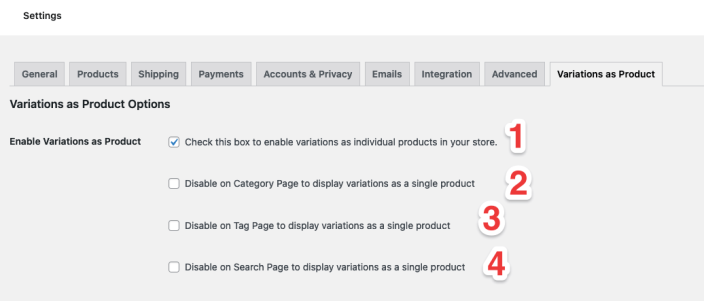
Turn the feature on, then optionally turn it off on specific types of pages.
- Enable variations as product: Shows each variation as an individual product across the store. Nothing changes on the storefront until this is ticked. Default: Off.
- Disable on shop page: Keeps the shop page showing parent products only. Default: Off.
- Disable on category page: Keeps product category pages showing parent products only. When ticked, choose All categories, or Selected categories and pick the categories to apply it to. Default: Off.
- Disable on tag page: Keeps product tag pages showing parent products only. Default: Off.
- Disable on search page: Keeps search results showing parent products only. Default: Off.
Hide parent products
↑ Back to top
By default, the shop lists the parent variable product as well as its variations. Tick Hide parent products to list only the variations on the shop and category pages. Default: off.
- The parent product page itself still works, and variation links lead to it.
- If you hide every variation of a product (for example, all are out of stock or excluded), the parent product stays visible so the product doesn’t disappear from your store.
- You can also hide the parent of a single product from its edit screen. See Per-product settings.
Exclude variations
↑ Back to top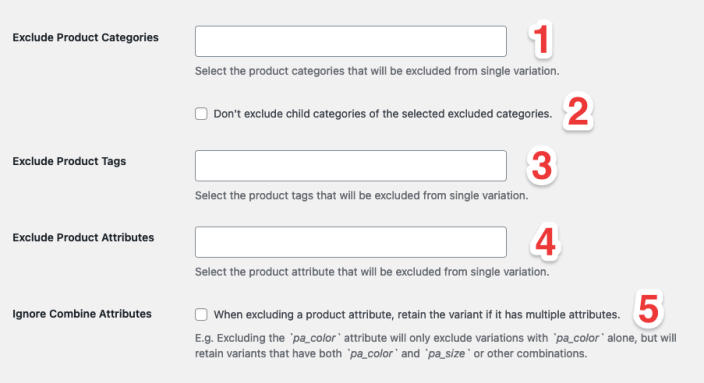
Choose which products should keep their normal behavior. Excluded products are shown as a single parent product, as in a standard WooCommerce store.
- Exclude product categories: Variations of products in the selected categories are not listed individually. Child categories of the selected categories are excluded too. Default: None.
- Don’t exclude child categories of the selected excluded categories: Applies the exclusion only to the selected categories, so variations in their child categories are still listed individually. Default: Off.
- Exclude product tags: Variations of products with the selected tags are not listed individually. Default: None.
- Exclude product attributes: Ignores the selected attributes when listing variations, so you get one product per value of the remaining attributes. See the example below. Default: None.
- Ignore combined attributes: Changes how Exclude product attributes works: only variations that use nothing but the excluded attributes are hidden. Variations that combine an excluded attribute with another attribute are all still listed. Default: Off.
- Disable cart button for excluded attribute products: When an attribute is excluded, a listed variation stands for several real variations, and Add to cart picks one of them for the customer, for example, size XL. Tick this to show a Select options button instead, which opens the product page so the customer can choose. Default: Off.
Example: a T-shirt comes in three colors and four sizes, which makes 12 variations.
- With no attributes excluded, the shop lists all 12 variations.
- With Size excluded, the shop lists three products, one per color: “T-shirt – Red”, “T-shirt – Blue” and “T-shirt – Green”. You choose the size on the product page.
- With Size excluded and Ignore combined attributes ticked, all 12 variations are still listed, because each one combines Size with Color. Only variations that have a size and nothing else would be hidden.
Variation titles
↑ Back to top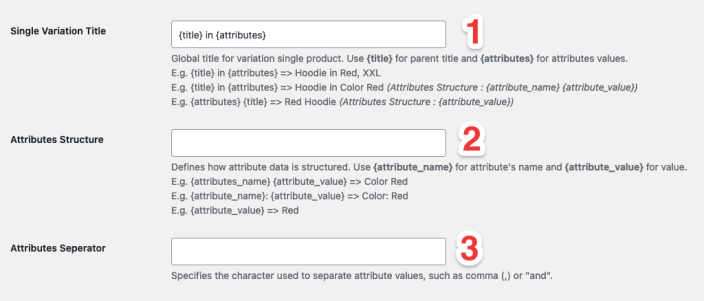
By default, a variation uses the WooCommerce title, such as “Hoodie – Red, XXL”. These settings build a title for every variation from a template. Leave them empty to keep the default titles.
- Single variation title: The title template. Use
{title}for the parent product title and{attributes}for the variation’s attribute values. - Attributes structure: How each attribute is written inside
{attributes}. Use{attribute_name}for the attribute name (Color) and{attribute_value}for its value (Red). - Attributes separator: The text placed between attributes, such as
,or/orand. Include any spaces you want around it.
Examples for a Hoodie in Red, size XXL:
- Hoodie in Red, XXL
Title{title} in {attributes}, structure{attribute_value}, separator, - Hoodie in Color Red, Size XXL
Title{title} in {attributes}, structure{attribute_name} {attribute_value}, separator, - Hoodie – Color: Red / Size: XXL
Title{title} – {attributes}, structure{attribute_name}: {attribute_value}, separator/ - Red XXL Hoodie
Title{attributes} {title}, structure{attribute_value}, separator: a space
To give one variation its own title, use the variation’s Single variation title field instead. See Per-variation settings.
Out-of-stock and backorder variations
↑ Back to top
- Hide out-of-stock variations: Hides variations that are out of stock, or that manage stock and have a quantity of 0 or less. Default: Off.
- Hide backorder variations: Hides variations on backorder. This applies when backorders are set to Allow, but notify customer or Allow. Default: Off.
These settings only affect product listings. Customers can still choose these variations on the product page if WooCommerce allows it.
Sorting
↑ Back to top
Variations are separate items in WooCommerce, with their own dates and no sales or review history, so by default they can end up at the end of the list or in odd positions. These settings make them sort naturally.
- Sort variation products: Places variations in their natural position, next to their parent product, instead of at the end of the list. Default: Off.
- Sort variation products by popularity: Sorts each variation by its own sales when customers sort by popularity. The count is updated when an order is completed. Default: Off.
- Sort variation products by rating: Gives each variation its parent product’s average rating, so variations sort correctly when customers sort by average rating. Reviews remain on the parent product. Default: Off.
- Sort variation products by date: Gives each variation its parent product’s date, so variations sort next to their parent when customers sort by latest. Default: Off.
Variations sort by their own price when customers sort by price.
Filter by attribute
↑ Back to topTick Enable filter by attribute so variations show up in attribute filters, for example when a customer filters the shop by Color: Blue. The extension gives each variation its own attribute values, plus the parent product’s attributes that are not used for variations. Default: off.
This works with the WooCommerce attribute filter and the product attributes lookup table. For filter plugins, see Compatibility.
Related products, upsells, and cross-sells
↑ Back to top- Enable variations on related products: Shows variations, instead of their parent products, in the Related products section of product pages. Default: Off.
- Enable variations on upsells: Shows the variations of upsell products in the You may also like section. Default: Off.
- Enable variations on cross-sells: Shows cross-sell product variations in the cart. Default: Off.
These sections follow the same exclusion settings as the shop.
Other settings
↑ Back to top- Enable Elementor shop title support: Shows variation titles, including your custom titles, in Elementor Heading and Product Title widgets used in product loops. Default: Off.
- Legacy product exclude option: An older way of applying exclusions. Use it only if exclusions are not working on your store, and contact support so we can help fix the cause. This option will be removed in a future major version. Default: Off.
Per-product settings
↑ Back to topTo change a single variable product, edit it and open the Single variation tab in the Product data panel.
- Exclude variations: Shows this product as a single parent product. None of its variations are listed individually.
- Hide parent product: Hides this product’s parent from the shop and category pages, and lists only its variations. Use it when Hide parent products is off store-wide.
Select Update to save the product. The change applies straight away.
Per-variation settings
↑ Back to topTo change a single variation, edit the product, open Product data > Variations, and expand the variation. The extension adds these fields:
- Single variation title: A custom title for this variation. It replaces the default title and the title template.
- Exclude this variation to show as single product: Hides this variation from product listings. It can still be chosen on the product page.
- Enable custom category for this variation: Lets you pick categories for this variation in Product category, instead of the parent product’s categories.
- Enable custom tags for this variation: Lets you pick tags for this variation in Product tag, instead of the parent product’s tags.
Select Save changes under the variations, then Update the product.
How variations behave in your store
↑ Back to top- Product link: a variation links to its parent product page with its options already selected, for example, Color: Red and Size: M.
- Add to cart: customers can add a variation straight from the shop. It is added with its own price and options.
- Price and image: each variation shows its own price and image. If a variation has no image, WooCommerce uses the parent product’s image.
- Rating: variations show their parent product’s star rating in product listings.
- Categories, tags, and brands: variations use their parent product’s categories, tags, and brands, unless you set custom ones on the variation.
- Catalog visibility: variations follow their parent product. If the parent’s catalog visibility is Hidden, its variations are hidden too. Shop only and Search results only apply to the variations in the same way.
- Password-protected products: variations of a password-protected product are not listed.
- Draft and private products: variations of unpublished products are not listed.
Compatibility
↑ Back to topVariations are listed in the standard WooCommerce shop, archive, and search pages, and in the [products] shortcode. The extension also works with:
- Page builders and themes: Elementor, JetWooBuilder, JetEngine listings, Bricks Builder, Breakdance, and the Enfold theme
- Filter plugins: JetSmartFilters, FacetWP, and BeRocket WooCommerce AJAX Products Filter
- Quick view: WooCommerce Quick View Pro and YITH WooCommerce Quick View
- Multilingual: WPML and Polylang
- Pricing: WooCommerce Wholesale Prices Premium
Developers can add variations to other product queries with the wvasp_product_query_args_filter filter, which takes and returns an array of WP_Query arguments.
Uninstalling
↑ Back to topDeactivating the extension returns your store to the standard WooCommerce display. Your settings are kept.
Deleting the extension from Plugins also removes its settings and the per-product and per-variation data it stored. Categories and tags copied to variations are left in place.
Troubleshooting
↑ Back to topVariations are not showing in the shop
↑ Back to top- Check that Enable variations as product is ticked and that the page type is not turned off in the same section.
- Open WooCommerce > Settings > Variations as product, select Save changes, and wait for Update completed!.
- Check the product’s Single variation tab, the exclusion settings, and the stock settings. Any of these can hide a variation.
- Clear any page cache or caching plugin after changing settings.
- If your theme or page builder builds its own product list, it may not use the standard WooCommerce product query. Contact support and tell us which theme or builder you use.
A setting change is not applied
↑ Back to topMost settings are applied by the product update that runs when you save. Save the settings again, keep the page open until the update completes, then clear your cache.
The product update stops or fails on a large store
↑ Back to topThe update processes products in small batches. If it stops, reload the settings page and select Save changes again. If it keeps failing, your server may be running out of memory or time. Contact support with the number of variable products in your store.
Exclusions are still not working
↑ Back to topTry ticking the Legacy product exclude option, then save. If that fixes it, please contact support so we can find the cause in your store.
Questions and support
↑ Back to topIs something missing from this documentation? Do you still have questions and need assistance?
- Have a question about a specific extension or theme you’d like to purchase? Contact us to get answers.
- Have you already purchased this product and need some assistance? Get in touch with a Happiness Engineer via the WooCommerce.com Support page and choose this product name from the “I need help with” dropdown.

