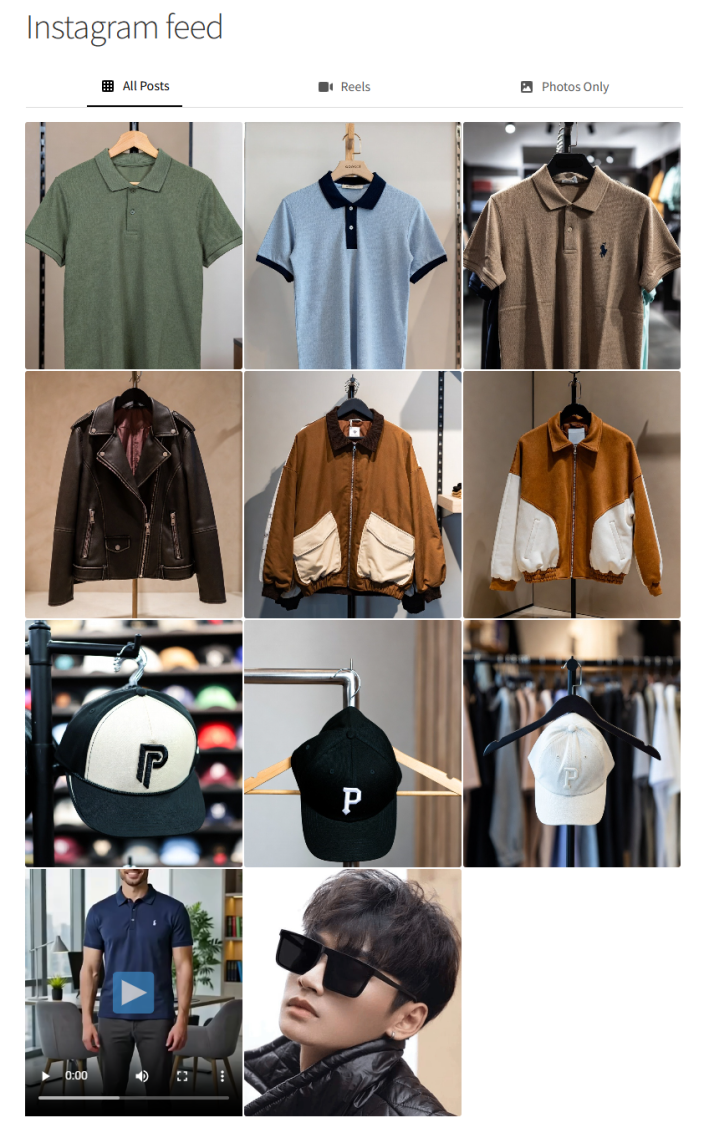
Smart Instagram Feed allows you to display instagram feed on your WooCommerce store .
Installation
↑ Back to topTo start using a product from WooCommerce.com, you can use the “Add to store” functionality on the order confirmation page or the My subscriptions section in your account.
- Navigate to My subscriptions.
- Find the Add to store button next to the product you’re planning to install.
- Follow the instructions on the screen, and the product will be automatically added to your store.
Alternative options and more information at:
Managing WooCommerce.com subscriptions.

Setup and Configuration
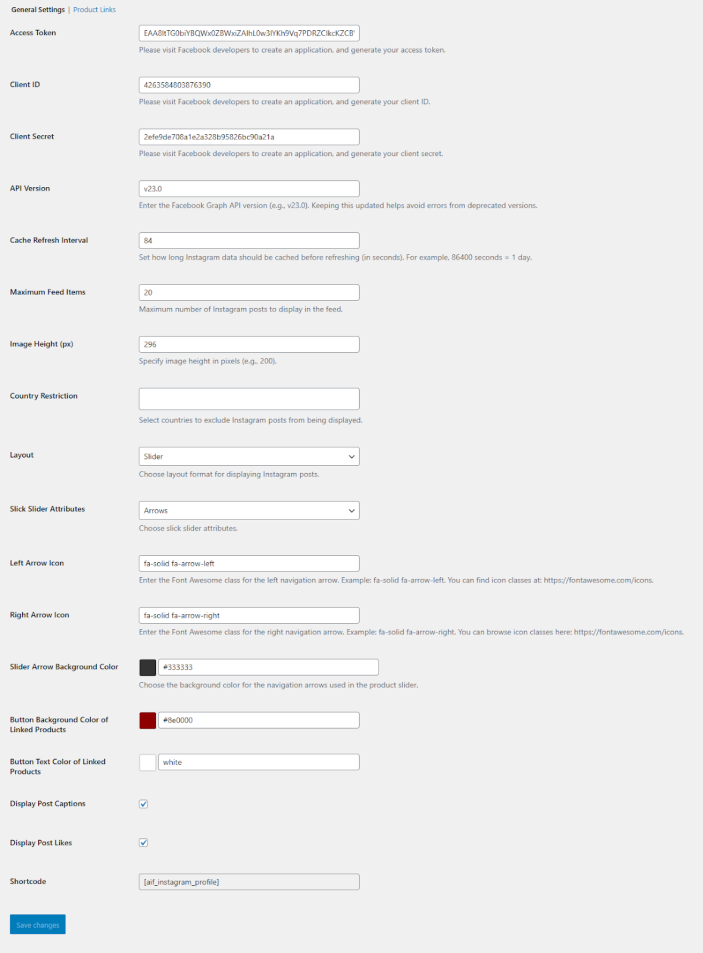
↑ Back to topAfter activating the Smart Instagram Feed for WooCommerce, the “Insta Feed” option will be displayed in the WooCommerce settings. Click on this option and configure the following settings:
Steps to Connect Instagram with Facebook:
↑ Back to topStep 1: Create a Facebook App
↑ Back to top- Go to https://developers.facebook.com/
- Log in to your Facebook account.
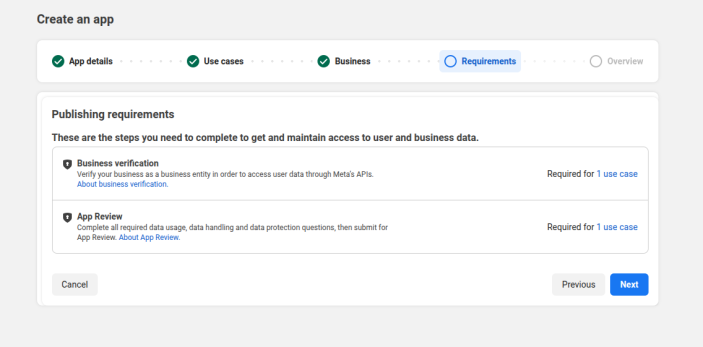
- Click on My Apps and select Create App.
- Add the App Contact Email and click Next.
- In the Use Cases screen, select Other and click Next.
- Choose Business as the app type and complete the app creation.
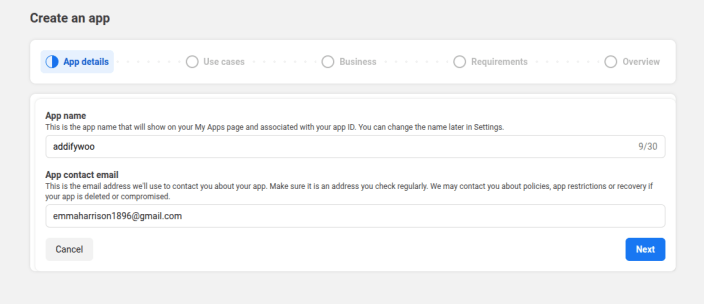
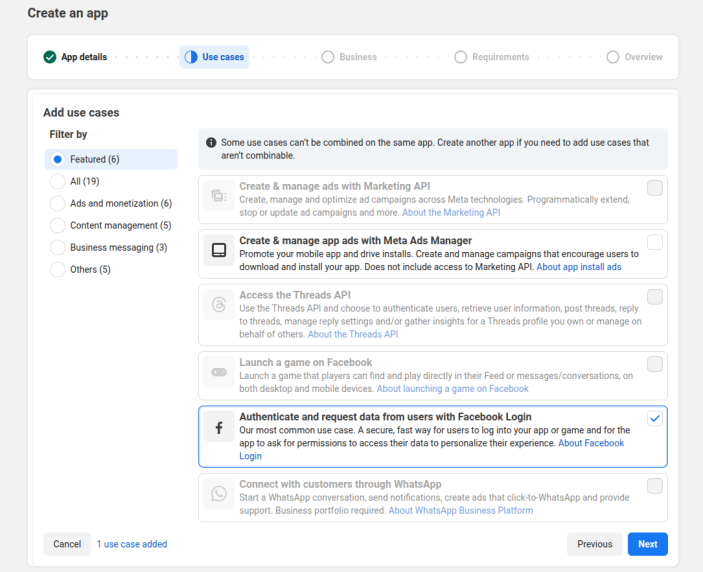
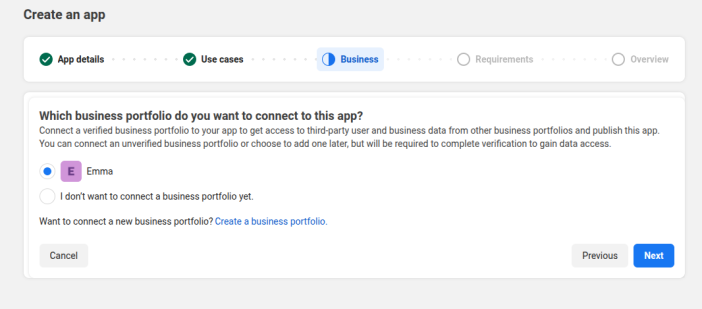
Step 2: Get App ID and Client Secret
↑ Back to topTo create an app id and a client secret, you can:
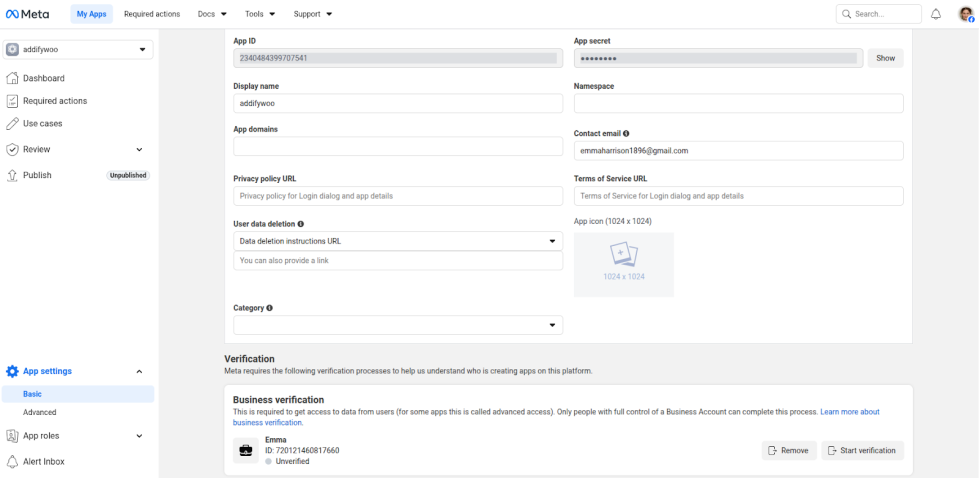
- Open the newly created app.
- Go to App Settings.
- Copy the following details:
- App ID (Client ID)
- App Secret (Client Secret)
- Paste these values into the respective fields in the admin panel.
Step 3: Generate Access Token
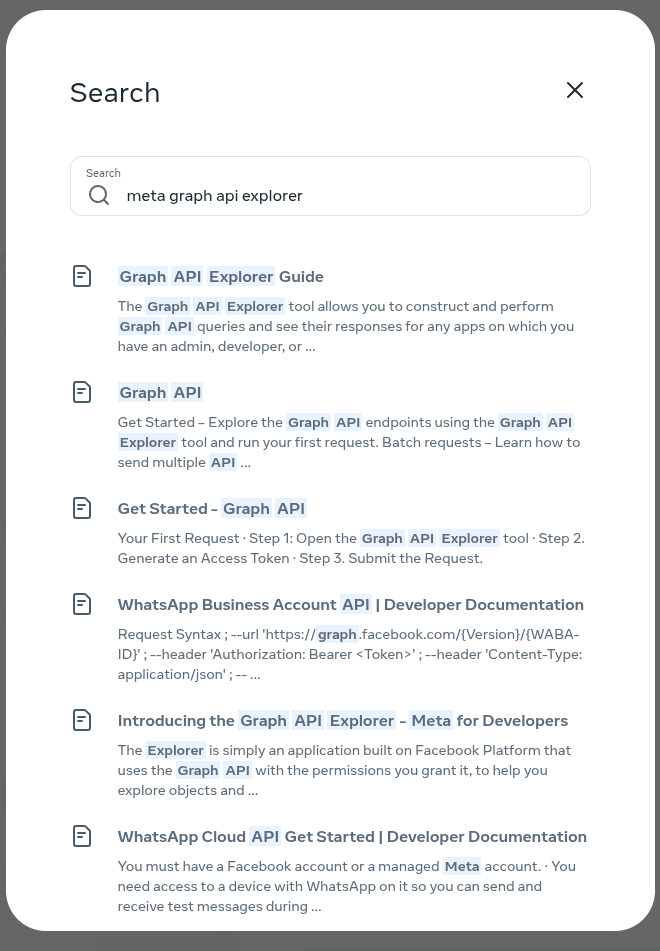
↑ Back to top- Open the Graph API Explorer.
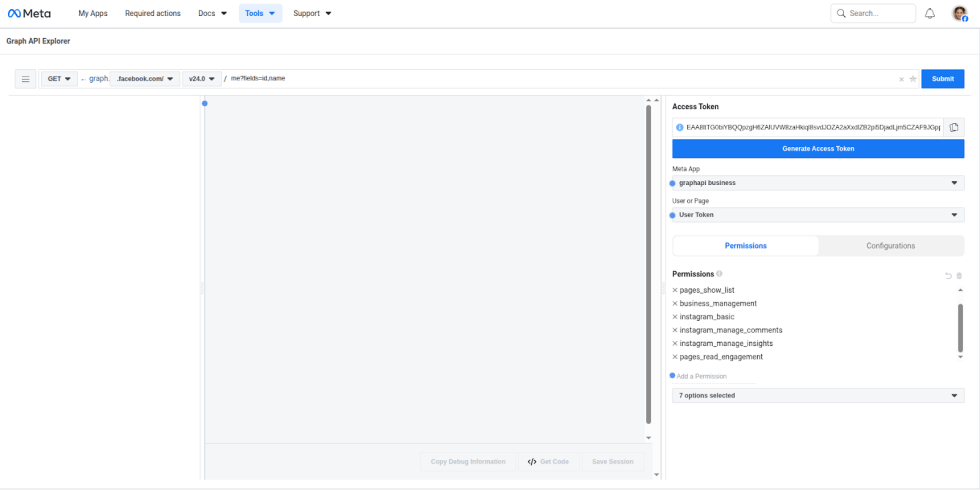
- Select your created app from the app list.
- Add the following permissions:
- read_insights
- pages_show_list
- business_management
- instagram_basic
- instagram_manage_comments
- instagram_manage_insights
- pages_read_engagement
- Click Generate Access Token.
- Copy the generated Access Token.
- Paste it into the Access Token field in General Settings.
General Settings:
↑ Back to topIn general settings, you can:
- Access Token: Add the Access token that is generated during the creation of facebook app.
- Client ID: Add the client id that was generated during the app creation.
- Client Secret: Add the secret key that was generated during the app creation
- Api Version: Add the Graph Api version of Api that is used during the app creation.
- Cache Refresh Interval: Add the time interval to refresh the cache for smooth and faster loading.
- Maximum Feed Items: Add the maximum number of Instagram posts that are displayed in the feed.
- Image height (px): Set the height of instagram feed image in form of pixels.
- Country Restriction: Select the specific country to exclude from the display of the Instagram feed.
- Layout: Set the feed display layout in:
- Grid: Displayed feed in a grid view.
- Slider: Displayed feed in a slider view. You can:
- Slick Slide Attributes: Choose the slider attribute, such as arrow, dots, or both, based on your preference.
- Left arrow icon: Add the font class to display the left arrow icon.
- Right arrow icon: Add the font class to display the right arrow icon.
- Slider arrow background color: Add the custom color for the slider arrow background.
- Button background color for linked products: Add the custom color for the button background that will be displayed in a linked product.
- Button text color for linked products: Add the custom color for the button text, which will be displayed in a linked product.
- Display post Captions: Enable this to show the caption on the Instagram post.
- Display posts likes: Enable this to show the like option on the Instagram post.
- Shortcodes: Use these shortcodes anywhere in your store to display the Instagram feed.
- Save Changes: Click the button to save and apply your changes.
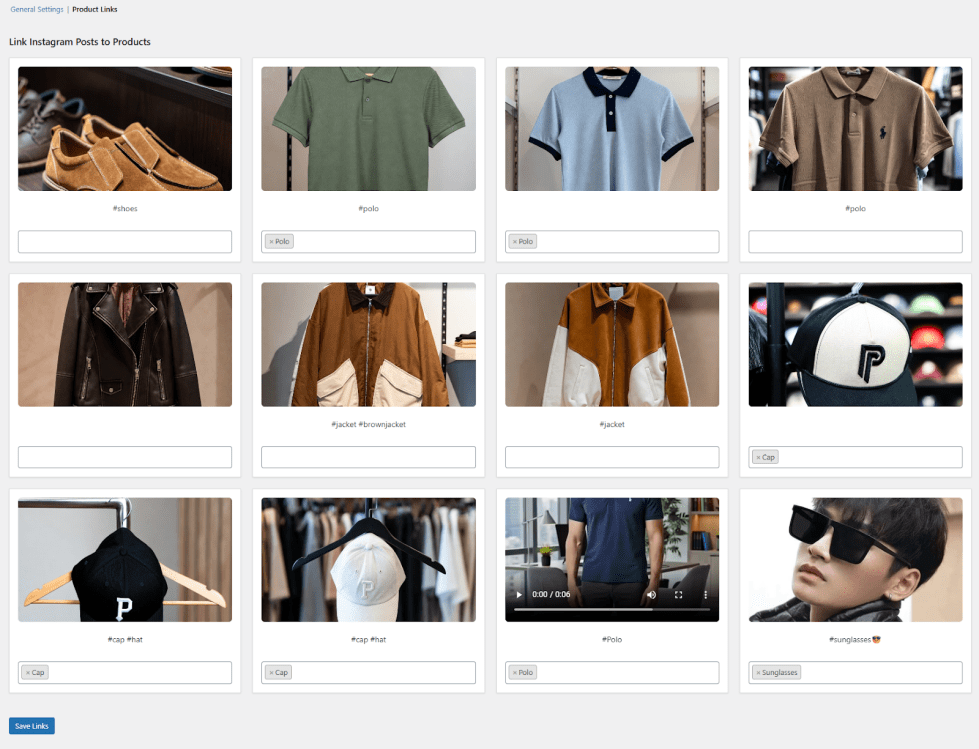
Product Link:
↑ Back to topAfter configuring the general settings, you can link products with feeds. In this tab, you can easily view all feeds and associate products with them. You can:
- Automatic Linking: Use a hashtag (#) to link products automatically. Products with the hashtag will automatically be linked to the feed and displayed with Buy Now and Add to Cart buttons.
- Manual Linking: You can click on a feed, search for the product, and link it directly to the reel.
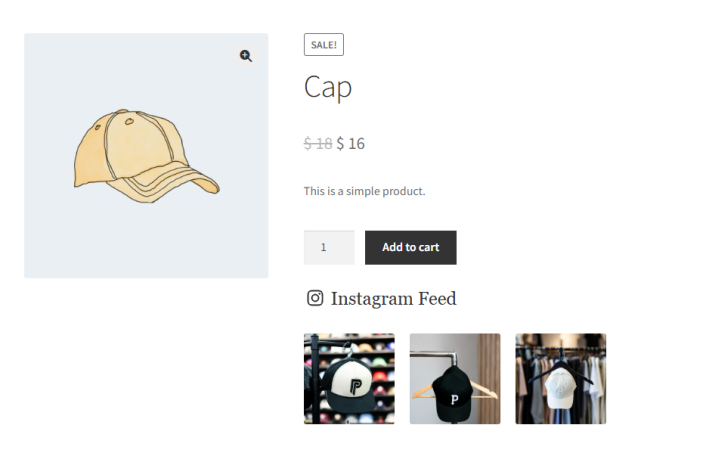
Frontend Store View:
- All posts linked to a product will appear on the product page, making it easier for customers to explore related content.
Instagram Feed SeparatePage:
- When customers open Instagram posts, they will see a linked product inside their posts. Customers can easily purchase the product directly from them.