
Before you start
↑ Back to topMany API-based shipping methods require products to have weight and dimensions set. Before adding those values to products, configure the units used by the store.
To choose the unit of measurement for weight and dimensions, go to WooCommerce > Settings > Products.
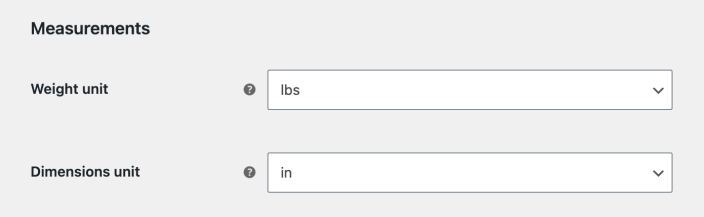
Add measurements to a product
↑ Back to topAfter setting the units, edit the product and open the Shipping tab in the Product data section.
Before entering product measurements, confirm that the product uses shipping fields. If the Shipping tab is missing, confirm that the product is not marked Virtual and is not a Grouped or External/Affiliate product.
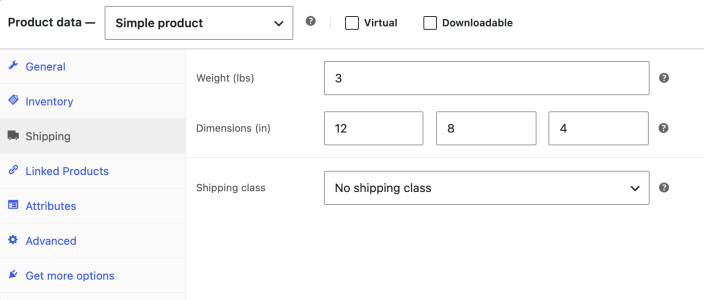
Enter all values in decimal form, without special characters, such as 12 or 12.5. All fields must be set. Select Update to save the product.
How measurements appear to customers
↑ Back to topThese values are also shown to customers. WooCommerce stores one weight and one set of dimensions per product and uses them for both carrier rates and the product page, so whatever is entered here appears publicly under Additional information, labeled simply Weight and Dimensions.
WooCommerce does not include separate fields for the product’s own measurements, and there is no built-in setting that relabels those rows. If the shipping figures differ from the product’s own measurements, use one of these approaches:
- Add your own product details. On the Attributes tab, add an attribute such as Product size and enable Visible on the product page. It appears in the same Additional information section under your own label.
- Relabel the existing rows. Weight and Dimensions are translatable strings, so a translation plugin can change them to labels such as Shipping weight and Shipping dimensions.
- Hide the rows with theme customization. Work with a developer or theme maintainer if you want to hide the Weight and Dimensions rows from the Additional information table. For exact CSS and PHP examples, see Customize product Weight and Dimensions rows. Keep the shipping values filled in so carrier rates can still use them.
Do not clear the weight or dimension fields to hide those rows. Carrier rates are calculated from those values, so emptying them can change what customers are quoted at checkout. For block themes, the Customizing Your Product Pages guide explains the Product Details block.
Troubleshoot high shipping rates
↑ Back to topShipping rates that are higher than expected are often caused by the weight and dimension settings for your products.
Check the shipping carrier’s website and enter the same product weight and dimensions to see what rates are returned. Premium shipping extensions return rates through the carrier API and do not change those rates unless you entered an adjustment in the extension settings.
If those rates do not work for your store, consider using Flat Rate Shipping or Table Rate Shipping.