
Sell products based on measurements like length, area, volume, or weight and allow customers to input their desired measurements directly on the product page.
Setup and Installation
↑ Back to topInstallation
↑ Back to topTo start using a product from WooCommerce.com, you can use the “Add to store” functionality on the order confirmation page or the My subscriptions section in your account.
- Navigate to My subscriptions.
- Find the Add to store button next to the product you’re planning to install.
- Follow the instructions on the screen, and the product will be automatically added to your store.
Alternative options and more information at:
Managing WooCommerce.com subscriptions.

Configuration:
↑ Back to topTo configure the extension, go to WooCommerce > Products in the WordPress admin panel. Click on a product to edit, then scroll down to Product Data and change it from Simple Product to Measurement. This will unlock two tabs: Measurement and Min/Max Quantity Value.
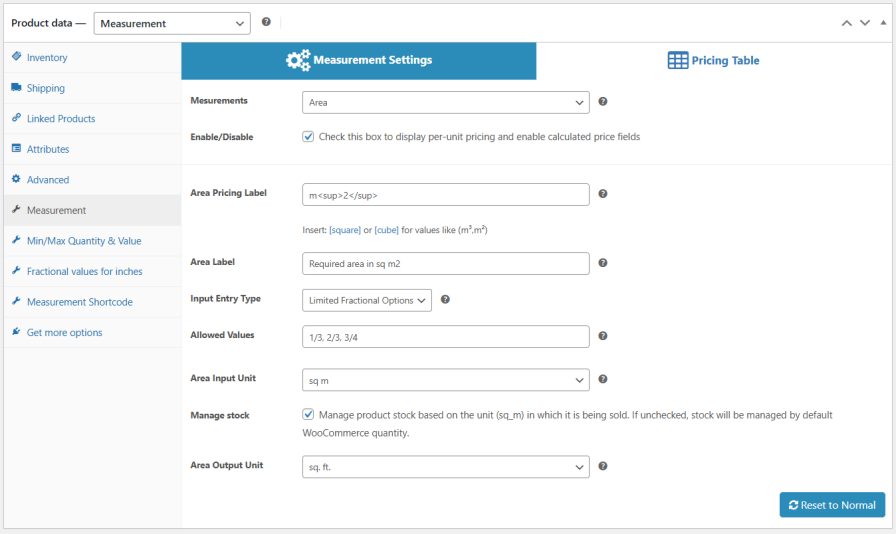
Click on the Measurement Settings, you will find two more tabs Measurement Settings and Pricing Table.
Measurement Settings :
↑ Back to top- Measurements: You can set the unit of measurement of your choice for your product. There are multiple options such as Weight, Length, Volume and many more.
- Show Product Price Per Unit: Check the box to display product pricing per unit on the frontend.
- Pricing Label: Set the pricing label and display it next to product price on frontend. For measurement units like area you can use values like m² or m³.
- Label: Add a custom label to display on the product page.
- Entry Type: Choose the methods customers use to enter values. Select from free form or limited form. Using a free-form input with min and max values.
- Input Unit: Select the input unit to define pricing.
- Manage stock: Checkbox to manage the product stock based on the unit in which it is being sold.
- Output Unit: Choose the output unit to specify pricing.
Pricing Table:
↑ Back to topPricing Table enables you to set the product measurement range and set the Price Per Unit. Also set the Sale Price Per Unit
Note: If you don’t include either one of them price per unit and sale price per unit, it will pick the minimum price of the product. If the quantity of the product doesn’t fall under the Ranges it will also display the minimum price of the product.

Min / Max Quantity & Value:
↑ Back to top- Price: Set the minimum price for the product measurement. If customer’s product quantity not exist in the ranges then the minimum price will apply.
- Minimum Quantity: Set the minimum quantity should be purchased at least.
- Maximum Quantity: Set the maximum quantity of the product allowed to purchase.


