
PDF Invoice for WooCommerce + Drag and Drop Template Builder enables you to automatically helpful tool that helps you build and customize the PDF Templates for WooCommerce.
Installation
↑ Back to topTo start using a product from WooCommerce.com, you can use the “Add to store” functionality on the order confirmation page or the My subscriptions section in your account.
- Navigate to My subscriptions.
- Find the Add to store button next to the product you’re planning to install.
- Follow the instructions on the screen, and the product will be automatically added to your store.
Alternative options and more information at:
Managing WooCommerce.com subscriptions.

Setup and Configuration
↑ Back to topGoto WooCommerce -> Settings -> PDF
You can attach PDFs to WooCommerce orders from this page.
This allows you to add documents such as invoices, packing slips, or custom PDFs to each order automatically.
You can create and manage different PDF templates and assign them to orders as needed
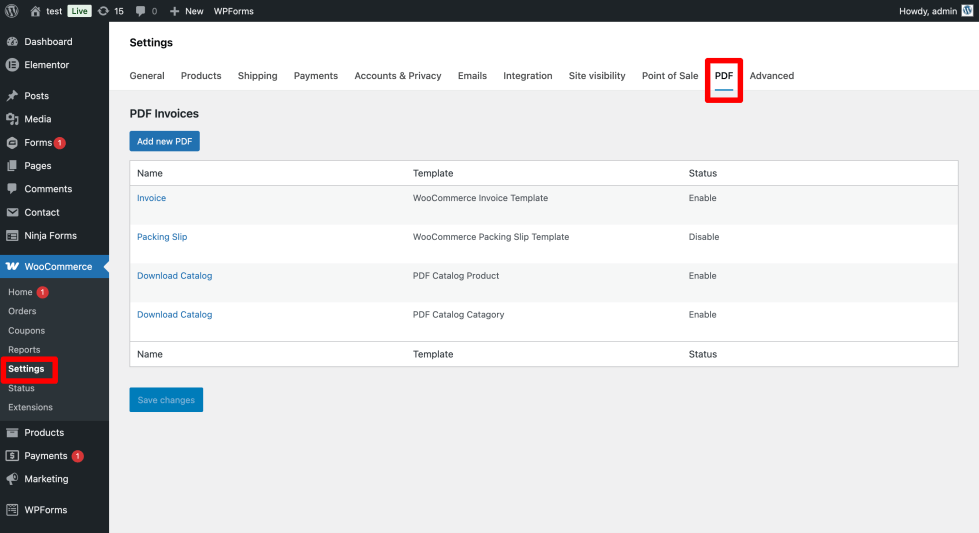
You can attach PDFs to WooCommerce orders from this page.
This allows you to add documents such as invoices, packing slips, or custom PDFs to each order.
All PDFs created here can be automatically generated and attached to orders, emails, or downloaded by customers and admins.
You can create multiple PDF documents and assign them to WooCommerce orders.
Each PDF can use its own template and settings.
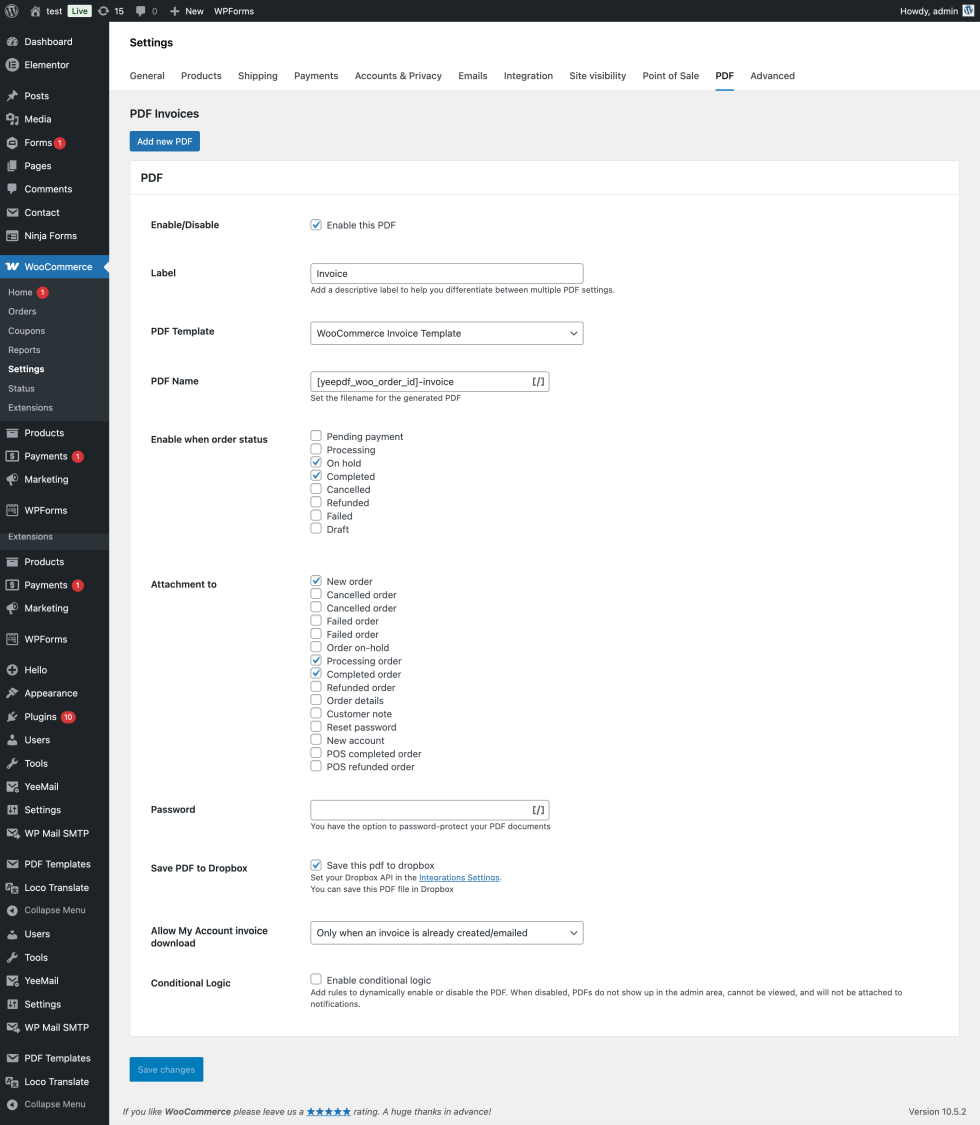
Add a New PDF File
↑ Back to top
Click Add new PDF to create a new PDF configuration.
Enable/Disable
Enable or disable this PDF configuration.
When disabled, the PDF will not be generated or attached anywhere.
Label
Internal name used to identify this PDF in the settings list.
This label is shown to my order.
PDF Template
Select the template used to generate the PDF layout and content.
You can create your own PDF template from the PDF Templates menu, or use one of our pre-built templates.
You can learn how to create a template here: Template Builder Overview
PDF Name
↑ Back to topFilename pattern for the generated PDF.
You can use dynamic tags such as the order ID.
Example:
[yeepdf_woo_order_id]-invoiceEnable when order status
The PDF will be generated when the order reaches any of the selected statuses.
Email Attachments
↑ Back to topAutomatically attach this PDF to selected WooCommerce emails.
Examples:
- New order
- Processing order
- Completed order
- Order details
- Customer emails
Password
↑ Back to topSet a password to protect the generated PDF file.
Customers will need this password to open the document.
Save PDF to Dropbox
↑ Back to topAutomatically save generated PDFs to your Dropbox account.
Requires Dropbox API connection configured in Integration Settings.
Allow My Account invoice download
↑ Back to topControls when customers can download the PDF from:
My Account → Orders
Enable conditional logic
Dynamically enable or disable this PDF based on order data or custom rules.
When conditions are not met, the PDF will not be generated, visible, or attached.
Save Changes
Click Save changes to apply the PDF configuration.
Assign it to WooCommerce orders
The PDF will be generated automatically when an order is created or updated
Template Builder Overview
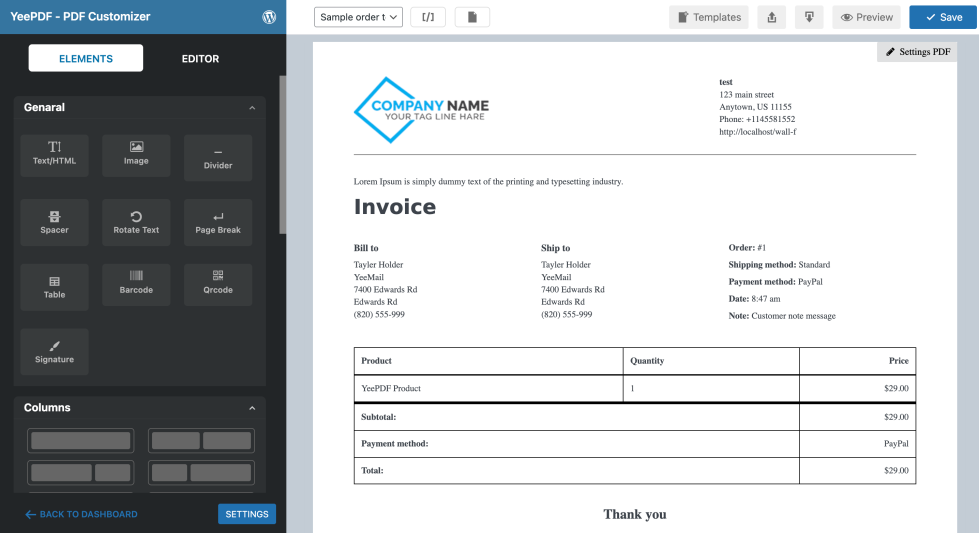
↑ Back to topThe email customizer user interface is composed of three main sections:
- Upper toolbar
- Left panel
- Live preview
Upper Toolbar
↑ Back to topFrom left to right, some of the main features in the horizontal tool section include:
- Sample order to show: This is another dropdown that allows you to select a specific customer’s order to use for designing.
- Shortcodes: Show all the WooCommerce shortcodes available for use in designing your messages. Copy a specific shortcode from here then paste it into the appropriate block of the email element.
- Blank: Clear all your customization so that you can have a blank space in the editor area. This option may be needed for some reasons, but please use it carefully and be sure you really would like to clear your designs and customizations. When it’s gone blank and saved, all the changes you made can’t be restored.
- Template: You can choose from our available templates.
- Import: You can import the template you previously exported (PDF files cannot be imported).
- Export: You can export the template for reuse later.
- Preview: Instantly view your customized PDF in a full-screen pop-up. It is a complete PDF file.
- Save: Save your edits at any point in time.
Left Panel
↑ Back to topYou can select the content you want to include in the PDF.
Elements Tab
There is a variety of draggable block-based elements that would help you spice up your PDF template.
- Genaral: Text, Image, Table Page Break, HTML, and so on.
- Columns: You can drag and arrange the layout for your PDF design. There are many layouts you can choose from.
- WooCommerce: These are the main WooCommerce shortcodes. There are many other shortcodes you can add in the Text/HTML element under the shortcode section.
Settings Tab
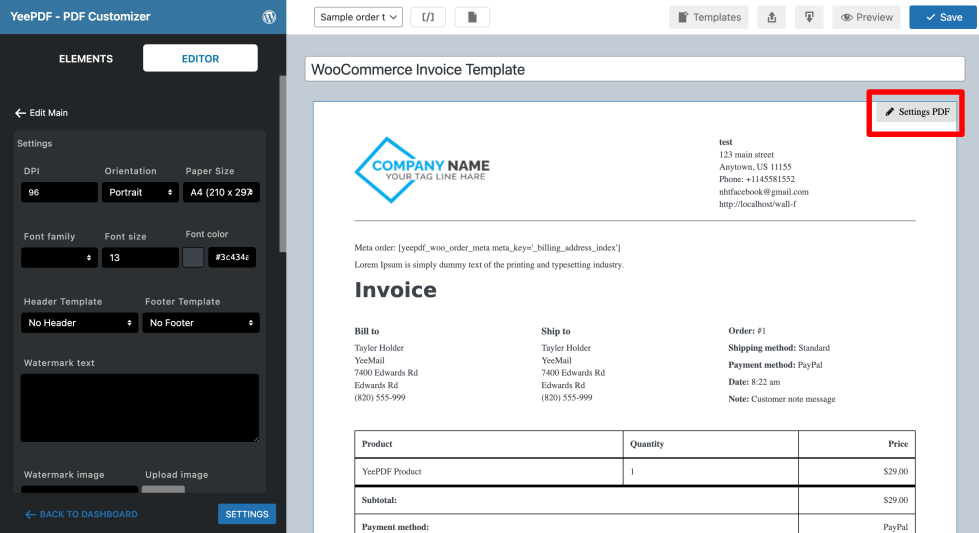
↑ Back to topThis section contains all PDF settings, including DPI, font, orientation, background, padding, header, footer, etc.
Header and Footer
↑ Back to topYou can add a global header and footer to all PDFs by using dedicated Header and Footer templates.
How to set up Header and Footer
- Go to PDF Templates → New Template
- Create two new templates named:
- Header
- Footer
- Design the header and footer content inside each template.
- Edit the PDF template where you want to add the header and footer.
- In that PDF template, open Settings PDF
- Header Template → select the Header template
- Footer Template → select the Footer template
After configuration, all generated PDFs will automatically include this Header and Footer.
Global PDF Settings
↑ Back to top
The Global PDF Settings page allows you to configure fonts, PDF storage, custom paper sizes, and external integrations used by all generated PDFs.
You can access it at:
PDF Templates → Settings
Font Management
↑ Back to top
This section lets you manage fonts available in the PDF builder.
installed Fonts
Displays all fonts currently available in the system, including supported styles:
- Regular
- Italic
- Bold
- Bold Italic
You can remove custom fonts using the delete icon.
Add Font
↑ Back to topUpload custom fonts to use inside PDF templates.
Fields
- Font Name The internal font identifier. Must contain lowercase letters only (no spaces).
- Regular Upload the regular .ttf font file (required).
- Italics Upload italic .ttf font file (optional).
- Bold Upload bold .ttf font file (optional).
- Bold Italics Upload bold-italic .ttf font file (optional).
After uploading, click Add Font to register the font.
Custom PDF Paper (mm)
Define custom paper sizes available in the PDF builder.
Format:
width,height
Example:
210,297
One size per line.
PDF Storage Settings
↑ Back to topConfigure where and how generated PDFs are stored.
Do not save PDFs on the server
If enabled, the plugin will delete the PDF file after it has been attached to the email.
Useful for:
- Saving disk space
- Privacy compliance
- Temporary PDFs
Disable random name folder
By default, PDFs are stored in:
/wp-content/uploads/pdfs/downloads/{random_name}/file.pdf
If enabled, PDFs will be stored directly in:
/wp-content/uploads/pdfs/downloads/file.pdfPDF storage folder
↑ Back to topDefine a custom storage path inside /uploads.
Example:
pdfs/invoices
Result:
/wp-content/uploads/pdfs/invoices/file.pdfFAQs
↑ Back to top
Can customers remove chained products?
If the chained product is marked as included (free) customers cannot remove it. It is locked to the parent product.
If the chained product is not included (priced normally), customers can remove it from the cart.