
The Advanced Product Gallery with Images, Videos and YouTube replaces the default product gallery with a responsive, customizable media showcase. Mix standard images, self-hosted MP4 videos, and YouTube embeds side-by-side in five layout modes, with variation galleries and complete control over thumbnail visual styling.
Installation
↑ Back to topTo start using a product from WooCommerce.com, you can use the “Add to store” functionality on the order confirmation page or the My subscriptions section in your account.
- Navigate to My subscriptions.
- Find the Add to store button next to the product you’re planning to install.
- Follow the instructions on the screen, and the product will be automatically added to your store.
Alternative options and more information at:
Managing WooCommerce.com subscriptions.

Configuration
↑ Back to top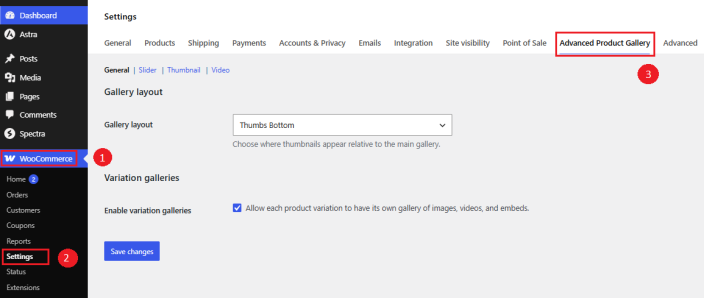
Once the plugin is activated, all gallery options are configured directly within WooCommerce settings. Access the settings by navigating to:
WooCommerce → Settings → Advanced Product Gallery.
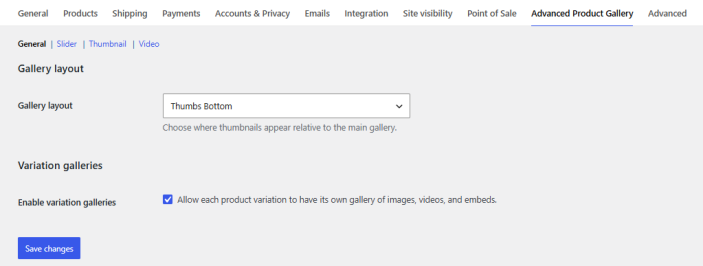
General Settings Tab
↑ Back to topGallery layout
Choose where thumbnails appear relative to the main gallery. Options include:
- Thumbnails Bottom (Default)
- Thumbnails Left
- Thumbnails Right
- Thumbnails Top
- Slider Only (with pagination dots, hiding thumbnails)
Enable variation galleries
Allow each product variation to have its own gallery of images, videos, and embeds.
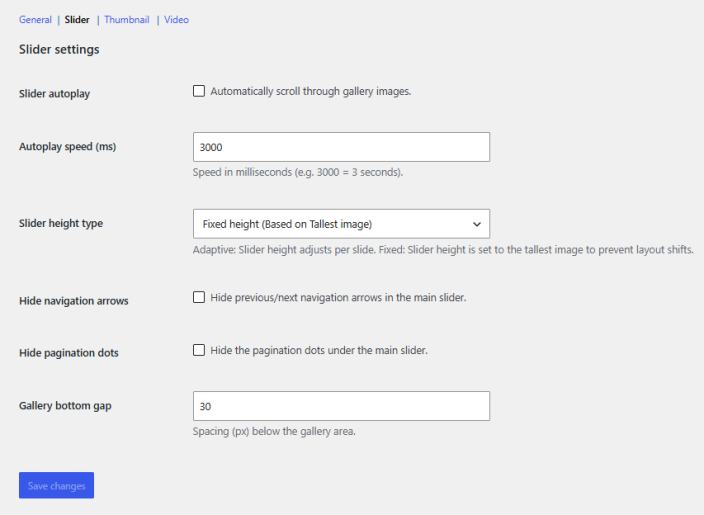
Slider Settings Tab
↑ Back to topSlider autoplay
Automatically scroll through gallery images.
Autoplay speed (ms)
Speed in milliseconds (e.g. 3000 = 3 seconds).
Slider height type
- Adaptive: Slider height adjusts per slide.
- Fixed: Slider height is set to the tallest image to prevent layout shifts.
Hide navigation arrows
Hide previous/next navigation arrows in the main slider.
Hide pagination dots
Hide the pagination dots under the main slider.
Gallery bottom gap
Spacing (px) below the gallery area.
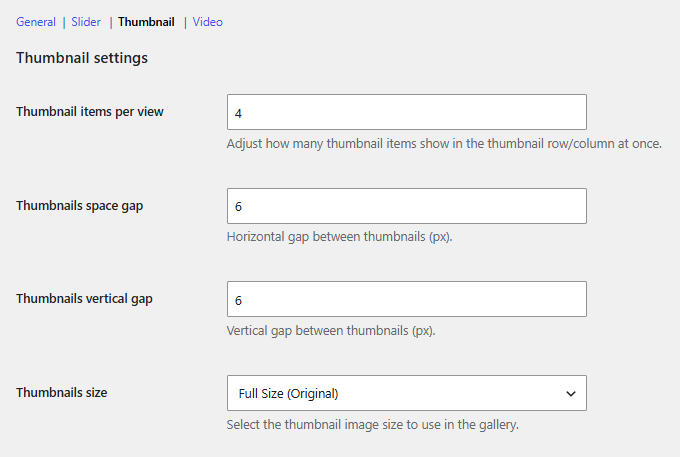
Thumbnail Settings Tab
↑ Back to topThumbnail items per view
Adjust how many thumbnail items show in the thumbnail row/column at once.
Thumbnails space gap
Horizontal gap between thumbnails (px).
Thumbnails vertical gap
Vertical gap between thumbnails (px).
Thumbnails size
Select the thumbnail image size to use in the gallery. Dynamically lists all registered WordPress and WooCommerce image sizes (e.g., Thumbnail, Medium, Large, WooCommerce Gallery Thumbnail, Full Size).
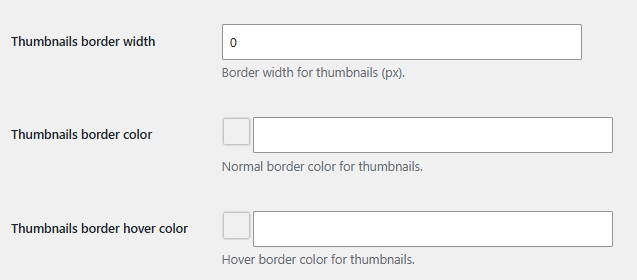
Thumbnails border width
Border width for thumbnails (px).
Thumbnails border color
Normal border color for thumbnails.
Thumbnails border hover color
Hover border color for thumbnails.
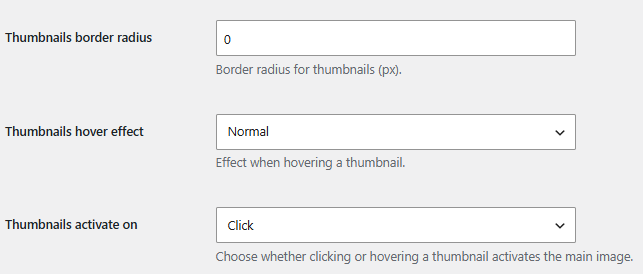
Thumbnails border radius
Border radius for thumbnails (px).
Thumbnails hover effect
Effect when hovering a thumbnail. Options include:
- Normal
- Zoom In
- Zoom Out
- Slide Up
- Slide Down
Thumbnails activate on
Choose whether clicking or hovering a thumbnail activates the main image. Options include:
- Click
- Mouseover (Hover)
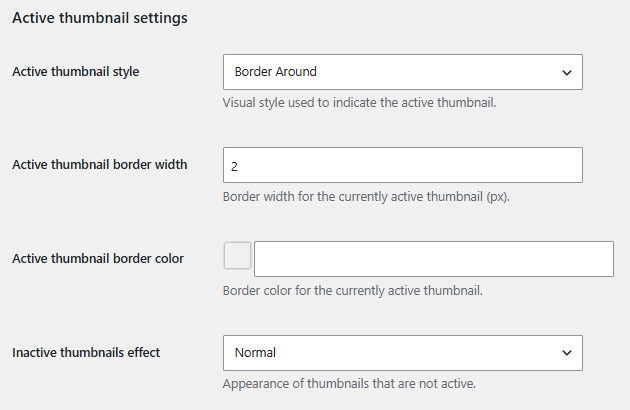
Active thumbnail style
Visual style used to indicate the active thumbnail. Options include:
- Border Around
- Border Bottom
- Border Top
- Zoom Out
- Opacity
Active thumbnail border width
Border width for the currently active thumbnail (px).
Active thumbnail border color
Border color for the currently active thumbnail.
Inactive thumbnails effect
Appearance of thumbnails that are not active. Options include: Normal, Opacity, or Grayscale.
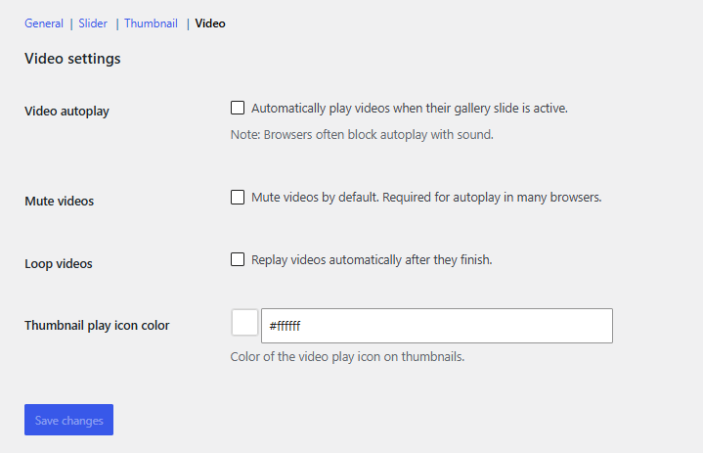
Video Settings Tab
↑ Back to topVideo autoplay
Automatically play videos when their gallery slide is active. Note: Browsers often block autoplay with sound.
Mute videos
Mute videos by default. Required for autoplay in many browsers.
Loop videos
Replay videos automatically after they finish.
Thumbnail play icon color
Color of the video play icon on thumbnails. Default is #ffffff.
Manage Product Gallery
↑ Back to topAdvanced Product Gallery adds a custom metabox to the WooCommerce product edit screen, allowing store owners to override the default product gallery images with a custom gallery for each product.
Drag and drop gallery items to reorder their positions within the gallery metabox.
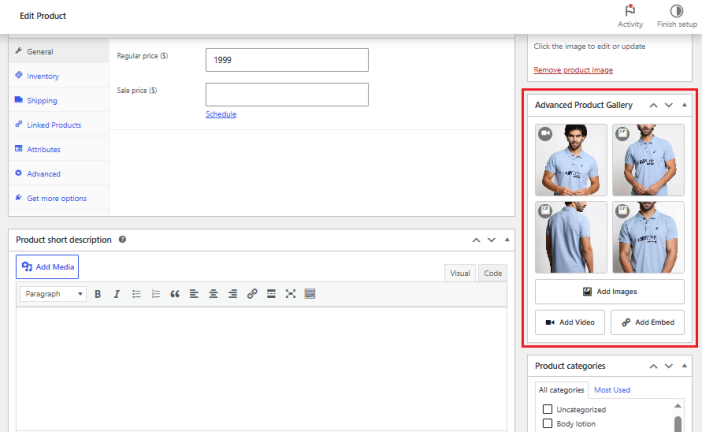
To add a self-hosted video:
Click the Add Video button to open the video modal popup.
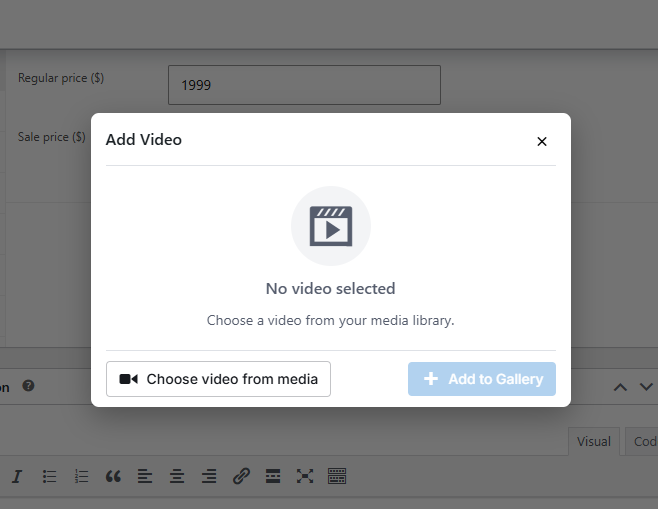
Click Choose video from media to open the WordPress media uploader and select your video file.
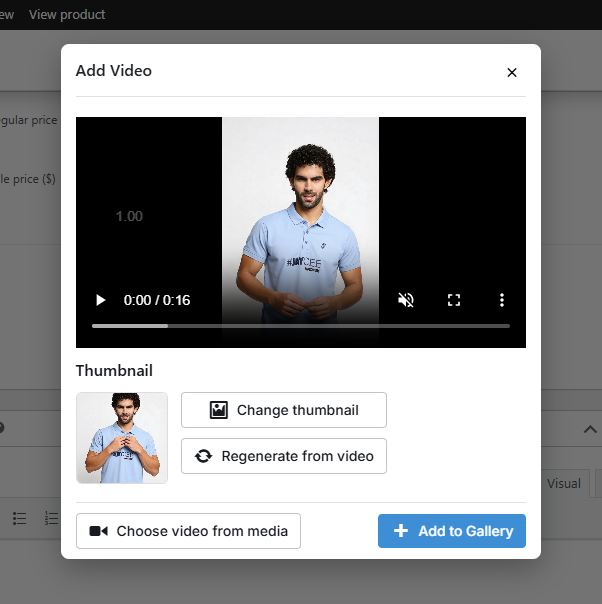
The system will automatically generate a poster thumbnail from the video, which you can keep or override by clicking Change thumbnail to upload a custom image. Click Add to Gallery.
To add an external YouTube embed:
Click the Add Embed button to open the embed modal popup.
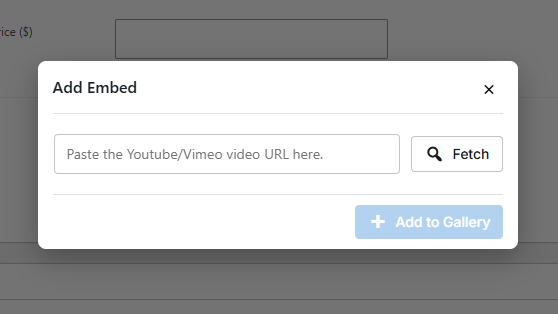
Paste your YouTube URL in the input field and click Fetch.
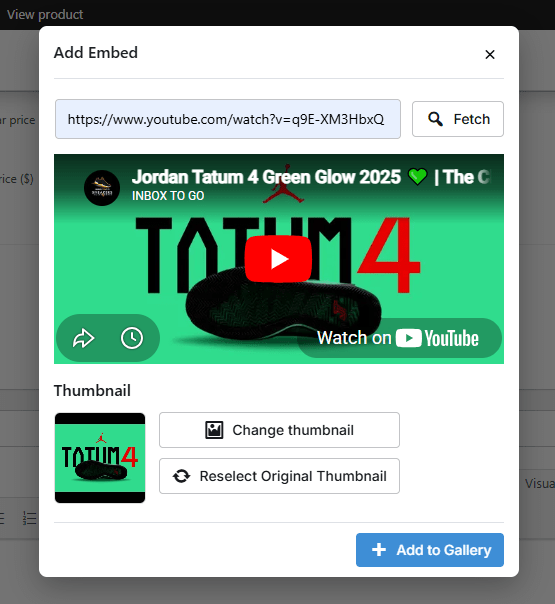
The system will automatically retrieve the video’s original thumbnail. You can keep this or click Change thumbnail to upload a custom poster image. Click Add to Gallery.
Click the product’s Publish or Update button to save your changes.
Variation Galleries
↑ Back to topIf your variable products include multiple colors, sizes, or styles, you can assign a unique gallery — including images, videos, and embedded media — to each product variation.
Prerequisite Action
Make sure Enable Variation Galleries is checked in WooCommerce → Settings → Advanced Product Gallery → General tab before proceeding.
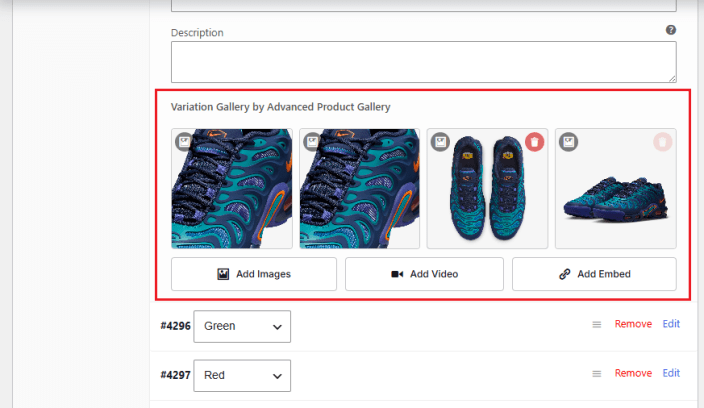
- Go to the product editor and click the Variations sub-tab inside the Product Data box.
- Expand the variation item details panel.
- Under the variation settings list, look for the Variation Gallery by Advanced Product Gallery row.
- Click the buttons to insert variation images, drag to change their order, and save the settings.
Shortcode Support
↑ Back to topTo display a specific product media gallery on custom pages, custom product page templates, or within page builders such as Elementor and Divi, use the following shortcode.
[advanced-product-gallery-images-videos-youtube product_id="123" layout="thumbs-left"]| Parameter | Accepted Values | Description |
|---|---|---|
| product_id | Any numeric product ID (e.g., 456) | Loads the gallery belonging to that specific product ID. Defaults to current page product if left blank. |
| layout | thumbs-bottom, thumbs-left, thumbs-right, thumbs-top, slider | Overrides default general layout styles for this instance of the shortcode. |
| class | Any string (e.g., my-custom-gallery) | Appends a class prefix to the gallery container wrapper for custom styling overrides. |