General settings
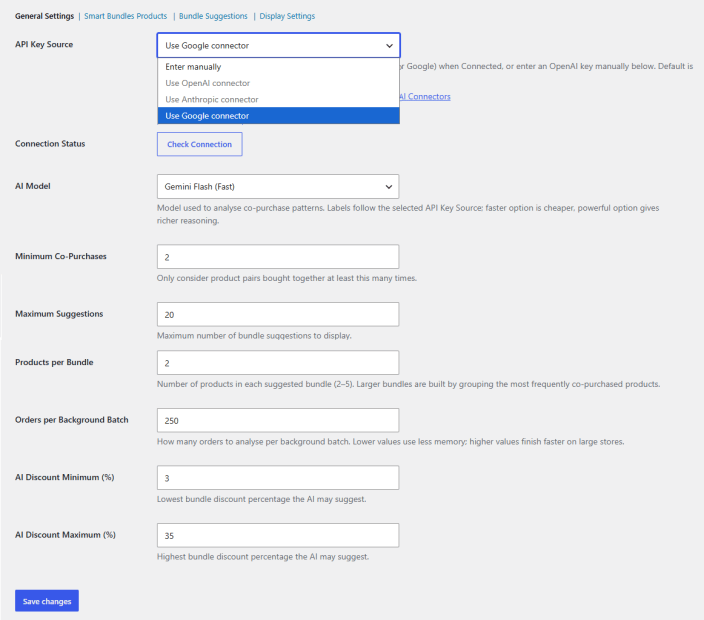
↑ Back to topConfigure the general settings to enable AI Product Bundles on your WooCommerce store. Go to WooCommerce > Settings > AI Product Bundle > General Settings:
- API Key Source: Choose the source for the API key of your preferred platform. You can choose between the following:
- Enter Manually
- Use OpenAI Connector
- Use Anthropic Connector
- Use Google Connector
- Connection Status: Check the status of the API connection.
- AI Model: Select the AI model for your selected AI platform.
- Minimum Co-Purchases: Define the minimum number of times products must be purchased together before they qualify for bundle suggestions.
- Maximum Suggestions: Specify the maximum number of bundle recommendations the plugin should generate.
- Products per Bundle: Select how many products should be included in each suggested bundle.
- Orders per Background Batch: Define how many orders are processed during each background analysis batch.
- AI Discount Minimum (%): Specify the lowest discount percentage AI is allowed to recommend for bundle offers.
- AI Discount Maximum (%): Specify the highest discount percentage AI can recommend for bundle offers.
Smart Product Bundles
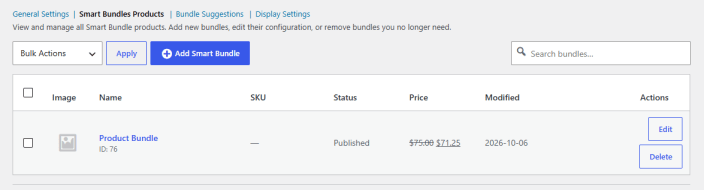
↑ Back to topView and manage all smart product bundles. Add new bundles, edit their configuration, or remove bundles you no longer need. To configure, go to WooCommerce > Settings > AI Product Bundle > Smart Product Bundles:
Manage your smart product bundles here. You can edit or delete your existing bundles. To create new smart bundles, click on the “Add Smart Bundles” button.
For each bundle you can configure the following settings:
Set product name
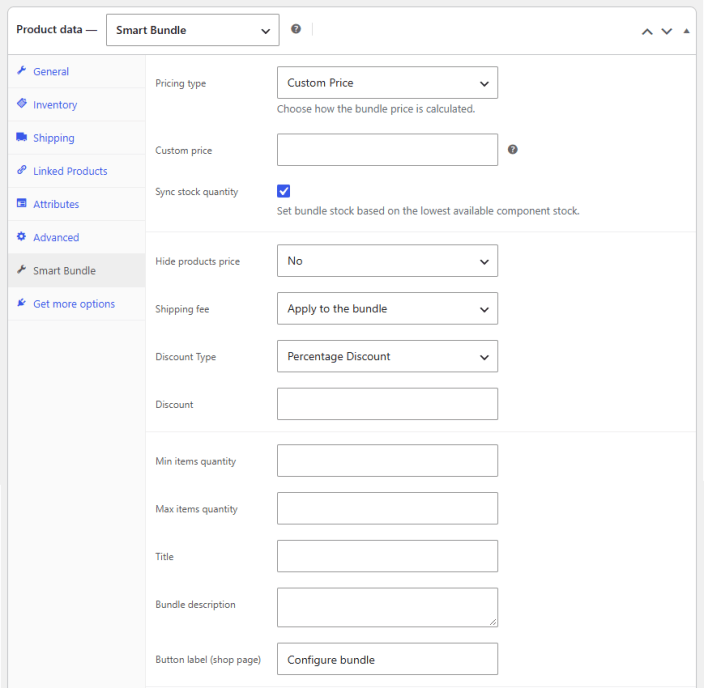
Go to Product Data > Smart Bundle and configure the settings
- Pricing Type: Select your preferred pricing type for the smart product bundle.
- Dynamic Price
- Fixed Price
- Custom Price (Add custom price in the below field)
- Sync Stock Quantity: Set bundle stock based on the lowest available component stock.
- Hide Products Price: Choose if you want to hide the price for the products in the bundle.
- No
- Yes
- Only Regular Price
- Shipping Fee: Select how you want to apply the shipping fee.
- Apply to the bundle
- Apply to each item
- Discount Type: Choose what type of discount you want to offer against the bundle.
- None
- Percentage Discount
- Fixed Amount Discount
- Discount: Add the amount/percentage for the discount.
- Min Items Quantity: Set the minimum quantity for items in the product bundle.
- Max Items Quantity: Set the maximum quantity for items in the bundle.
- Title: Add title for the smart product bundle.
- Bundle Description: Add description for the bundle.
- Button Label (shop page): Add label for the button on the shop page.
Click on the “Add Item” button to add items to the smart product bundle. For each item, you can configure the following:
General settings
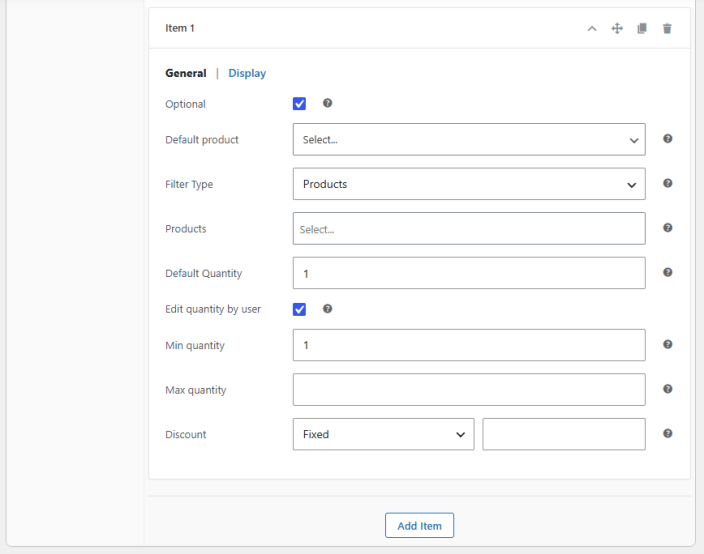
↑ Back to top- Optional: Click the checkbox to make the item optional.
- Default Product: Select the default product for the bundle item.
- Filter Type: Choose the type of filter to be used for this slot:
- Products
- Categories
- Tags
- Product/Categories/Tags: Select the specific products, categories, or tags.
- Default Quantity: Set the default quantity for the item.
- Edit Quantity by User: Allow customers to edit the quantity of item.
- Min Quantity: Set the minimum quantity for the item.
- Max Quantity: Set the maximum quantity for the item.
- Discount: Select if you want to offer fixed, percentage, or no discount on the item.
Display settings
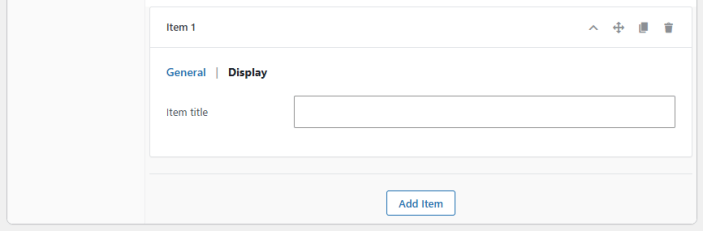
↑ Back to top- Item Title: Set a specific title for the item.
Click on the “Add Item” button to add multiple items to the smart product bundle.
Bundle suggestions
↑ Back to topGenerate bundle suggestions with or without AI based on your order history or goals. Go to WooCommerce > Settings > AI Product Bundles > Bundle Suggestions and here you can create bundles based on suggestions.
Bundle Suggestion without AI
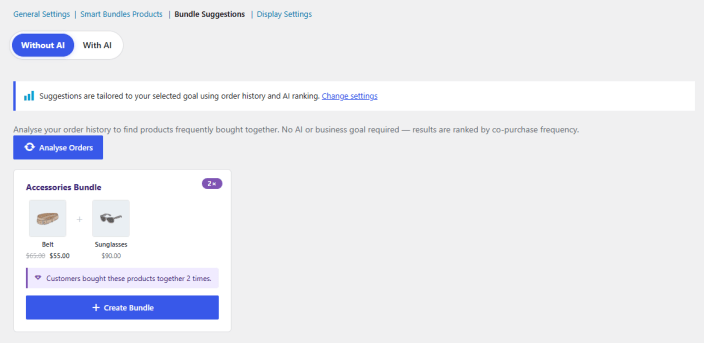
↑ Back to topSet the suggestion toggle at “Without AI” and Click on the “Analyse Orders” button to allow the plugin to analyse your order history to find products frequently bought together. The plugin will suggest bundles based on co-purchased frequency.
Click on the “Create Bundle” button to automatically create a product bundle from all the suggestions.
Product bundle suggestions with AI
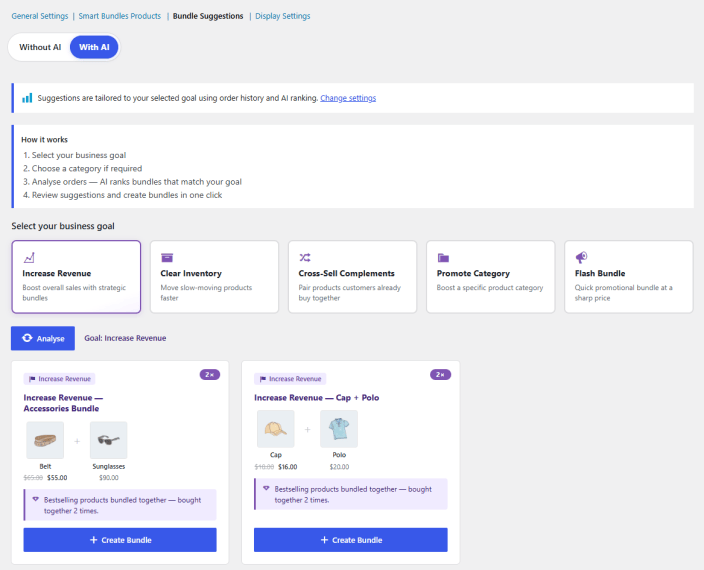
↑ Back to topUse AI to suggest product bundles based on different end goals. Select a specific goal, and the plugin will use AI to suggest bundles.
You can set the following goals for bundle suggestions:
- Increase Revenue: Boost sales with strategic bundles.
- Clear Inventory: Move slow-moving products faster.
- Cross-Sell Complements: Pair products that customers already buy together.
- Promote Category: Promote a specific product category. Select the specific product category that you want to promote.
- Flash Bundle: Quick promotional bundles at a sharp price.
Display settings
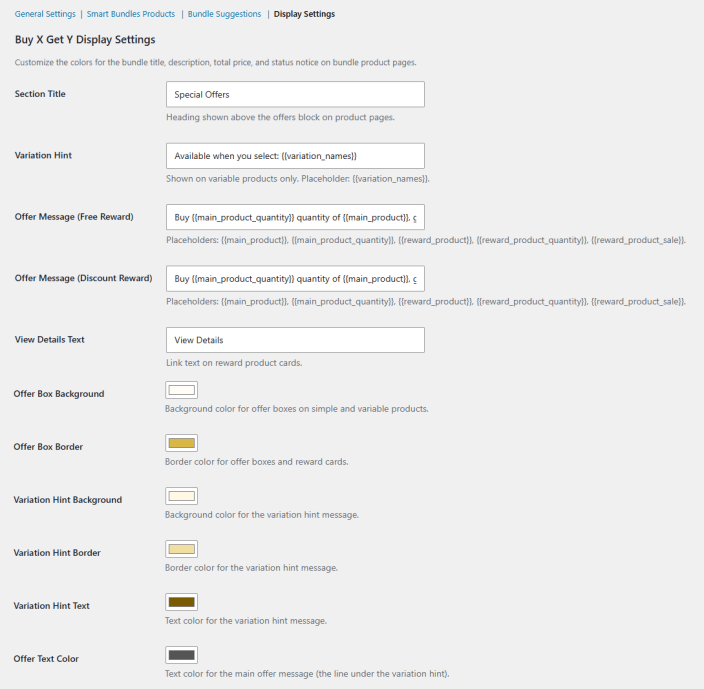
↑ Back to topThe Display Settings section allows you to customize how bundle offers appear on your WooCommerce product pages. Go to WooCommerce > Settings > AI Product Bundle > Display Settings and configure the following.
Buy x get y display settings
↑ Back to top- Section Title: Add the heading to be shown above the bundles offer block on the product page.
- Variation Hint: Add text for the hint to be shown on the variable product page. For example, Available when you select: {{variation_names}}.
- Offer Message (Free Reward): Add message for the free reward offer using multiple placeholders such as, {{main_product}}, {{main_product_quantity}}, {{reward_product}}, {{reward_product_quantity}}, and {{reward_product_sale}}.
- Offer Message (Discount Reward): Set the message to be shown for a discount reward offer.
- View Details Text: Text for the link text on the reward product card.
- Offer Box Background: Background color for offer boxes on simple and variable products.
- Offer Box Border: Border color for offer boxes and reward cards.
- Variation Hint Background: Background color for the variation hint message.
- Variation Hint Border: Border color for the variation hint message.
- Variation Hint Text: Text color for the variation hint message.
- Offer Text Color: Text color for the main offer message (the line under the variation hint).
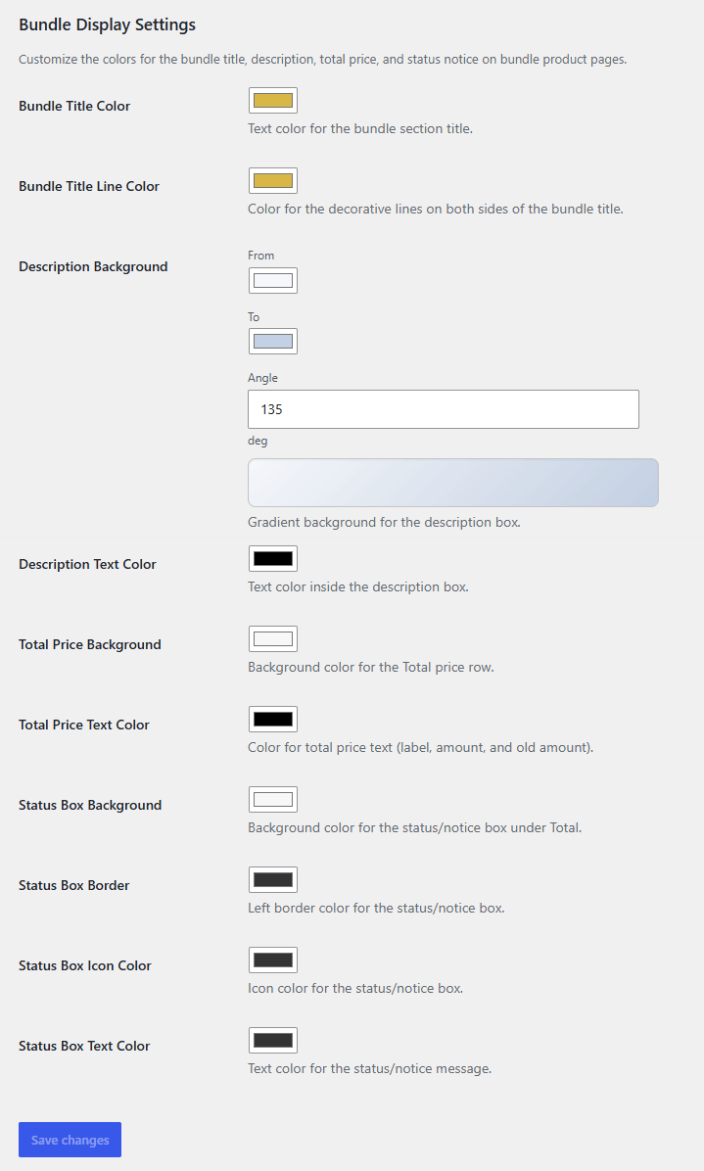
Bundle display settings
↑ Back to top- Bundle Title Color: Text color for the bundle section title.
- Bundle Title Line Color: Color for the decorative lines on both sides of the bundle title.
- Description Background: Choose the colors for the background of the description:
- From
- To
- Angle
- Gradient background for the description box.
- Description Text Color: Text color inside the description box.
- Total Price Background: Background color for the Total price row.
- Total Price Text Color: Color for total price text (label, amount, and old amount).
- Status Box Background: Background color for the status/notice box under Total.
- Status Box Border: Left border color for the status/notice box.
- Status Box Icon Color: Icon color for the status/notice box.
- Status Box Text Color Text color for the status/notice message.
Buy x get y settings
↑ Back to topCreate Buy X get Y campaigns to boost sales on your store. Go to WooCommerce > Buy X get Y and configure offers.
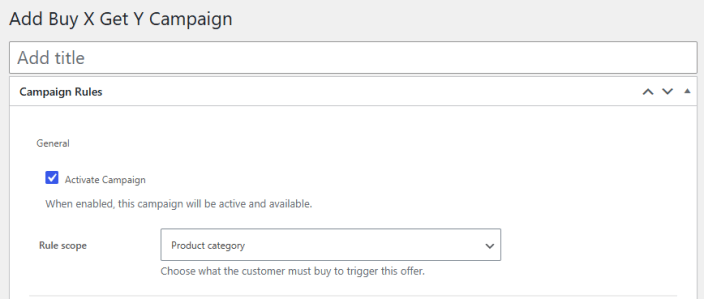
Click on the “Add Buy X Get Y Campaign” button to create new offers.
- Add Title
Campaign rules
↑ Back to topGeneral
- Active Campaign: Click the checkbox to enable the campaign.
- Rule Scope: Choose what the customer must buy to trigger this offer. You can select between:
- Specific Product
- Product Category
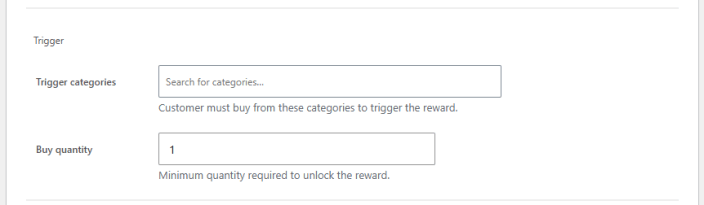
Trigger
- Trigger Product/Category: Choose the specific products or categories that the customer must buy to trigger the reward.
- Buy Quantity: Set the minimum quantity required to unlock the reward.
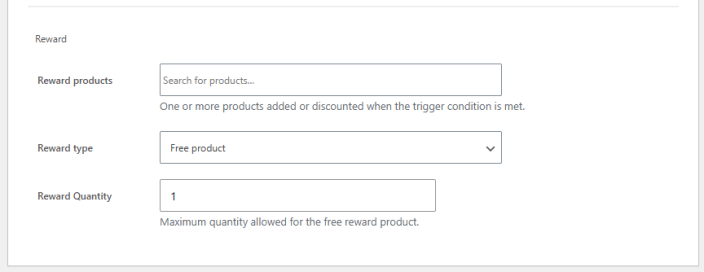
Reward
- Reward Products: Add one or more products or discounted rewards when the trigger condition is met.
- Reward Type: Choose the reward type:
- Free product
- Discounted product
- Reward Quantity/Reward Discount (%): Set the reward quantity for free product or reward discount for discounted products.