AI Product FAQs and Questions allows WooCommerce stores to display product-specific FAQs on their product pages, generate them instantly with AI, or let customers submit their own questions.
Installation
↑ Back to topTo start using a product from WooCommerce.com, you can use the “Add to store” functionality on the order confirmation page or the My subscriptions section in your account.
- Navigate to My subscriptions.
- Find the Add to store button next to the product you’re planning to install.
- Follow the instructions on the screen, and the product will be automatically added to your store.
Alternative options and more information at:
Managing WooCommerce.com subscriptions.

Configuration
↑ Back to topAfter you have installed and activated the Product FAQs and Questions. Go to WooCommerce > Settings > Product Question. Here, you can see three tabs, which are General Settings, Email Settings, Google Captcha Settings and Auto Generate Faq’s.
General Settings
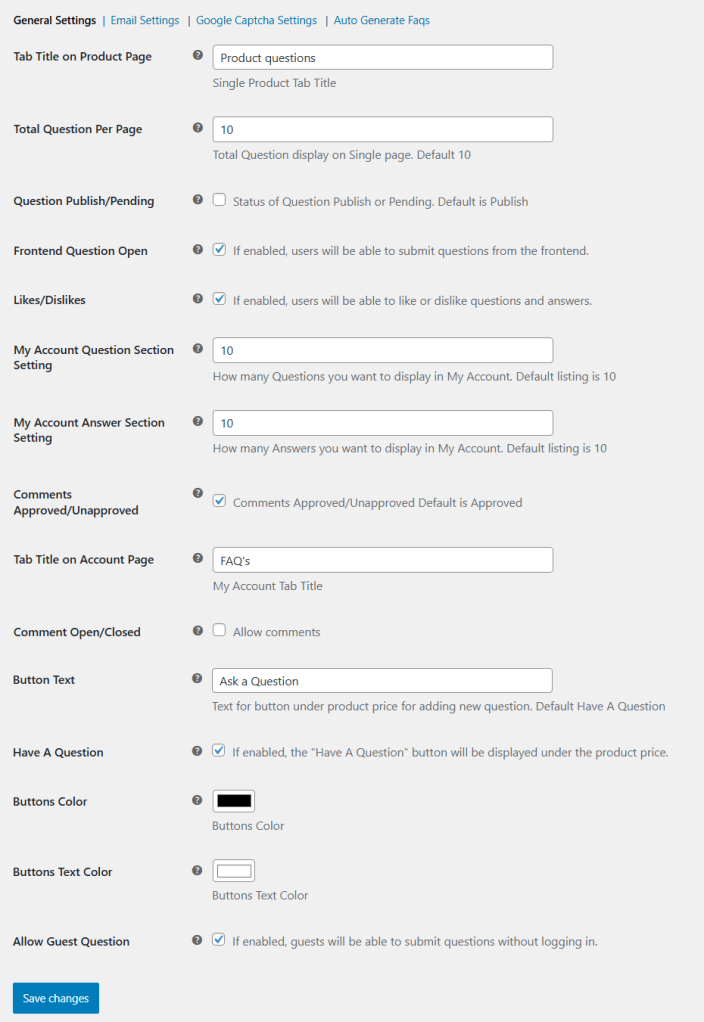
↑ Back to top- Tab Title on Product Page: Set a custom tab title that displays dynamically on the product page.
- Single Product Tab Title: Enter the title that will appear on the FAQ tab on the single product page.
- Total Question Per Page: Define the total number of questions displayed on a single page. Default is set to 10.
- Question Publish/Pending: Admin can set the default status for customer-submitted questions to either published or pending review.
- Frontend Question Open: Admin can enable or disable the option for front-end users to submit questions on the product page.
- Likes/Dislikes: When enabled, customers can like or dislike questions and answers on the product page.
- My Account Question Section Setting: Admin can set the total number of questions displayed on the customer account page.
- My Account Answer Section Setting: Admin can set the total number of answers displayed on the customer account page.
- Comments Approved/Unapproved: Admin can restrict comments from going live until they are manually reviewed and approved.
- Tab Title on Account Page: Set a custom title for the FAQ tab displayed on the customer account page.
- My Account Tab Title: Enter the title that will appear on the FAQ tab on the customer account page.
- Comment Open/Closed: Admin can set the comment section to open or closed on the product page.
- Allow Comments: Enable or disable the option for customers to leave comments on questions and answers.
- Button Text: Customize the text displayed on the Have A Question button to match your store’s preference.
- Have A Question: Enable or disable the Have A Question button displayed under the product price on the product page.
- Buttons Color: Select a background color for the Have A Question button.
- Buttons Text Color: Choose a text color for the Have A Question button.
- Allow Guest Question: Enable or disable the option for guest customers to submit questions on the product page.
Email Settings
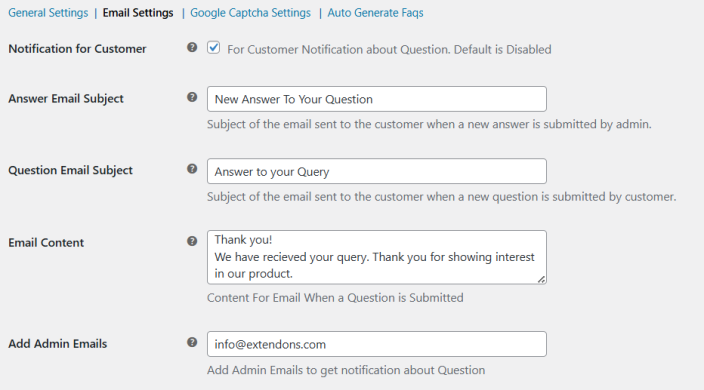
↑ Back to top- Notification for Customer: Enable or disable email notifications for customers when their questions receive a response. Default is set to disabled.
- Answer Email Subject: Set the subject line of the email sent to the customer when the store admin submits a new answer to their question.
- Question Email Subject: Set the subject line of the email sent to the customer when a new question is successfully submitted.
- Email Content: Customize the content of the email sent to the customer when a new question is submitted.
- Add Admin Emails: Add admin email addresses to receive notifications whenever a new question is submitted by a customer.
Google Captcha Settings
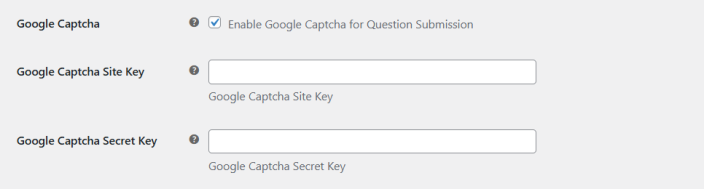
↑ Back to top- Google Captcha: Enable Google reCAPTCHA on the question submission form.
- Google Recaptcha Site Key: Enter your reCAPTCHA site key in this field.
To get your site key, visit the Google reCAPTCHA website, click the reCAPTCHA button in the top right corner, and follow the on-screen instructions. Register your site by entering your URL to generate the site key.
- Google Recaptcha Secret Key: Enter your Google reCAPTCHA secret key to complete the configuration.
Auto Generate Faqs
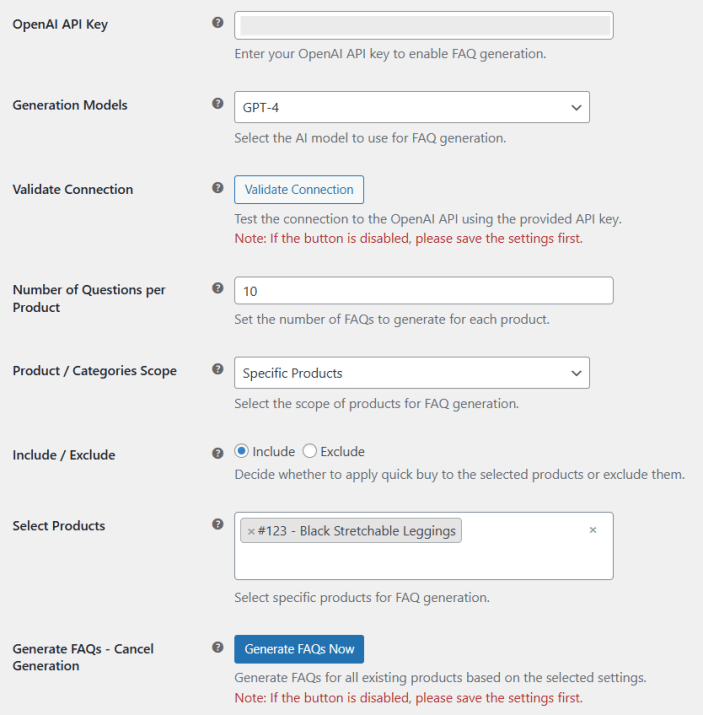
↑ Back to top- OpenAI API Key: Enter your OpenAI API key to enable AI-powered FAQ generation for your product pages.
- Generation Models: Select the AI model to use for FAQ generation. The plugin supports a wide range of OpenAI models including GPT-4, GPT-4 Turbo, GPT-4o, GPT-3.5 Turbo, and their latest variants.
- Validate Connection: Test the connection to the OpenAI API using the provided API key. If the button is disabled, save the settings first before validating.
- Number of Questions per Product: Set the number of FAQs the AI will generate for each product.
- Product / Categories Scope: Define the scope of FAQ generation by selecting all products, specific categories, or specific products.
- Include / Exclude: Choose to include or exclude the selected products or categories from the FAQ generation process.
- Select Products: Select specific products to include or exclude from FAQ generation based on the scope setting above.
- Generate FAQs: Initiate FAQ generation for all existing products based on the configured settings. Save the settings first if the button appears disabled. An ongoing generation can be cancelled at any time.
All Product FAQs
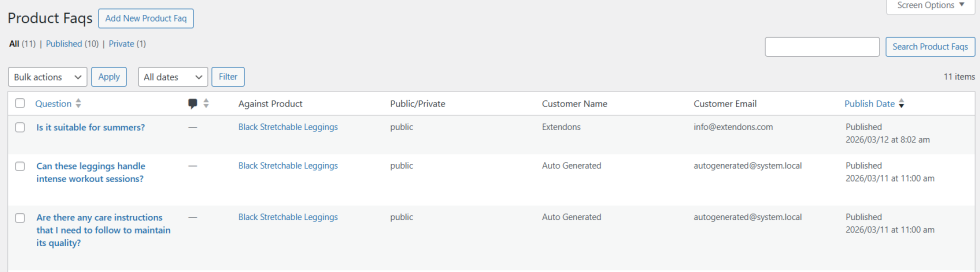
↑ Back to topNavigate to WooCommerce > All Product FAQs, where you can manage all FAQs, respond to them, and set them as public or private. Admins can also add new FAQs here.
Notify Customers About Replies Through Emails
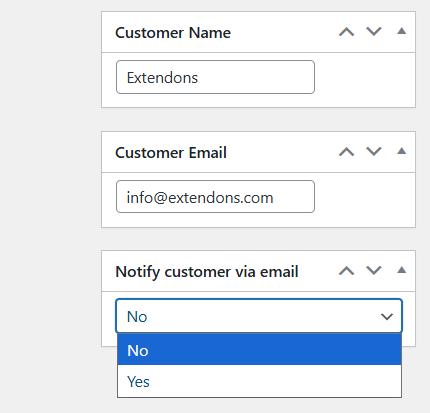
↑ Back to topTo reply to customer emails regarding their FAQs, go to WooCommerce > All Product FAQs > Edit any FAQ. On the left side, you’ll find the customer email option. Simply select “YES” to notify customers via email.