
AI Product Image builder allows your WooCommerce store to generate professional, context-aware gallery images automatically with AI. .
Installation
↑ Back to topTo start using a product from WooCommerce.com, you can use the “Add to store” functionality on the order confirmation page or the My subscriptions section in your account.
- Navigate to My subscriptions.
- Find the Add to store button next to the product you’re planning to install.
- Follow the instructions on the screen, and the product will be automatically added to your store.
Alternative options and more information at:
Managing WooCommerce.com subscriptions.

Setup and Configuration
↑ Back to top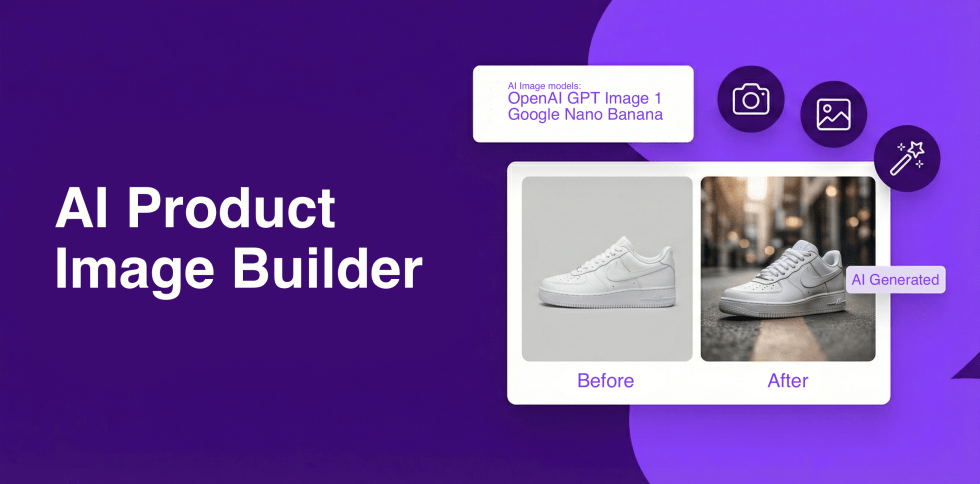
Getting started
↑ Back to topTo set up your store with AI Product Image Builder:
- Before using the plugin, you need to configure your AI provider settings.
- Go to WooCommerce > AI Image Builder > Settings.
- Select your provider: OpenAI (GPT Image 1) or Google Gemini.
- Enter your API key.
- For OpenAI: Get your key from OpenAI Platform.
- For Gemini: Get your key from Google AI Studio.
- Choose your preferred image size (Square 1024×1024 is recommended for catalogs).
- Save settings.
Generating Images
↑ Back to topProduct Page
On any optional product editing page in admin, look for the AI Image Builder box in the On any product editing page, locate the AI Image Builder box in the sidebar.
You can also click Save as New Prompt directly from the modal to save your successful prompt for later use!
Select a saved prompt or type a new one directly.
Click Generate.
When the image is ready, you can click it to view a full-size Lightbox preview.
If satisfied, it will be added to your product gallery automatically.
Auto-Generation
Enable “Auto-generate on save” in Settings to automatically generate images when you update a product that has no image.
Tip: Generated files now automatically include your product SKU in the filename (e.g., sku-image-1.jpg) for better SEO! You can also use placeholders in your prompts like {{product_title}} and {{product_description}} to dynamically insert product details.
You can now generate multiple options at once to pick the best fit for your store:
Batch Generation
- Use the numeric slider to choose between generating 1 to 5 images simultaneously.
- The process opens a multi-preview modal where you can review all generated thumbnails in a strip.
- Select any thumbnail to view it larger, or click to open the full-screen Lightbox.
- Easily tweak your prompt in the sidebar and regenerate on the fly if needed.
Bulk Generation
Bulk Image Generation: New “Bulk” tab for mass image generation via CSV upload.
– Upload a CSV file with `sku`, `prompt`, and `image_count` columns.
– Drag-and-drop upload zone with CSV validation (checks SKUs exist in WooCommerce).
– Background processing via Action Scheduler — close browser and come back later.
– Real-time progress bar with completed/failed/total counters.
– Downloadable result CSV with `sku`, `status`, `image_url`, `error` columns for WooCommerce import.
– Downloadable CSV template for easy setup.
– **Bulk Delay Setting**: Configurable delay between API calls (1-60 seconds, default 5s) in Settings tab.
Managing Prompts
↑ Back to topSave your best prompts to reuse them later across different products.
- Go to WooCommerce > AI Image Builder > Prompts.
- Create new prompts with categories for easy organization.
- Import/Export prompts via CSV to share between sites.
Troubleshooting
↑ Back to topCommon Issues
↑ Back to topPermission denied: Ensure the plugin has write access to your uploads directory.
API Error: Check if your API key is correct and has sufficient credits/quota.
Timeout: Image generation can take 10-20 seconds. If it times out, try again or use a smaller image size.
FAQs
↑ Back to topHelp customers by answering commonly asked questions.
Do I need a separate subscription to use the AI features?
Yes. You will need an API key from either OpenAI or Google Gemini. You pay these providers directly for usage. The plugin allows you to switch between them to manage your costs and image quality preferences.
What specific types of images can I generate with this plugin?
lifestyle variations, contextual backgrounds, and artistic interpretations of your existing products. For example:
Place a coffee mug on a cozy wooden table.
Show hiking boots on a rocky mountain trail.
Create a clean, minimalist studio background for a luxury watch.
Will generating images slow down my website?
No. The heavy lifting is done on external servers (OpenAI or Google). Your website only handles the final download of the optimized image. This process ensures there is no negative impact on your site’s loading speed or server performance.
Is this plugin compatible with my theme and page builder?
Yes. The plugin integrates natively with WooCommerce. Generated images are saved to your WordPress Media Library and attached to the standard Product Gallery. As long as your theme or page builder (like Elementor or Divi) displays the standard WooCommerce gallery, these images will appear automatically.
How difficult is it to write prompts for the AI?
The plugin comes with pre-configured templates. You can also create “Smart Prompts” using placeholders like
{{product_title}}. You don’t need to be a prompt engineer; just describe the setting you want (e.g., “on a sunny beach”), and the plugin handles the rest.
Where are the generated images stored?
All images are downloaded securely to your WordPress Media Library. You have full ownership and control over them, just like any other image you upload manually.
I have a problem or a specific question. Can you help?
Absolutely! We are committed to helping you succeed. If you cannot find the answer in our Documentation, please open a support ticket. We typically respond to inquiries within 24-48 hours.
Can I generate images for multiple products at once?
Currently, the plugin operates on a per-product basis inside the product editor to ensure quality control. However, you can save your prompt templates and apply them quickly to any new product you edit.

