Increase your store’s average order value by displaying AI-powered or custom upsell and cross-sell product recommendations on your WooCommerce store.
Installation
↑ Back to top- Download the AI Product Recommendations plugin for WooCommerce from your WooCommerce dashboard.
- At the WordPress admin panel, go to Plugins > Add New > Upload and select the ZIP file you downloaded.
- Click Install Now, and then Activate Plugin.
Configuration
↑ Back to topAfter you have installed and activated the plugin, go to WooCommerce > Settings > Product Recommendations. Here you will find three tabs: General Settings, AI Configurations, and Recommendation Rules.
General Settings
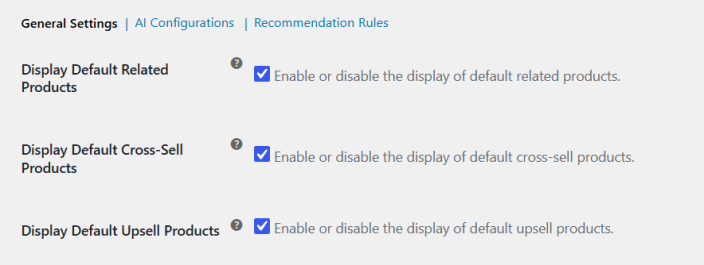
↑ Back to top- Display Default Related Products: Enable or disable the display of default related products on product pages.
- Display Default Cross-Sell Products: Enable or disable the display of default cross-sell products on the cart page.
- Display Default Upsell Products: Enable or disable the display of default upsell products on product pages.
AI Configurations
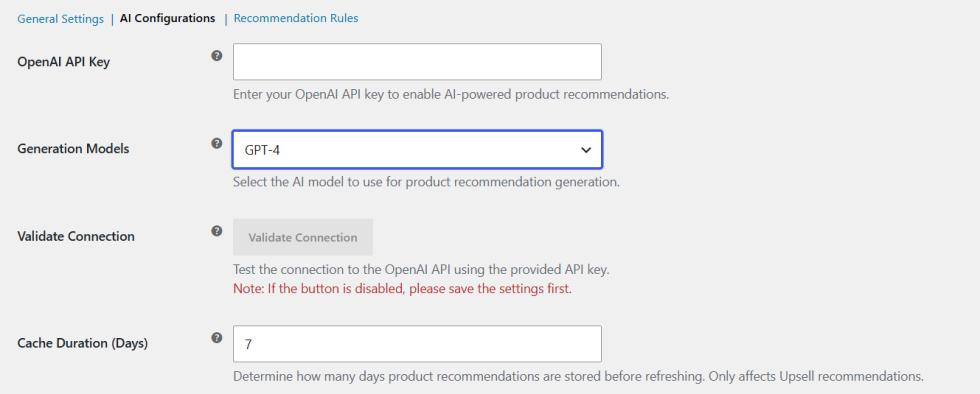
↑ Back to top- OpenAI API Key: Enter your OpenAI API key to enable AI-powered product recommendations.
- Generation Models: Select the AI model to use for recommendation generation. Available models are GPT-3.5 Turbo, GPT-4, GPT-4 Turbo, GPT-4o Mini, and GPT-4o.
- Validate Connection: Test the connection to the OpenAI API using the provided API key. Save settings before validating.
- Cache Duration (Days): Set the number of days product recommendations are stored before refreshing. Applies to Upsell recommendations only.
Recommendation Rules
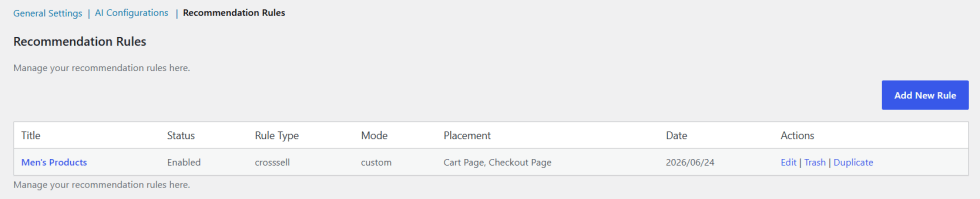
↑ Back to topGo to WooCommerce > Settings > Product Recommendations > Recommendation Rules to manage all your rules. Each rule displays its title, status, rule type, mode, placement, and date. You can edit, duplicate, or delete any rule from the list. Click Add New Rule to create a rule.
Configure these settings to create a rule.
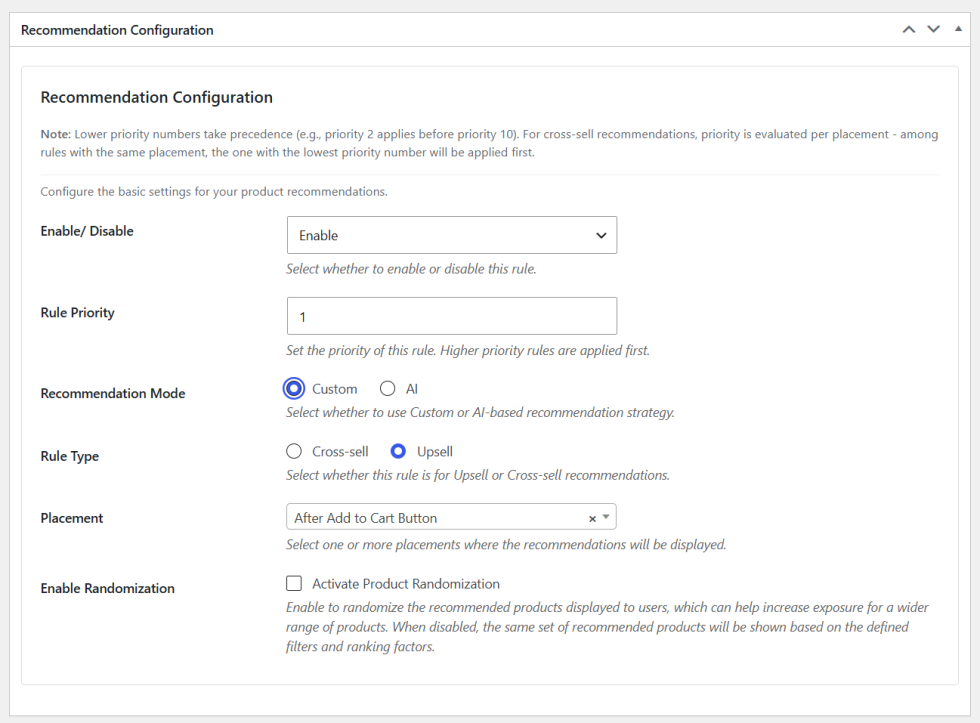
Recommendation Configuration
- Rule Name: Set a name for the recommendation rule.
- Enable/Disable: Select whether to enable or disable this rule.
- Rule Priority: Set the priority of this rule. Lower priority numbers take precedence. For cross-sell recommendations, priority is evaluated per placement.
- Recommendation Mode: Select Custom to define your own filters and ranking, or AI to use OpenAI-powered recommendations.
- Rule Type: Select whether this rule is for Upsell or Cross-sell recommendations.
- Placement: Select one or more placements where the recommendations will be displayed: Product Page, Cart Page, or Checkout Page.
- Enable Randomization: Activate to randomize the recommended products shown to users. When disabled, the same set of products is shown based on defined filters and ranking. (It only works when custom recommendation mode is selected)
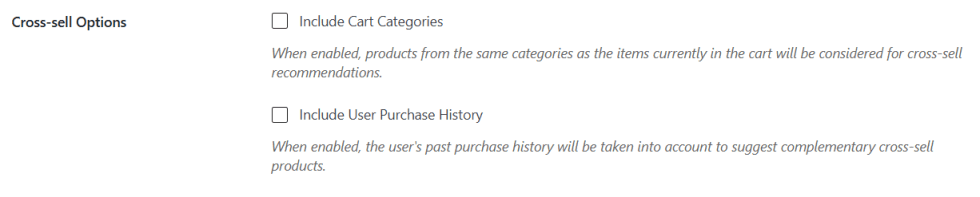
Cross-Sell Options (available for Cross-sell rule type)
- Include Cart Categories: When enabled, products from the same categories as items currently in the cart will be considered for cross-sell recommendations.
- Include User Purchase History: When enabled, the user’s past purchase history will be taken into account to suggest complementary cross-sell products.
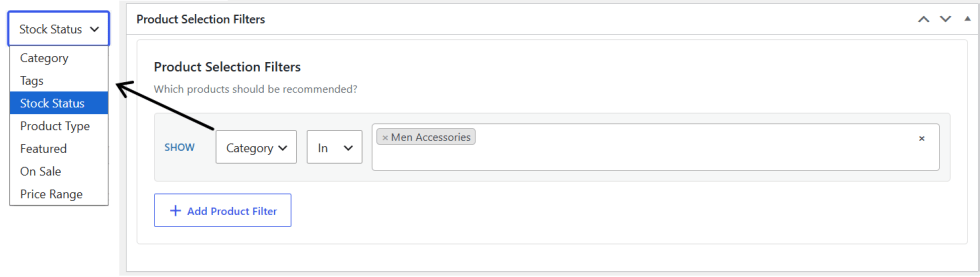
Product Selection Filters (available for Custom recommendation mode)
Define which products should be recommended by adding one or more filters. Each filter lets you select a filter type and condition:
- Category: Filter products by category.
- Stock Status: Filter products by stock status.
- Product Type: Filter products by type.
- Tags: Filter products by tags.
- Price Range: Filter products within a specific price range.
- Featured: Filter to include only featured products.
- On Sale: Filter to include only on-sale products.
Note: When multiple filters are added, only products that match all conditions are included.
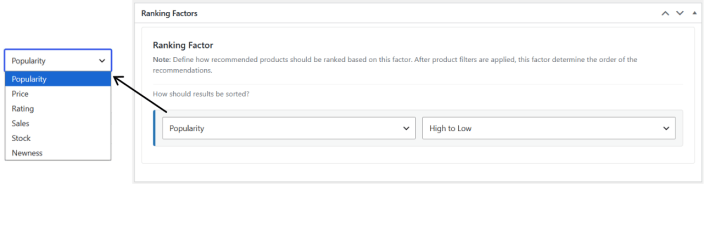
Ranking Factors (available for Custom recommendation mode)
- Ranking Factor: Define how recommended products are sorted after filters are applied. Select from Popularity, Price, Rating, Sales, Stock, or Newness.
- Sort Direction: Set the sort direction to High to Low or Low to High.
Display Settings
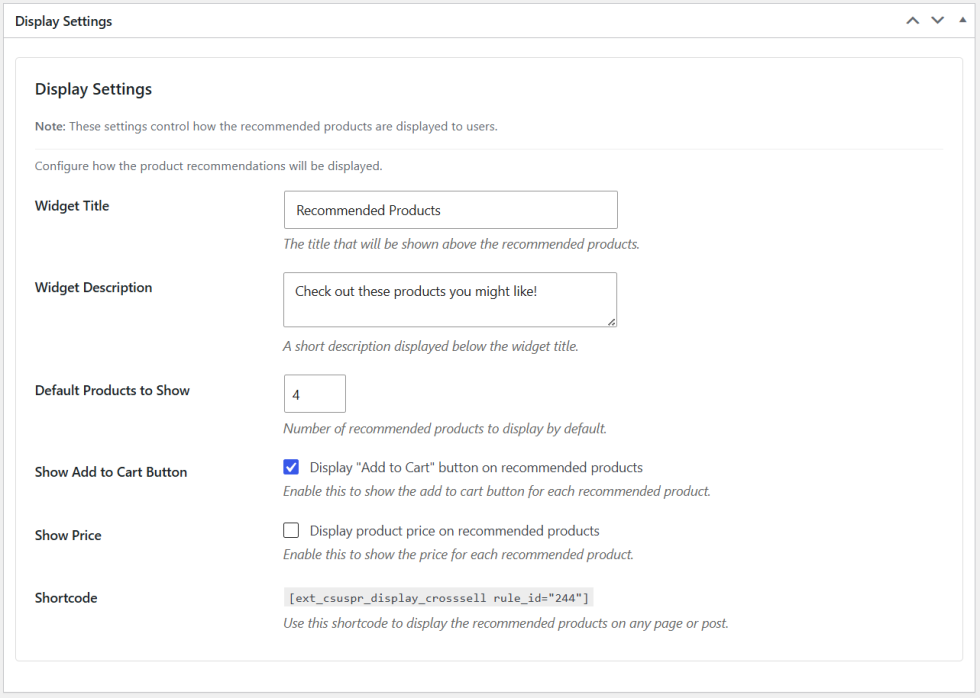
- Widget Title: Set the title shown above the recommended products.
- Widget Description: Add a short description displayed below the widget title.
- Default Products to Show: Set the number of recommended products to display.
- Show Add to Cart Button: Enable to display the Add to Cart button on each recommended product.
- Show Price: Enable to display the product price on each recommended product.
- Shortcode: Copy the shortcode to display the recommendations on any page or post.
Note: Each recommendation rule generates its own shortcode. Copy and paste it on any page or post to display the recommendations.