Enable AI Semantic Search for WooCommerce to help customers find products by intent and meaning, using AI-powered vector search combined with classic keyword matching.
Installation
↑ Back to top- Download the AI Semantic Search for WooCommerce.zip file from your WooCommerce account.
- Go to WordPress Admin > Plugins > Upload Plugin and choose the plugin .zip file.
- Then install and activate the plugin.
Configurations
↑ Back to topWithin the WordPress admin panel, go to WooCommerce > Settings and click on AI Semantic Search. Here you will find the following settings.
General & API Settings
↑ Back to topClick on the General & API tab to configure the core AI search engine and connect your OpenAI account:
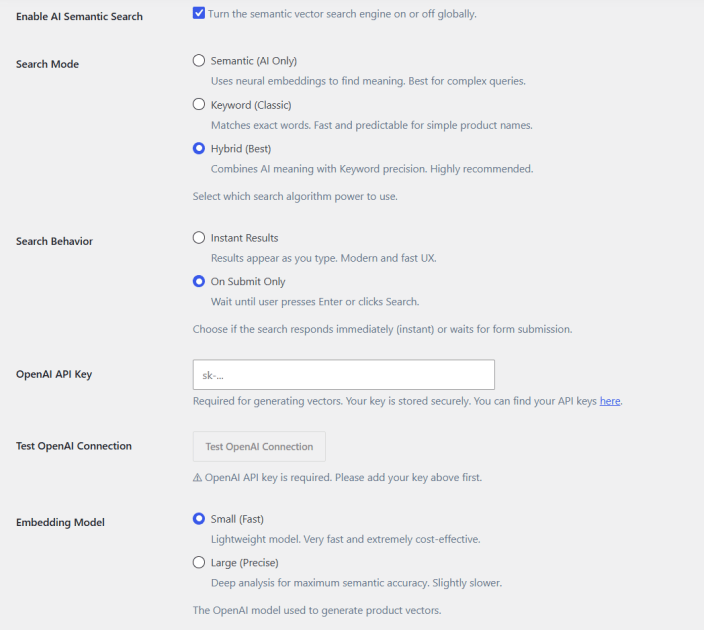
- Enable AI Semantic Search: Checkbox to turn the semantic vector search engine on or off globally.
- Search Mode: Choose Semantic (AI Only) for neural embedding-based matching, Keyword (Classic) for exact word matching, or Hybrid (Best) to combine both.
- Search Behavior: Select Instant Results to show results as the customer types, or On Submit Only to wait until the search is submitted.
- OpenAI API Key: Enter your OpenAI API key, required for generating product vectors.
- Test OpenAI Connection: Button to verify your API key is working correctly.
- Embedding Model: Choose Small (Fast) for lightweight, cost-effective embeddings, or Large (Precise) for maximum semantic accuracy.
Search Logic & Data Coverage Settings
↑ Back to topClick on the Search Logic & Data Coverage tab to control which product data is indexed and how it’s weighted:
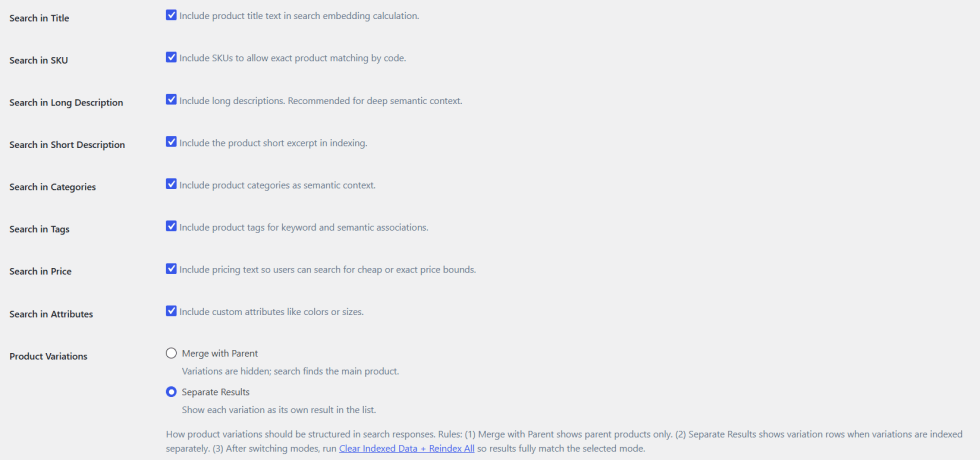
- Search in Title: Checkbox to include product title text in search embedding calculation.
- Search in SKU: Checkbox to include SKUs for exact product matching by code.
- Search in Long Description: Checkbox to include long descriptions for deeper semantic context.
- Search in Short Description: Checkbox to include the product short excerpt in indexing.
- Search in Categories: Checkbox to include product categories as semantic context.
- Search in Tags: Checkbox to include product tags for keyword and semantic associations.
- Search in Price: Checkbox to include pricing text so customers can search by cheap or exact price bounds.
- Search in Attributes: Checkbox to include custom attributes like colors or sizes.
- Product Variations: Choose Merge with Parent to hide variations and match the main product, or Separate Results to show each variation as its own result.
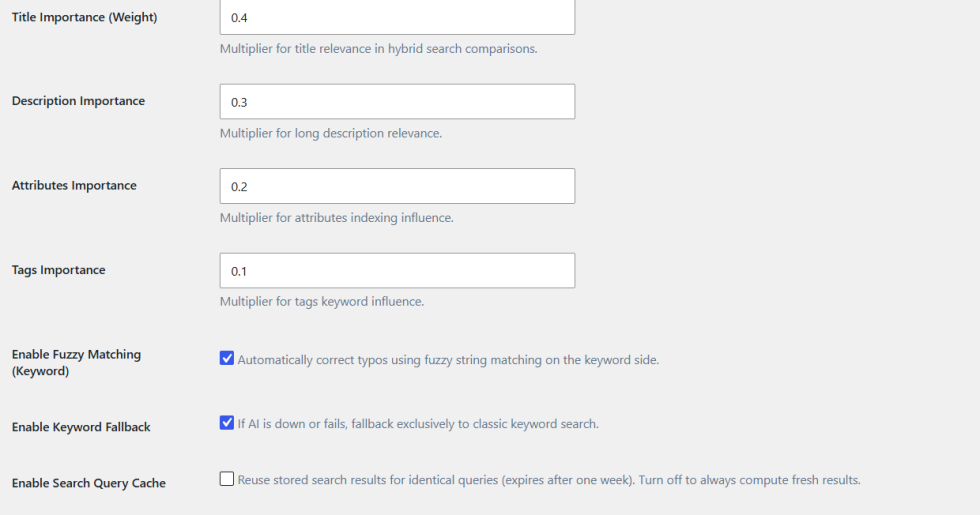
- Title Importance (Weight): Set the multiplier for title relevance in hybrid search comparisons.
- Description Importance: Set the multiplier for long description relevance.
- Attributes Importance: Set the multiplier for attributes indexing influence.
- Tags Importance: Set the multiplier for tags keyword influence.
- Enable Fuzzy Matching (Keyword): Checkbox to automatically correct typos using fuzzy string matching on the keyword side.
- Enable Keyword Fallback: Checkbox to fall back exclusively to classic keyword search if the AI is down or fails.
- Enable Search Query Cache: Checkbox to reuse stored search results for identical queries, expiring after one week.
Note: After switching Product Variations modes, run Clear Indexed Data + Reindex All so results fully match the selected mode.
Indexing & Performance Settings
↑ Back to topClick on the Indexing & Performance tab to manage how and when products are indexed:
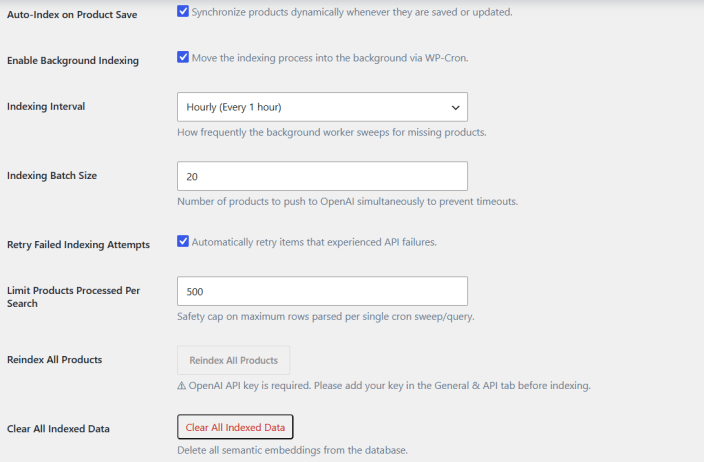
- Auto-Index on Product Save: Checkbox to synchronize products dynamically whenever they are saved or updated.
- Enable Background Indexing: Checkbox to move the indexing process into the background via WP-Cron.
- Indexing Interval: Set how frequently the background worker sweeps for missing products.
- Indexing Batch Size: Set the number of products pushed to OpenAI simultaneously to prevent timeouts.
- Retry Failed Indexing Attempts: Checkbox to automatically retry items that experienced API failures.
- Limit Products Processed Per Search: Set a safety cap on the maximum rows parsed per single cron sweep or query.
- Reindex All Products: Button to manually rebuild the search index for all products.
- Clear All Indexed Data: Button to delete all semantic embeddings from the database.
- Indexing History & Cron Logs: View a log of indexing runs, including time, method, items, details, duration, and status. Download the full log or clear the history as needed.
Voice Search Settings
↑ Back to topClick on the Voice Search tab to enable and configure voice-based search:
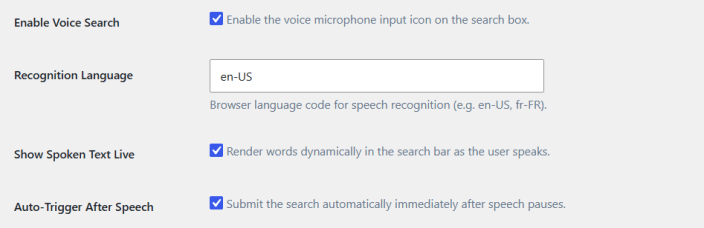
- Enable Voice Search: Checkbox to enable the voice microphone input icon on the search box.
- Recognition Language: Enter the browser language code for speech recognition, e.g., en-US or fr-FR.
- Show Spoken Text Live: Checkbox to render words dynamically in the search bar as the customer speaks.
- Auto-Trigger After Speech: Checkbox to submit the search automatically immediately after speech pauses.
Frontend & Display Settings
↑ Back to topClick on the Frontend & Display tab to customize how the search box appears and behaves on your store:
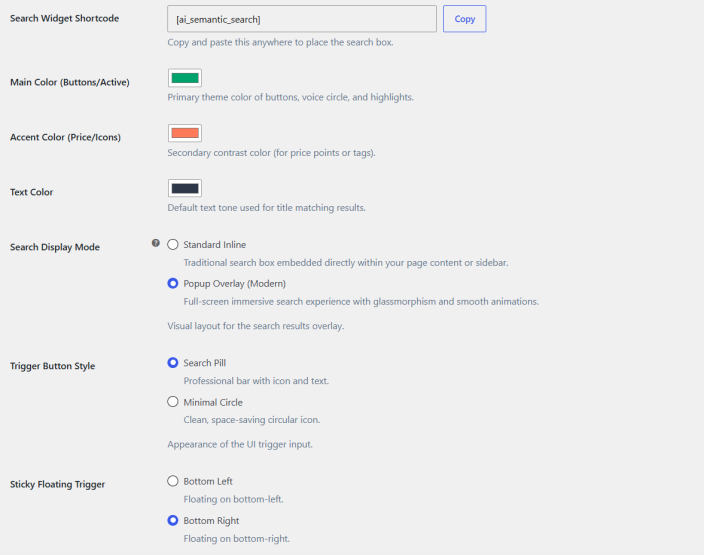
- Search Widget Shortcode: Copy and paste the [ai_semantic_search] shortcode anywhere to place the search box.
- Main Color (Buttons/Active): Set the primary theme color of buttons, the voice circle, and highlights.
- Accent Color (Price/Icons): Set the secondary contrast color used for price points or tags.
- Text Color: Set the default text tone used for title matching results.
- Search Display Mode: Choose Standard Inline for a traditional embedded search box, or Popup Overlay (Modern) for a full-screen search experience with glassmorphism and animations.
- Trigger Button Style: Choose Search Pill for a professional bar with icon and text, or Minimal Circle for a clean, space-saving circular icon.
- Sticky Floating Trigger: Pin a floating universal search button to the Bottom Left or Bottom Right of the screen.
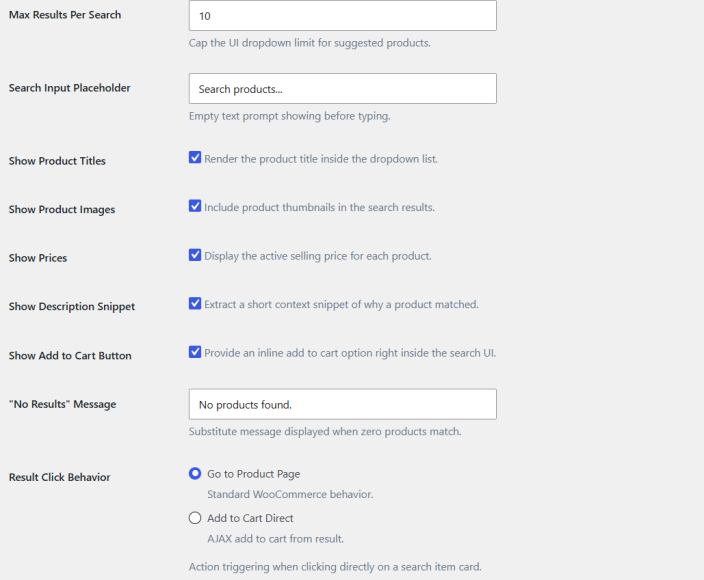
- Max Results Per Search: Cap the UI dropdown limit for suggested products.
- Search Input Placeholder: Set the empty text prompt shown before typing.
- Show Product Titles: Checkbox to render the product title inside the dropdown list.
- Show Product Images: Checkbox to include product thumbnails in the search results.
- Show Prices: Checkbox to display the active selling price for each product.
- Show Description Snippet: Checkbox to extract a short context snippet of why a product matched.
- Show Add to Cart Button: Checkbox to provide an inline add to cart option right inside the search UI.
- “No Results” Message: Set the substitute message displayed when zero products match.
- Result Click Behavior: Choose Go to Product Page for standard WooCommerce behavior, or Add to Cart Direct for AJAX add to cart from the result.
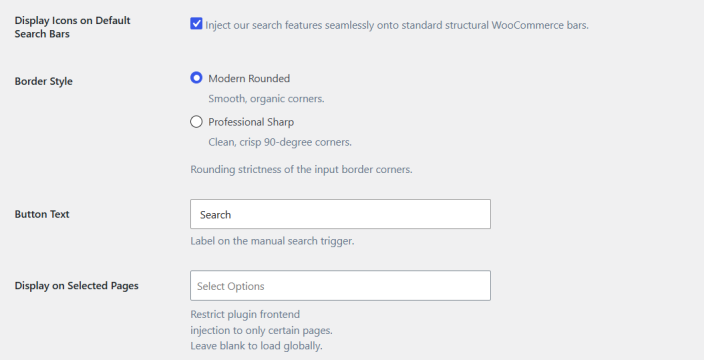
- Display Icons on Default Search Bars: Checkbox to inject the plugin’s search features seamlessly onto standard structural WooCommerce bars.
- Border Style: Choose Modern Rounded for smooth, organic corners, or Professional Sharp for clean, 90-degree corners.
- Button Text: Set the label shown on the manual search trigger.
- Display on Selected Pages: Restrict plugin frontend injection to specific pages. Leave blank to load globally.
Security & Analytics Settings
↑ Back to topClick on the Security & Analytics tab to protect your store and manage OpenAI usage:
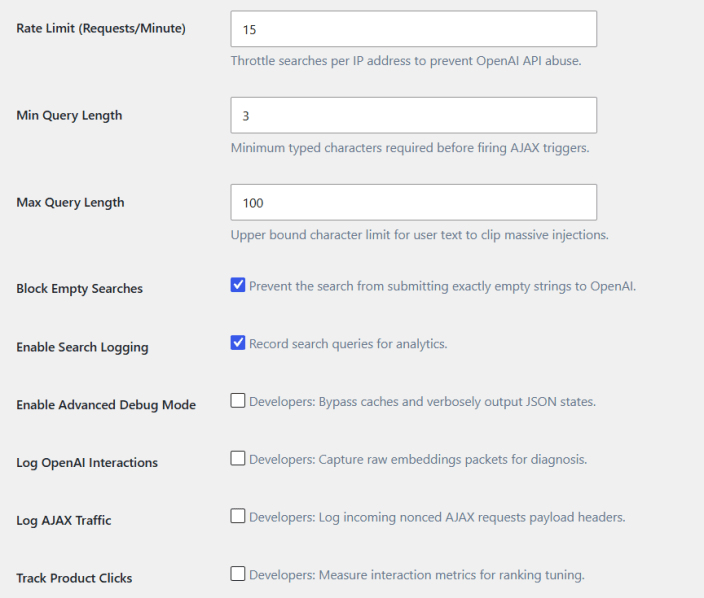
- Rate Limit (Requests/Minute): Throttle searches per IP address to prevent OpenAI API abuse.
- Min Query Length: Set the minimum typed characters required before firing AJAX triggers.
- Max Query Length: Set the upper bound character limit for user text to clip massive inputs.
- Block Empty Searches: Checkbox to prevent the search from submitting exactly empty strings to OpenAI.
- Enable Search Logging: Checkbox to record search queries for analytics.
- Enable Advanced Debug Mode: Developer option to bypass caches and verbosely output JSON states.
- Log OpenAI Interactions: Developer option to capture raw embeddings packets for diagnosis.
- Log AJAX Traffic: Developer option to log incoming nonced AJAX request payload headers.
- Track Product Clicks: Developer option to measure interaction metrics for ranking tuning.
Search Analytics
↑ Back to topClick on the Search Analytics tab to view store search performance:
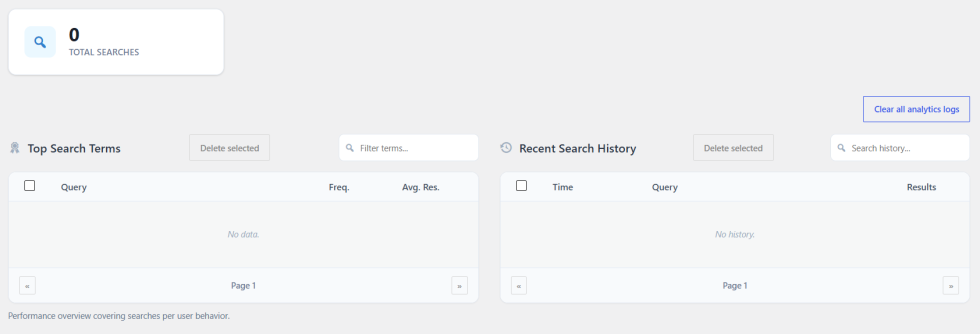
- Total Searches: Displays the total number of searches performed on your store.
- Top Search Terms: View the most frequently searched queries, along with frequency and average results. Filter, select, and delete terms as needed.
- Recent Search History: View a chronological log of search queries, including time and result count. Filter, select, and delete history entries as needed.
- Clear All Analytics Logs: Button to remove all recorded search analytics data.