
Installation & Activation
↑ Back to topRequirements
↑ Back to top- WooCommerce (latest version)
- WooCommerce Subscriptions (Download here)
Installing the Plugin
↑ Back to top- Purchase the Analytics for WooCommerce Subscriptions plugin from WooCommerce.com.
- Download the .zip file from your WooCommerce account.
- In your WordPress Admin Dashboard, go to Plugins > Add New.
- Click Upload Plugin, select the downloaded .zip file, and click Install Now.
- Once installed, click Activate to enable the plugin.
Accessing the Subscriptions Analytics
↑ Back to topTo access the subscription analytics reports, navigate to:
- WordPress Admin Panel > Analytics > Subscriptions
- From this section, you can view reports under:
- Subscriptions by Date
- Subscriptions by Product
- Upcoming Recurring Revenue
- Subscriptions by Customer
- Use filters to adjust the date range and view trends.
- Export reports for further analysis.
Subscriptions by Date
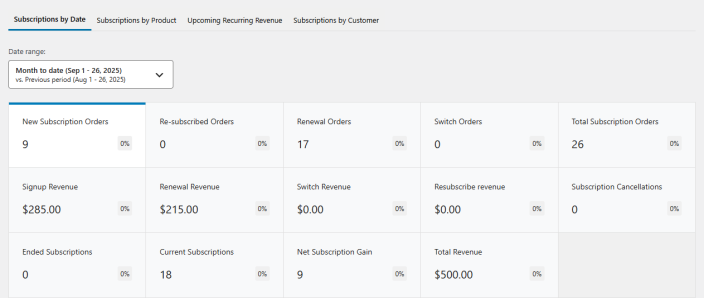
↑ Back to topThe Subscriptions by Date section provides a detailed view of subscription trends based on selected date ranges. It allows store owners to monitor how subscriptions are evolving over time, making it easier to spot growth patterns, declines, and opportunities for optimization.
Key Metrics Displayed:
↑ Back to top- New Subscription Orders – Number of new subscriptions initiated within the selected period.
- Re-subscribed Orders – Users who resubscribe after previously canceling.
- Renewal Orders – The number of recurring subscription renewals processed.
- Switch Orders – Number of customers switching between different subscription plans.
- Total Subscription Orders – The total number of subscriptions active during the period.
- Signup Revenue – Revenue generated from new subscription signups.
- Renewal Revenue – Revenue from recurring subscription renewals.
- Switch Revenue – Revenue generated from customers switching plans.
- Resubscribe Revenue – Revenue from users resubscribing.
- Subscription Cancellations – The number of canceled subscriptions.
- Ended Subscriptions – The number of subscriptions that have ended.
- Current Subscriptions – Total active subscriptions at present.
- Net Subscription Gain – Net increase or decrease in subscriptions over the period.
- Total Revenue – Overall revenue from all subscription-related transactions.
Graphical Representation:
↑ Back to top- Subscription Signups Chart – Displays a visual trend of new subscription signups over the selected period.
- Filters for Date Range Comparison – Allows users to compare subscription data across different time periods.
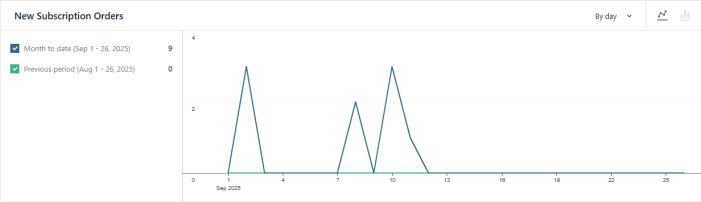
Table Data:
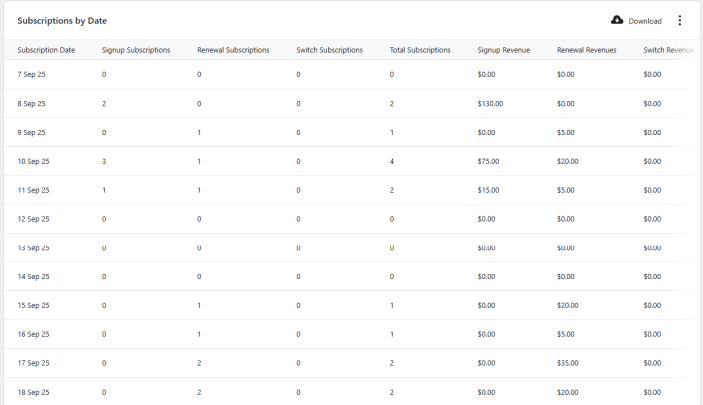
↑ Back to topA breakdown of subscription activity by date, displaying:
- Subscription Date – Specific date of subscription activity.
- Signup Subscriptions – Number of new signups on that day.
- Renewal Subscriptions – Number of recurring renewals processed.
- Switch Subscriptions – Number of customers switching plans.
- Total Subscriptions – Total active subscriptions on the given date.
- Signup Revenue – Revenue generated from new signups.
- Renewal Revenue – Revenue from renewal payments.
- Switch Revenue – Revenue generated from plan switches.
- Total Revenue – Total revenue from all subscription-related activities on that day.
This section is crucial for monitoring trends and optimizing your subscription strategy based on real-time data.
Subscriptions by Product
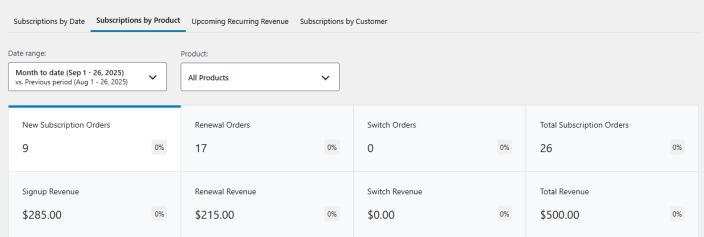
↑ Back to topThe Subscriptions by Product section provides insights into the performance of each subscription product. Store owners can track subscriptions based on individual products to determine the most successful and profitable offerings.
Key Metrics Displayed:
↑ Back to top- New Subscription Orders – Number of new subscriptions per product.
- Renewal Orders – Number of renewals per product.
- Switch Orders – Number of times customers switched to or from a product.
- Total Subscriptions – Overall subscriptions per product.
- Signup Revenue – Revenue generated from new signups for each product.
- Renewal Revenue – Revenue from renewal payments for each product.
- Switch Revenue – Revenue generated from subscription switches.
- Total Revenue – Total revenue from each subscription product.
Graphical Representation:
↑ Back to top- Subscription Signups Chart – Displays subscription trends for all products or a specific product.
- Filters for Product Comparison – Allows selecting a specific subscription product to analyze individual performance.
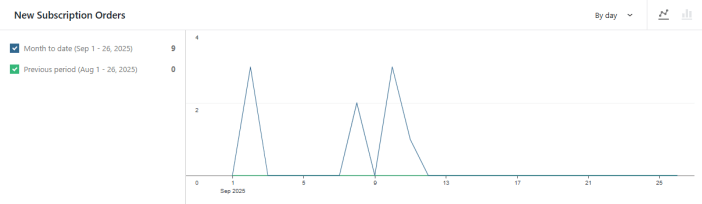
Table Data:
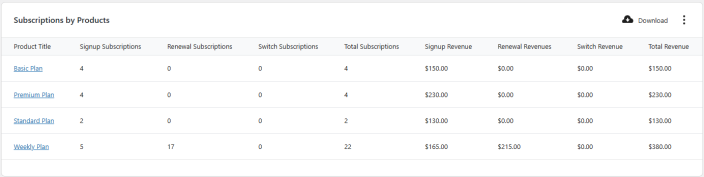
↑ Back to topA breakdown of subscription activity by product, displaying:
- Product Title – Name of the subscription product.
- Signup Subscriptions – Number of new signups for the product.
- Renewal Subscriptions – Number of recurring renewals processed.
- Switch Subscriptions – Number of customers switching plans.
- Total Subscriptions – Active subscriptions for the product.
- Signup Revenue – Revenue generated from new signups.
- Renewal Revenue – Revenue from renewal payments.
- Switch Revenue – Revenue generated from plan switches.
- Total Revenue – Total revenue generated from each subscription product.
Upcoming Recurring Revenue
↑ Back to topThe Upcoming Recurring Revenue section provides an estimate of future revenue from active subscriptions. Store owners can use this forecast to plan their finances and ensure consistent cash flow.
Key Metrics Displayed:
↑ Back to top- Renewal Income – Projected revenue from upcoming subscription renewals.
- Renewal Orders – Expected number of recurring renewal payments.
- Average Renewal Amount – Average revenue per renewal order.

Graphical Representation:
↑ Back to top- Recurring Revenue Chart – A visual representation of forecasted renewal income over time.
- Custom Date Selection – Allows users to adjust the date range for revenue forecasting.
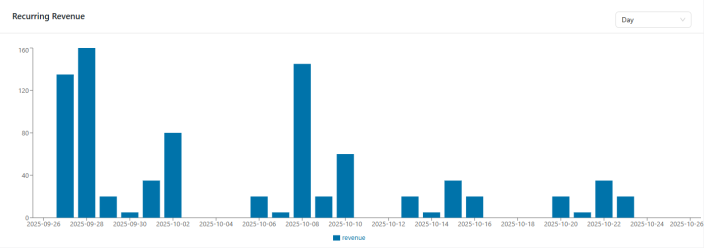
Table Data:
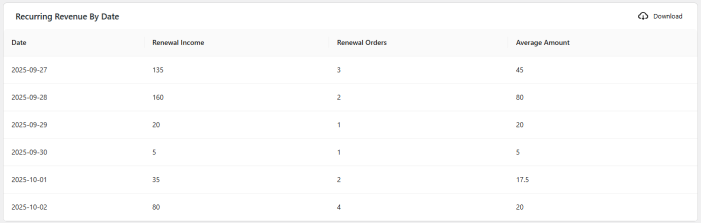
↑ Back to topA breakdown of recurring revenue by date, displaying:
- Date – The date of expected renewal income.
- Renewal Income – The projected revenue from renewals on that date.
- Renewal Orders – Number of expected renewals.
- Average Amount – Average renewal revenue per order.
Subscriptions by Customer
↑ Back to topThe Subscriptions by Customer section provides a detailed view of customer-based subscription insights. Store owners can track subscriptions at an individual customer level to analyze retention, lifetime value, and total subscription activity.
Key Metrics Displayed:
↑ Back to top- Total Subscribers – The total number of unique customers with subscriptions.
- Active Subscriptions – The number of currently active subscriptions.
- Total Subscriptions – The cumulative number of subscriptions, including active and ended subscriptions.
- Total Subscription Orders – The total number of subscription-related transactions.
- Average Lifetime Value – The average revenue generated per subscriber.
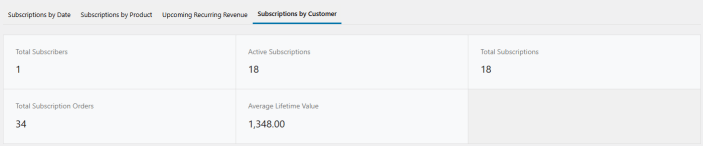
Table Data:
↑ Back to topA breakdown of subscriptions by customer, displaying:
- Email – The customer’s email address.
- Active Subscriptions – Number of currently active subscriptions per customer.
- Total Subscriptions – Total number of subscriptions per customer.
- Total Subscription Orders – Number of orders associated with subscriptions.
- Lifetime Value – The total revenue generated from each customer’s subscriptions.

Revenue Recognition
↑ Back to topWhat the report shows
↑ Back to topOpen WooCommerce → Analytics → Subscription Report and switch to the Revenue Recognition tab. You will see three summary cards at the top and a per-month breakdown table below.
- Cash Received — total money collected from subscription orders in the selected date range. This is cash, not recognized revenue.
- Revenue Recognized — the portion of cash you have earned in the selected range, amortized over the billing period of each subscription order.
- Deferred Balance (EOP) — the un-earned portion of prepaid subscription revenue still owed to customers as of the end of the selected period. This is the liability figure you would carry on your balance sheet.
Monthly breakdown
↑ Back to topBelow the summary cards, the Monthly Breakdown table lists each month in the selected range with cash received, revenue recognized, and deferred balance carried forward. Use the Download CSV button to export the monthly breakdown for your accounting software or spreadsheet.
Per-order drill-down
↑ Back to topUnder the monthly table you will find the Per-Order section. Each row is a single subscription order and shows:
- Order ID and customer
- Product / variation name
- Payment date — when the order was paid
- Subscription period start / end — the coverage window the payment relates to
- Cash received, revenue recognized to date, and remaining deferred balance for that order
Click Export CSV in the per-order section to download every order with its payment date and subscription period. This is ideal when your accountant asks for line-level evidence behind the monthly totals.
Per-Order Deferred Revenue Expor
↑ Back to topWhere to find it
↑ Back to topOpen WooCommerce → Analytics → Subscription Report, switch to the Revenue Recognition tab, and scroll to the Per-Order section under the monthly breakdown. Click the Export CSV button in the top right of that table.
What is in the CSV
↑ Back to topEach row is a single paid subscription order. The columns are:
- Order ID — the WooCommerce order number.
- Customer — the customer name and email address on the order.
- Product — the subscription product (and variation, if applicable).
- Payment Date — the date the order was paid. This is the cash-received date.
- Period Start — the first day of the subscription coverage window this payment relates to.
- Period End — the last day of the subscription coverage window this payment relates to.
- Cash Received — the amount paid on this order.
- Revenue Recognized — the portion of that cash already earned as of the end of the selected reporting range.
- Deferred Balance — the un-earned remainder still owed to the customer as of the end of the selected reporting range.
Because every row carries both dates and both amounts, an accountant can rebuild the recognition schedule for any single order without needing access to WordPress.
Using the export for accounting
↑ Back to top- Month-end close — set the report date range to the closing month, export, then hand the CSV to your accountant as the line-level backup for the month’s recognized revenue and deferred balance.
- Deferred revenue audit — sum the Deferred Balance column. It should equal the Deferred Balance (EOP) figure shown in the summary card at the top of the tab.
- Cash reconciliation — the Payment Date column lets you tie back to bank deposits and payment gateway payouts for the same window.
- QuickBooks / Xero / NetSuite — the CSV columns map directly onto the journal-entry format most accounting tools expect for prepaid revenue: recognize Revenue Recognized as income and post the Deferred Balance against the deferred-revenue liability account.
Filtering before exporting
↑ Back to top- The date range picker at the top of the page controls which reporting window the recognized and deferred columns are calculated against. Change it to your accounting period before exporting.
- Use the search box above the per-order table to narrow the export to a single customer, product, or order ID.
- Sort by any column (payment date, deferred balance, order ID) before exporting — the CSV honors the current sort order.
Acquisition Sources
↑ Back to topWhere to find it
↑ Back to topOpen WooCommerce → Analytics → Subscription Report and switch to the Acquisition Sources tab. You will see a group-by toggle, five summary cards, and a per-source breakdown table below.
Summary metrics
↑ Back to top- Sources — the number of distinct acquisition sources that have brought in at least one paying subscriber.
- Monthly Recurring Revenue (MRR) — the run-rate monthly revenue from active subscriptions attributed to acquisition sources.
- Annual Recurring Revenue (ARR) — MRR × 12, the annualized view of your recurring revenue.
- Blended LTV — average Lifetime Value across all attributed customers, blending short-lived and long-lived cohorts.
- Blended Churn — the blended monthly churn rate across all attributed sources.
Grouping the data
↑ Back to topUse the Group by toggle above the summary cards to switch how sources are aggregated:
- UTM Source — groups by the
utm_sourceparameter (for example google, newsletter, facebook). - UTM Campaign — groups by the
utm_campaignparameter (for example spring-sale-2026, black-friday). - Referrer — groups by the referring domain when no UTM tags were present (for example producthunt.com, twitter.com).
The per-source table
↑ Back to topBelow the summary cards, each row is one source (or campaign / referrer) with:
- Source — the UTM source, campaign, or referrer value. Direct or un-tagged traffic is shown as Unknown.
- Customers — the number of unique customers attributed to that source.
- Active Subscriptions — how many of their subscriptions are currently active.
- MRR and ARR — recurring revenue contribution of that source.
- LTV — average lifetime value of customers from that source.
- Churn % — churn rate specific to that source, so you can compare acquisition quality across channels.
Click the Download button in the top right corner of the table to export the current view as CSV.
How attribution is captured
↑ Back to topAcquisition Sources uses a first-touch attribution model: the source that brought the customer to your site for the very first time is credited with every subscription they later create, and with all downstream renewals.
- When a visitor arrives with UTM parameters (
utm_source,utm_medium,utm_campaign) or from a referring website, the plugin stores that attribution in a first-touch cookie. - When the visitor eventually signs up, the attribution is copied onto the subscription as order meta.
- Subsequent renewal orders inherit the same attribution, so revenue from a customer’s third or tenth renewal is still credited to the source that originally acquired them.
- WooCommerce Core’s own order-source attribution is also read as a fallback when the first-touch cookie is missing.
First-time setup — backfilling historical customers
↑ Back to topWhen you first open the Acquisition Sources tab on an existing store, the numbers may be low because the first-touch cookie was only capturing new visitors from the moment the plugin was installed. Click Re-import Historical Data in the top right corner of the analytics page to backfill attribution for every existing subscription using whatever source information WooCommerce Core already stored on those orders.
You only need to do this once. New signups are attributed automatically going forward.

