
BOGO Buy One Get One Free Promotion allows your WooCommerce store to reduce slow‑moving items, sell more in a single transaction, bundle multiple products for extra value, attract new customers, and drive higher conversions — all with one powerful promotion.
Installation
↑ Back to topTo start using a product from WooCommerce.com, you can use the “Add to store” functionality on the order confirmation page or the My subscriptions section in your account.
- Navigate to My subscriptions.
- Find the Add to store button next to the product you’re planning to install.
- Follow the instructions on the screen, and the product will be automatically added to your store.
Alternative options and more information at:
Managing WooCommerce.com subscriptions.

Create BOGO Specific Products (Fixed/Combine)
↑ Back to topOverview
↑ Back to topThe BOGO (Buy X Get Y Free) extension is a powerful promotional tool that allows store owners to create irresistible “Buy One Get One” or “Buy X Get Y Free” deals
within their online store. Whether it’s offering the same product for free or gifting different items, this extension helps drive higher conversions and average order values
while enhancing the shopping experience.
To give you more flexibility, you get detailed control over all the important aspects of your deals through the one place, admin dashboard:
- Product Targeting – You can apply the deal to specific BOGO rules, weather fixed quantity per product or allow mixed product with random quantity based on your business needs.
- Deals Period Control – You can fully define when your BOGO (Buy X Get Y) promotions should be active — whether for a limited-time event, future campaign, or an ongoing deal.
- Quantity Control – You can fully customize the quantity of an item that the customer must purchase to get the deal, along with free item quantity customer will get. You can create deals with fixed quantity like “Buy 1, Get 1”, or any combination of numbers like “Buy 3, Get 2”.
- User Conditions Control – You can let every customer access the deal or restrict it to certain users or user roles.
How to Create Buy X, Get Y Deal (Fixed/Combine)
↑ Back to topThis BOGO rules allows you to customize Buy X, Get Y deal with fixed quantity and specific product like Buy 1, Get 1 Free. To customize BOGO rules with fixed
quantity per product, follow this step:
- Log in to your BOGO Buy One Get One Free Promotion Admin Dashboard
- Select Add BOGO > Create New BOGO
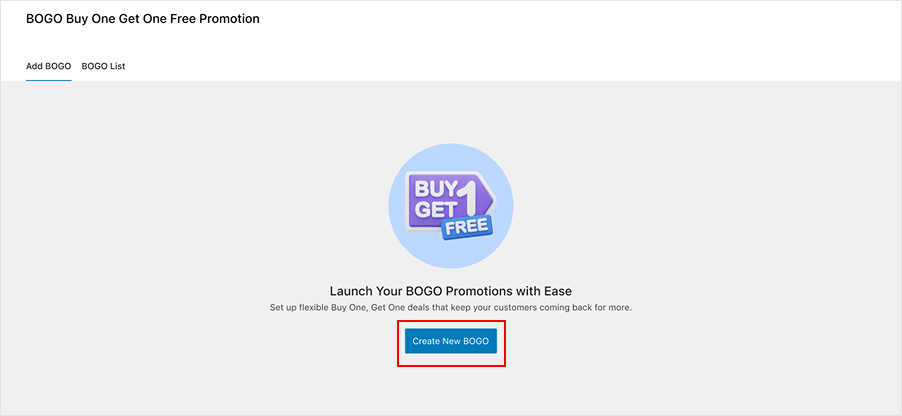
- Input your BOGO Name / BOGO Event. Disclaimer: BOGO name is not visible to buyers, it helps you to recognize your deal you have created before.

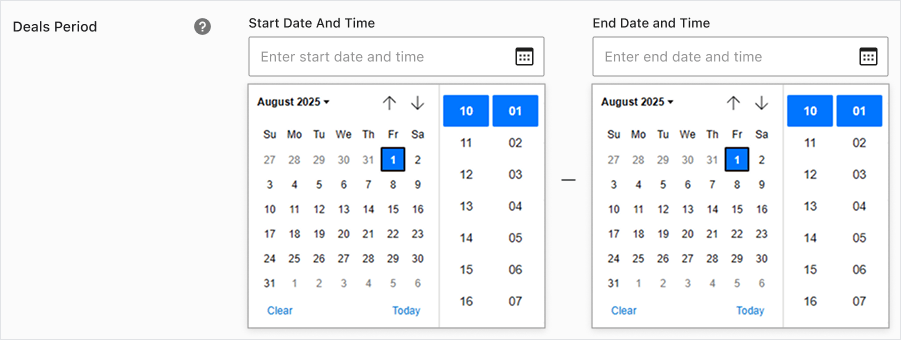
- Set the BOGO deal period, whether for a limited-time event, future campaign, or an ongoing deal.
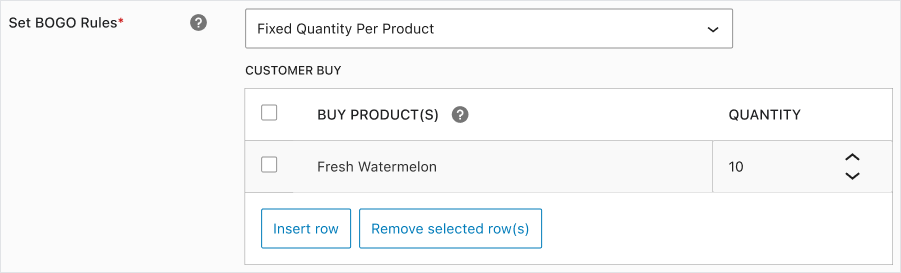
- Select BOGO Rules > Fixed Quantity per Product

- Choose which product (s) will trigger the deal (Buy X). You can add more than 1 product and searching for them by name.
- Then you can choose the Minimum Quantity that customer must purchase to trigger the deal. For example, if you set this to “2”, a customer would need to purchase at least two of an eligible product to receive the “Get Y” part of the deal.
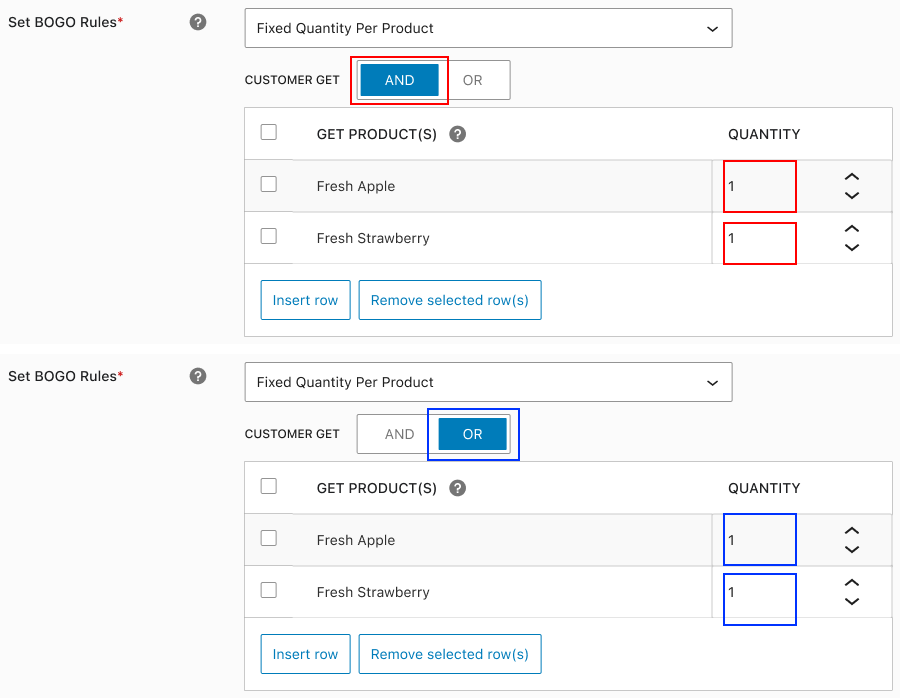
- Choose the Product that customers will receive (Get Y). You can add products more than 1 items and searching for them by name.
- Set up the Maximum Quantity of the free product that customer will receive. By default there are 2 options “get free products” in fixed quantity per product rule condition you can apply for based on your store needs.
- AND Condition – the customer will get all of the free product(s) you set for. For example, Buy 10 Watermelons, get 1 Fresh Apple and 1 Fresh Strawberry, so the customer who have purchased 10 Watermelons will receive all free products (1 Fresh Apple and 1 Fresh Strawberry).
- OR Condition – the customer can choose the free product(s) you set for. For example, Buy 10 Watermelons, get 1 Fresh Apple or 1 Fresh Strawberry, so thecustomer who have purchased 10 Watermelons can choose the free product, whether 1 Fresh Apple or 1 Fresh Strawberry
- Set up the User Conditions. By default, every single customer will be able to take advantage of your Buy X, Get Y offer. However, if you want to restrict access to the deal, you can apply user conditions below
- Apply to Specific Users – Only the specific user accounts that you select can access the deal.
- Exclude from Specific Users – Prevent certain user accounts that you select from receiving this BOGO deal.

- Set up the Maximum Order per User. This setting allow you to limit how many times a single customer can place an order that qualifies for this BOGO deal. For example, if your want to restrict per customer to checkout using you BOGO offer maximum 2 times, you could enter “2” as the limit quantity.

- Set up the Multiple Order Limit. This setting allow you to limit how many times a single customer can place multiple order with BOGO offer within one checkout.

- Don’t forget to click Save Changes. Now. your BOGO deal is all set. You can check the on your product single page, cart page, checkout page, thank you page, and detail order page.
BOGO History List
↑ Back to topThe BOGO History List Page provides a complete overview of all Buy X Get Y (BOGO) offers that have been created by the admin. This centralized dashboard allows
store owners to easily manage, review, and take action on every deal — whether it’s currently active, scheduled for the future, or has already ended.
Each entry in the list displays key details of the BOGO offer, including:
- BOGO Name: Recognize BOGO deal you have created before, making it easy to keep track of your campaign timelines and optimize your sales strategy.
- Status of the deal: On-going, Upcoming, or Expired
- Product Information: Lists of both qualifying (Buy X) and reward (Get Y) products
- Deals Period: The start and end dates of the promotion
- Quick Actions: Easily Edit, Delete, End Now (for on-going deals), or Duplicate a BOGO offer for fast re-setup .

BOGO Deal Display
↑ Back to topOverview
↑ Back to topThe BOGO Deal Display Page outlines how and where the Buy X Get Y (BOGO) promotions — created by the store admin — are presented to customers across the
shopping journey.
From the customer’s point of view, BOGO deals are automatically displayed in the following key locations:
Single Product Page
↑ Back to topHighlights the available BOGO offer directly by trigger banner on the product detail, encouraging immediate engagement.
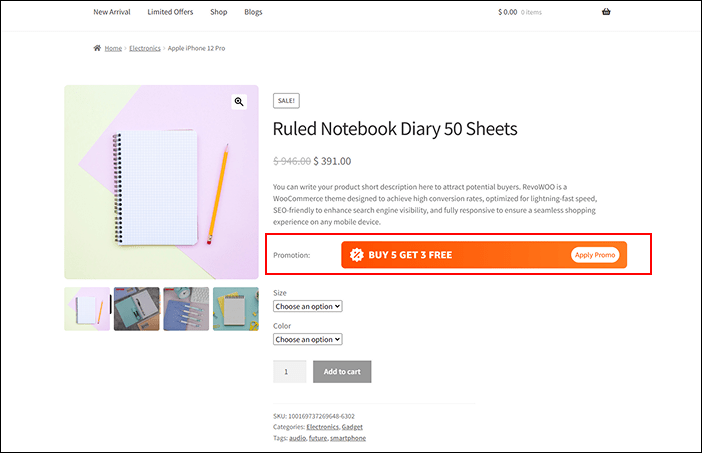
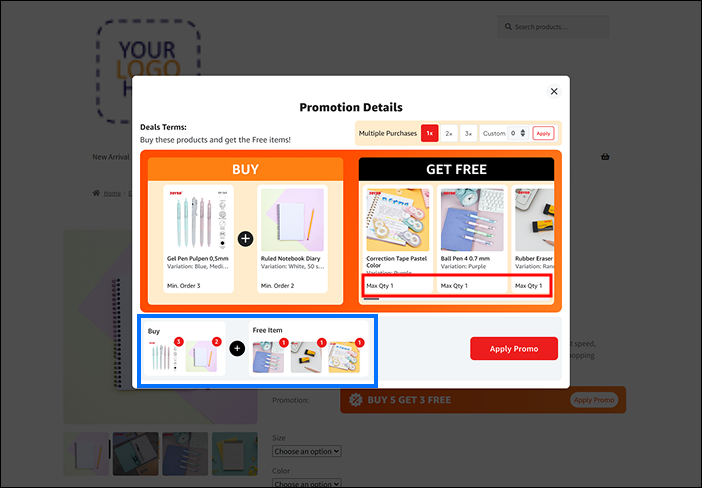
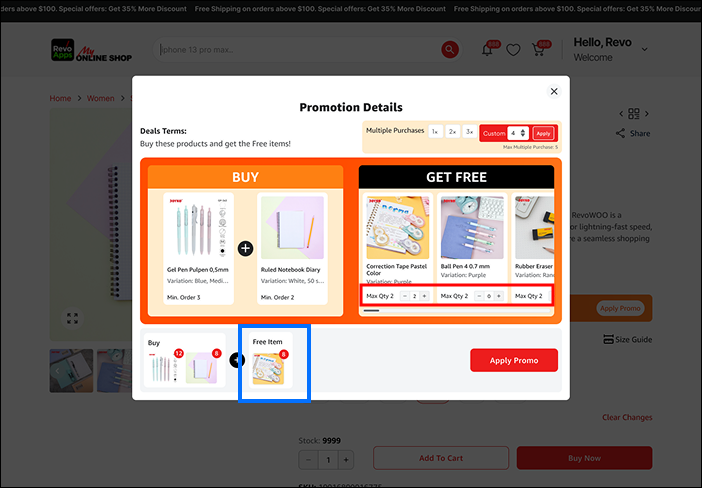
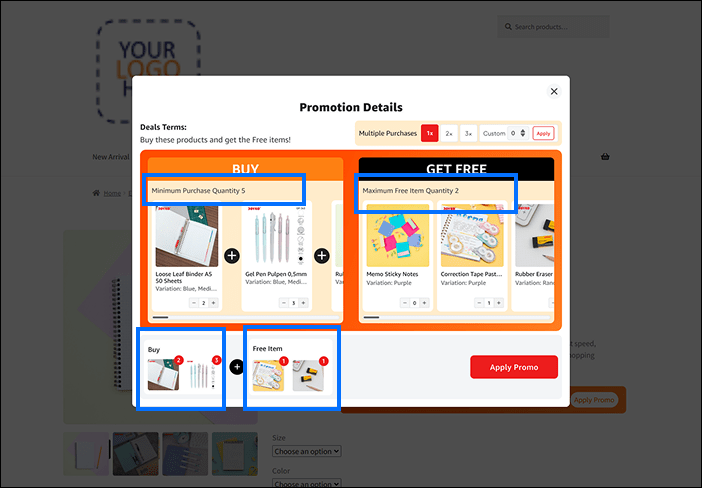
When you click “Apply Promo” it will shown pop up of the detail promotion with 3 BOGO deal conditions according to BOGO rules setting on Admin Dashboard
- Fixed Quantity per Product (AND Condition) – the customer choose which product(s) will trigger the deal (Buy X), then will get all of the free product(s) (Get Y) you set for. It looks like this
- Fixed Quantity per Product (OR Condition) – the customer choose which product(s) will trigger the deal (Buy X), then they can choose any of the free product(s) (Get Y) you set for.
- Mixed Products (Random) – the customer choose any of which product(s) will trigger the deal (Buy X) with minimum purchase and also choose any of the free product(s) (Get Y) you set for with maximum free product quantity.
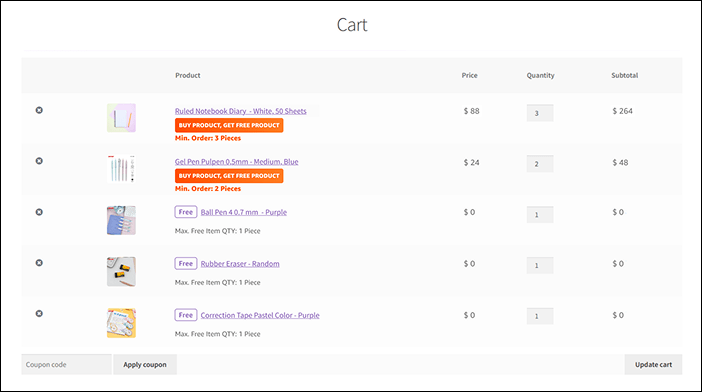
Cart Page:
↑ Back to topClearly shows the applied deal and free products (with FREE label and automatically displays the discounted price as free) helping customers understand the benefit
before checking out.
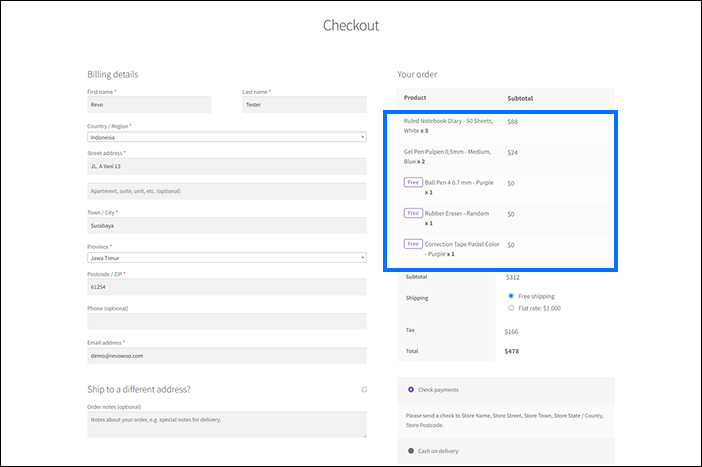
Checkout Page:
↑ Back to topOn checkout page, free products will be displayed with the label FREE and the price will be marked as free (0).
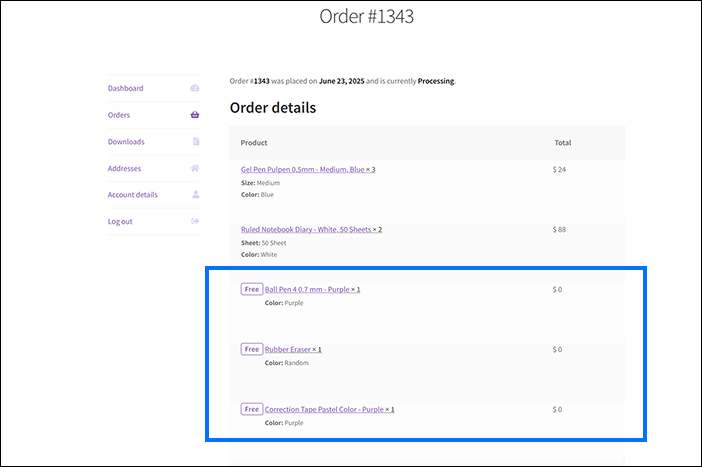
Order Page:
↑ Back to topAllows customers to review the deal anytime post-purchase from their account or email confirmation.
FAQs
↑ Back to top
Do you provide support?
Yes. We provide technical assistance via email or WhatsApp. Our team usually responds within 24–72 hours. Our working hours are Monday to Friday, 09:00–16:00 (GMT+7 / Indonesia time).
What are the benefits of using this extension?<br>
You can quickly boost sales and upsell slow‑moving items, helping to increase your overall total sales within a single sales session.
Is this extension easy to use?
Yes. We designed the UI/UX to be simple and intuitive, so you don’t need any learning curve. Everything works with easy drag‑and‑drop functionality.
Do you have documentation in PDF format?
Absolutely. If you need the documentation in PDF format, simply contact us after your purchase and we’ll send it to you.

