
1. Overview
↑ Back to topBox Contents for WooCommerce lets you show shoppers exactly what’s included with a product in a clear, structured section on the product page.
You can add two types of included items:
- Linked products — WooCommerce products or variations that already exist in your store.
- Custom items — Items that come with the product but are not sold separately in your store.
For each included item, you can provide useful details such as a display name, image, quantity, and note.
Box Contents can be displayed using Cards, List, Compact List, or Table, and you can control the section heading and where it appears on the product page.
You can also optionally show a compact Includes summary in the cart, checkout, or both.
2. Installation and activation
↑ Back to topFor Marketplace installations, install Box Contents for WooCommerce from WooCommerce > Extensions > My Subscriptions.
You can also install the extension manually:
- Go to Plugins > Add New Plugin.
- Select Upload Plugin.
- Upload the Box Contents for WooCommerce ZIP file.
- Select Install Now.
- Activate the extension.
After activation, you can either:
- go to WooCommerce > Settings > Box Contents to review the global display defaults; or
- edit a WooCommerce product and select Box Contents under Product data to start configuring that product immediately.
Requirements
↑ Back to topBox Contents for WooCommerce requires:
- WordPress 6.4 or later
- WooCommerce 8.0 or later
- PHP 7.4 or later
There is no setup wizard or post-activation onboarding step.
3. Global defaults
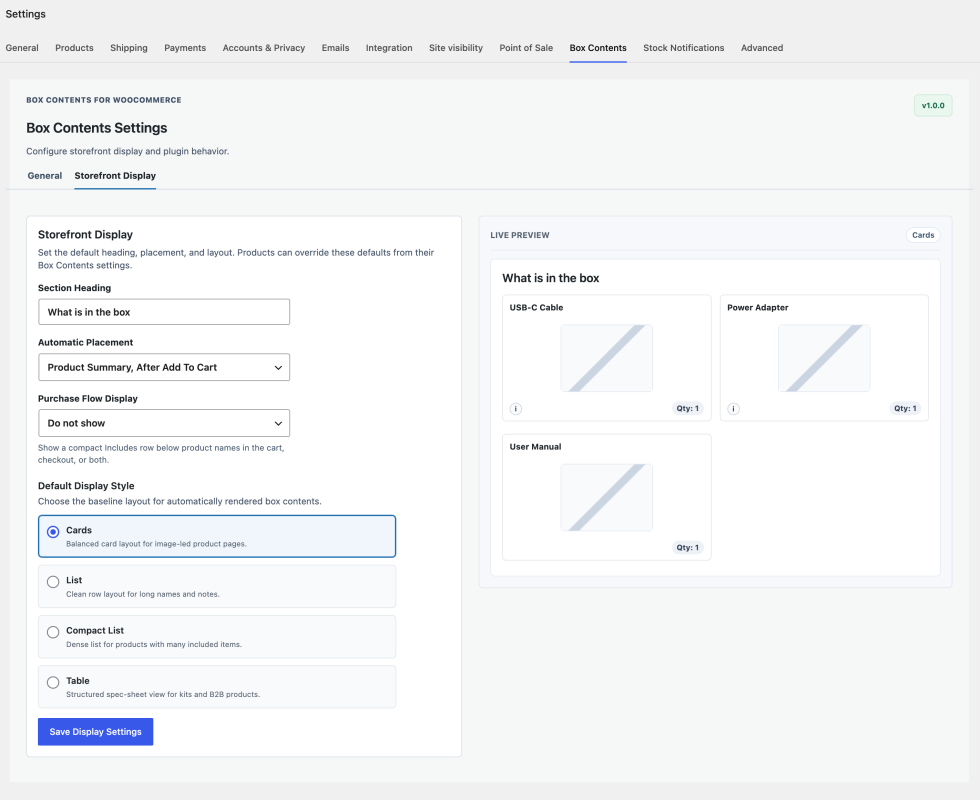
↑ Back to topBox Contents for WooCommerce includes global display settings that act as defaults for products unless you override them at the product level.
To review the global settings, go to:
WooCommerce > Settings > Box Contents
Under Storefront Display, you can configure:
- Section Heading — Sets the default heading shown above the Box Contents section. The default is What is in the box.
- Automatic Placement — Sets the default location of the Box Contents section on product pages. Available options are:
- Product Summary, After Add To Cart — default. A good general-purpose position when you want Box Contents to remain close to the main purchase information.
- Product Summary, Before Add To Cart — useful when knowing what is included may help the shopper decide before reaching the purchase controls.
- Product Summary, After Short Description — useful when Box Contents is an important part of understanding the offer and should appear early in the product summary.
- Before Product Tabs — useful when you want Box Contents below the main purchase area but before longer product information.
- After Product Tabs — useful when Box Contents is supporting information rather than part of the primary purchase decision.
- Do Not Insert Automatically — use this when you want to place Box Contents manually, for example with the shortcode.
- Purchase Flow Display — Controls whether a compact Includes summary is shown during the purchase flow. Available options are:
- Do not show — default
- Cart only
- Checkout only
- Cart and checkout
- Default Display Style — Sets the default layout used for Box Contents. Available options are:
- Cards — default. Best suited to image-led product pages where included items benefit from strong visual prominence.
- List — well suited to products with longer item names or notes.
- Compact List — useful when a product contains many included items and space needs to be used efficiently.
- Table — best suited to structured, specification-style presentations, including kits and B2B products.
The settings screen also includes a live preview so you can see how the selected display style will look.
Product-level overrides
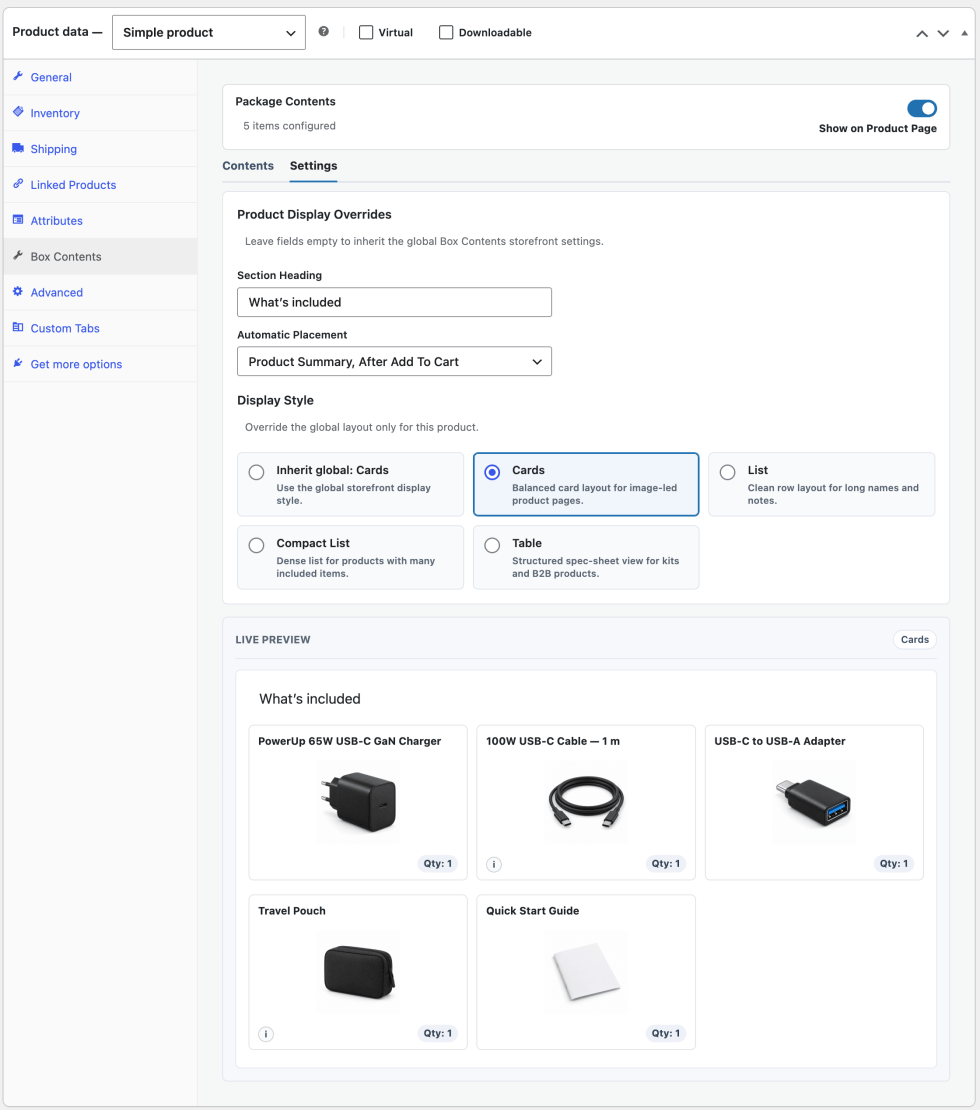
↑ Back to topIndividual products can override the global Section Heading, Automatic Placement, and Display Style settings.
If a product-level setting is left blank, Box Contents uses the corresponding global default.
4. Product configuration
↑ Back to topBox Contents for WooCommerce is configured from the WooCommerce product editor, inside the Product data panel.
To add Box Contents to a product:
- Open an existing WooCommerce product or create a new one.
- In the Product data panel, select Box Contents.
- In the Package Contents area, add the items that should be included with the product.
- Open the Settings tab to review the section heading, automatic placement, and display style for this product.
- Enable Show on Product Page if you want the Box Contents section to appear on the storefront.
- Click Update or Publish to save the configuration.
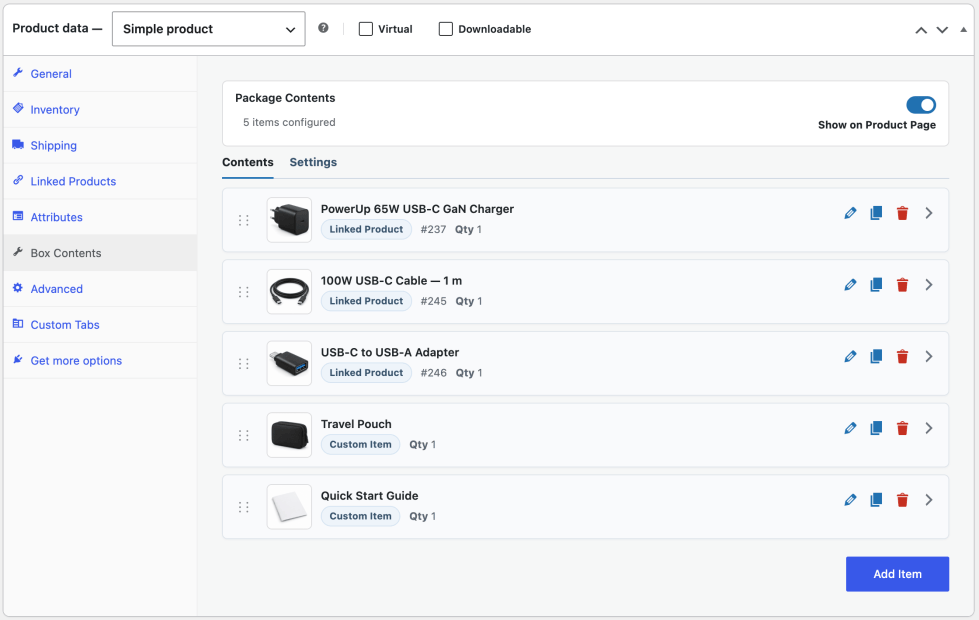
The product-level Section Heading, Automatic Placement, and Display Style settings can override the global defaults.
If a product-level setting is left blank, Box Contents uses the corresponding global setting.
When no items are configured
↑ Back to topIf no valid Box Contents items have been added:
- nothing is shown on the product page when fallback contents are disabled;
- the product itself may be shown as one included item if the global Use product as fallback contents setting is enabled.
Turning off Show on Product Page prevents both configured contents and fallback contents from appearing on the storefront.
5. Included item types
↑ Back to topA WooCommerce product’s Box Contents can contain two types of included items:
- Linked Product — an existing WooCommerce product or variation.
- Custom Item — an item that is included with the product but does not need to exist as a separate WooCommerce product.
You can use either type on its own, or mix both types in the same Box Contents configuration.
Linked Product
↑ Back to topUse Linked Product when the included item already exists in your WooCommerce catalog.
To add one:
- In the Box Contents tab, select Add Item.
- Choose Linked Product.
- Start typing the product name or SKU. Search begins after two characters.
- Select the product or variation you want to include.
- Review the item details and make any changes you need.
- Click Update or Publish to save the product.
You can select:
- simple products;
- variable parent products;
- individual variations.
When you select a linked product:
- its product name is stored as the linked-product name;
- you can use Display Name to show a different shopper-facing name;
- available product images are offered as image choices, but an image is not assigned automatically.
For variations, the available image choices can include the variation image and applicable parent-product images.
If the selected product has no available images, Box Contents shows No product images found. The item can still be used and will display without a placeholder image.
Note: The stored linked-product name does not currently update automatically if the original WooCommerce product is renamed later.
Custom Item
↑ Back to topUse Custom Item for anything included with the product that is not sold separately in your store.
Examples might include:
- a cable supplied only as part of the package;
- a mounting accessory;
- printed documentation;
- a carrying case;
- another package-only component.
To add one:
- Select Add Item.
- Choose Custom Item.
- Enter a Display Name.
- Add an image, quantity, or note if needed.
- Click Update or Publish to save the product.
For a Custom Item:
- Display Name is required for the row to be retained;
- image, quantity, and note are optional;
- images are selected from the WordPress Media Library.
Mix Linked Products and Custom Items
↑ Back to topA single Box Contents configuration can contain both Linked Products and Custom Items.
For example, a product package could include:
- a charger that already exists as a WooCommerce product;
- a cable variation that is sold separately;
- a custom printed quick-start guide that exists only as part of the package.
This lets you represent the complete package accurately without creating separate WooCommerce products for every included item.
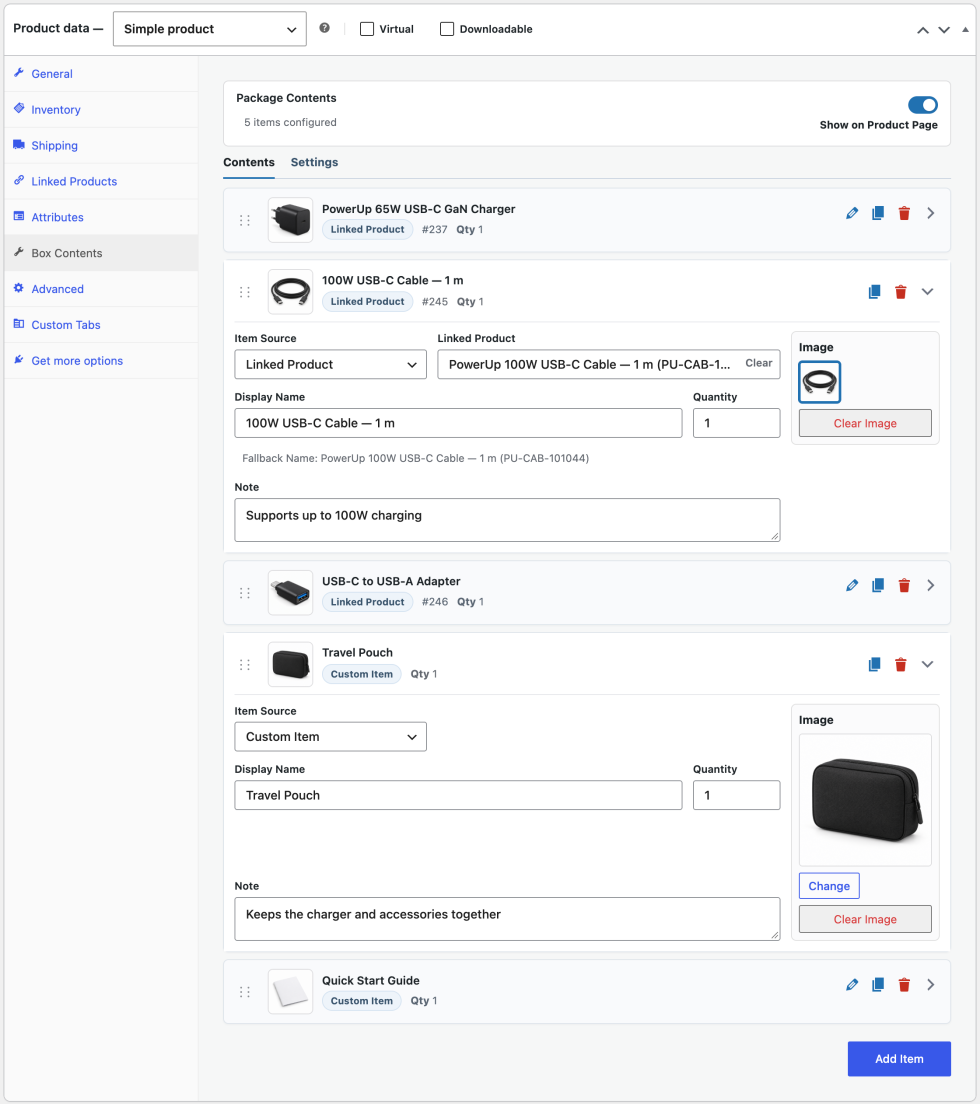
6. Item details
↑ Back to topEach included item can carry additional information to help shoppers understand exactly what they will receive.
The available item details are:
- Display Name
- Image
- Quantity
- Note
Display Name
↑ Back to topDisplay Name is the shopper-facing name shown for the included item.
For Linked Products, Box Contents uses the stored product name unless you enter a Display Name override.
For Custom Items, Display Name is required.
Use a Display Name when you want the shopper-facing wording to be clearer, shorter, or more specific than the original product name.
For example, a catalog product called:
PowerUp 100W USB-C Cable — 1 m
could be displayed as:
100W USB-C Cable — 1 m
if that is clearer in the context of the package.
Image
↑ Back to topImages are optional.
For Linked Products, Box Contents lets you choose from images associated with the selected product or variation.
For Custom Items, images are selected from the WordPress Media Library.
If no image is selected, the item remains valid and is displayed without a placeholder image.
Use images when they help shoppers recognize the included item quickly.
Quantity
↑ Back to topQuantity defaults to 1.
For Linked Products, quantities are positive whole numbers.
For Custom Items, quantity can also use concise merchant-facing values such as:
2 packs
Blank, zero, negative, or malformed quantities are normalized to 1.
Quantity is displayed in every Box Contents layout.
Note
↑ Back to topNotes are optional.
Use a note when an included item needs a short piece of additional context, such as:
- size;
- compatibility;
- specification;
- intended use;
- another useful distinction.
Blank notes are not displayed.
How notes appear depends on the selected layout:
- Cards — available through an information popover.
- List — displayed inline.
- Compact List — not displayed.
- Table — displayed in a Description column when at least one item has a note.
7. Ordering
↑ Back to topYou can control the order in which included items appear to shoppers.
To reorder items:
- In the Box Contents tab, locate the item you want to move.
- Use the visible drag handle to drag the item to its new position.
- Repeat as needed until the items are in the order you want.
- Click Update or Publish to save the new order.
The storefront follows the order configured in the product editor.
Use item order deliberately. For example, you may want to place:
- the most important included item first;
- high-value accessories near the top;
- related components next to each other;
- smaller supporting items later in the list.
Reordering is not saved independently, so remember to update or publish the product after making changes.
8. Display layouts
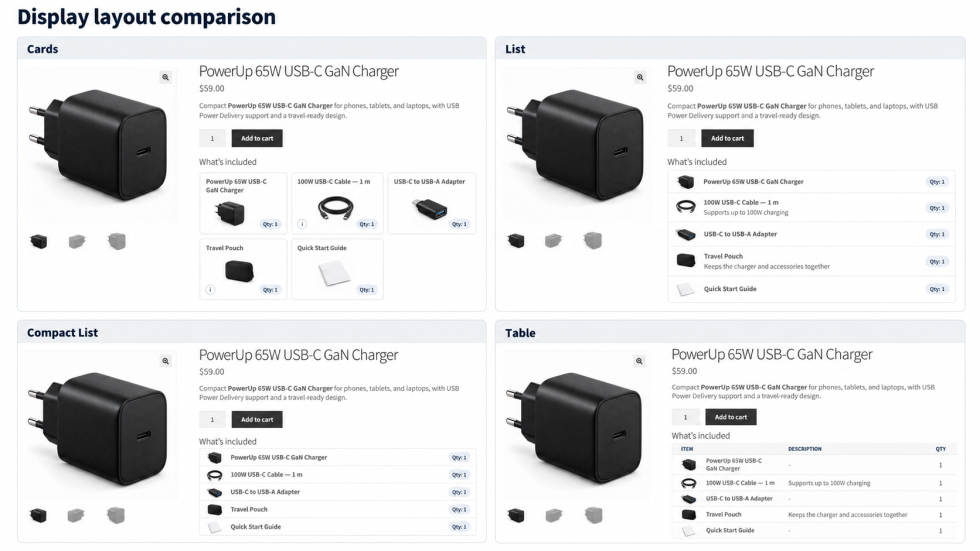
↑ Back to topBox Contents for WooCommerce provides four display styles:
- Cards
- List
- Compact List
- Table
You can choose a default display style under:
WooCommerce > Settings > Box Contents
You can also override the default for an individual product from the Settings tab inside the product’s Box Contents panel.
The product-level setting takes precedence over the global default.
Cards
↑ Back to topCards is the default display style.
It is best suited to image-led product pages where included items benefit from strong visual prominence.
Cards display:
- item name;
- image;
- quantity.
If an item has a note, shoppers can access it through an information popover.
Use Cards when the included items themselves are an important part of how the offer is presented.
List
↑ Back to topList is well suited to products with longer item names or notes.
It displays:
- item name;
- image;
- quantity;
- note inline.
Use List when you want each item to have more horizontal space and the note should remain visible without interaction.
Compact List
↑ Back to topCompact List is useful when a product contains many included items and you want to use space efficiently.
It displays:
- item name;
- image;
- quantity.
Notes are not displayed in Compact List.
Use this style when density matters more than showing additional descriptive text.
Table
↑ Back to topTable is best suited to structured, specification-style presentations, including kits and B2B products.
It displays:
- item image and name;
- quantity;
- a Description column when at least one included item has a note.
Use Table when shoppers benefit from comparing the included items in a more structured format.
Responsive behavior
↑ Back to topThe layouts adapt to narrower screens:
- Cards collapse to one column.
- List and Compact List adjust to narrower item rows.
- Table changes to stacked item blocks on mobile.
Both the global settings screen and the product-level Settings tab include a live preview, so you can review the selected display style before checking the storefront.
9. Product-page placement
↑ Back to topBox Contents can be inserted automatically on WooCommerce product pages, or you can disable automatic insertion and place it manually.
The global default is configured under:
WooCommerce > Settings > Box Contents
Individual products can override that setting from the Settings tab inside the product’s Box Contents panel.
Automatic placement options
↑ Back to topAvailable positions are:
- Product Summary, After Add To Cart — default. A good general-purpose position when you want Box Contents to remain close to the main purchase information.
- Product Summary, Before Add To Cart — useful when knowing what is included may help the shopper decide before reaching the purchase controls.
- Product Summary, After Short Description — useful when Box Contents is an important part of understanding the offer and should appear early in the product summary.
- Before Product Tabs — useful when you want Box Contents below the main purchase area but before longer product information.
- After Product Tabs — useful when Box Contents is supporting information rather than part of the primary purchase decision.
- Do Not Insert Automatically — use this when you want to place Box Contents manually.
The exact visual position may vary slightly depending on the active theme and how that theme structures the WooCommerce product page.
Product-level override
↑ Back to topA product can use a different placement from the global default.
If the product-level Automatic Placement setting is left blank, Box Contents uses the global placement setting.
Manual placement
↑ Back to topIf you select Do Not Insert Automatically, Box Contents will not be inserted automatically on the WooCommerce product page.
You can then place Box Contents manually using the [box_contents] shortcode.
See Advanced placement/customization for shortcode options and developer-oriented customization.
10. Purchase Flow Display
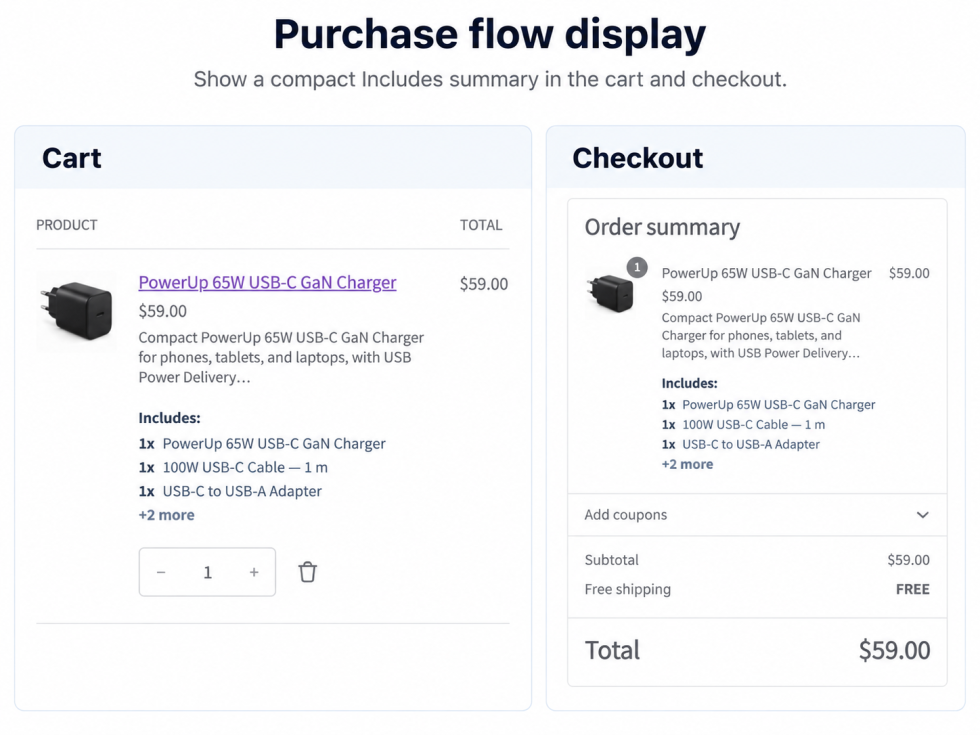
↑ Back to topBox Contents can optionally show a compact Includes summary during the purchase flow.
This setting is configured globally under:
WooCommerce > Settings > Box Contents
Available options are:
- Do not show — default. The Includes summary is not shown in the cart or checkout.
- Cart only — shows the Includes summary with the product in the cart.
- Checkout only — shows the Includes summary with the product in the checkout.
- Cart and checkout — shows the Includes summary in both places.
The purchase-flow summary is intentionally more compact than the full Box Contents section shown on the product page.
It presents the included items as product information associated with the cart or checkout item rather than using the full Cards, List, Compact List, or Table layout.
What shoppers see
↑ Back to topThe purchase-flow summary uses the label:
Includes
and lists the included items with their quantities.
For example:
- 1x USB-C Cable
- 1x Power Adapter
- 2x Mounting Brackets
The exact appearance and position can vary slightly depending on the active theme and whether the store uses classic WooCommerce templates or block-based cart and checkout pages.
Relationship to product-page display
↑ Back to topPurchase Flow Display is independent of the product-page layout.
A product can use a full Box Contents presentation on the product page while also showing the compact Includes summary during the purchase flow.
11. Variable products
↑ Back to topBox Contents supports WooCommerce variable products, but the Box Contents configuration is stored at the parent product level.
This means all variations of the product share the same Box Contents.
How it works
↑ Back to topFor a variable product:
- configure Box Contents on the parent product;
- the same Box Contents remain displayed when shoppers switch between variations;
- the cart and checkout Includes summary uses the parent product’s Box Contents;
- order-item snapshots also use the parent product’s Box Contents.
Variation-specific contents
↑ Back to topVariation-specific Box Contents are not currently supported.
You cannot:
- assign different Box Contents to different variations;
- configure Box Contents separately on each variation;
- change the displayed Box Contents dynamically when a shopper selects a different variation.
Using variations as included items
↑ Back to topIndividual variations can still be selected as Linked Products inside another product’s Box Contents.
This is useful when the included item is a specific variation rather than the variable parent product.
12. Storefront verification
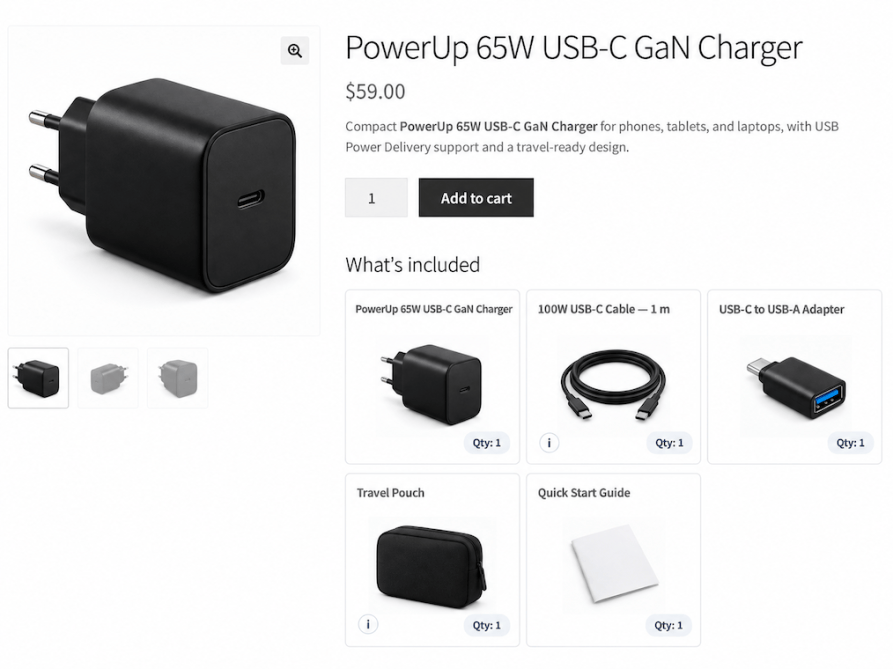
↑ Back to topAfter configuring Box Contents, verify the result on the storefront before considering the product setup complete.
To check the product:
- Click Update or Publish in the WooCommerce product editor.
- Open the product page on the storefront.
- Confirm that the Box Contents section appears in the expected location.
- Check the section heading.
- Confirm that the included items appear in the correct order.
- Verify the item names, images, quantities, and notes.
- Confirm that the selected display layout is being used.
- If Purchase Flow Display is enabled, add the product to the cart and verify the Includes summary in the configured purchase-flow location.
If you make changes in the product editor, click Update again and refresh the storefront page to review the new result.
What to check
↑ Back to topPay particular attention to:
- whether Show on Product Page is enabled;
- whether the correct global or product-level placement is being used;
- whether the product-level heading and display style overrides are behaving as expected;
- whether any item without an image still displays correctly;
- whether notes appear as expected for the selected layout.
13. Advanced placement/customization
↑ Back to topMost merchants can use the standard automatic placement options covered earlier.
This section is for manual placement and more advanced theme customization.
Manual placement with the shortcode
↑ Back to topUse the shortcode when you want to place Box Contents somewhere other than one of the automatic WooCommerce product-page positions.
Basic usage:
[box_contents]
To display Box Contents for a specific product:
[box_contents product_id="123"]
To override the layout:
[box_contents layout="table"]
To override the section heading:
[box_contents title="Included in the package"]
Accepted layout values are:
| Display style | Shortcode value |
|---|---|
| Cards | grid |
| List | list |
| Compact List | compact |
| Table | table |
If you are using the shortcode on the same product page, set Automatic Placement to Do Not Insert Automatically if you want to avoid showing Box Contents twice.
Theme template override
↑ Back to topDevelopers can override the Box Contents frontend mount template in the active theme.
Place the customized template at:
your-theme/box-contents-for-woocommerce/frontend/box-contents.php
Use a template override only when the Box Contents mount wrapper or the data passed to the storefront application needs theme-level customization beyond the built-in display and placement options.
Because template overrides are developer-oriented, merchants who are not comfortable editing theme files should use the standard display settings and shortcode instead.
14. FAQ
↑ Back to topCan Box Contents be enabled only for selected products?
↑ Back to topYes. Box Contents is configured per product, so you can use it only on the products where showing what’s included is useful.
Can existing WooCommerce products be included?
↑ Back to topYes. Use Linked Product to include an existing WooCommerce product or variation.
Can package-only custom items be included?
↑ Back to topYes. Use Custom Item for items that are included with the product but are not sold separately in your store.
Can Linked Products and Custom Items be mixed?
↑ Back to topYes. A single Box Contents configuration can contain both Linked Products and Custom Items.
Does Box Contents support variable products?
↑ Back to topYes. Box Contents can be configured on the parent variable product, and all variations share the same Box Contents.
Can different variations have different contents?
↑ Back to topNo. Variation-specific Box Contents are not currently supported.
Can an individual variation be included as a Linked Product?
↑ Back to topYes. Individual WooCommerce variations can be selected as Linked Products inside another product’s Box Contents.
Can Box Contents be positioned manually?
↑ Back to topYes. Set Automatic Placement to Do Not Insert Automatically, then use the [box_contents] shortcode to place Box Contents manually.
What happens when an included item has no image?
↑ Back to topThe item remains valid and is displayed without a placeholder image.
15. Troubleshooting
↑ Back to topBox Contents does not appear on the product page
↑ Back to topCheck the following:
- Show on Product Page is enabled.
- At least one valid Box Contents item exists, unless Use product as fallback contents is enabled globally.
- The product has been Updated or Published after the configuration was changed.
- The selected Automatic Placement is compatible with how you want Box Contents to appear.
If Box Contents is still not visible, refresh the storefront page and clear any page or asset caches that may be serving an older version.
Changes are not visible on the storefront
↑ Back to topClick Update in the product editor, then refresh the product page.
If the previous presentation is still shown, clear any relevant page or asset caches and check the page again.
A Linked Product has no image
↑ Back to topSelect one of the available images associated with the Linked Product or variation.
If no product images are available, the item can still be used. Box Contents intentionally renders the item without a placeholder image.
Box Contents appears in an unexpected location
↑ Back to topCheck both:
- the global Automatic Placement setting under WooCommerce > Settings > Box Contents;
- the product-level Automatic Placement override.
A product-level override takes precedence over the global default.
The exact visual position can also vary slightly depending on the active theme and how it structures the WooCommerce product page.
A variable product does not change Box Contents when a variation is selected
↑ Back to topThis is expected behavior.
Box Contents is configured on the parent variable product, and all variations share the same Box Contents. Variation-specific contents are not currently supported.

