The Bulk Stock Management extension gives you a new interface (found in Products > Stock Management) that lists your products and variations, along with their stock properties.
Installation
↑ Back to topTo start using a product from WooCommerce.com, you can use the “Add to store” functionality on the order confirmation page or the My subscriptions section in your account.
- Navigate to My subscriptions.
- Find the Add to store button next to the product you’re planning to install.
- Follow the instructions on the screen, and the product will be automatically added to your store.
Alternative options and more information at:
Managing WooCommerce.com subscriptions.
Setup and Configuration
↑ Back to topEnable stock management in your WooCommerce inventory settings, then go to Products > Stock Management in your dashboard.
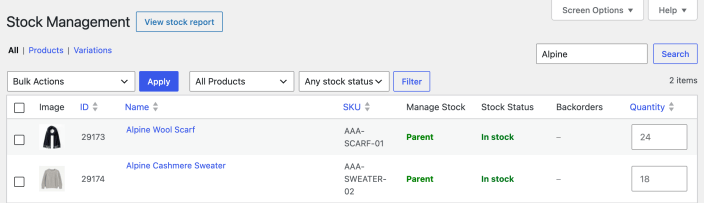
Filter the products on this screen by stock management status, stock status and category. They can be ordered by name, ID, SKU or stock quantity.
Enter the new quantities in the fields at the end of the product rows. Choose Save stock quantities from the bulk actions menu and select Apply to save the changes.
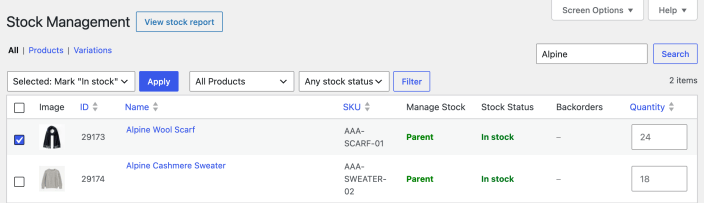
Or you can select products using the checkboxes on the left, and then apply bulk actions such as:
- Mark “In Stock”
- Mark “Out of stock”
- Allow backorders
- Allow backorders, but notify customer
- Do not allow backorders
Stock Report
↑ Back to topYou can also generate a stock report for the products in your store that have their inventory levels managed. This is done on the Products > Stock Management page. The report will show each product and each product variation on a separate line.

Troubleshooting
↑ Back to topThe plugin displays variations from products that were deleted
↑ Back to topVariations without a parent product can remain in the database and appear in Stock Management. The WooCommerce tool deletes all variations that have no parent, so back up your store before using it.
- Go to WooCommerce > Status > Tools.
- Find Orphaned variations and select Delete orphaned variations.
- Confirm the action, then return to Products > Stock Management and check the list.
The result reports how many orphaned variations were deleted.

Questions and support
↑ Back to topSomething missing from this documentation? Still have questions and need assistance?
- If you have a question about a specific extension or theme you’d like to purchase, contact us to get answers.
- If you already purchased this product and need some assistance, get in touch with a Happiness Engineer via our support page and select this product’s name from the Product dropdown.