
Bundle Link Builder allows your WooCommerce store to create shareable links that add multiple products to the cart instantly. You can build custom product bundles with predefined quantities, optional custom pricing, and advanced cart behavior, then share them using links, QR codes, or shortcodes.
These bundle links can be used in marketing campaigns, landing pages, email promotions, or product pages to allow customers to add complete product bundles to the cart with a single click.
Installation
↑ Back to topTo start using a product from WooCommerce.com, you can use the “Add to store” functionality on the order confirmation page or the My subscriptions section in your account.
- Navigate to My subscriptions.
- Find the Add to store button next to the product you’re planning to install.
- Follow the instructions on the screen, and the product will be automatically added to your store.
Alternative options and more information at:
Managing WooCommerce.com subscriptions.

Setup and Configuration
↑ Back to topGetting started
↑ Back to topTo create your first bundle:
- Go to Products -> Bundle Link Builder -> Add Bundle.
- Enter a title for your bundle.
- Select the products to include in the bundle.
- Set the quantity and optional custom price for each product.
- Configure bundle behavior settings if needed.
- Publish the bundle.
After publishing, the plugin will generate:
- A bundle add-to-cart link
- A QR code
- A button shortcode
- A products list shortcode
These can be used anywhere to add the bundle to the cart.
Advanced configuration
↑ Back to topProduct Configuration
↑ Back to topEach product inside the bundle can be configured individually.
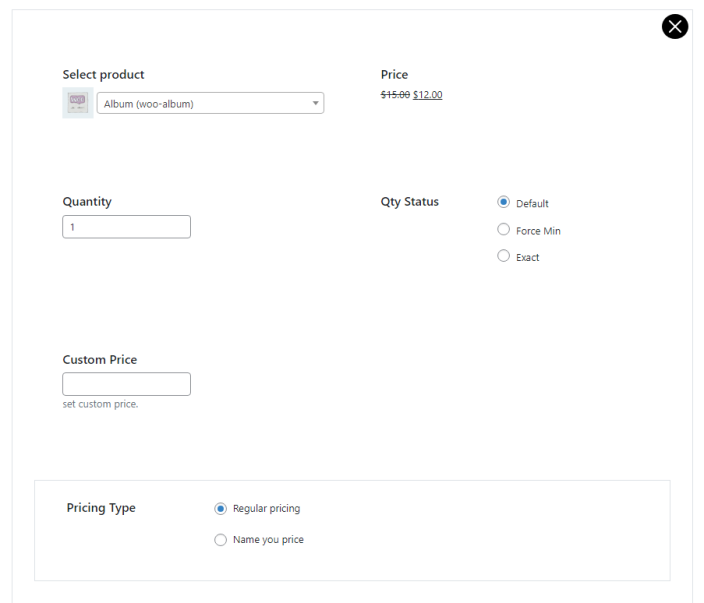
Quantity
↑ Back to topSet the number of units that will be added to the cart when the bundle link is used.
Quantity Status
↑ Back to topControl how the quantity behaves in the cart:
Default
Customers can modify the product quantity from the cart.
Force Min
Customers cannot reduce the quantity below the bundle quantity.
Exact
The quantity cannot be changed in the cart.
Pricing Options
Bundle Link Builder provides flexible pricing controls.
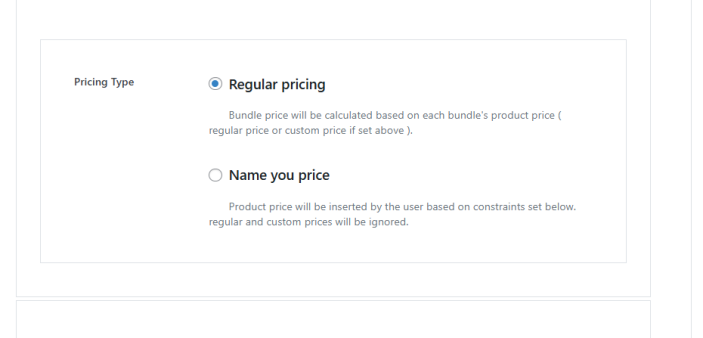
Regular Pricing
The product will use its regular WooCommerce price unless a custom price is specified.
Custom Price
Override the product price when it is added through the bundle.
Name Your Price
Allow customers to enter their own price for the product based on constraints configured in the bundle.
Treat Bundle as One
↑ Back to top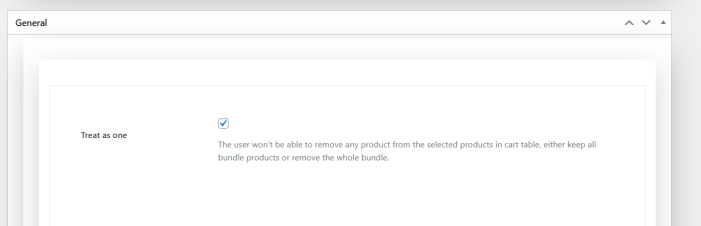
When this option is enabled, bundle items are treated as a single purchase group.
Customers cannot remove individual products from the bundle in the cart.
They must either keep all items or remove the entire bundle.
This is useful for product kits, packages, and promotional bundles.
Add to Cart Behavior
↑ Back to topDetermine what happens if one product in the bundle cannot be added to the cart.
Default Behavior
All purchasable products will be added to the cart even if some products fail (for example if they are out of stock).
Strict Mode
If any product in the bundle fails to be added, the entire bundle will not be added to the cart.
UTM Parameters
↑ Back to topYou can attach UTM parameters to bundle links for marketing campaign tracking.
Example:
utm_source=facebook&utm_medium=ads
These parameters will automatically be appended to the generated bundle link.
Redirect Options
↑ Back to top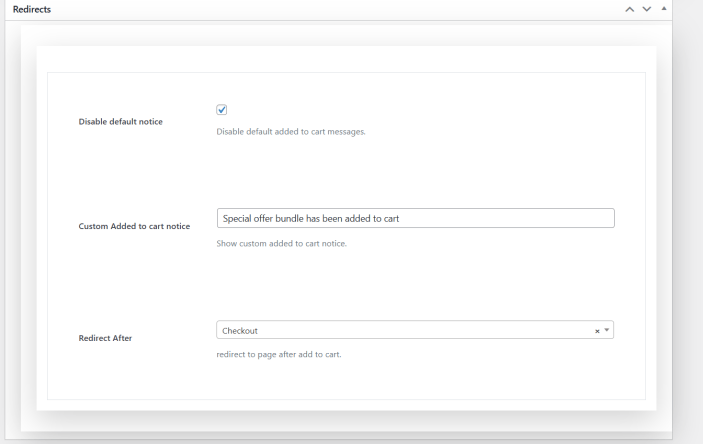
You can control where customers are redirected after the bundle is added to the cart.
Available options include:
- Stay on the current page
- Redirect to the cart page
- Redirect to the checkout page
- Redirect to a custom page
You can also display a custom “added to cart” notice when the bundle is added.
Automatic Coupons
↑ Back to top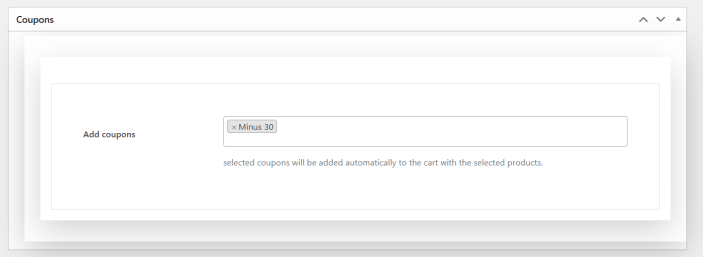
Coupons can be automatically applied when a bundle is added to the cart.
Simply select the coupons you want to apply from the Coupons panel in the bundle editor.
This feature is useful for promotional campaigns or bundle discounts.
Links and Shortcodes
↑ Back to top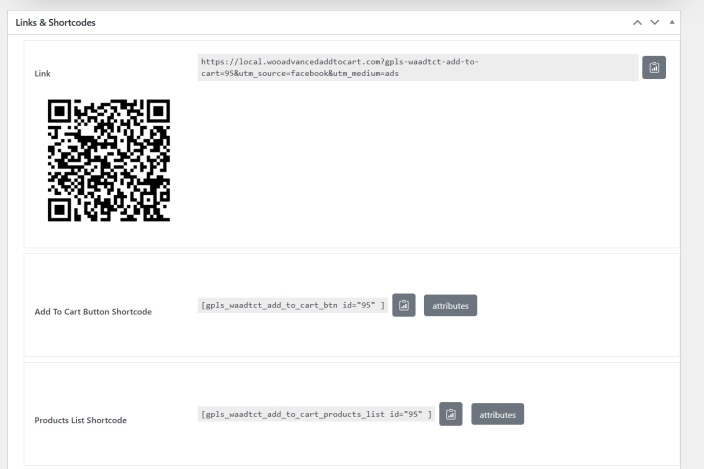
Each bundle generates several tools you can use on your site or in marketing campaigns.
Add to Cart Link
The generated bundle link adds all bundle products to the cart instantly.
Example:
https://yourstore.com/?bundle-link=95
You can use this link in:
- Email campaigns
- Landing pages
- Social media
- Ads
- External websites
QR Code
Each bundle also generates a QR code for the bundle link.
This is useful for:
- Print marketing materials
- Product packaging
- In-store promotions
- Flyers or posters
When scanned, the QR code opens the bundle link and adds the products to the cart.
Add to Cart Button Shortcode
You can display a bundle button anywhere using a shortcode.
Example:
[gpls_waadtct_add_to_cart_btn id="95"]
This will display a button that adds the bundle to the cart.
Products List Shortcode
You can display the products included in a bundle using the products list shortcode.
Example:
[gpls_waadtct_add_to_cart_products_list id="95"]
This allows customers to see what items are included before adding the bundle to the cart.
Usage
Once a bundle is created, you can share the bundle link, QR code, or shortcode.
When a customer visits the bundle link:
- All bundle products are added to the cart automatically.
- Product quantities and pricing follow the bundle configuration.
- Coupons and redirects are applied if configured.
This allows customers to purchase multiple products instantly with a single click.
FAQs
↑ Back to topHelp customers by answering commonly asked questions.
Can I include variable products in a bundle?
Yes. Bundle Link Builder supports simple products and product variations. Variations must have all attributes selected.
Can customers change bundle quantities in the cart?
Yes. This depends on the Quantity Status setting. You can allow quantity changes, enforce a minimum quantity, or lock the exact quantity.
Can I automatically apply coupons when a bundle is added?
Yes. You can assign coupons to bundles and they will be automatically applied when the bundle is added to the cart.

