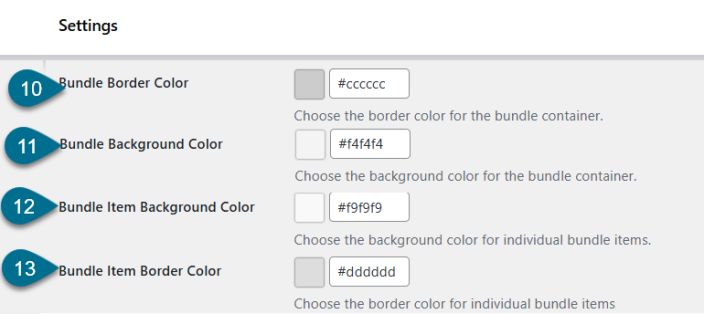
Chained Product Bundles for WooCommerce allows you to create smart, flexible product bundles with full control over pricing, discounts, and layouts.
Installation
↑ Back to topTo start using a product from WooCommerce.com, you can use the “Add to store” functionality on the order confirmation page or the My subscriptions section in your account.
- Navigate to My subscriptions.
- Find the Add to store button next to the product you’re planning to install.
- Follow the instructions on the screen, and the product will be automatically added to your store.
Alternative options and more information at:
Managing WooCommerce.com subscriptions.

Configurations
↑ Back to topCreating a New Bundle
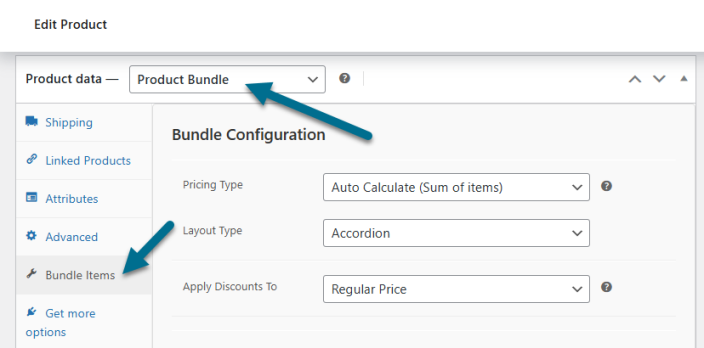
↑ Back to topNavigate to Products > Add New Product > Product Data section below wysiwyg editor, select Product Bundle from the dropdown, then open the Bundle Items tab.
Bundle Configuration
Here, you can define pricing, layout, discounts, and quantity rules for the bundle.
- Pricing Type – Choose how the bundle price is calculated.
- Auto Calculate (Sum of Items) – Automatically calculate the bundle price based on bundled items.
- Fixed Price – Set a fixed total price for the bundle.
- Layout Type – Select how bundle items are displayed on the product page. (List, Grid, or Accordion).
- Apply Discounts To – Choose which price discounts should apply to.
- Regular Price – Apply discounts to the regular price.
- Sale Price (If Available) – Apply discounts to the sale price when available.
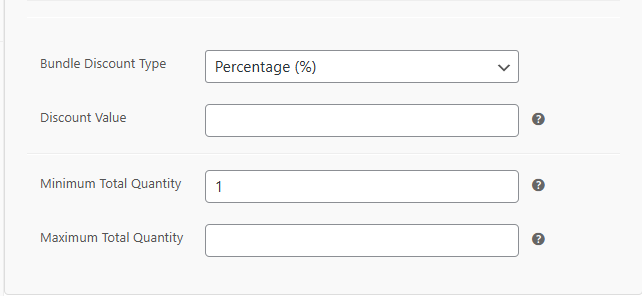
- Bundle Discount Type – Select the discount type applied to the entire bundle.
- Percentage (%) – Apply a percentage-based discount.
- Fixed Amount – Apply a fixed discount amount.
- No Discount – Do not apply a bundle-level discount.
- Discount Value – Enter the bundle discount value (e.g., 20).
- Minimum Total Quantity – Set the minimum total quantity required for the bundle.
- Maximum Total Quantity – Set the maximum total quantity allowed for the bundle
Bundle Items
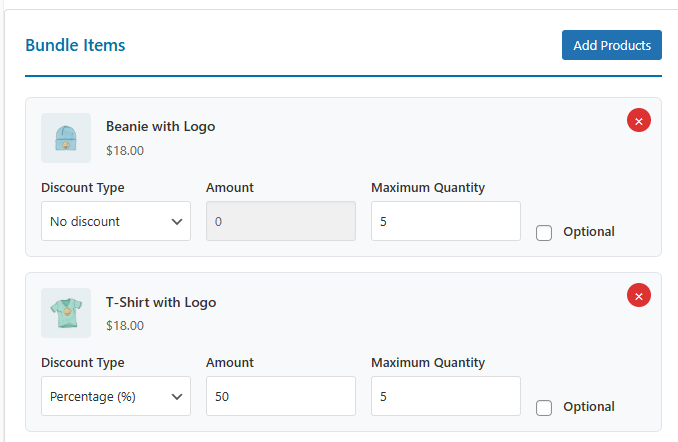
Manage products included in the bundle and their individual settings.
- Add Products – Click Add products button to add items to the bundle using the product selection popup.
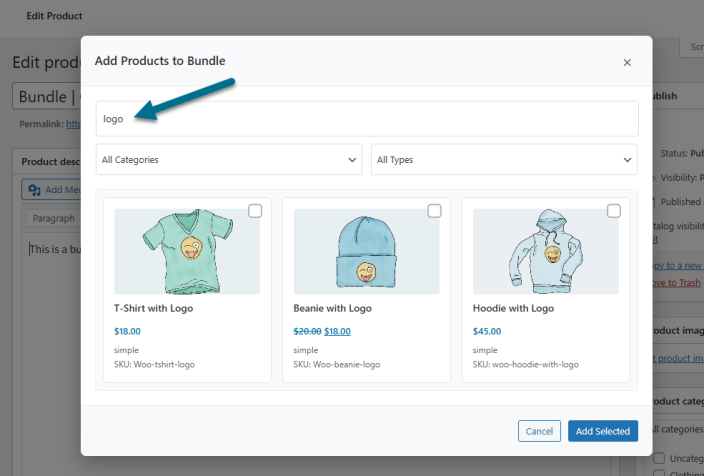
For each product added in bundle, you can configure:
- Discount Type – Select the discount type for the individual bundle item.
- Percentage (%) – Apply a percentage-based discount.
- Fixed Amount – Apply a fixed discount amount.
- No Discount – Do not apply any item-level discount.
- Discount Amount – Enter the discount amount for the selected product (e.g., 10).
- Maximum Quantity – Set the maximum quantity of this product that can be purchased within the bundle.
- Optional – Mark the product as optional within the bundle.
Bundle Settings
↑ Back to topGo to WooCommerce > Settings > Product Bundles
Here, you can configure global settings that control how bundle products are displayed, added to the cart, and behave when items are unavailable.
Display Settings
↑ Back to topControl how bundle products are displayed on the product page.
- Show Thumbnails – Display product thumbnails for each item in the bundle list.
- Allow Quantity Changes – Allow customers to change quantities of individual bundle items.
- Show Item Pricing – Display individual prices for products included in the bundle.
- Show Short Description – Display the short description of each bundled item.
- Hide Bundle Price – Hide the total bundle price on the product page
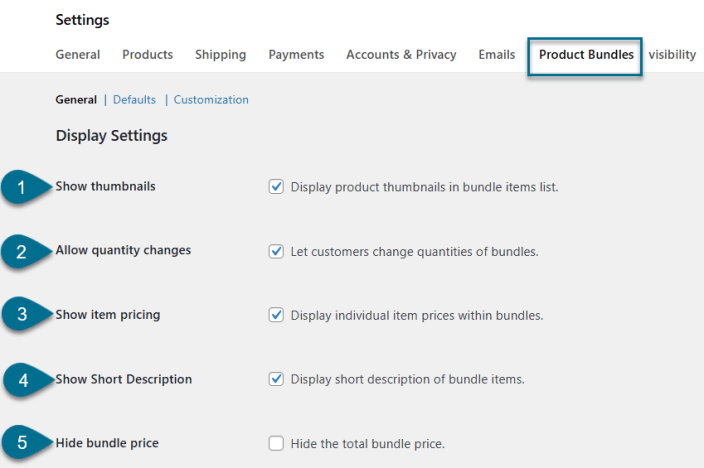
6. Cart Display Mode – Control how bundle products appear in the shopping cart.
- Show Only Bundle (Recommended) – Display the bundle as a single cart item.
- Show Bundle + Individual Items Separately – Display the bundle and its items as separate cart entries.
7. Cart Behaviour Settings – Control how bundles behave when bundled products are out of stock or unavailable.
- Strict – Hide bundle completely – Hide the entire bundle if any bundled item is out of stock.
- Flexible – Disable Unavailable Items – Keep the bundle visible but disable out-of-stock items.
- Flexible – Hide Unavailable Items – Keep the bundle visible and hide out-of-stock items.
- Ignore Stock – Always available – Always make the bundle available regardless of stock status.
Default Values
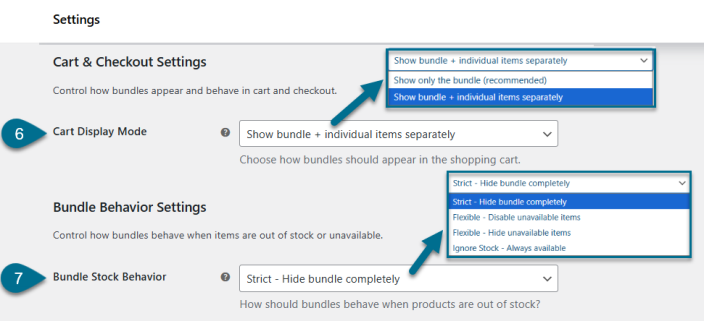
↑ Back to topHere, you can configure default values and labels that are automatically applied when creating new bundle products.
- Default Discount Type – Select the default discount type applied to bundles.
- Percentage – Apply a percentage-based discount.
- Fixed – Apply a fixed amount discount.
- No Discount – Do not apply any discount.
- Default Discount Value – Set the default discount value (e.g., 50).
- Minimum Quantity – Set the minimum quantity required to purchase the bundle.
- Maximum Quantity – Set the maximum quantity allowed for the bundle.
Label / Text Configurations
↑ Back to topCustomize default labels and text displayed on the bundle product page.
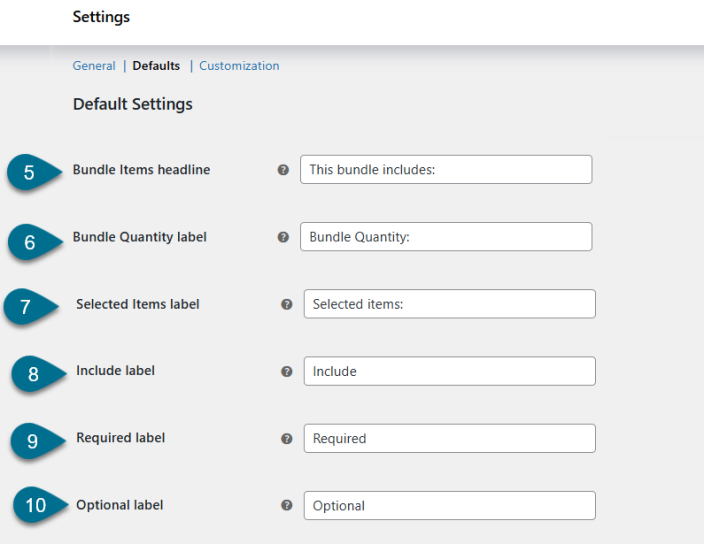
- Bundle Items Headline – Headline text displayed at the top of the bundle items list.
- Bundle Quantity Label – Label displayed below the bundle items headline.
- Selected Items Label – Label showing the total selected items at the bottom of the bundle.
- Include Label – Label used for included bundle items.
- Required Label – Label used for required bundle items.
- Optional Label – Label used for optional bundle items
Customization
↑ Back to topCustomize the appearance, colors, and text used for bundle buttons and bundle item elements.
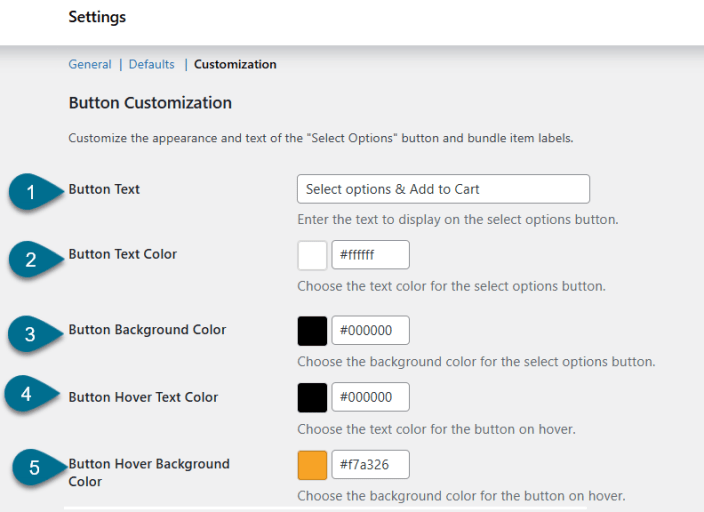
Button Customization
Customize the appearance and text of the Select Options button and bundle item labels.
- Button Text – Enter the text to display on the Select Options / Add to Cart button.
- Button Text Color – Choose the text color for the Select Options button.
- Button Background Color – Choose the background color for the Select Options button.
- Button Hover Text Color – Choose the text color for the button on hover.
- Button Hover Background Color – Choose the background color for the button on hover
Bundle Item Label Colors
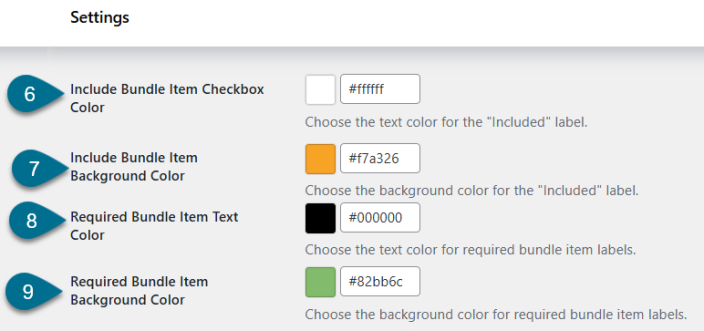
Customize colors for included and required bundle item labels.
- Include Bundle Item Text Color – Choose the text color for the “Included” label.
- Include Bundle Item Background Color – Choose the background color for the “Included” label.
- Required Bundle Item Text Color – Choose the text color for required bundle item labels.
- Required Bundle Item Background Color – Choose the background color for required bundle item labels.
Bundle Layout Colors
Customize colors for bundle containers and individual bundle items.
- Bundle Border Color – Choose the border color for the bundle container.
- Bundle Background Color – Choose the background color for the bundle container.
- Bundle Item Background Color – Choose the background color for individual bundle items.
- Bundle Item Border Color – Choose the border color for individual bundle items