
Change Price Title for WooCommerce allows you to customize or hide the WooCommerce product price title globally or per product. It also supports displaying price values multiplied by quantity for better pricing clarity.
Installation
↑ Back to topTo start using a product from WooCommerce.com, you can use the “Add to store” functionality on the order confirmation page or the My subscriptions section in your account.
- Navigate to My subscriptions.
- Find the Add to store button next to the product you’re planning to install.
- Follow the instructions on the screen, and the product will be automatically added to your store.
Alternative options and more information at:
Managing WooCommerce.com subscriptions.

Setup and Configuration
↑ Back to topGlobal Settings
↑ Back to topNavigate to WooCommerce → Settings → Price Title
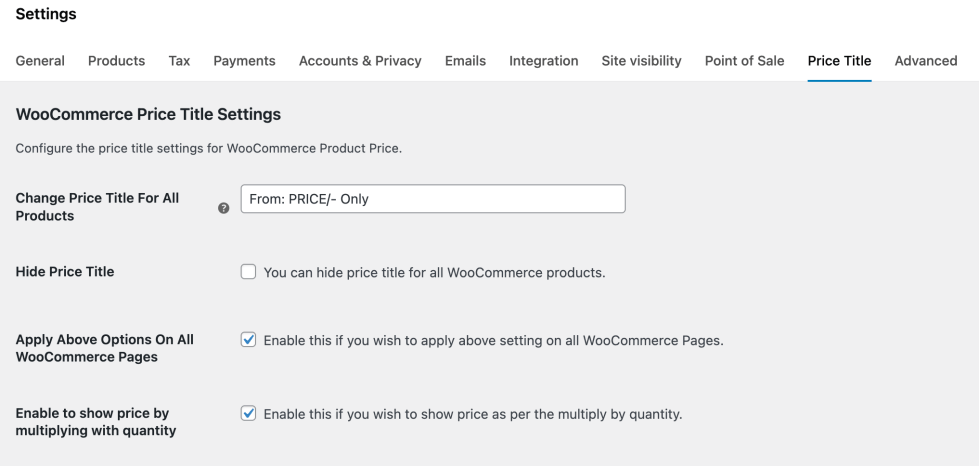
Here you will find the following options:
1. Change Price Title for All Products
Set a custom price title that will replace the default WooCommerce price label across all products.
Example values:
- Price : PRICE
- Starting From : PRICE
- Amount PRICE
- Cost PRICE
Here you will have to use the PRICE merge code that will replace the WooCommerce price display.
2. Hide Price Title
Enable this option to completely hide the price title for all WooCommerce products.
This is useful when the price alone is sufficient or when pricing is explained elsewhere on the product page.
3. Apply Above Options on All WooCommerce Pages
When enabled, the global price title settings will apply to:
- Shop page
- Product category and tag pages
- Single product pages
4. Enable to Show Price by Multiplying with Quantity
Enable this option to dynamically display the price multiplied by the selected product quantity.
Example:
- Product price: $10
- Quantity selected: 3
- Displayed price: $30
This is especially useful for bulk pricing or quantity-based selling.
Product-Level Settings
↑ Back to topYou can override global settings for individual products.
How to Access:
- Go to Products → All Products
- Edit or add a product
- Scroll to the Product Data section
- Open the Advanced tab
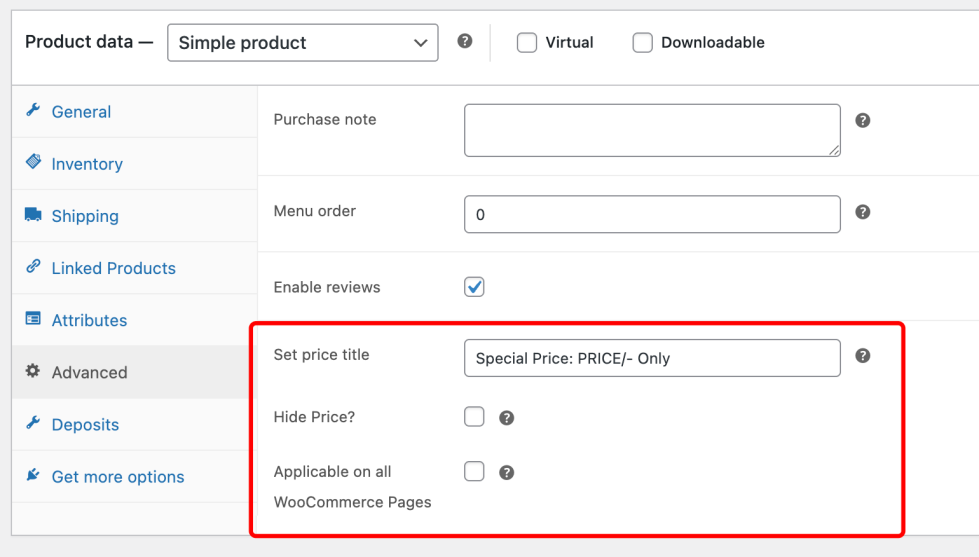
Available Options
1. Set Price Title
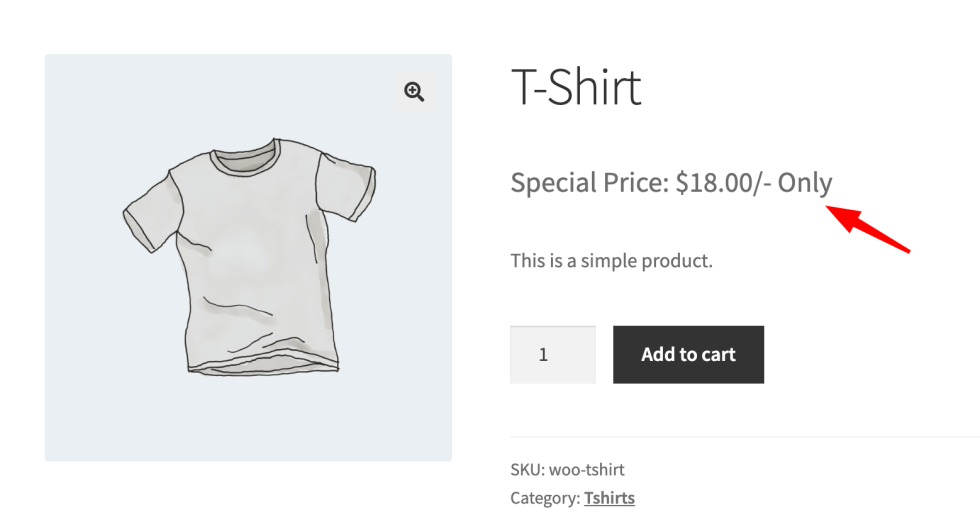
Enter a custom price title for this product only. This will override the global price title setting.
2. Hide Price?
Enable this option to hide the price title for this specific product.
3. Applicable on All WooCommerce Pages
Enable this option if you want the product-level settings to apply across all WooCommerce pages (shop, category, cart, checkout, etc.).
Priority Logic
↑ Back to top- Product-level settings take priority over global settings.
- If no product-level option is set, global settings will be applied.
Conclusion
↑ Back to topChange Price Title for WooCommerce is a simple yet essential plugin for store owners who want better control over how prices are presented. With both global and product-level flexibility, it helps improve clarity, UX, and overall store presentation without touching a single line of code.

