
Chat2Order – WhatsApp powers instant WhatsApp communication between your customers and your team, helping you deliver faster support, strengthen relationships, and increase sales with WooCommerce integration.
Installation
↑ Back to topTo start using a product from WooCommerce.com, you can use the “Add to store” functionality on the order confirmation page or the My subscriptions section in your account.
- Navigate to My subscriptions.
- Find the Add to store button next to the product you’re planning to install.
- Follow the instructions on the screen, and the product will be automatically added to your store.
Alternative options and more information at:
Managing WooCommerce.com subscriptions.

Setup and configuration
↑ Back to topAfter activation, you can find the plugin settings under WooCommerce > Settings > Chat2Order
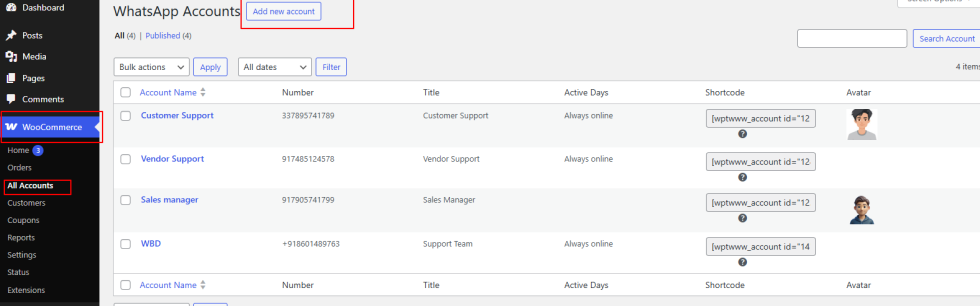
Add and manage support staff accounts
↑ Back to topManaged via WooCommerce > All Accounts, this section allows you to create individual profiles for your support team.
- Add Title: Enter the name of the support agent or department (e.g., “John Doe” or “Technical Support”).
- WhatsApp number: Enter the full phone number including the country code (e.g., +1234567890).
- Title: Descriptive title shown to customers (e.g., “Customer Success Manager”).
- Predefined text: The message that will be automatically filled in the user’s WhatsApp input when they click the chat button (e.g., “Hi! I have a question about my order.”).
- Availability settings:
- Always available: Toggle ‘on’ for 24/7 visibility.
- Custom schedule: Define specific working hours for each day of the week (Monday-Sunday).
- Offline description: The message displayed to customers when the agent is outside of their working hours (e.g., “I’m currently away, but I’ll get back to you at 9:00 am!”).
- Avatar: Upload a custom photo or use the agent’s Gravatar.
General settings
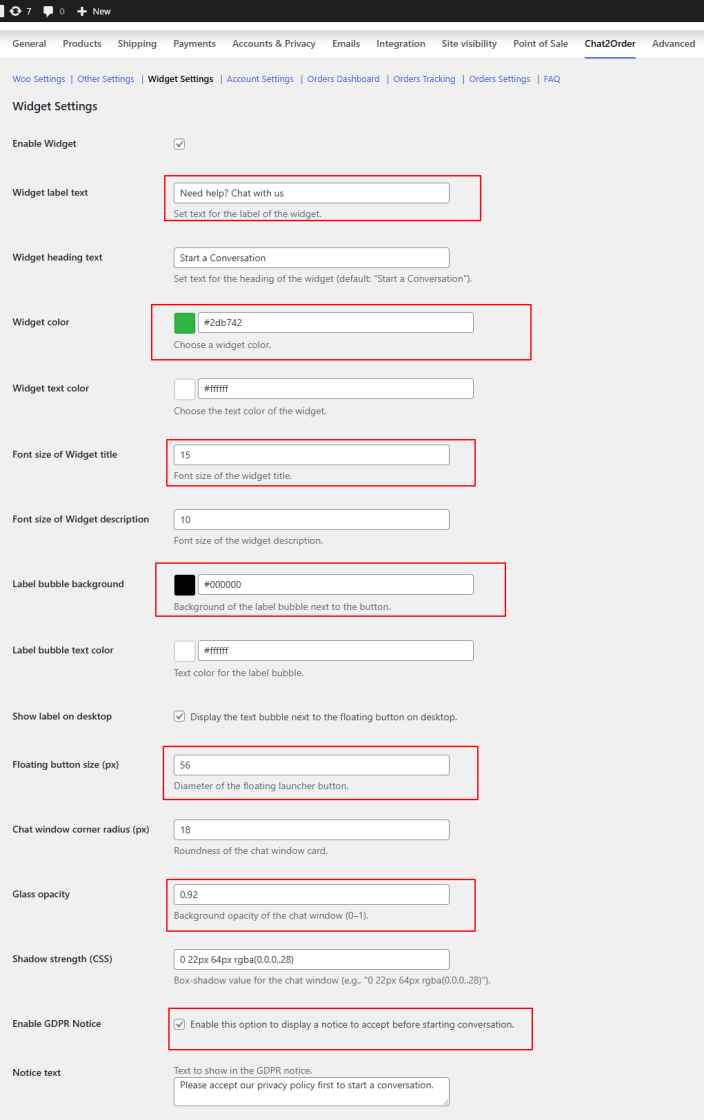
↑ Back to topAccessible via WooCommerce > Settings > Chat2Order, these settings control the global behavior of the plugin.
- Widget settings:
- Enable widget: Toggle the floating WhatsApp widget on or off.
- Display on: Choose specific pages (Shop, Product, Cart, Checkout) where the widget should appear.
- Widget position: Choose between Bottom-Right or Bottom-Left.
- Widget color: Customize the background and text colors to match your brand.
- Button settings:
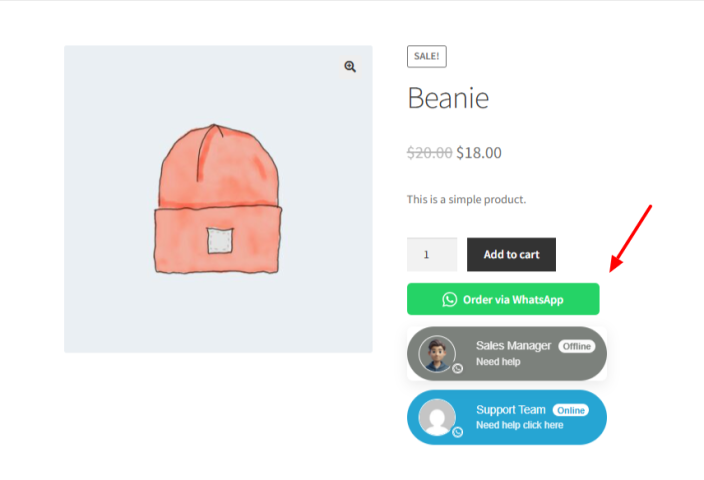
- Single product page: Enable/Disable the “Order via WhatsApp” button on product pages.
- Button position: Place it before or after the “Add to Cart” button.
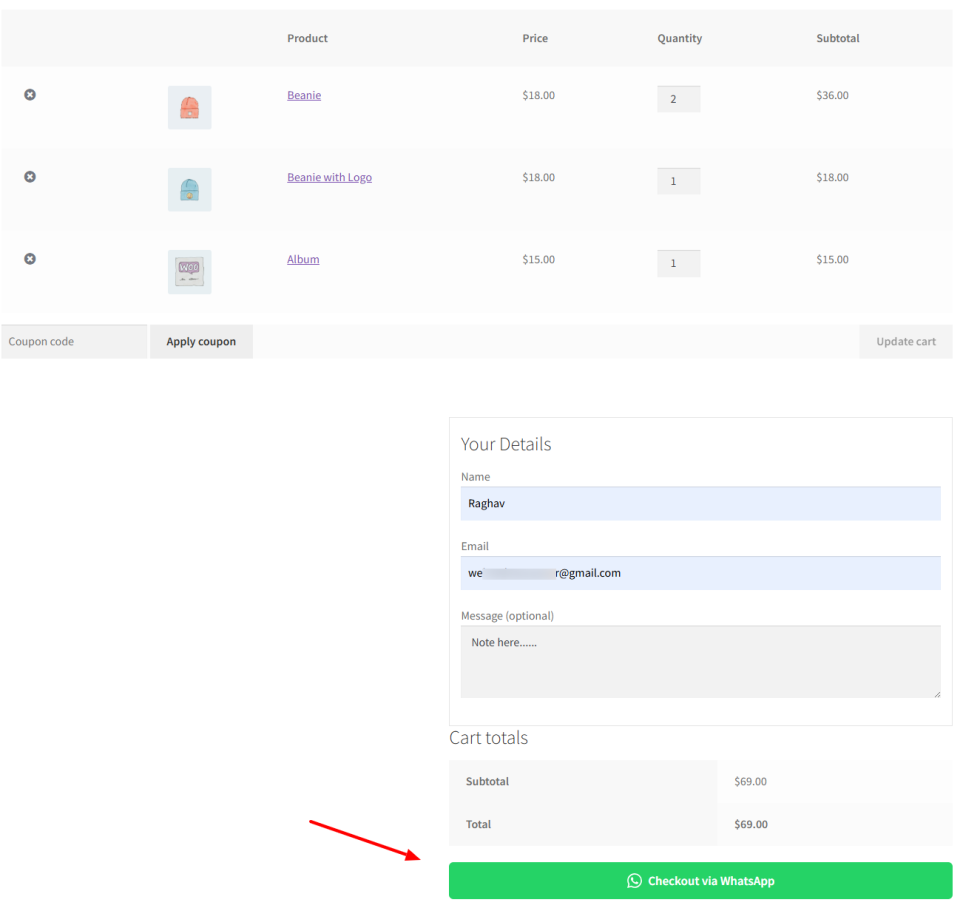
- Cart page integration: Enable a direct WhatsApp checkout button on the cart page.
- Message templates:
- Order summaries: Customize the format of the message sent after checkout using placeholders like
{order_number},{customer_name}, and{order_total}.
- Order summaries: Customize the format of the message sent after checkout using placeholders like
- Analytics:
- Track events: Enable logging for button clicks and chat initiations.
- Export data: Download order tracking logs as a CSV file.
Advanced order settings
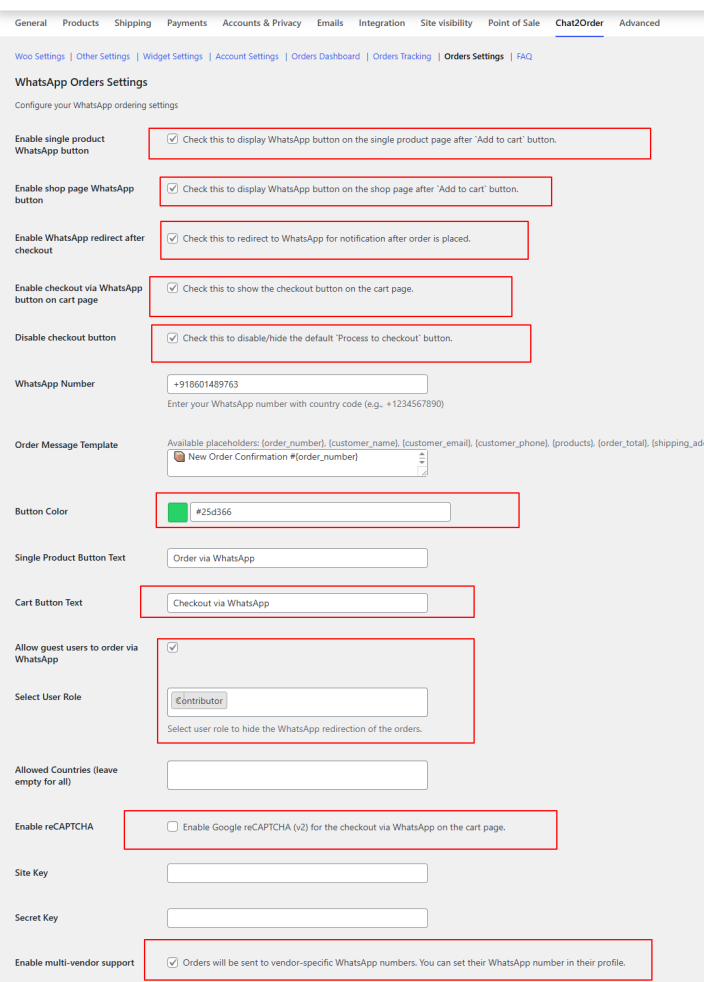
↑ Back to topConfigure deep WooCommerce integration to streamline the ordering process through the Orders Settings tab.
Order visibility and buttons
↑ Back to top- Single Product and Shop Buttons: Toggle “Order via WhatsApp” buttons on product pages and your main shop loop.
- Checkout via WhatsApp (Cart Page): Add a primary “Checkout via WhatsApp” button to the cart totals area.
- Disable Default Checkout: For stores that exclusively use WhatsApp, you can hide the standard “Proceed to Checkout” button entirely.
- Custom Button Labels: Modify the text for single product and cart buttons (e.g., “Quick Order” or “Buy on WhatsApp”).
Automation and redirection
↑ Back to top- Post-Checkout Redirect: Automatically redirect customers to WhatsApp immediately after they place an order on your site.
- Order Message Template: Define the structure of the message sent to WhatsApp. You can use dynamic placeholders:
{order_number},{order_id},{order_date}{customer_name},{customer_email},{customer_phone}{products}(list of items, and quantities){order_total},{payment_method},{shipping_address}
Access and security
↑ Back to top- Guest ordering: Allow guest users (not logged in) to initiate WhatsApp orders.
- User role protection: Select specific user roles (e.g., Administrator, Editor) that should not be redirected to WhatsApp after checkout.
- Country restrictions: Restrict WhatsApp ordering to specific countries or leave blank to allow all.
- reCAPTCHA protection: Prevent spam orders by enabling Google reCAPTCHA (v2). Enter your Site Key and Secret Key in the settings.
Multi-vendor support
↑ Back to top- Vendor routing: Enable multi-vendor support to route orders to the specific vendor’s WhatsApp number.
- Compatibility: Works with Dokan, WCFM, and WC Vendors profiles.
Troubleshooting
↑ Back to topProduct page button not showing? Check these steps:
↑ Back to topChoose button position
Select where the button should appear on “Single Product Page”.
Create a WhatsApp account
Go to WooCommerce → All Accounts and create at least one WhatsApp account with a valid phone number.
Enable WooCommerce integration
Check the “Enable for WooCommerce” option.
Select an account for products
In the “Select Account for Product Pages”, choose which WhatsApp account should handle product inquiries.
Widget not showing? Check these steps:
↑ Back to top- Create a WhatsApp account
Go to WooCommerce → All Accounts and create at least one WhatsApp account with a valid phone number. - Select account(s)
Go to Account Settings and select at least one WhatsApp account. - Enable device display
Check at least one option: “Show on Desktop” or “Show on Phone” (or both). - Choose display location
Select where the widget should appear: Posts, Pages, Products, or All.
FAQs
↑ Back to topHelp customers by answering commonly asked questions.
Can I add multiple WhatsApp numbers?
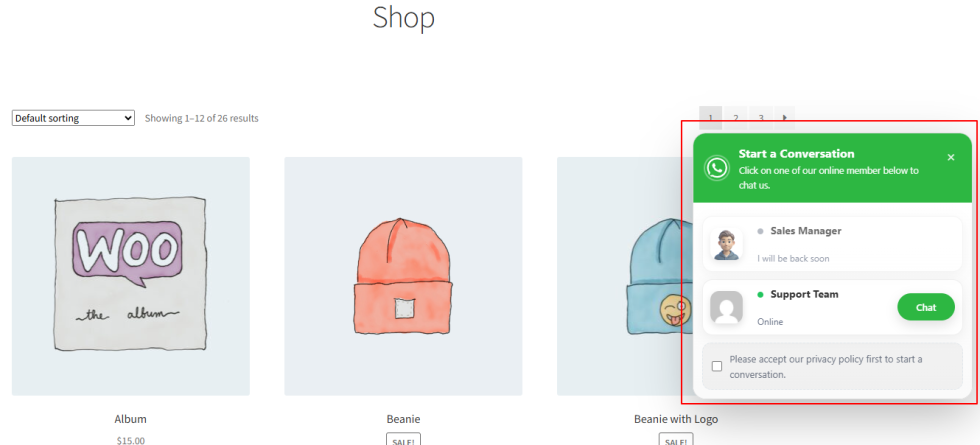
Yes! You can add an unlimited number of accounts under the “All Accounts” submenu of WooCommerce menu. All active accounts will appear in the floating widget.
Is the chat widget mobile-friendly?
Absolutely. You can even choose to show or hide the widget specifically for mobile or desktop users in the settings.
Can I change the "Order via WhatsApp" button text?
Yes, the button text for both product and cart pages can be fully customized in the Orders Settings.

