
Give your customers a simple, elegant way to send store credit as a thoughtful gift with Gift Wallet Pro for WooCommerce. Allow customers to choose a gift amount, add a personal message, and schedule delivery to the recipient’s email, while automatically managing wallet balances or coupons behind the scenes. Gift Wallet Pro integrates seamlessly with WooCommerce, applies credit automatically at checkout and to subscription renewals, and provides a smooth gifting experience without requiring recipients to manage codes or take extra steps.
Installation
↑ Back to topTo start using a product from WooCommerce.com, you can use the “Add to store” functionality on the order confirmation page or the My subscriptions section in your account.
- Navigate to My subscriptions.
- Find the Add to store button next to the product you’re planning to install.
- Follow the instructions on the screen, and the product will be automatically added to your store.
Alternative options and more information at:
Managing WooCommerce.com subscriptions.

Setup and Configuration
↑ Back to topGift Wallet for WooCommerce allows you to sell and send store credit as a gift, with flexible delivery and automatic balance management built directly into WooCommerce. Once configured, customers can purchase gift wallet products like any other product, enter the recipient’s email address, and optionally schedule delivery for a future date. The plugin handles gift creation, email delivery, and credit application automatically, without requiring manual intervention.
All global settings are managed from WooCommerce → Settings → Gift Wallet. From here, you can configure how gifts are delivered, customise email content and branding, and control how wallet credit behaves at checkout. These settings allow you to ensure the gifting experience aligns with your store’s policies and customer expectations.
Gift Wallet also allows you to configure how gift credit is issued and used. Depending on your product setup, gift amounts can be added directly to the recipient’s wallet balance or delivered as a coupon. Wallet balances are automatically tracked and applied during checkout, and can be used across multiple purchases, including subscription renewals where supported.
Once configured, gift wallet products function like standard WooCommerce products. When a customer purchases a gift, the plugin securely associates the credit with the recipient’s email address and delivers the gift according to your configured delivery rules. The recipient can then use their credit seamlessly, with the balance applied automatically to eligible orders until it is fully used.
Configuring General & Email Settings
↑ Back to top
Within the Gift Wallet settings area, you will find several general options that control how gift balances are presented and managed for your customers.
One of these settings allows you to choose whether a customer’s Gift Wallet balance is displayed within their My Account area. When enabled, customers can view their available balance at any time, providing clear visibility into their remaining credit. This is particularly useful when gifts are issued as wallet credit. If you choose to deliver gifts as coupons instead, displaying a wallet balance may not be necessary, and this option can be disabled to keep the account area simpler.
You can also define a minimum gift amount for your Gift Wallet products. Gift Wallet allows customers to enter a custom amount when sending a gift, but this setting ensures that the value meets your store’s minimum requirements. This gives you full control over the lowest permitted gift amount, helping protect margins while maintaining flexibility for customers to choose their own gift value.
Email Settings
↑ Back to top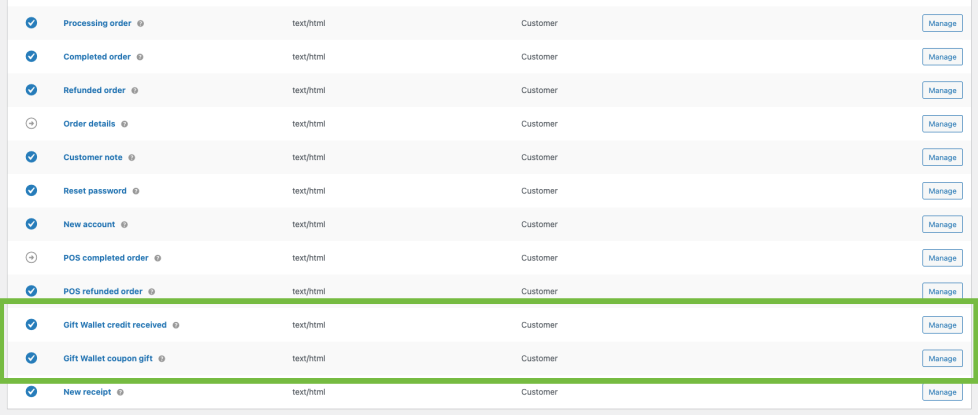
Gift Wallet allows you to customise the email that recipients receive when they are sent a gift. These settings ensure that the email matches your store’s branding, tone, and customer experience.
Both email templates, be it for the credit or coupon gift option, are facilitated by WooCommerce’s own email system, with block templates. Therefore, they behave in a very similar way to all WooCommerce emails, including basic order emails.
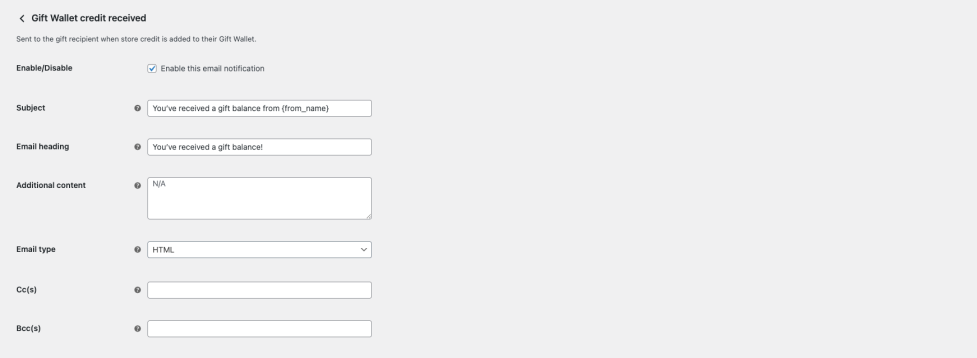
The default WooCommerce email functionality enables several features by default:
- Enable/Disable: You can check this box to enable the gift email to be delivered. Alternatively, if you leave it unchecked, then these emails will not be sent to the intended recipient. We strongly recommend you enable these emails, to prevent issues with the gifting experience for your customers.
- Subject: This is the email subject the recipient will see when they receive it. You can see here that we have included the {from_name} placeholder (see below for all placeholders) in our default subject, so that the recipient is informed right away who sent the gift to them.
- Email heading: This is essentially the title of the email, seen at the top of the body of the email once it is opened. We’ve included a default heading, but you can customise this to match your own branding, as well as including placeholders, should you wish to do so.
- Additional content: This is a field in which you would typically add an additional note, and it shows at the bottom of the email sent to the recipient, just above the footer. This again can accept placeholders as described below.
- Email type: This is a standard WooCommerce email feature, giving you the option to send the email as plain text, HTML, or multipart. We strongly recommend selecting HTML, as this is the option that will allow gift recipients to see the full store branding with the emails.
- Cc(s): Add additional emails into this field, comma separated, should you wish any gift email to also be sent to a member of your team, or any other additional email address. This could be, for example, a marketing or customer support email, should you wish it to be obvious to the recipient where to go in the event they might need help.
- Bcc(s): This is very similar to the above field. However, any email addresses added here (comma separated) will not be shown to the recipient. This could be used for example to enable admin to be notified whenever a gift email is successfully sent.
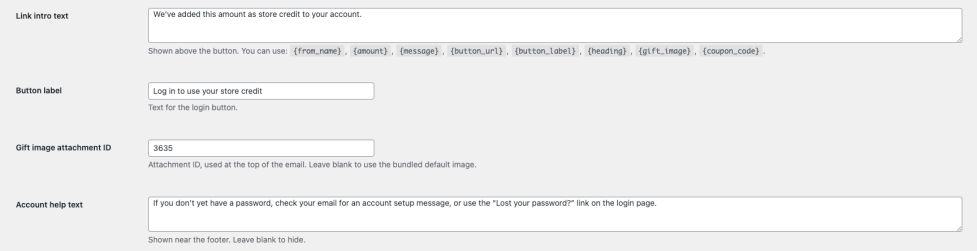
The additional email fields that our plugin provides include:
- Link intro text: If you have enabled wallet credit, this is a link that takes the recipient to the /my-account section of the site, to log in and make use of their credit. If you have enabled the coupon option, this link will take people directly to the shop, to spend their coupon. This field controls the text that appears directly above this link, giving you the opportunity to explain to the recipient what to do with the link. You can make use of the placeholders as described beneath the field.
- Button label: Simply put, this is the text you would like to show in the clickable link. We would encourage you to ensure this makes it clear what happens when someone clicks on the link.
- Gift image attachment ID: This is the attachment ID that you get when an image is loaded into the site’s media area. If you leave this field blank, emails will be shown with the default bundled gift image. If, however, you add an attachment ID here, then emails sent out will use your image as the default image. This will of course be overridden in any case by the image the customer actually chooses when purchasing the gift.
- Account help text: This field enables you to add a little helper sentence to gift recipient emails, just below the link (or coupon for when the coupon option is selected). We recommend that you use this option to clarify exactly what the gift recipient should do, essentially as minor troubleshooting.
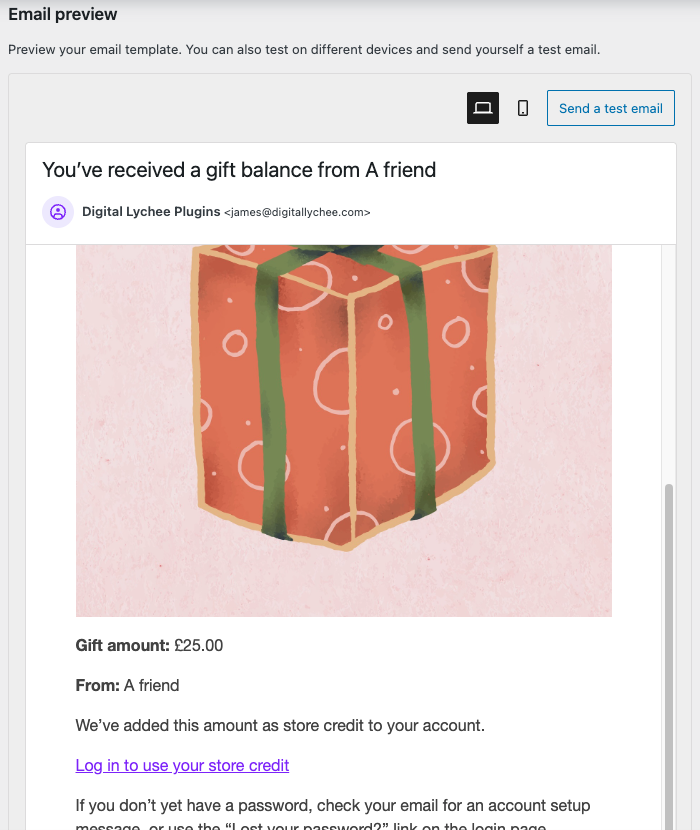
As part of WooCommerce’s default email functionality, you will also have access to a full email preview, which displays the settings you have customised above, along with a Send Test Email button. You could use this button to send an email to yourself, to get a good idea of what the gift recipients will see when they receive their email. Dummy content is used in this case.
Available Placeholders
The following placeholders can be used within the email content:
- {from_name} – The name of the sender, as entered when purchasing the gift
- {amount} – The gift amount, formatted using your store’s currency settings
- {message} – The personal message entered by the sender, with line breaks preserved
- {button_url} – A secure link directing the recipient to their My Account page or login page
- {button_label} – The call-to-action button text, as defined in your email settings
- {heading} – The configured email heading, with all placeholders already resolved
- {gift_image} – The gift image, rendered as HTML and displayed within the email
- {coupon_code} – The generated coupon code (available only when using coupon delivery mode)
These placeholders allow you to create fully dynamic emails that automatically reflect the details of each individual gift.
Wallet Credit and Coupon Email Templates
Gift Wallet offers you as the site admin the opportunity to choose gift delivery as either credit added to the recipient’s wallet within their account, or a coupon emailed to them. Only the gift wallet option will allow credit to be used for both one-off and subscription payments, so we typically recommend using this option.
You must ensure that you customise the correct email template for the configuration of your installation. For example:
- If Add to recipient’s Gift Wallet balance is selected, then you must customise the Gift Wallet credit received template.
- If Generate a one-time coupon code is selected, then you must customise the Gift Wallet coupon gift template.
Each email template can be customised independently, allowing you to tailor the messaging and instructions based on how the gift is delivered.
Default Gift Image
↑ Back to top
Gift Wallet Pro allows you to configure a default gift image that is included in gift emails sent to recipients. This image helps create a more engaging and visually appealing gifting experience, reinforcing the feeling of receiving a thoughtful and personalised gift.
The default gift image is displayed within the email by default, without needing to use the {gift_image} placeholder, although you can use that to repeat the image, should you wish to do so. When this placeholder is present in your email template, the configured image will be automatically inserted at that location when the email is generated.
You can upload or select an image from your WordPress Media Library to use as the default gift image. This allows you to use branded artwork, seasonal designs, or general-purpose gift imagery that reflects your store’s identity.
If no custom gift image is selected, the {gift_image} placeholder will simply render nothing, allowing you full control over whether images are included in your email templates.
Using a gift image is optional, but it can enhance the recipient’s experience and make gift emails feel more personal and professionally presented.
Manual Wallet Credit
↑ Back to top
Gift Wallet Pro allows store administrators to manually add credit to a customer’s Gift Wallet balance. This is useful for issuing goodwill credit, resolving customer service situations, providing refunds as store credit, or awarding promotional bonuses.
To manually add credit, you simply enter the recipient’s email address and the credit amount. The credit will be securely associated with that email address and made available for use at checkout. If the recipient already has an account with that email address, the credit will be applied to their existing Gift Wallet balance automatically.
If the recipient does not yet have an account, you can enable the “Create user if email does not exist” option. When this option is selected, Gift Wallet Pro will automatically create a new WooCommerce customer account using the provided email address and assign the credit to that account. This ensures the recipient can access and use their credit without any additional administrative steps.
Once added, the credit behaves exactly like gifted wallet credit. It is automatically applied at checkout and remains available until fully used. Customers can use their balance across multiple purchases, and the remaining balance is tracked automatically by the plugin.
This feature provides a simple and reliable way to manage store credit directly from the WooCommerce admin, without needing to create orders, coupons, or other workarounds.
Configuring Your Gift Product
↑ Back to top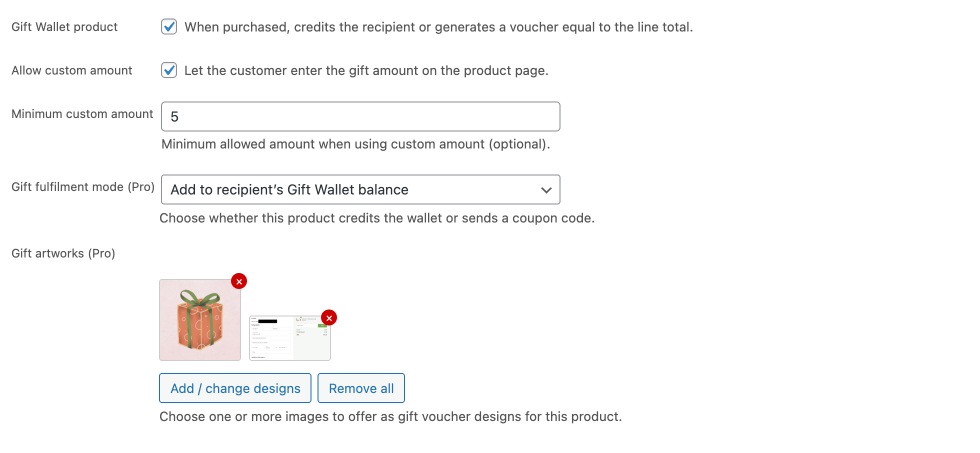
Gift Wallet Pro integrates directly into the WooCommerce product editor, allowing you to configure any product as a gift wallet product. Once enabled, the product can be used to send store credit or vouchers to recipients, with flexible options to control how gift amounts are selected and how gifts are fulfilled.
To configure a gift wallet product, open or create a product in Products → Add New or Products → Edit, and locate the Gift Wallet settings section within the product editor.
Enable Gift Wallet Product
The Enable Gift Wallet Product checkbox activates gift functionality for the product. When enabled, the product becomes a gift wallet product, allowing customers to enter recipient details, include a personal message, and send store credit or vouchers. If this option is disabled, the product behaves as a standard WooCommerce product.
This setting allows you to control exactly which products offer gift wallet functionality.
Allow Custom Amount
The Allow Custom Amount option allows customers to enter their own gift value when purchasing the product. This provides flexibility and allows customers to choose an amount that suits their needs, rather than being limited to predefined values.
If this option is disabled, the gift amount is determined by the product’s regular price, allowing you to create fixed-value gift products such as £10, £25, or £50 gifts.
Minimum Custom Amount
When custom amounts are enabled, you can define a Minimum Custom Amount to ensure that gifts meet your store’s minimum value requirements. Customers will not be able to enter an amount lower than this value.
This gives you full control over the minimum gift value while still allowing customers to choose higher amounts freely.
Gift Fulfilment Mode
The Gift Fulfilment Mode setting determines how the gift is delivered to the recipient. You can choose between:
- Gift Wallet Credit – The gift amount is added directly to the recipient’s Gift Wallet balance. This credit is automatically applied at checkout and can be used across multiple purchases until fully used.
- Voucher (Coupon) – The gift is delivered as a WooCommerce coupon code. The recipient can enter the code at checkout to redeem the gift amount.
This flexibility allows you to choose the fulfilment method that best suits your store’s workflow and customer experience.
Gift Artworks
Gift Wallet Pro also allows you to assign Gift Artworks to the product. These images are used to visually represent the gift and are included in the gift email sent to the recipient.
You can upload or select one or more artwork images from your Media Library. These images help create a more engaging and personalised gifting experience, and can be tailored to different occasions such as birthdays, holidays, or general gifting.
If multiple artworks are assigned, customers may be able to select their preferred design when sending the gift, depending on your configuration.
Usage & Display
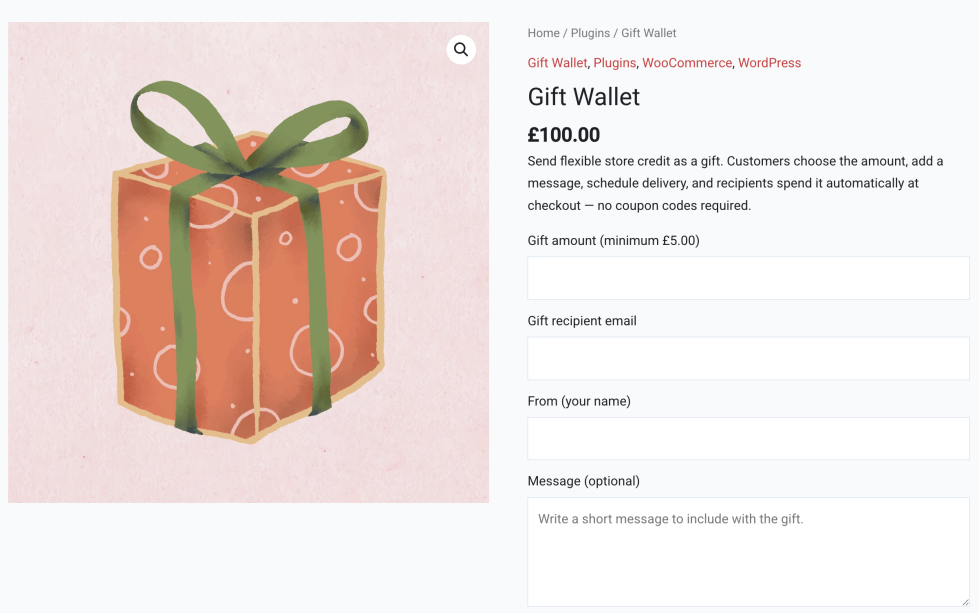
↑ Back to topOnce a product has been configured as a Gift Wallet product, it will display additional gifting fields on the product page, allowing customers to personalise and send their gift. These fields are presented clearly within the product form and integrate seamlessly with your store’s theme and layout.
Gift Amount and Product Price
↑ Back to topThe product’s default price is defined in the WooCommerce product editor. If the Allow Custom Amount option is enabled, customers can enter their own gift amount directly on the product page.
When a custom amount is entered, the displayed product price updates dynamically to reflect the selected value. The entered amount must meet or exceed the configured minimum custom amount. This ensures pricing remains consistent while giving customers flexibility to choose their preferred gift value.
If custom amounts are not enabled, the product behaves like a standard fixed-price gift product.
Recipient Email Address
↑ Back to topCustomers are required to enter the recipient’s email address, which determines where the gift notification will be delivered and where the wallet credit or voucher will be assigned. This ensures the gift is securely associated with the correct recipient.
Sender Name
↑ Back to topThe From (your name) field allows the sender to enter their name. This name is included in the gift email, helping the recipient identify who sent the gift and creating a more personal experience.
Personal Message (Optional)
↑ Back to topCustomers can include an optional personal message, which is delivered alongside the gift email. This message allows the sender to add a personalised note for the recipient, enhancing the overall gifting experience.
Scheduled Delivery (Optional)
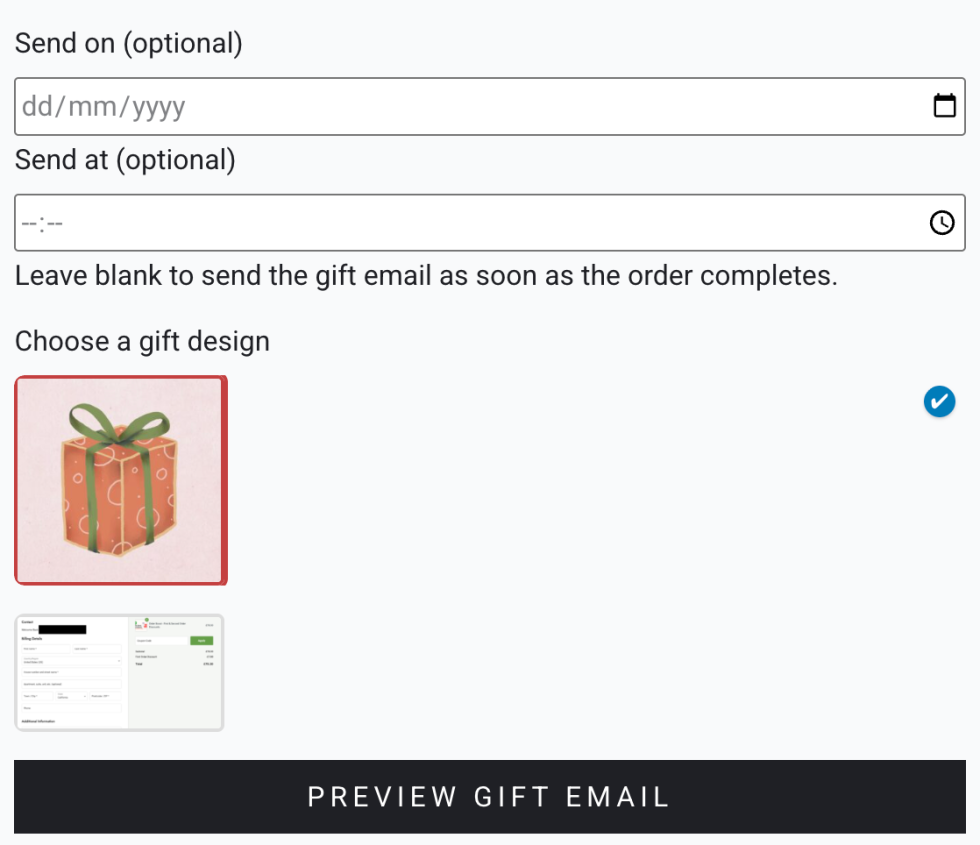
↑ Back to topGift Wallet Pro allows customers to schedule delivery for a specific date and time using the Send on and Send at fields.
- Send on provides a date selector, allowing customers to choose the delivery date.
- Send at provides a time selector, allowing customers to specify the delivery time.
If no date or time is selected, the gift is delivered automatically after the order is completed.
This scheduling functionality is ideal for birthdays, holidays, and other time-sensitive occasions.
Gift Design Selection
↑ Back to topIf multiple gift artworks have been configured for the product, customers will be able to select their preferred design using the Choose a gift design option. This allows senders to tailor the appearance of the gift email to suit the occasion.
If only one gift design is available, it will be used automatically and no selection is required.
Preview Gift Email
↑ Back to top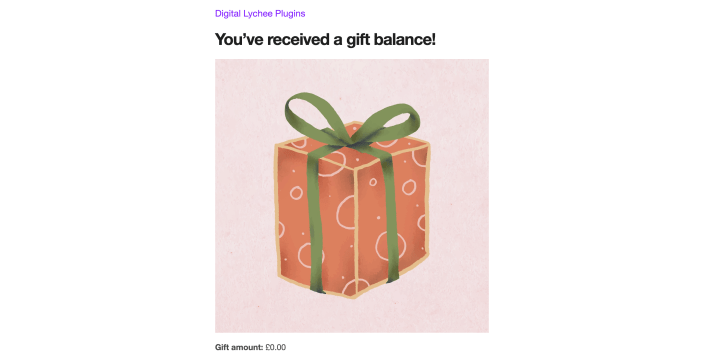
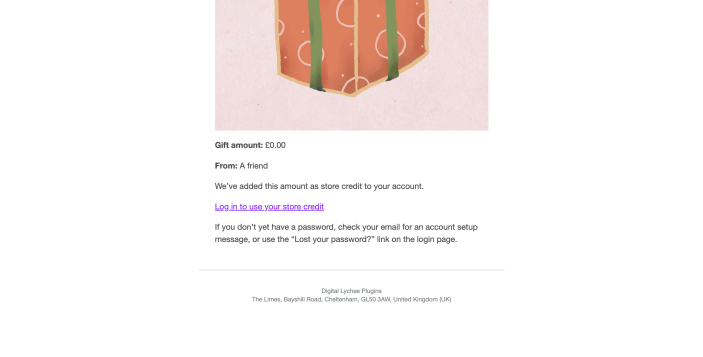
The Preview Gift Email button allows customers to view a live preview of the gift email before completing their purchase. This preview reflects the selected gift amount, artwork, sender name, and message, helping customers confirm that their gift appears exactly as intended.
This feature provides reassurance and helps ensure a polished and personalised gifting experience.
Gift Wallet in My Account
↑ Back to top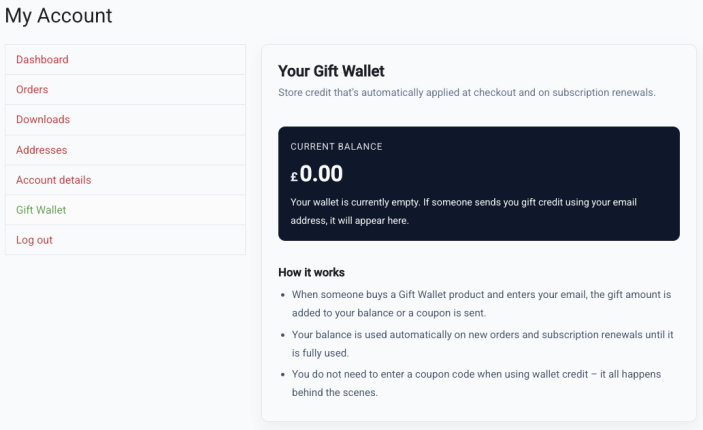
When a customer receives gift credit via Gift Wallet Pro, their balance is available within their My Account area. This allows recipients to view their available gift credit and use it seamlessly when making purchases.
Viewing Wallet Balance
The Gift Wallet balance appears as a dedicated section within the customer’s My Account dashboard. This section displays the customer’s current available balance, providing clear visibility into how much credit remains.
The balance updates automatically whenever credit is added or used. Customers do not need to manually apply or manage their credit, as Gift Wallet Pro handles this automatically.
If the Display wallet balance in My Account setting is disabled, this section will not be shown. This is typically used when gifts are delivered as vouchers instead of wallet credit.
Automatic Credit Application at Checkout
When a customer with a Gift Wallet balance proceeds to checkout, the available credit is applied automatically to their order. The wallet balance reduces the order total accordingly, without requiring the customer to enter codes or take additional action.
If the wallet balance fully covers the order total, no payment is required. If the order total exceeds the available balance, the remaining amount can be paid using any standard WooCommerce payment method.
Partial Usage and Remaining Balance
Gift Wallet credit can be used across multiple purchases. If only part of the balance is used, the remaining credit stays in the customer’s Gift Wallet and is available for future orders.
This ensures customers can fully utilise their gift without needing to spend the entire amount in a single transaction.
Account and Email Association
Gift Wallet balances are securely associated with the customer’s account and email address. If a gift is sent to an email address that does not yet have an account, the credit will become available automatically when the customer registers or logs in using that same email address.
This ensures a smooth and reliable experience for both existing and new customers.
Troubleshooting
↑ Back to topIf Gift Wallet Pro is not behaving as expected, the following checks will help resolve the most common issues.
The gift email was not received
↑ Back to topFirst, check that the order status is Processing, Completed, or the scheduled delivery date has passed. Gift emails are only sent once the order is confirmed and eligible for fulfilment.
If the order has been completed and the email was still not received:
- Check the recipient’s spam or junk folder
- Confirm the recipient’s email address was entered correctly
- Ensure your WooCommerce email settings are configured correctly
- Consider using an SMTP plugin or transactional email provider to improve email reliability
You can also use the Send Test Email feature to verify your email configuration.
The wallet balance is not visible in My Account
↑ Back to topEnsure that the Display wallet balance in My Account setting is enabled in WooCommerce → Settings → Gift Wallet.
Also confirm that the customer is logged in using the same email address that received the gift. Wallet balances are associated with the customer’s email address.
If the gift was delivered as a voucher instead of wallet credit, no wallet balance will be shown.
The wallet credit is not applying at checkout
↑ Back to topMake sure the customer is logged in to the correct account or using the same email address that received the gift.
Also check:
- The order contains eligible products
- The wallet balance is greater than zero
- The wallet fulfilment mode was selected (not voucher mode)
Wallet credit is applied automatically and does not require manual activation.
The scheduled gift was not sent
↑ Back to topConfirm that the scheduled delivery date and time have passed. Gift Wallet Pro uses WordPress scheduled tasks (WP-Cron) to send scheduled emails.
If scheduled emails are not sending reliably, ensure that WP-Cron is functioning correctly on your server. Stores with low traffic or disabled WP-Cron may benefit from using a real cron job configured at the server level.
The gift amount cannot be entered or is rejected
↑ Back to topIf custom gift amounts are enabled, ensure the entered value meets the configured Minimum Custom Amount.
If custom amounts are disabled, the gift amount is fixed to the product price and cannot be changed.
The gift credit is not associated with the correct customer
↑ Back to topGift Wallet credit is linked to the recipient’s email address. The customer must log in or create an account using that same email address to access their wallet balance.
If needed, store administrators can manually add credit using the Manual Wallet Credit feature.
The gift design or image is not appearing in emails
↑ Back to topEnsure that a default gift image or product artwork has been configured. This should show a gift design from within the email sent to the customer’s recipient. However, should that not be showing, you could also add the {gift_image} placeholder into your email template.
Email preview works, but real emails do not send
↑ Back to topThis typically indicates an issue with your store’s email delivery configuration rather than the plugin itself.
Ensure that:
- WooCommerce emails are enabled
- Your hosting environment allows email sending
- An SMTP plugin or email delivery service is configured
Using SMTP is strongly recommended for reliable email delivery.
Changes to email templates are not reflected
↑ Back to topAfter updating email templates, send a new test email using the Send Test Email feature to confirm the changes.
If you are using email caching or an email delivery provider, ensure no cached versions of the template are being used.
Theme or plugin conflicts
↑ Back to topGift Wallet Pro is designed to work with standard WooCommerce themes and extensions. However, conflicts may occur with plugins that heavily modify checkout, email, or pricing behaviour.
If you suspect a conflict, temporarily switch to a default WooCommerce theme (such as Storefront) and disable other plugins to identify the cause.
FAQs
↑ Back to topHelp customers by answering commonly asked questions.
How does Gift Wallet work?
Gift Wallet allows customers to send store credit as a gift. The sender chooses an amount, enters the recipient’s email address, and optionally schedules delivery. The recipient receives a gift email, and the credit is added to their Gift Wallet balance or provided as a coupon, depending on how the product is configured.
When is the gift delivered?
Gifts can be delivered immediately after purchase or scheduled for a future date. When scheduled, Gift Wallet automatically sends the email on the selected date without requiring any manual action.
What does the recipient receive?
The recipient receives a professionally formatted email containing the gift details, including the amount, sender name, and personal message. Depending on your configuration, the gift is either added to their wallet balance automatically or delivered as a coupon they can use at checkout.
How does wallet credit work at checkout?
Wallet credit is automatically applied during checkout when the recipient makes a purchase. The credit is used to reduce the order total and continues to apply to future purchases until the balance is fully used.
Does this work with WooCommerce Subscriptions?
Yes. Gift Wallet credit can be used toward subscription purchases and renewals. The credit is applied automatically to eligible subscription payments until the wallet balance is exhausted.
Can gifts be scheduled for future delivery?
Yes. Senders can select a future delivery date, allowing gifts to arrive on birthdays, holidays, or other special occasions. Gift Wallet handles the delivery automatically at the scheduled time.
Can customers include a personal message?
Yes. Senders can include a custom message that is delivered along with the gift email, creating a more personal gifting experience.
What happens if the recipient does not have an account?
Gift Wallet can associate the credit with the recipient’s email address. If the recipient creates an account using the same email address, the credit will be available automatically.
Can customers use gift credit alongside other payment methods?
Yes. If the gift credit does not fully cover the order total, the remaining balance can be paid using any other available WooCommerce payment method.
Will customers see their gift balance?
Yes. Customers can view their available wallet balance in their account area, and the credit is applied automatically at checkout.
What happens if the gift email fails to deliver?
Gift Wallet uses WooCommerce’s email system. You can resend gift emails from the WooCommerce admin if needed, and using a transactional email service (such as SMTP or an email delivery provider) is recommended for best reliability.
Can I customise the gift email?
Yes. Gift Wallet Pro allows you to customise the gift email content and appearance, helping you match your store’s branding and tone.
Is technical knowledge required to use Gift Wallet?
No. Gift Wallet integrates directly with WooCommerce and works like a normal product. Once configured, customers can purchase and send gifts without any additional setup or complexity.
Why use Gift Wallet instead of selling gift cards?
Gift Wallet provides a more flexible and seamless gifting experience. Credit is applied automatically at checkout, works with subscriptions, and does not require recipients to enter or manage coupon codes.

