
Streamline your order workflow with OrderFlow PDF Documents for WooCommerce. Automatically generate professional PDF invoices, packing slips, and credit notes for every order, and deliver them exactly where they’re needed — in the admin, via email, or directly to your customers’ accounts. Customise document layouts, branding, and content to match your store, while keeping everything organised and easy to manage behind the scenes. OrderFlow PDF Documents integrates seamlessly with WooCommerce and helps you create a smoother, more professional experience for both your team and your customers.
Installation
↑ Back to topTo start using a product from WooCommerce.com, you can use the “Add to store” functionality on the order confirmation page or the My subscriptions section in your account.
- Navigate to My subscriptions.
- Find the Add to store button next to the product you’re planning to install.
- Follow the instructions on the screen, and the product will be automatically added to your store.
Alternative options and more information at:
Managing WooCommerce.com subscriptions.

Setup and Configuration
↑ Back to topOrderFlow PDF Documents integrates seamlessly with WooCommerce to automatically generate and manage PDF documents for your orders. Once installed and activated, you can configure how documents are created, customised, and delivered — all from a single settings page.
All global settings are available under WooCommerce → Settings → OrderFlow PDF Documents. From here, you can control which document types are enabled, how they appear, where they are available, and how they are delivered to both admins and customers.
The plugin is designed to be flexible and easy to use. You can configure each document type independently, ensuring that invoices, packing slips, and credit notes all match your store’s workflow and requirements.
Accessing the settings
↑ Back to topAfter activating the plugin, navigate to:
WooCommerce → Settings → OrderFlow PDF Documents
Here you’ll find all configuration options, including global branding and per-document settings.
Global settings
↑ Back to top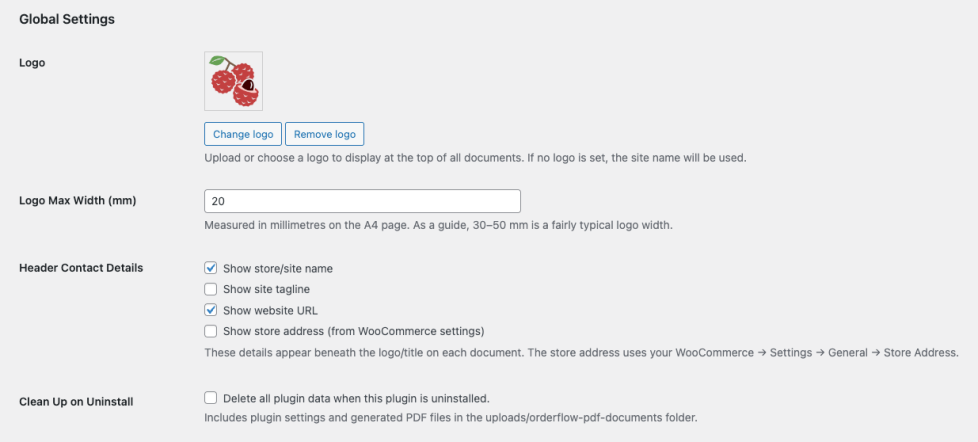
Global settings apply to all document types and control how your documents look and behave across your store.
Logo and branding
You can upload your store logo to appear at the top of all generated documents. If no logo is set, the site name will be used instead.
You can also control which store details are displayed beneath the header, including:
- Store/site name
- Tagline
- Website URL
- Store address (from WooCommerce settings)
This allows you to match your documents to your store’s branding and preferred level of detail.
Logo size
You can adjust the maximum width of your logo (in millimetres) to ensure it fits cleanly within your document layout.
This is useful for fine-tuning the appearance of your PDFs, especially if your logo has a wide or tall aspect ratio.
Clean up on uninstall
You can choose whether to delete all plugin data when uninstalling.
If enabled, this will remove:
- Plugin settings
- All generated PDF files
This is useful if you want to completely reset the plugin or remove all stored documents.
Document settings
↑ Back to top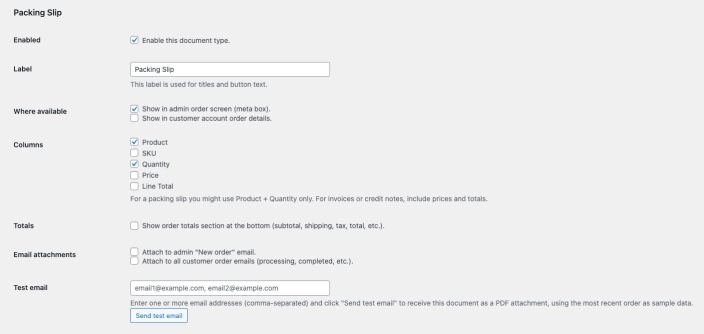
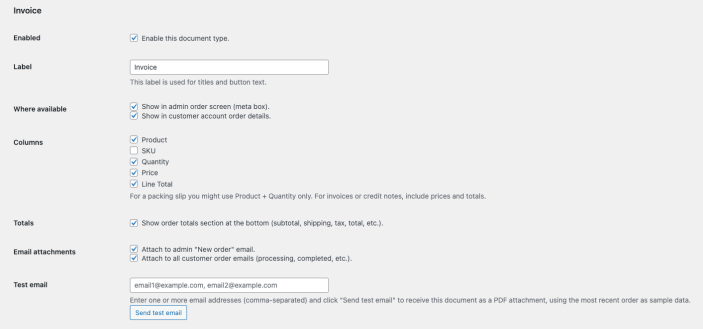
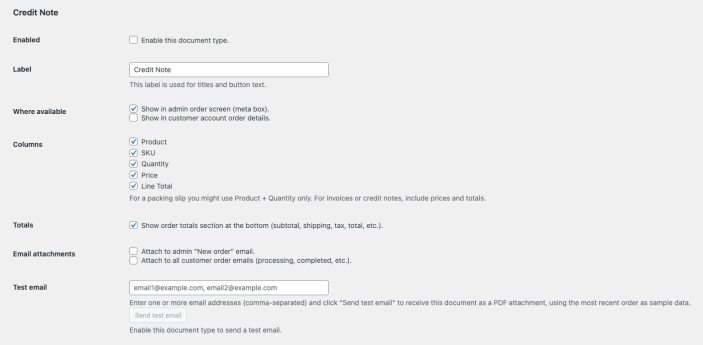
Each document type (Invoice, Packing Slip, Credit Note) can be configured independently, giving you full control over how each one behaves.
Enable or disable document types
You can enable or disable each document type individually.
Disabled documents will not be generated or available for download, and related features (such as email attachments or test emails) will also be inactive.
Document labels
You can customise the label for each document type.
This label is used for:
- Document titles
- Download buttons
- Email attachments
For example, you can rename “Invoice” to “Tax Invoice” if needed.
Where documents are available
You can control where each document appears:
- Admin order screen – adds download buttons in the order sidebar
- Customer account page – allows customers to download documents
This lets you tailor access depending on your workflow and customer needs.
Customising document content
You can choose which columns appear in each document:
- Product
- SKU
- Quantity
- Price
- Line total
For example:
- Packing slips typically use Product + Quantity
- Invoices include pricing and totals
You can also enable or disable the totals section (subtotal, shipping, tax, total, etc.).
Email attachments
You can automatically attach documents to WooCommerce emails.
Options include:
- Attach to admin “New order” emails
- Attach to customer emails (processing, completed, etc.)
This helps automate your workflow and ensures documents are delivered without manual steps.
Sending test emails
You can send test emails with PDF attachments directly from the settings page, once the document type in question is enabled.
To use this feature:
- Enter one or more email addresses (comma-separated)
- Click Send test email
- The plugin will generate a document using your most recent order and send it as an attachment
This allows you to verify formatting, layout, and email delivery before going live.
Using documents
Once configured, documents are automatically generated and available where you’ve enabled them.
Admin access
In the WooCommerce admin order screen, download buttons appear in the sidebar for each enabled document.
This allows you to quickly access invoices, packing slips, or credit notes for any order.
Customer access
Customers can download documents from their My Account → Orders page (if enabled).
This improves the customer experience by allowing them to access invoices and documents without contacting support.
Usage
↑ Back to topOnce configured, OrderFlow PDF Documents works automatically in the background, generating and delivering documents wherever you’ve enabled them. This section walks through how documents are accessed by both store admins and customers, and how they are delivered via email.
Downloading documents in the admin
↑ Back to top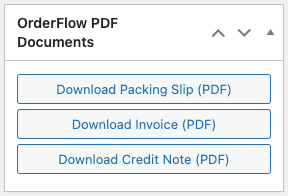
In the WooCommerce admin, document download buttons appear directly on the order screen for each enabled document type.
To access them:
- Go to WooCommerce → Orders
- Open any order
- Locate the OrderFlow PDF Documents panel in the order sidebar
- Click a button such as Download Invoice (PDF) or Download Packing Slip (PDF)
The document will open in a new tab and can be viewed, downloaded, or printed.
This makes it quick and easy to access documents during fulfilment, accounting, or customer support.
Customer access in My Account
↑ Back to top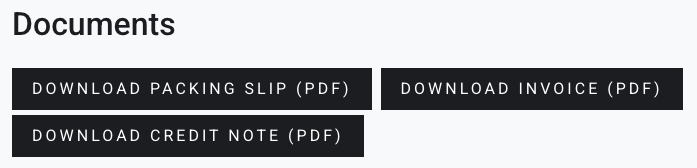
If enabled, customers can download their documents directly from their account area.
To access documents as a customer:
- Go to My Account → Orders
- Select an order
- Scroll to the Documents section
- Click the available document buttons (e.g. Download Invoice (PDF))
This allows customers to retrieve invoices or other documents at any time without needing to contact support.
Documents attached to emails
↑ Back to topOrderFlow PDF Documents can automatically attach PDFs to WooCommerce emails.
Depending on your settings, documents can be included in:
- Admin “New order” emails
- Customer emails (such as processing or completed orders)
When enabled, the PDF is attached to the email and can be downloaded directly by the recipient.
This ensures documents are delivered automatically as part of your existing order workflow.
Example document output
↑ Back to top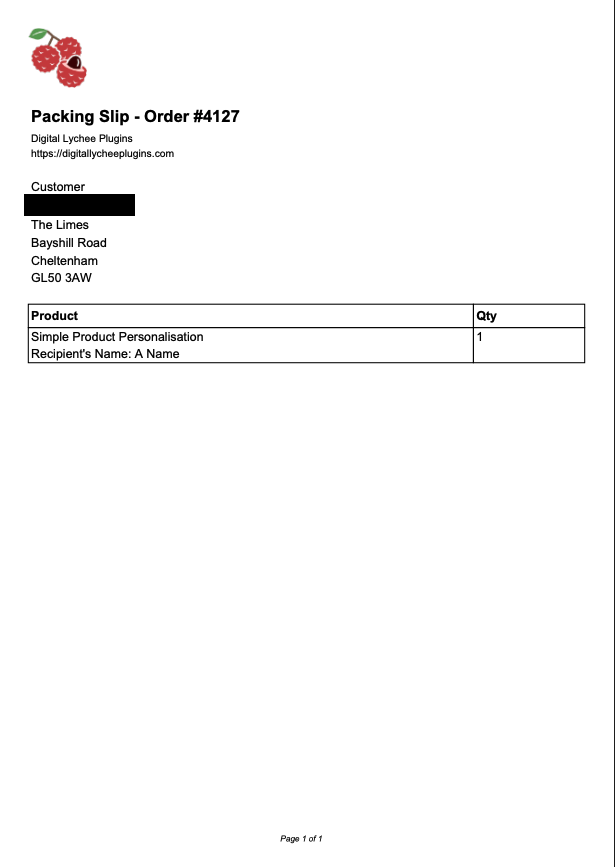
All documents are generated as clean, professional PDFs using your configured settings.
Each document includes:
- Your logo and store details
- Customer billing information
- Order items with selected columns (e.g. product, SKU, quantity, price)
- Optional totals section
The layout is optimised for printing and digital use, making it suitable for both fulfilment and record-keeping.
Using test emails
↑ Back to top
You can preview how documents will look in emails using the built-in test email feature.
From the settings page:
- Enter one or more email addresses
- Click Send test email
- The plugin sends a PDF attachment using your most recent order
This is useful for checking formatting, branding, and email delivery before enabling documents for live orders.
Troubleshooting
↑ Back to topThis section covers common issues and how to resolve them when using OrderFlow PDF Documents.
PDF download shows “Invalid document path”
↑ Back to topIf you see an “Invalid document path” error when downloading a document:
- Ensure the plugin is fully up to date
- Check that your WordPress uploads directory is writable
- Try regenerating the document by refreshing the page and downloading again
If the issue persists, it may be caused by server restrictions on file access. Contact your hosting provider to ensure PHP can read files from the uploads directory.
Documents are not generating
↑ Back to topIf no PDF is generated when downloading or sending emails:
- Make sure the document type is enabled in settings
- Confirm WooCommerce is active and working correctly
- Check that your server supports required PHP functions (such as file handling and
iconv)
You can also try sending a test email to confirm whether the document generates successfully.
Settings are not saving correctly
↑ Back to topIf changes to settings (such as checkboxes or columns) are not saving:
- Ensure you click Save changes after updating settings
- Clear any caching plugins or server-side cache
- Check for JavaScript errors in your browser console
If the issue continues, temporarily disable other plugins to rule out conflicts.
Test email fails to send
↑ Back to topIf the test email feature does not work:
- Ensure the document type is enabled
- Enter at least one valid email address
- Check that your site can send emails (WordPress email delivery is often dependent on server configuration)
If emails are not being delivered, consider using an SMTP plugin to improve email reliability.
PDF formatting looks incorrect
↑ Back to topIf your PDF layout looks broken or misaligned:
- Adjust your logo size in settings
- Review which columns are enabled (too many columns can affect layout)
- Ensure your logo is a supported format (JPEG or PNG)
You can use the test email feature to preview changes before using documents in production.
Logo is not displaying
↑ Back to topIf your logo does not appear in documents:
- Ensure the selected image is a JPEG or PNG (SVG is not supported)
- Try re-uploading the logo via the media library
- Confirm the image file still exists in your media library
Customers cannot see download buttons
↑ Back to topIf customers cannot download documents from their account:
- Ensure “Show in customer account” is enabled for the document type
- Confirm the order belongs to the logged-in user
- Check that the document type is enabled
Documents are not attached to emails
↑ Back to topIf PDFs are not being attached to emails:
- Check that email attachment options are enabled in settings
- Confirm the correct email types are selected (admin vs customer)
- Test with a new order to ensure the email is triggered
Special characters not displaying correctly
↑ Back to topPDFs use a limited character set for compatibility.
If you notice unusual characters:
- Avoid unsupported symbols or special formatting in product names or custom fields
- Use standard alphanumeric characters where possible
Still need help?
↑ Back to topIf you’re still experiencing issues:
- Check your WooCommerce and WordPress versions are up to date
- Temporarily disable other plugins to check for conflicts
- Contact support with details of the issue, including screenshots and steps to reproduce
FAQs
↑ Back to topHelp customers by answering commonly asked questions.
Do I need WooCommerce to use this plugin?
Yes. OrderFlow PDF Documents is built specifically for WooCommerce and requires it to be installed and active.
What types of documents can I generate?
You can generate invoices, packing slips, and credit notes. Each document type can be enabled or disabled independently.
Can I customise what appears on each document?
Yes. You can choose which columns to display (such as product, SKU, quantity, price, and totals), control whether totals are shown, and customise document labels.
Can I add my logo and store details?
Yes. You can upload your logo and choose which store details to display, including site name, tagline, website, and store address.
Can documents be automatically attached to emails?
Yes. You can choose to attach documents to admin “New Order” emails, customer emails (such as processing or completed), or both.
Can customers download their documents?
Yes. Customers can download available documents directly from their account order page, depending on your settings.
Can I download documents from the admin order screen?
Yes. Each enabled document type can be downloaded directly from the order page in the WooCommerce admin.
Can I send test emails with documents?
Yes. You can send test emails with PDF attachments from the settings page to one or more email addresses using your most recent order as sample data.
Does this plugin support High-Performance Order Storage (HPOS)?
Yes. The plugin is fully compatible with WooCommerce HPOS.
Where are the PDF files stored?
Generated PDFs are stored in your WordPress uploads directory under a dedicated folder. They are automatically reused or regenerated as needed.
Can I delete all plugin data on uninstall?
Yes. There is an option to remove all plugin settings and generated files when uninstalling the plugin.
Will this work with my theme?
Yes. The plugin works independently of your theme and integrates directly with WooCommerce functionality.
Can I translate the plugin?
Yes. The plugin is translation-ready and supports localisation using standard WordPress translation tools.
What image formats are supported for logos?
JPEG and PNG formats are supported for compatibility with PDF generation.
Does this plugin slow down my site?
No. PDFs are generated only when needed (such as when downloading or sending emails), so there is minimal impact on performance.

