
Requirements
↑ Back to topBefore starting, check that you have the minimum characteristics to ensure the correct functioning of DWH Wishify.
- WordPress: version 6.0 or above
- WooCommerce: version 8.0 or above
- PHP: version 7.4 or above
Installation
↑ Back to topTo start using a product from WooCommerce.com, you can use the “Add to store” functionality on the order confirmation page or the My subscriptions section in your account.
- Navigate to My subscriptions.
- Find the Add to store button next to the product you’re planning to install.
- Follow the instructions on the screen, and the product will be automatically added to your store.
Alternative options and more information at:
Managing WooCommerce.com subscriptions.

Setup and Configuration
↑ Back to topGet started by using DWH Wishify by configuring your context.
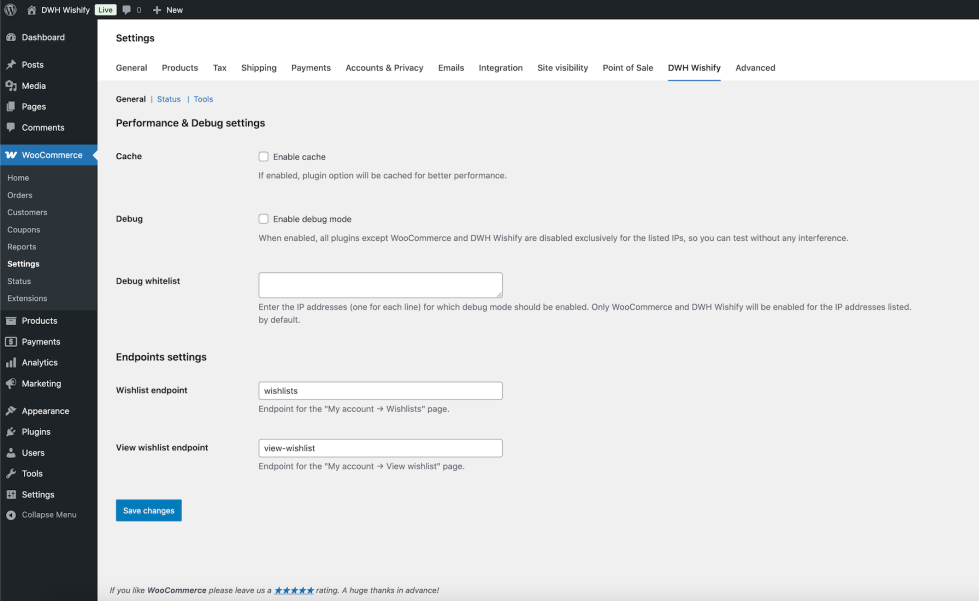
- Go to: WooCommerce > Settings > DWH Wishify.
- Optionally enable the cache for better performance.
- Set the endpoint for MyAccount wishlists list.
- Set the endpoint for MyAccount wishlist details.
- Save changes.
To set up your store with DWH Wishify:
Usage
↑ Back to topGet started by using DWH Wishify by configuring your context.
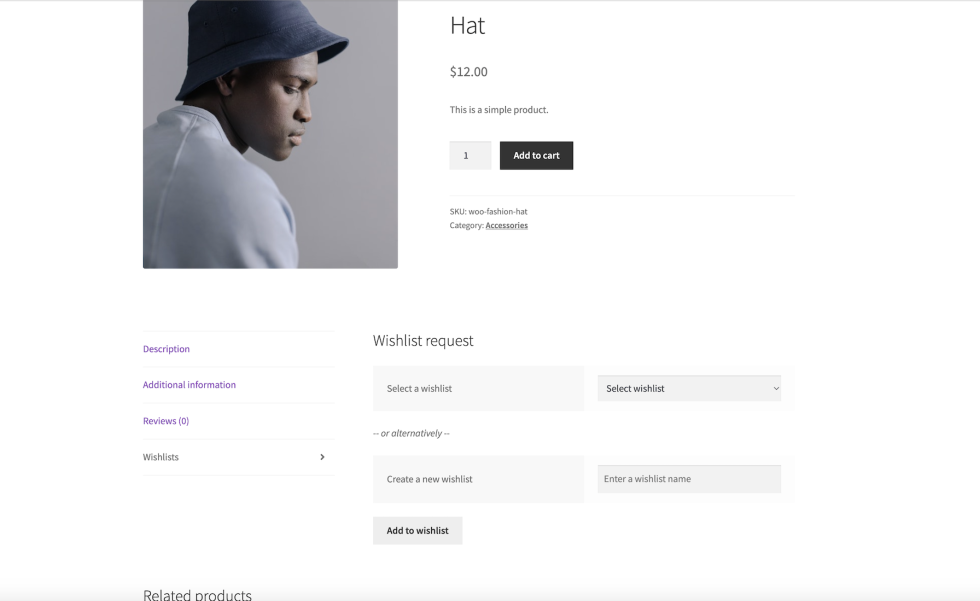
Customers can add products to an existing wishlist or to a new one.
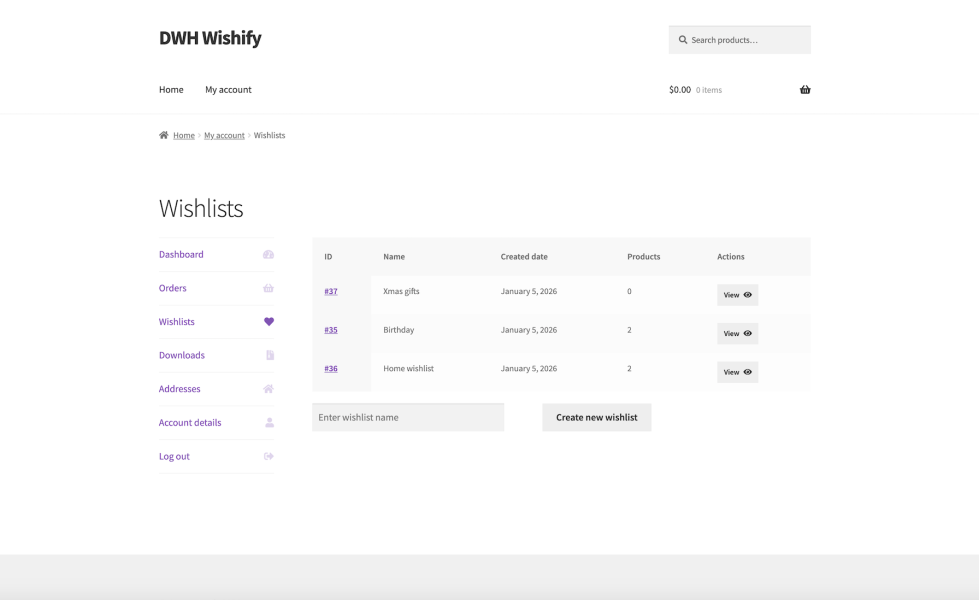
Customers can view and manage their wishlists in their MyAccount page.
Plugin options
↑ Back to topDWH Wishify introduces a large number of features, here a complete list with description to guide you in the configuration.
Settings page
WooCommerce > Settings > DWH Wishify
:: Performance & Debug settings section ::
Cache
Description
When enabled, plugin options are stored both in memory and in a persistent transient to prevent redundant database queries, to improve performance. It is recommended to disable the cache in development mode and enable it in production.
Specifications
-
Type:
bool -
Default:
false
Debug
Description
When enabled, all plugins except WooCommerce (required) and DWH Wishify are disabled exclusively for the listed IPs. This allow you to make test without any kind of third part asset interference, but your website customers won't notice anything.
Specifications
-
Type:
bool -
Default:
false
Debug whitelist
Description
Allows you to specify the IP addresses for which to enable debug mode.
Specifications
-
Type:
string - Default:
:: Endpoints settings section ::
Wishlists endpoint
Description
Choose the endpoint for the wishlists list in MyAccount page.
Specifications
-
Type:
string -
Default:
wishlists
View wishlist endpoint
Description
Choose the endpoint for the single wishlist details in MyAccount page.
Specifications
-
Type:
string -
Default:
view-wishlist
How to translate
↑ Back to topTranslate DWH Wishify is very simple.
DWH Wishify is already provided natively in English. All plugin strings have been localized using the GNU gettex framework to make it completely translation ready, so it can be easly translated in the same way that other WordPress plugins: you can translate DWH Wishify using special translation plugins, such as WPML or Polylang for example or all other similar plugins.
Here a simple guide to translate DWH Wishify in the language of your choice without plugins.
:: Translating with POEDIT ::
WordPress, with all its themes and plugins, based translations on GNU gettex framework, that use three types of files:
- PO (Portable Object) files
- MO (Machine Object) files
- POT (Portable Object Template) files
The first step is to get a translation tool able to manage this kind of files; there are many ones available, in this guide we'll use POEDIT, a free open source software, easy to use and available for MacOSX, Windows, Linux.
Create a new translation with Poedit is very simple, here a step-by-step guide to help you to make it.
- Install Poedit
- Open Poedit and go to 'File -> New from POT/PO file'
- In the popup box that appears, navigate into plugin folder and select the file 'dwh-wishify/i18n/dwh-wishify.pot'
- When the file is loaded, another box will pop up asking for the language you want to translate. Simply choose your target language
- String by string, enter your translation in the 'Translate box' at bottom
When finished, validate your translation and save the file, named as: dwh-wishify-it_IT. The name pattern is composed by:
- dwh-wishify: the plugin domain name, usually the plugin folder name (as described in WordPress i18n standards)
- it: the GNU language code
- IT: the GNU country code
After saving, Poedit will create two files:
- dwh-wishify-it_IT.po
- dwh-wishify-it_IT.mo
Your translations are ready! To use them, you just have to move them into the folder:
wp-content/languages/plugins/Now, go to your website and DWH Wishify is finally translated in your language!
Templates customization
↑ Back to topDWH Wishify templates can be override to customize as you prefer.
:: Templates override ::
We make use of same WooCommerce override system, so it's possible to create own templates and customize them. All templates are contained into the folder:
wp-content/plugins/dwh-wishify/templates/Here a list of plugin templates that can be customized:
-
myaccount/view-wishlist.phpDetails page for single wishlist in MyAccount page -
myaccount/wishlists.phpWishlists list page in MyAccount page -
single-product/tabs/wishlist.phpAdd product to wishlist tab in product page
To know more about WooCommerce templates override system, please refer to WooCommerce official documentation.
Template structure & Overriding templates via a theme:: How to override a template ::
Copy the default template from:
wp-content/plugins/dwh-wishify/templates/{TEMPLATE_PATH}and paste it in your theme folder at:
wp-content/themes/{YOUR_ACTIVE_THEME}/dwh-wishify/{TEMPLATE_PATH}preserving the same folder tree.
Open the template you pasted into the theme folder with a text editor of choice and perform any changes that you want in your new template file.
:: How to update templates overrides ::
Sometimes we update default templates when a new version of plugin is released. If you are using older templates, you may need to update them. Go to:
DWH Wishify > Status
Here you can find a list of templates overridden by your parent/child theme and a warning message that they need to be updated.
Save a backup of the outdated template and copy the default template from:
wp-content/plugins/dwh-wishify/templates/{TEMPLATE_PATH}Paste it in your theme folder at:
wp-content/themes/{YOUR_ACTIVE_THEME}/dwh-wishify/{TEMPLATE_PATH}preserving the same folder tree.
Open the template you pasted into the theme folder with a text editor of choice and replicate any changes that you had to the previous template in your new, updated template file.
Important notes
As WordPress best practice, we suggest to make use of a WordPress Child Theme to avoid losing customizations in case of theme update. To know more about WordPress Child Theme, please refer to WordPress official documentation.
Child Themes WordPress CodexPluggable functions
↑ Back to topDWH Wishify provide a large number of pluggable functions to allow developers to extends or customize default behavior.
If you are a developer or you want to go deep in customization, DWH Wishify give you many possible customizations by using the pluggable functions. All pluggable functions are contained into the file:
wp-content/plugins/dwh-wishify/includes/pluggable-functions.phpTo know more about WordPress pluggable functions, please refer to WordPress official documentation.
Pluggable Functions WordPress CodexImportant notes
As WordPress best practice, we suggest to make use of a WordPress Child Theme to avoid losing customizations in case of theme update. To know more about WordPress Child Theme, please refer to WordPress official documentation.
Child Themes WordPress CodexREST API
↑ Back to topDWH Wishify is perfectly integrated and extends default WooCommerce REST API to manage its own custom fields.
Customer API
/wp-json/wc/v3/customers/
wishlists
Description
Contains customer wishlists.
Specifications
-
Type:
array -
Default:
[]
Each array element is a subarray structured as follow:
-
id:
integerThe wishlist ID -
date:
stringThe wishlist created datetime, in WordPress configurated format -
title:
stringThe wishlist name -
products:
arrayThe products in wishlist. Each subnode contains an array with: -
integerThe product ID as key -
arraySome other info as value -
date_added:
stringThe date when product is added to wishlist, in Y-m-d H:i:s format
Example schema
[...]
{
    "wishlists": [
        {
            "id": 37,
            "date": "January 5, 2026",
            "title": "Gifts",
            "products": []
        },
        {
            "id": 35,
            "date": "January 5, 2026",
            "title": "Chistmas",
            "products": {
                "30": {
                    "date_added": "2026-01-05 15:06:38"
                },
                "41": {
                    "date_added": "2026-01-10 08:45:53"
                }
            }
        },
        {
            "id": 36,
            "date": "January 5, 2026",
            "title": "Home",
            "products": {
                "30": {
                    "date_added": "2026-01-05 15:06:49"
                },
                "39": {
                    "date_added": "2026-01-10 08:46:52"
                }
            }
        }
    ]
}
[...]
To know more about Rest API, please refer to WordPress and WooCommerce official documentations.
WooCommerce Rest APIWordPress Rest API
