
Dynamic Product Options allows your WooCommerce store to add custom fields and choices to product pages so customers can personalize what they buy, with optional pricing and display rules—without creating hundreds of product variations.
Installation
↑ Back to topTo start using a product from WooCommerce.com, you can use the “Add to store” functionality on the order confirmation page or the My subscriptions section in your account.
- Navigate to My subscriptions.
- Find the Add to store button next to the product you’re planning to install.
- Follow the instructions on the screen, and the product will be automatically added to your store.
Alternative options and more information at:
Managing WooCommerce.com subscriptions.

Setup and Configuration
↑ Back to top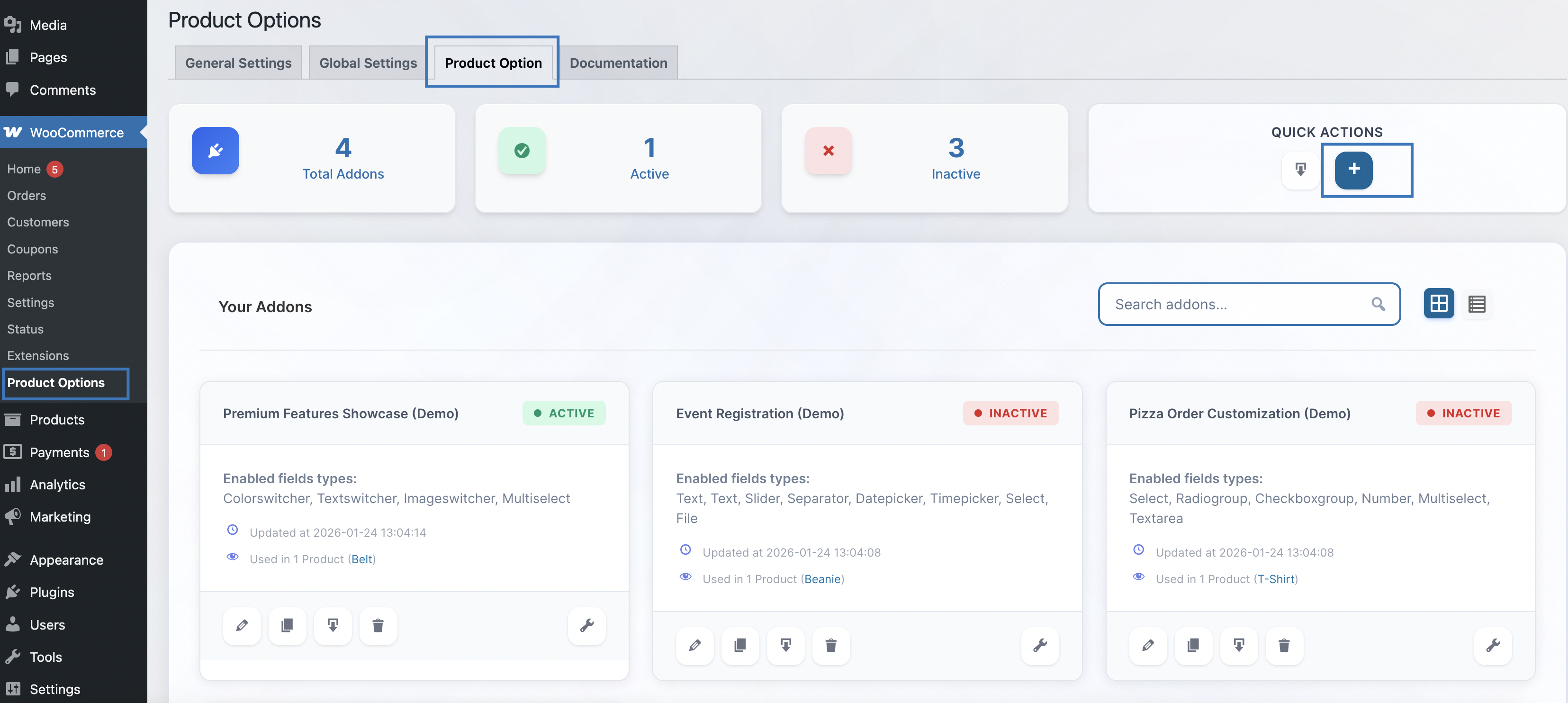
Getting started
↑ Back to top- Go to: WooCommerce > Product Options .
- Click Add new to create your first add-on.
- Enter an add-on name (e.g. “Gift options” or “Engraving”).
- Add Additional rules so the add-on appears only on the products or categories you want (e.g. select specific products, categories, or tags).
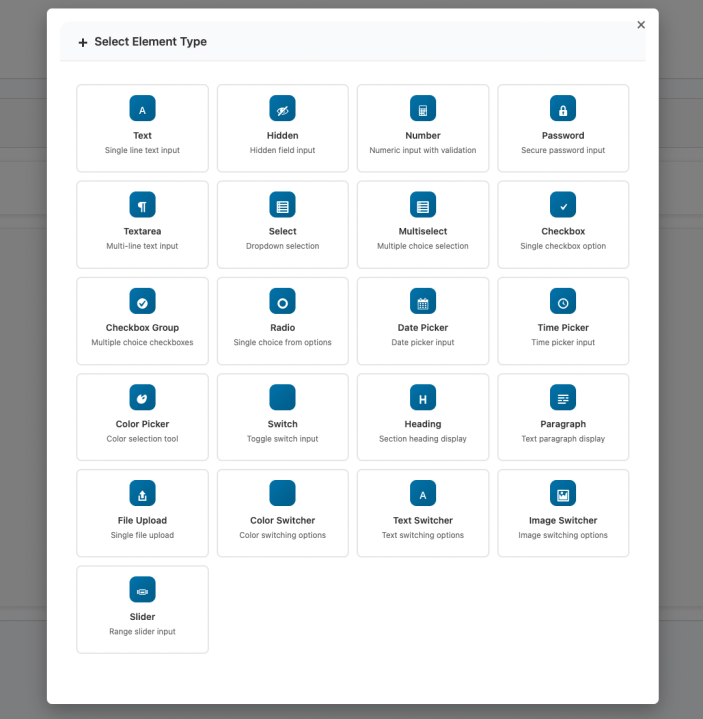
- Add sections and fields using the builder: drag field types (text, select, checkbox, date picker, etc.) into place, set labels and optional prices.
- Save the add-on. Options will then show on the matching product pages, in the cart, and in orders.
Advanced configuration
↑ Back to topSections: Use sections to group fields (e.g. “Gift wrap” vs “Engraving”). You can set section titles, descriptions, and layout (single/two columns). In premium, section layouts (accordion, tabs, step wizard) are available.
Display rules (Additional rules): Control where each add-on appears—by product, category, tag, and (in premium) user role, other field values, product variation, or quantity. Use nested AND/OR groups for complex rules.
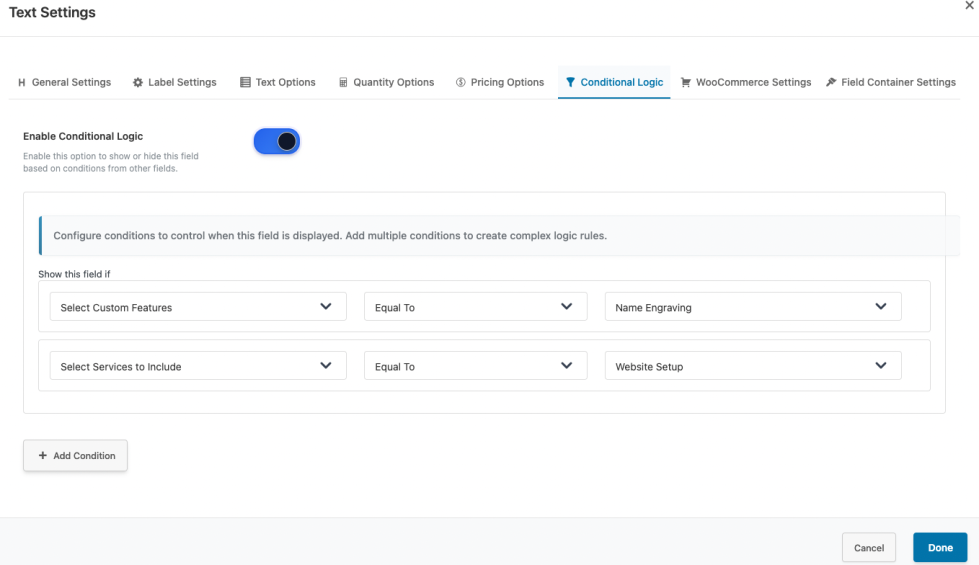
Conditional logic: Per field, you can show or hide based on other fields’ values so customers only see relevant options.
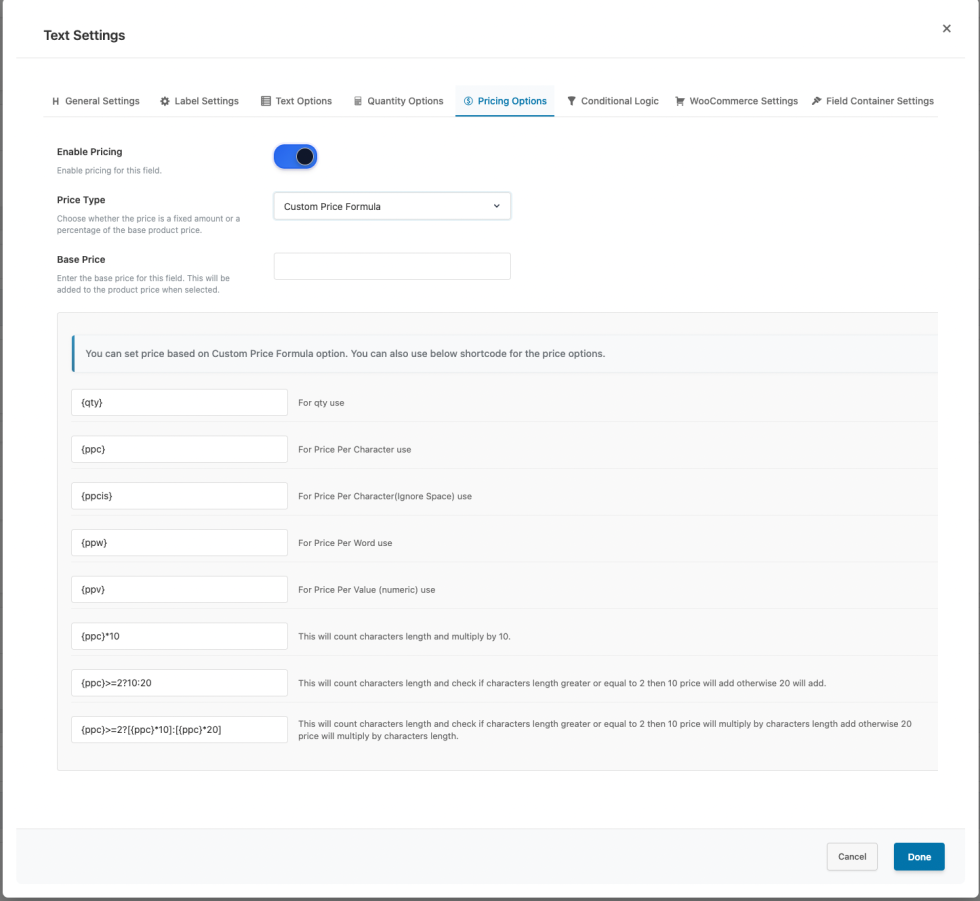
Pricing: Set fixed price per option in the free version. Premium adds percentage, custom amount (e.g. donations), percentage of product price, and dynamic per-unit pricing.
WooCommerce settings: Configure how options appear in cart, checkout, order details, and emails (labels, tax, etc.) from the add-on’s WooCommerce settings tab.
Usage
↑ Back to topWhat customers see on the front end.
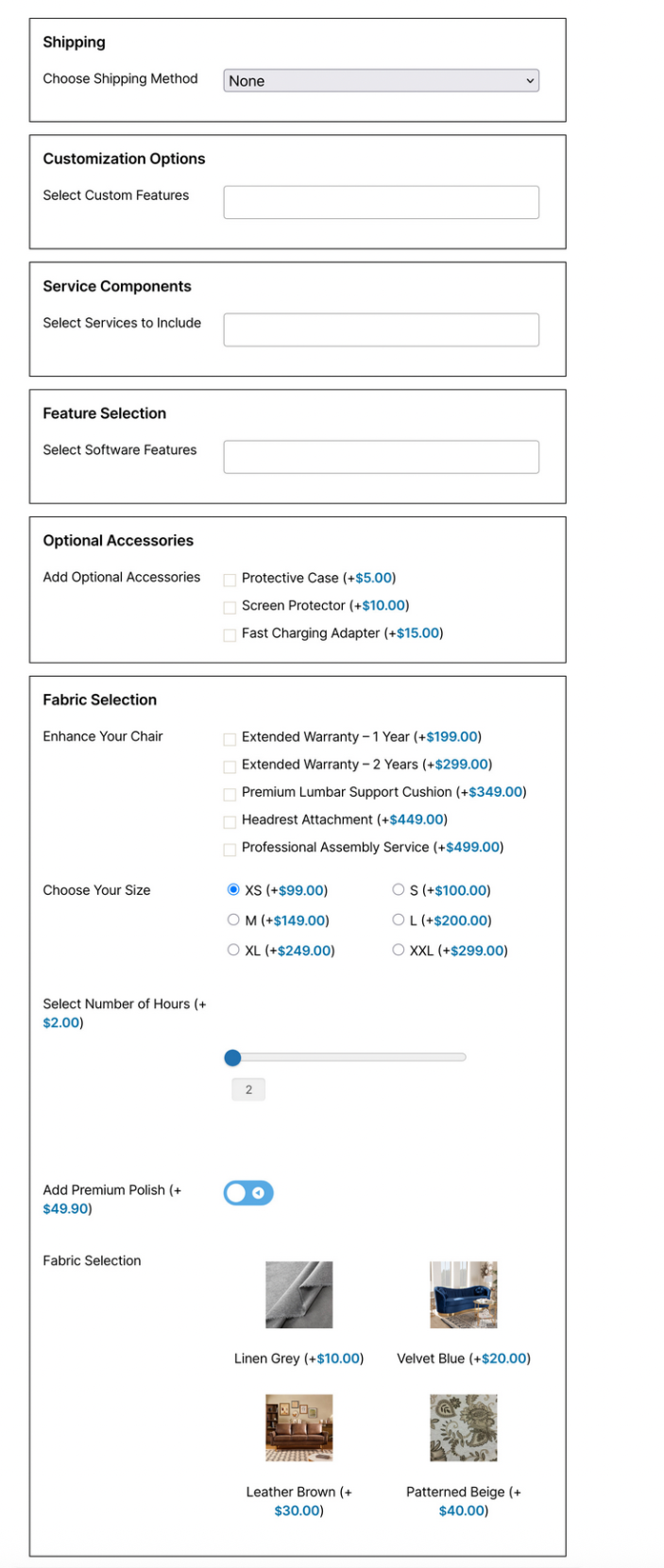
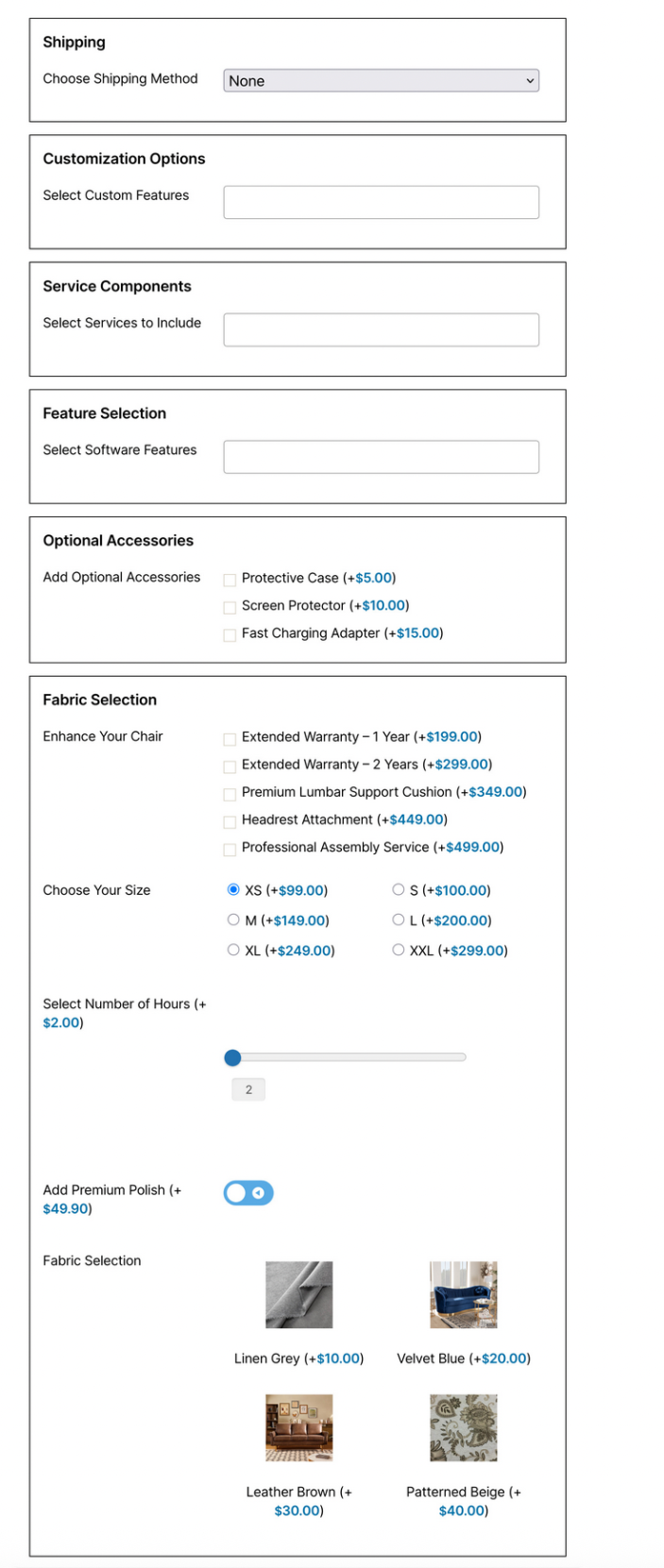
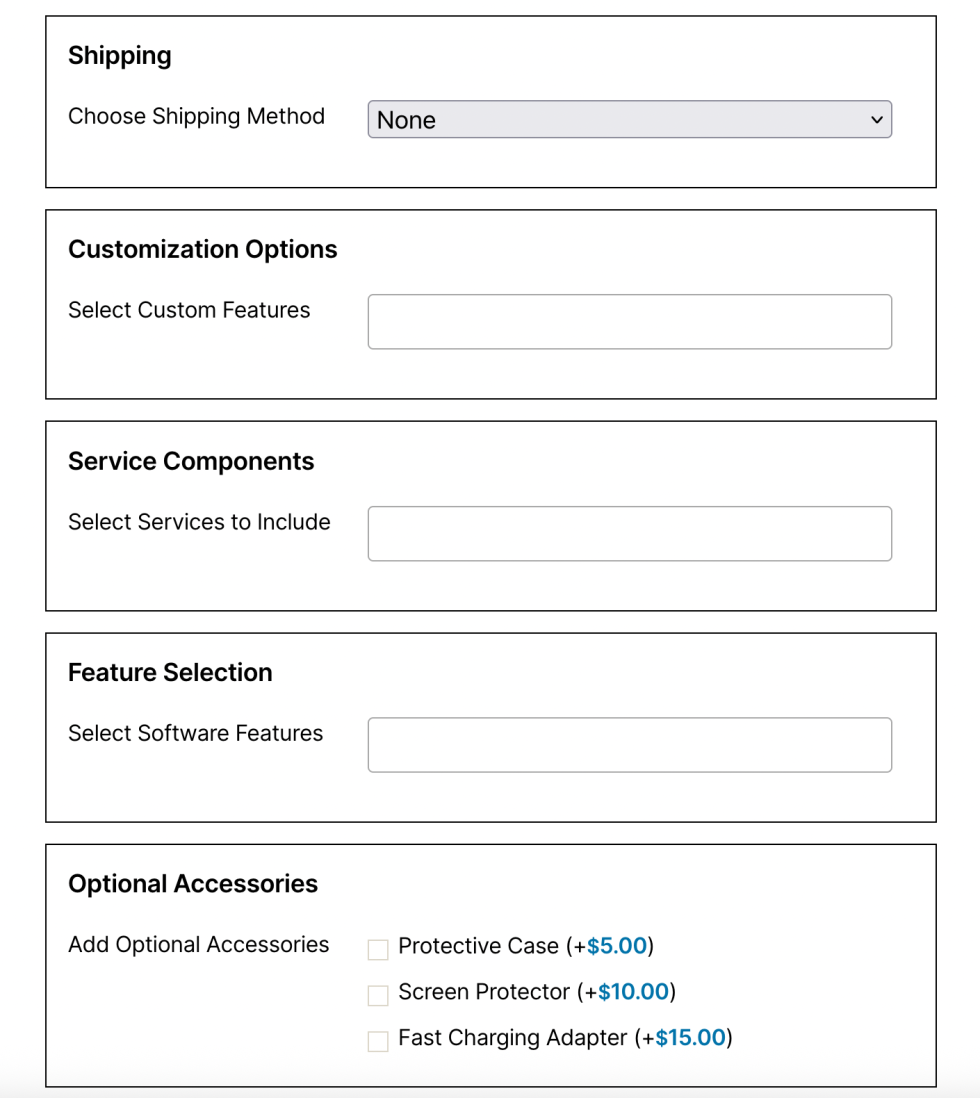
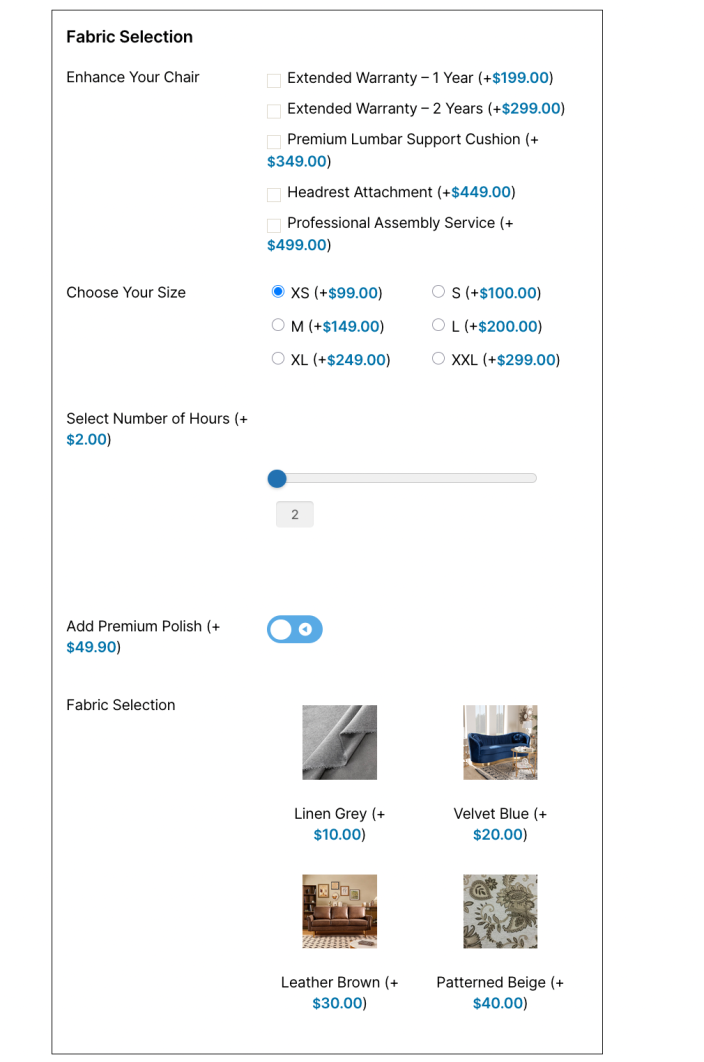
- On product pages where the add-on’s rules match, customers see the add-on sections and fields (e.g. text box for engraving, dropdown for gift wrap, checkboxes for add-ons).
- They can select or enter values; if pricing is set, the product total updates on the page and in the cart.
- Selected options and prices appear in the cart, at checkout, in order details, and in order emails.
Troubleshooting
↑ Back to topKnown issues and solutions
| Issue | Solution |
|---|---|
| Confirm the add-on is saved, and the product was added to the cart after the options were visible. If using variable products, ensure the variation is selected before adding to cart. | Check Additional rules for that add-on: the product (or its category/tag) must match the rules. Ensure the add-on and its sections/fields are enabled. |
| The add-on does not appear on a product | Ensure JavaScript is not blocked and there are no theme/plugin script conflicts. Clear cache (browser and any caching plugin). Check that the field has a price set in the add-on builder. |
| Styling conflicts with the theme | Confirm the add-on is saved, and the product was added to the cart after the options were visible. If using variable products, ensure the variation is selected before adding to the cart. |
| Verify condition settings (which field, which value, AND/OR). Ensure the controlling field is present, and its value matches the condition. | Use section/field CSS classes in the builder, or add custom CSS (Appearance > Customize or theme options). Override templates via your theme if needed (see developer docs). |
| Conditional logic not showing/hiding fields | Options are missing in the cart or order |
For further help, contact support with your WordPress/WooCommerce versions and a short description of the issue.
FAQs
↑ Back to topHelp customers by answering commonly asked questions.
What makes this plugin different from other WooCommerce product options plugins?
This plugin offers nested conditional logic with AND/OR groups in the free version, so you can build rules like “show field when (Product A OR Product B) AND (Category X).” You also get 22+ field types and a drag-and-drop builder without coding.
How many field types are included?
The free version includes 22+ field types (text, textarea, number, email, URL, phone, select, multiselect, radio, checkbox, checkbox group, date picker, time picker, color picker, slider, switch, heading, paragraph, separator, etc.). Premium adds file upload, color/image/text swatches, and repeater fields.
Does the plugin support conditional logic?
Yes. You can show or hide options based on products, categories, tags, and (in premium) user role, other field values, product variation, or quantity. The free version includes nested AND/OR groups for complex rules.
Can I add custom pricing to options?
Yes. The free version supports fixed pricing per option. Premium adds percentage, custom amount (e.g. donations), percentage of product price, and dynamic per-unit pricing. Prices update on the product page, in the cart, and at checkout.
Is the plugin compatible with my theme?
Yes. It is built to work with WooCommerce-compatible themes. You can adjust labels and layout in the builder; section and field styling options help match your store. For deeper changes, use custom CSS or template overrides.
Can I show different options for different products?
Yes. Each add-on has Additional rules (display rules): choose which products, categories, or tags trigger that add-on. Use conditional logic so individual fields show or hide based on other choices.
Does the plugin work with variable products?
Yes. It works with simple and variable products. For variable products, options load via AJAX when the customer selects a variation. In premium you can also show options before variation data.
Is there a demo I can try?
Yes. Try the frontend demo to see options on the product page, the backend demo to try the builder, and the video tutorial for a step-by-step setup guide.
What are the minimum requirements?
You need WordPress 6.1+, WooCommerce 8.0+, and PHP 7.4+. The plugin declares compatibility with WooCommerce High-Performance Order Storage (HPOS) and Cart/Checkout Blocks.
How do I get support?
Documentation and step-by-step guides are available on our site. For technical help, contact support via the link provided with the plugin. Premium users receive priority support.

