
Easy Subscription allows your WooCommerce store to create subscriptions with automatic recurring payments. .
Installation
↑ Back to topTo start using a product from WooCommerce.com, you can use the “Add to store” functionality on the order confirmation page or the My subscriptions section in your account.
- Navigate to My subscriptions.
- Find the Add to store button next to the product you’re planning to install.
- Follow the instructions on the screen, and the product will be automatically added to your store.
Alternative options and more information at:
Managing WooCommerce.com subscriptions.

Creating a subscription
↑ Back to topGetting started
↑ Back to topTo create a subscription open the product that you would like to offer as a subscription under Products > All Products.
- Enable subscriptions via the toggle.

2. Open the Easy Subscriptions tab and set the duration for the subscription
3. Save
Separate shipping cycles
↑ Back to topSeparate shipping cycles allow you to ship your products in a separate cycle than the subscriptions. For example you could offer a yearly subscription, but ship it once a month. This works by creating a new payment less order in the interval that you specified.
Separate shipping cycle settings
↑ Back to top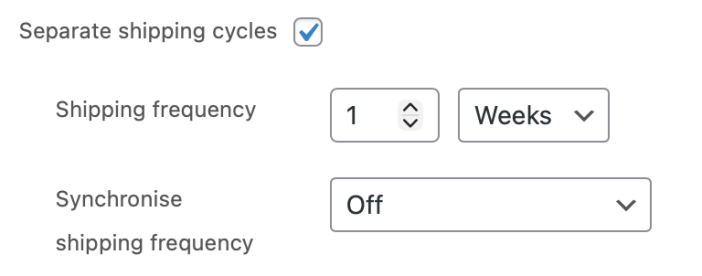
Shipping frequency – How often you would like Easy subscriptions to create an order that you use for shipping.
Synchronise shipping frequency – If this option is set to “off” the settings from the previous field will be used. Else the settings will be overwritten and all subscriptions from this product will have the same cycle.
Example:
If you are selling a yearly subscription for a monthly box. You will set the subscription period to 1 year. If you want to send all of the boxes at the same time you then set Synchronise shipping frequency to “First day of the year”.
Managing Subscriptions
↑ Back to topYou can manage your subscriptions via the “Easy Subscriptions” tab under WooCommerce.
Column definitions
↑ Back to topStatus – The status of the subscription.
Subscription – The WooCommerce order number of the subscription.
Items – The products in the subscription.
Recurring Total – The price of the subscription and interval in which it is charged.
Renewals – How often the subscription has been renewed, since it was created.
Failed Attempts – If a payment attempt fails, this column counts the retry attempts.
Date – The creation date of the subscription.
Actions – A cancel button for the subscription if it is still active.
Retrying failed payments
↑ Back to topIf you would like to retry failed payments, you can activate this feature under WooCommerce > Settings > Easy Subscriptions > Retry failed payments.
The section “unpaid payment handling” let’s you decide what happens, when a payment fails.
If you have retried payments activated you can choose to set the status to “suspended”, which will suspend the subscription, while still retrying the payment. The payment will retry for the amount of time that you specified.
If the payment succeeds, the subscription will be activated again and if it doesn’t, it will be cancelled.

