
The Estimated Delivery Date plugin enables you to show the expected delivery date and time on the shop, product, cart, and checkout pages. You can also select the minimum and maximum delivery days or time, and specific off-days as well.
Installation
↑ Back to topTo start using a product from WooCommerce.com, you can use the “Add to store” functionality on the order confirmation page or the My subscriptions section in your account.
- Navigate to My subscriptions.
- Find the Add to store button next to the product you’re planning to install.
- Follow the instructions on the screen, and the product will be automatically added to your store.
Alternative options and more information at:
Managing WooCommerce.com subscriptions.

Estimated Delivery Date and Time Setup and Configuration
↑ Back to topTo start configuring this extension, navigate to WooCommerce > Settings> Estimated Delivery Date, and here you will find the following five tabs:
- General Settings
- Display Position
- Delivery Text
- Delivery Text Color
- Days Off
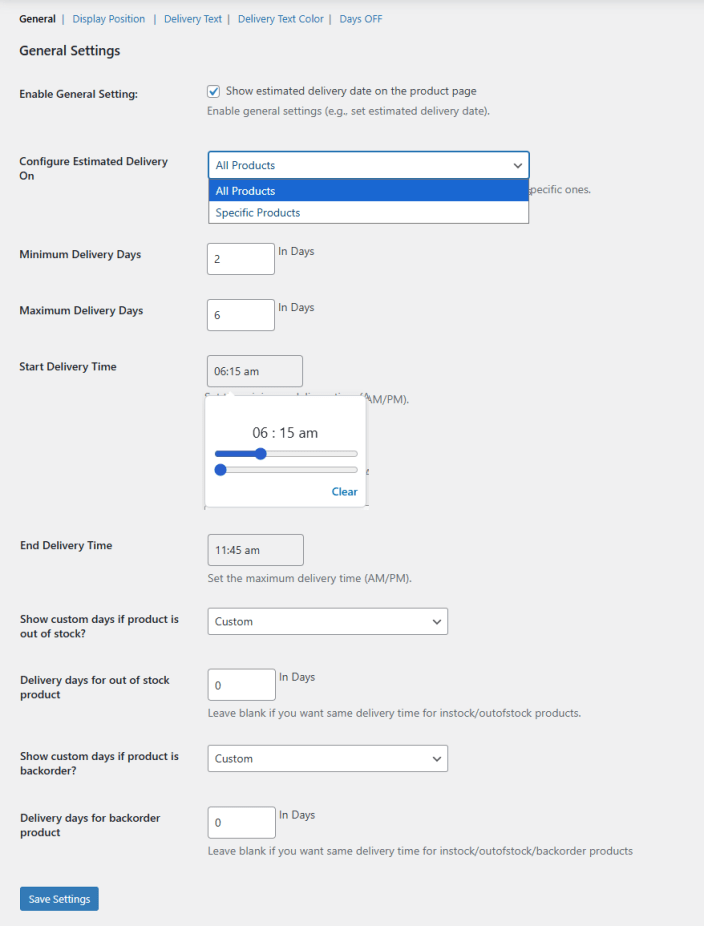
General settings
↑ Back to topTo configure, go to WooCommerce > Settings> General Settings and set up the settings.
- Enable General Setting: Enable the checkbox to display the estimated delivery date on the product pages.
- Configure Estimated Delivery On: Choose whether you want to display the estimated delivery date on all products or specific products.
- Minimum Delivery Days: Enter the maximum delivery dates.
- Maximum Delivery Days: Enter the minimum delivery dates.
- Start Delivery Time: Set the minimum delivery time (AM/PM).
- End Delivery Time: Set the maximum delivery time (AM/PM).
- Show Custom Days If Product Is Out Of Stock: Select if you want to show custom days for delivery if the product is out of stock.
- Show Custom Days If Product Is Backordered: Select if you want to show custom days for delivery if the product is backordered.
Click on the “Save Changes” button to save and implement the changes.
Display position
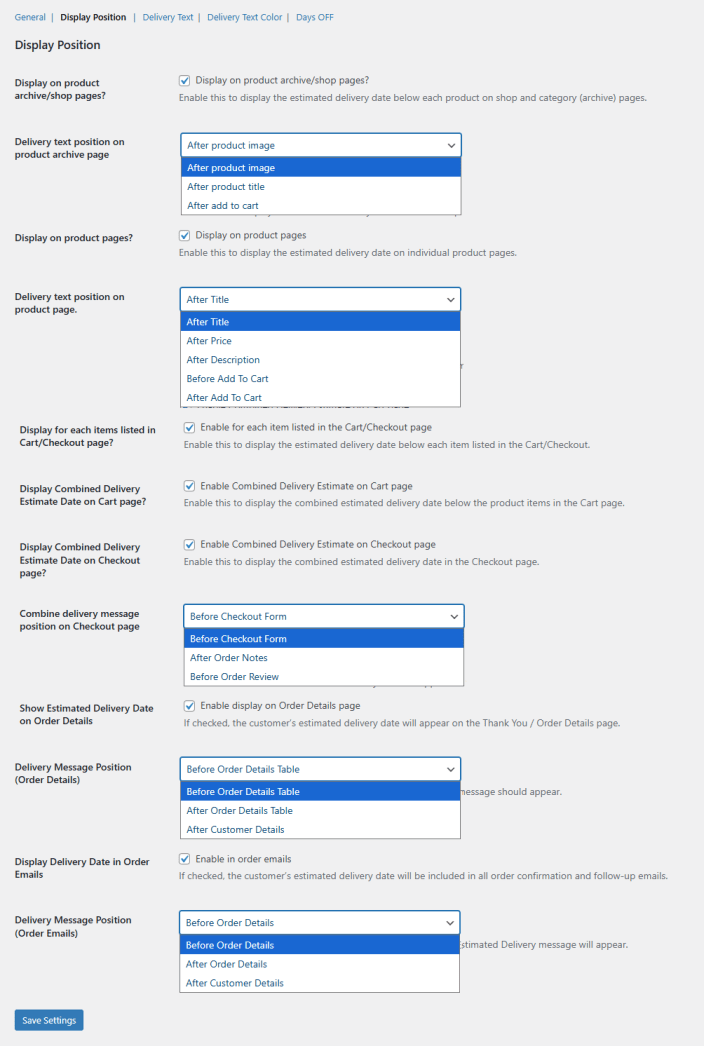
↑ Back to topTo configure, go to WooCommerce > Settings> Display Position and set up the settings.
- Display on Product Archive/Shop Pages: Enable the checkbox to display the estimated delivery date on both shop and category (archive) pages.
- Delivery Text Position on Product Archive Page: Select the position to display the estimated delivery date on the product archive page. You can choose the following:
- After Product Image
- After Product Title
- After Add to Cart
- Display on Product Pages: Click the checkbox to enable the estimated delivery date on each product page.
- Delivery Text Position on Product Page: Select the position to display the estimated delivery date on the product page. You can choose the following:
- After Title
- After Price
- After Description
- Before Add to Cart
- After Add to Cart
- Display For Each Item Listed In the Cart/Checkout Page: Enable this option to show the estimated delivery date below each item in the Cart and Checkout pages.
- Display Combined Delivery Estimate Date On Cart Page: Enable the checkbox to display the combined estimated delivery date below all product items on the Cart page.
- Display Combined Delivery Estimate Date On Checkout Page: Enable this option to display the combined estimated delivery date on the Checkout page.
- Combine Delivery Message Position On Checkout Page: Select the position to display the combined delivery message on the Checkout page:
- Before Checkout Form
- After Order Notes
- Before Order Review
- Show Estimated Delivery Date On Order Details: Check this option to display the customer’s estimated delivery date on the Thank You/Order Details page.
- Delivery Message Position (Order Details): Select the position for the Estimated Delivery message on the Order Details page:
- Before Orders Detail Table
- After Orders Detail Table
- After Customer Details
- Display Delivery Date In Order Emails: Check this option to include the customer’s estimated delivery date in all order confirmation and follow‑up emails. You can choose the position in the order confirmation emails as:
- Before Order Details
- After Order Details
- After Customer Details
Click the “Save Settings” button to save and implement the configured settings.
Delivery text
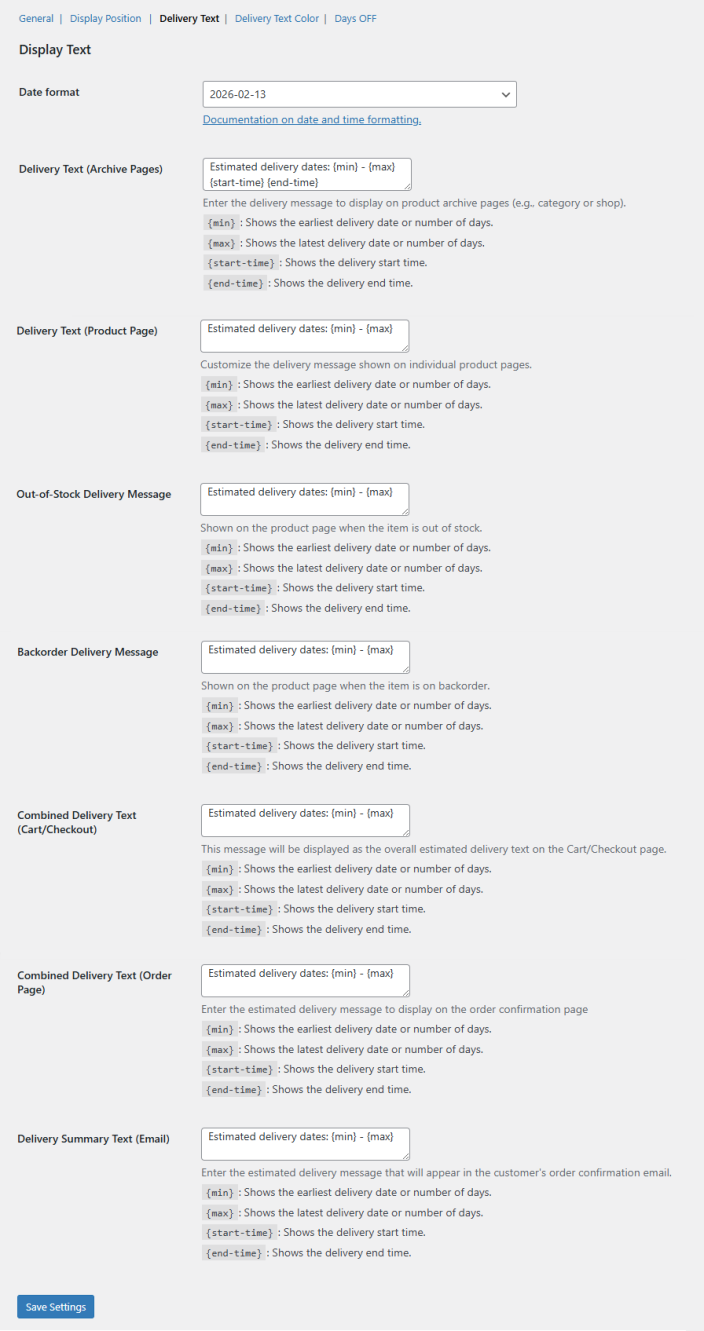
↑ Back to topTo configure, go to WooCommerce > Settings> Delivery Text and set up the settings
- Date Format: Select the desired date format from teh dropdown menu. For more details on date and time formatting, check the documentation.
- Delivery Text (Archive Pages): Enter the message to display on product archive pages (shop or category). Use the following to display the messages:
- {min}: Shows the earliest delivery date or number of days.
- {max}: Shows the latest delivery date or number of days.
- {start-time}: Shows the delivery start time.
- {end-time}: Shows the delivery end time.
- Delivery Text (Product Page): Customize the message shown on individual product pages. Use the following to display the messages:
- {min}: Shows the earliest delivery date or number of days.
- {max}: Shows the latest delivery date or number of days.
- {start-time}: Shows the delivery start time.
- {end-time}: Shows the delivery end time.
- Out-Of-Stock Delivery Message: Enter the message to display when a product is out of stock. Use the following to display the messages:
- {min}: Shows the earliest delivery date or number of days.
- {max}: Shows the latest delivery date or number of days.
- {start-time}: Shows the delivery start time.
- {end-time}: Shows the delivery end time.
- Backorder Delivery Message: Enter the message to display when a product is on backorder. Use the following to display the messages:
- {min}: Shows the earliest delivery date or number of days.
- {max}: Shows the latest delivery date or number of days.
- {start-time}: Shows the delivery start time.
- {end-time}: Shows the delivery end time.
- Combined Delivery Text (Cart/Checkout): Enter the overall delivery message for the Cart and Checkout pages. Use the following to display the messages:
- {min}: Shows the earliest delivery date or number of days.
- {max}: Shows the latest delivery date or number of days.
- {start-time}: Shows the delivery start time.
- {end-time}: Shows the delivery end time.
- Combined Delivery Text (Order Page): Enter the delivery message to display on the order confirmation page. Use the following to display the messages:
- {min}: Shows the earliest delivery date or number of days.
- {max}: Shows the latest delivery date or number of days.
- {start-time}: Shows the delivery start time.
- {end-time}: Shows the delivery end time.
- Delivery Summary Text (Email): Enter the delivery message that will appear in the customer’s order confirmation email. Use the following to display the messages:
- {min}: Shows the earliest delivery date or number of days.
- {max}: Shows the latest delivery date or number of days.
- {start-time}: Shows the delivery start time.
- {end-time}: Shows the delivery end time.
Click on the “Save Settings” button to apply the configured settings.
Color settings
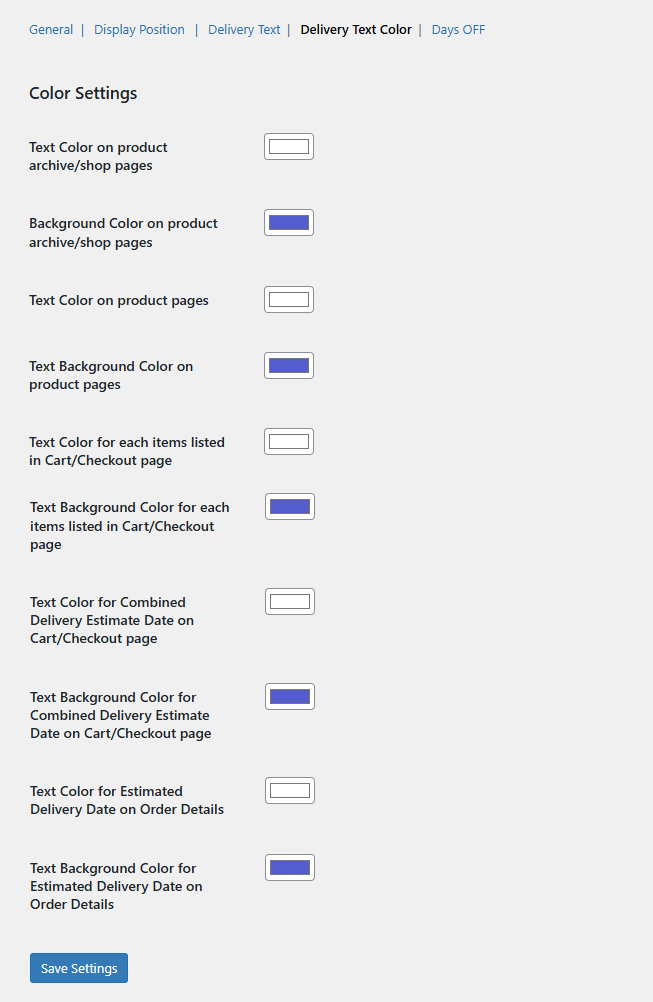
↑ Back to topIn this tab, you can configure the colors for different settings of the plugin. Go to WooCommerce > Settings> Color Settings and set up the following colors:
Estimated Order Delivery Date
Days off
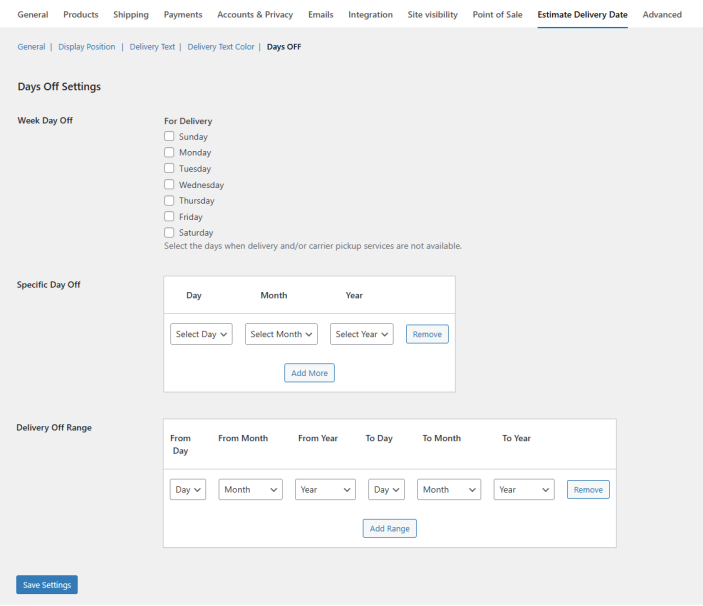
↑ Back to topIn this section, you can configure the off-days for delivery. Go to Settings > WooCommerce > Days Off and configure the following:
- Week Day Off: Select the specific day(s) of the week when delivery and/or carrier pickup services are unavailable.
- Specific Day Off: Add specific days, such as public holidays or maintenance days, when the delivery will not be available. You can add multiple days by selecting the day, month, and year. Click on the “Add More” button to add multiple days.
- Delivery Off Range: Add date ranges for which delivery will be off. You can add multiple date ranges by clicking the “Add Range” button. To configure, select the From/To days, months, and year.
Click the “Save Settings” button to enable the settings you configured.
Frequently asked questions
↑ Back to topHow do I display estimated delivery dates on my WooCommerce product pages?
↑ Back to topEnable the plugin from WooCommerce > Settings > Estimated Delivery Date, then check Display on Product Pages. Customize the position and delivery text to show the estimated delivery date on individual product pages.
Can I show estimated delivery dates on the Cart and Checkout pages?
↑ Back to topYes. Enable Display for Each Item Listed in Cart/Checkout Page to show individual product delivery dates, or Display Combined Delivery Estimate Date to show a single overall estimate. Position the message as needed.
How can I set different delivery times for out-of-stock or backordered products?
↑ Back to topIn WooCommerce > Settings > General Settings, enable Show Custom Message if Product Is Out of Stock or Backordered, then enter custom minimum and maximum delivery days for these products.
Can I include the estimated delivery date in order confirmation emails?
↑ Back to topYes. Enable Display Delivery Date in Order Emails to include the estimated delivery date in all order confirmation and follow-up emails sent to customers.
How do I manage delivery off-days or holidays?
↑ Back to topGo to WooCommerce > Settings > Days Off to configure weekly off-days, specific dates, or date ranges when delivery will not be available. Multiple dates and ranges can be added as needed.

