Archive old orders automatically by status, age, and value, then export them anytime as CSV, XML, or JSON.
Installation
↑ Back to top- Download the .zip file from your WooCommerce Account.
- Go to WordPress Admin > Plugins > Add New and upload the plugin file.
- Click Install Now and then Activate.
Setup and Configuration
↑ Back to topTo access the Export and Archive Orders settings, log in to your WordPress admin panel and navigate to WooCommerce > Settings > Archive Orders tab. There you will find all the settings, i.e., General, Archiving Rules, Deletion & Backup, and My Account & Subscriptions.
General Settings
↑ Back to topGo to WooCommerce > Settings > Archive Orders > General.
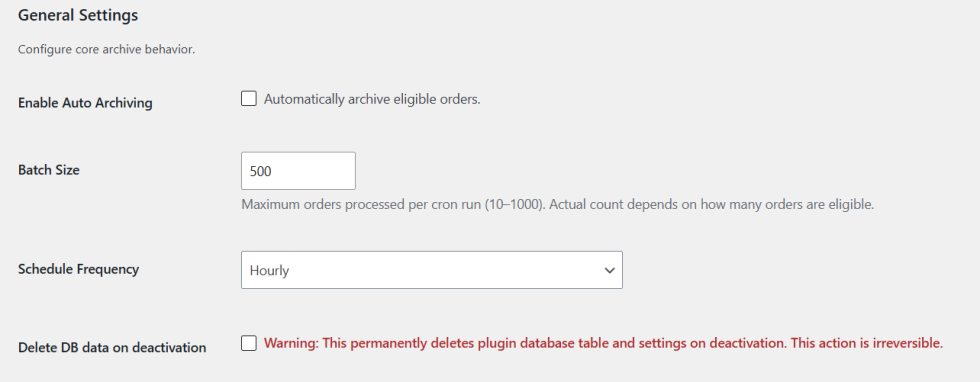
- Enable Auto Archiving: Check this to automatically archive eligible orders on each cron run.
- Batch Size: Set the maximum number of orders processed per cron run. Accepts values between 10 and 1000. Default is 500.
- Schedule Frequency: Choose how often the archiving cron job runs. Options are Every 30 Minutes, Hourly, Every 2 Hours, Every 6 Hours, Twice Daily, and Daily.
- Delete DB data on deactivation: Check this to permanently delete all plugin database tables and settings when the plugin is deactivated. This action is irreversible.
Archiving Rules
↑ Back to topGo to Archive Orders > Archiving Rules.
Per-Status Age Rules
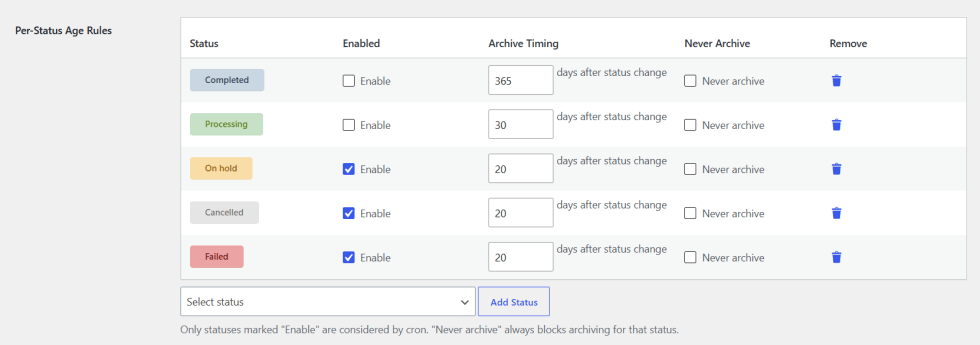
Each order status has its own archiving rule row with the following settings.
- Enabled: Check this to include this status in automatic archiving cron runs. Only enabled statuses are processed.
- Archive Timing: Set the number of days after the status change date before an order with this status becomes eligible for archiving.
- Never Archive: Check this to permanently block archiving for this status regardless of any other rules.
- Add Status: Use the dropdown to add additional order statuses to the rules table if needed.
Default statuses included are Completed (365 days), Processing (30 days), On Hold (30 days), Cancelled (60 days), and Failed (30 days).
Value-Tier Rules
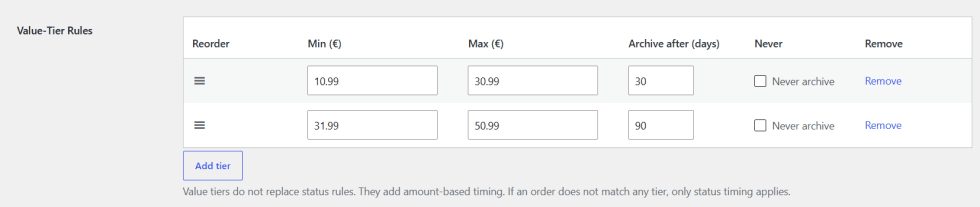
- Min and Max: Set the order amount range for this tier in your store currency.
- Archive after (days): Set how many days after the status change an order within this value range should be archived.
- Never Archive: Check this to exclude all orders matching this value range from archiving entirely.
- Click Add tier to add additional value tiers for different order amount ranges.
Value tiers add amount based timing on top of status rules. If an order matches a tier, the higher value between the status days and tier days is used as the final required age. If no tier matches, status timing applies on its own.
Manual Lists
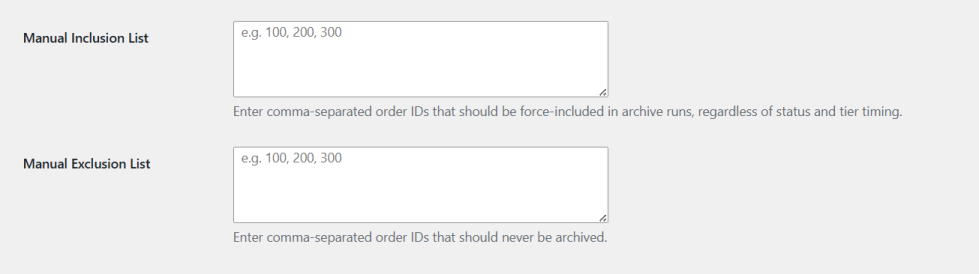
- Manual Inclusion List: Enter comma separated order IDs that should be force archived on the next cron run regardless of status or tier timing.
- Manual Exclusion List: Enter comma separated order IDs that should never be archived regardless of any rules.
Deletion and Backup
↑ Back to topGo to Archive Orders > Deletion & Backup.
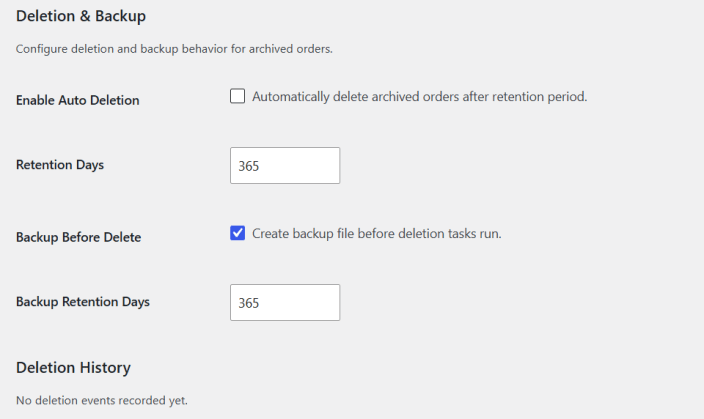
- Enable Auto Deletion: Check this to automatically delete archived orders after the retention period has passed.
- Retention Days: Set how many days an archived order is kept before it becomes eligible for deletion. Default is 730 days.
- Backup Before Delete: Check this to automatically create a backup file before each deletion run. Recommended to keep this enabled.
- Backup Retention Days: Set how many days backup files are kept before they are removed. Default is 365 days.
- Deletion History: View a log of all past deletion events including date and number of orders removed.
My Account and Subscriptions
↑ Back to topGo to Archive Orders > My Account & Subscriptions.
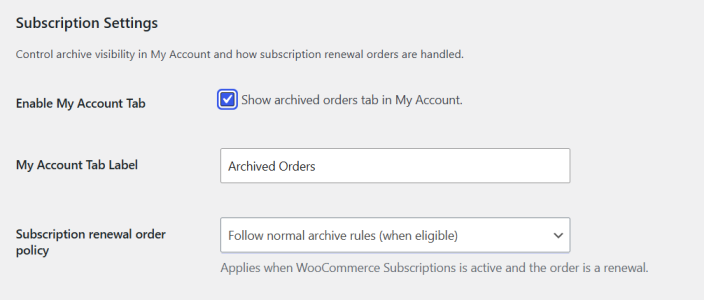
- Enable My Account Tab: Check this to show an Archived Orders tab in the customer My Account page so customers can view their own archived order history.
- My Account Tab Label: Set the label displayed for the archived orders tab in My Account. Default is Archived Orders.
- Subscription renewal order policy: Choose how renewal orders from WooCommerce Subscriptions are handled. Options are Never archive renewals, Allow only if the related subscription is cancelled, or Follow normal archive rules when eligible.
Viewing and Managing Archived Orders
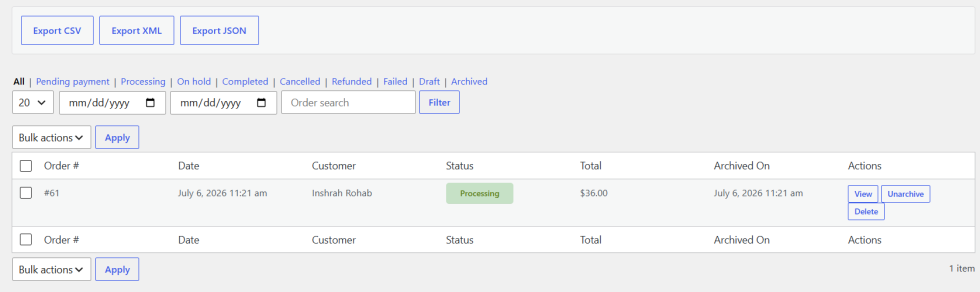
↑ Back to topGo to WooCommerce > Archived Orders to view all archived orders.
- Use the status tabs at the top to filter by All, Pending Payment, Processing, On Hold, Completed, Cancelled, Refunded, Failed, Draft, or Archived.
- Use the date range pickers and order search field to narrow down results and click Filter to apply.
- Each row shows Order Number, Date, Customer, Status, Total, and Archived On date.
- Click View to open the full order details.
- Click Unarchive to move the order back to the main orders list.
- Click Delete to permanently remove the archived order.
- Use Bulk Actions to apply actions to multiple archived orders at once.