The Frequently Bought Together plugin lets you create rule-based product bundles on your WooCommerce store, complete with flexible discounts, AI-powered suggestions, and automatic fallback recommendations from existing upsells, cross-sells, categories, and tags. It combines widget scheduling, audience targeting, and a built-in analytics dashboard, all configured directly from WooCommerce Settings with no code required.
Plugin Installation
↑ Back to top- Download the .zip file from your WooCommerce account.
- Go to: WordPress Admin > Plugins > Add New and upload the file you have downloaded.
- Install Now and Activate.
General Settings
↑ Back to topConfigure the plugin’s general settings in this section. Go to WooCommerce > Settings > Frequently Bought Together > General and configure the settings:
Coupons Settings
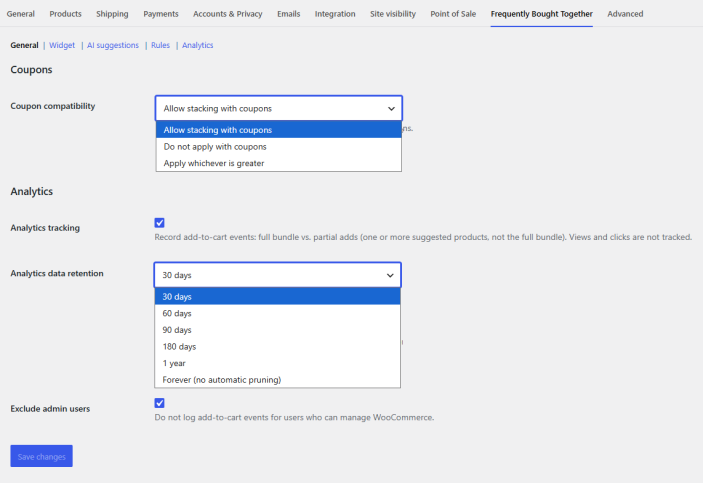
↑ Back to top- Coupon Compatibility: Choose how bundle discounts from rules or products will interact with coupons. You have the following options:
- Allow stacking with coupons
- Do not apply with coupons
- Apply whichever is greater
Analytics Settings
↑ Back to top- Analytics Tracking: Enable analytics tracking. The Frequently Bought Together plugin allows you to track add-to-cart events: full bundle vs. partial adds (one or more suggested products, not the full bundle).
- Analytics Data Retention: Select how long to keep analytics rows before automatic cleanup. You can select between the following:
- 30 Days
- 60 Days
- 90 Days
- 180 Days
- 1 Year
- Forever (No Automatic Pruning)
- Exclude Admin Users: Click the checkbox if you do not want to log add-to-cart events for users who can manage WooCommerce.
Widget Settings
↑ Back to topPersonalize the Frequently Bought Together widget. Go to WooCommerce > Settings > Frequently Bought Together > Widget and configure the settings for the widget:
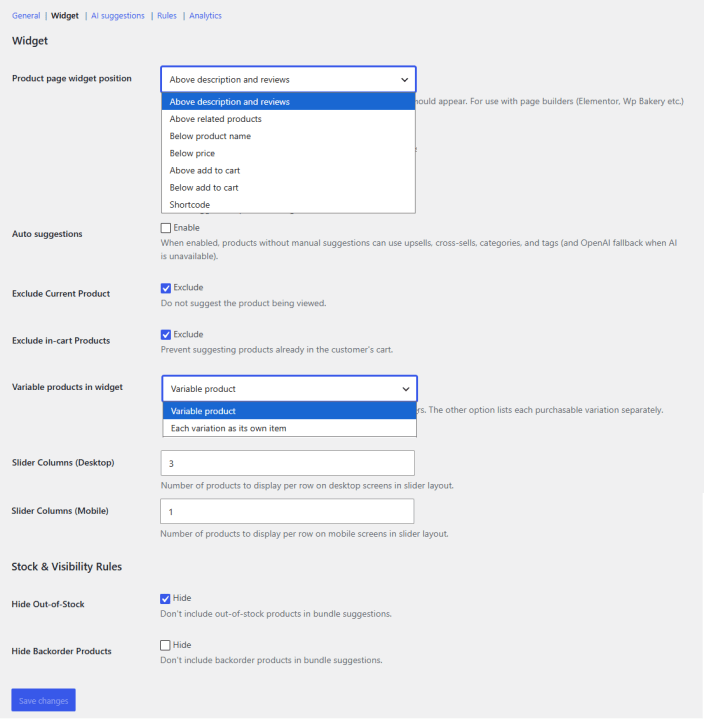
- Product Page Widget Position: Choose the position of the Frequently Bought Together widget on the product page. You have the following options available:
- Above description and reviews
- Above related products
- Below product name
- Below price
- Above Add to Cart
- Below Add to Cart
- Shortcode (For “Shortcode”, output [ext_fbt_widget] where the widget should appear. For use with page builders (Elementor, WP Bakery, etc.))
- Auto Suggestions: Enable auto suggestions for the frequently bought products. When enabled, products without manual suggestions can use upsells, cross-sells, categories, and tags. After enabling, you can configure the following settings:
- Auto Widget Layout: Choose the layout from the widget dropdown when only auto-suggestions apply (no matching rule or product bundle). You can choose between the following:
- List
- Grid
- Slider
- Auto Widget Position: Choose the position for the auto widget. You have the following options available:
- Above description and reviews
- Above related products
- Below product name
- Below price
- Above Add to Cart
- Below Add to Cart
- Shortcode (For “Shortcode”, output [ext_fbt_widget])
- Auto-Suggestion Priority: Choose the priority order for the auto-suggestion source. You can choose and arrange priority for the following sources:
- Upsells
- Cros-sells
- Category
- Tags
- Auto Widget Layout: Choose the layout from the widget dropdown when only auto-suggestions apply (no matching rule or product bundle). You can choose between the following:
- Exclude Current Product: Click the checkbox to exclude the product being viewed from the frequently bought together suggestions.
- Exclude In-Cart Products: Enable the checkbox to prevent suggesting products that are already added to the cart.
- Variable Products in Widget: Choose how you want to display product variations in the widget. By default, it shows one row per variable product with attribute selectors. You can choose between the following two options:
- Variable product
- Each variation as its own item
- Slider Columns (Desktop): Set the number of products to display per row on desktop screens in slider layout.
- Slider Columns (Mobile): Set the number of products to display per row on mobile screens in slider layout.
Stock & Visibility Rules
↑ Back to top- Hide Out-Of-Stock: Don’t include out-of-stock products in bundle suggestions.
- Hide Backorder Products: Don’t include backorder products in bundle suggestions.
AI Suggestions for Frequently Bought Together Products
↑ Back to topUse AI to suggest products for the frequently bought together bundles. To configure the settings for OpenAI, go to WooCommerce > Settings > Frequently Bought Together > AI Suggestions and configure the following:
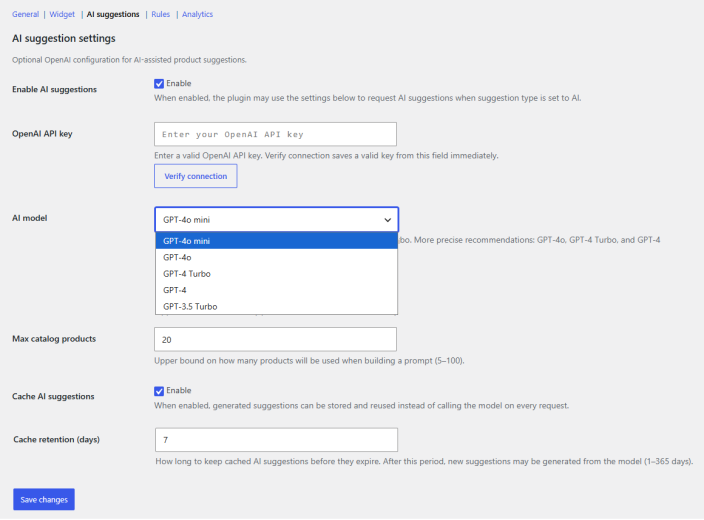
- Enable AI Suggestions: Enable AI suggestions for frequently bought together products. When enabled, the plugin may use the settings below to request AI suggestions when the suggestion type is set to AI.
- OpenAI API Key: Enter a valid OpenAI API key and verify the connection.
- AI Model: Choose your preferred AI model. Each model offers something different, so choose based on your preference:
- GPT-4o Mini
- GPT-4o
- GPT-4 Turbo
- GPT-4
- GPT-3. Turbo
- Max Catalog Products: Set the maximum number of products that will be used when building the prompt (5 – 100).
- Cache AI Suggestions: Enable caching AI suggestions. When enabled, generated suggestions can be stored and reused instead of calling the model on every request.
- Cache Retention (Days): Set how long to keep cached AI suggestions before they expire. After this period, new suggestions may be generated from the model (1–365 days).
Rule Management for Frequently Bought Together Bundles
↑ Back to topCreate and manage rules to control frequently bought together bundles. Go to WooCommerce > Settings > Frequently Bought Together > Rules and create new rules.
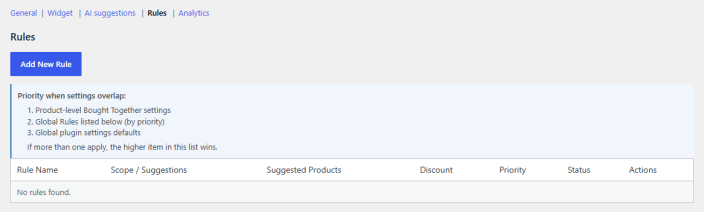
Click on the “Add New Rule” button to create a new rule. Here you will find the following settings:
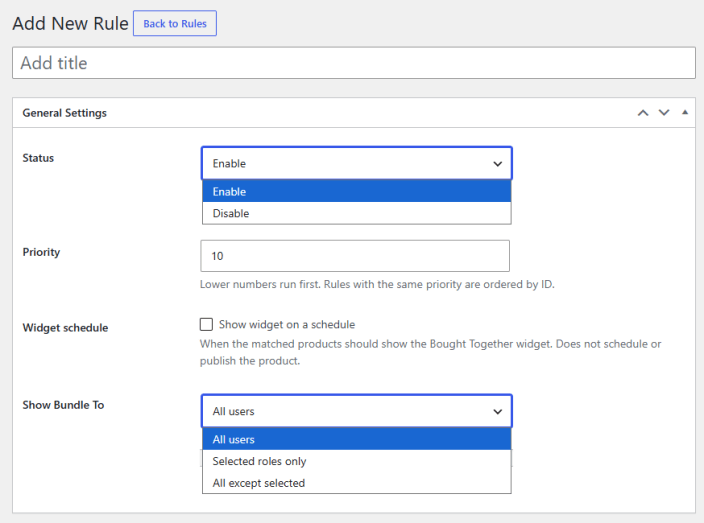
- Rule Title: Enter a title for the rule.
General Settings for the rule
↑ Back to top- Status: Set the status of the rule as enabled or disabled
- Priority: Add a priority for the rule. Lower numbers have higher priority.
- Widget Schedule: Click the checkbox to show the frequently bought together widget on a schedule.
- Widget Visible From: Choose the starting date for displaying the widget.
- Widget Visible Until: Choose the closing date for displaying the widget.
- Days of Week: Select the specific days of the week for which the widget will be displayed. Leave empty to apply to all days of the week. When a start and/or end date is set, selected days of the week only apply on matching weekdays within that date range.
- Show Bundle To: Choose whom to show the bundle widget. You can select as:
- All Users
- Selected Roles Only
- All Except Selected
- Roles: Select the user role(s) for which you want to restrict or display the widget.
Product Targeting
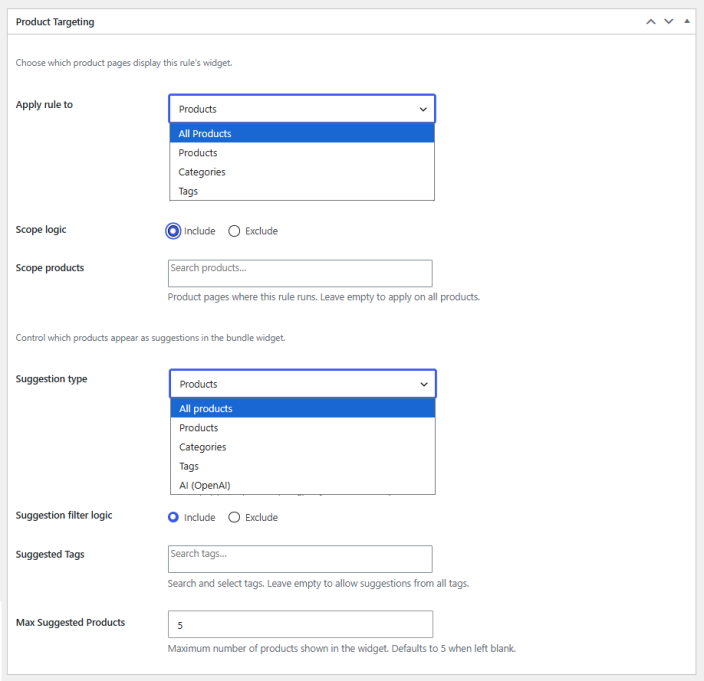
↑ Back to top- Apply Rule To: Choose how to target the rule. You can choose the following:
- All Products
- Products
- Categories
- Tags
- Scope Logic: Choose the logic for targeting. You can either include or exclude the selected products/categories/tags.
- Scope Products/Categories/Tags: Choose the products, categories, or tags that you want to include or exclude from the scope of the rule.
- Suggestion Type: Choose what to show in suggestions. You can select between the following options:
- All Products
- Products
- Categories
- Tags
- Suggestion Filter Logic: Use the include or exclude logic to filter the selected type.
- Suggested Products/Categories/Tags: Select the specific product, category, or tags that you want to show in the bundle.
- Max Suggested Products: Choose the maximum number of products to be shown in the widget.
Discount Settings
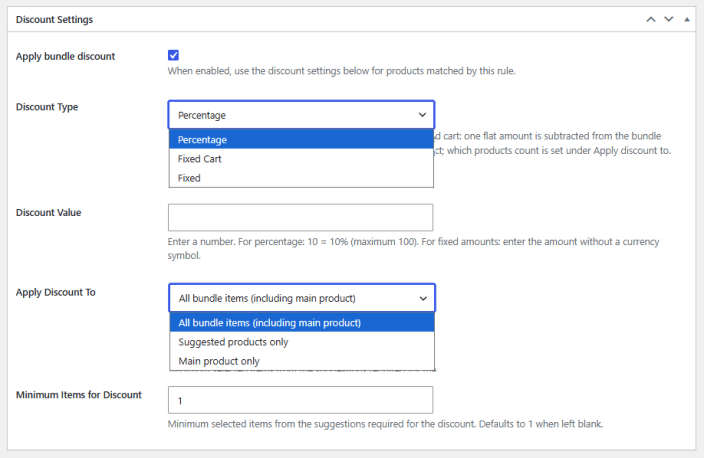
↑ Back to top- Apply Bundle Discount: Check the box to enable discounts for the bundle products.
- Discount Type: Choose the discount type. You have the following options:
- Percentage: A percentage is taken off the eligible bundle total.
- Fixed Cart: One flat amount is subtracted from the bundle once.
- Fixed: That flat amount is applied once per eligible product; the count of which products is set under Apply discount to.
- Discount Value: Enter the discount value. For percentage: 10 = 10% (maximum 100). For fixed amounts: enter the amount without a currency symbol.
- Apply Discount To: Choose what to apply the discount to:
- All bundle items (including main product)
- Suggested products only
- Main product only
- Minimum Items for Discount: Set the minimum selected items from the suggestions required for the discount. Defaults to 1 when left blank.
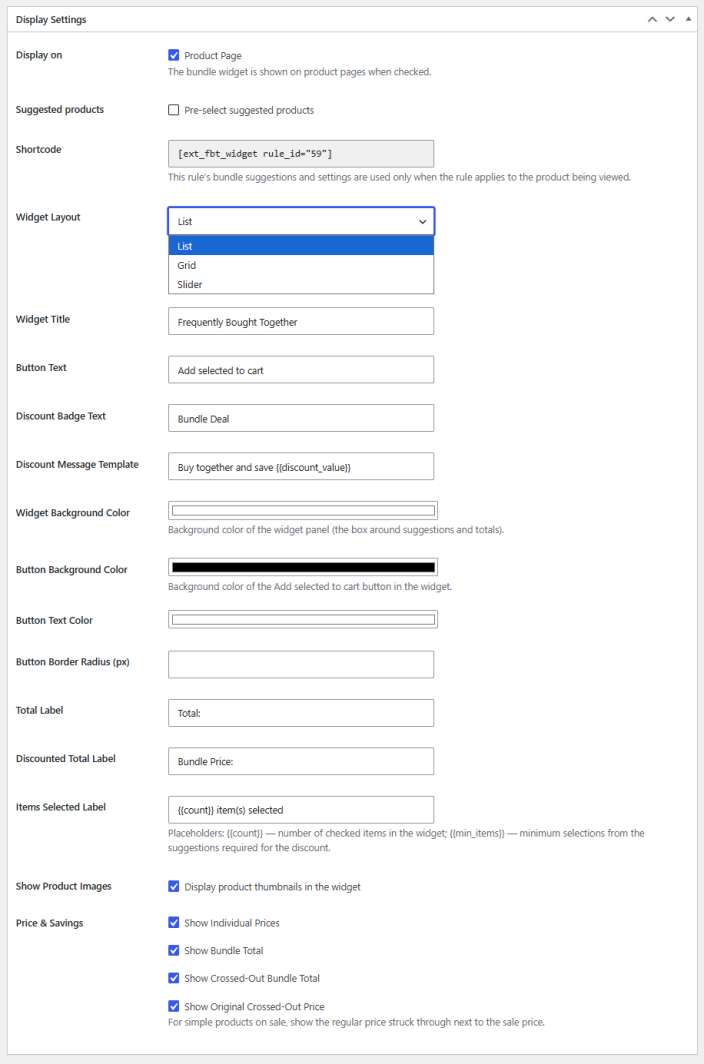
Display Settings
↑ Back to top- Display on: Enable to display the widget on product pages.
- Suggested Products: Check the box to display pre-selected suggested products.
- Shortcode: Use the shortcode to display the bundle widget.
- Widget Layout: Choose the preferred layout to display the widget.
- List
- Grid
- Slider
- Widget Title: Enter the title for the bundle widget.
- Button Text: Add text for the frequently bought together bundle widget.
- Discount Badge Text: Enter the text for the discount badge.
- Discount Message Template: Set the template for the discount message.
- Widget Background Color: Choose the background color for the widget panel.
- Button Background Color: Set the background color of the Add selected to cart button in the widget.
- Button Text Color: Select the color for the text of the button.
- Button Border Radius (px): Set the radius for the border of the button.
- Total Label: Add a label for the “Total” amount in the widget.
- Discounted Total Label: Add a label for the “Discounted Total”.
- Items Selected Label: Set the label for the selected items. Use Placeholders: {{count}} – number of checked items in the widget; {{min_items}} – minimum selections from the suggestions required for the discount.
- Show Product Images: Click the checkbox to display the product images in the widget.
- Price & Savings: Choose which prices and savings to show on the widget. You can enable/disable the following:
- Show Individual Prices
- Show Bundle Total
- Show Crossed-Out Bundle Total
- Show Original Crossed-Out Price
How Rule Priority Works
↑ Back to topPriority when settings overlap:
- Product-level Bought Together settings
- Global Rules listed below (by priority)
- Global plugin settings defaults
If more than one applies, the higher item in this list wins.
Analytics Dashboard
↑ Back to topKeep track of the performance of all frequently bought together product bundles with an advanced analytics dashboard. Go to WooCommerce > Settings > Frequently Bought Together > Analytics, and here you will find the following information:
Filters
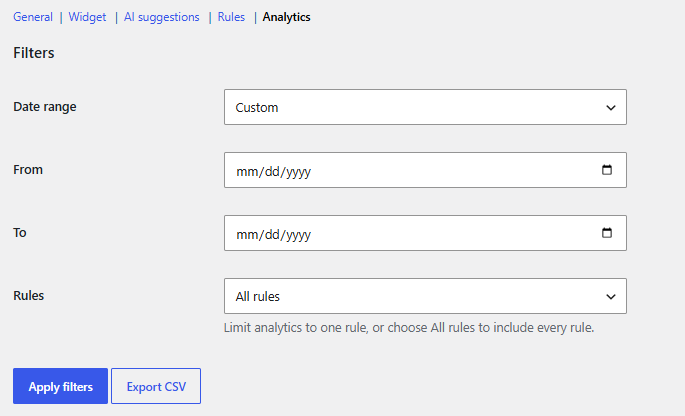
↑ Back to topUse filters to view specific data. You have the following options:
- Date Range: Choose the date range for which you want to see the data. You can choose between the following:
- Custom
- Last 7 Days
- Last 30 Days
- Last 3 Months
- From: Select the starting date.
- To: Select the closing date.
- Rules: Choose the rule(s) for which you want to see the data. You can select all rules or a specific rule.
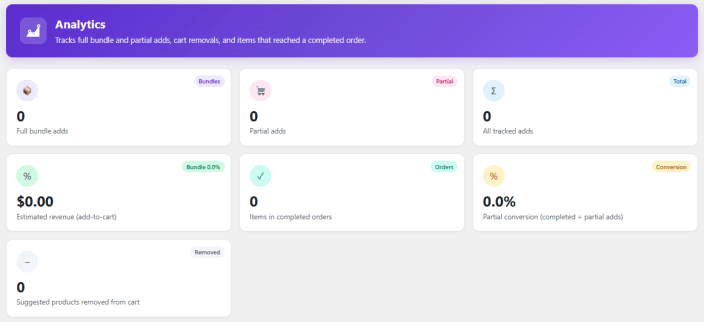
The dashboard displays the following information for the selected range:
- Full bundle adds
- Partial adds
- All tracked adds
- Estimated revenue (add-to-cart)
- Items in completed orders
- Partial conversion (completed ÷ partial adds)
- Suggested products removed from cart
You can also see intuitive graphs and charts for trends:
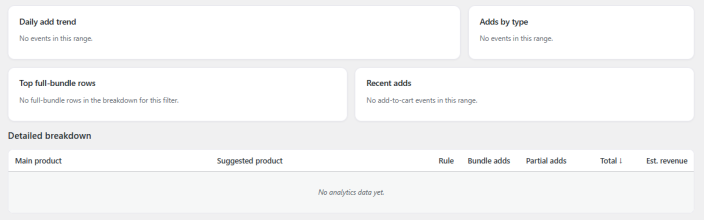
- Daily add trend
- Adds by type
- Top full-bundle rows
- Recent adds
And a table for a detailed breakdown consisting of information, including main product, suggested product, rule, bundle adds, partial adds, total, and estimated revenue.