
Fraud Shield for WooCommerce is your smart defence against fake signups and spam orders. It uses intelligent validation across registration, billing, shipping, and technical fields to block suspicious activity, keeping your store secure.
This document provides insights into the extension’s requirements, installation, functionality, and usage to help you maximise its features.
Installation
↑ Back to topTo start using a product from WooCommerce.com, you can use the “Add to store” functionality on the order confirmation page or the My subscriptions section in your account.
- Navigate to My subscriptions.
- Find the Add to store button next to the product you’re planning to install.
- Follow the instructions on the screen, and the product will be automatically added to your store.
Alternative options and more information at:
Managing WooCommerce.com subscriptions.

How it works
↑ Back to topFraud Shield for WooCommerce helps prevent spam orders and fake user registrations. It validates user registration and order details (billing, shipping, etc.), and checks technical data like IP address, device type, OS, domain, and subdomain to block suspicious activity.
The extension also logs blocked user activity and provides detailed debug and block logs. If a user attempts to register or place an order using blocked data, their activity is recorded as a “Blocked User” for review.
Types of rules
↑ Back to top- Block disposable or suspicious email domains.
- Detect and block users by IP address and device type (e.g., mobile, desktop, bot).
- Block spam user registrations using field-level validation.
- Prevent fake or suspicious orders by validating checkout fields.
- Validate billing and shipping details (including name, phone, email, and ZIP code).
- Automatically record users who trigger blocked values as “Blocked Users“.
- Maintain a Blocked User Log with detailed info (IP, device, OS, etc.).
- Detect and block users by operating system (e.g., Android, Windows, Unknown OS).
- Maintain a Debug Log to track validation and blocking events.
Rule configuration best practices
↑ Back to top| Rule type | Fields covered | What it validates |
| Registration rules | Username, Email Username, and Email Domain | Blocks unwanted usernames, suspicious email prefixes, and disposable/fake email domains. |
| Billing address rules | First Name, Last Name, Address, City, State, Country, Pincode/Zipcode, Phone, and Company | Blocks suspicious or dummy values in customer billing information. Helps detect fake purchases. |
| Shipping address rules | First Name, Last Name, Address, City, State, Country, Pincode/Zipcode, Phone, and Company | Restricts delivery to risky locations or fake names; helpful to avoid fraudulent delivery attempts. |
| Technical rules | IP Address, Device Type, Browser Type, Operating System, Email Domain, User Role, and User ID | Filters orders based on suspicious IPs, bots, headless browsers, restricted OS/devices, and roles. |
1. Registration rules
Registration rules help protect your store from fake or spam user signups by validating key fields during the registration process. These rules target common patterns of abuse observed in fraudulent account creation.
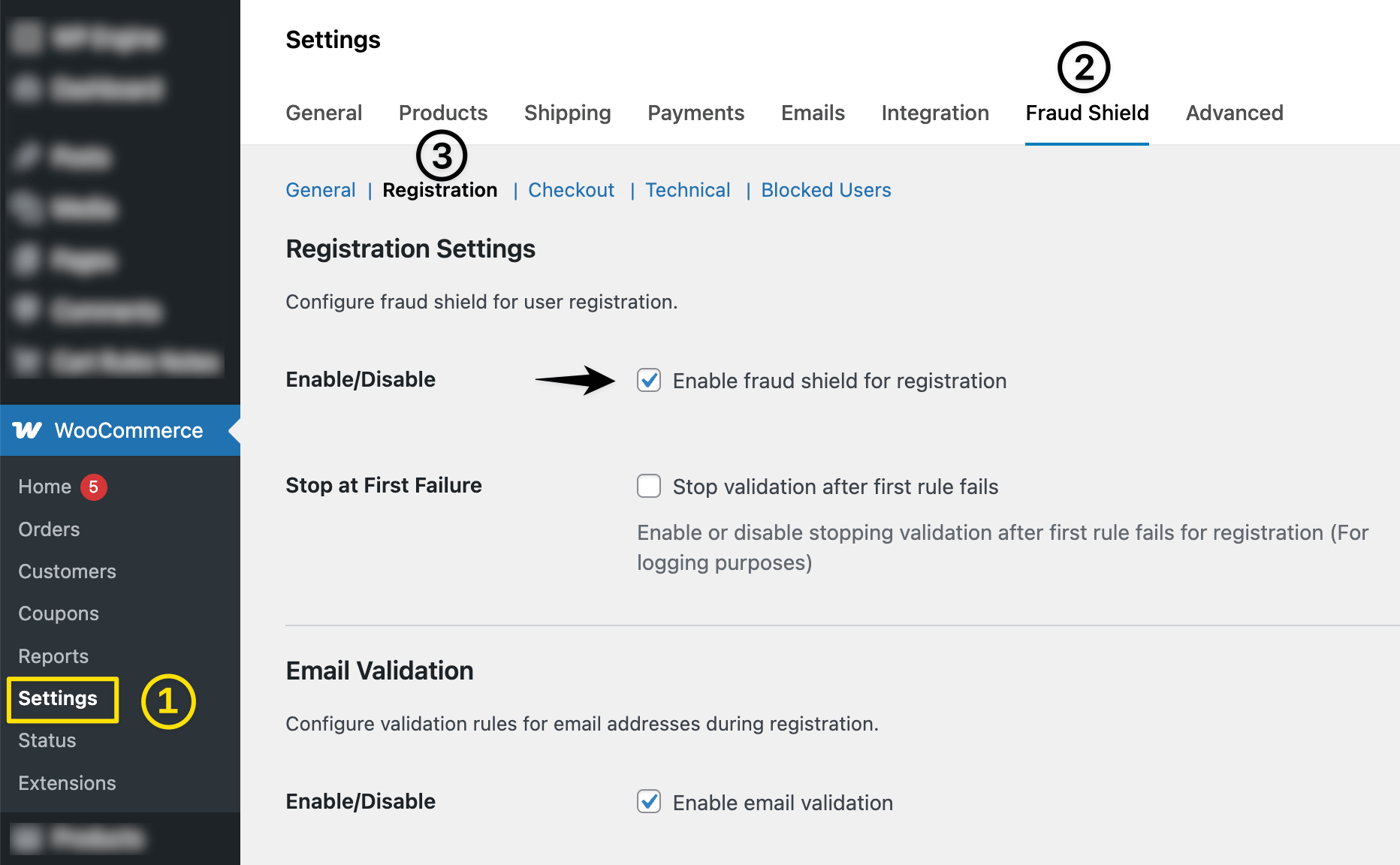
Go to WooCommerce > Settings > Fraud Shield > Registration, and you will be directed to a registration field validation configuration form where you can validate the following fields:
Configuration options:
- Username Validation Rule: Restrict special characters and block common or suspicious values, such as ‘test’, ‘admin’, or ‘user123’. You can also block random or bot-like patterns, such as usernames containing only numbers or gibberish strings.
- Email Username Validation Rule: Validate the part of the email address before the ‘@’ symbol. Block common or system-generated values, such as noreply@, test@, or usernames that contain only numbers (e.g., 123456@domain.com). Custom patterns can be blocked using simple rule logic.
- Email Domain Validation Rule: Block registrations from known disposable or spammy email domains such as mailinator.com, tempmail.com, or 10minutemail.com.
Common Issues:
- Genuine users are unable to register.
Fix: Go to Registration → Review blocked values for username or email domain/username → remove safe entries. - The registration form is not submitting.
Fix: Check if any mandatory rule is blocking the request → temporarily disable specific rules and test again. - Unexpected error message during signup.
Fix: Ensure each registration rule has a valid error message and is not conflicting with other plugins. - Validation is not triggering on the frontend.
Fix: Confirm that registration validation is enabled in global settings and the rule has at least one value added.
2. Checkout billing address rules
Checkout billing address rules are designed to validate billing information entered during the checkout process. These rules help prevent fake orders by blocking incomplete, invalid, or suspicious billing data.
From WooCommerce > Settings > Fraud Shield > Checkout > Billing, you will be directed to a form for configuring checkout billing fields validation.
Configuration options:
- Billing First Name: Block generic values like test, abc, or numeric-only names and/or disallow special characters or blank inputs.
- Billing Last Name: Similar to first name validation, block empty or suspicious values. and restrict generic inputs.
- Billing Address: Validate for minimum character length, presence of numeric street numbers, and block placeholders like xyz, address, or test.
- Billing City: Prevent fake cities, such as ‘test’, ‘unknown’, or ‘asdf’. Block special characters in the city.
- Billing State: Validate against a predefined list of states and block blank, undefined, or invalid state names.
- Billing Country: Restrict specific countries if needed and ensure only valid WooCommerce-supported country codes are used.
- Billing Pincode/Zipcode: Enforce numeric-only input, and block invalid or repeated patterns like 000000 or 123456.
- Billing Email: Validate format, block disposable domains, and optionally match domain or username rules similar to registration logic.
- Billing Phone: Block short or fake numbers, such as 9999999999, 123456, or 0000000000.
- Billing Company: Optionally block orders with placeholder values, such as ‘company’, ‘test’, or ‘n/a’, in the company field.
Each rule can be configured with the following options:
- Enable/Disable This Rule: Allow the admin to turn billing field validation on or off.
- Blocked Values for Frontend Validation: Block specific values entered in the billing field.
- Error Message: Show a clear message to the user when a blocked value is used.
Common issues:
- Valid billing details are being blocked.
Fix: Go to Billing Rules → Review blocked values for First Name, Last Name, City, etc., and remove safe entries. - The customer cannot proceed due to a billing error.
Fix: Check which billing field triggered the block in the Blocked Users log → Adjust the rule accordingly. - The error message is not appearing on the blocked entry.
Fix: Ensure the rule is enabled, and a proper error message is configured for the specific field. - Billing validation is not working.
Fix: Confirm billing validation is enabled globally and that blocked values exist for relevant billing fields. - Bulk users were blocked during the sale event.
Fix: Check if any generic keywords (e.g., “Sale”, “Offer”) were added to billing fields by mistake.
3. Checkout shipping address rules
Shipping address rules help ensure that the shipping details provided during checkout are accurate and not generated by bots or fake. These validations reduce delivery issues and help block fraudulent or suspicious orders.
From WooCommerce > Settings > Fraud Shield > Checkout > Shipping, you will be directed to a checkout shipping fields validation configuration form where you can validate the following fields:
Configuration options:
- Shipping First Name: Block generic values like test, abc, or numeric-only names.
- Shipping Last Name: Prevent empty, too-short, or suspicious inputs like xyz, user, or numbers.
- Shipping Address: Ensure the address contains both the street name and number. Block fake entries, such as ‘test’, ‘123’, or placeholder terms.
- Shipping City: Block invalid or nonsensical values like ‘abcd’, ‘test’, or ‘city’.
- Shipping State: Validate against blocked state values. Prevent invalid, blank, or placeholder entries.
- Shipping Country: Restrict specific countries if needed and enforce the use of valid WooCommerce-supported country codes.
- Shipping Pincode/Zipcode: Enforce numeric format, check for country-specific rules, and block patterns like 000000, 123456, or repeated digits.
- Shipping Phone: Block phone numbers that are too short, contain repeated digits, or appear to be obvious placeholders (e.g., 9999999999, 0000000000).
- Shipping Company: Optionally block generic or placeholder values, such as ‘company’, ‘test’, ‘n/a’, or blank fields.
Each rule can be configured with options like below:
- Enable/Disable This Rule: Allow the admin to turn shipping field validation on or off.
- Blocked Values for Frontend Validation: Block specific values entered in the shipping field.
- Error Message: Show a clear message to the user when a blocked value is used.
Common issues:
- Valid shipping address getting blocked.
Fix: Go to Shipping Rules → Check if the entered values (City, State, Country, etc.) are mistakenly blocked. - Users from certain regions are unable to proceed through the checkout.
Fix: Review Shipping Rules → Verify if Country or State values are too broadly restricted. - Blocked users are not showing the expected error.
Fix: Confirm that the validation is enabled for the specific shipping field and that an error message is configured. - Shipping field rules are not triggering.
Fix: Ensure Shipping Validation is enabled and the fields contain blocked values for testing. - Debug logs show a mismatched OS.
Fix: Enable Debug Logs in Global Settings → Check logs for actual OS detection → Adjust rules accordingly.
4. Technical rules
Technical rules refer to system-level validations, like IP address, browser, or device type, that indicate potential fraud.
Technical rules validate system-level and user metadata to identify and block suspicious activities based on the device, environment, and user properties. These rules add an advanced layer of protection beyond form field validation.
From WooCommerce > Settings > Fraud Shield > Technical, you will be directed to a technical fields validation configuration form where you can validate the following fields:
Configuration options:
- IP Address: Block specific IP addresses or IP ranges associated with spam, bots, or known fraud sources. You can also block IPs based on geolocation or repeated activity.
- Device Type: Detect and block specific device types such as bots, crawlers, or unknown devices. Allow only real browsers/devices like mobile, desktop, or tablet if needed.
- Browser Type: Validate the browser type (e.g., Chrome, Safari, Firefox). Block uncommon, outdated, or fake browser strings used by automated scripts or bots.
- Operating System: Block users based on OS, such as “Unknown OS”, outdated versions, or specific types like Linux, Android, or Windows when needed.
- Email Domain: Validate technical trustworthiness of email domains used during checkout or registration. Block suspicious or blacklisted domains even if the email format is correct.
- User Role: Restrict actions or access based on WordPress user roles (e.g., block registrations or orders from specific roles like subscriber, customer, or custom roles).
- User ID: Block specific user accounts by their WordPress User ID — useful for preventing access from known suspicious users, even if they bypass other validations.
Troubleshooting common issues:
- Issue: Legitimate users blocked.
Fix: Check “Blocked Users” logs → Whitelist safe values in rules. - Issue: All users from a specific browser are blocked.
Fix: Go to Technical → Browser Type → Remove browser name from blocked list. - Issue: Mobile users are unable to register.
Fix: Go to Technical → Device Type → Make sure “Mobile” is not in the blocked list. - Issue: Blocked despite a valid email.
Fix: Check if the email domain is in the blocked list under Technical Rules. - Issue: Debug logs show a mismatched OS.
Fix: Enable Debug Logs in Global Settings → Check logs for actual OS detection → Adjust rules accordingly.
Getting started: creating rules
↑ Back to topAdding registration rules
↑ Back to topNavigate to WooCommerce > Settings > Fraud Shield > Registration. You will be directed to a registration field validation configuration form where you can validate below fields:
- Username Validation: Block usernames such as test123, admin, user999, or those containing only numbers (123456).
- Email Username Validation: Block emails like noreply@domain.com or abc123@domain.com (too short or bot-like).
- Email Domain Validation: Block domains like tempmail.com and mailinator.com.
Adding checkout billing rules
Navigate to WooCommerce > Settings > Fraud Shield > Checkout > Billing. You will be directed to a checkout billing fields validation configuration form where you can validate below fields:
- Billing First Name: Block inputs like ‘test’ and ‘abc’.
- Billing Last Name: Reject entries such as 123, last, or unknown.
- Billing Address: Disallow entries such as test addresses, 123, or –.
- Billing City: Block cities named ‘test’, ‘asdf’, or ‘fakecity’.
- Billing State: Block empty or invalid states matching the selected country.
- Billing Country: Block orders from restricted countries specifically.
- Billing Pincode/Zipcode: Block codes like 000000, 123456.
- Billing Email: Block disposable emails, such as user@tempmail.com.
- Billing Phone: Reject phone numbers like 0000000000, 123456789, and any numbers that are added to the block list.
- Billing Company: Disallow generic terms such as ‘company’ and ‘test’.
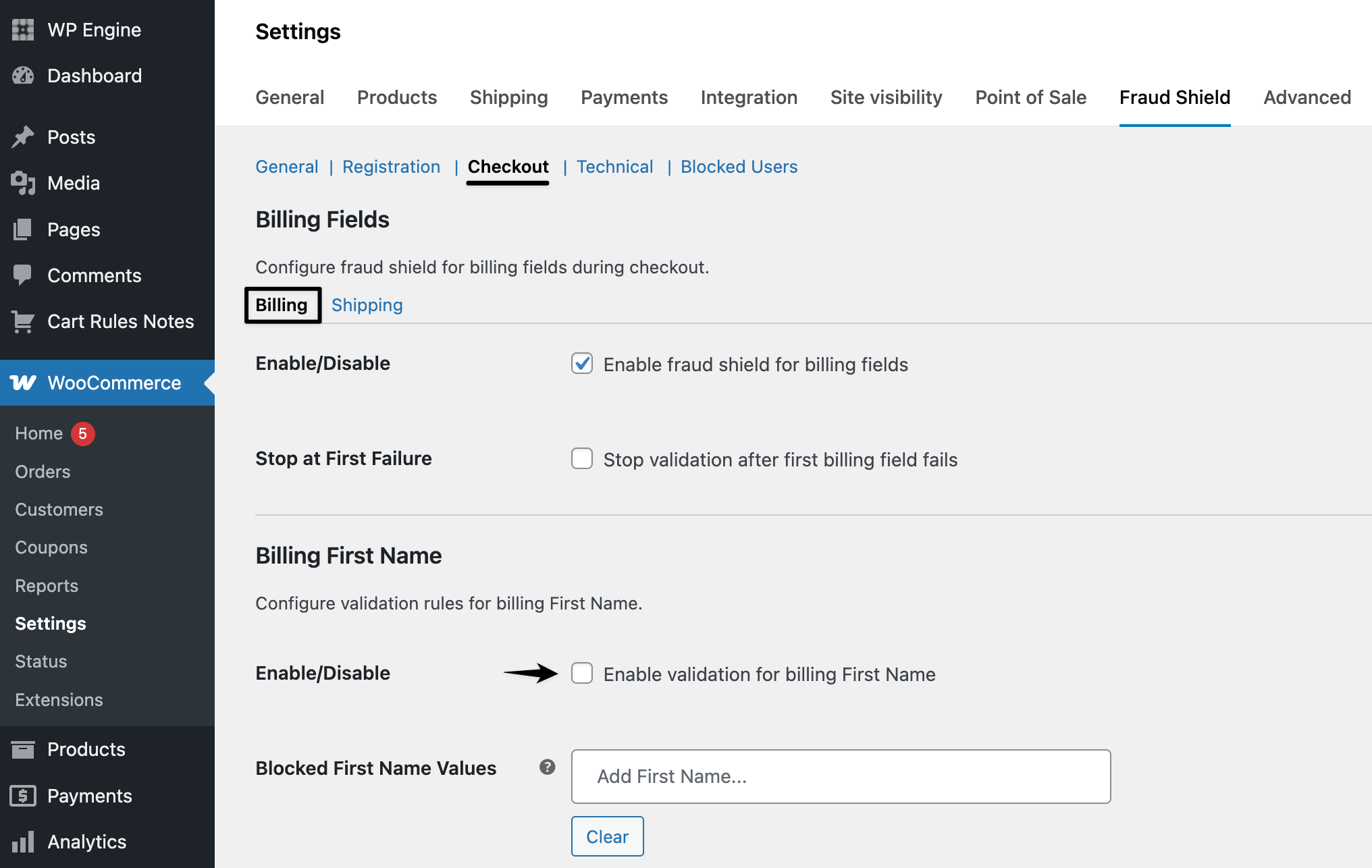
Each rule can be configured with options like below:
- Enable/Disable This Rule: Allow the admin to turn billing field validation on or off.
- Blocked Values for Frontend Validation: Block specific values entered in the billing field.
- Error Message: Show a clear message to the user when a blocked value is used.
Adding checkout shipping rules
↑ Back to topNavigate to WooCommerce > Settings > Fraud Shield > Checkout > Shipping. You will be directed to a checkout shipping fields validation configuration form where you can validate below fields:
- Shipping First Name: Block names like test, 123, or gibberish like xcvbn.
- Shipping Last Name: Block entries like last, unknown, or just numbers.
- Shipping Address: Block addresses, such as xyz, 123, or a test location.
- Shipping City: Reject values like ‘city’, ‘test’, or ‘zzz’.
- Shipping State: Prevent orders with undefined or mismatched states.
- Shipping Country: Block specific high-risk countries.
- Shipping Pincode/Zipcode: Block entries like 111111, 000000, or codes with invalid lengths.
- Shipping Phone: Reject numbers like 9999999999, 0000000000, or entries shorter than 8 digits.
- Shipping Company: Block entries such as test companies, dummies, or blank values.
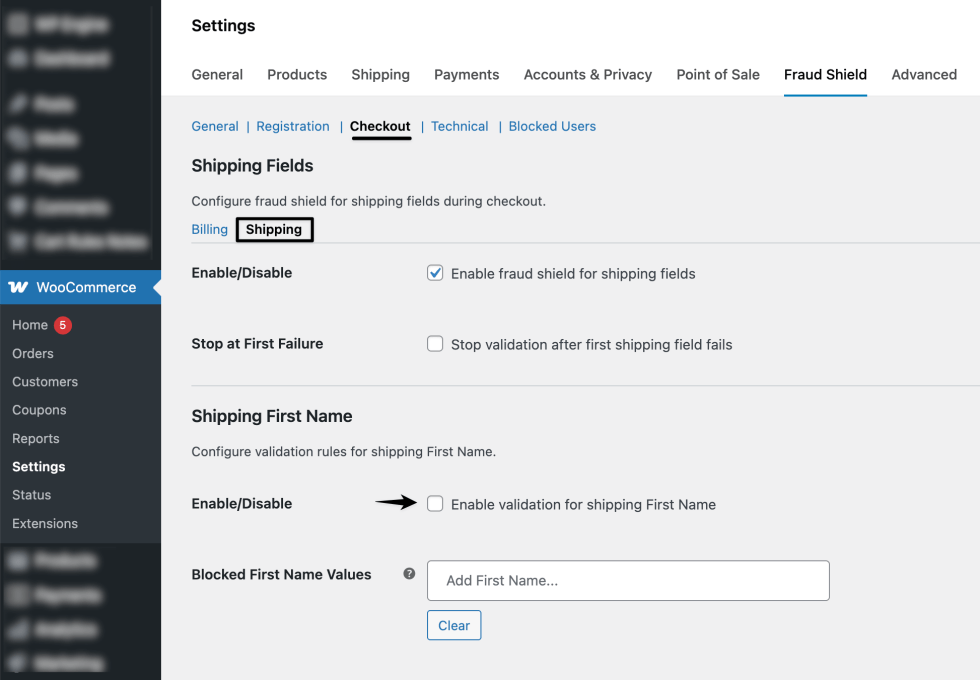
Each rule can be configured with options like below:
- Enable/Disable This Rule: Allow the admin to turn shipping field validation on or off.
- Blocked Values for Frontend Validation: Block specific values entered in the shipping field.
- Error Message: Show a clear message to the user when a blocked value is used.
Adding technical rules
↑ Back to topNavigate to WooCommerce > Settings > Fraud Shield > Technical. You will be directed to a technical fields validation configuration form where you can validate below fields:
- IP Address: Block all traffic from IPs like 103.45.66.77 (IPv4) or 2001:0db8:85a3:0000:0000:8a2e:0370:7334 (IPv6)
- Device Type: Block users detected as Desktop, Tablet or Mobile.
- Browser Type: Block outdated or fake user agents like Chrome, Firefox, or Safari.
- Operating System: Block users from MacOS, Windows XP, or custom-detected as Unknown.
- Email Domain: Block emails ending with @10minutemail.com or any other test domain.xyz domain.
- User Role: Prevent users with the role subscribers from placing orders (e.g., internal access only).
- User ID: Block known spam users by specific WordPress user ID, like 302,511, etc.
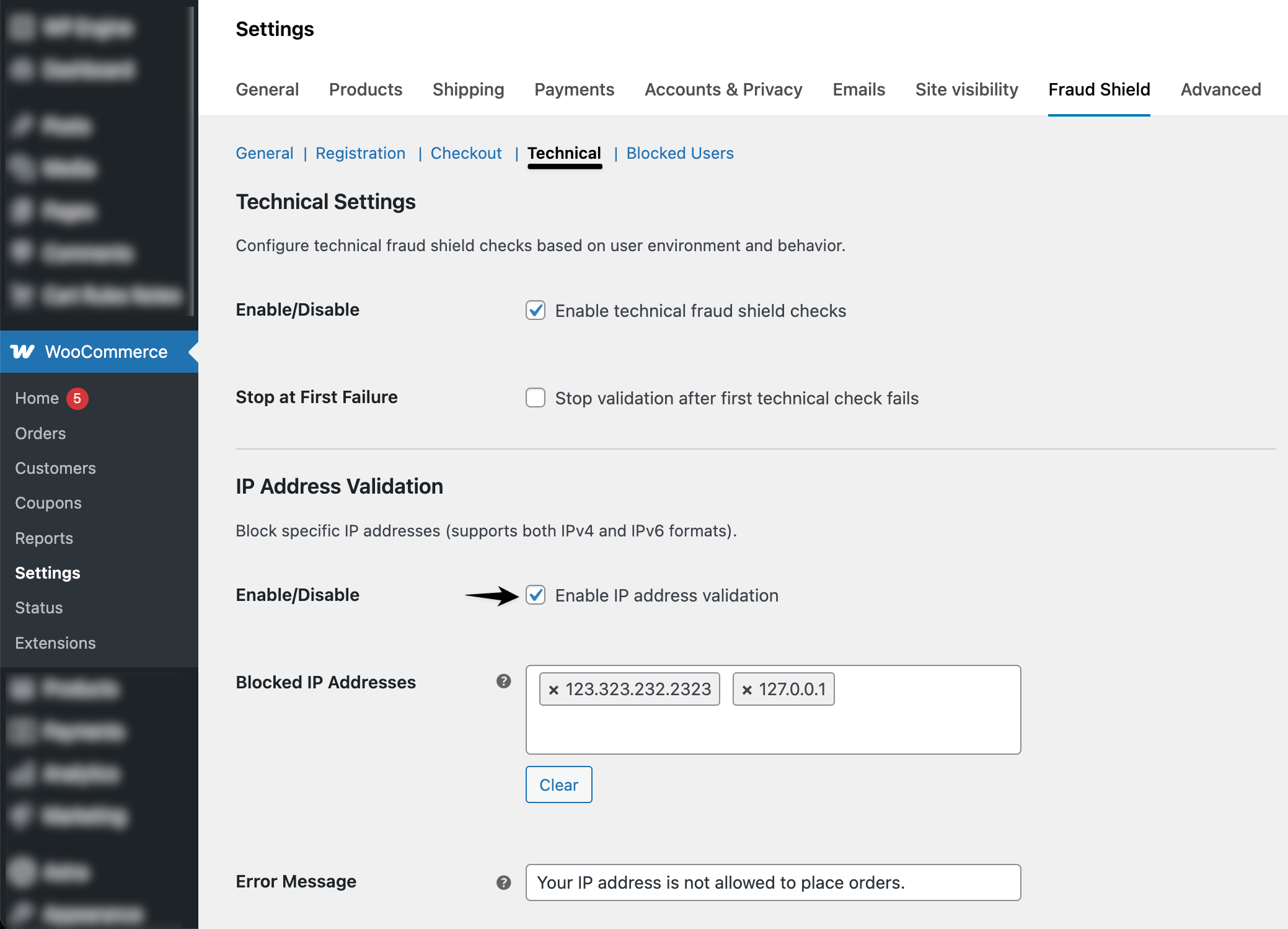
Each rule can be configured with options like below:
- Enable/Disable This Rule: Allow the admin to turn shipping field validation on or off.
- Blocked Values for Frontend Validation: Block specific values entered in the technical field.
- Error Message: Show a clear message to the user when a blocked value is used.
How to configure AI Detection
↑ Back to topAI Detection allows you to use AI-powered fraud analysis to identify potentially fraudulent WooCommerce orders. It reviews checkout data using an LLM model and gives each order a fraud risk score.
You can use AI Detection alone or combine it with your existing manual fraud rules.
When to use AI Detection
↑ Back to topUse this feature when you want to:
- Add AI-powered fraud analysis to your checkout process
- Reduce manual review of suspicious orders
- Block high-risk orders based on an AI risk score
- Combine manual fraud rules with AI-based detection
- Improve fraud protection for stores with frequent suspicious orders
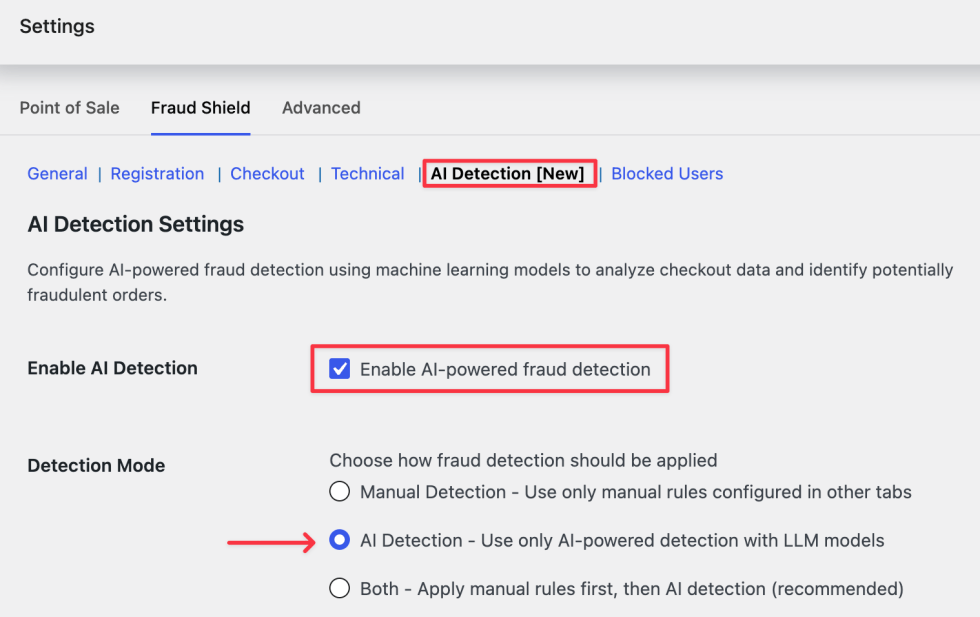
Step 1: Go to AI Detection settings
↑ Back to topFrom your WordPress dashboard, go to:
Fraud Shield → AI Detection
Here, you can configure how AI-powered fraud detection should work on your store.
Step 2: Enable AI Detection
↑ Back to topFind the Enable AI Detection option and enable it.
This allows the plugin to use AI-powered fraud detection during checkout.
Step 3: Select detection mode
↑ Back to topIn the Detection Mode setting, choose how fraud detection should be applied.
Manual Detection
Use this option if you only want to use the manual fraud rules configured in other plugin tabs.
AI Detection
Use this option if you only want the AI model to detect suspicious orders.
Both
Use this option if you want the plugin to apply manual rules first and then run AI Detection.
This is the recommended option because it combines your existing fraud rules with AI-powered analysis.
[Image placeholder: Detection Mode dropdown]
Step 4: Select LLM provider
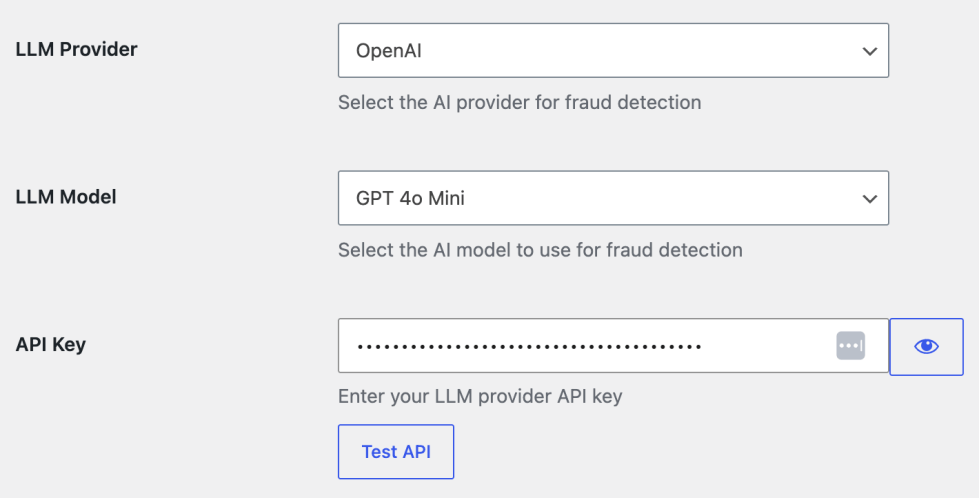
↑ Back to topIn the LLM Provider setting, select the AI provider you want to use.
Example:
This provider will be used to connect your store with the selected AI model.
Step 5: Select LLM model
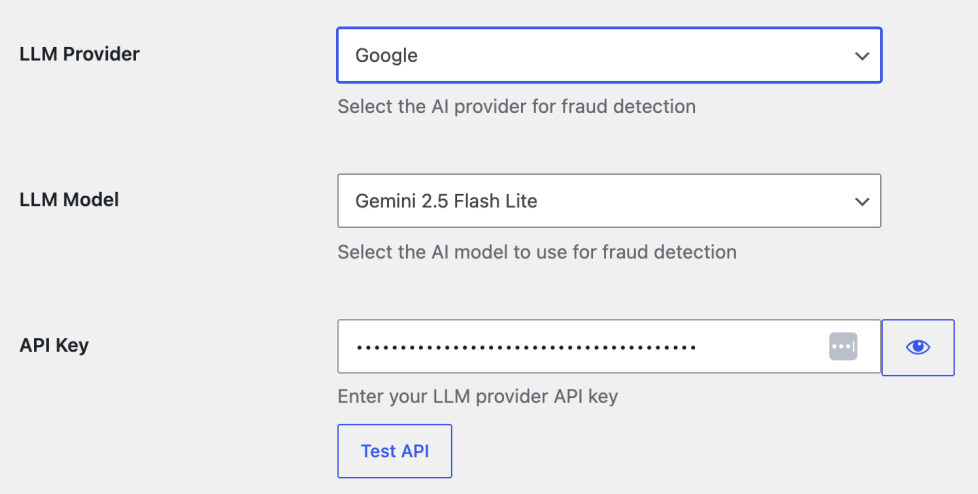
↑ Back to topIn the LLM Model setting, select the AI model you want to use for fraud detection.
Example:
Gemini 2.5 Flash Lite
The selected model will analyze checkout data and generate the fraud risk score.
Step 6: Add your API key
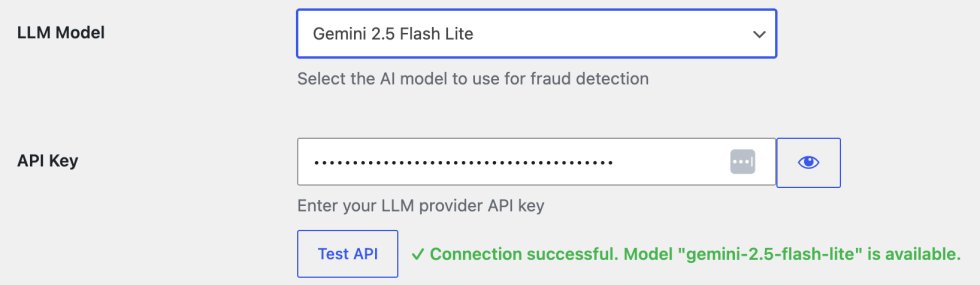
↑ Back to topEnter your LLM provider API key in the API Key field.
This key is required to connect the plugin with your selected AI provider.
After adding the API key, click Test API to confirm the connection is working.
Step 7: Set AI Threshold Value
↑ Back to topSet the AI Threshold Value between 0 and 100.
Orders with an AI score equal to or higher than this value will be blocked.
Example:
If the threshold is set to 70, any order with an AI fraud score of 70 or above will be blocked.

Global settings
↑ Back to topThe General Settings section allows store owners to manage Fraud Shield’s core functionality. It provides global controls for activating or deactivating the extension, configuring how fraud detection rules behave, and managing logging for security insights and debugging.
These settings help ensure that validation rules are applied efficiently while offering visibility into all blocked attempts.
Steps:
- Navigate to WooCommerce > Settings > Fraud Shield > General in your store’s WP Admin dashboard.
- Enable the “Fraud Shield” option. (required)
- Enable the option “Log all blocked fraud attempts” if you want all blocked actions logged (optional)
- Enable the “Enable debug logs” option, so that developers or store admins can trace validation behaviour and troubleshoot. (optional)
- Save your changes.
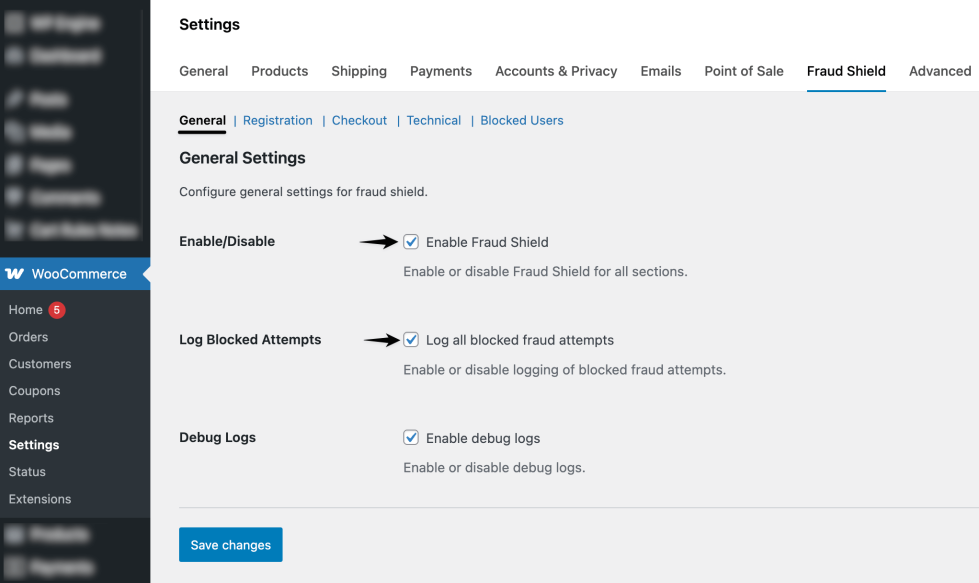
All fraud detection rules and validations will now run.
Blocked user section
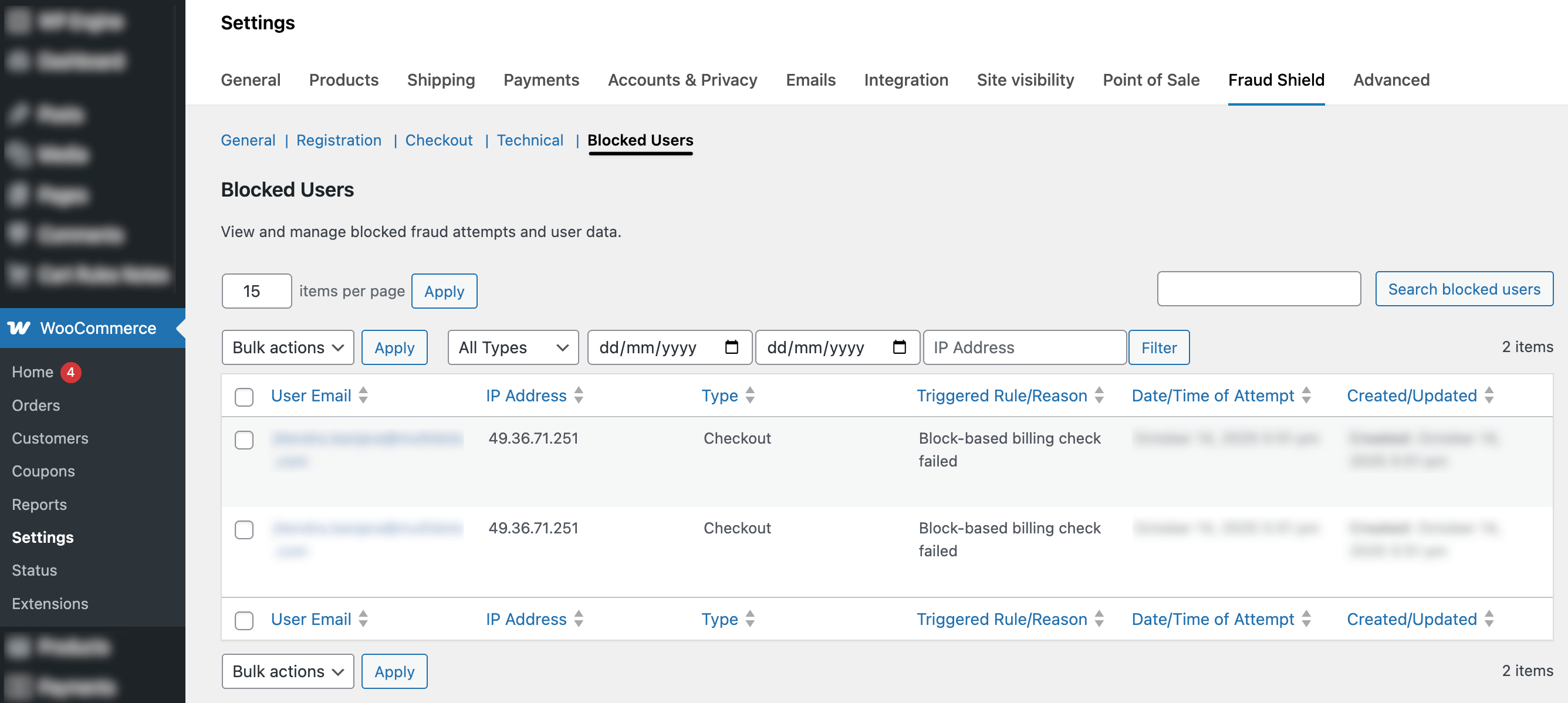
↑ Back to topThe Blocked user section in Fraud Shield provides a comprehensive dashboard listing all users who were blocked due to failing fraud detection rules during registration or checkout.
Navigate to WooCommerce > Settings > Fraud Shield > Blocked Users in your WP Admin dashboard.
| Field | Description |
| Date & Time | Timestamp of when the user was blocked. |
| Block Type | Indicates whether the block occurred during Registration or Checkout. |
| IP Address | The IP address from which the blocked attempt was made. |
| Email Address | The email entered by the user during the blocked attempt. |
| Device Type | The type of device used (e.g., Desktop, Mobile, Tablet). |
| Browser Type | The browser used (e.g., Chrome, Firefox, Safari). |
| Operating System | The OS used by the user (e.g., Windows, Android, macOS). |
| Blocked Field | The specific field that triggered the validation rule (e.g., email domain). |
| Blocked Value | The actual value entered was found to be blocked. |
| Validation Rule | Name or type of the rule that was triggered (e.g., “Blocked Email Domain”). |
Filtering options:
You can narrow down the blocked user list using:
- Date Range: View blocked users within a specific time period
- Block Type: Filter by Registration or Checkout-related blocks
- IP Address: Identify multiple blocks from the same IP for tracking malicious behaviour
Example: Prevent fraudulent registrations from specific email domains
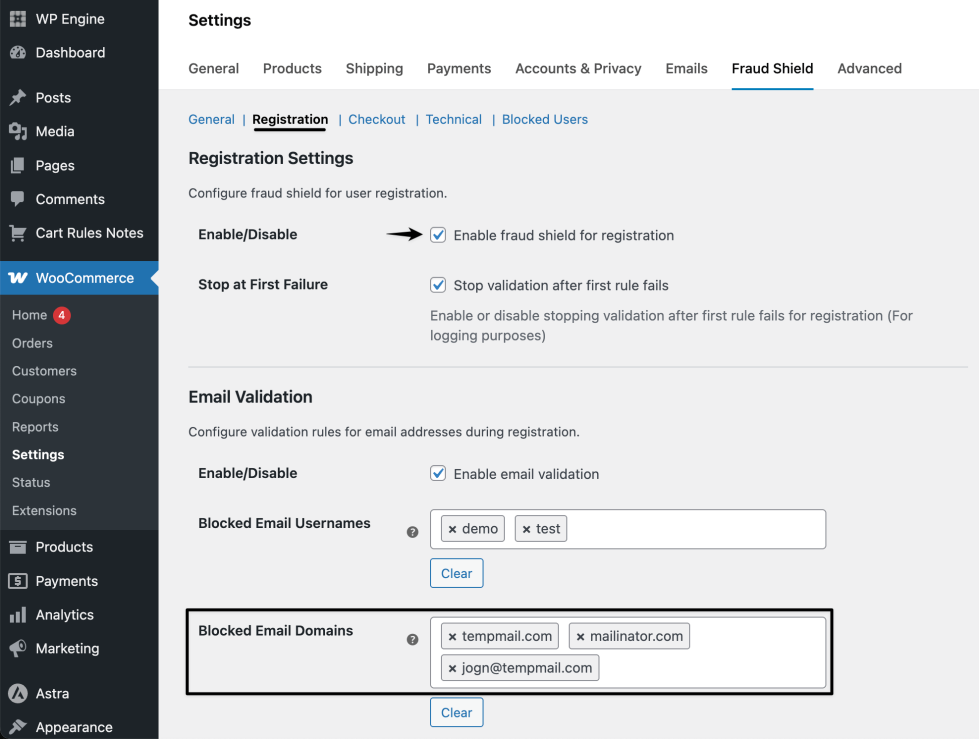
↑ Back to topScenario: You want to prevent fake account creation using disposable emails and suspicious addresses, commonly used for testing or fraudulent purposes.
Steps to create the validation rule:
- In your store’s WP Admin dashboard, go to WooCommerce > Settings > Fraud Shield.
- Add a Registration Rule:
- Enable fraud shield for registration
- Enable email validation
- Add value in block email domains like tempmail.com, mailinator.com
- Save your changes for the registration rule
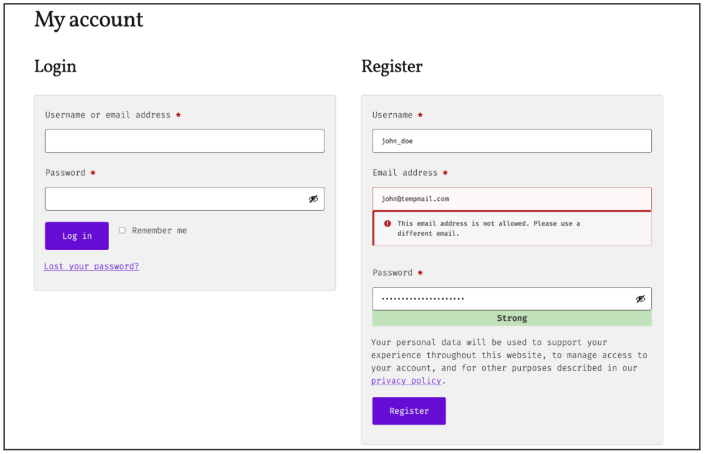
- Now, if a customer adds an email with a domain name that is blocked in the configuration, then they will show an error message.
FAQs
↑ Back to topWhat is AI Detection?
↑ Back to topAI Detection is a fraud protection feature that uses an AI model to analyze checkout data and identify potentially fraudulent orders.
Do I need an API key?
↑ Back to topYes. You need to add an API key from your selected LLM provider to use AI Detection.
Which detection mode should I use?
↑ Back to topThe recommended option is Both. It applies manual fraud rules first and then uses AI Detection for deeper analysis.
What does the AI Threshold Value mean?
↑ Back to topIt decides how strict the AI fraud detection should be. Orders with a score equal to or higher than this value will be blocked.
Can I use only manual fraud rules?
↑ Back to topYes. Select Manual Detection if you only want to use the existing manual fraud rules.
Can I test the API connection?
↑ Back to topYes. After adding your API key, click Test API to confirm that the connection is working.
Translation
↑ Back to topThis extension is translation-ready, allowing you to edit the portable object (PO) files and translate the text into any language.
The steps for translation are as follows:
- Select the language you would like to translate the extension into (e.g., French).
- Download and install Poedit.
- In the folder
fraud-shield-for-woocommerce > languages folder, open the file named fraud-shield-for-woocommerce.pot using Poedit. - Create a new translation file by clicking the Create new translation button. Choose the source text and set its corresponding French text in the Translation Text Area.
- Save the changes.
- Save the file name as fraud-shield-for-woocommerce-fr_FR.po.
If you are using WordPress Version 3.9.13 or below, then inwp-config.php, define the WPLANG as French, as shown below:
Syntax is define(‘WPLANG’, ‘fr_FR’);If you are using WordPress Version 4.0 or above, go to the navigate to Settings > General in your WP Admin dashboard and select “French” as the site language.
Support
↑ Back to topIf you have any questions before purchasing a subscription for this extension, reach out to us by filling out this pre-sale form.
Additionally, you can send us extension customization requests — however, this may incur an additional cost. If you’ve already purchased a subscription to this extension and require support, please contact us.

