Google address autofill for WooCommerce lets your customers autofill the address on checkout using Google Maps suggestions. The admin can also autocomplete the user’s address on the order detail page.
Installation
↑ Back to top- Download Google Autofill Customer Addresses for WooCommerce and have your .zip file
- At the WordPress admin panel, go to the Plugins section, and click ‘Add New’ to upload and install the plugin you recently downloaded from WooCommerce.com.
- Upload the .zip file to proceed with the installation.
- Wait until the plugin installs. After successful installation, activate the plugin and move on to plugin configuration.
Get Your Google API Key and Map ID
↑ Back to topThis guide shows how to generate a Google Maps API key and a Map ID from Google Cloud Console. Both values are required to load maps, address autocomplete, and Advanced Markers in the plugin.
Prefer video? Watch how to create your Google API key and Map ID, or follow the steps below.
Prerequisites
↑ Back to top- A Google account with access to Google Cloud Console
- A billing account (Google Maps Platform APIs require billing, even within the free usage tier)
Step 1: Create or Select a Project
↑ Back to top- Open Google Cloud Console and sign in.
- Click the project selector at the top of the page.
- Select an existing project, or click New Project, enter a name, and click Create.
Step 2: Enable Billing
↑ Back to top- Open the navigation menu and go to Billing.
- Link a billing account to the project.
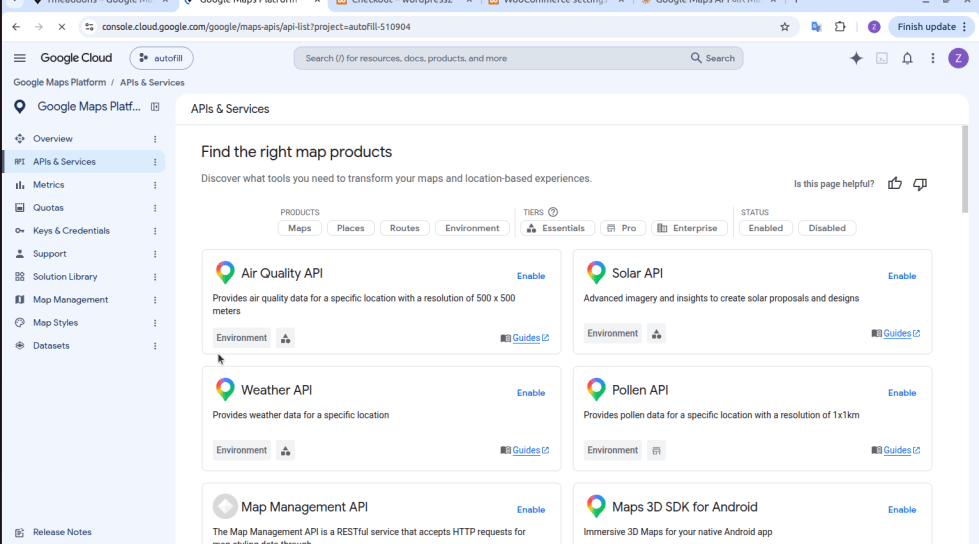
Step 3: Enable the Required APIs
↑ Back to top- Go to Google Maps Platform > APIs & Services.
- Find Maps JavaScript API and click Enable.
- Enable any other APIs your setup needs, such as Places API (address autocomplete) and Geocoding API.
Step 4: Generate the API Key
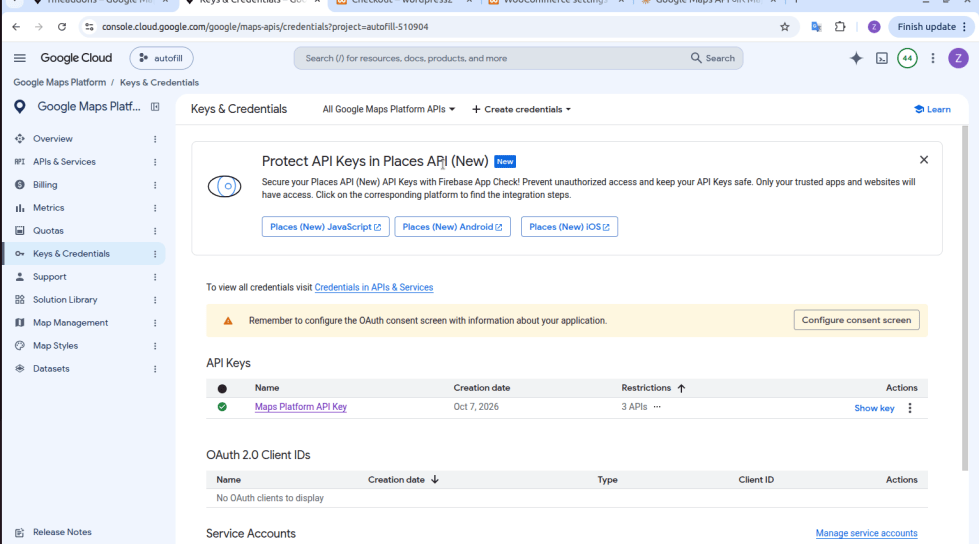
↑ Back to top- Go to Google Maps Platform > Keys & Credentials.
- Click Create credentials > API key.
- The new key appears under API Keys. Click Show key and copy it.
Step 5: Restrict the API Key
↑ Back to topRestricting the key prevents unauthorized use and unexpected charges.
- Click the key name to open its settings.
- Under Application restrictions, select Websites and add your domain, for example, *.yoursite.com/*.
- Under API restrictions, select Restrict key and choose only the APIs you enabled in Step 3.
- Click Save.
Step 6: Create the Map ID
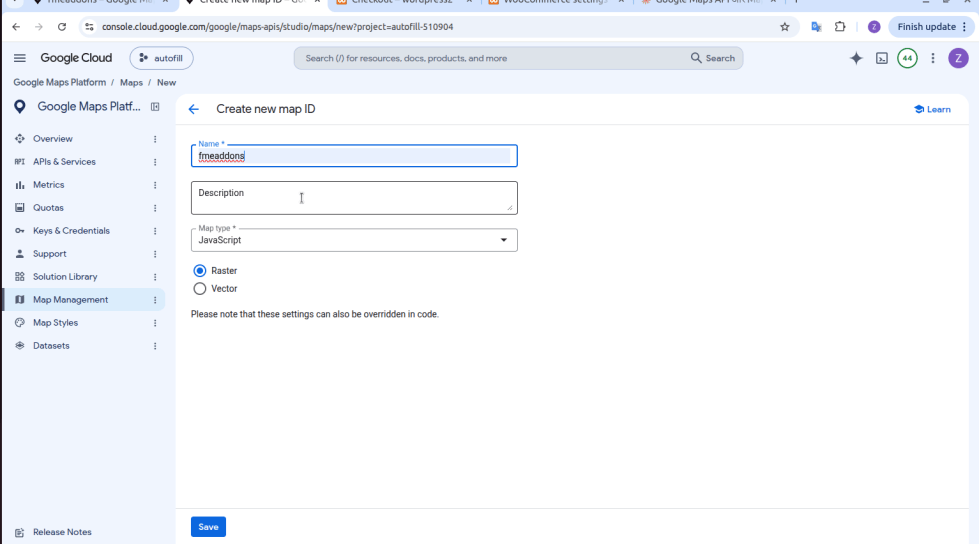
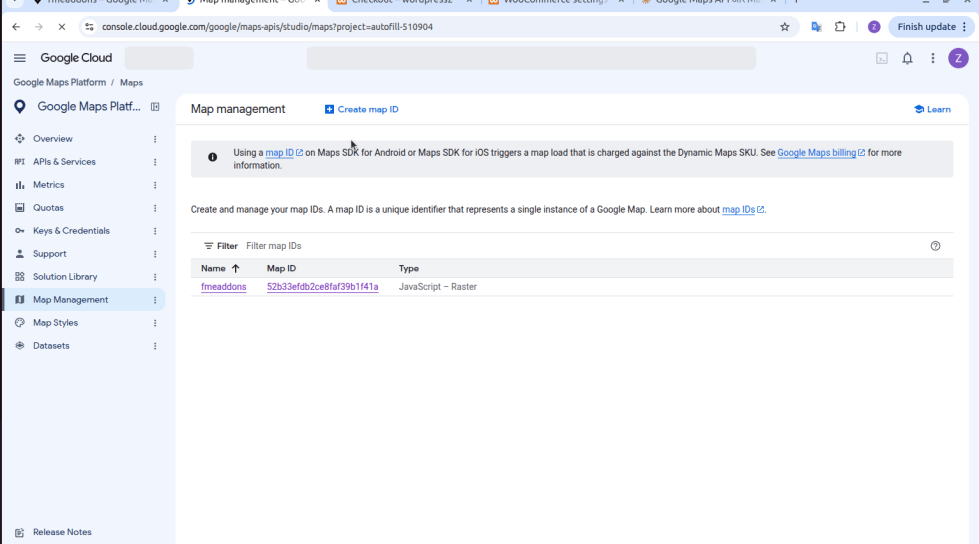
↑ Back to top- Go to Google Maps Platform > Map Management.
- Click Create map ID.
- Enter a Name (for example, your store or brand name) and an optional Description.
- Set Map type to JavaScript.
- Select Raster. Raster works for most stores.
- Click Save.
The new Map ID appears in the Map Management list. Copy the value in the Map ID column.
Step 7: Add the Values to the Plugin
↑ Back to top- In your WordPress admin, open the plugin’s settings page.
- Paste the API key into the Google API Key field.
- Paste the Map ID into the Google Map ID field.
- Save the settings and check the map on the frontend.
Configuration
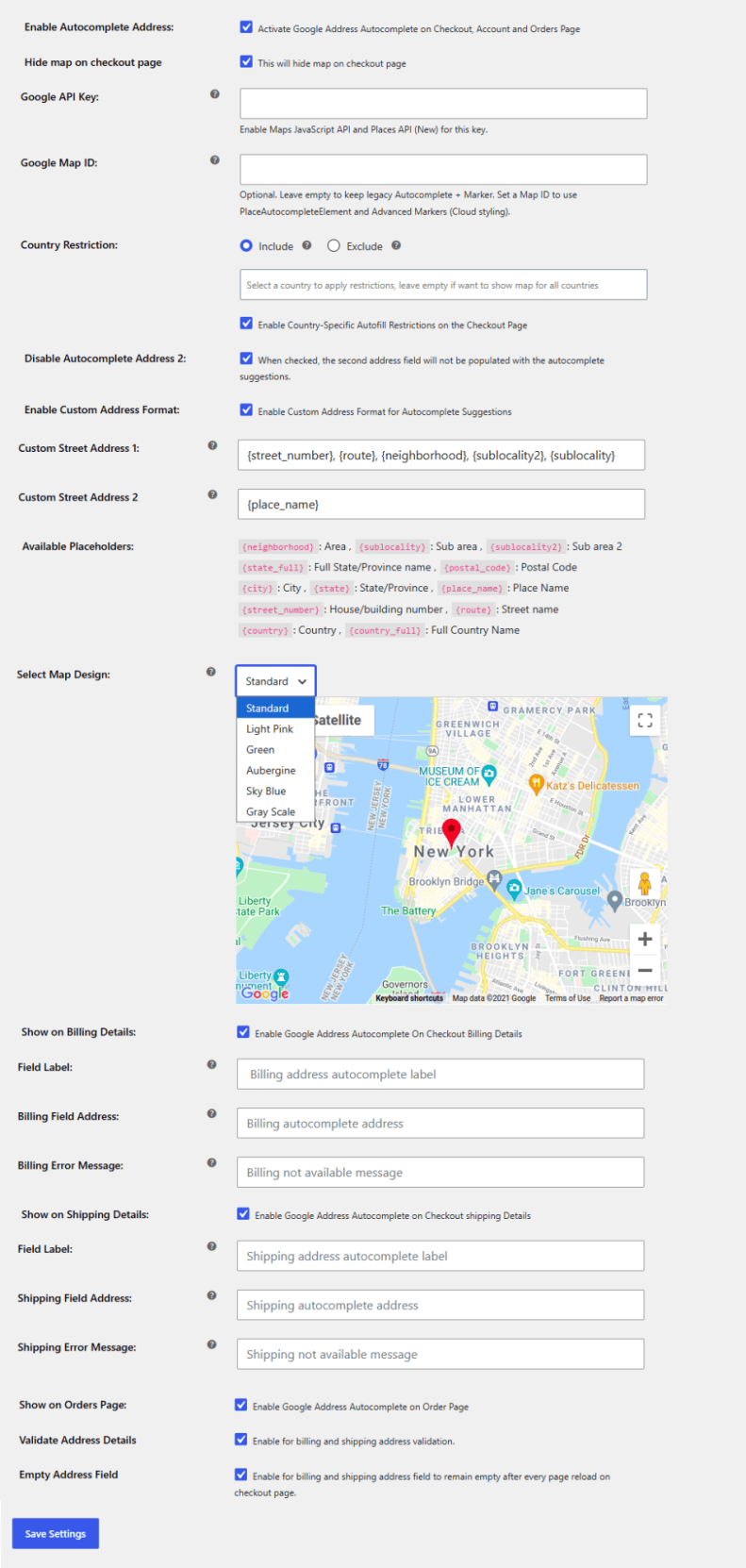
↑ Back to topIn the admin panel, go to WooCommerce > Settings > Autofill Address and configure this extension. Here you can set the following:
- Enable Autocomplete Address: Click the checkbox to enable the Google Address Autocomplete on the Checkout, Account, and Orders Page.
- Hide Map on Checkout Page: Click to hide the map on the checkout page.
- Google API Key: Enter the Google API key to display the map.
- Google Map ID: Add the Cloud Console Map ID with advanced markers enabled. This is required to display map markers. Leave empty to keep legacy Autocomplete + Marker.
- Country Restriction: Select countries to include or exclude from displaying the map and address autocomplete feature.
- Disable Autocomplete Address 2: Check the box so that the second address field will not be populated with the autocomplete suggestions.
- Enable Custom Address Format: Click the checkbox to enable custom address format.
- Custom Street Address 1: Create a custom autocomplete format for the street address 1.
- Custom Street Address 2: Create a custom autofill address format for street address 2.
- Available Placeholders: Use the following placeholders to create custom address formats. These include:
- {neighborhood}: Area
- {sublocality}: Sub area
- {sublocality2}: Sub area 2
- {state_full}: Full State/Province name
- {postal_code}: Postal Code
- {city}: City
- {state}: State/Province
- {place_name}: Place Name
- {street_number}: House/building number
- {route}: Street name
- {country}: Country
- {country_full}: Full Country Name
- Select Map Design: Select your preferred map design to display on the checkout, order, and my account page. You can select the following:
- Standard
- Light Pink
- Green
- Aubergine
- Sky Blue
- Gray Scale
- Show on Billing Details: Enable autocomplete for billing details on the checkout page.
- Field Label: Add a label for the autocomplete field that will be shown in the billing section.
- Billing Field Address: Enter the address of the autocomplete field that you want to show on the billing address field.
- Billing Error Message: Add an error message for restricted countries.
- Show On Shipping Details: Enable autocomplete for shipping details on the checkout page.
- Field Label: Add a label for the autocomplete field that will be shown in the shipping section.
- Shipping Field Address: Enter the address of the autocomplete field that you want to show on the shipping address field.
- Shipping Error Message: Add an error message for restricted countries.
- Show On Orders Page: Enable address suggestions on the order details page in the admin panel.
- Validate Address Details: Validate billing and shipping addresses to ensure accuracy.
- Empty Address Field: Keep billing and shipping fields empty after every page reload on the checkout page.