
GP Images Optimizer allows your WooCommerce store to automatically compress and convert product images into modern formats such as WebP and AVIF, improving performance without external services.
Installation
↑ Back to topTo start using a product from WooCommerce.com, you can use the “Add to store” functionality on the order confirmation page or the My subscriptions section in your account.
- Navigate to My subscriptions.
- Find the Add to store button next to the product you’re planning to install.
- Follow the instructions on the screen, and the product will be automatically added to your store.
Alternative options and more information at:
Managing WooCommerce.com subscriptions.

Setup and Configuration
↑ Back to topConversion
↑ Back to topAuto Convert
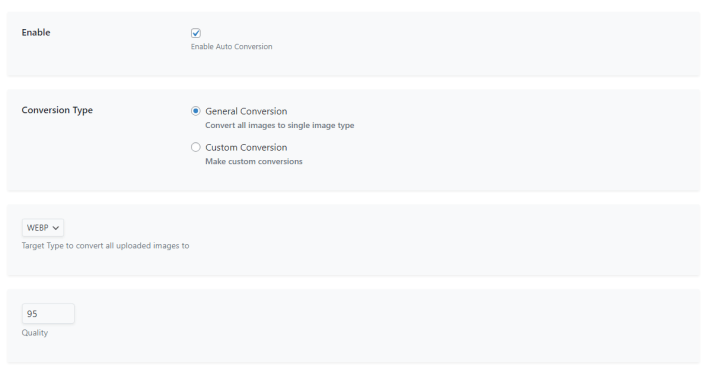
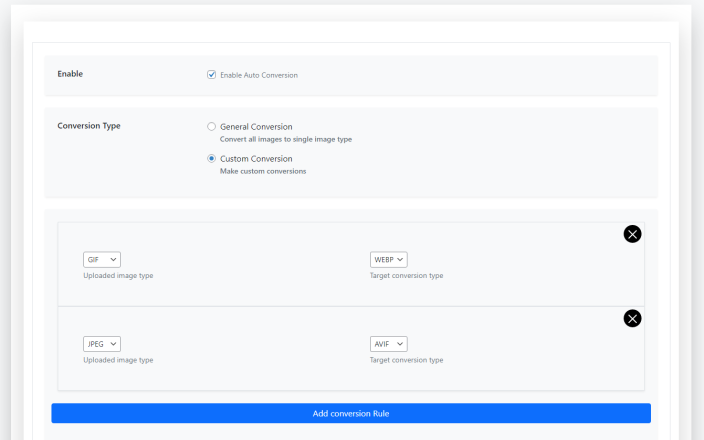
↑ Back to topAuto Convert page handles image type conversions automatically when uploading an image.
You can convert any uploaded image to a specific image type or create custom conversions from one specific type to another.
Bulk Convert
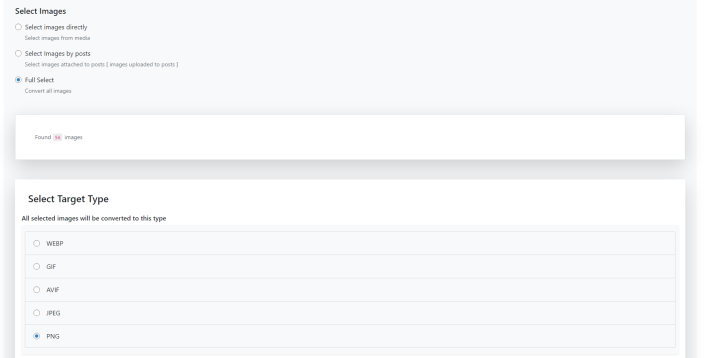
↑ Back to topYou can convert images on your site in bulk. You can select images directly from the Media Library page, select images by post type, or select all images on your site.
Optimization
↑ Back to topAuto Optimize
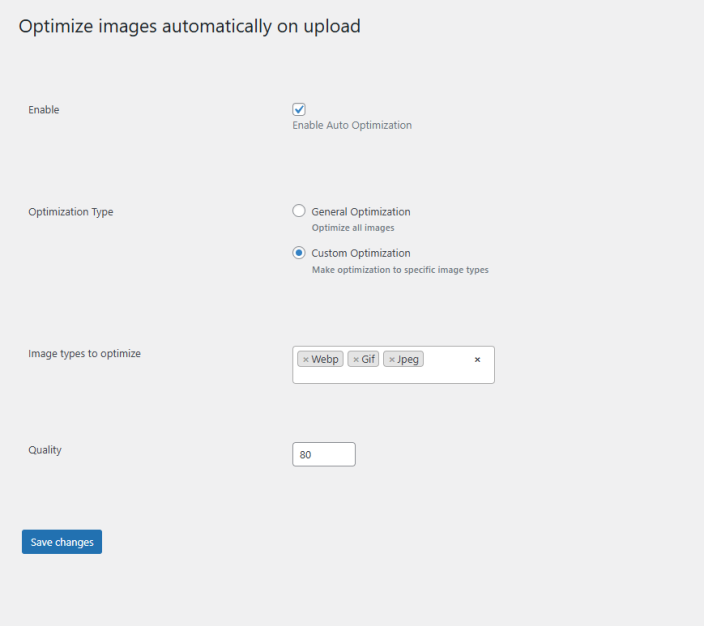
↑ Back to topThe Optimization settings allow you to control how images are compressed to reduce file size.
This improves:
- Page load speed
- Core Web Vitals
- Hosting bandwidth usage
Bulk Optimization
↑ Back to topYou can optimize images on your site in bulk. You can select images directly from the Media Library page, select images by post type, or select all images on your site.
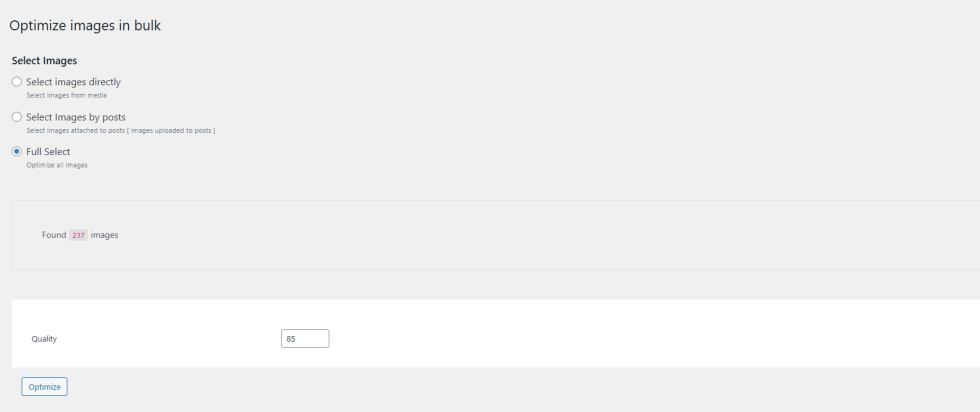
Optimization works independently from format conversion and can be used on its own.
Single image conversion and optimization
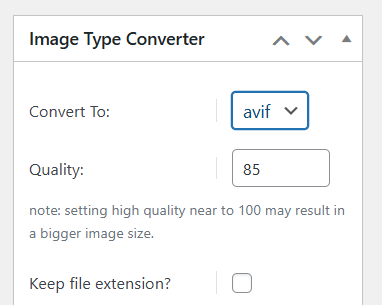
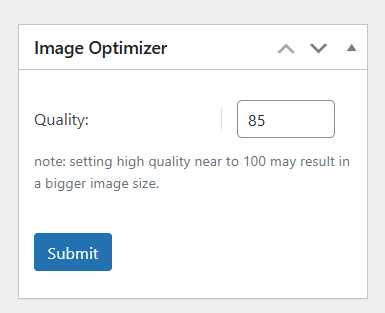
↑ Back to topYou can convert or optimize each image from the image edit page. You can select the target type, adjust the quality, and choose whether to keep the file extension.
Keeping the original file extension preserves the image URL structure and helps prevent broken links in posts or embedded content.
Conversion and Optimization History
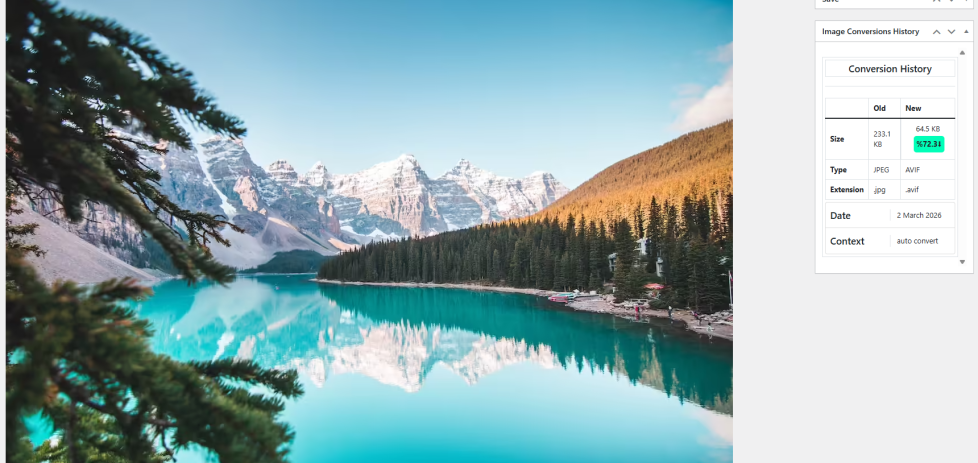
↑ Back to topYou can track the conversion and optimization results in the image edit page.
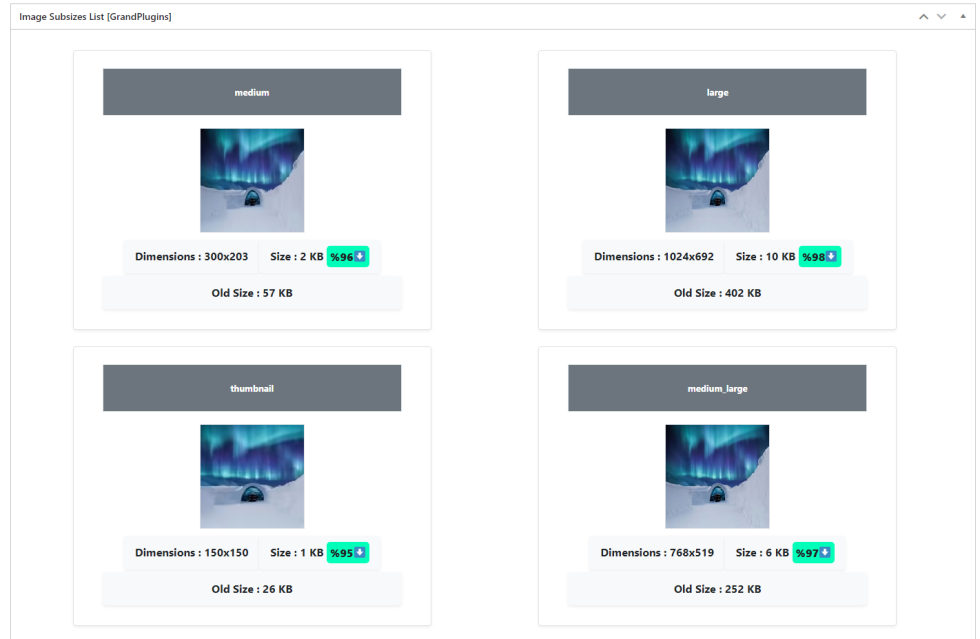
Subsizes List Conversion and Optimization
↑ Back to topYou can track the conversion and optimization results for each generated image subsize from the image edit page.
Server Status
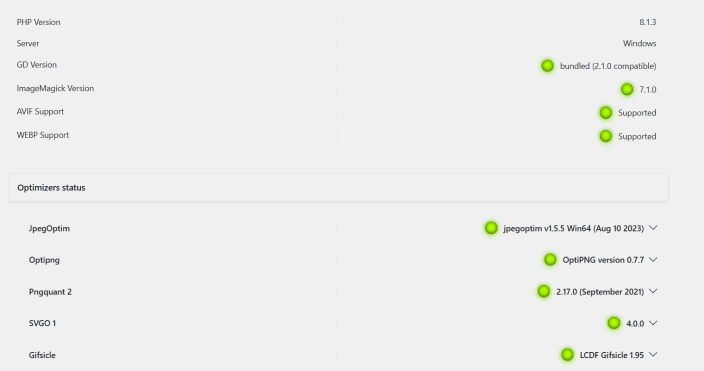
↑ Back to topThe Status page shows the installed server packages used for optimizing and converting images for each supported MIME type.
FAQs
↑ Back to topHelp customers by answering commonly asked questions.
Does the plugin use external compression services?
No. All image processing happens locally on your server.
Is it compatible with caching plugins and CDNs?
Yes. After conversion, simply clear your cache so optimized versions can be served correctly.
Can I optimize existing images?
Yes. The built-in bulk optimizer allows you to process previously uploaded images with one click.

