
GP Order Splitter allows your WooCommerce store to automatically split customer orders into multiple child orders based on smart conditional rules such as product categories, shipping classes, pricing conditions, product meta data, and shipping metrics.
This helps you streamline fulfillment, separate warehouse processing, and automate complex shipping workflows — without manual intervention.
Installation
↑ Back to topTo start using a product from WooCommerce.com, you can use the “Add to store” functionality on the order confirmation page or the My subscriptions section in your account.
- Navigate to My subscriptions.
- Find the Add to store button next to the product you’re planning to install.
- Follow the instructions on the screen, and the product will be automatically added to your store.
Alternative options and more information at:
Managing WooCommerce.com subscriptions.

Setup and Configuration
↑ Back to topGetting started
↑ Back to topTo set up your store with GP Order Splitter:
- Go to:
WooCommerce > Settings > GP Order Splitter - Tick the checkbox to Enable GP Order Splitter.
- Configure your first splitting rule (see below).
- Click Save changes.
The plugin will now begin evaluating new orders according to your configured rules.
Usage
↑ Back to topAvailable Conditions
↑ Back to topYou can build powerful automation using the following rule conditions:
Product-Based Conditions
- Product Categories
- Shipping Classes
- Product Price
- Product Meta Data
Order-Based Conditions
- Order Total
Shipping Metrics
- Product Weight
- Product Dimensions (Length, Width, Height)
You can combine multiple conditions within a single rule to match complex business logic.
Conditions Examples
↑ Back to topProduct Categories
Example:
You sell clothing and electronics, but electronics are shipped from a different warehouse.
- Condition: Product Category = Electronics
- Split Type: Group
Result:
One separate order containing Clothing and other items
One order containing all Electronics products

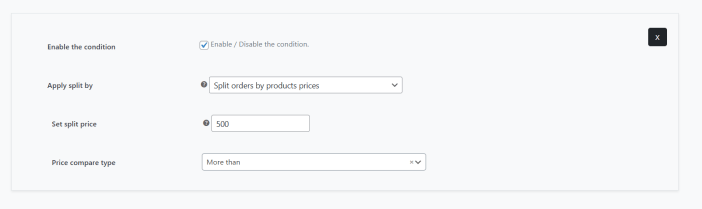
Product Price
Example:
High-value products require special insurance handling.
- Condition: Product Price ≥ $500
- Split Type: Each
Result:
- Each product priced $500 or more gets its own separate order
- Remaining lower-priced products stay in another order
Shipping Classes
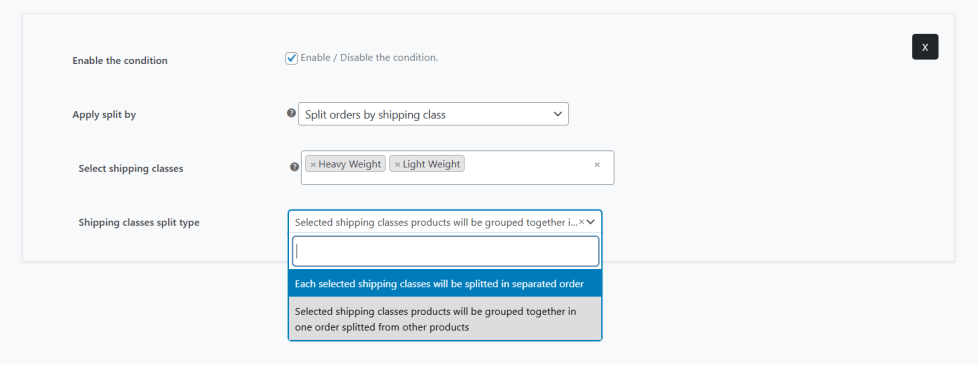
Example:
You have two shipping classes: Heavy and Fragile.
Option A – Split Each
- Each shipping class gets its own order.
Result:
- One order for Heavy items
- One order for Fragile items
- One order for remaining products
Option B – Split Group
- Heavy + Fragile classes selected
- Split Type: Group
Result:
- One combined order for Heavy and Fragile products
- One order for all other items
Shipping Measurements (Weight)
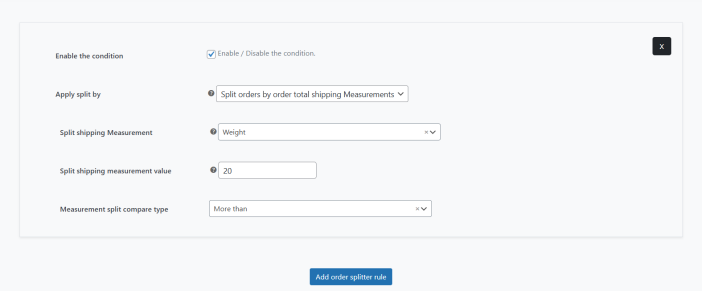
Example:
Heavy products must be shipped separately due to carrier restrictions.
- Condition: Product Weight > 20kg
Result:
- All heavy items are separated into separated order
- Lighter products remain in another order
FAQs
↑ Back to topHelp customers by answering commonly asked questions.
Does this affect customer checkout?
No. Customers complete checkout and payment once. Splitting happens after checkout and does not affect the front-end experience.
Can I disable splitting temporarily?
Yes. You can disable all or individual condition rules at any time.
Are previous orders affected?
No. Only new orders placed after enabling and configuring the plugin will be evaluated.

