
Overview
↑ Back to topGroup Buying Power lets logged-in customers form buying groups on a product and get a bigger discount as more people join. You choose which products allow groups and set discount tiers for each one. The discount is applied to the product’s price in the cart automatically.
Shoppers must have a customer account and be logged in to create or join a group. Guests see the discount tiers and a Log In button.
Install and activate
↑ Back to top- Download the
group-buying-power.zipfile from your WooCommerce.com account (My Account > Downloads). - In your WordPress admin, go to Plugins > Add New Plugin and click Upload Plugin.
- Choose the zip file, click Install Now, then click Activate Plugin.
- Make sure WooCommerce is installed and active. Without it, Group Buying Power shows a notice and stays inactive.
After activation, the plugin adds:
- WooCommerce > Group Buying in the admin menu, with the Groups, Settings, and Members & Invitations tabs.
- A Group Buying tab in the Product data box when you edit a product.
- Five group emails under WooCommerce > Settings > Emails.
Quick start
↑ Back to topYou can launch your first group deal in about five minutes.
- Go to Products, open a product and click the Group Buying tab in the Product data box.
- Tick Enable Group Buying.
- Set Minimum Group Size (for example 2) and Maximum Group Size (for example 10).
- Click Add Tier and add your discounts, for example 2 members = 5%, 5 members = 10%, 10 members = 15%. Click Update.
- Open the product page while logged in as a customer. The Buy together box appears below the price. Click Create New Group, then share the link with friends.
The discount starts as soon as the group reaches the minimum size and the first tier.
Set up a product
↑ Back to topGroup buying is turned on product by product, each with its own tiers.
- Go to Products and edit the product.
- In the Product data box, click the Group Buying tab.
- Tick Enable Group Buying.
- Enter the Minimum Group Size: the number of members a group needs before any discount applies.
- Enter the Maximum Group Size: the most members one group can have. When a group is full, new shoppers can start their own group.
- Under the tier table, click Add Tier once for each discount level. In each row, enter Members (group size) and Discount %. Use Remove to delete a row.
- Click Update to save. Tiers are sorted by group size automatically.Click Update to save. Tiers are sorted by group size automatically.
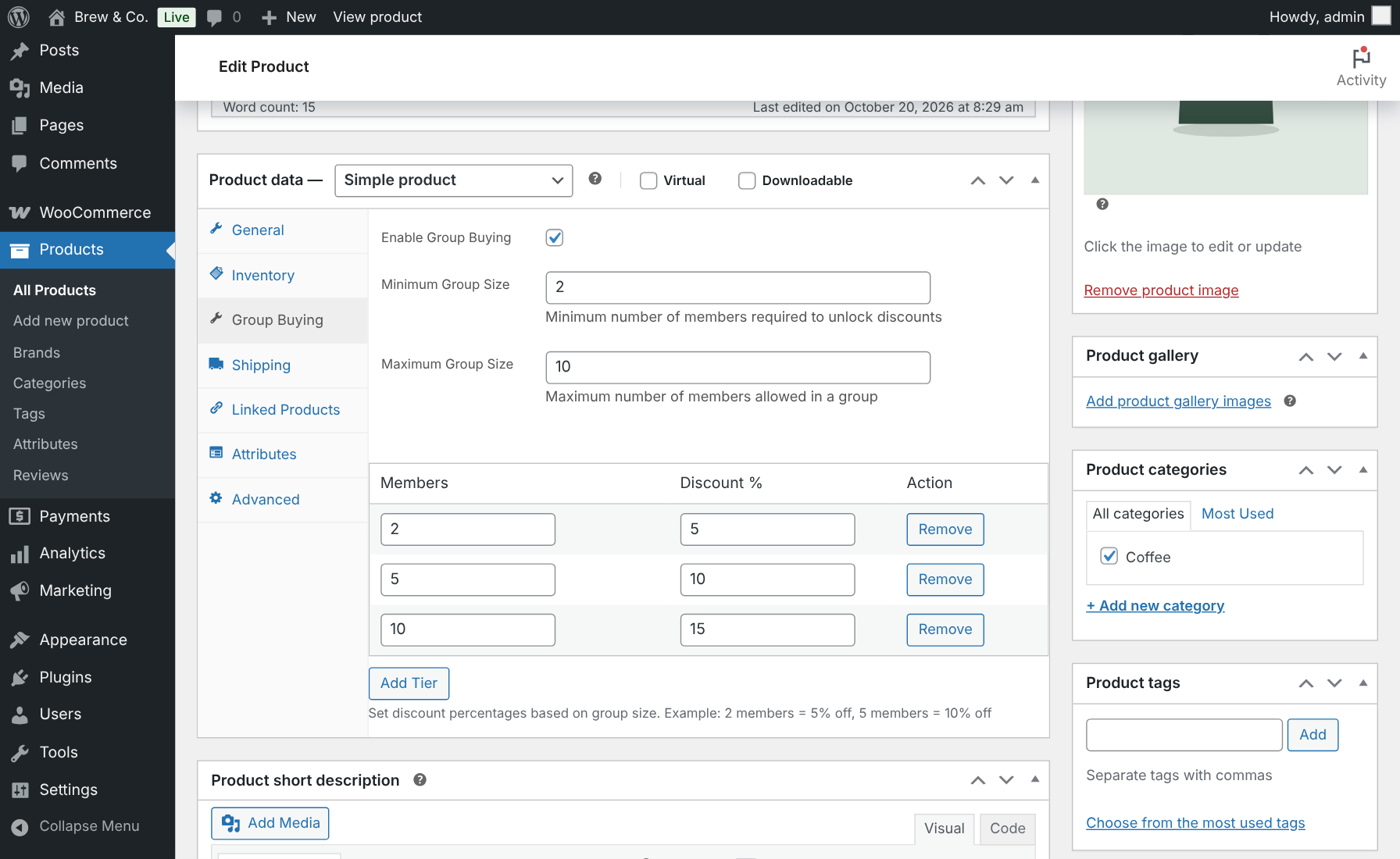
Example: with tiers 2 = 5%, 5 = 10% and 10 = 15%, a group of 6 gets 10% off, and the widget tells members that 4 more members unlock 15%.
Tips
- Set the first tier at the minimum group size. A tier below the minimum never applies.
- Fill in both size fields on every product. New groups use the defaults from WooCommerce > Group Buying > Settings > General Settings only when a product’s fields are empty.
- Group buying works on simple and variable products. For a variable product, the tiers apply to every variation.
Settings
↑ Back to topAll store-wide settings are in WooCommerce > Group Buying > Settings, split into sub-tabs. Click Save Settings after any change. Reset to Defaults restores every setting.
General Settings
↑ Back to top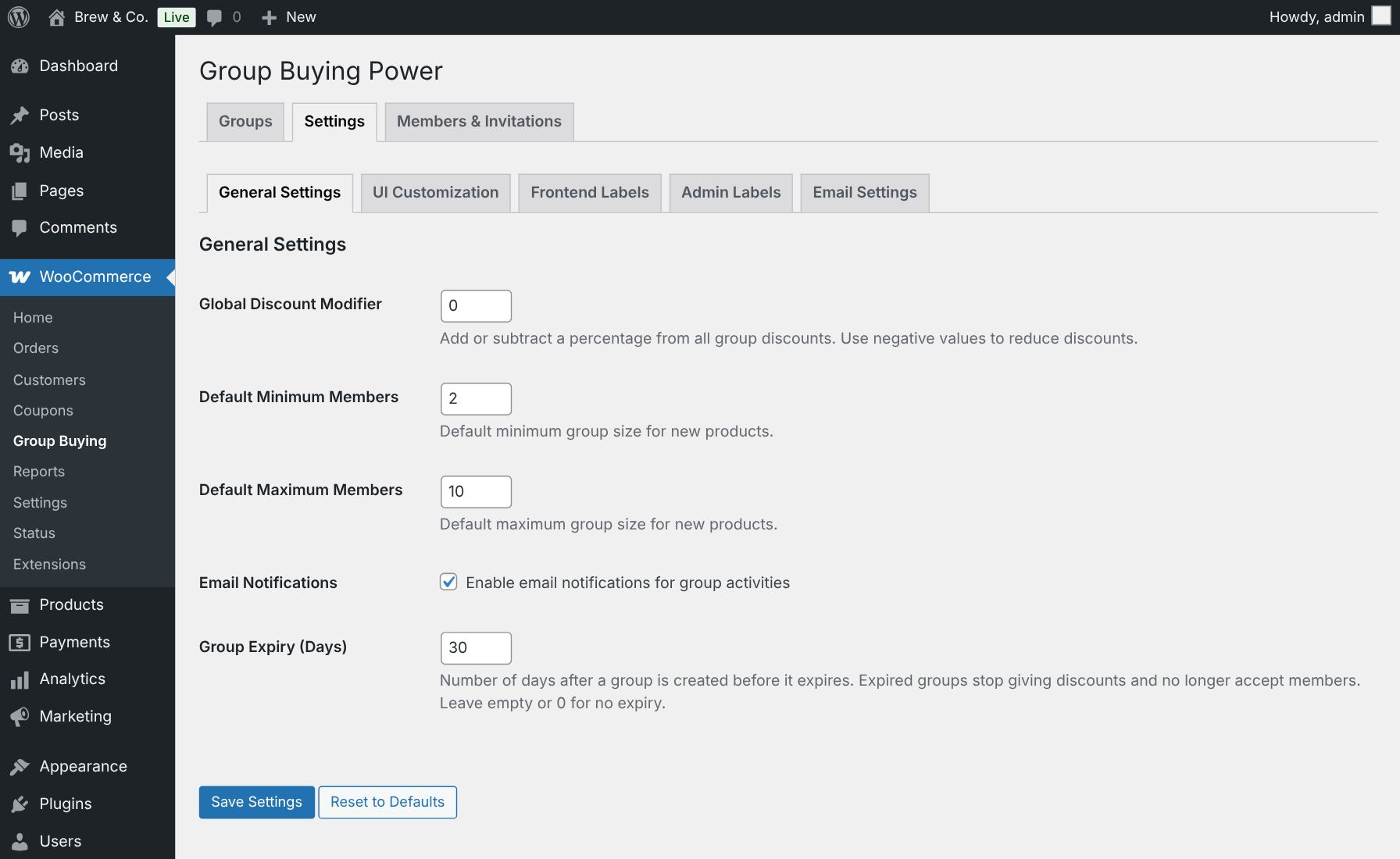
| Setting | What it does | Default |
|---|---|---|
| Global Discount Modifier | Adds or subtracts percentage points from every group discount. For example, 2 turns a 10% tier into 12%; -2 turns it into 8%. Results stay between 0% and 100%. | 0 |
| Default Minimum Members | Minimum group size used when a product’s own field is empty. | 2 |
| Default Maximum Members | Maximum group size used when a product’s own field is empty. | 10 |
| Email Notifications | Turns all group emails on or off at once. | On |
| Group Expiry (Days) | Days after creation when a group expires. Expired groups stop giving discounts and stop accepting members. Enter 0 or leave it empty for no expiry. | 30 |
UI Customization
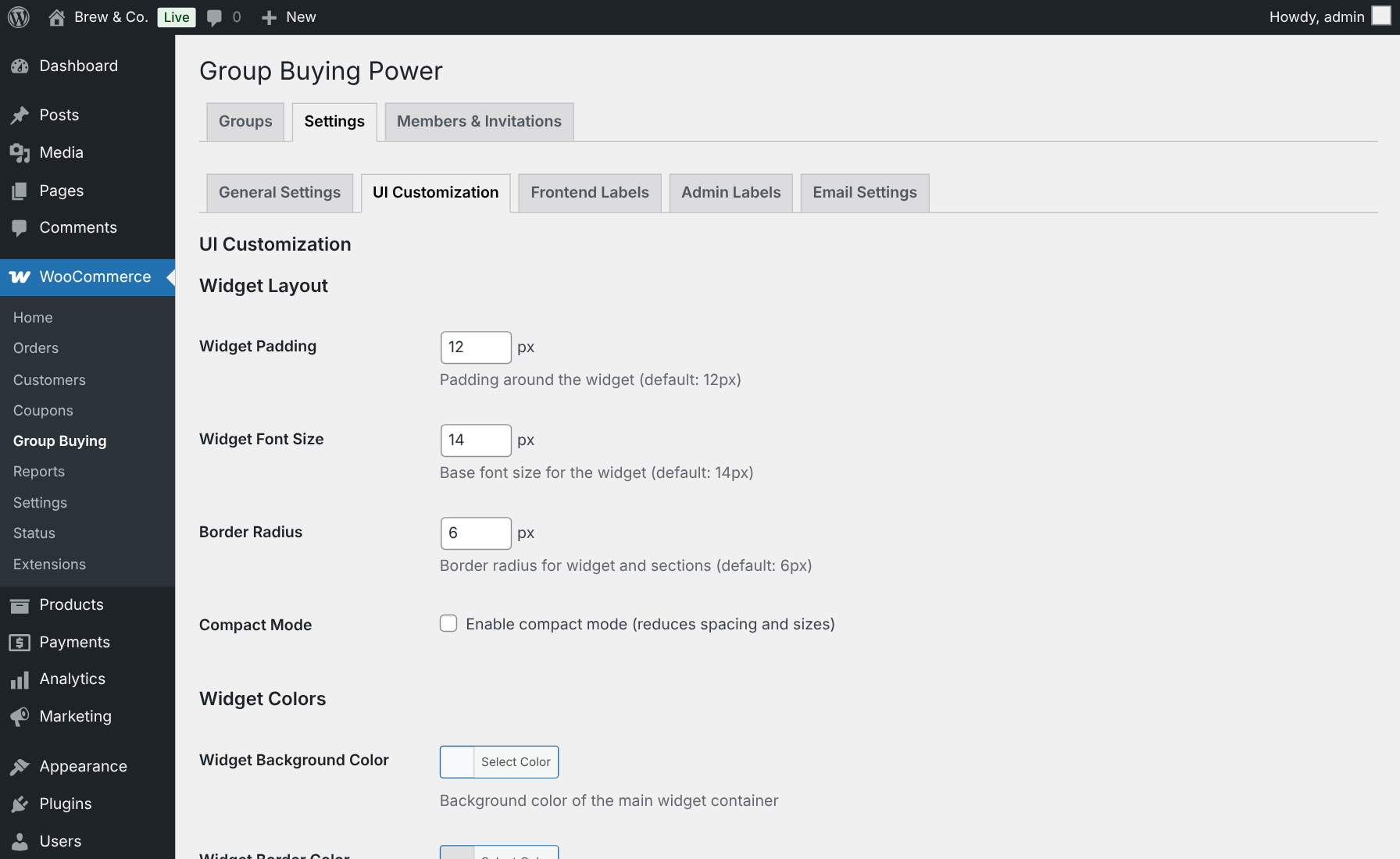
↑ Back to topControls how the Buy together box looks on product pages.
- Widget Layout: padding, base font size, corner radius, and Compact Mode for tighter themes.
- Widget Colors: background, border, text and title colors.
- Buttons: button style (Default, Compact or Minimal), colors, hover colors and corner radius.
- Highlights: discount badge, member count and next-tier message colors.
Frontend Labels
↑ Back to topChange the text shoppers see: widget title and subtitle, discount tiers title, the Create New Group, Join Group, Leave Group, Invite Friends and Copy Link buttons, the login message, and the member count format. In the member count format, %1$d is the current count and %2$d is the maximum, for example %1$d / %2$d members.
Admin Labels
↑ Back to topRename the admin menu item, the admin page title, the settings label and the product tab label.
Emails
↑ Back to topTo change email subjects, headings and text, use WooCommerce > Settings > Emails, as described in the Emails section below.
What shoppers see
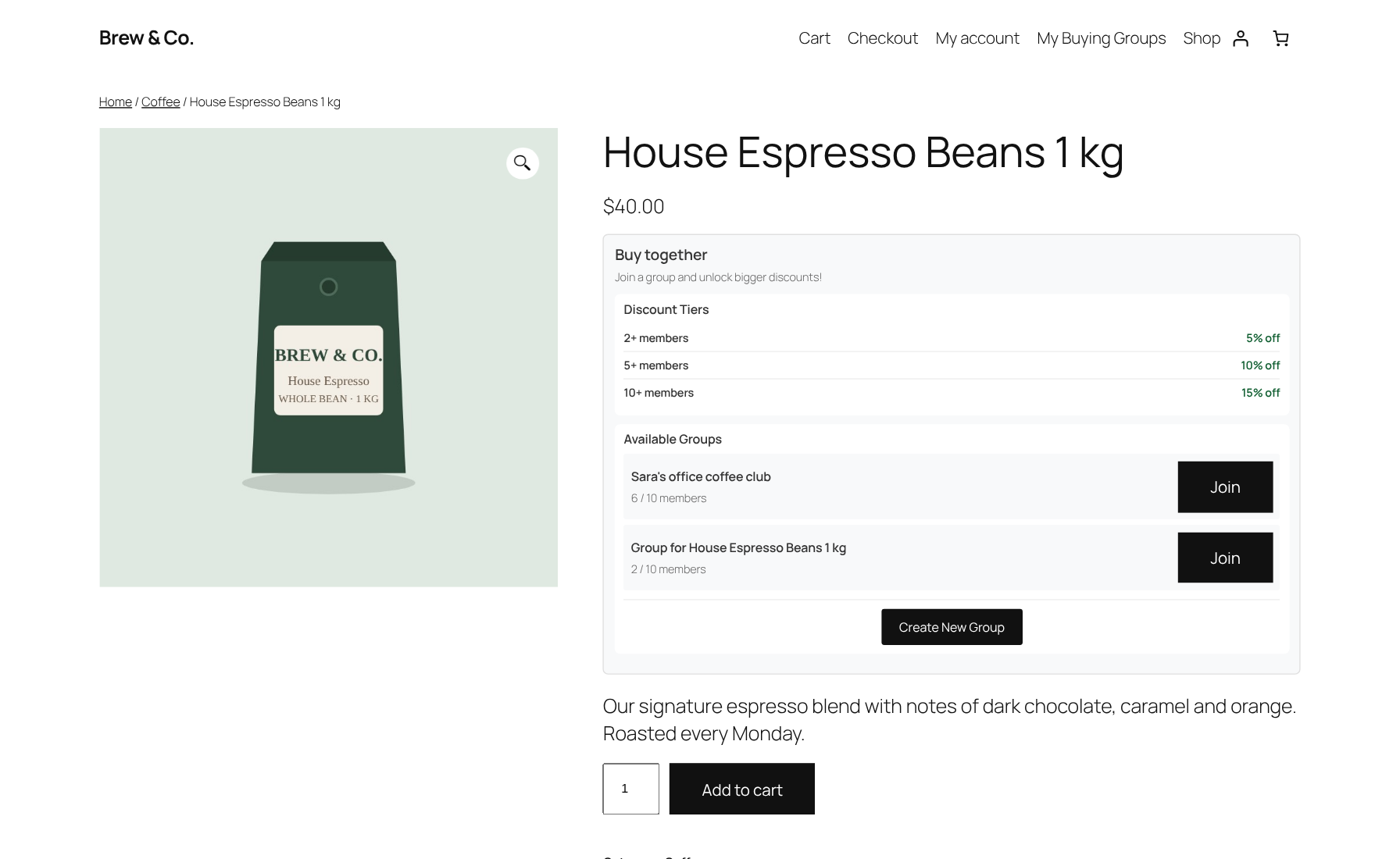
↑ Back to topThe Buy together box appears on the product page below the price, for every product with group buying enabled. A shopper can be in one group per product.
Join or start a group
↑ Back to top- The shopper logs in and opens the product page.
- Under Available Groups, they click Join next to a group and confirm. Each group shows its member count, such as 6 / 10 members.
- Or they click Create New Group, optionally type a group name, and confirm. The shopper becomes the group’s first member.
Once in a group
↑ Back to topThe box shows the member count, the current discount, and how many more members unlock the next tier. The product price shows the original price crossed out next to the group price.
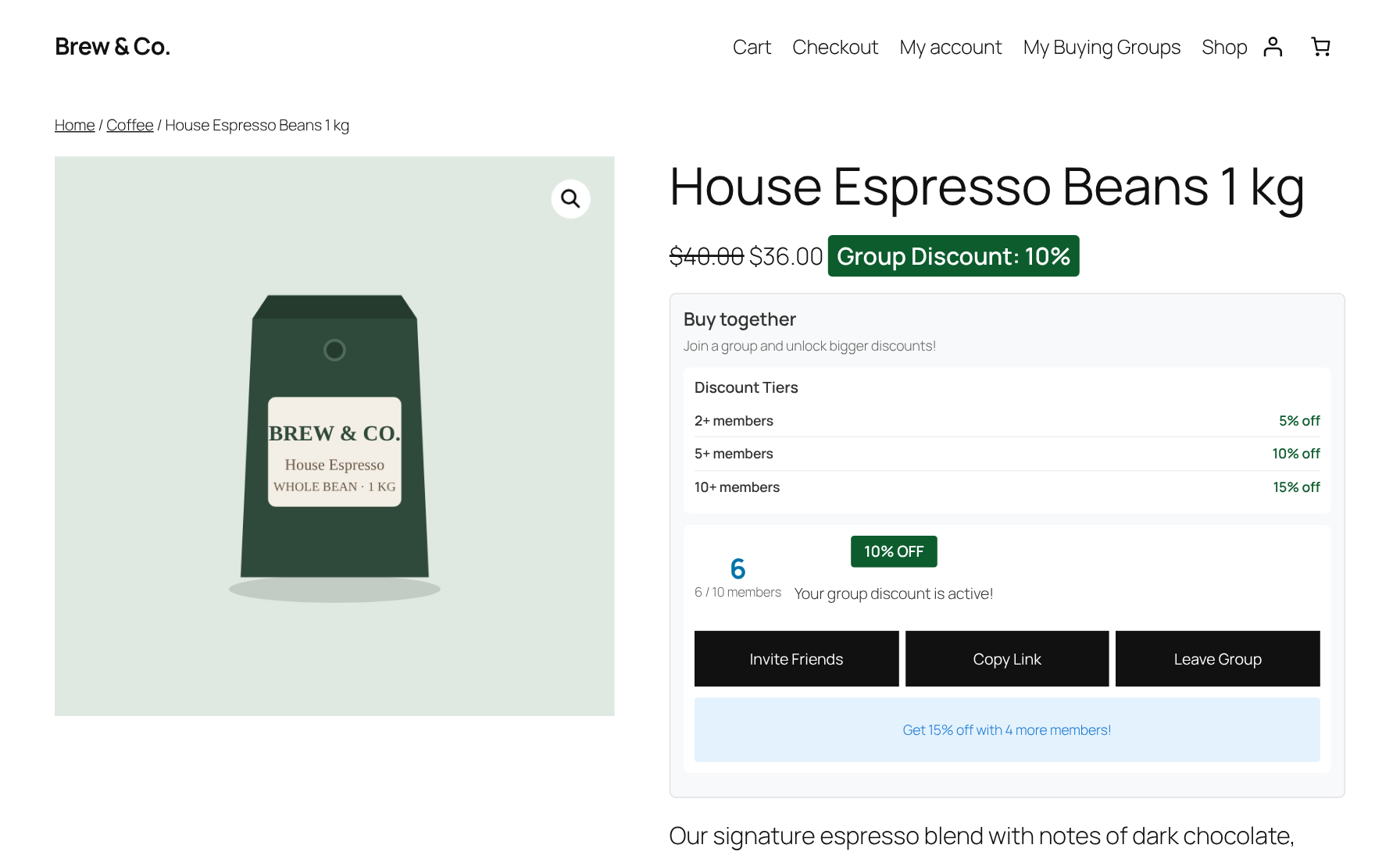
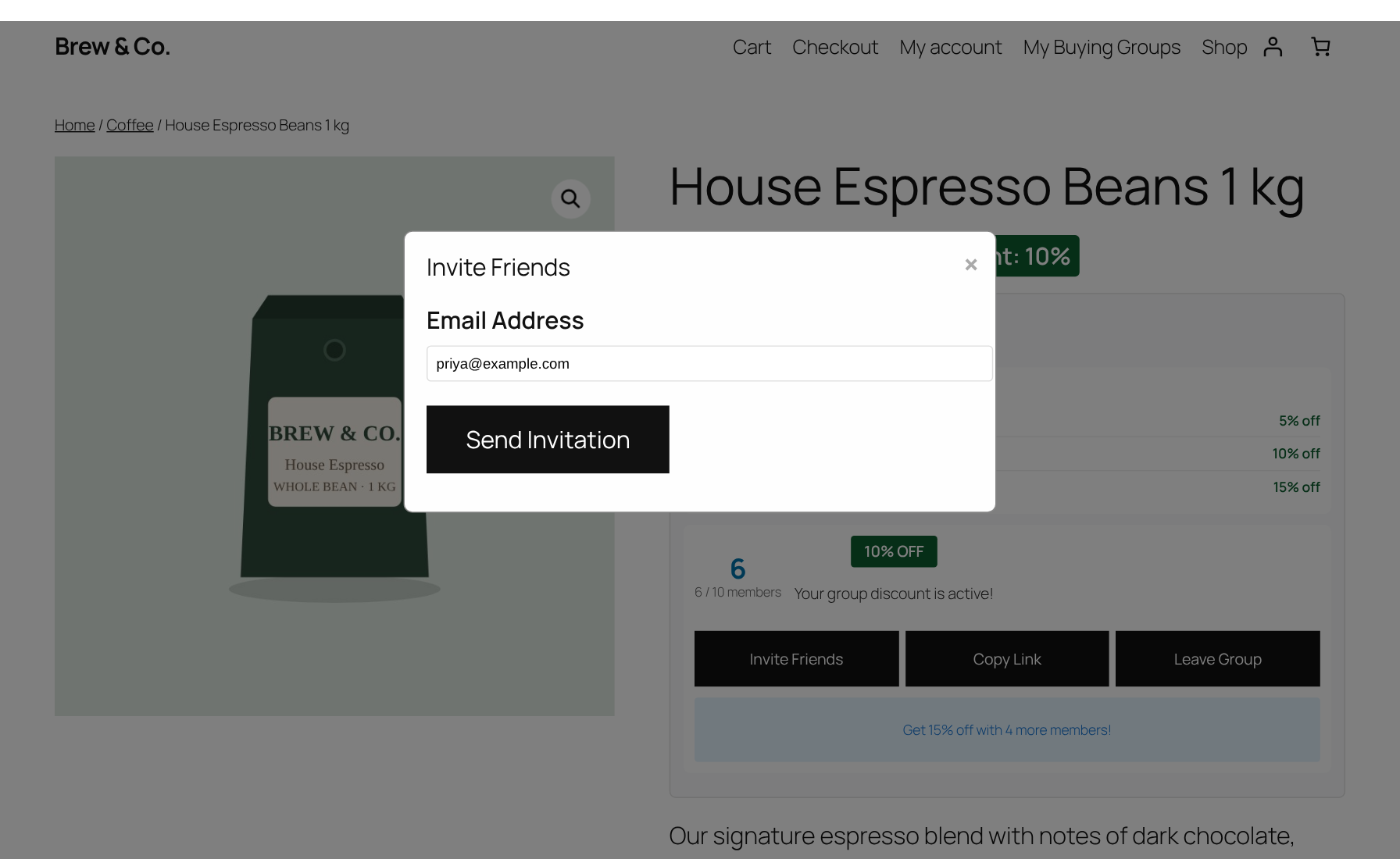
- Invite Friends opens a form to send an email invitation. Each member can send up to 5 invitations an hour and 20 a day. Invitations expire after 7 days.
- Copy Link copies the group’s share link. Anyone who opens it joins the group. Visitors who aren’t logged in are sent to the login page first and join after they log in.
- Leave Group removes the shopper from the group after they confirm. If the group drops below a tier, the discount for that tier stops for everyone.
Cart and checkout
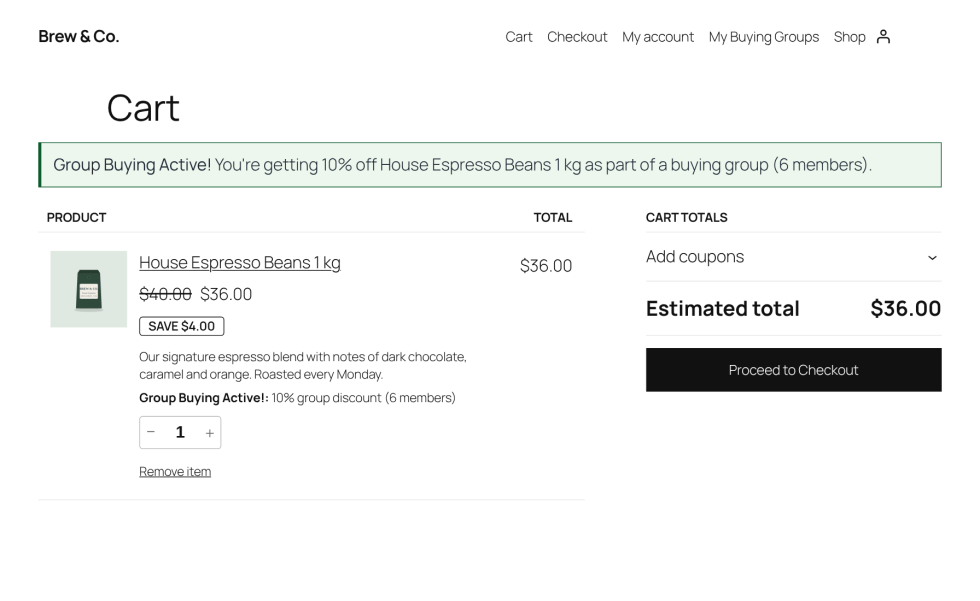
↑ Back to topWhen a group member adds the product to the cart, the group price is already applied. The cart shows the saving under the product and a notice confirming the group discount. This works on both the classic and the block-based cart and checkout.
My Buying Groups page
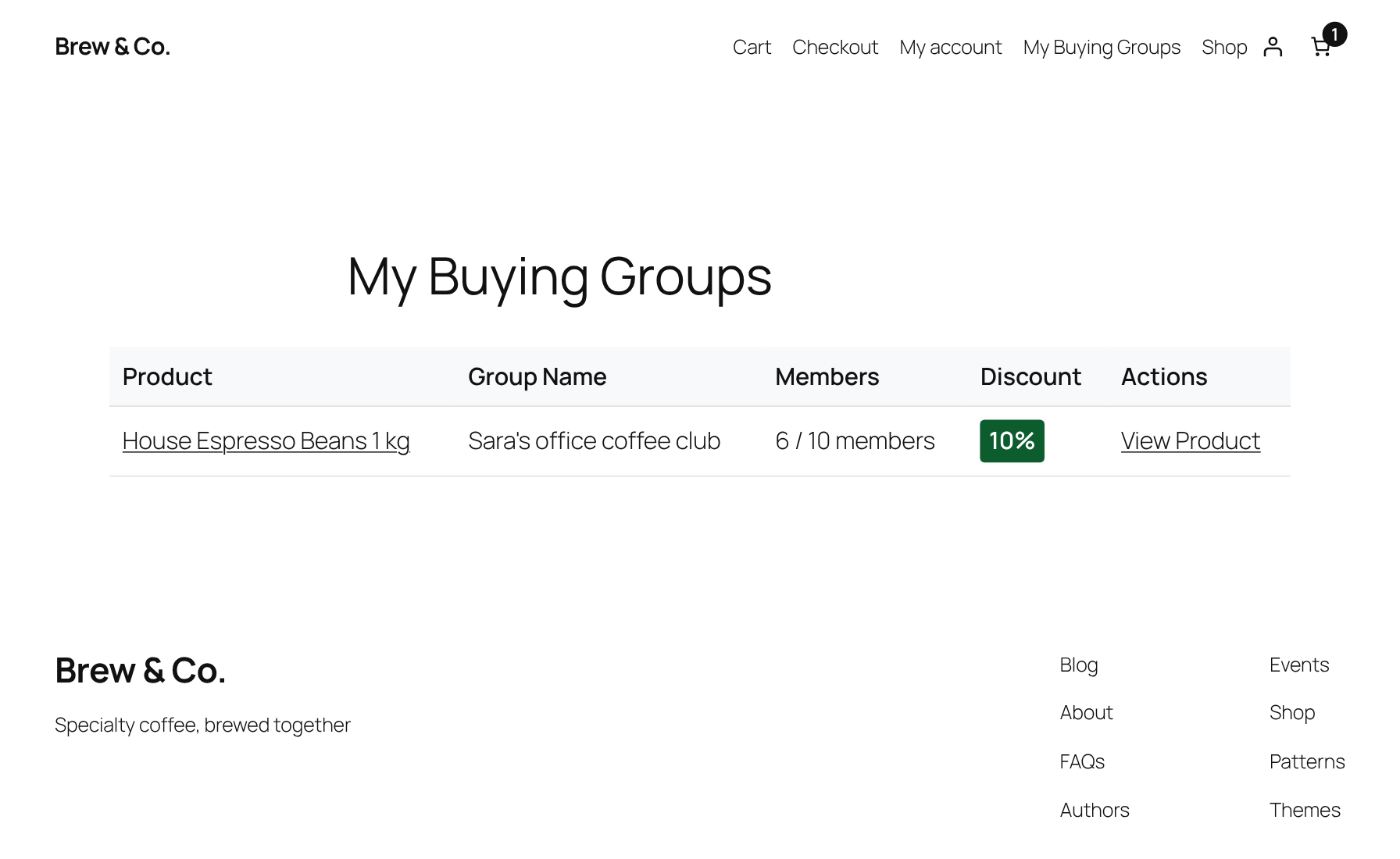
↑ Back to topAdd the [gbp_my_groups] shortcode to any page to give customers a list of their groups, with member counts and current discounts.
- Go to Pages > Add New Page and title it, for example, My Buying Groups.
- Add a Shortcode block and enter
[gbp_my_groups]. - Publish the page and add it to your menu or My Account links.
Manage groups, members and invitations
↑ Back to topEverything is under WooCommerce > Group Buying.
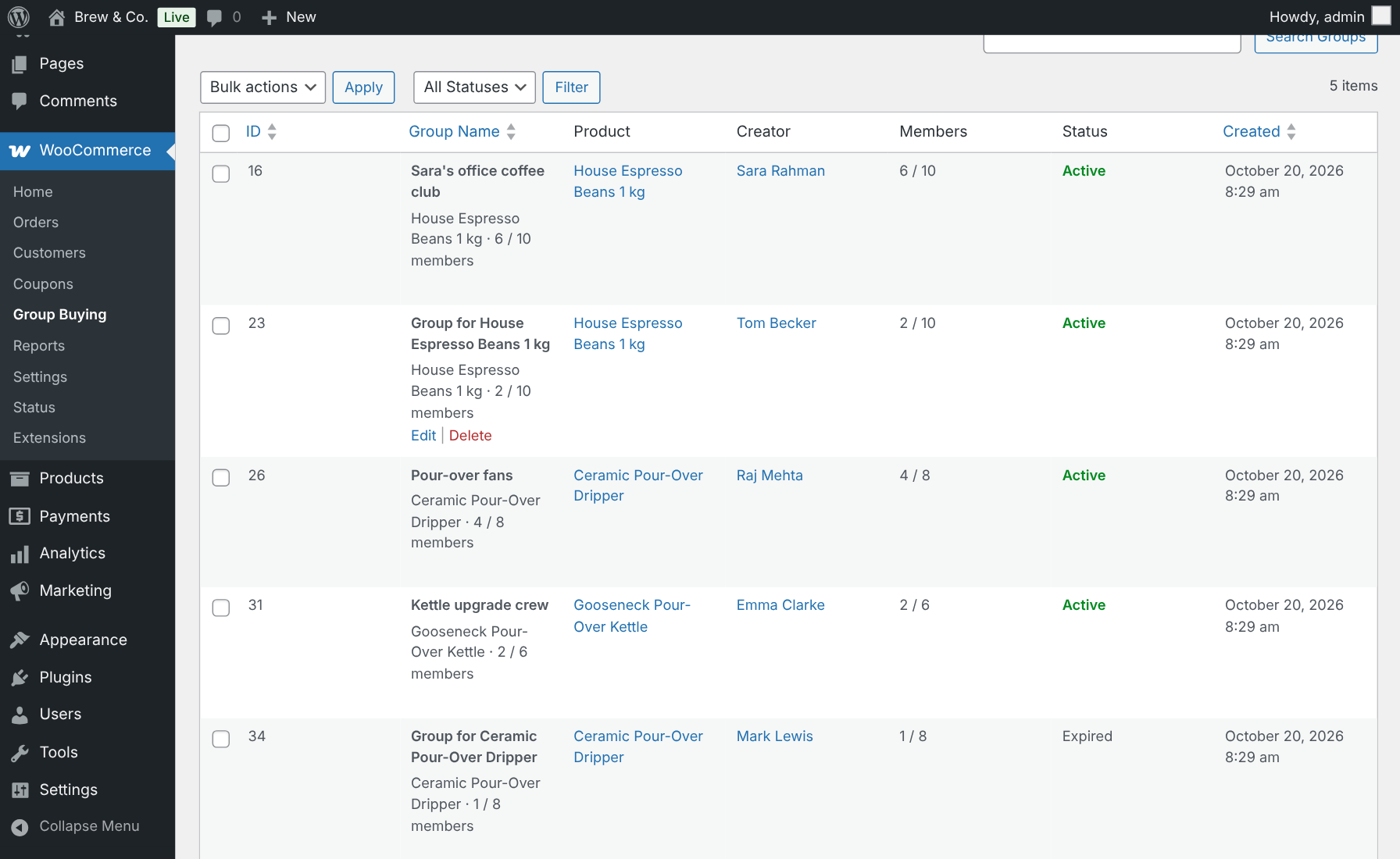
The list shows each group’s ID, name, product, creator, member count (for example 6 / 10), status and creation date. Use the search box or the status filter to find a group.
| Status | Meaning |
|---|---|
| Active | Accepts members and gives discounts. |
| Closed | Deactivated by you. No new members, no discounts. |
| Expired | Passed the Group Expiry time. No new members, no discounts. |
Create a group yourself
- In Add New Group, search for and select the product. Group buying is turned on for that product if it was off.
- Optionally enter a Group Name. Leave it empty to name it after the product.
- Choose the Creator. That customer becomes the group’s first member.
- Click Create Group.
Change groups in bulk
- Tick the groups you want to change.
- Pick Activate, Deactivate or Delete from Bulk actions and click Apply.
Activating a closed or expired group restarts its expiry clock. Deleting a group removes its members and invitations and cannot be undone.
Members & Invitations tab
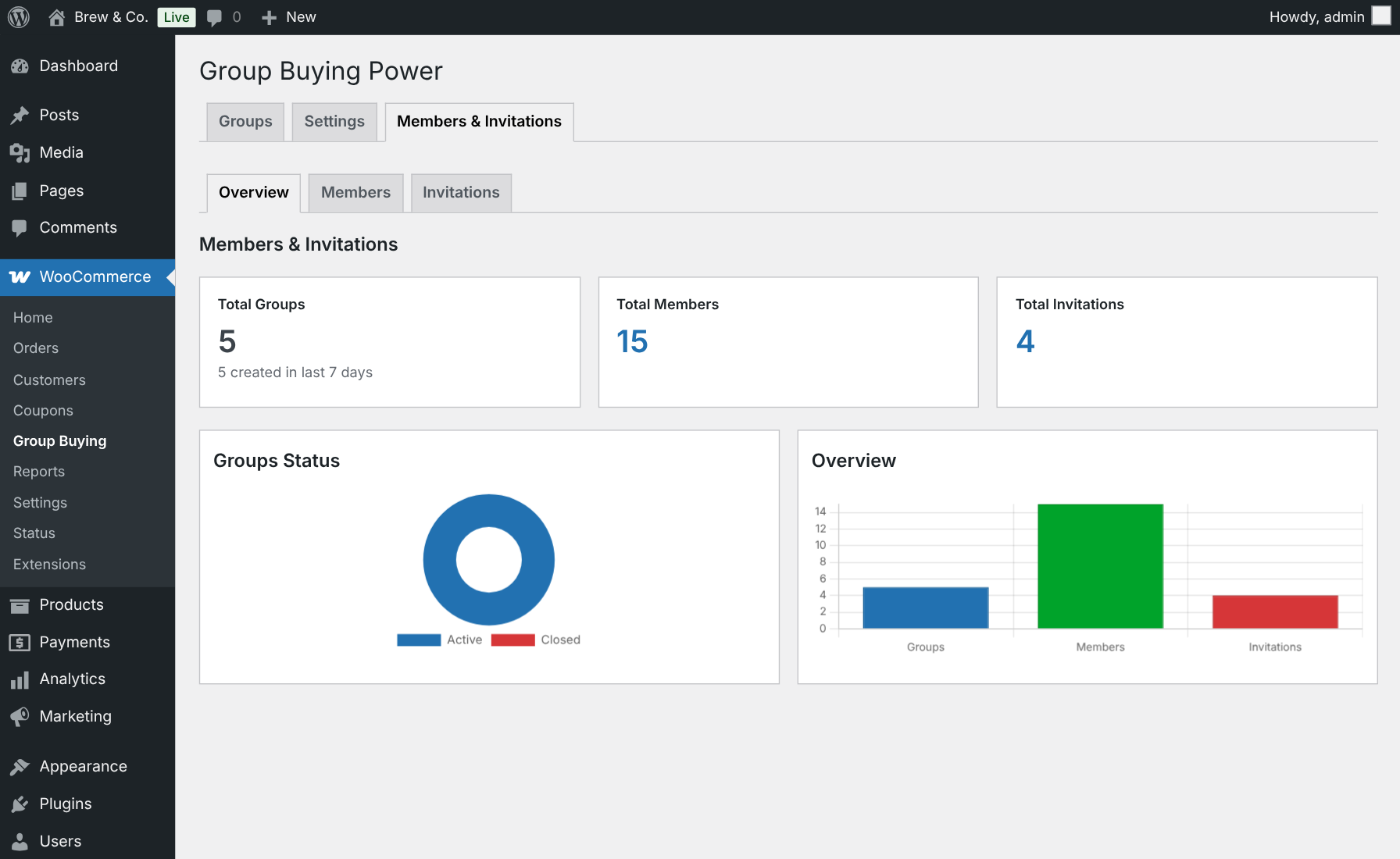
↑ Back to top- Overview shows total groups, members and invitations, with charts of group status.
- Members lists every member and their group. Remove members with Bulk actions > Delete.
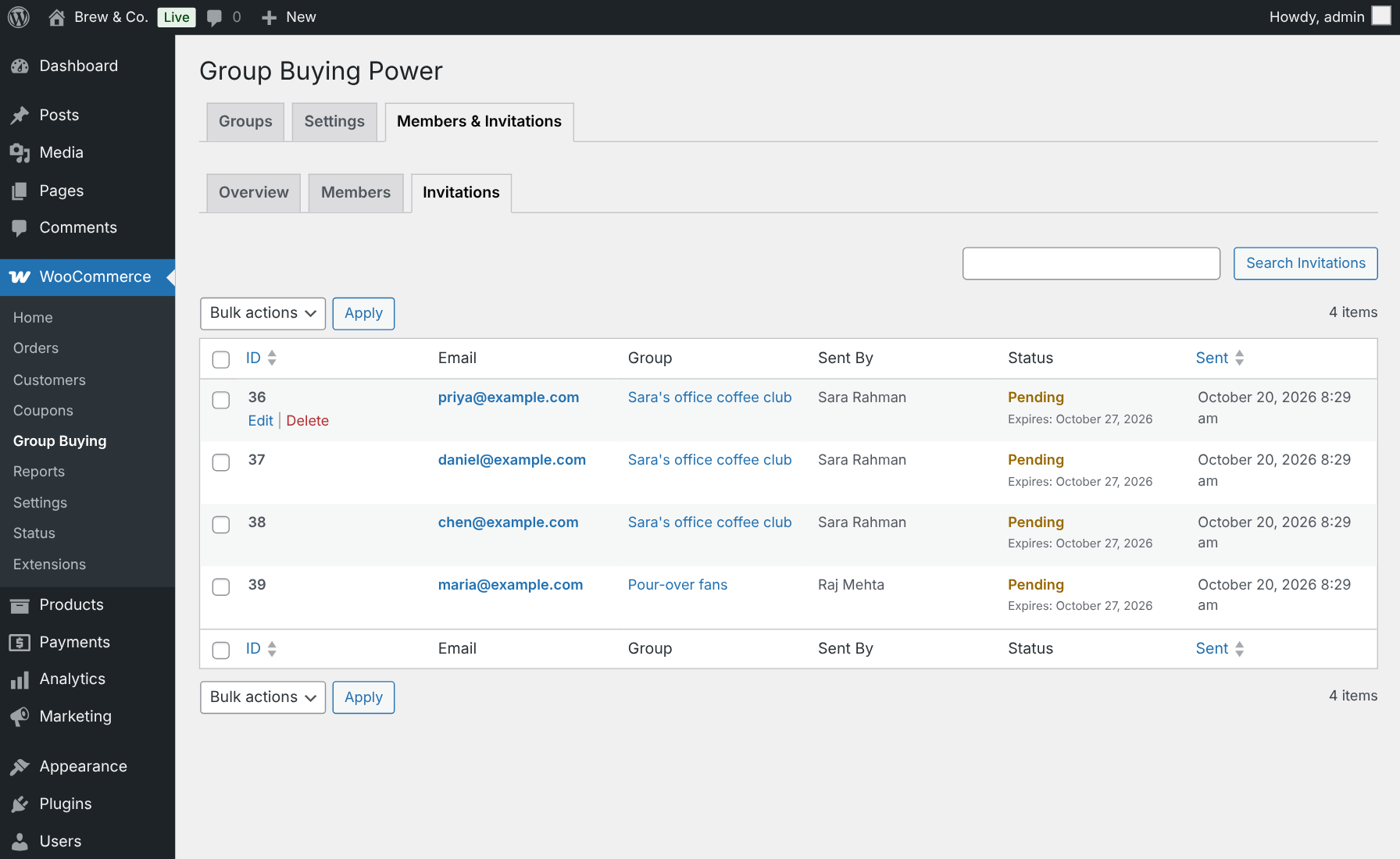
- Invitations lists each email invitation, the group, who sent it, its status and when it expires.
Emails
↑ Back to topThe plugin sends five emails through WooCommerce, so they use your store’s email design.
| Sent to | When | |
|---|---|---|
| Group created | The group’s creator | A new group is created |
| Member joined | The customer who joined | They join a group |
| Member notification | The other members | Someone joins or leaves their group |
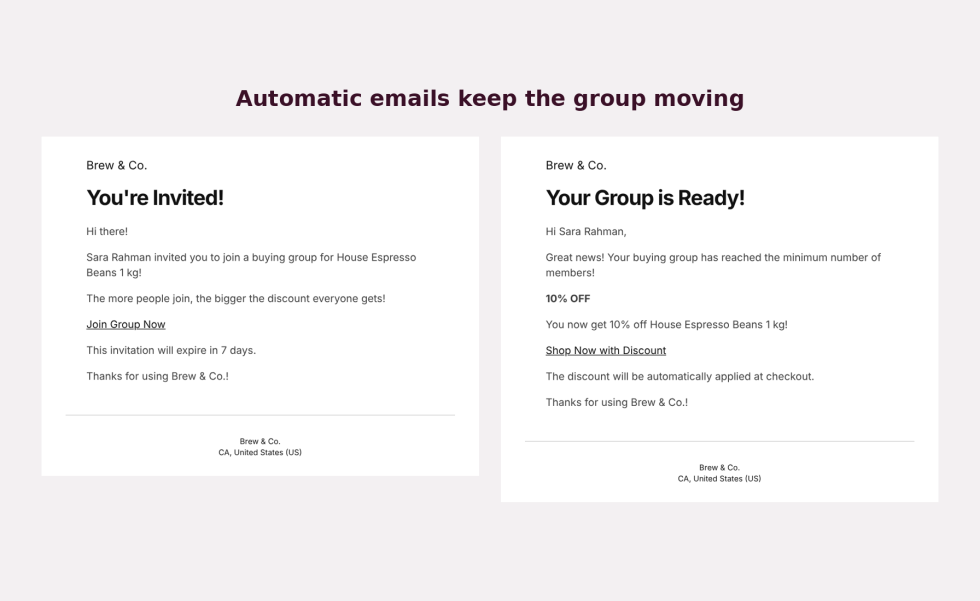
| Group ready | All members | The group reaches the minimum size |
| Group invitation | The invited email address | A member sends an invitation |
Edit an email
- Go to WooCommerce > Settings > Emails.
- Click Manage next to the email, for example Group ready.
- Turn it on or off, and change the subject, heading and additional content. The email’s settings page lists the placeholders you can use.
- Click Save changes.
To stop all group emails at once, untick Email Notifications in WooCommerce > Group Buying > Settings > General Settings.
Shortcodes
↑ Back to topUse these to show group buying outside the standard product page, for example on a landing page. Add them with a Shortcode block.
| Shortcode | Shows | Attributes |
|---|---|---|
[gbp_group_widget product_id="123"] | The full Buy together box for one product | product_id: the product ID. Optional on a product page. |
[gbp_product_groups product_id="123" limit="5"] | A list of a product’s open groups | product_id: required. limit: how many groups to show, default 10. |
[gbp_my_groups] | The logged-in customer’s groups | None. Logged-out visitors see a login message. |
How discounts are calculated
↑ Back to topA member gets the discount of the highest tier their group has reached, as long as all of these are true:
- Group buying is enabled on the product and it has at least one tier.
- The group is Active and has not expired.
- The group has at least the product’s minimum number of members.
The Global Discount Modifier is then added, and the result is kept between 0% and 100%.
Worked example
| Setting | Value |
|---|---|
| Product price | $40.00 |
| Tiers | 2 = 5%, 5 = 10%, 10 = 15% |
| Group size | 6 members |
| Global Discount Modifier | 0 |
| Group price | $40.00 × (1 − 10%) = $36.00 |
Good to know
- The discount changes the product’s price in the cart. It is not a coupon or a fee, so the product page, cart and checkout show the same price.
- Prices added by other extensions, such as Product Add-Ons options, are included. A $100 product with a $20 add-on and a 10% group discount costs $108.
- WooCommerce coupons still apply on top of the group price.
- A shopper can be in one group per product, so only one group discount applies to each product.
Deactivate or uninstall
↑ Back to topDeactivating the plugin hides the Buy together box and stops group discounts. Your groups, members, invitations and settings are kept, so everything comes back if you activate it again.
Deleting the plugin from Plugins > Installed Plugins permanently removes:
- All groups, members and invitations.
- All Group Buying Power settings and labels.
- The group buying settings and tiers saved on your products.
- The daily expiry task.
Your products, orders and customers are not touched. Orders placed with a group discount keep the price that was charged.