
Configuring automated woocommerce low stock alerts is vital for online retailers who need to prevent stockouts and maintain continuous product availability.
When a top-selling product unexpectedly runs out of stock, your store not only loses immediate transaction revenue but also suffers wasted advertising spend and declines in organic search ranking.
While default WooCommerce includes native inventory settings, its reliance on basic email notifications leaves store owners vulnerable to delayed replenishment.
Transactional emails easily get buried in administrative inboxes or held back by server cron delays.
By upgrading your inventory monitoring with instant push notifications delivered through Telegram and WhatsApp, you ensure your procurement team can reorder supplies before shelves run dry.
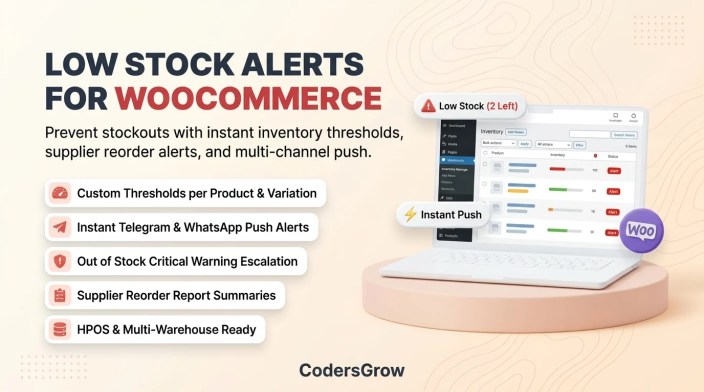
Figure 1: Automating WooCommerce low stock alerts to avoid stockouts and maintain optimal inventory levels.
Why Default WooCommerce Low Stock Alerts Fall Short
↑ Back to topUnderstanding the limitations of core WordPress inventory reporting explains why modern merchants require dedicated notification infrastructure:
- Email Notification Bottlenecks: Native WooCommerce inventory emails are sent via basic PHP mail or SMTP relays that often delay delivery by hours during busy peak shopping periods.
- Lack of Real-Time Mobile Visibility: Inventory managers working in warehouses or packing stations rarely sit in front of an active email inbox. Real-time mobile push notifications solve this friction immediately.
- Single Global Threshold Limitations: Core WooCommerce applies a universal stock threshold across your entire catalog, ignoring the fact that high-turnover items require vastly different reorder lead times than custom slow-moving goods. Consult the official WooCommerce inventory documentation for core configuration basics.
- No Multi-Channel Team Routing: Standard store alerts cannot be selectively routed to specific warehouse Telegram channels or procurement WhatsApp groups.
The Anatomy of an Automated Stock Alert Flow
↑ Back to topA professional inventory alert mechanism operates seamlessly behind the scenes through four systematic checkpoints:
- Continuous Threshold Monitoring: Every checkout transaction automatically calculates remaining inventory counts against defined minimum limits.
- Multi-Channel Broadcast: The second a product crosses the threshold, an encrypted webhook triggers instant alerts to your designated mobile channels.
- Actionable Supplier Reorder Details: Rather than a cryptic alert, messages include SKU numbers, supplier details, reorder links, and remaining stock counts.
- Emergency Out of Stock Escalation: When stock hits zero, critical priority notifications alert catalog administrators to mark items or pause paid marketing campaigns.
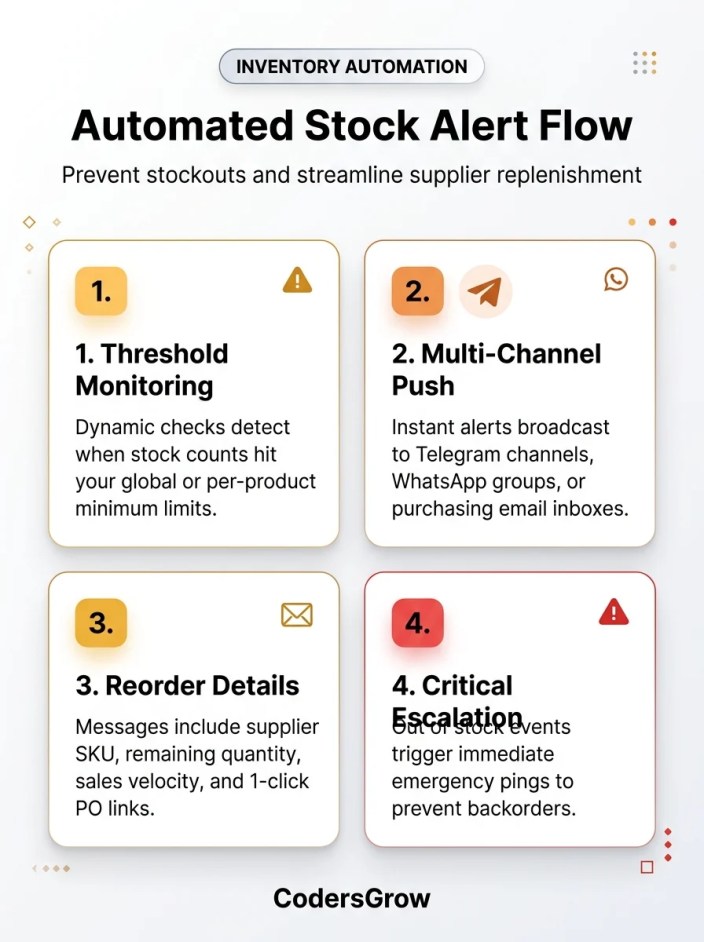
Figure 2: Architectural flow of automated WooCommerce low stock alerts and supplier replenishment triggers.
Step-by-Step: WooCommerce Low Stock Alerts with NotifyStore
↑ Back to topTo implement comprehensive inventory monitoring without writing custom cron scripts or hiring developers, we use NotifyStore – Smart Store Alerts for WooCommerce, available on the official WooCommerce Marketplace.
Step 1: Define Global & Product-Level Thresholds
↑ Back to topIn your WordPress admin, navigate to WooCommerce → Settings → Products → Inventory:
- Ensure Enable stock management is checked.
- Set your Low stock threshold (e.g., 5 items).
- Set your Out of stock threshold (typically 0).
- For variable products or fast-moving goods, edit individual products to set custom per-item warning thresholds under the Product Data inventory tab.
Step 2: Connect Mobile Messaging Channels
↑ Back to topNotifyStore allows you to push inventory warnings directly to modern mobile messaging apps:
- Navigate to NotifyStore → Settings.
- Connect your Telegram bot token and dedicated warehouse Chat ID (as explained in our step-by-step Telegram notifications setup guide).
- Optionally connect your Meta WhatsApp Cloud API credentials (detailed in our complete WhatsApp notifications guide).
Step 3: Enable Low Stock & Out of Stock Triggers
↑ Back to topUnder NotifyStore → Notification Rules, activate the relevant inventory triggers:
- Toggle on Low Stock Alert to ping staff when quantities hit the warning mark.
- Toggle on Out of Stock Alert for high-priority emergency notifications.
- Select your target recipient channel (e.g., your warehouse operations group).
Step 4: Customize Dynamic Alert Templates
↑ Back to topCustomize the alert layout using dynamic tags so purchasing agents receive every detail needed to place a purchase order immediately:
⚠️ *LOW STOCK WARNING: #{product_id}*
📦 *Product:* {product_name}
🏷️ *SKU:* {product_sku}
📊 *Stock Remaining:* {stock_quantity} units
🚨 *Threshold:* {low_stock_amount}

🔗 *Reorder / Edit Product:*
{product_admin_url}
Operational Best Practices for Inventory Alerting
↑ Back to topTo get the most out of your woocommerce low stock alerts, establish these foundational inventory management practices:
- Account for Supplier Lead Times: If your manufacturer takes three weeks to produce and ship inventory, set your low stock threshold based on expected three-week sales volume rather than arbitrary numbers.
- Route Alerts to Dedicated Channels: Avoid mixing order receipts and inventory warnings in the same chat. Create a dedicated
#inventory-restockTelegram channel to keep purchasing focused and organized. - Review Stock Turnover Weekly: Regularly evaluate which products trigger frequent warnings to negotiate better bulk pricing with suppliers and increase buffer margins. For technical specifications, refer to the NotifyStore Documentation.
Frequently Asked Questions
↑ Back to topDo these alerts work for variable products and product variations?
↑ Back to topYes. NotifyStore checks inventory at both the parent product and individual variation levels (such as specific colors or sizes), alerting you with the exact variation title and SKU.
Can I receive low stock alerts on Telegram and WhatsApp simultaneously?
↑ Back to topYes. NotifyStore supports multi-channel broadcasting, enabling you to deliver inventory notifications across Telegram, WhatsApp, and internal email at the same time.
Will inventory checks slow down customer checkout?
↑ Back to topNo. NotifyStore triggers alerts asynchronously via non-blocking background workers after WooCommerce decrements inventory, ensuring zero impact on checkout responsiveness.
What happens if a product is refunded and stock is restored?
↑ Back to topWooCommerce updates the inventory count automatically, and NotifyStore logs the updated stock level without sending redundant low stock alerts.
Eliminate Stockouts with Instant Mobile Alerts
↑ Back to topMaintaining accurate stock control is the backbone of a successful e-commerce operation. By activating automated woocommerce low stock alerts via NotifyStore, you empower your team to restock proactively, safeguard customer satisfaction, and prevent missed revenue.
Upgrade your inventory monitoring today. Explore NotifyStore – Smart Store Alerts for WooCommerce on CodersGrow or visit the official WooCommerce Marketplace listing to get started.