
Important Order Notes helps you highlight, organize, and manage critical WooCommerce order notes.
It ensures that important information such as follow-ups, shipping issues, or customer requests is always visible and never lost in long note lists.
This documentation explains how to install, configure, and use the plugin step by step.
Installation
↑ Back to topTo start using a product from WooCommerce.com, you can use the “Add to store” functionality on the order confirmation page or the My subscriptions section in your account.
- Navigate to My subscriptions.
- Find the Add to store button next to the product you’re planning to install.
- Follow the instructions on the screen, and the product will be automatically added to your store.
Alternative options and more information at:
Managing WooCommerce.com subscriptions.

Setup and Configuration
↑ Back to topGetting started
↑ Back to topOnce activated, the plugin is ready to use without additional setup.
Where to Find Important Order Notes
↑ Back to topImportant Order Notes integrates directly into the WooCommerce admin:
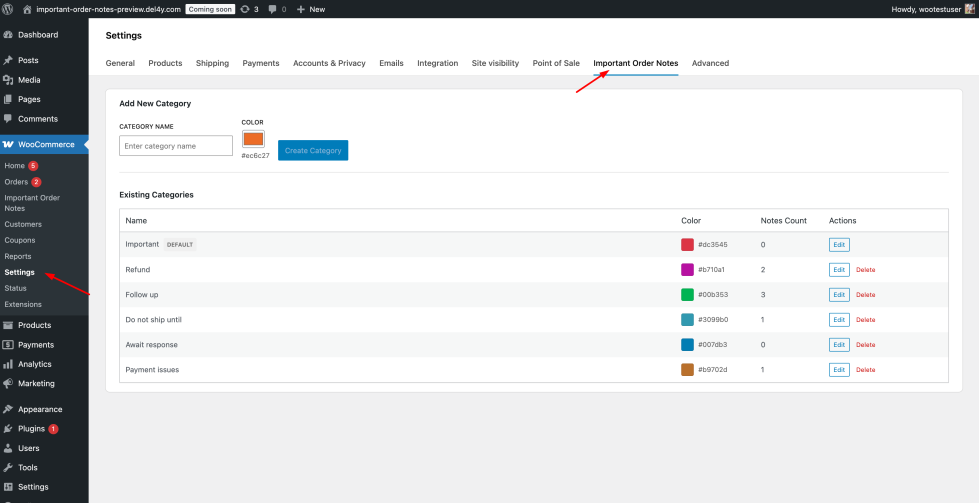
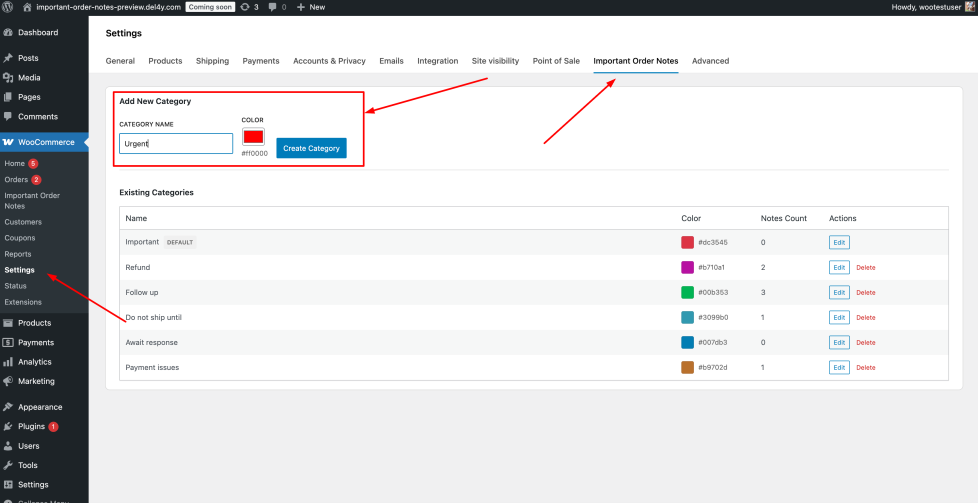
WooCommerce → Settings → Important Order Notes – Manage note categories.
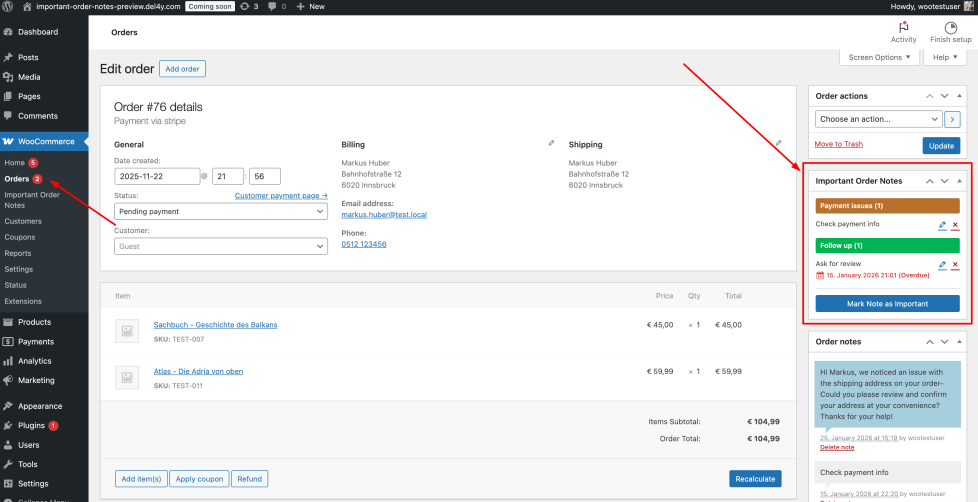
Order edit page – A dedicated metabox shows all important notes for the order.
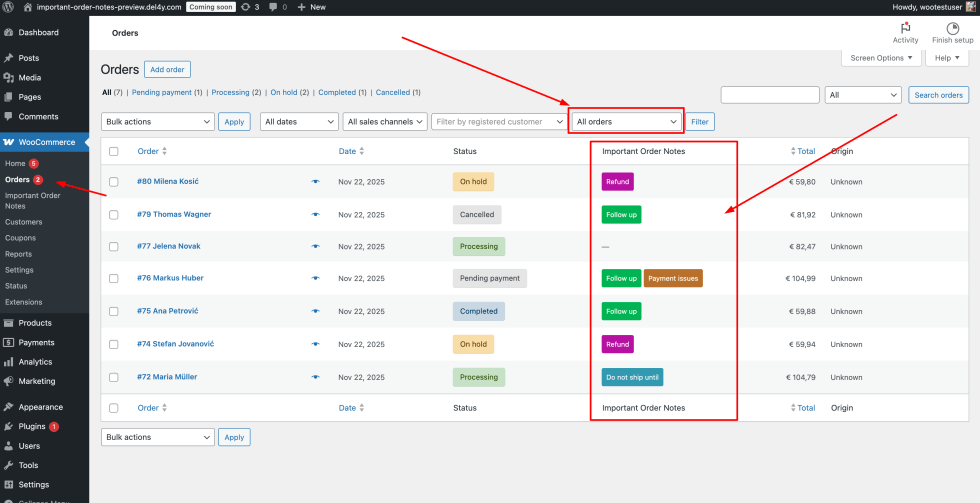
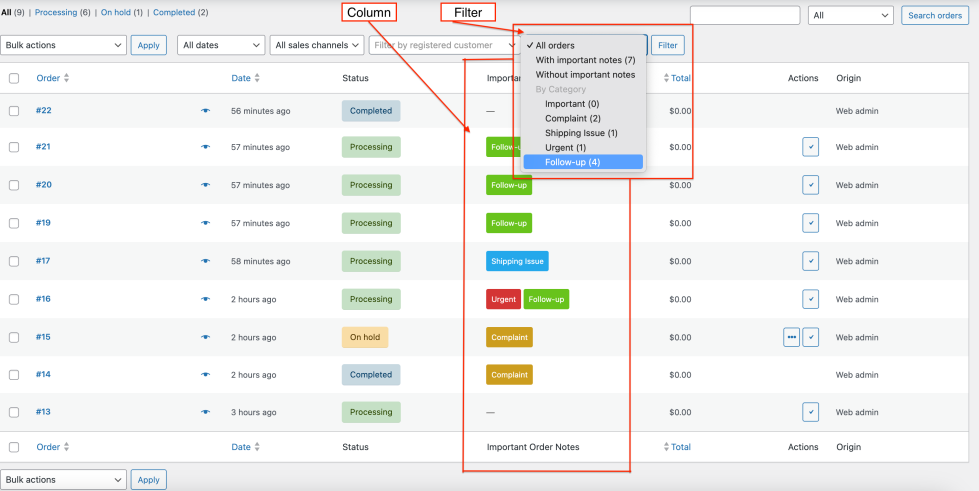
WooCommerce orders list – A new column displays important note badges.
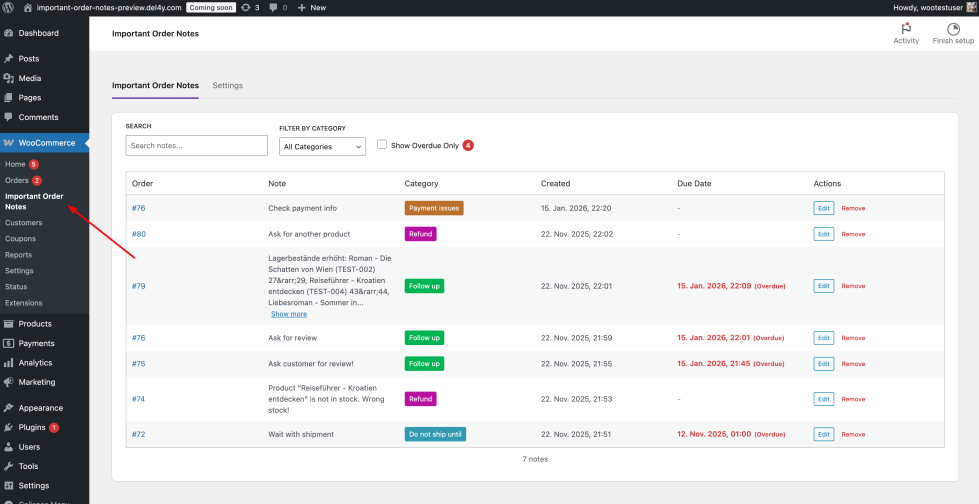
Important Order Notes dashboard – A central overview of all important notes.
Creating Categories
↑ Back to topCategories help you organize important notes by priority or purpose.
How to Create a Category
↑ Back to top- Go to WooCommerce → Settings → Important Order Notes.
- Enter a category name (for example: “Urgent” or “Follow-up”).
- Choose a color for the category.
- Click Create Category.
You can create as many categories as needed.
One default category is always available and cannot be deleted.
Categories can be created either from the settings page or directly when marking a note as important.
Adding Order Notes
↑ Back to topImportant Order Notes works with existing WooCommerce order notes.
Before marking a note as important, you first need to create a regular order note.
How to Add an Order Note
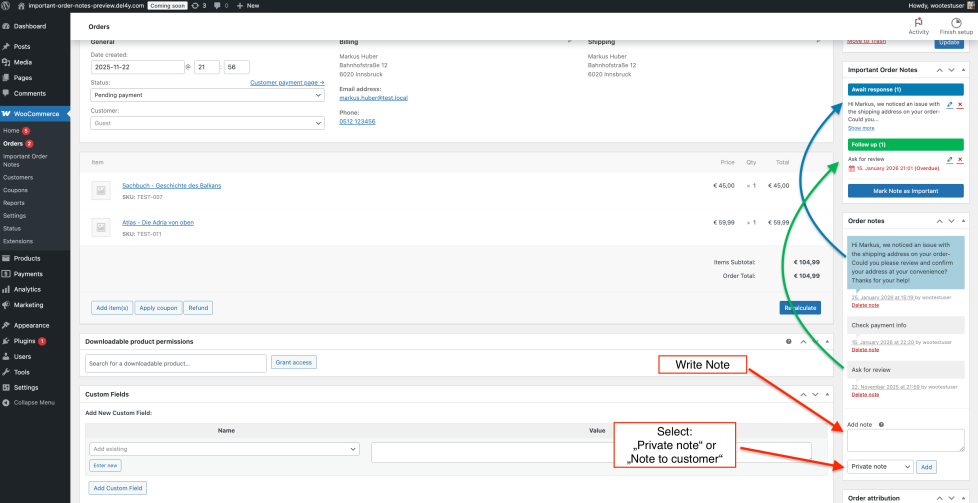
↑ Back to top- Open an order in WooCommerce → Orders.
- Scroll to the Order notes section.
- Enter your note text.
- Choose whether the note should be:
- a Private note (internal only), or
- a Customer note (sent to the customer).
- Click Add.
Once the note is created, it becomes available in the Mark Note as Important dialog and can be highlighted using Important Order Notes.
Important Order Notes does not replace WooCommerce order notes.
It enhances them by allowing you to mark selected notes as important.
Marking a Note as Important
↑ Back to topYou can mark both customer notes and private order notes as important.
How to Mark a Note as Important
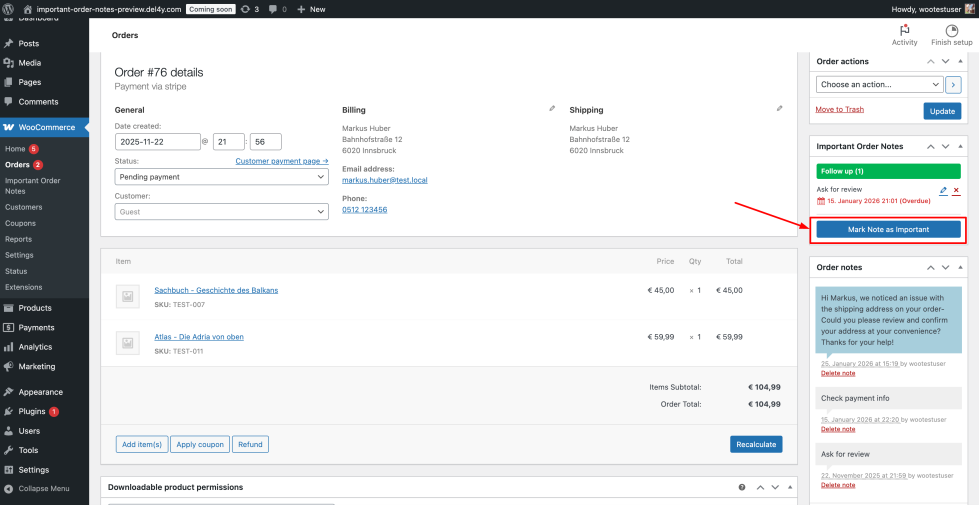
↑ Back to top- Open an order in WooCommerce → Orders.
- Click Mark Note as Important in the Important Order Notes metabox.
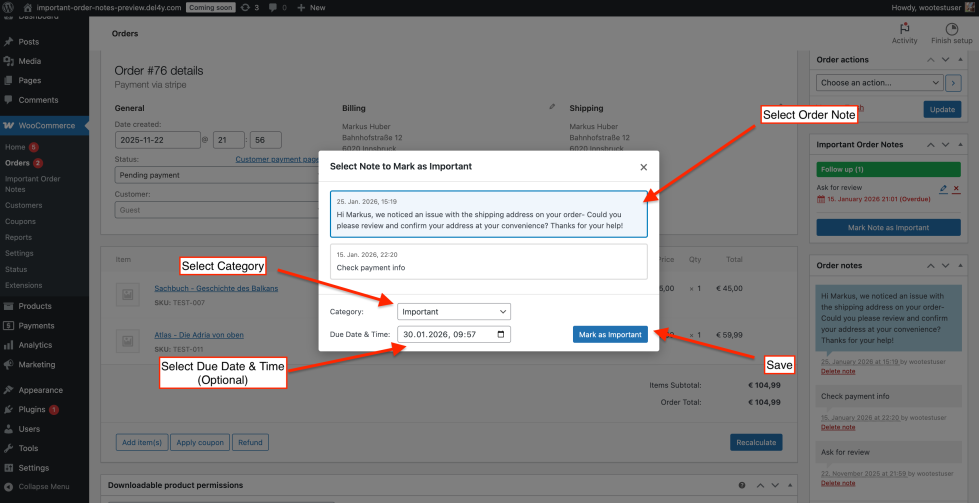
- Select the order note you want to highlight.
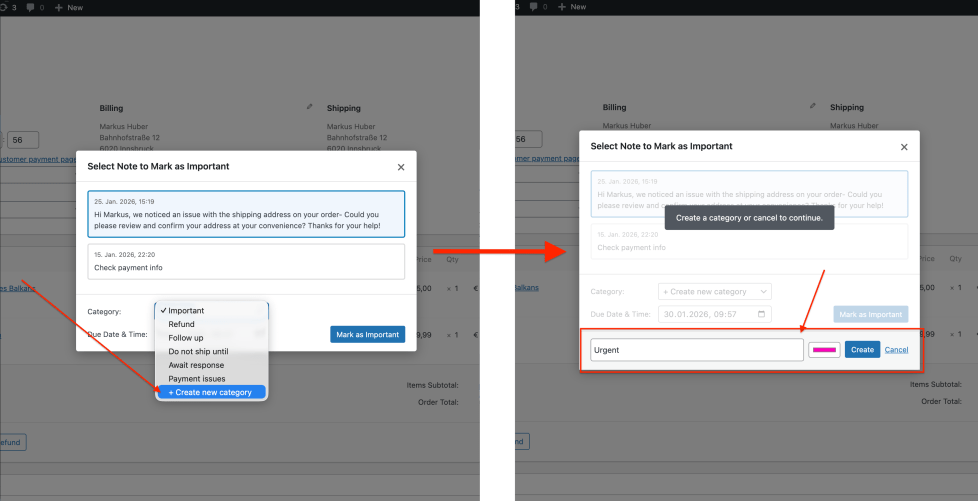
- Choose an existing category or create a new category directly from the dialog.
- Optionally set a due date.
- Confirm your selection.
New categories created in the dialog are immediately available and can be reused across all orders.
Managing Important Notes on the Order Page
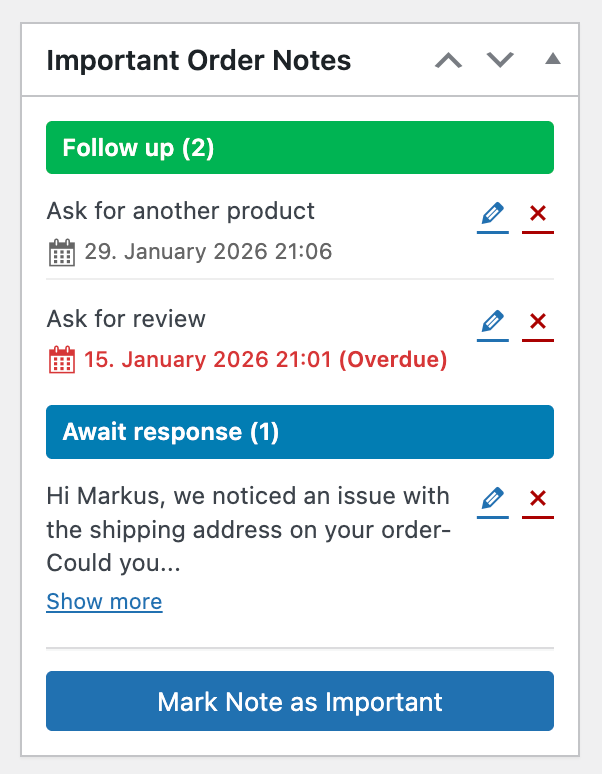
↑ Back to topOn the order edit page, all important notes are displayed in a dedicated metabox:
- Notes are grouped by category.
- Each category is shown with its assigned color.
- Due dates are displayed below the note.
- Overdue notes are clearly marked.
You can edit or remove important notes directly from this metabox.
Using Due Dates and Overdue Notices
↑ Back to topDue dates help track follow-ups and time-sensitive tasks.
- When a due date is set, the plugin monitors it automatically.
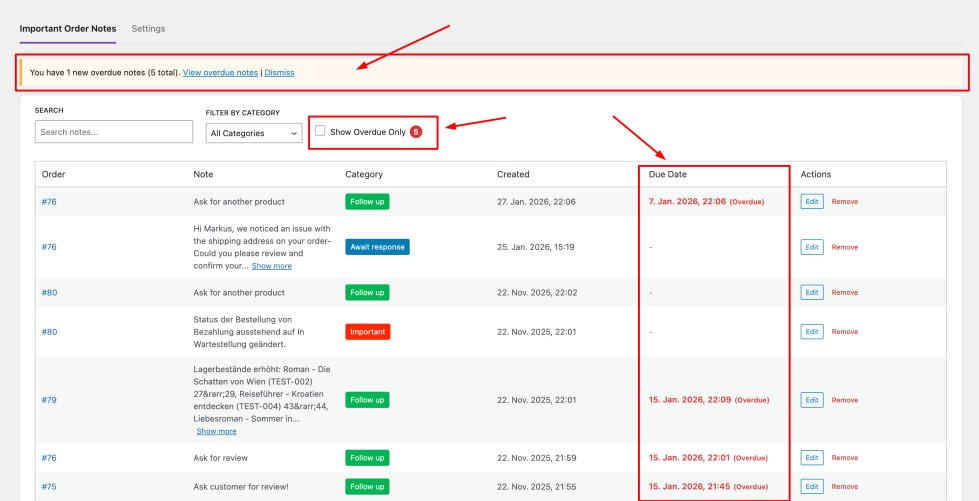
- If a note becomes overdue, an admin notice appears in the WooCommerce admin.
- Overdue notes are highlighted both on the order page and in the dashboard.
This helps ensure that no important task is forgotten.
Important Order Notes Dashboard
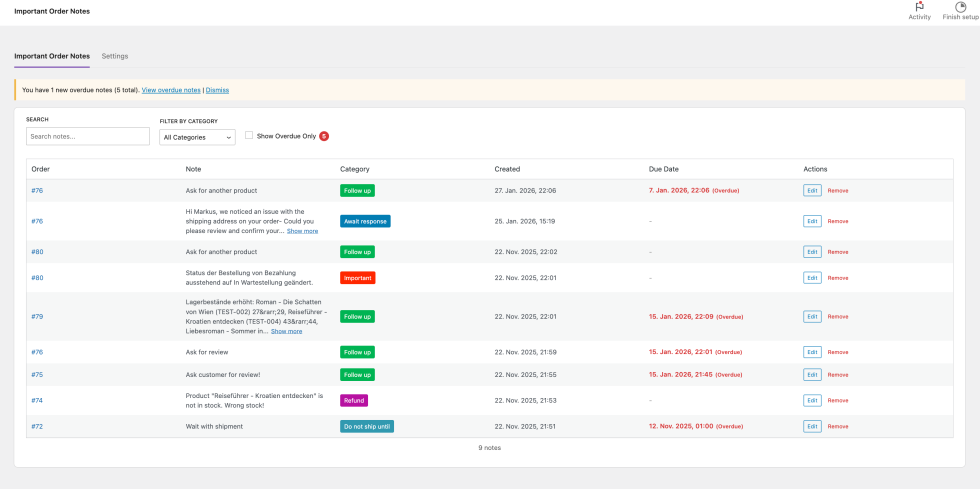
↑ Back to topThe dashboard provides a central overview of all important notes across all orders.
What You Can Do in the Dashboard
↑ Back to top- View all important notes in one place.
- Search notes by text.
- Filter notes by category.
- Show only overdue notes.
- Jump directly to the related order.
This is especially useful for stores with many orders or multiple team members.
Orders List Column and Filters
↑ Back to topThe WooCommerce orders list includes a new column for important notes.
Features
↑ Back to top- Colored badges show which categories are assigned to each order.
- Filter orders by:
- Orders with important notes
- Orders without important notes
- Specific categories
This makes it easy to prioritize orders during daily workflows.
Multiple Admin Users
↑ Back to topAll admin users with WooCommerce permissions can:
- View important notes
- Create and edit categories
- Mark notes as important
- Use filters and dashboards
This ensures consistent visibility for teams working together.
Performance and Compatibility
↑ Back to top- Fully compatible with WooCommerce High-Performance Order Storage (HPOS).
- Optimized database queries.
- Assets load only on relevant admin pages.
- The plugin is designed to have no noticeable impact on store performance.
Troubleshooting
↑ Back to topI don’t see the Important Order Notes metabox
Make sure you are editing a WooCommerce order and that WooCommerce is active.
Categories are not saving
Check that you have sufficient permissions to manage WooCommerce settings.
Overdue notices are not showing
Ensure that due dates are set and that the current date has passed the due date.
Uninstalling the Plugin
↑ Back to topDeactivating the plugin will not delete your data.
- Categories and important note markers remain stored in the database.
- You can reactivate the plugin later without losing information.
Support
↑ Back to topIf you need help or have questions:
- Use the WooCommerce.com support system linked to your purchase.
- Support requests are handled through your WooCommerce account.
We aim to respond to support requests as quickly as possible.
Feedback and Suggestions
↑ Back to topWe value feedback and continuously improve the plugin.
If you have feature requests or suggestions, please contact support through WooCommerce.com.
Your feedback helps shape future updates and improvements.
Conclusion
↑ Back to topImportant Order Notes brings clarity and structure to WooCommerce order management.
By highlighting critical information and making it easy to prioritize tasks, the plugin helps teams stay organized and confident — even as stores grow.
FAQs
↑ Back to top
Does this work with WooCommerce HPOS?
Yes! Important Order Notes is fully compatible with WooCommerce High-Performance Order Storage (HPOS) and traditional post-based storage.
Will this slow down my store?
No, the plugin uses optimized database queries and only loads assets on relevant admin pages.
Does it work with multiple admin users?
Yes, all admin users with WooCommerce permissions can view, create, and manage important notes.
What happens to my data if I uninstall?
Your important note markers and categories are stored safely in the database and remain intact if you deactivate the plugin.
Is translation support included?
Yes, the plugin is fully translation-ready with a complete .pot file for localization.

