
IndexIQ – AI Smart Search & Filters for WooCommerce helps your customers to find products faster with intelligent search results and merchandising controls designed to improve conversions.
Installation
↑ Back to topTo start using a product from WooCommerce.com, you can use the “Add to store” functionality on the order confirmation page or the My subscriptions section in your account.
- Navigate to My subscriptions.
- Find the Add to store button next to the product you’re planning to install.
- Follow the instructions on the screen, and the product will be automatically added to your store.
Alternative options and more information at:
Managing WooCommerce.com subscriptions.

Setup and Configuration
↑ Back to top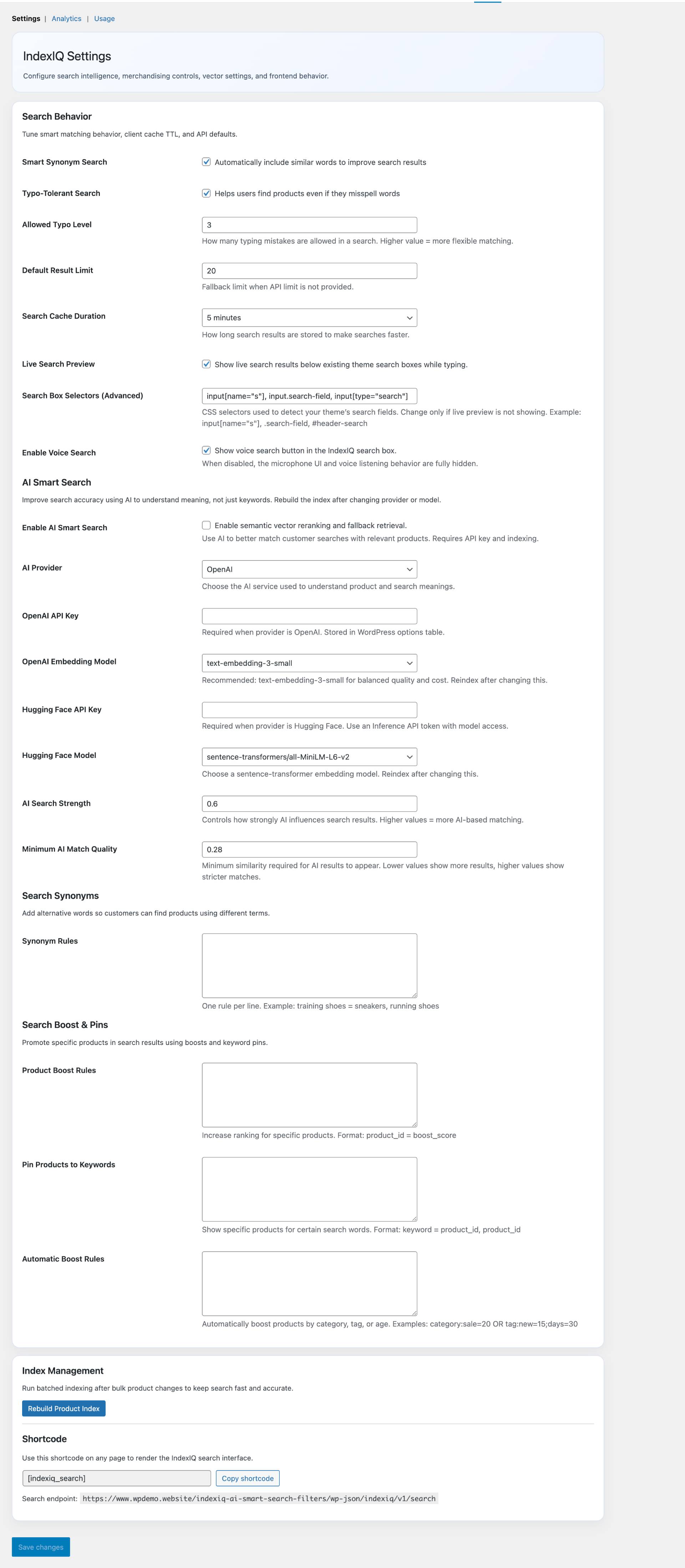
To set up your store with IndexIQ: Go to: WooCommerce > Settings > IndexIQ
Search Behavior
↑ Back to topTune smart matching behavior, client cache TTL, and API defaults.
- Smart Synonym Search: Enable this to automatically include similar words to improve search results
- Typo-Tolerant Search: Enabling this will helps users find products even if they misspell words
- Allowed Typo Level: Specify how many typing mistakes are allowed in a search. Higher value = more flexible matching.
- Default Result Limit: Specify the fallback limit when API limit is not provided.
- Search Cache Duration: Choose how long search results are stored to make searches faster.
- Live Search Preview: Enable this to show live search results below existing theme search boxes while typing.
- Search Box Selectors (Advanced): Input the CSS selectors used to detect your theme’s search fields. Change only if the live preview is not showing. Example: input[name=”s”], .search-field, #header-search
- Enable Voice Search: Enable this to show voice search button in the IndexIQ search box. When disabled, the microphone UI and voice listening behavior are fully hidden.
AI Smart Search
↑ Back to topImprove search accuracy using AI to understand meaning, not just keywords. Rebuild the index after changing provider or model.
- Enable AI Smart Search: Check this to enable semantic vector reranking and fallback retrieval. Use AI to better match customer searches with relevant products. Requires API key and indexing.
- AI Provider: Choose your AI provider here. (OpenAI | Hugging Face)
- OpenAI API Key: Input the AI API key here
- OpenAI Embedding Model: Choose the model here
- Hugging Face API Key: Input the AI API key here
- Hugging Face Model: Choose the model here
- AI Search Strength: This controls how strongly AI influences search results. Higher values = more AI-based matching.
- Minimum AI Match Quality: Input the minimum similarity required for AI results to appear. Lower values show more results, higher values show stricter matches.
Search Synonyms
↑ Back to topAdd alternative words so customers can find products using different terms.
- Synonym Rules: One rule per line. Example: training shoes = sneakers, running shoes
Search Boost & Pins
↑ Back to topPromote specific products in search results using boosts and keyword pins.
- Product Boost Rules: Input the rules to increase ranking for specific products. Format: product_id = boost_score
- Pin Products to Keywords: Add the keywords to show specific products for certain search words. Format: keyword = product_id, product_id
- Automatic Boost Rules: Add rules to automatically boost products by category, tag, or age. Examples: category:sale=20 OR tag:new=15;days=30
Index Management
↑ Back to topRebuild Product Index: Run batched indexing after bulk product changes to keep search fast and accurate.
Shortcode
↑ Back to top- Use this shortcode: ‘[indexiq_search]’ on any page to render the IndexIQ search interface.
- Search endpoint:
yourwebsite.com/indexiq-ai-smart-search-filters/wp-json/indexiq/v1/search
IndexIQ Analytics
↑ Back to top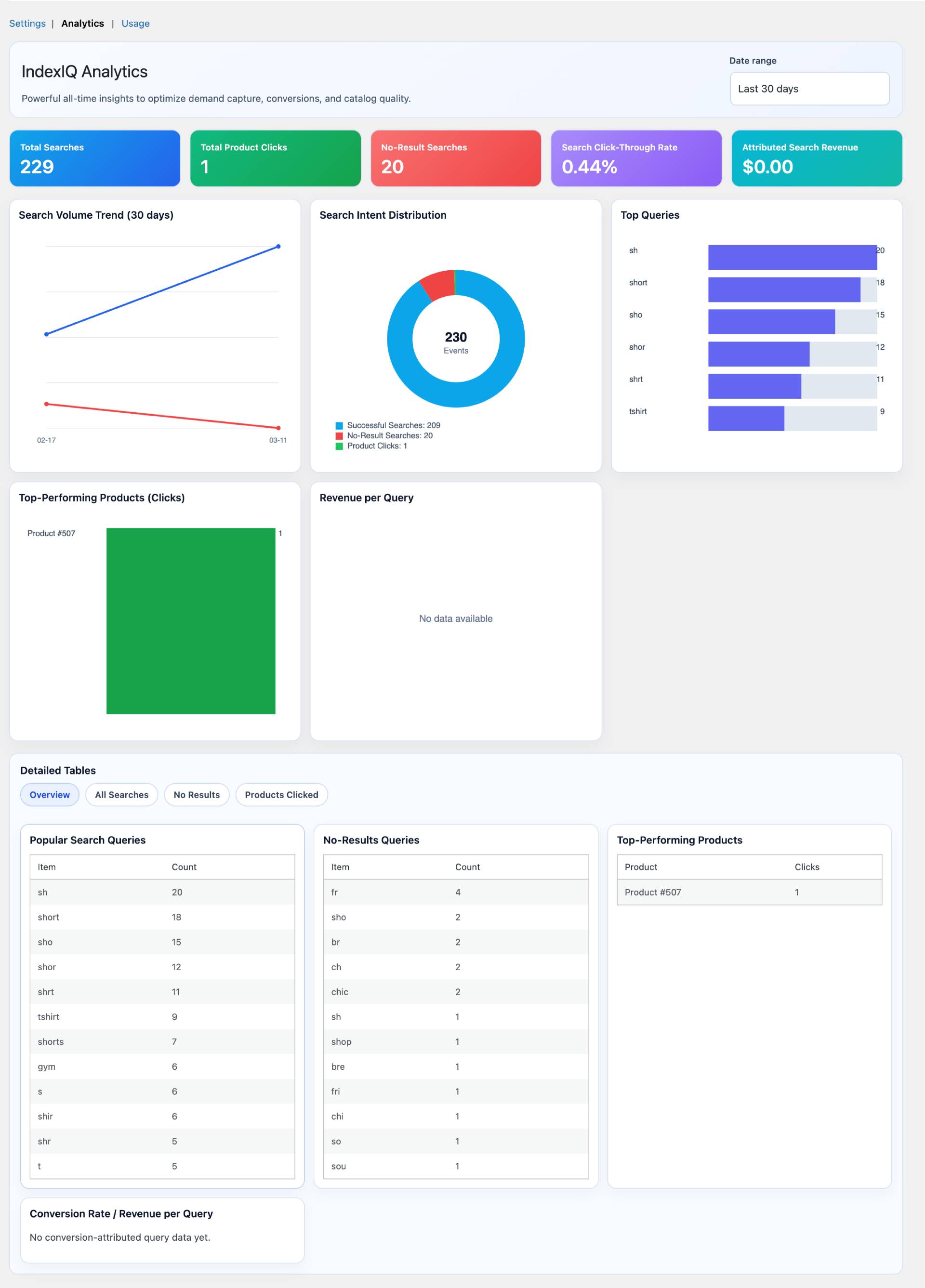
Store admin can view powerful all-time insights to optimize demand capture, conversions, and catalog quality.
How to use it
↑ Back to top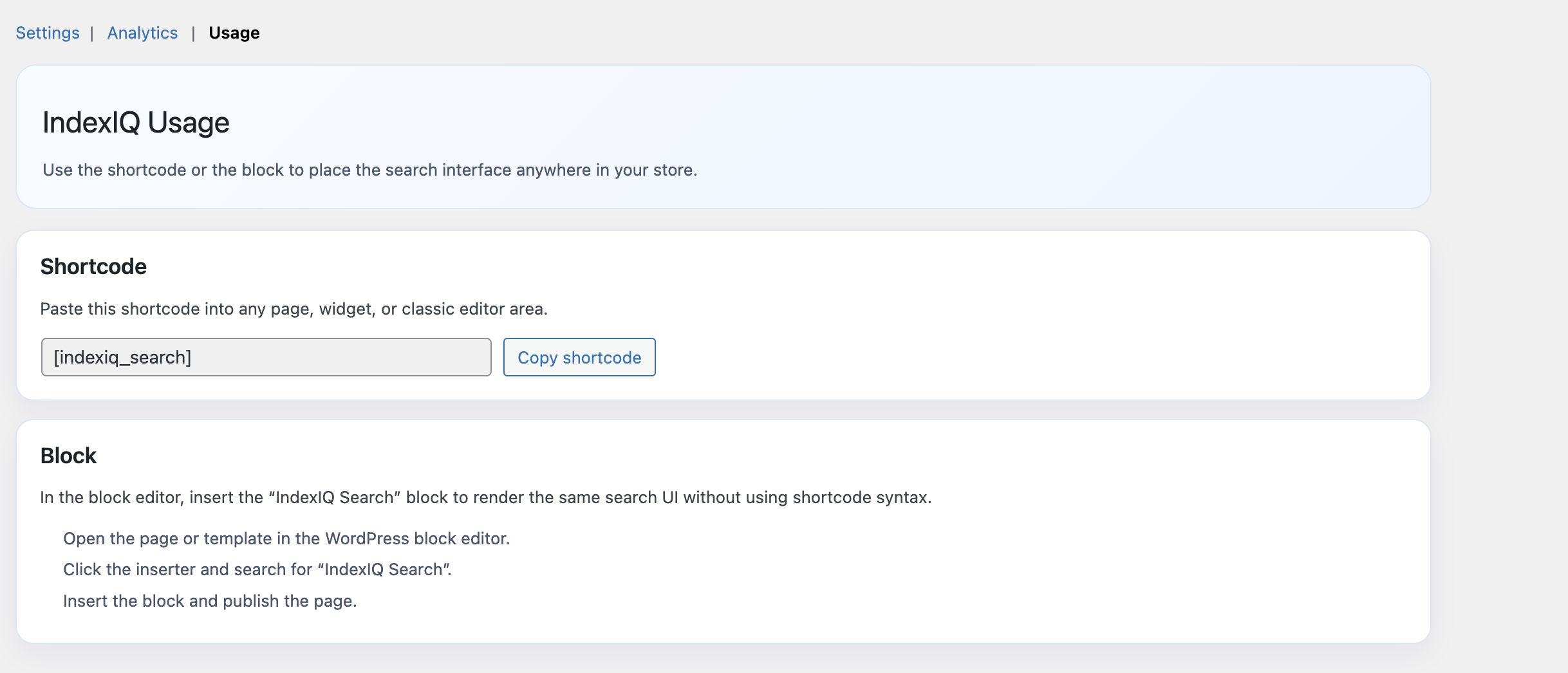
Use the shortcode or the block to place the search interface anywhere in your store.
- Shortcode: Paste this shortcode ‘[indexiq_search]’ into any page, widget, or classic editor area.
- Block: In the block editor, insert the “IndexIQ Search” block to render the same search UI without using shortcode syntax. Open the page or template in the WordPress block editor. Click the inserter and search for “IndexIQ Search”. Insert the block and publish the page.
Usage
↑ Back to topWhat customers see on the front end.
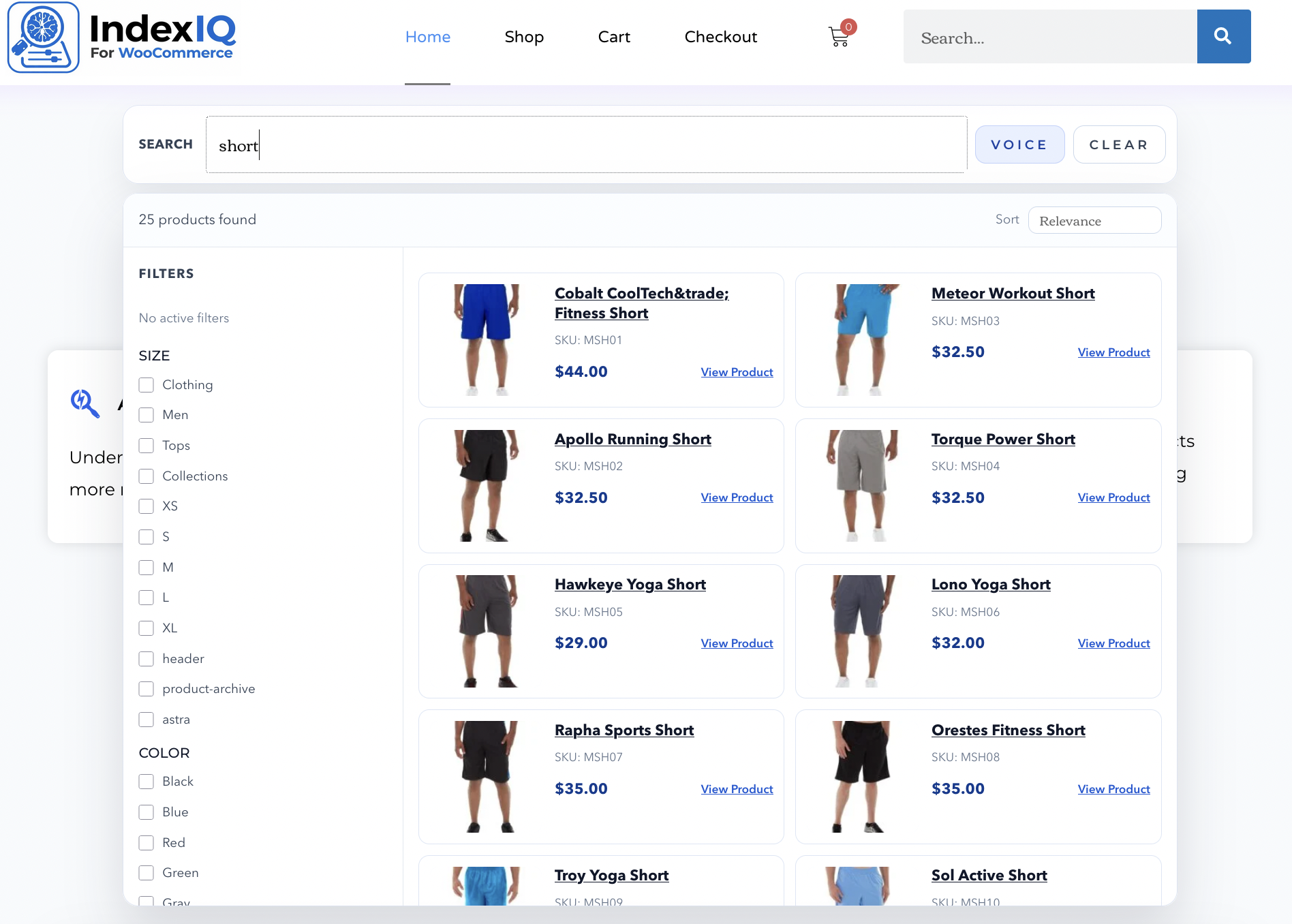
This is how the search module will display where ever you place it using either shortcode or the block.
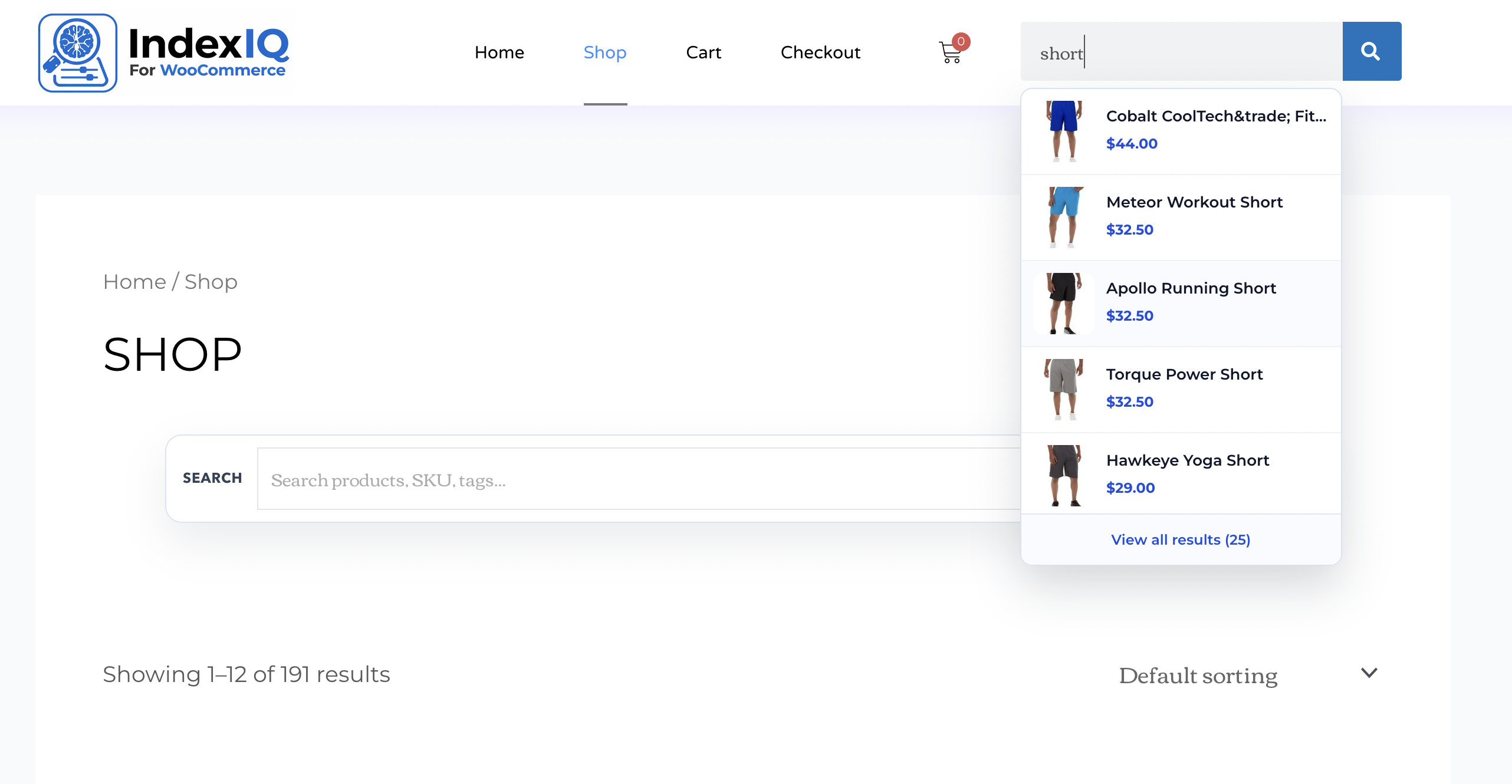
The default search box will become the smart and dynamic search engine like the above.
FAQs
↑ Back to top
Will IndexIQ work with my existing search bar?
Yes. IndexIQ is designed to work with most WooCommerce themes and automatically integrates with existing search fields on your site. In most cases, you can enable the plugin and start using enhanced search immediately.
Is IndexIQ suitable for stores with many products?
Yes. IndexIQ is built to handle stores with large product catalogs. Its intelligent search indexing helps customers quickly find relevant products even when your store contains hundreds or thousands of items.
Can IndexIQ help increase sales?
Yes. When customers can find products faster and more easily, they are more likely to complete purchases. By improving product discovery and showing more relevant results, IndexIQ helps create a smoother shopping experience that can lead to higher conversions.
Does the plugin require complicated setup?
No. IndexIQ is designed to be simple to configure. Most store owners can enable the plugin and start benefiting from improved search immediately, while advanced options are available for those who want deeper control.
Is IndexIQ suitable for mobile users?
Yes. IndexIQ works well on mobile devices and includes features such as instant search results and voice search to make product discovery easier for mobile shoppers.
Can I promote specific products in search results?
Yes. IndexIQ includes built-in merchandising controls that allow you to boost product rankings or pin products to specific keywords. This helps you highlight important products directly within search results.
What happens if customers search using different words than my product titles?
IndexIQ understands related words and search intent, so customers can still find the correct products even if they use different terms or phrases.
Does IndexIQ work alongside other WooCommerce plugins?
Yes. IndexIQ is designed to work alongside most WooCommerce extensions and standard store configurations.
Is voice search optional?
Yes. Voice search is optional and can be enabled or disabled from the plugin settings depending on your store’s needs.
Where can I see the plugin in action?
You can try the live demo to experience how IndexIQ improves WooCommerce search with AI-powered results, live search previews, and voice search.

