
1. Overview
↑ Back to topInfinite Reports lets you build, filter, schedule, and export custom WooCommerce reports (Orders, Products, Customers, Refunds, and — when active — Subscriptions and Bookings) without writing code. Select the exact columns you need (including custom meta and taxonomy terms), apply multiple AND/OR filters, preview results instantly, export to CSV or XLSX, and optionally deliver reports automatically by email or webhook on a daily, weekly, or monthly cadence.
Use cases: Finance summaries, merchandising stock snapshots, marketing attribution (via UTM & referrer fields), customer cohort analysis, fulfillment QA, high-spend customer lists, product performance digests, refund tracking, subscription MRR, upcoming bookings.
2. Installation
↑ Back to topMarketplace Install
- Purchase and download the extension from WooCommerce.com (or activate if already in your subscriptions).
- Go to: WooCommerce > Extensions > My Subscriptions > Activate.
- Auto‑updates occur while your subscription remains active.
Manual Install (ZIP)
- In WP Admin: Plugins > Add New > Upload Plugin.
- Select the ZIP, click Install Now, then Activate.
- Navigate to WooCommerce > Settings > Infinite Reports.
3. Core Concepts
↑ Back to top- Report – A saved configuration consisting of a Type, Columns, Filters, Logic, Output Format, and (optionally) a Delivery Schedule.
- Report Type – Orders, Products, Customers, Refunds, Subscriptions (when WooCommerce Subscriptions is active), or Bookings (when WooCommerce Bookings is active).
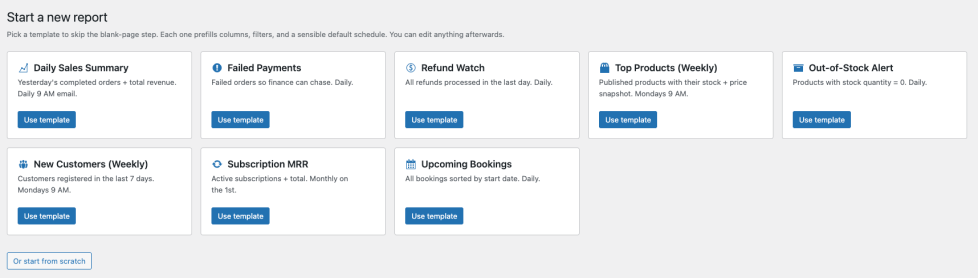
- Starter Templates – Pre-configured reports (columns, filters, schedule) you can apply with one click when creating a new report.
- Columns – Standard data points plus dynamic custom meta fields (for orders/products) and taxonomy terms (categories, tags, shipping class).
- Filters – Field / Operator / Value rows (equals, contains, greater than, is empty, etc.).
- Filter Logic – Match ALL (AND) or ANY (OR) conditions.
- Output Format – CSV (lightweight, machine-readable) or XLSX (Excel-native, formatted for non-technical recipients).
- Preview – Real‑time paginated sample of the resulting dataset before saving/exporting.
- Digest (Automatic Delivery) – Scheduled recurring export delivered to email recipients and/or a webhook URL.
- Run Now – On-demand trigger that fires the digest immediately, independently of the schedule.
- Delivery History – Per-report log of every run with status, duration, payload size, and failure message.
4. Quick Start
↑ Back to top- Go to WooCommerce > Settings > Infinite Reports.
- Click “Add Report”.
- Pick a starter template (Daily Sales Summary, Failed Payments, Refund Watch, Top Products, Out-of-Stock Alert, New Customers, Subscription MRR, Upcoming Bookings) or click “Or start from scratch”.
- Name the report and choose a Type (Orders / Products / Customers / Refunds / Subscriptions / Bookings).
- Choose the Output Format (CSV or XLSX).
- Select Columns (multi‑select) > Drag to reorder > Optionally set custom labels.
- Add Filters (optional) and choose Filter Logic (ALL or ANY).
- Click “Preview Report” to validate results.
- (Optional) Enable “Automatic Delivery” and configure schedule, recipients, webhook, and branding.
- Save Report. The report appears in the list table with its next scheduled run and last-run status.
5. Starter Templates
↑ Back to topWhen you click “Add Report” you’re shown a gallery of starter templates. Each one prefills columns, filters, and a sensible default schedule for a common use case. Pick one to skip the blank-page step; you can edit anything afterwards. Templates that depend on optional plugins (Subscriptions, Bookings) only appear when those plugins are active.
6. Creating & Editing Reports
↑ Back to topThe editor screen groups configuration into: Basic Settings (Name, Type, Output Format), Columns, Filters, Preview, Automatic Delivery, and Branding.

Output Format
- CSV – Machine-readable. Empty cells stay empty for clean parsing. Best for BI tools, ETL, or scripts.
- XLSX – Excel-native, with bold and frozen header row plus auto-sized columns. Best for non-technical recipients who open the file in Excel, Numbers, or Google Sheets.
Columns
- Select from “Columns” (standard) and “Custom Fields” (automatically discovered meta keys for that type).
- Change display order by dragging within the “Customize Columns” list.
- Add a custom label to improve clarity for recipients (e.g., rename
billing_first_nameto “First Name”).
Filters
Each filter row: Field + Operator + Value. Unneeded rows can be removed. The logic selector determines whether all conditions (AND) or any (OR) must match.
- Operators: Equals, Does not equal, Greater than, Less than, Contains, Does not contain, Starts with, Ends with, Is empty, Is not empty.
- Date and numeric comparisons use appropriate casting internally.
- Meta fields and taxonomy terms can be filtered once added as columns or directly via their key.

Preview
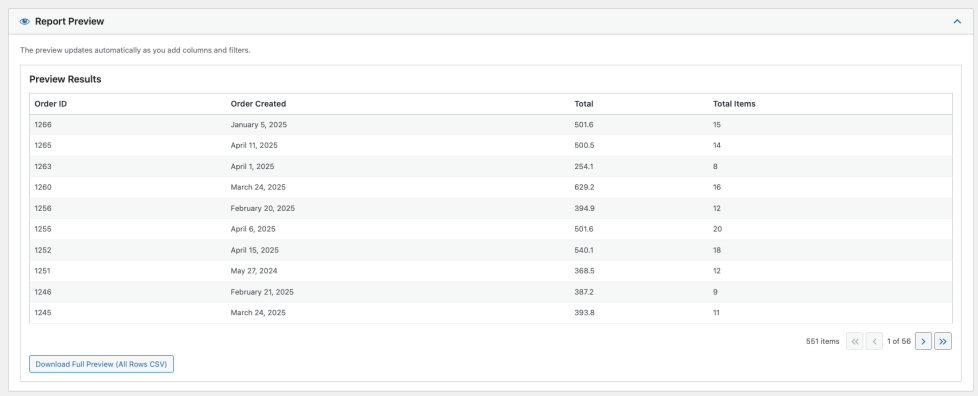
The preview pane fetches a paginated sample (default 10 rows) so you can validate column order, formatting (dates, prices), and that filters narrow results correctly before saving or scheduling. Click “Download Full Preview (All Rows CSV)” to export the entire filtered set without enabling delivery.
7. Automatic Delivery (Digests)
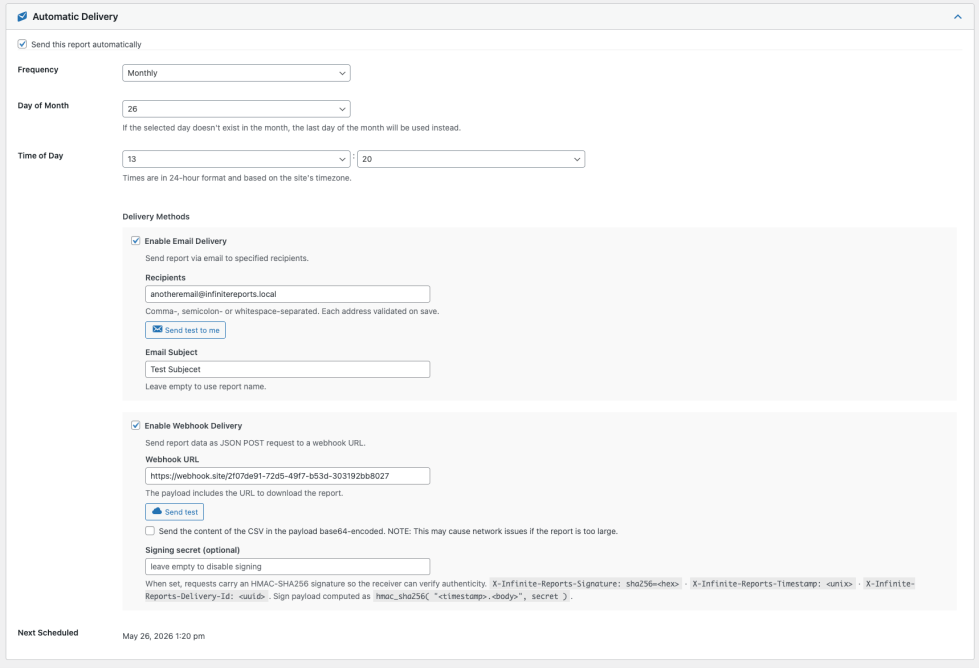
↑ Back to topEnable scheduling to deliver a fresh export automatically. Uses WordPress Action Scheduler for reliability and batching. Email and webhook delivery are independent — you can enable one, the other, or both on the same schedule.
- Frequency: Daily, Weekly (select day), Monthly (select day of month; if invalid for shorter month, last day is used).
- Time: 24‑hour hour:minute in site timezone.
- Next Scheduled: Displayed after saving when a schedule exists.
Email Delivery
- Recipients: Comma-, semicolon-, or whitespace-separated emails. Each address is validated on save (defaults to site admin email if blank).
- Subject: Optional custom subject (falls back to report name).
- Send test to me: Sends a one-off test email to the current admin so you can confirm formatting and inbox delivery before enabling the schedule.
Webhook Delivery
- Webhook URL: The endpoint that will receive a JSON POST request. The payload includes a download URL for the generated report.
- Send test: Posts a sample payload immediately so you can verify your endpoint accepts the request before scheduling.
- Inline file content: When enabled, the CSV/XLSX is included in the payload base64-encoded (avoid for very large reports).
- Signing secret (optional): When set, requests carry an HMAC-SHA256 signature in
X-Infinite-Reports-Signature: sha256=<hex>along withX-Infinite-Reports-TimestampandX-Infinite-Reports-Delivery-Idheaders. The signing payload is<timestamp>.<body>so receivers can verify authenticity and guard against replay attacks.
8. Customer-Branded Emails
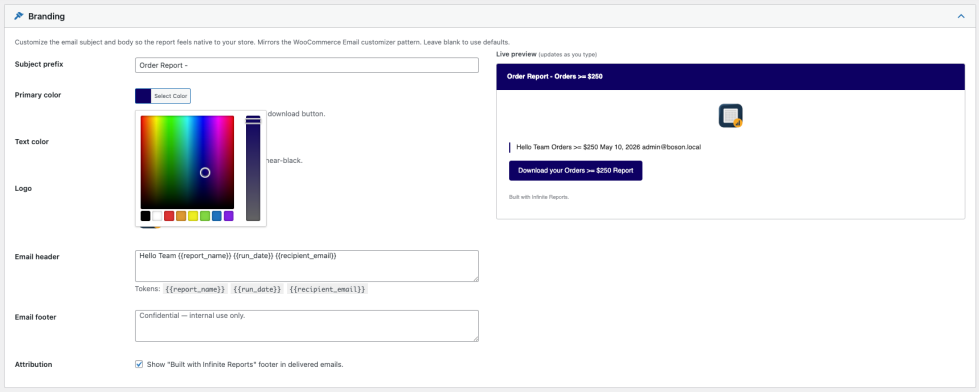
↑ Back to topThe Branding panel lets the digest email feel native to your store. Set a logo (picked from the Media Library), a primary color (used for the email header band and the download button), a body text color, an optional subject prefix, and customizable header and footer copy. A live preview updates as you type, mirroring the WooCommerce email customizer pattern. Leave fields blank to use sensible defaults.
- Tokens available in the header/footer fields:
{{report_name}},{{report_id}},{{report_type}},{{run_date}},{{recipient_email}}. - Attribution: Toggle the “Built with Infinite Reports” footer on or off per report.
9. Run Now
↑ Back to topOpen any saved report and click Run now in the page header to fire the digest immediately, independently of the schedule. The button is concurrency-safe — it stays disabled until the previous run completes, so you can’t accidentally double-fire a long-running export. Useful for testing changes, sending an ad-hoc snapshot, or back-filling after a missed cron.
10. Delivery History
↑ Back to topEvery digest run (scheduled, on-demand, or test) is recorded in a per-report Delivery History view, accessible from the row actions on the report list. Each row shows when the run started and finished, which delivery method ran (email or webhook), final status (succeeded / failed), duration, payload size, and the error message when a run fails.

11. Column Reference
↑ Back to topOrders: Financial totals (total, subtotal, taxes, discounts, fees, shipping), product list, refund metrics, billing & shipping addresses, payment method, marketing attribution (referer, landing path, utm_* fields), customer role, custom order meta. Every column resolves under both WooCommerce High-Performance Order Storage (HPOS) and the legacy post-based store.
Products: Core catalog data (title, type, SKU, prices, stock, dates), taxonomy terms (categories, tags, shipping class), selected sales performance columns (net sales, net sold), custom product meta.
Customers: Identity (ID, email, names, username), engagement (orders count, last ordered, last active), value metrics (total spent, average order value, total items), address & contact fields, avatar URL.
Refunds: Refund ID, parent order, refunded amount, reason, date, refunded by, payment method, plus the address and order meta inherited from the parent order.
Subscriptions (when WooCommerce Subscriptions is active): Subscription ID, status, billing period and interval, start/next-payment/end dates, customer, parent order, total, signup fee, trial end.
Bookings (when WooCommerce Bookings is active): Booking ID, status, customer, product, resource, start/end times, persons, parent order, cost.
12. WP-CLI
↑ Back to topEvery editor action has a WP-CLI counterpart for automation, CI, or remote runs:
wp infinite-reports list [--format=table|csv|json|yaml]– List every saved report.wp infinite-reports get <id> [--format=...]– Show a single report’s configuration.wp infinite-reports run <id> [--sync]– Trigger a digest run. Defaults to async via Action Scheduler; use--syncto run inline.wp infinite-reports export <id> [--format=csv|xlsx]– Generate the report file directly to disk.wp infinite-reports delete <id>– Delete a report.wp infinite-reports history <id> [--format=...]– Show recent delivery history rows.
13. AI Assistant Integration (MCP)
↑ Back to topInfinite Reports can be driven by an AI assistant instead of the dashboard. Connect a client that supports the Model Context Protocol (MCP) — such as Claude Desktop, Claude Code, Cursor, or VS Code — and you can build, preview, run, and schedule reports by describing what you want in plain language. There is nothing extra to install: the connection uses WordPress’s built-in Application Passwords, and the assistant works with the same reports you see in the editor.
What Your Assistant Can Do
- Discover – Ask which columns and filter fields exist for a report type, and which values a filter accepts.
- Preview – Try a combination of columns and filters and see sample rows, without saving anything.
- Create, rename, and delete saved reports.
- Run a saved report and read the results back as data inside the conversation.
- Schedule the email digest and configure webhook delivery (see section 7, Automatic Delivery).
All report types are available: Orders, Products, Customers, and Refunds — plus Subscriptions and Bookings when WooCommerce Subscriptions or WooCommerce Bookings is active. This is the same list you see in the editor.
What Stays in the Dashboard
A few settings are deliberately dashboard-only. If you need one of these, open the report in the editor:
- Output Format – Reports created by an assistant use the default format; switch between CSV and XLSX in the editor.
- Branding – Logo, colors, and header/footer copy for digest emails.
- Run Now and Delivery History – Trigger an immediate digest, or review past runs, from the report screen.
Requirements
- WooCommerce 10.9 or newer and WordPress 6.9 or newer.
- Your store must be reachable over HTTPS. Application Passwords are unavailable on plain
http://. - A user account that can manage WooCommerce (administrators and shop managers).
- An AI client that supports MCP.
Connecting Your Assistant
- Go to: WooCommerce > Settings > Infinite Reports > MCP Integration.
- Copy the endpoint URL shown at the top of the page. It ends in
/wp-json/mcp/mcp-adapter-default-server. - Click Generate Application Password, then copy the password WordPress displays. It is shown only once, so save it before closing the screen.
- Add the store to your AI client using that URL, your WordPress username, and the application password. Every client has its own way of adding a connection; for Claude Code the command is:
claude mcp add infinite-reports \
  --env WP_API_URL=https://yourstore.com/wp-json/mcp/mcp-adapter-default-server \
  -- npx -y @automattic/mcp-wordpress-remote@latest \
     --user yourname:'YOUR APPLICATION PASSWORD'
To confirm the connection, ask your assistant to “discover the Infinite Reports abilities”. It should report ten of them. The MCP Integration screen lists the same ten, so you can compare. (Asking a client to simply “list your tools” shows only the three general-purpose tools it uses to reach them — that is normal and nothing is missing.)
Example Requests
You speak normally; the assistant picks the right action. A typical session:
- “What columns can I put on an order report, and what can I filter by?”
- “Preview an order report with order ID, customer email, status, and total, for completed orders only — first 10 rows.”
- “That looks right. Save it as Completed Orders.”
- “Run Completed Orders and show me the first 50 rows.”
- “Email it to ops@example.com every Monday at 8am.”
- “Also post it to my webhook at https://hooks.example.com/reports.”
Two habits make the results much more reliable:
- Let it look things up first. Column and filter names are specific — an order’s revenue column is
total, and a product’s name istitle. Ask the assistant to list the available columns and filter fields before building a report and it won’t have to guess. - Preview before you save. A preview runs without creating anything, so it is the cheapest way to confirm the columns and filters are right.
Permissions & Safety
- It acts as you. Every request runs as the WordPress user whose application password you supplied, and requires the same permission to manage WooCommerce as the dashboard. The assistant can never do more than that user could do by hand. A user without that permission is refused every action.
- Reading is safe; writing changes your store. Seven of the ten actions only read data. The three that create, update, or delete a report are marked as such, and most clients ask you to approve them before they run.
- Everything is logged. Each request is recorded under WooCommerce > Status > Logs, in the log named
infinite-reports-mcp. You can see exactly what the assistant did, and anything it was refused. - Your webhook signing secret is never revealed. An assistant can set it but can never read it back. To change it, set a new one.
- Revoking access is instant. Delete the application password under Users > Profile > Application Passwords and the connection stops working immediately. Your reports are unaffected.
Row Limits
A single request returns at most 200 rows, so results stay quick and readable in a conversation. Ask for a specific page (“show me the next 200”) to page through more. For a complete data set, use Download Full Preview in the editor or set up Automatic Delivery — those have no such limit.
Troubleshooting
- The assistant can’t find any Infinite Reports actions: Confirm the URL you pasted ends in
/wp-json/mcp/mcp-adapter-default-server, that it starts withhttps://, and that WooCommerce is 10.9 or newer. The MCP Integration screen should list all ten actions — if it doesn’t, the plugin isn’t active. - “Permission denied” on everything: The application password belongs to a user who cannot manage WooCommerce, or the store was reached over plain
http://. Use an administrator or shop manager account over HTTPS. - The assistant says something went wrong but can’t say what: This is expected — the MCP connection returns the same short message for every failure. Open WooCommerce > Status > Logs and choose the
infinite-reports-mcplog: each failed request is recorded there with the exact reason, such as an invalid recipient email address. - Something failed and the log has no entry for it: The request itself was not valid — for example asking for more than 200 rows, or a schedule other than daily, weekly, or monthly. Rephrase the request within those limits.
- “Unknown column” or “unknown filter field”: The assistant guessed a name. Ask it to list the available columns and filter fields for that report type, then try again.
- Changing a report’s type is rejected: Switching an existing report between types (for example Orders to Products) also requires a new set of columns and filters, because the old ones don’t exist on the new type. Ask the assistant to list the columns for the new type and supply them in the same request.
14. Troubleshooting
↑ Back to top- No rows in preview: Loosen filters or test each condition individually. Confirm chosen columns exist for the selected report type.
- Digest didn’t arrive: Open the Delivery History view for the report — failed runs include an error message. Verify schedule shows a future time; ensure WordPress cron runs (visit site or configure a real cron); check recipient email spelling and spam folder. Use Send test to me / Send test to confirm the pipeline outside the schedule.
- Webhook returns an error status: Check the Delivery History “Message” column for the response code. Use Send test to retry; if the receiver verifies signatures, confirm the signing secret matches on both sides.
- Subscriptions / Bookings type not listed: Those types appear only when WooCommerce Subscriptions or WooCommerce Bookings is active. Activate the source plugin and reload the editor.
- Missing custom meta: Ensure the meta key is non‑private (does not start with underscore) and that at least one record contains it.
- Performance slow: Reduce number of columns, narrow date ranges using filters, or export during off‑peak hours. Pick CSV over XLSX when the consumer is another tool — XLSX has higher generation cost.
- Timezone mismatch: Check site timezone setting under Settings > General.
15. Developer Notes (Hooks)
↑ Back to topSelected extensibility points (search codebase for the hook names to review parameters):
infinite_reports_report_types– Register a custom report type alongside the built-in ones.infinite_reports_order_columns,infinite_reports_product_columns,infinite_reports_customer_columns– Filter available column definitions.infinite_reports_export_infinite_report_{type}_row_data– Filter each CSV/XLSX row prior to writing.infinite_reports_preview_download_batch_size– Adjust the batch size for the “Download Full Preview” export (default 5000).infinite_reports_loaded,before_infinite_reports_init,infinite_reports_init– Lifecycle hooks.- Action scheduler hooks per report:
infinite_reports_send_digest_report_{id}.

