Documentation of Free version Invoice Payment Option for WooCommerce.
Installation
↑ Back to topTo start using a product from WooCommerce.com, you can use the “Add to store” functionality on the order confirmation page or the My subscriptions section in your account.
- Navigate to My subscriptions.
- Find the Add to store button next to the product you’re planning to install.
- Follow the instructions on the screen, and the product will be automatically added to your store.
Alternative options and more information at:
Managing WooCommerce.com subscriptions.

Setup and Configuration
↑ Back to topAfter activation of the Invoice Payment Option Free extension, an invoice payment method will be created under WooCommerce > Settings > Payment.
How to Enable Invoice Payment Method:
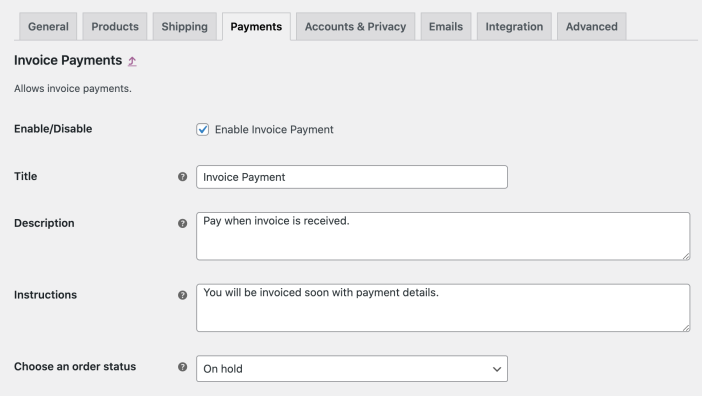
↑ Back to topAfter the extension is installed, you can find the invoice payment method under the WooCommerce > Settings > Payment. Here you can configure the following options:
- Enable/disable payment option
- Change payment method name/label
- Add description and instructions
- Select default order status (when the user places an order using this method, the selected status will be used as the default order status)