
OBULKiT – Bulk Orders Editing allows your WooCommerce store to manage, edit, and update multiple orders at once—saving time and simplifying order management.
Installation
↑ Back to topTo start using a product from WooCommerce.com, you can use the “Add to store” functionality on the order confirmation page or the My subscriptions section in your account.
- Navigate to My subscriptions.
- Find the Add to store button next to the product you’re planning to install.
- Follow the instructions on the screen, and the product will be automatically added to your store.
Alternative options and more information at:
Managing WooCommerce.com subscriptions.

In the First Method, follow as below:
- Log in to your WooCommerce.com account.
- Navigate to My Subscriptions.
- Find Bulk Orders Editing in your list of products.
- Click Add to store next to the product.
- Follow the on-screen instructions to connect your site and complete the installation.
Second Method
↑ Back to top- Download the .zip file from your WooCommerce account.
- Go to: WordPress Admin > Plugins > Add New and Upload Plugin with the file you downloaded with Choose File.
- Install Now and Activate the extension.
More information at: Installing and Managing Plugins.
Setup and Configuration
↑ Back to top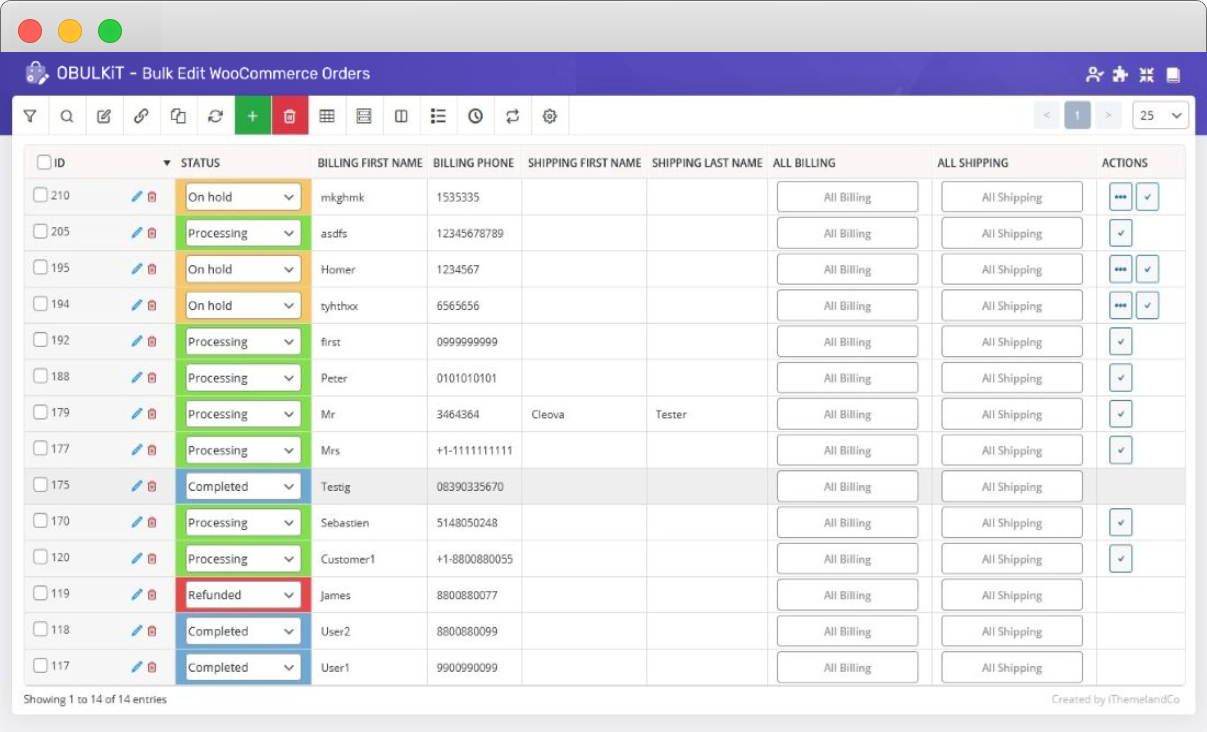
After installation and activation, no complex configuration is required, and you can start managing orders immediately.
Getting Started After Installation
↑ Back to topOnce the plugin is installed and activated:
- Navigate to WooCommerce menu.
- Under this menu, you will find Bulk Order Edit.
- Click Bulk Order Edit to access the bulk order editing interface.
This page is the main workspace where all order management actions take place.
Usage
↑ Back to topBulk Orders Editing gives you multiple ways to manage your WooCommerce orders faster and more efficiently. Below is a summary of real usage scenarios based on our documentation.
Finding the Right Orders
↑ Back to topQuick Search
Lets you search orders by ID range or specific IDs. Just type in the ID values and hit the filter button.
This is especially useful when support tickets or customers reference specific order numbers and you need to act fast.
Advanced Filtering
Advanced filters allow you to target exactly the orders you need.
You can filter orders by:
- Order status (Processing, Completed, On Hold, etc.)
- Date range
- Billing or shipping information
- Payment method
- Custom order fields
Filters ensure that only relevant orders are shown, reducing the risk of applying changes to the wrong orders.
Editing Orders Directly in the Table (Inline Edit)
↑ Back to topInline editing lets you update order fields directly inside the orders table without opening each order.
You can:
- Edit text, number, date, and dropdown fields
- Quickly correct small mistakes or update values
- Make changes visible immediately in the table
Editing Billing and Shipping Information
For billing and shipping details:
- Edit simple fields directly in the table
- Use the All Billing or All Shipping panels for longer fields such as address, city, or company name
This makes correcting customer details fast and consistent across multiple orders.
Applying the Same Change to Multiple Orders (Bind Edit)
↑ Back to topBind Edit is ideal when you want the same value applied to many orders.
How it works:
- Add the required order fields as columns
- Select the orders you want to update
- Enable Bind Edit mode
- Change a value in one order
The plugin automatically applies that value to all selected orders.
This avoids repetitive editing and ensures consistent updates.
Bulk Editing Orders
↑ Back to topBulk edit actions allow you to update multiple orders at once using dedicated bulk tools.
You can:
- Change order status in bulk
- Update payment method
- Modify billing or shipping fields
- Apply the same values across all selected orders
Before applying any bulk edit, the plugin clearly shows what will be changed so you can review everything in advance.
Scheduling Bulk Edits
↑ Back to top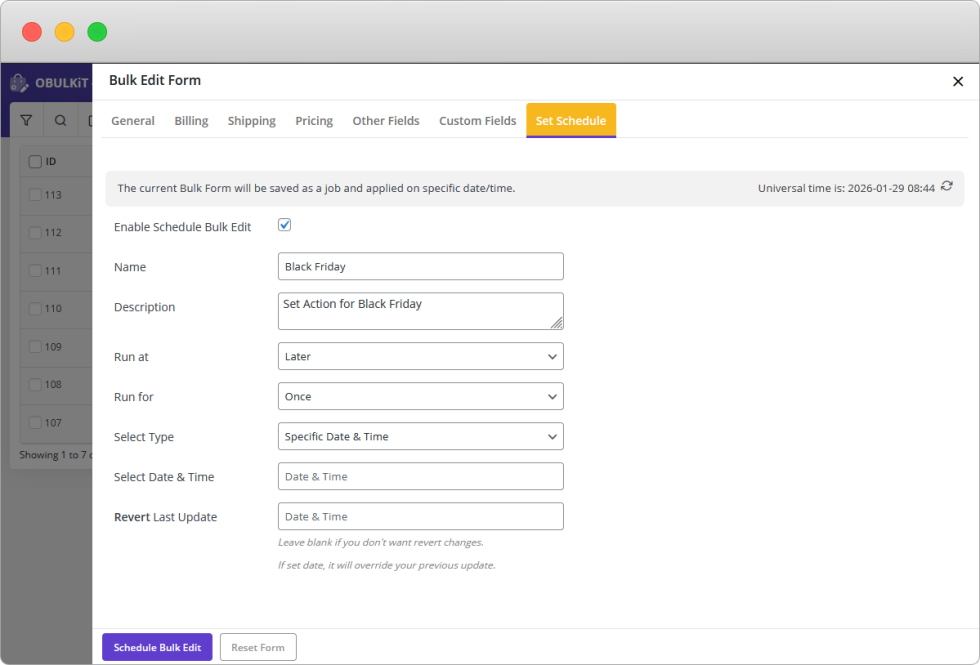
Scheduling allows you to plan bulk updates for a later time.
This is useful when:
- You want updates to run during off-peak hours
- You need status changes to happen automatically
- Operational workflows require timed updates
Scheduled actions run automatically and follow the same safety checks as manual bulk edits.
Saving and Reusing Filter Profiles
↑ Back to topIf you frequently use the same filters:
- Save them as filter profiles
- Load them later with one click
This speeds up repetitive workflows and ensures consistent targeting of orders.
Importing and Exporting Orders
↑ Back to topBulk Orders Editing also supports working with CSV files.
You can:
- Export selected orders for reporting or offline review
- Import orders or updates from a CSV file
- Manage large datasets efficiently
This is especially helpful for agencies, accountants, or stores that handle data outside WooCommerce.
Order History and Undo
↑ Back to topEvery bulk action is logged in the order history.
You can:
- Review past bulk edits
- See what changed and when
- Undo or redo changes if needed
This safety layer gives you confidence when working with large volumes of orders.
Common Usage Scenarios
↑ Back to topScenario 1: Completing Large Numbers of Orders
You have hundreds of orders that need to be marked as Completed.
- Filter orders by Processing
- Select all filtered orders
- Apply a bulk status change
Result: Orders are updated in seconds instead of hours.
⸻
Scenario 2: Fixing Billing or Shipping Details
Customers entered incorrect address or phone information.
- Filter orders by date or status
- Add billing or shipping fields as columns
- Use inline edit or bind edit to update values
Result: Clean and consistent order data without opening each order.
⸻
Scenario 3: Scheduled Operational Updates
You want order statuses to update automatically overnight.
- Filter the relevant orders
- Set up a scheduled bulk edit
- Let the plugin run the update automatically
Result: No manual work during business hours.
⸻
Scenario 4: Managing High Order Volume Stores
Your store receives hundreds or thousands of orders daily.
- Save filter profiles for common workflows
- Use bulk edit and bind edit for routine changes
- Track all changes using order history
Result: Fast, structured order management even as your store grows.
⸻
Scenario 5: Agency or Multi-Store Management
You manage WooCommerce stores for clients.
- Export orders for review or reporting
- Apply bulk updates safely
Result: Professional, predictable workflows with full control.
⸻
Summary
↑ Back to topBulk Orders Editing turns complex order management into a clear, predictable process.
You always know which orders you’re editing, what will change, and how to recover if needed.
FAQs
↑ Back to topHelp customers by answering commonly asked questions.
Why is Bulk Orders Editing necessary for WooCommerce stores?
It eliminates manual, repetitive order edits in WooCommerce by providing safe and scalable bulk order management tools.
Can I edit billing and shipping fields in bulk?
Yes. Billing and shipping details such as first name, last name, phone, email, country, postcode, and company are supported for bulk editing.
Can I use the plugin on large stores with thousands of orders?
Yes. The plugin is designed to scale with order volume. For optimal performance on very large stores, it’s recommended to use filters, apply changes in batches, and schedule bulk edits during off-peak hours.
Does the plugin create or modify database tables?
No. Bulk Orders Editing does not create custom database tables or modify WooCommerce core tables. It uses existing WooCommerce data structures, ensuring compatibility and stability.
How does the Order History and Undo feature work?
Every bulk action is logged with details of changed fields and values. The undo feature restores previous values based on this history, allowing you to revert changes made by bulk actions..
Is inline editing supported, and how is it different from Bind Edit?
Yes. Inline editing allows you to change values directly in the orders table for individual fields.
Bind Edit lets you select multiple orders and apply the same change across them by editing once — useful for uniform updates.
Can I export selected orders?
Yes. The plugin supports exporting selected WooCommerce orders to a CSV file. This is useful for reporting, backups, or offline editing.
How does scheduling bulk edits work?
You can schedule bulk changes to run at a set time (e.g., off-peak hours). Scheduled edits run via WordPress cron and follow the same validation as manual bulk edits.

