
The Latest Lowest Price extension for WooCommerce helps any store record the lowest product prices and display them accordingly on product pages to meet pricing regulations.
Installation
↑ Back to topTo start using a product from WooCommerce.com, you can use the “Add to store” functionality on the order confirmation page or the My subscriptions section in your account.
- Navigate to My subscriptions.
- Find the Add to store button next to the product you’re planning to install.
- Follow the instructions on the screen, and the product will be automatically added to your store.
Alternative options and more information at:
Managing WooCommerce.com subscriptions.

Once activated, the extension is ready to be integrated with your store. The easiest way is if you use a block theme, but all other types of integrations are available. Visit the Store integration to continue.
Automated updates
↑ Back to topAutomatic updates for the Latest Lowest Price plugin are available through the WooCommerce Marketplace. You will receive notifications in the Plugins section of your WordPress Dashboard when a new version is available. It is recommended to keep the plugin updated to the latest version for security and reliability. The easiest way to achieve this is to enable automatic updates for this plugin.
Store integration
↑ Back to topLatest Lowest Price is integrated with Woo stores with blocks, hooks and actions, shortcodes, or via a page builder widget or element.
The best way to integrate is if you use the blocks builder and you’re using a block-powered theme like Twenty Twenty-Five.
Supported integrations
↑ Back to top- Using blocks and block themes
- Shortcode for any integration
- Elementor widget or other page builders
- Hooks and actions
Blocks integration
↑ Back to topTo integrate the extension if you’re using a block theme, simply navigate any product page and click the Edit site button from the WordPress header (also found by navigating to Themes > Editor).
- Edit the single product template.
- Add the Latest Lowest Price block right after the price block.
- Click Save.
If you visit the product page now, nothing will appear, because there are no latest lowest prices recorded. If such price meets the conditions in the future it’ll be stored in the database and shown to customers. An example, 2 months ago price was $10, now it’s $20, but on sale for $15. After showing regularly crossed $20 and the new price of $15, below, the extension will display Latest lowest price: $10 (-25%).
info. Additionally you can add the block to the product catalog template if you need this info on the store page as well.
tip. On the product edit screen, right after the sale price in the product edit tab, you’ll find the stored latest lowest price. If empty such a price doesn’t exist. You can still set this price if you want to.
Shortcode
↑ Back to topTo integrate this extension via shortcode, copy and paste the following. Remember to put the shortcode inside product loops like on the store page or single product page.
[latest_lowest_price]Elementor
↑ Back to topIf you use Elementor or Elementor PRO page builders for WordPress and you’re creating your own templates with it, we’ve included the Latest Lowest Price widget. Find it in the General section or just type the Latest Lowest Price in the search widget field.
Drag and drop the extension widget to your product template and set the options you prefer.
Hooks/Actions
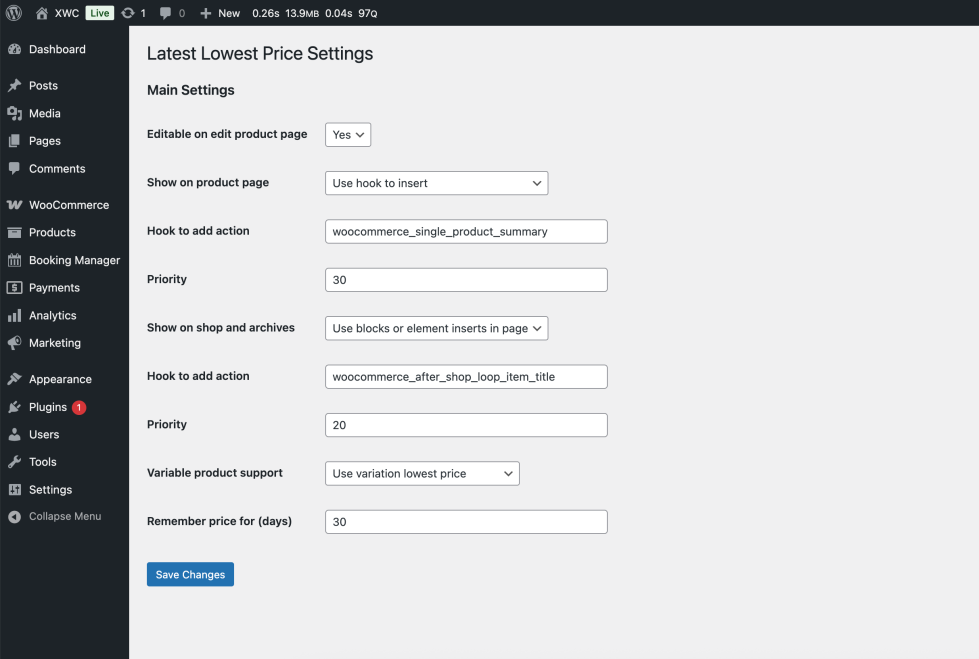
↑ Back to topA more common way of integrating the extension is to use hooks and actions. Options for this are in the plugin settings page. In your WP Admin dashboard, navigate to Plugins > Latest Lowest Price > Settings. The settings link is next to the Deactivate button; you’ll need admin privileges to view it.
Product pages
↑ Back to topOn this page, blocks, widgets, and elements are used by default for integrating the extension.
- To set the extension integration with actions and hooks set the option Show on product page to Use hook to insert.
- The default hook for this integration is woocommerce_single_product_summary There’s probably no need to use any other unless your theme is heavily customized.
- Change the priority number to make the integration appear later or sooner, depending on your template, but the ideal position would be right below the price.
Store pages
↑ Back to topIf you need this kind of integration on store pages too, use the next option.
- To set the plugin integration with actions and hooks set the option Show on shop and archives to Use hook to insert.
- The default hook for this integration is
woocommerce_after_shop_loop_item_titleThere’s probably no need to use any other unless the theme is heavily customized. - Change the priority number to make the integration appear later or sooner, depending on your template, but the ideal position would here be probably at the end of the product loop.
Navigate the extension settings page by visiting Plugins > Latest Lowest Price > Settings. The small anchor link is just next to Deactivate the extension link.
Editable on edit product page
↑ Back to toptip. Sometimes you need to make this option editable on the product page for managers, so use the Editable on edit product page option and set it to Yes.
Values are written in the database under a post meta key _latest_lowest_price. That key is stored in the postmeta database as usual price and sale price keys. If you want this key to be editable on the edit product screen set this option to Yes. The Latest lowest price editable input field will appear under the Advanced product tab in the edit product screen. It is available for simple and variable products.
Show on product page
↑ Back to topThis option defines how to integrate the extension on product pages. Recently you’d just use blocks and edit a template, add a block named Latest Lowest Price to the place usually behind the price template, and hit Save. This is if you use a modern block theme. If you use a bit older tech, like other page builders Elementor, etc. you can also edit a page and make a template you need, and add a widget, element, or shortcode.
Still, sometimes you’d just install an extension by hooking it onto an action. These options are for that. So, if you need this type of integration, switch the Show on product page option to the Use hook to insert.
You can set the appropriate hook/action, but usually, the default one will work. Adjust priority to make the latest lowest price template appear earlier or later in the page render. Default action is woocommerce_single_product_summary and priority 30.
Show on shop and archives
↑ Back to topThe same option as above, but controls how the extension is integrated on store pages. So, use the default option if you use block themes, Elementor, etc., and use hooks and actions if needed.
You can set the appropriate hook/action if needed, but usually, the default one will work. Adjust priority to make the latest lowest price template appear earlier or later in the page render. The default action is woocommerce_after_shop_loop_item_title and priority 20.
Variable product support
↑ Back to topTo have records for all variations individually use this option. By default option is set to Use parent product lowest price. This makes the plugin use single price for variable products. When unique prices are not set for variations this option just works with default setting.
However, sometimes variations have individual pricing. When this is the case, the option should be set to Use variation lowest price. This way plugin will record prices for each variation.
Remember price for (days)
↑ Back to topThe option makes it possible to alter how long the latest lowest price is considered. By default, it’s set to 30 days. This way if the lowest price for the product was set long time ago it won’t be considered and will not be shown to the customer. If this option is set to 0 the option won’t be considered and latest lowest price will be remembered for any period.
FAQ
↑ Back to topWhere is the extension settings page?
↑ Back to topIn your WP Admin dashboard, navigate to Plugins > Latest Lowest Price > Settings. The small anchor link is just next to Deactivate the extension link.
Where can I find the latest lowest price stored value?
↑ Back to topValues are written in the database under a post meta key _latest_lowest_price. That key is stored in the postmeta database as usual price and sale price keys.
The extension adds an extra field that is filled automatically when the conditions for the latest lowest price are met. This price can be also stored manually by just entering it in this field.
Is this extension translation-ready?
↑ Back to topYes. The extension includes all EU countries’ complete translation files.
That includes complete translations for:
- Austria
- Belgium
- Bulgaria
- Croatia
- Cyprus
- Czech Republic
- Denmark
- Estonia
- Finland
- France
- Germany
- Greece
- Hungary
- Ireland
- Italy
- Latvia
- Lithuania
- Luxembourg
- Malta
- Netherlands
- Poland
- Portugal
- Romania
- Slovakia
- Slovenia
- Spain
- Sweden
British and American English are native to the extension and are included too.

