
The PH Deposits and Partial Payments allows you to provide customers with an option to pay a deposit upfront and pay the balance later. With this plugin, you get complete control over the payment by forcing deposits or providing customers a choice between the deposit and full payment. Also, the PH Deposits and Partial Payments plugin allows you to create flexible payment plans that offer daily, weekly, or monthly payment options to customers.
Now, let us take you through a step-by-step setup of the PH Deposits and Partial Payments plugin on your WooCommerce store.
Installation
↑ Back to topTo start using a product from WooCommerce.com, you can use the “Add to store” functionality on the order confirmation page or the My subscriptions section in your account.
- Navigate to My subscriptions.
- Find the Add to store button next to the product you’re planning to install.
- Follow the instructions on the screen, and the product will be automatically added to your store.
Alternative options and more information at:
Managing WooCommerce.com subscriptions.

Setup and Configuration
↑ Back to topEnable Deposits for your WooCommerce Products
↑ Back to topIf you allow customers to purchase any of your products without paying the full amount, you can set up the deposit payment for all your products by following the steps below.
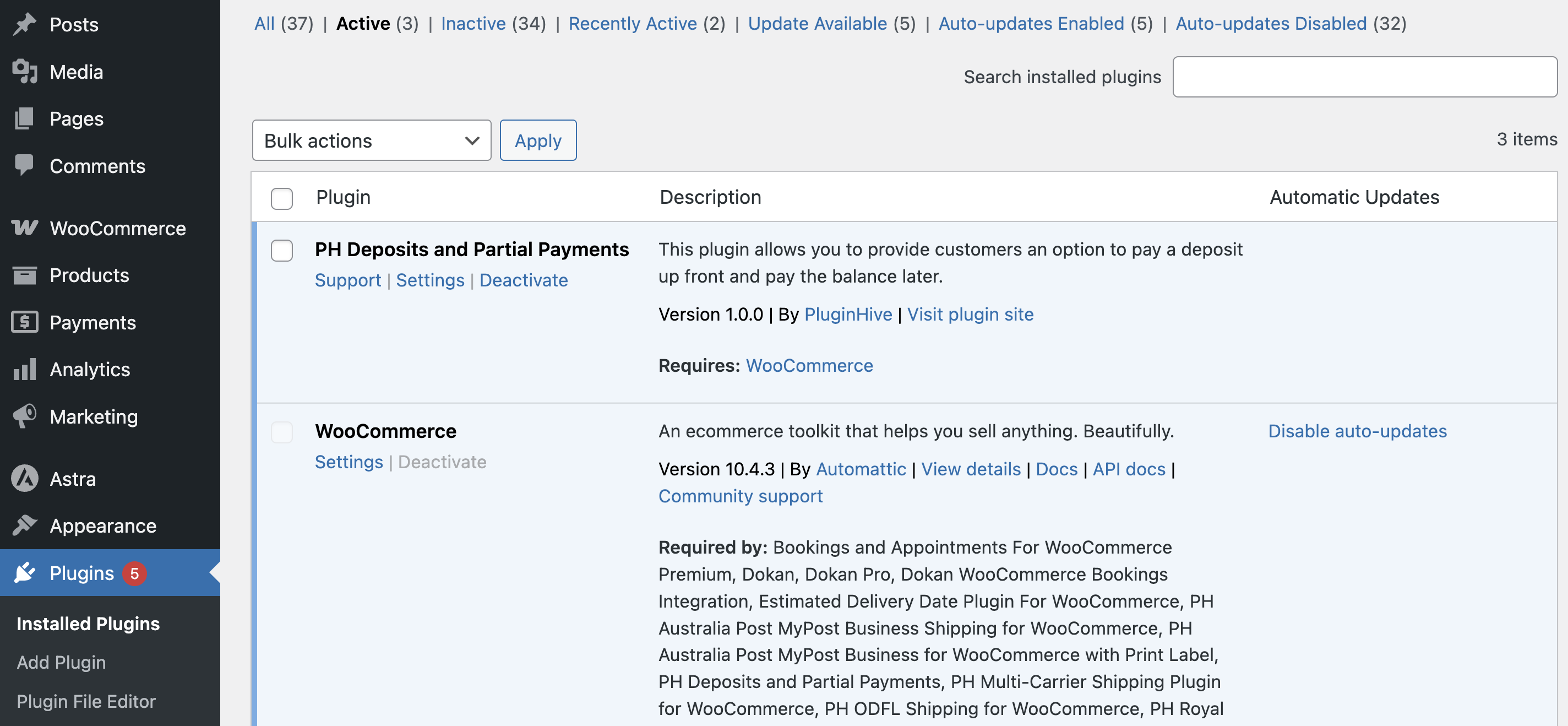
After the installation and activation, visit the plugin settings by visiting Plugins> Installed Plugins> PH Deposits and Partial Payments > Settings.
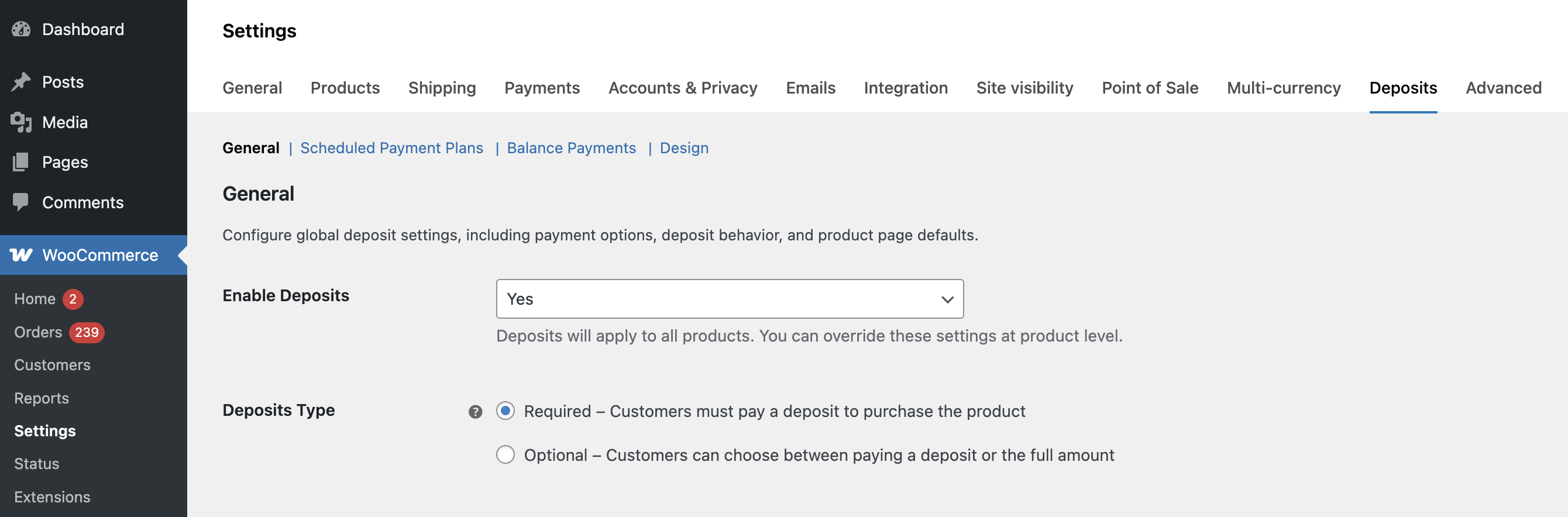
Or, go to WooCommerce > Settings > Deposits.
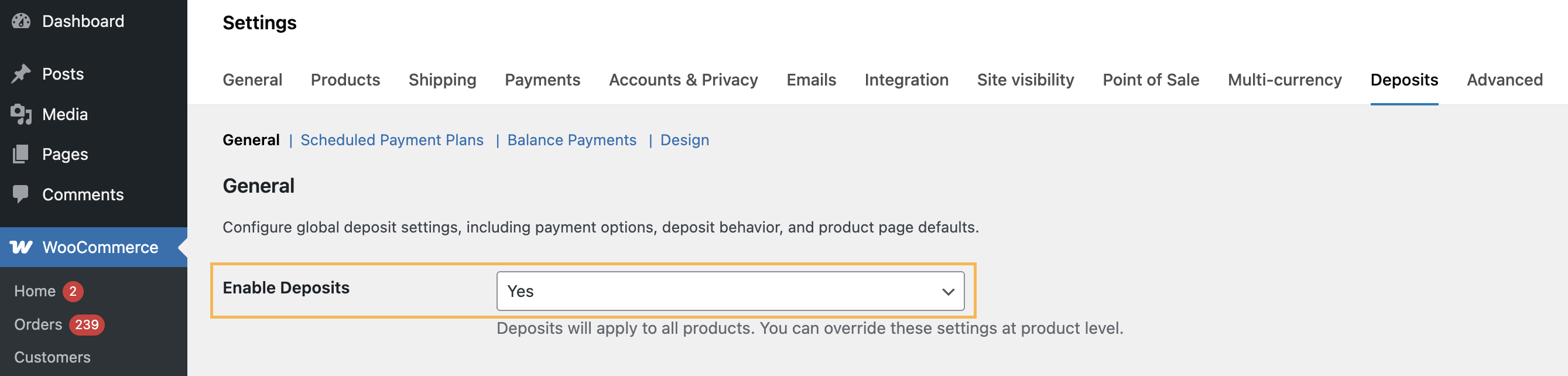
Under the General tab, select Yes for the Enable Deposits option, as shown below.
How to make deposits optional
↑ Back to topYou can choose the Deposit Type, whether to provide customers with a deposit-only payment option or a deposit as well as the full payment option while purchasing.
- Select the “Required” option if you want your customers to always pay partially, as per your preference.
- Select the “Optional” option if you want your customers to choose from the partial payment or the full payment option while purchasing.

Under Charge Shipping On, choose whether to calculate shipping on the initial deposit order or the final balance payment.

Enter the text you want to display on the product landing page regarding the payment option, under the Text above Add to Cart Button option, as shown below.

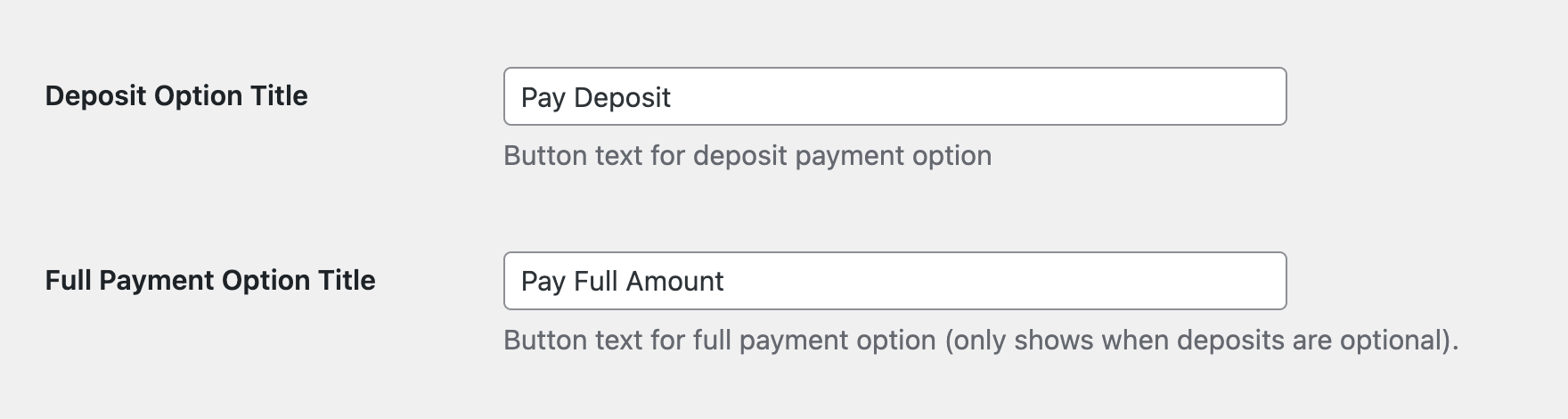
Now you can customize the button text for both the Deposit Option Title and Full Payment Option Title that will be displayed to the customers while purchasing.
Choose from a fixed or a percentage deposit amount
↑ Back to topThe PH Deposits and Partial Payments plugin allows you to choose from a fixed deposit amount or a percentage of the selling price of your products.
You can choose from the following options,
- Percentage: You can choose any percentage of the total price of the product, and the customer has to pay that amount while purchasing
- Fixed Amount: You can choose a fixed price that the customer has to pay while purchasing
- Scheduled Payment plans: Automatically collect the remaining balance over a defined period.
Note
If you want customers to pay the upfront fee and then proceed with a daily, weekly, or monthly payment, select the Payment Plans option.
Fixed Deposit
↑ Back to topYou can select this option if you want customers to pay a particular amount upfront, irrespective of the price of the product.

After selecting the option, you can enter the fixed deposit amount as shown below.
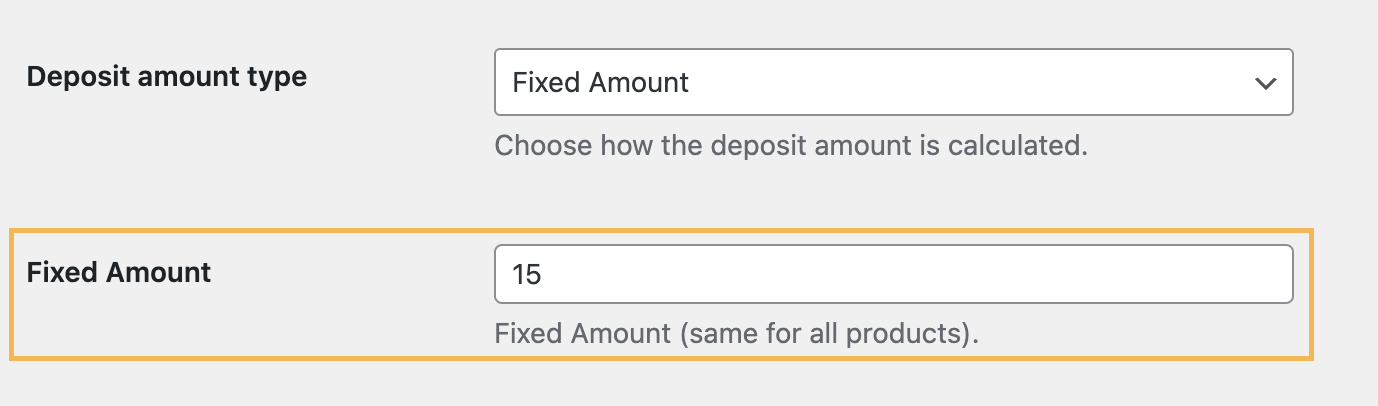
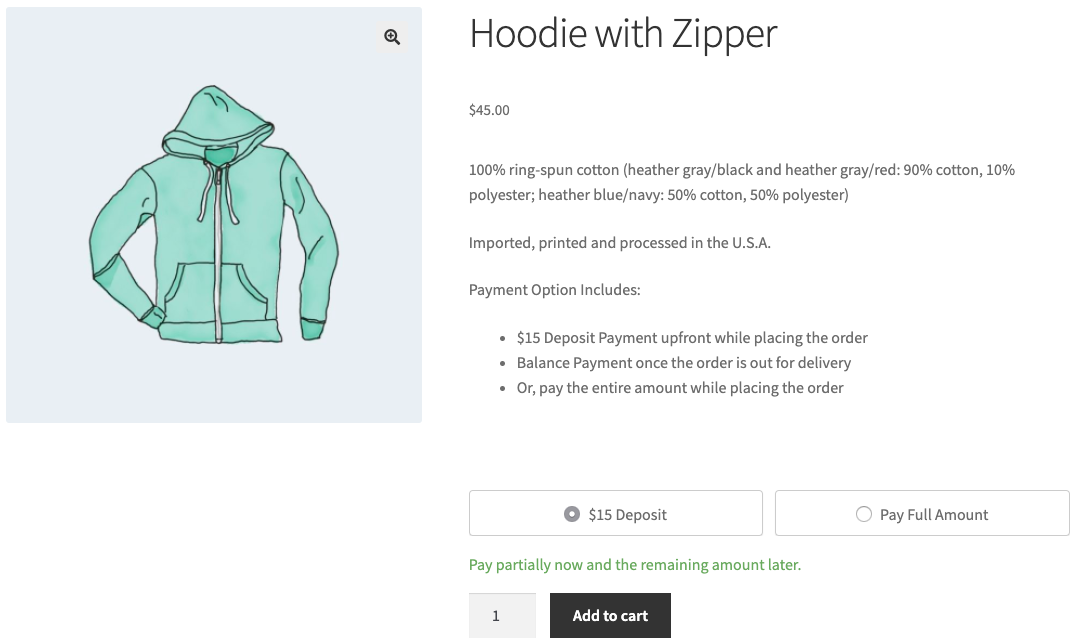
After saving the settings, the customers will be able to choose from the $15 deposit option and the full payment option, as shown below.
Percentage Deposit
↑ Back to topYou can select this option if you want customers to pay a percentage of the total price of the products as a deposit upfront and then pay the remaining amount later.

After selecting the option, you can enter the percentage deposit as shown below.
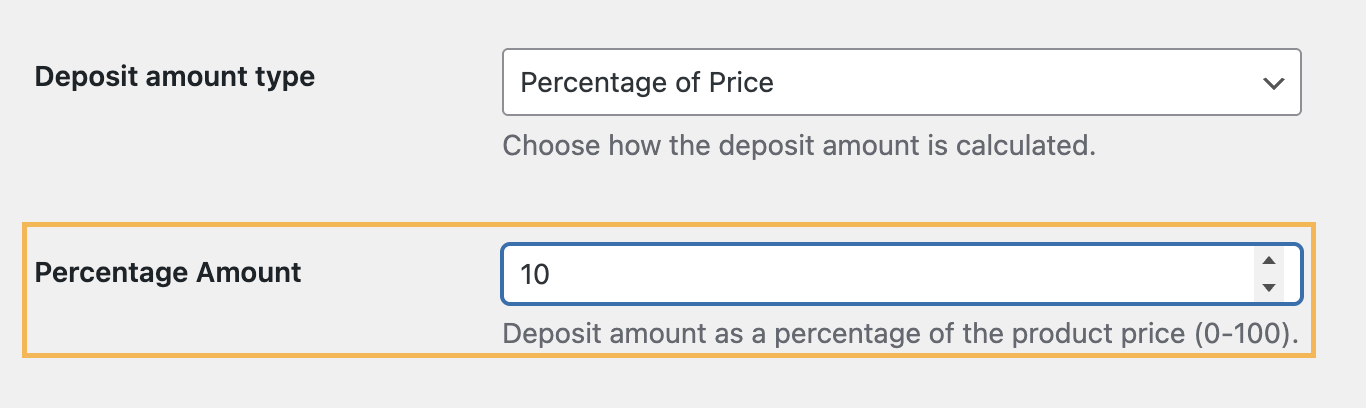
Once you save the settings, the customers will be able to choose from the 10% deposit option and the full payment option, as shown below.

Set Default Payment Options
↑ Back to topOnce you have selected the type of deposit you want customers to pay, select the default option that will be selected for the customers while purchasing, as shown below.

Order Status After Final Payment
↑ Back to topThe Order status after final payment setting allows you to control how the original WooCommerce order is updated once the customer completes the remaining balance payment.
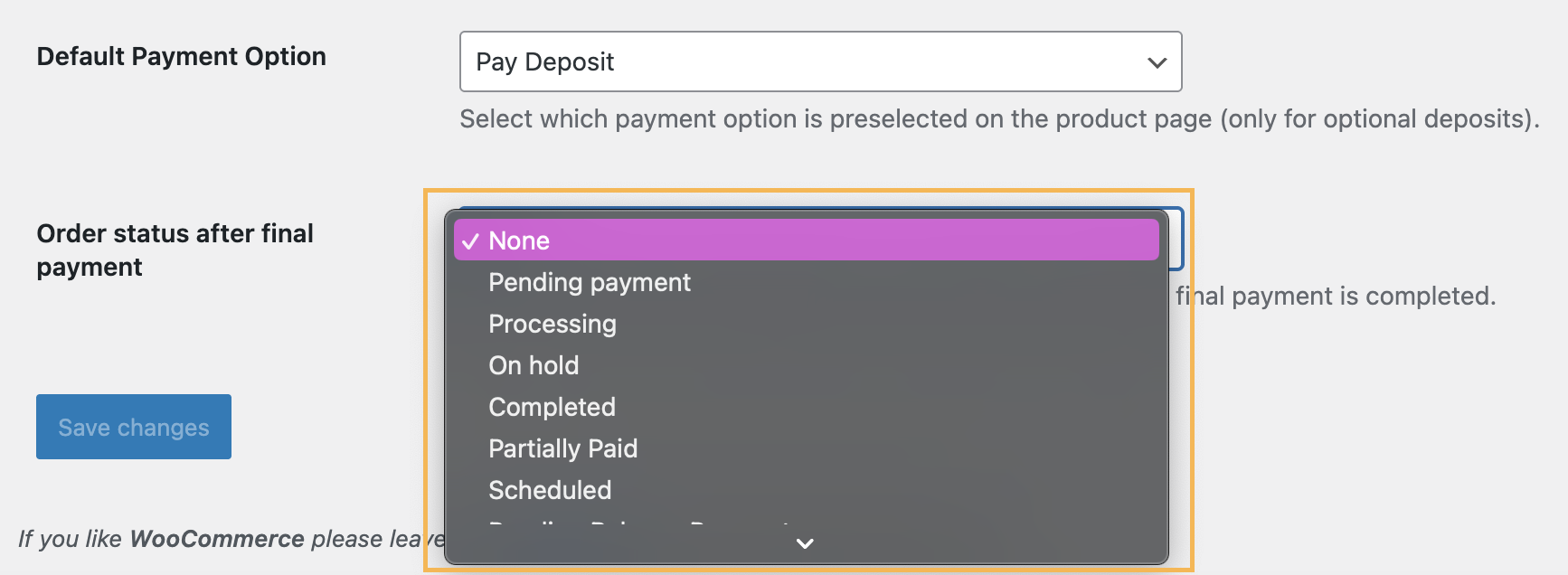
From the dropdown, you can select one of the following statuses:
- None – The order status will not change automatically after the final payment.
- Pending payment
- Processing
- On hold
- Completed
- Partially Paid
- Scheduled
- Pending Balance Payment
- Draft
How to create scheduled payment plans for the customers
↑ Back to topPayment plans offer more flexibility for you, allowing customers to pay the total amount by dividing it into daily, weekly, or monthly installments.
Based on your requirements, you can create a dedicated payment plan for each of your WooCommerce products.
Visit the Scheduled Payment Plans tab to create new payment plans for your products, as shown below, and enter the Payment Plan Name and Plan Description, as shown below.

Choose your Plan Type:
1. Custom Payment: Customize how your customers pay. You define the payment structure, amounts, and schedule according to your store’s needs.
2. Recurring Payment: Set a fixed interval (e.g., weekly, monthly) for payments. Customers automatically pay the specified amount at each interval until the total is completed.

Now, let’s take a closer look at how the Custom Payment plan works.
After choosing custom payment, you can enter the Payment Amount and the Interval at which the customers will be paying the upfront fee and the remaining amount.
For Example, let us create an 8-week payment plan that allows customers to pay,
- 20% amount upfront
- 10% amount every week for the next 8 weeks
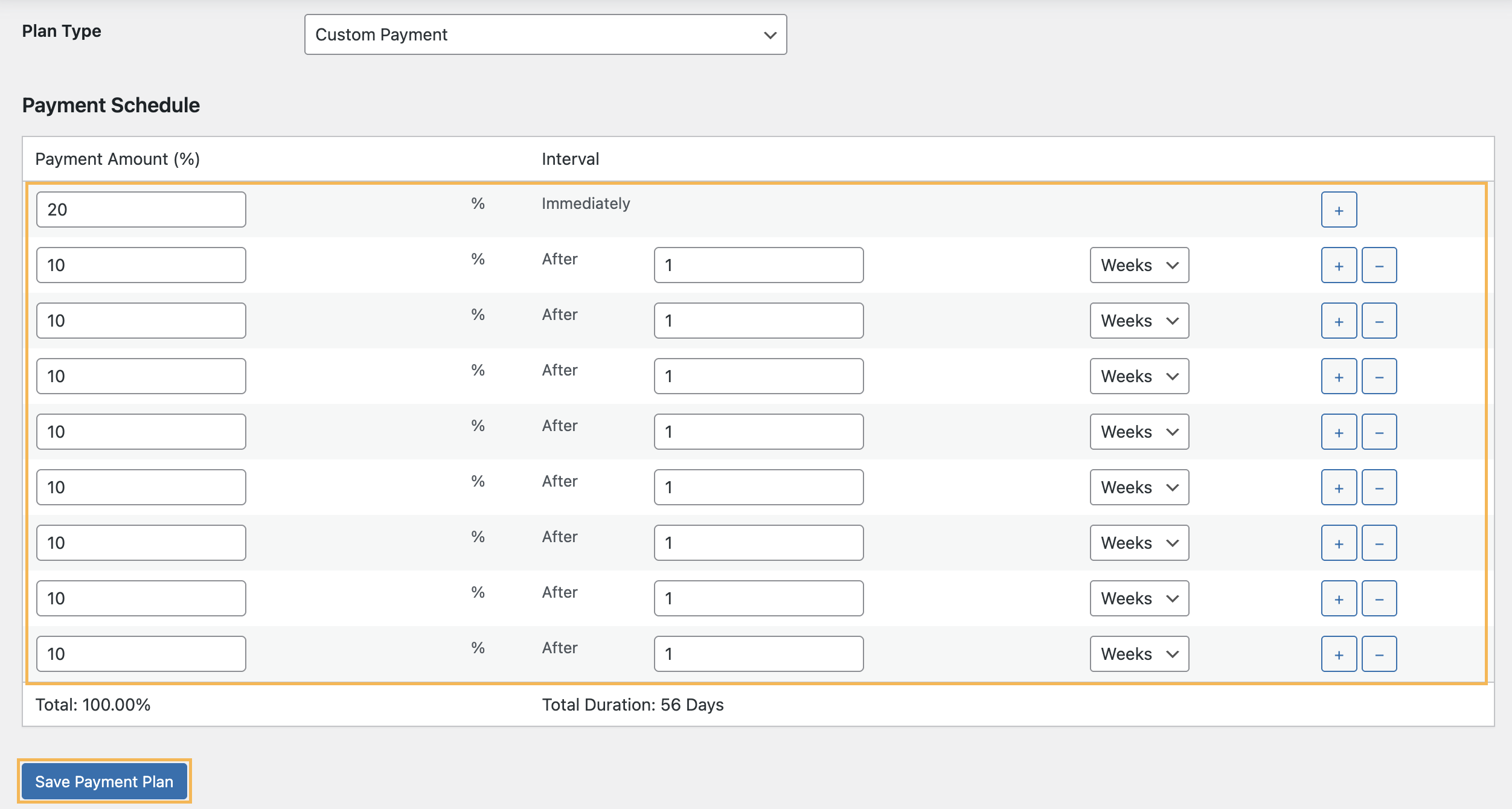
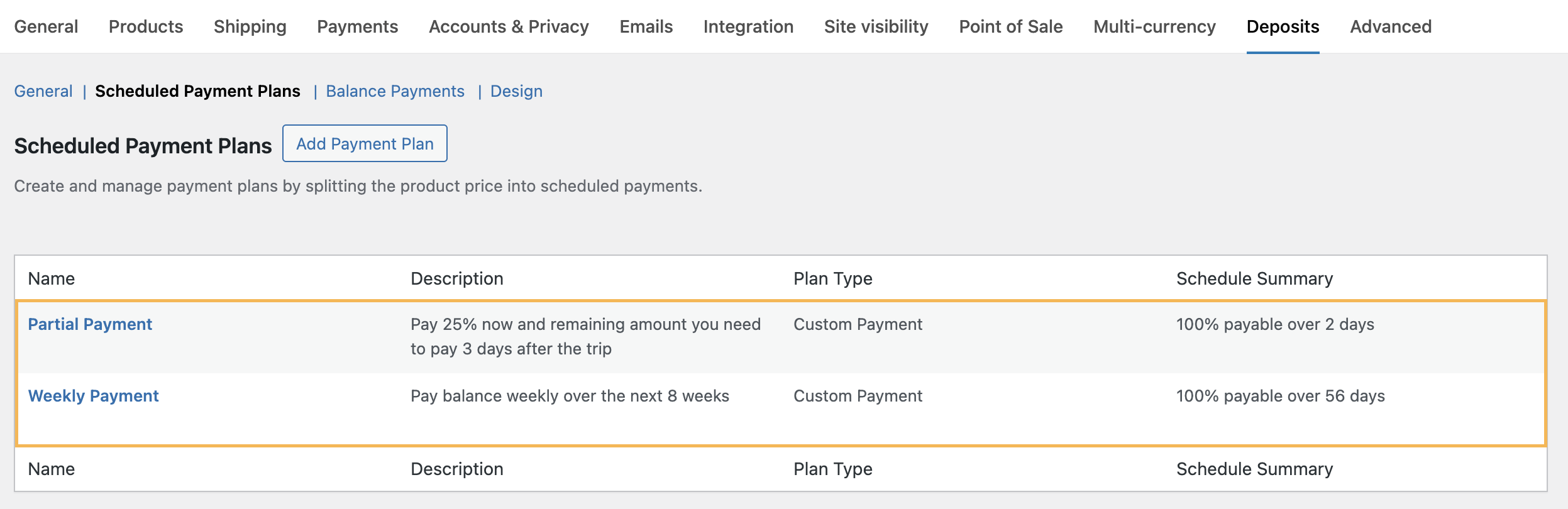
Click on Save Payment Plan once done. After saving, you can see all your payment plans under Scheduled payment plans.
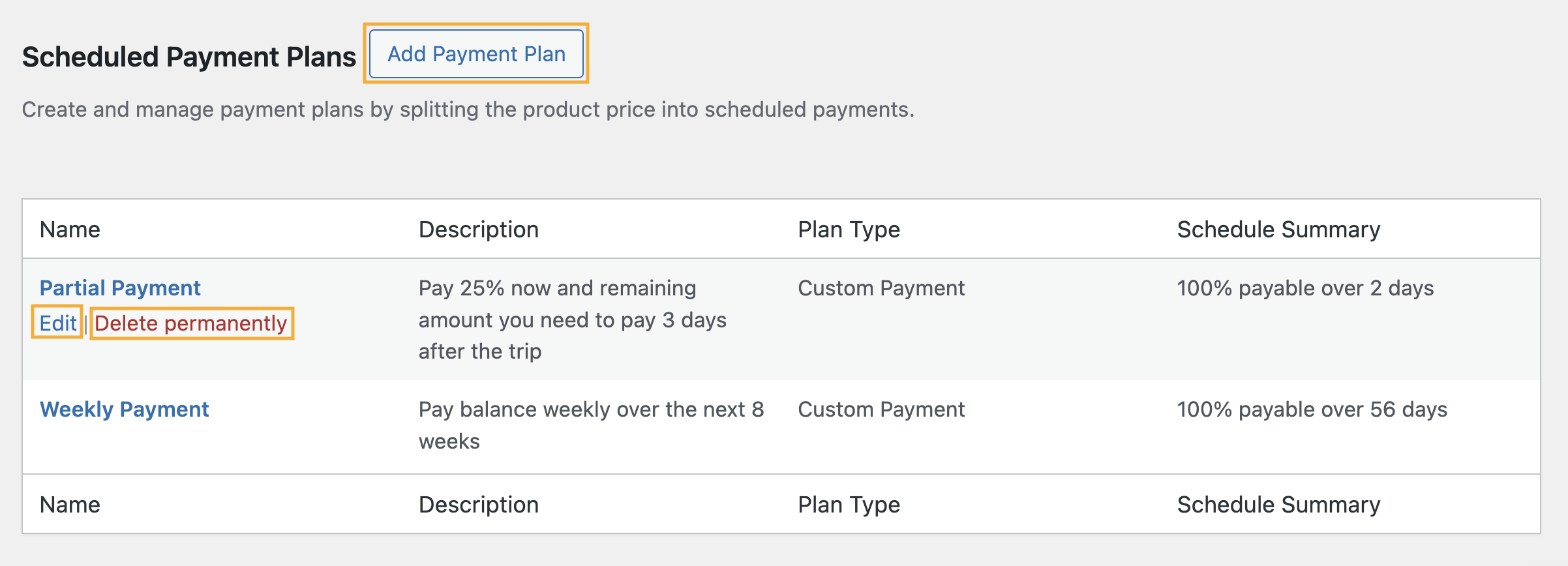
You can add a new payment plan by clicking on Add Payment Plan. If you need to edit or delete any existing payment plan, simply click on the Edit/ Delete permanently as shown in the image.
Note: Similarly, you can create a recurrent payment plan by adding the number of payment cycles, as per your requirements.
Now, visit the General tab and select the Scheduled Payment Plans option under Deposit amount type.
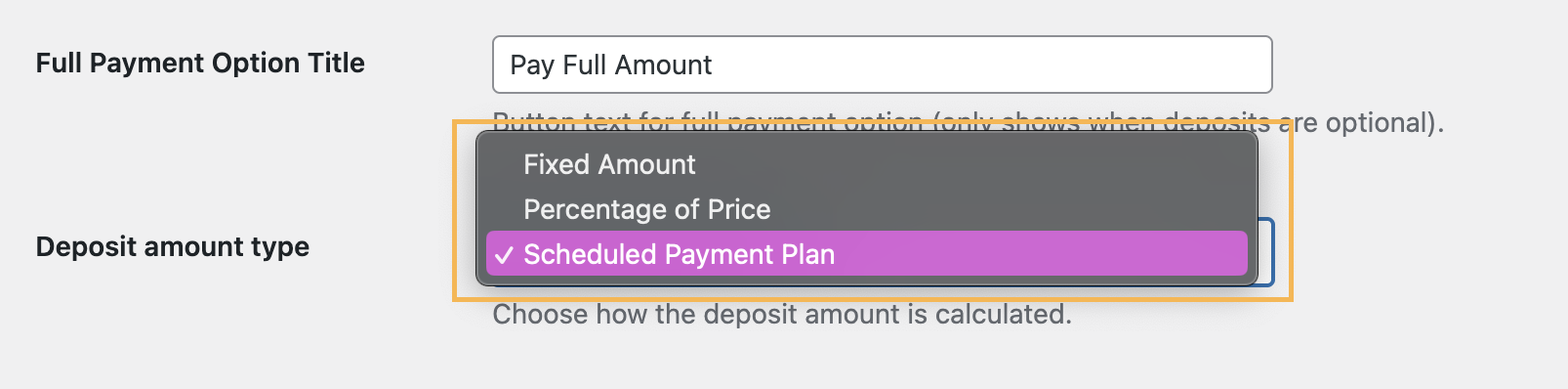
Now select the Payment plan that you have created and want to set for deposit throughout the WooCommerce store for every product.

Click on Save Changes to save the settings. The customers will be able to choose from the payment plans that you have created and the full payment.
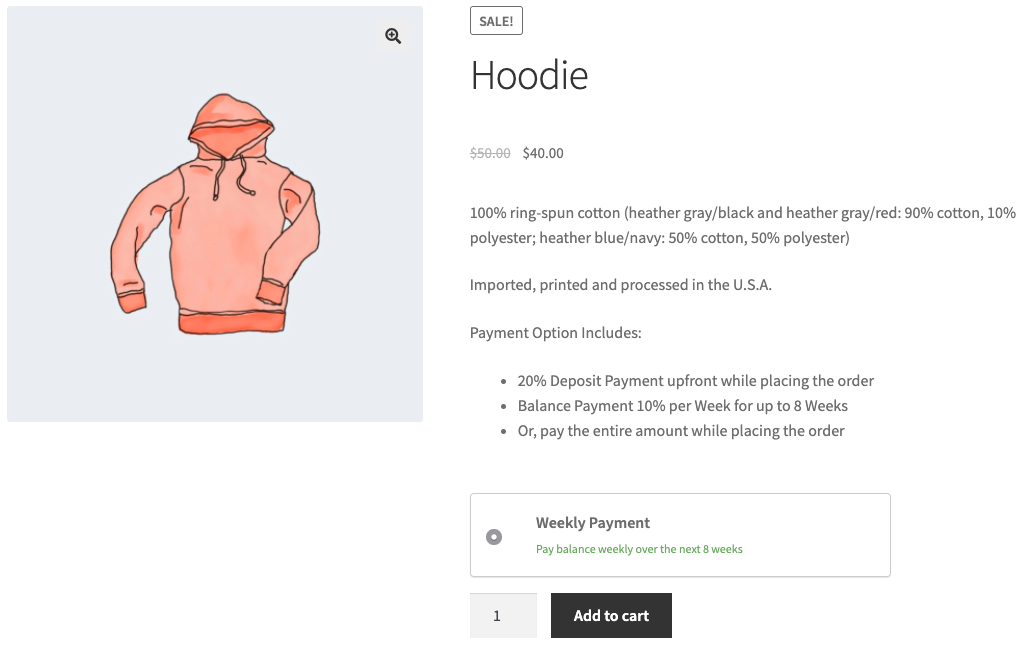
Set Up Balance Payment Reminder
↑ Back to topOnce a customer places an order using the payment plans, the plugin gives you the flexibility to set up payment reminder emails for the customers.
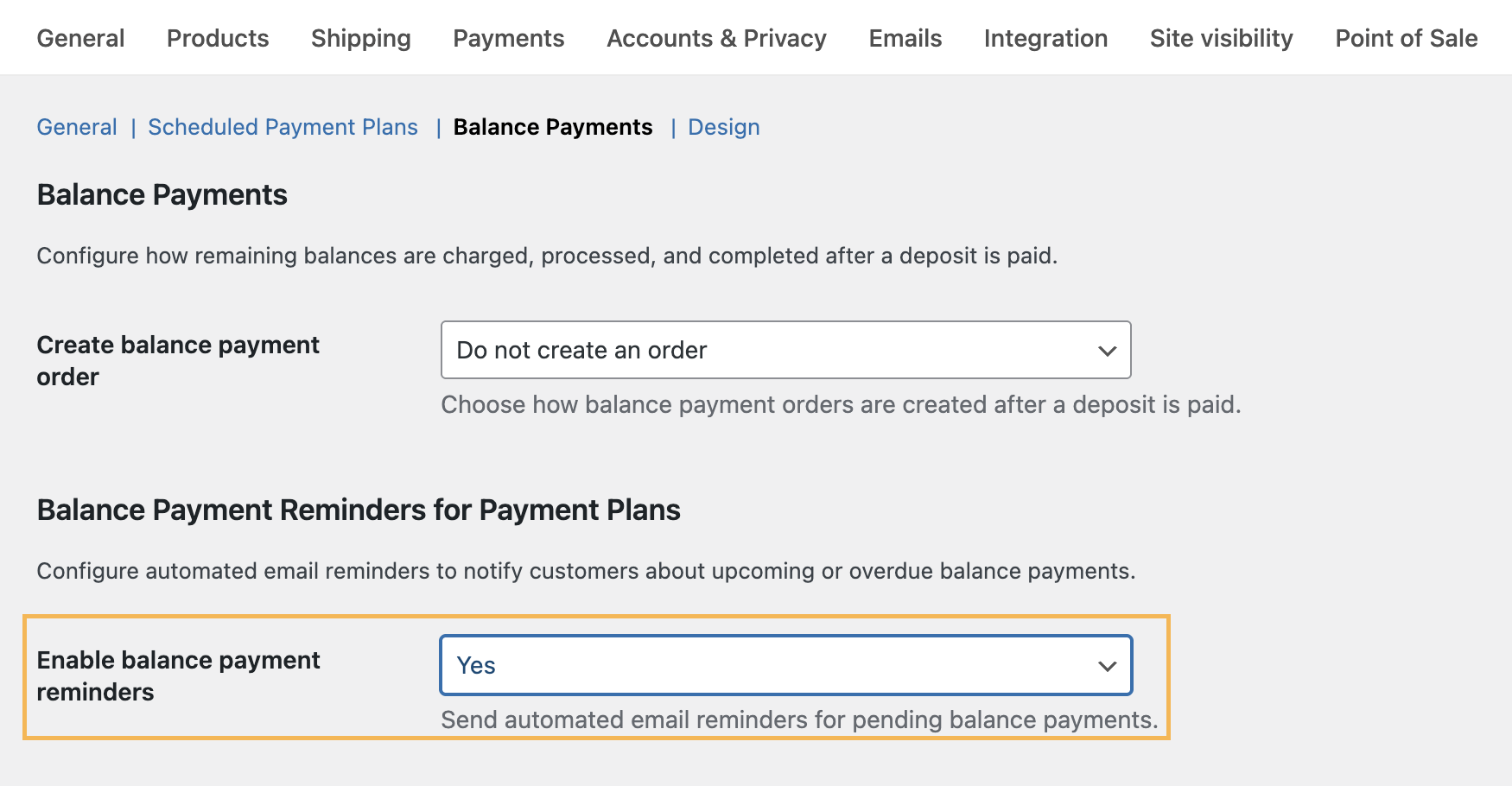
Visit the Balance Payments tab, and enable the reminder emails by setting Enable Balance Payment Reminders to Yes, as shown below.
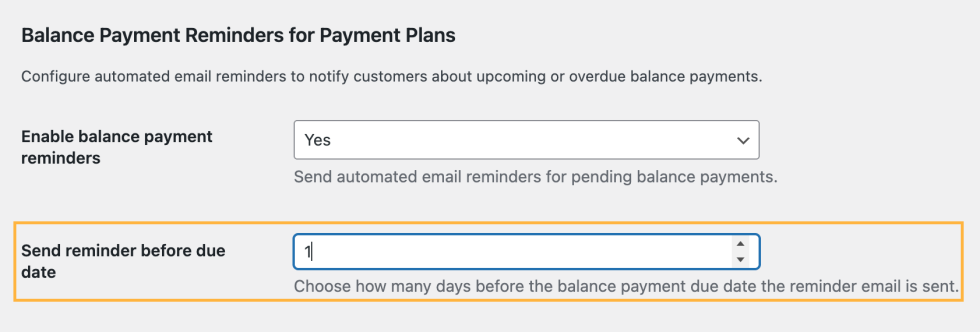
The plugin also allows you to set the number of days prior to the order date when the email will be sent to the customers. All you need to do is set the Email Reminder Before Due Date to your preferred number of days.
For example, if you want customers to get the reminder email a day before the payment date, you can set the option to 1.
You can select whether you want to send a reminder mail with the WC template or the Plugin’s default template under the “Choose Reminder Email Template”.

When you choose the Plugin Default mail template, you have the flexibility to set a custom Reminder Email Subject and Email Content.
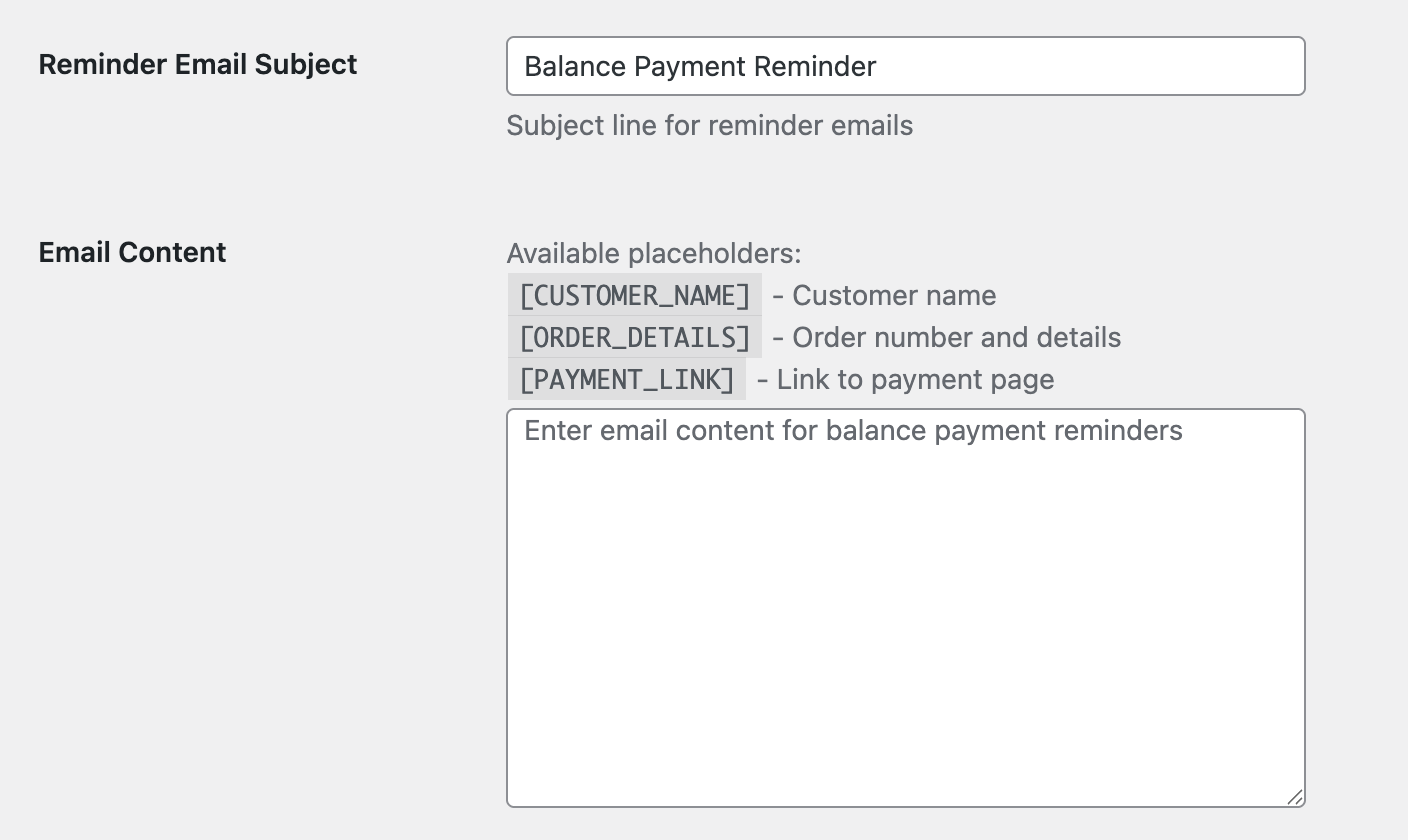
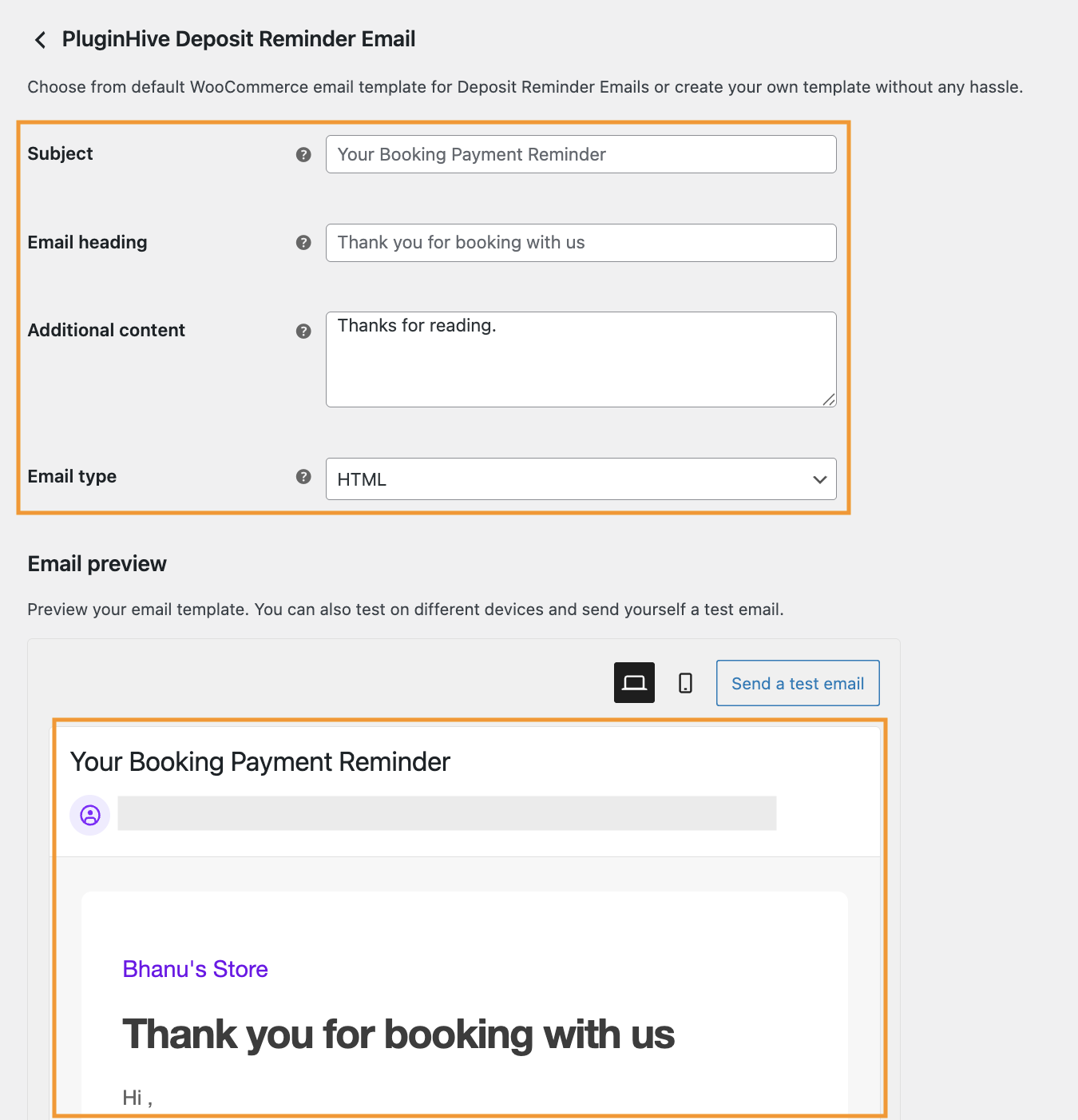
If you want to go with the WC template, select WC Template and Save changes. Click on the link below to customise the content.

Customise your mail content. Choose which format of email to send, such as plain text/ HTML/ multipart. You can also preview the emails.
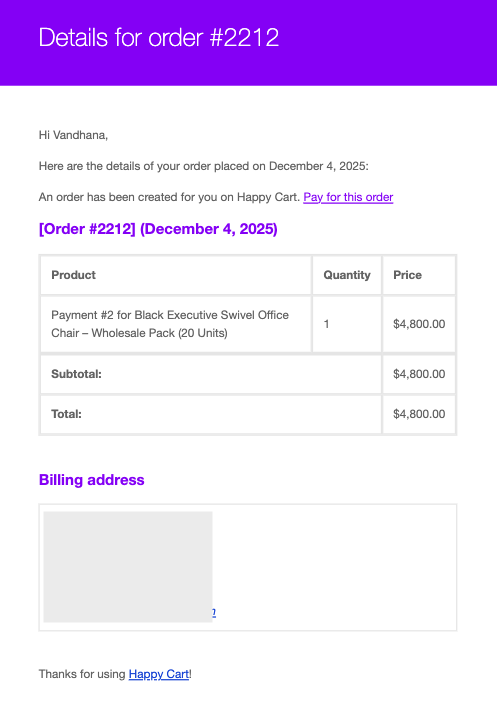
After saving the changes, whenever customers place an order, they receive an email with the complete order details, including the payment information, as shown in the image.
How to set up deposits for specific products
↑ Back to topIf you do not want to have a dedicated deposit option for all your products and instead want to provide different options for different products, you can create deposits at a product level.
Visit Products > All Products and edit the product for which you want to create the deposit.
On the product edit page, visit the Deposits tab as shown below.
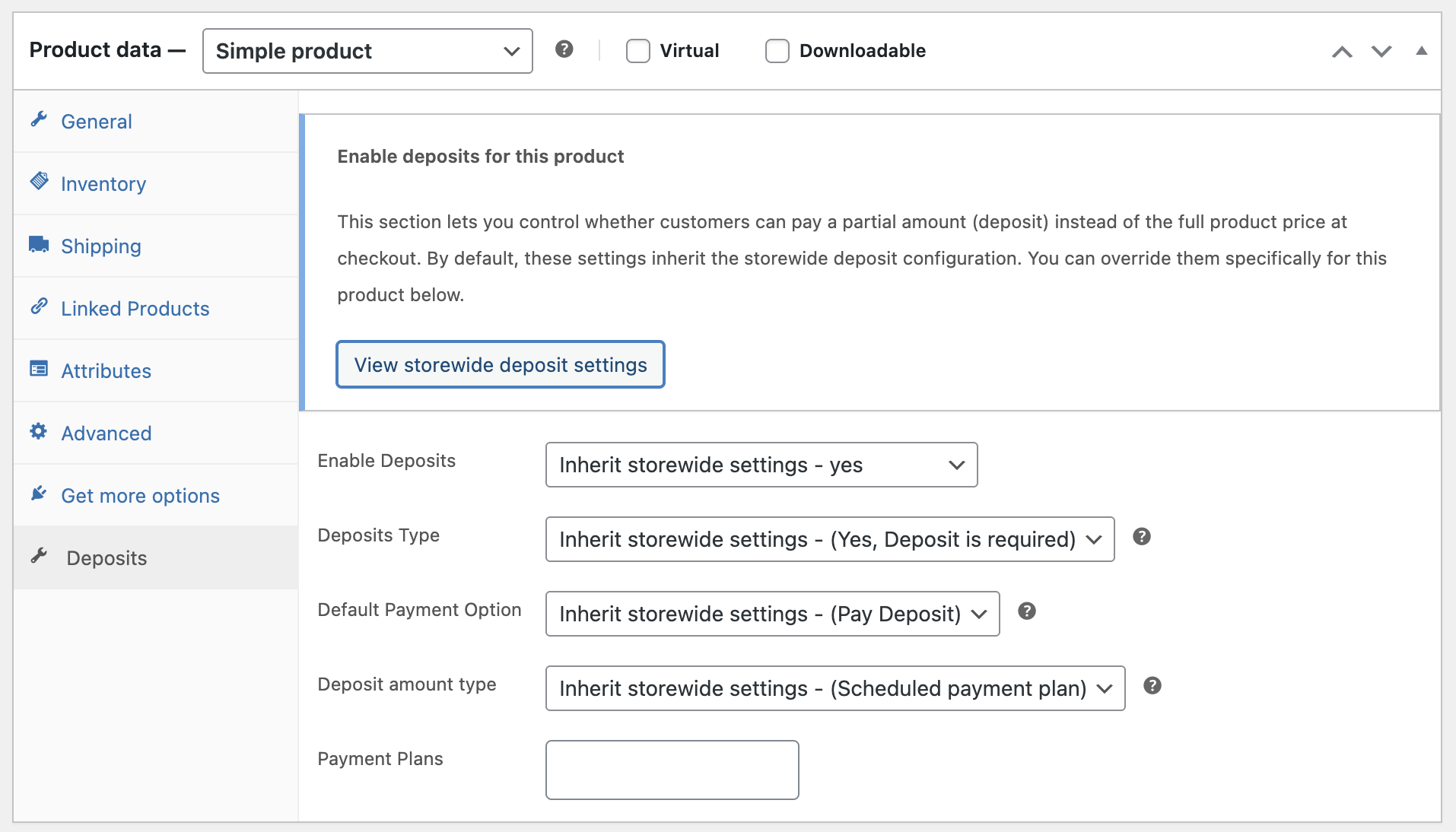
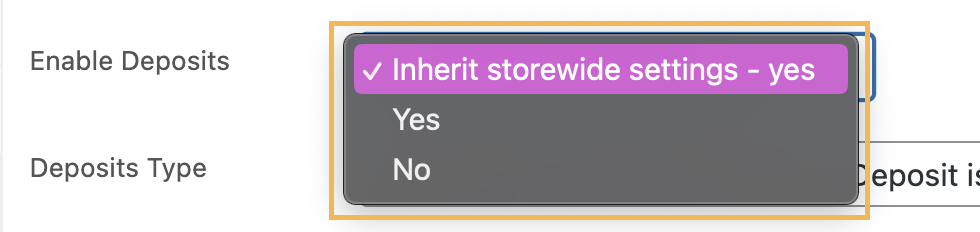
Under Enable Deposits select,
- Inherit Storewide Settings: If you want to set the same settings for this product as you have set in the plugin settings.
- Yes: If you want to enable deposit payment for this product
- No: If you do not want to enable deposit payment for this product
Under the Deposits Type, select
- Inherit Storewide Settings: If you want to set the same settings for this product as you have set in the plugin settings.
- Required: If you want customers to proceed with only the deposit payment.
- Optional: If you want customers to have the option of the deposit payment or full payment.

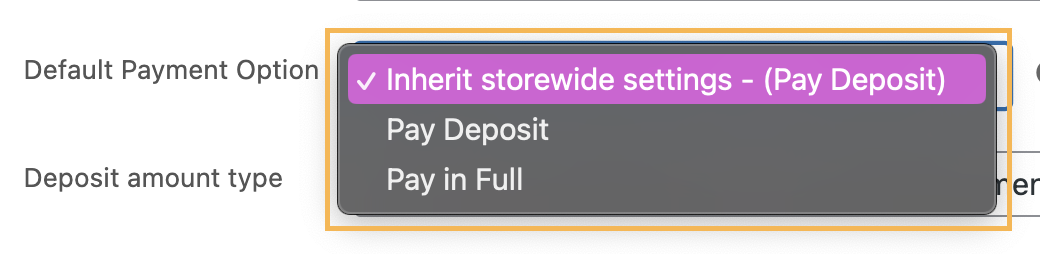
Under the Default Payment Options, select
- Inherit Storewide Settings: If you want to set the same settings for this product as you have set in the plugin settings.
- Pay Deposit: If you want the Deposit Payment to be the default selection for the customers
- Pay in Full: If you want the Full Payment to be the default selection for the customers.
Under the Deposit amount type option, select
- Inherit Storewide Settings: If you want to set the same settings for this product as you have set in the plugin settings.
- Percentage: If you want to set a Percentage Deposit for the product
- Fixed Amount: If you want to set a Fixed Deposit Amount for the product
- Scheduled Payment Plan: If you want to set a Scheduled Payment Plan for the product

Based on your selection, set the Deposit Percentage Amount/ Deposit Fixed Amount/ Payment Plans.
Manage deposit orders and orders with payment plans
↑ Back to topAfter setting up deposits and creating flexible payment plans for your customers, you can choose how the orders will be managed within WooCommerce.
Managing Deposit Orders
Under the Balance Payments tab in the plugin settings, you can find the options shown below.
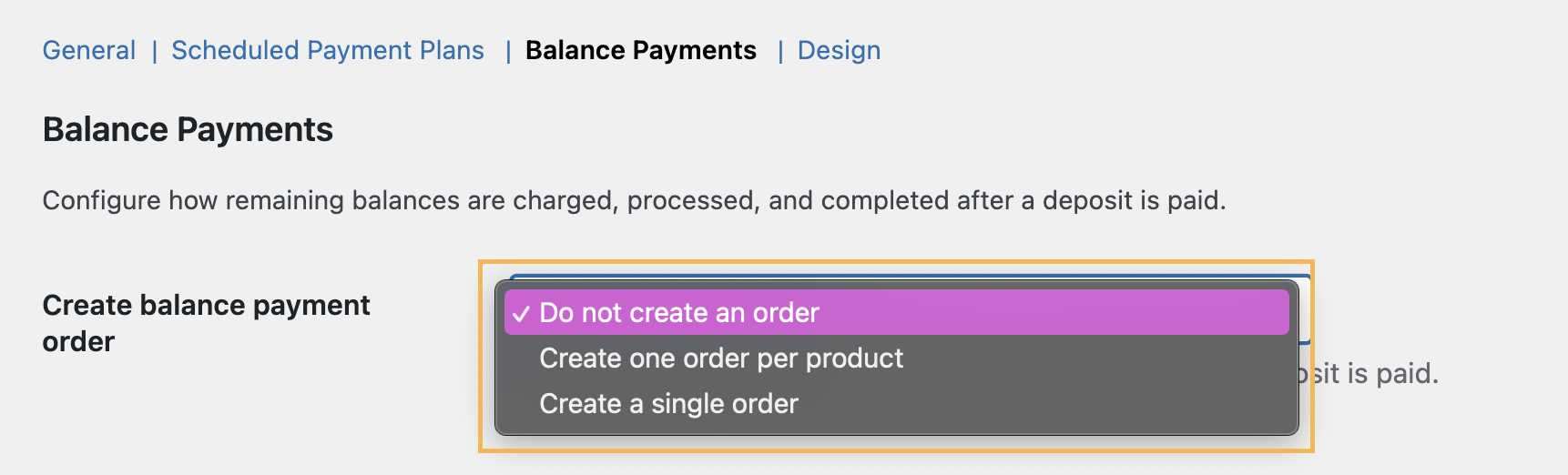
You can choose any of these options based on your preferences.
1. Do not create an order
On selecting this option, if a customer places an order with a deposit payment, the plugin will automatically calculate the balance payment and display it within the same order. The plugin will not create a new invoice/order automatically unless the store owner requires the invoice.
You can select the order and click on the Generate Remaining Balance Invoice button as shown below.
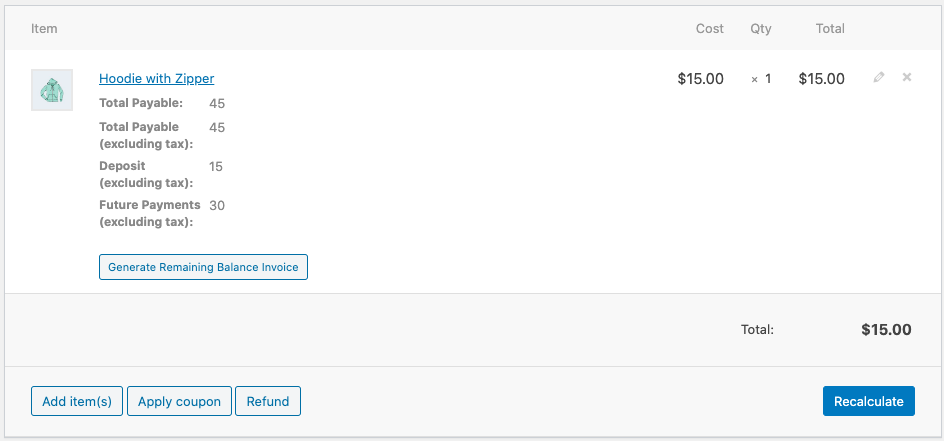
This will create another order with the balance payment, as shown below.
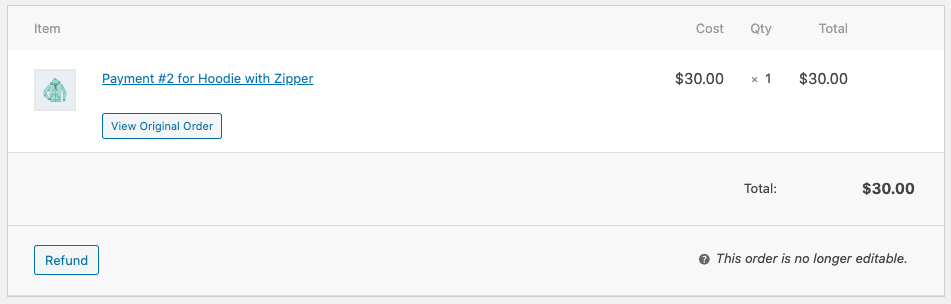
The same invoice will be reflected on the customers’ My Account page, as shown below.
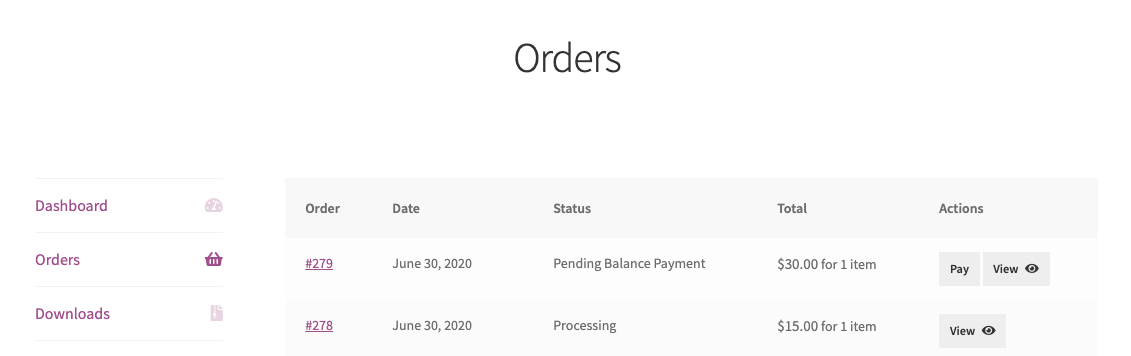
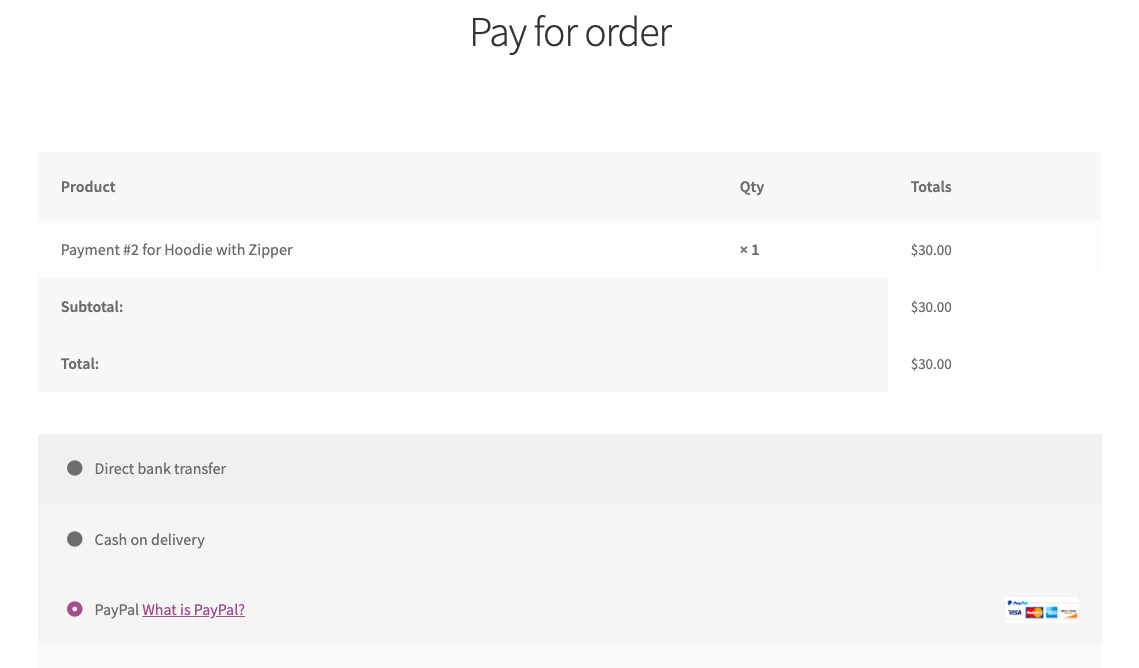
The customers can click on Pay and will be redirected to the payment page for the balance amount for the order.
2. Create one order per product
This option allows you to create a dedicated WooCommerce order for the balance payment of each product within an order.
This option is useful if you have multiple products with different partial payment options. Hence, when a customer purchases multiple products, the plugin automatically creates orders reflecting the balance payment for each product separately.
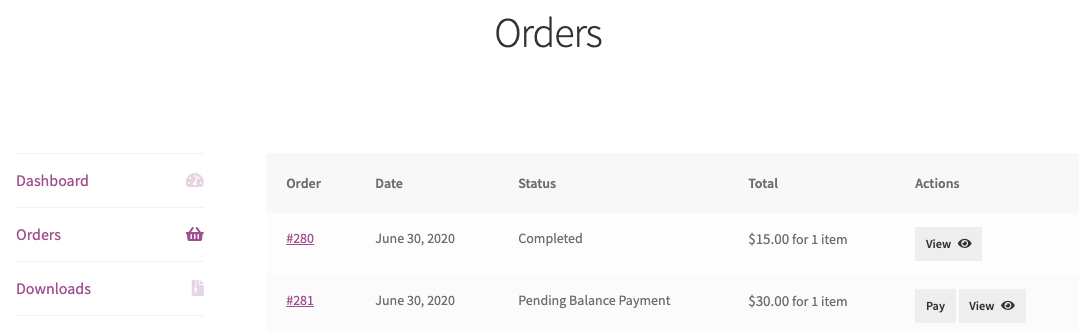
Customers can view their orders under the My Accounts page, where they can proceed with the payment for each product separately, as shown below.

3. Create a single order
Note: This option is supported only for fixed and Percentage-based deposit payments. It does not apply to Scheduled deposit payments, where balance amounts are collected based on predefined payment schedules.
Managing orders with payment plans
↑ Back to topWhen a customer places an order and chooses to pay based on the scheduled payment plans, the plugin handles the orders in an organized way.
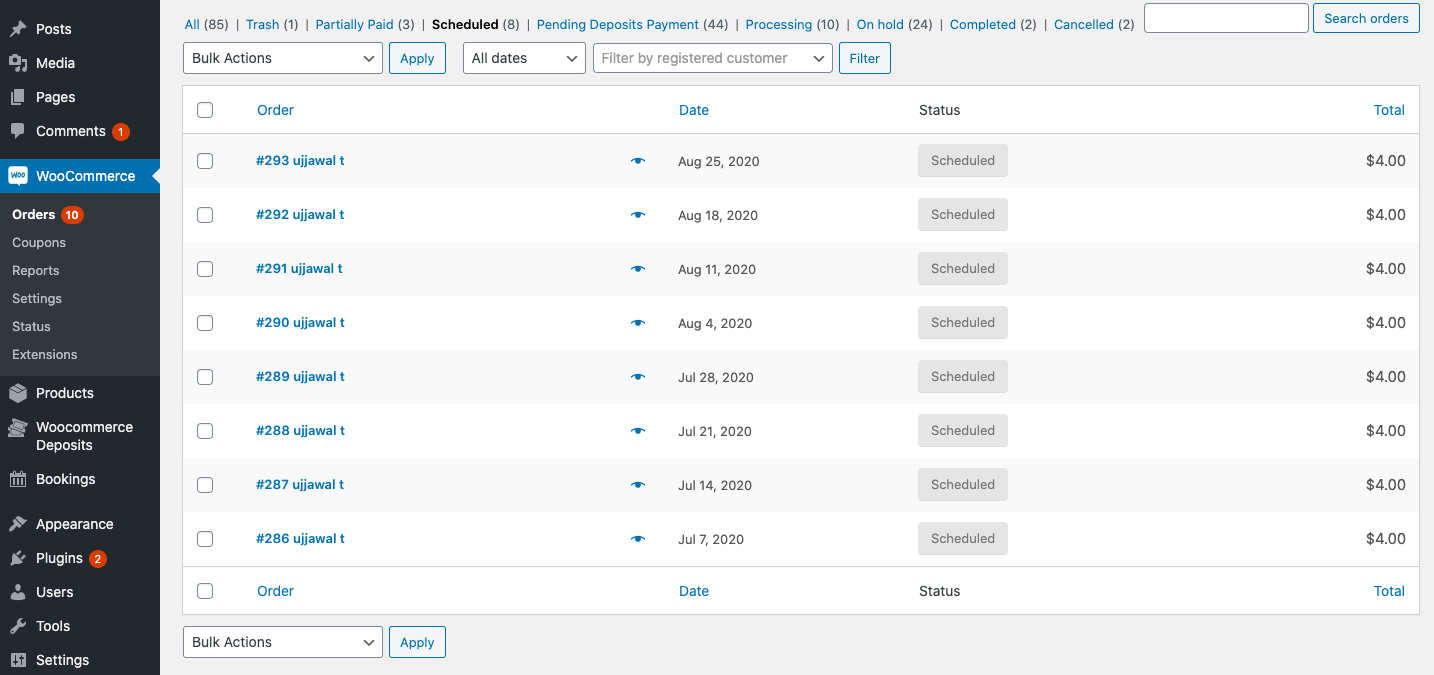
As soon as the order is placed, the plugin automatically creates scheduled payment invoices/orders. The store owner can access these orders by visiting the order and clicking on the View Scheduled Payments button, as shown below.
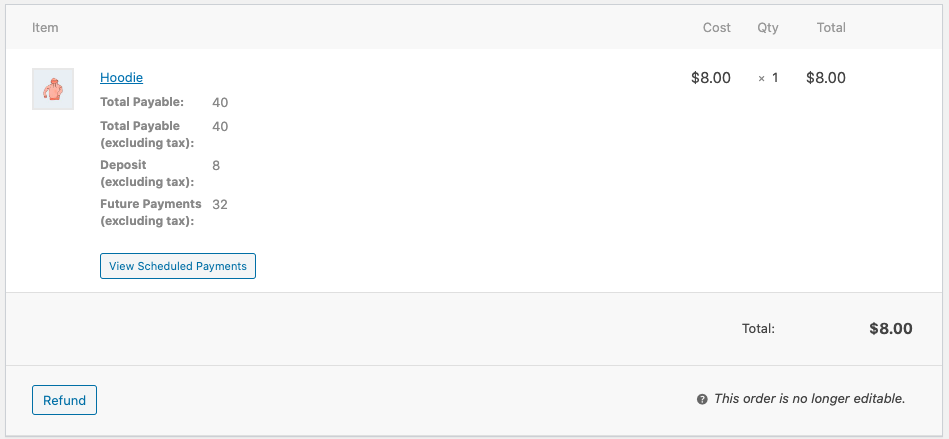
This will redirect the admin to the scheduled orders listed on the WooCommerce Orders page, as shown below.
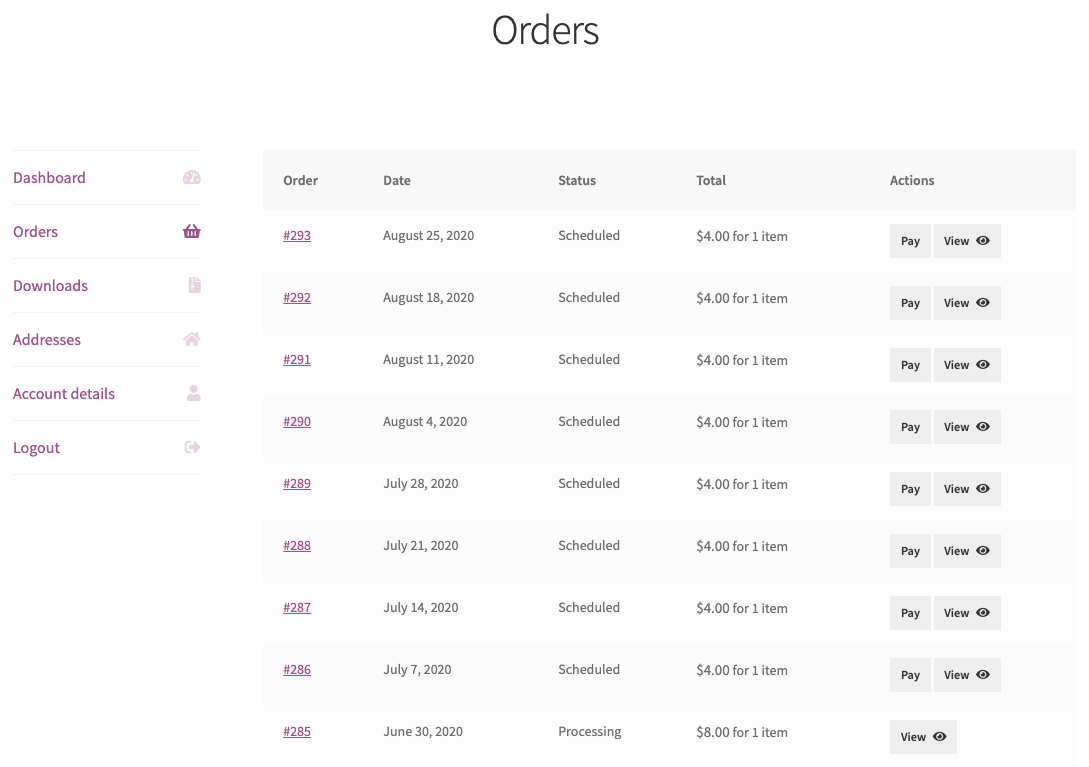
As for the customers, they can view their scheduled orders by visiting the Orders tab under the My Account page, as shown below.
Customize the Deposit Payment Design on Product Pages
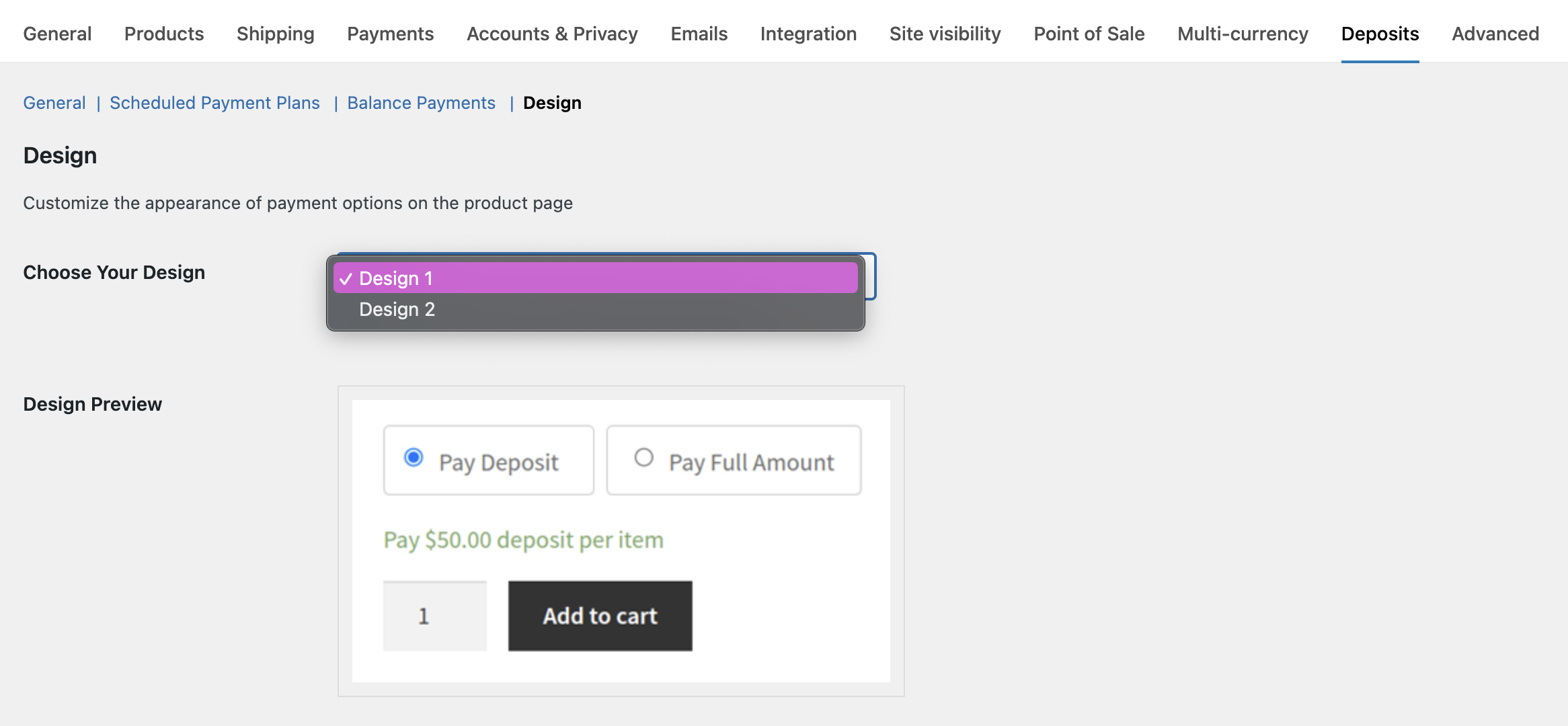
↑ Back to topThe plugin allows you to customize how deposit and full payment options appear on your product pages. To configure the design settings, navigate to: WooCommerce > Settings > Deposits > Design
Choose Your Deposit Design Layout
Under the Design tab, two designs are available. You can select one and preview the selected layout instantly under the Design Preview section, which shows how customers will see the payment options.
Customize Border Color for Selected Payment Option
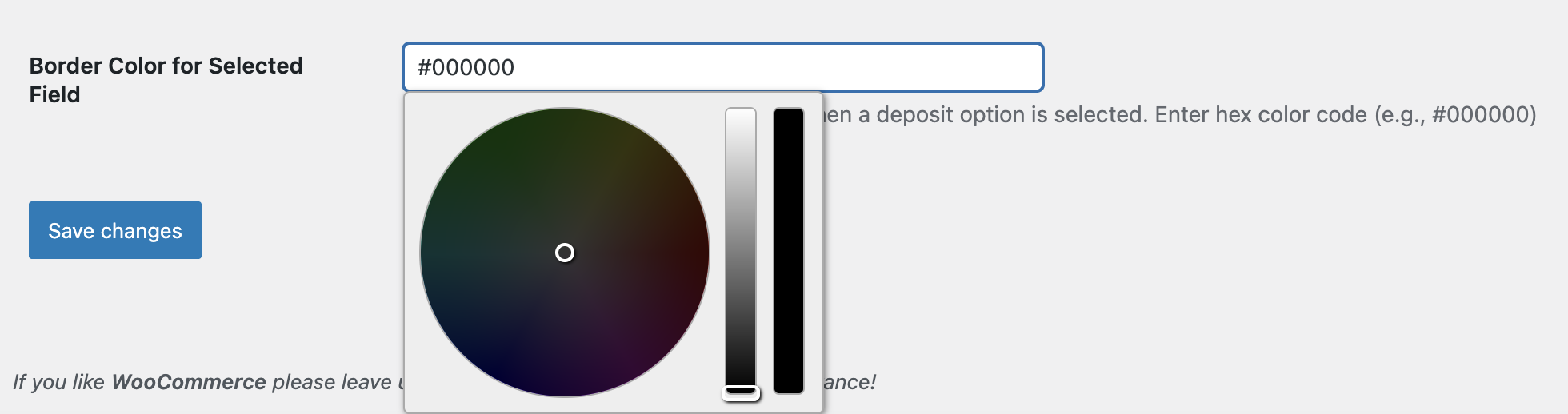
To further enhance the appearance, you can customize the border color of the selected payment option.
- Use the Border Color for Selected Field option to define the highlight color when a customer selects either Pay Deposit or Pay Full Amount
- Enter a valid hex color code (for example, #000000 for black)
This is especially useful if you want the selected option to align with your store’s theme or branding colors.
Once you have chosen your preferred design and border color, click Save changes.
Usage
↑ Back to topOnce deposits or payment plans are enabled, customers can clearly see their selected payment option not only on the product page but also on the Cart and Checkout pages.
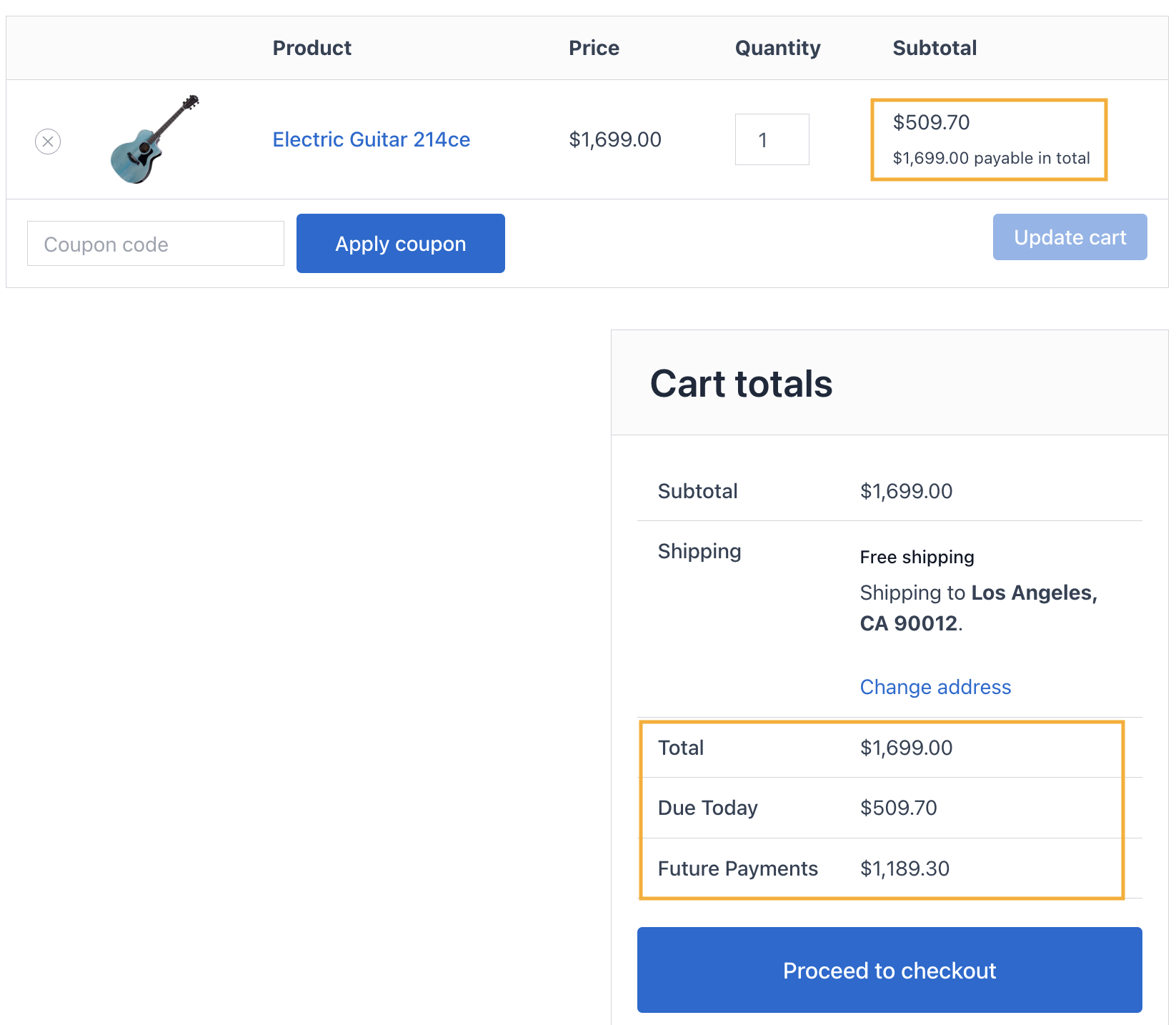
Deposit Payment on the Cart Page
On the Cart page, customers can view the Total, Due Today, and Future Payments.
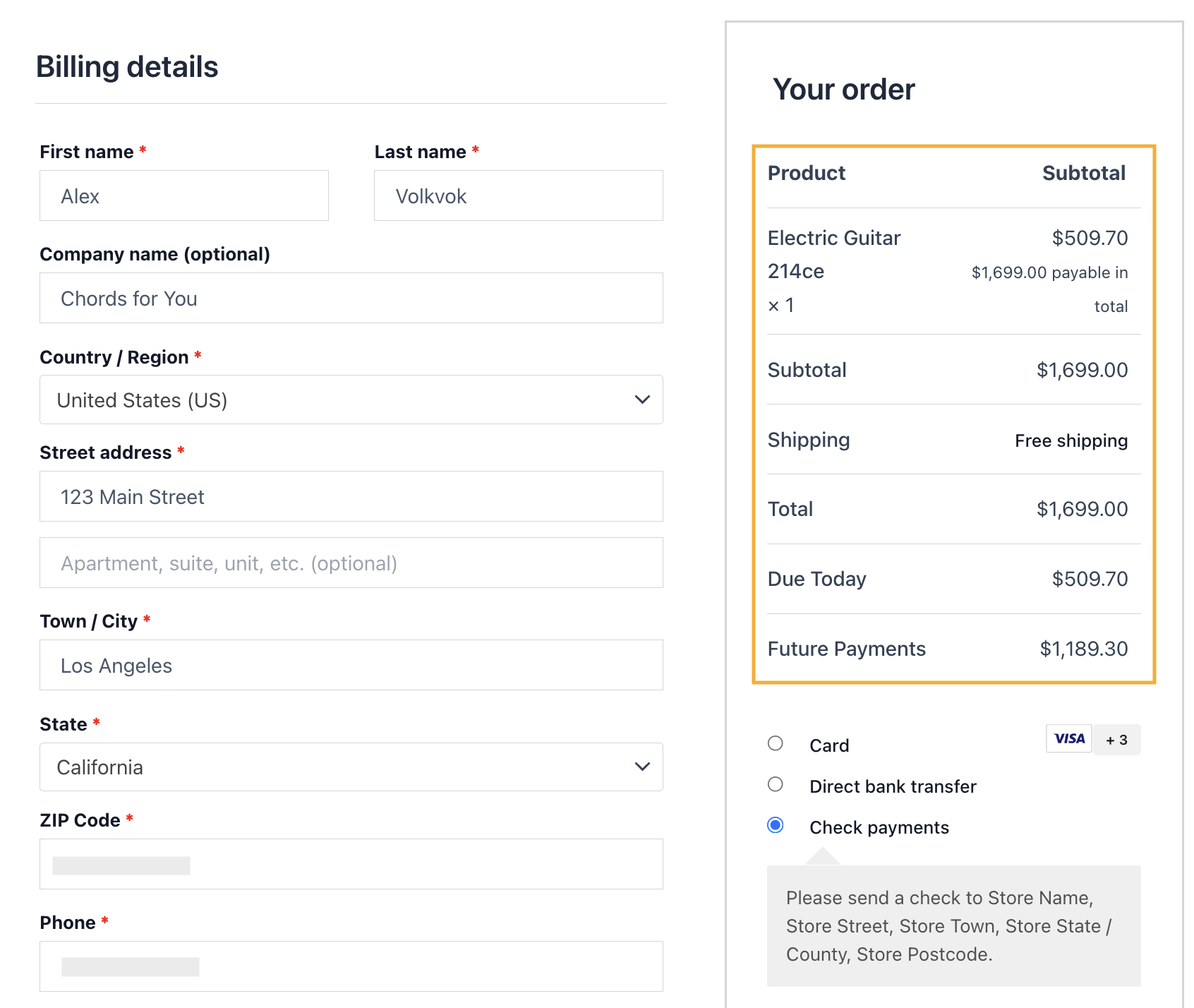
Deposit Payment on the Checkout Page:
Similarly, on the Checkout page, the plugin displays the Total, Due Today, and Future Payments.
Order Received Page
Once the customer completes the checkout, the Order Received (Thank You) page clearly displays the deposit details with Total, Total Amount Due, and Future Payments.
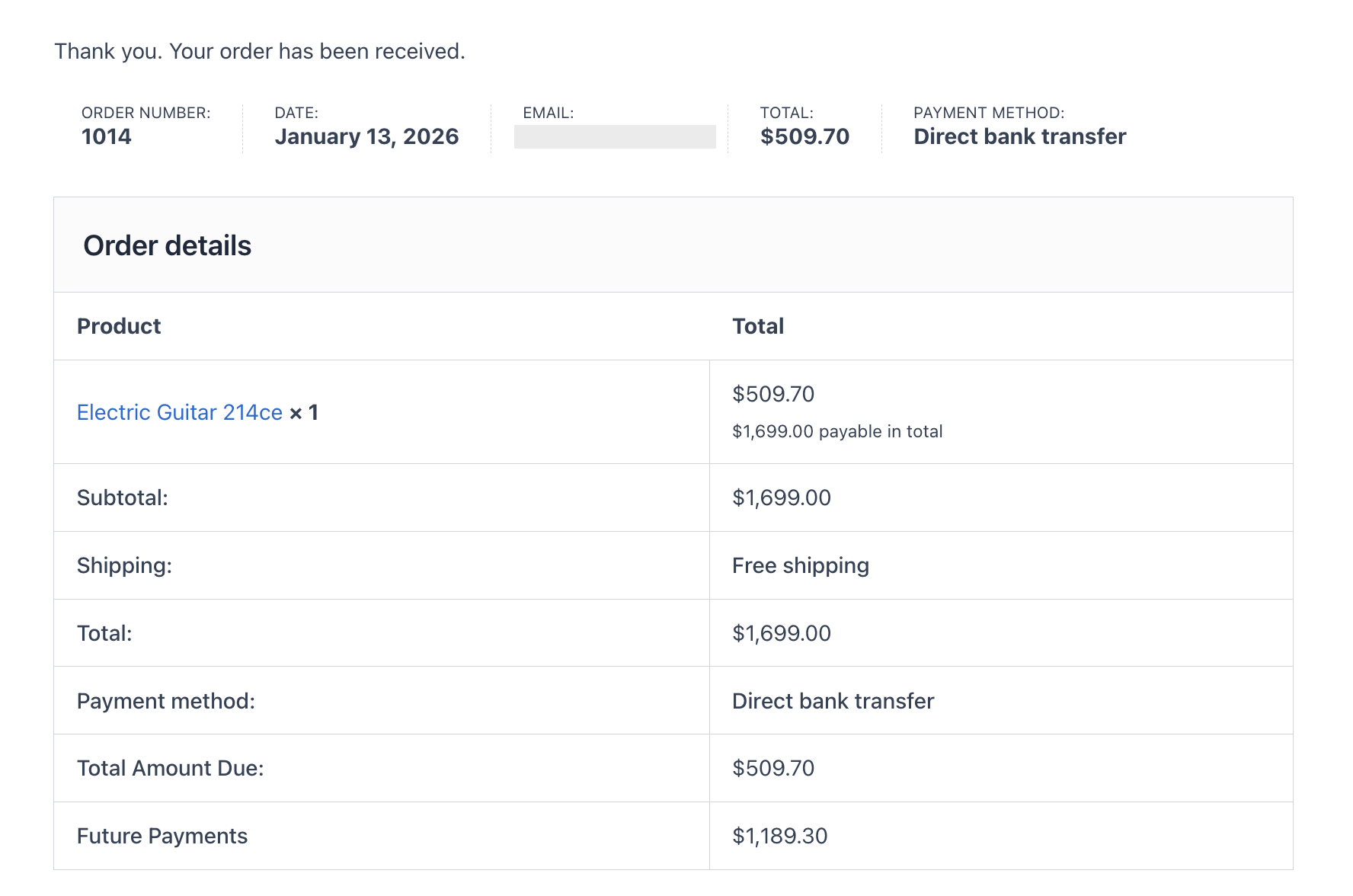
This confirmation reassures customers that their deposit has been successfully processed and clearly communicates what is still due.
Customer Order Confirmation Email
The same deposit information is also included in the order confirmation email sent to the customer. The email highlights Total, Amount Paid, Future Payments, and all other order details.
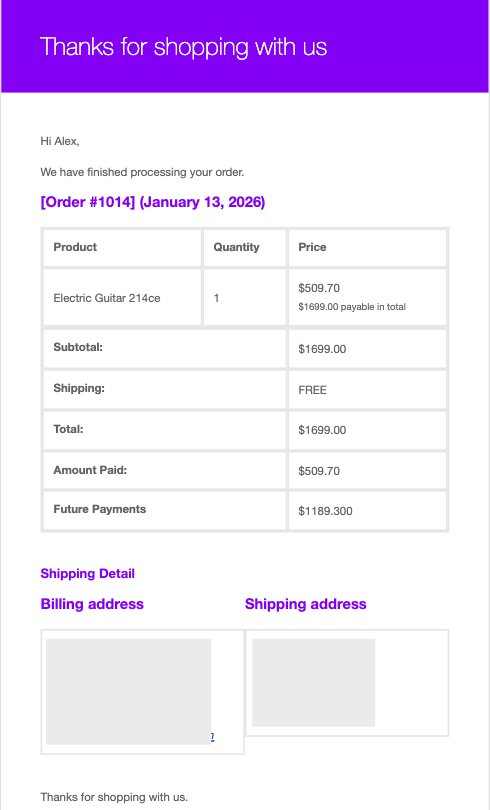
This ensures customers have a written record of their payment plan and understand the next steps for completing the balance payment, reducing confusion.
By displaying deposit details consistently across the Cart, Checkout, Order Received page, and customer emails, the plugin maintains full transparency and improves the overall checkout experience.

