
Migrate your PrestaShop store to WooCommerce with PrestaShop Data Migrator. Import products, customers, orders, reviews, categories, images, brands, stock, and more using the PrestaShop Webservice API.
After migrating your PrestaShop data to WooCommerce, you can preserve SEO rankings with 301 redirects and keep your store updated with optional Live Sync.
Installation
↑ Back to top- Download the PrestaShop Data Migrator ZIP file.
- In WordPress, go to Plugins → Add New → Upload Plugin.
- Upload the plugin ZIP file.
- Install and activate the plugin.
- Make sure WooCommerce is already installed and active.
- Go to WooCommerce → Settings → PrestaShop Data Migrator.
Connect PrestaShop to WooCommerce
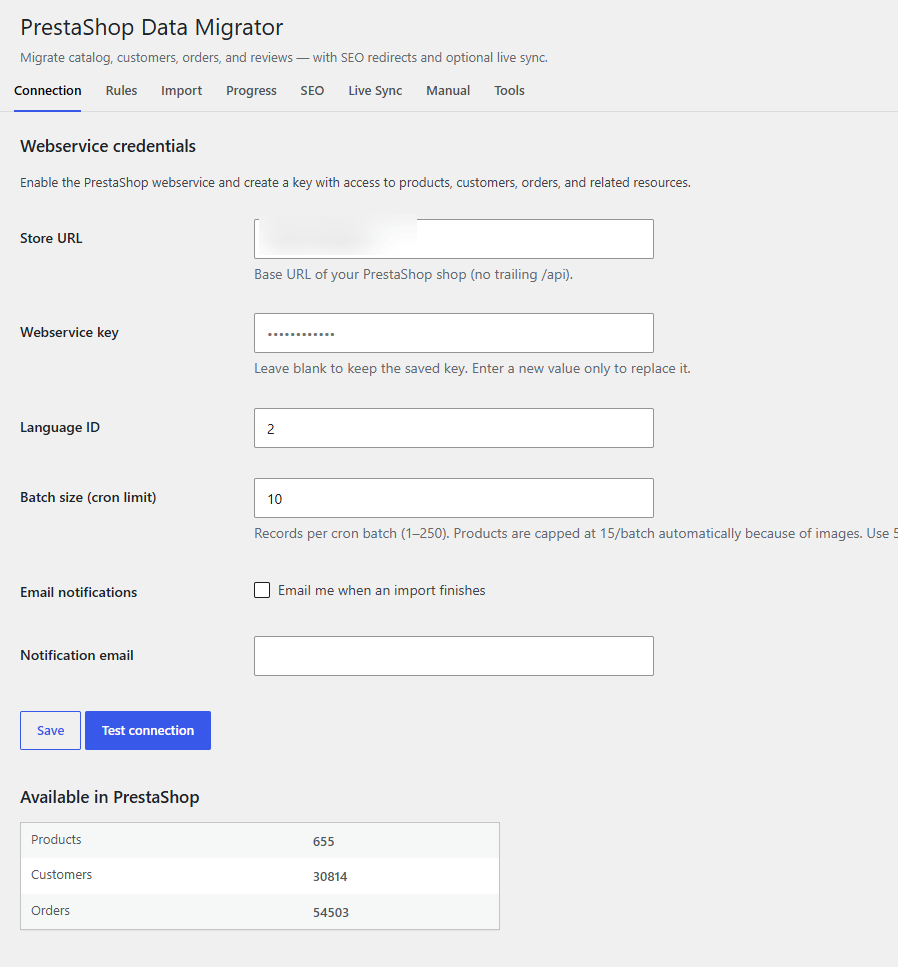
↑ Back to topBefore migrating your PrestaShop data, connect your PrestaShop store to WooCommerce using the PrestaShop Webservice API.
Go to:
WooCommerce → Settings → PrestaShop Data Migrator → Connection
Enter the following information:
PrestaShop Store URL
↑ Back to topEnter the base URL of your PrestaShop store.
Example:
Do not add /api to the end of the URL.
PrestaShop Webservice Key
↑ Back to topEnter the Webservice API key generated in your PrestaShop administration.
After saving the key, the plugin does not display the saved key again. Leave this field blank when saving other settings if you want to keep the existing key.
Language ID
↑ Back to topEnter the PrestaShop language ID used for your store.
The default language ID is usually 1.
Batch Size
↑ Back to topSet the number of records processed during each background migration batch.
The supported range is 1–250. Product batches are automatically limited to 15 because product imports may include images.
For stores experiencing timeouts, try a smaller batch size such as 5–10.
Email Notifications
↑ Back to topEnable Email me when an import finishes if you want to receive an email after a migration job completes.
Notification Email
↑ Back to topEnter the email address that should receive migration notifications.
If left empty, the WordPress administrator email address is used.
Test the connection
↑ Back to top- Enter your PrestaShop Store URL.
- Enter your Webservice API key.
- Enter the Language ID.
- Click Save.
- Click Test connection.
After a successful connection, the plugin displays available PrestaShop record counts for products, customers, and orders.
Create a PrestaShop Webservice API Key
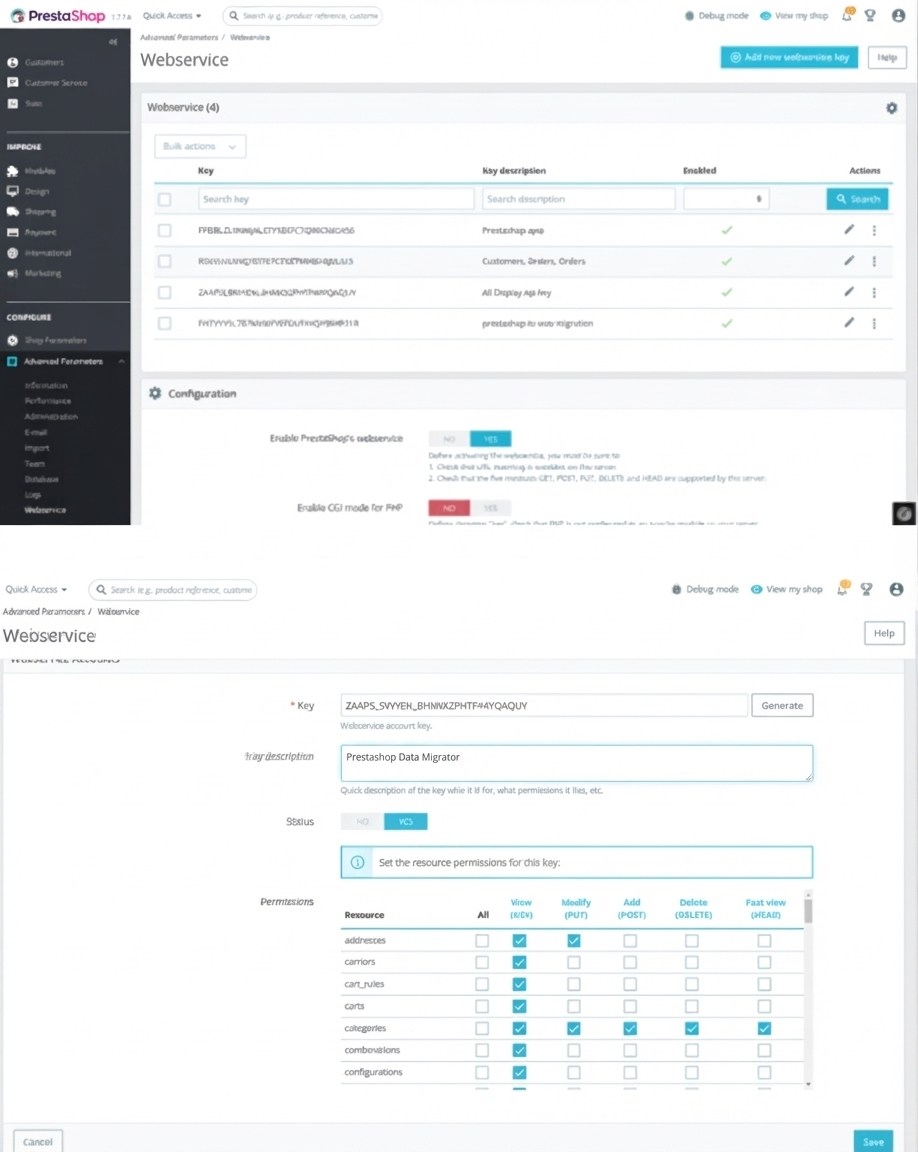
↑ Back to topThe Webservice API key is created inside your PrestaShop administration, not inside WordPress.
Create the API key
↑ Back to top- Log in to your PrestaShop Admin.
- Go to Advanced Parameters → Webservice.
- Enable the PrestaShop Webservice if it is disabled.
- Click Add new webservice key.
- Generate or enter a 32-character key.
- Give the key access to the resources required for your migration.
- Save the Webservice key.
- Copy the key into PrestaShop Data Migrator → Connection → Webservice Key.
Recommended permissions
↑ Back to topFor a complete PrestaShop to WooCommerce migration, enable GET access to the resources required by your selected migration features, including:
- Products
- Combinations
- Product option values
- Images
- Categories
- Manufacturers
- Customers
- Addresses
- Orders
- Order details
- Order states
- Tax rule groups
- Product comments or related review resources
Migrate PrestaShop Products to WooCommerce
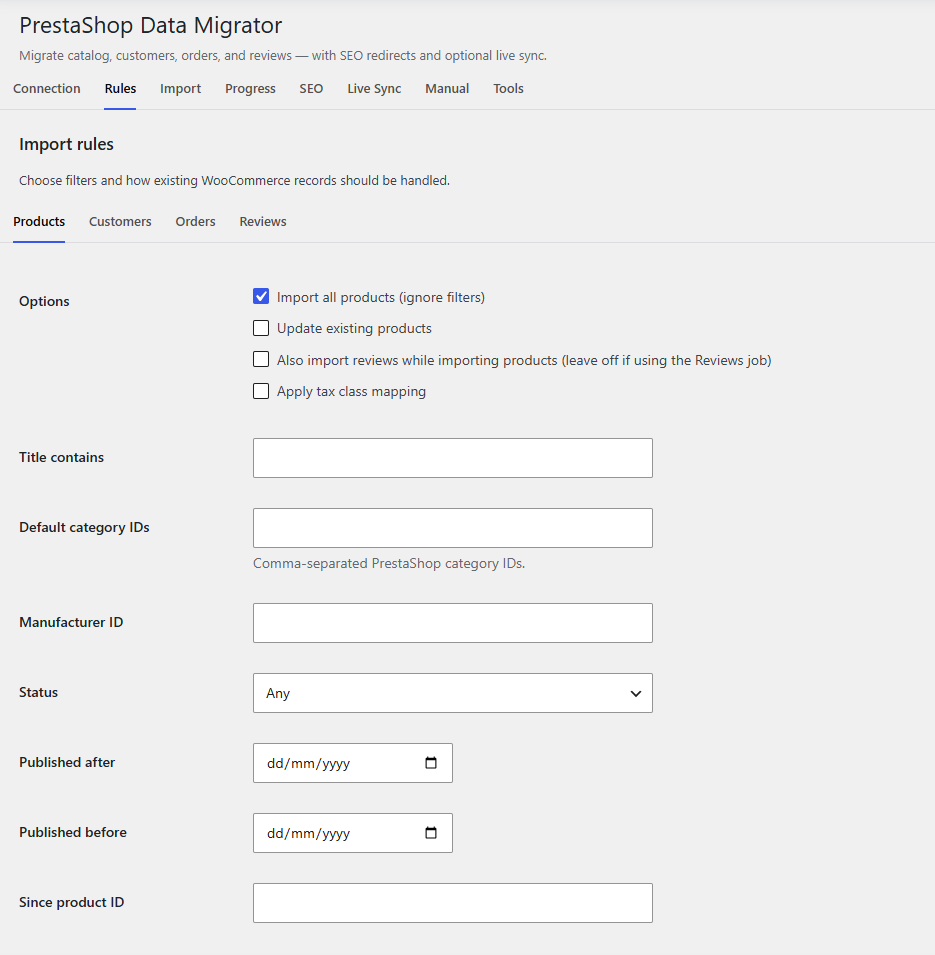
↑ Back to topUse the Products section under the Rules tab to control how PrestaShop products are imported into WooCommerce.
Product migration can include:
- Products
- Product variations
- Product images
- Categories
- Brands/manufacturers
- Stock
- Product status
- Tax class mapping
- Product reviews
Product migration options
↑ Back to topImport all products
Enable Import all products to migrate your complete PrestaShop catalog.
Update existing products
Enable Update existing products when you want existing WooCommerce products to be updated instead of creating duplicates.
Import product reviews
Enable this option if you want reviews to be processed together with product migration.
If you prefer to run a separate Reviews migration, leave this option disabled.
Product filters
↑ Back to topYou can selectively migrate PrestaShop products using:
- Product title
- Default category IDs
- Manufacturer ID
- Product status
- Published after date
- Published before date
- Product ID
WooCommerce product status
↑ Back to topChoose how imported PrestaShop products should be created in WooCommerce:
- Keep PrestaShop status
- Always publish
- Always draft
- Always pending
Migrate PrestaShop Customers to WooCommerce
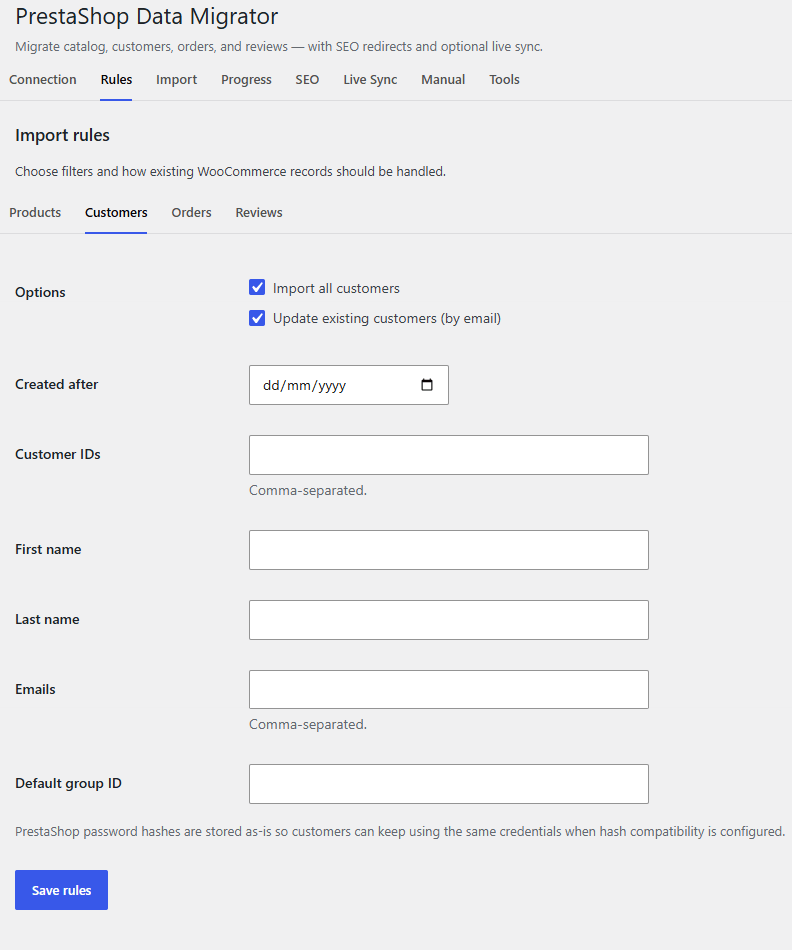
↑ Back to topUse the Customers section to migrate customer accounts and address information from PrestaShop to WooCommerce.
Customer migration supports:
- Customer accounts
- Billing addresses
- Shipping addresses
- Customer names
- Email addresses
- Customer groups
- Existing customer updates
Customer migration options
↑ Back to topImport all customers
Enable this option to migrate all available PrestaShop customers.
Update existing customers
Existing customers can be updated based on their email address.
Customer filters
↑ Back to topYou can filter customers using:
- Creation date
- Customer IDs
- First name
- Last name
- Email address
- Default customer group ID
Password migration: PrestaShop’s API does not normally expose customer passwords. Password migration should only be enabled or described where your configured source/target hash compatibility supports it.
Migrate PrestaShop Orders to WooCommerce
↑ Back to topUse the Orders section to migrate historical PrestaShop orders into WooCommerce.
Order migration can include:
- Order information
- Order line items
- Products
- Shipping information
- Taxes
- Order status
- PrestaShop order ID reference
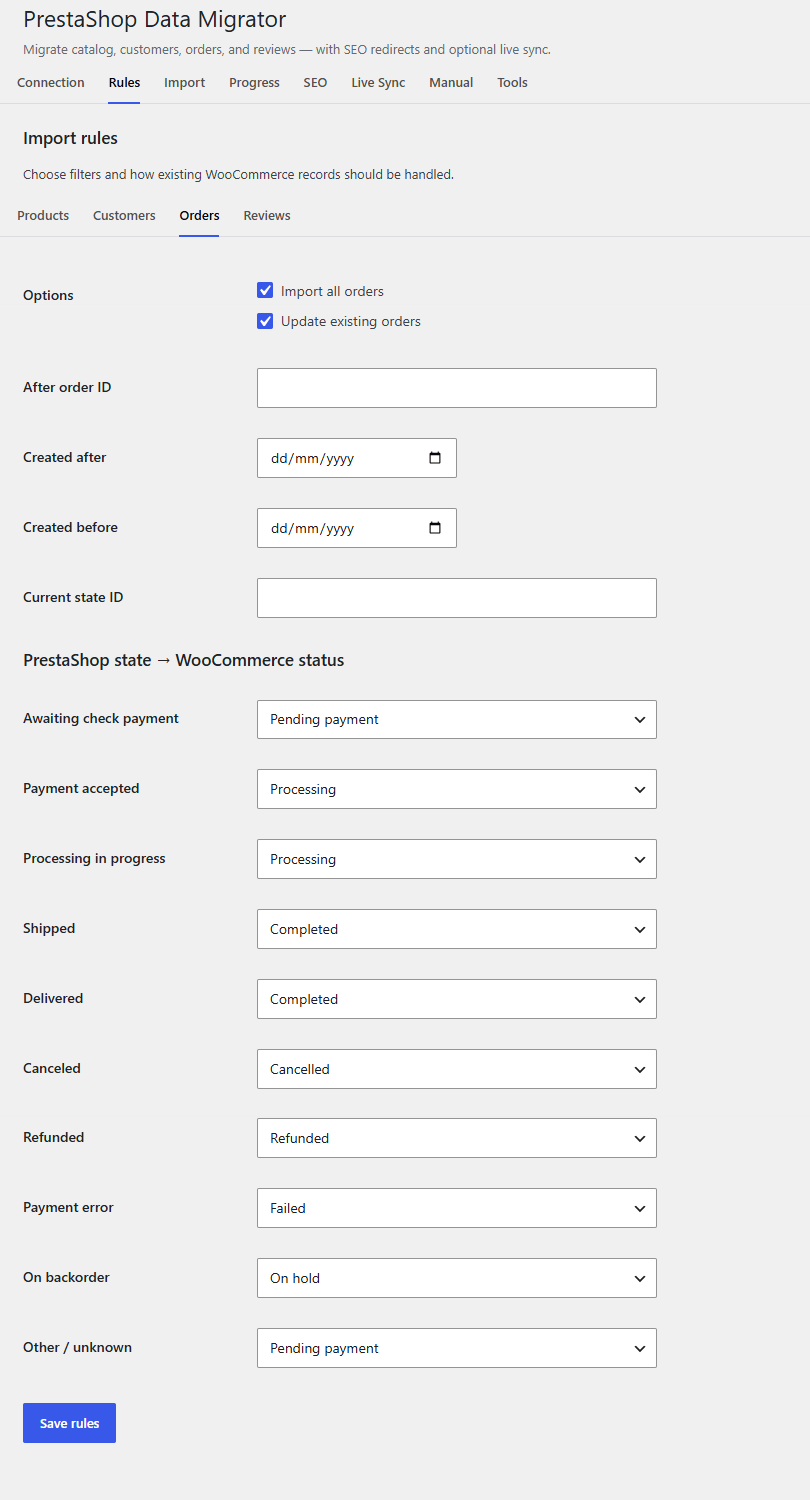
Order migration options
↑ Back to topEnable:
- Import all orders
- Update existing orders
Order filters
↑ Back to topYou can filter orders by:
- Order ID
- Creation date
- Current PrestaShop state ID
PrestaShop order status mapping
↑ Back to topMap PrestaShop order states to WooCommerce statuses, including:
- Pending payment
- Processing
- On hold
- Completed
- Canceled
- Refunded
- Failed
- Other/unknown
Orders are handled using WooCommerce-compatible order storage and support High-Performance Order Storage (HPOS).
Migrate PrestaShop Product Reviews to WooCommerce
↑ Back to topKeep your existing product reviews when moving from PrestaShop to WooCommerce.
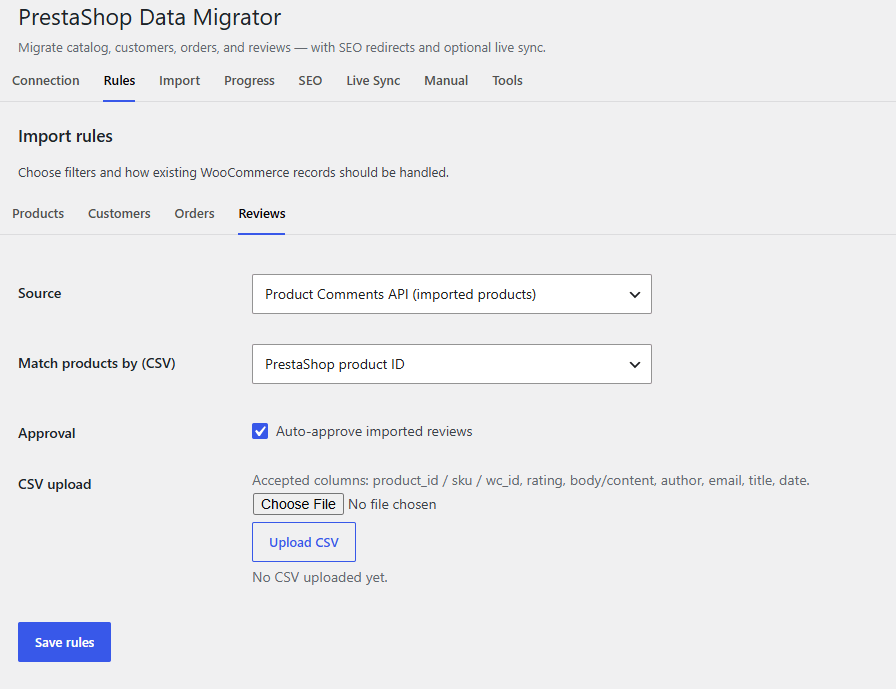
Reviews can be imported using:
- PrestaShop Product Comments API
- CSV upload
Review matching
↑ Back to topFor CSV imports, products can be matched using:
- PrestaShop product ID
- SKU/reference
- WooCommerce product ID
Review options
↑ Back to topConfigure:
- Automatic review approval
- Minimum rating
- Review author
- Author email
- Review title
- Review content
- Review date
CSV import
↑ Back to topSupported CSV columns include:
product_id, sku, wc_id, rating, body, content, author, email, title, date
Upload the CSV from the Reviews rules panel before starting the review migration.
PrestaShop to WooCommerce Tax Class Mapping
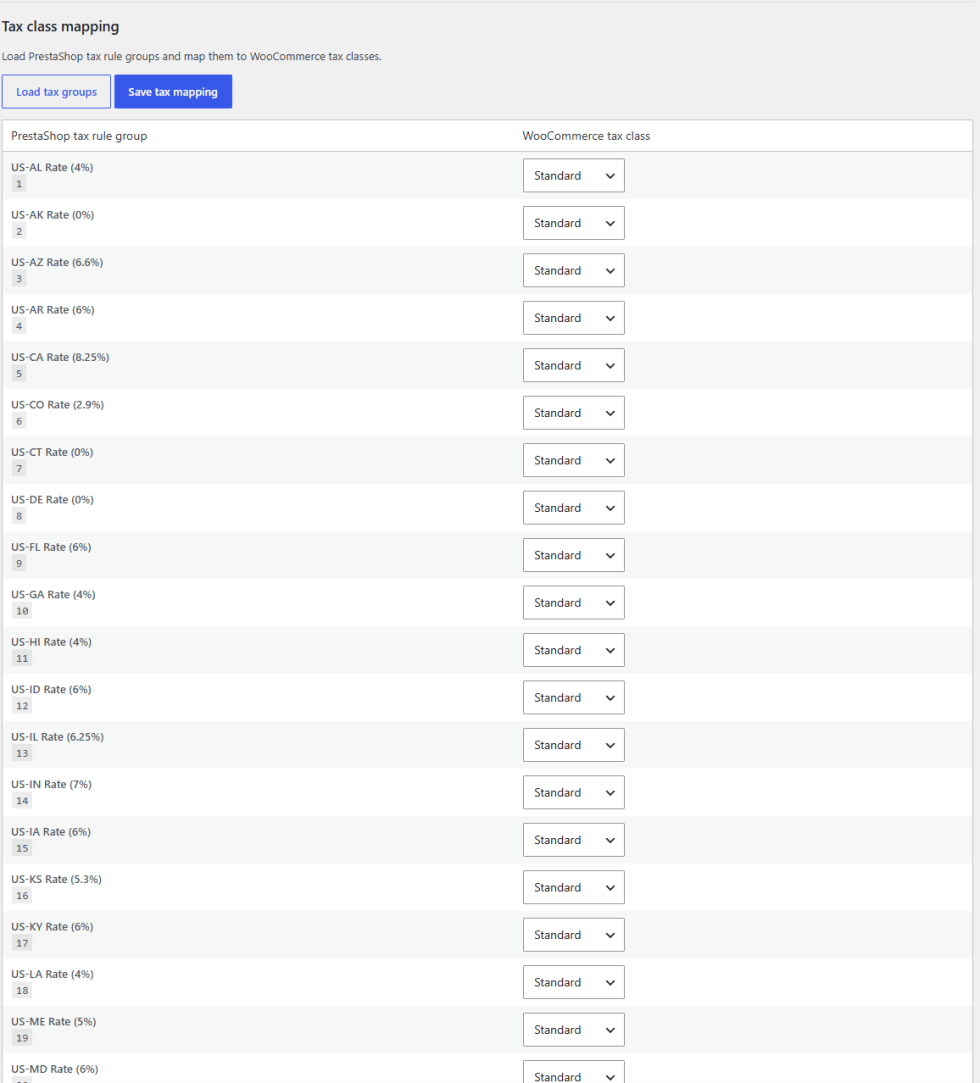
↑ Back to topPrestaShop tax rules can be mapped to WooCommerce tax classes during product migration.
Configure tax mapping
↑ Back to top- Open Rules → Products.
- Click Load tax groups.
- Review the PrestaShop tax rule groups.
- Select the corresponding WooCommerce tax class.
- Click Save tax mapping.
- Enable Apply tax class mapping under Product Options.
For example, you can map PrestaShop tax groups to WooCommerce classes such as:
- Standard
- Reduced rate
- Zero rate
Run PrestaShop to WooCommerce Migration
↑ Back to topAfter configuring your connection and migration rules, open the Import tab.
You can migrate your entire PrestaShop store or migrate individual data types.
Full migration
↑ Back to topClick Start full migration to run the configured migration jobs.
The recommended sequence is:
- Products
- Orders
- Customers
- Reviews
Selective migration
↑ Back to topYou can independently migrate:
- Products
- Orders
- Customers
- Reviews
This allows you to test your migration before moving the complete PrestaShop store.
Monitor PrestaShop Migration Progress
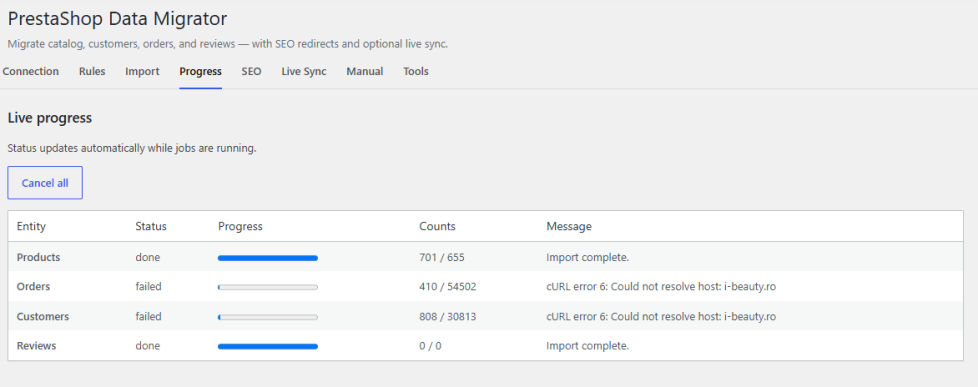
↑ Back to topOpen the Progress tab to monitor your migration jobs.
The progress screen displays:
- Job status
- Progress bar
- Imported records
- Total records
- Current message
- Failed jobs
- Completed jobs
Supported statuses include:
- Idle
- Queued
- Running
- Completed
- Failed
Cancel a migration
↑ Back to topClick Cancel all to stop running or queued migration jobs.
Preserve SEO with PrestaShop to WooCommerce 301 Redirects
↑ Back to topChanging your ecommerce platform can change product and category URLs.
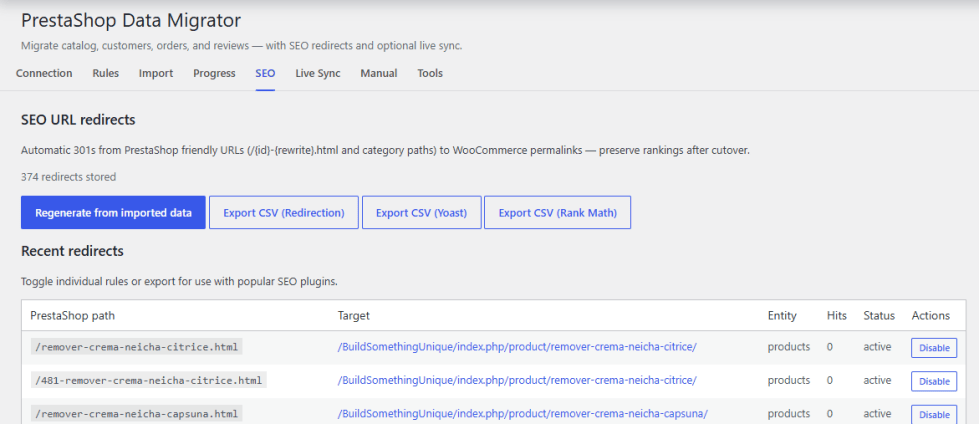
PrestaShop Data Migrator can generate 301 redirects from PrestaShop URLs to WooCommerce URLs to help preserve existing links and SEO value after migration.
Open:
SEO → Redirects
SEO migration tools
↑ Back to topYou can:
- Regenerate redirects from imported products and categories
- Enable or disable individual redirects
- Review PrestaShop source paths
- Review WooCommerce destination URLs
- Export redirect rules
- Use exported redirects with popular WordPress SEO/redirect tools
Redirect export formats
↑ Back to topExport redirects for:
- Redirection
- Yoast
- Rank Math
The SEO section can display:
- PrestaShop path
- WooCommerce target
- Entity type
- Hits
- Redirect status
Live Sync Between PrestaShop and WooCommerce
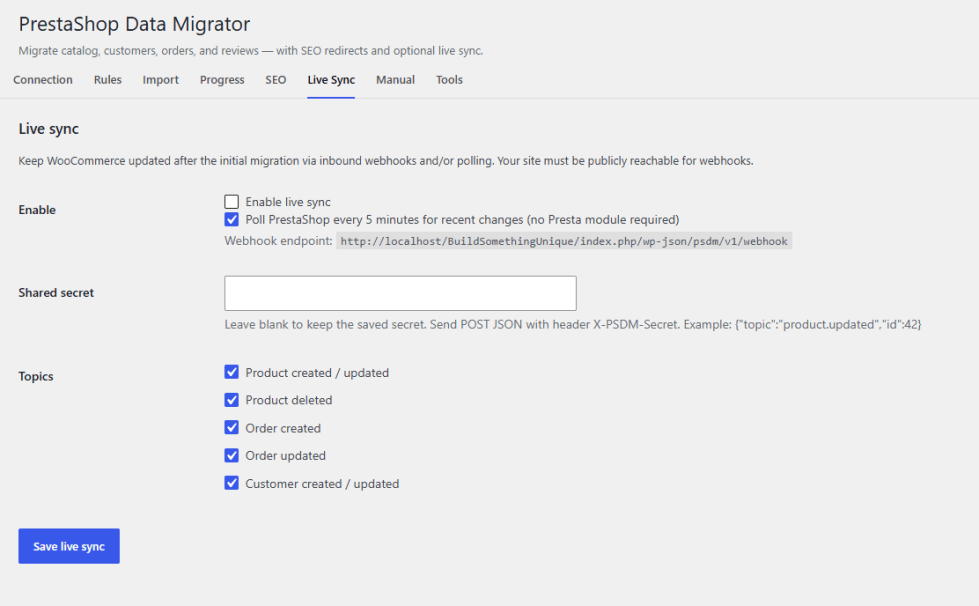
↑ Back to topAfter your initial migration, use Live Sync to keep supported WooCommerce data updated from PrestaShop.
Go to:
WooCommerce → Settings → PrestaShop Data Migrator → Live Sync
Polling
↑ Back to topEnable:
Poll PrestaShop every 5 minutes for recent changes
Polling can work without installing a PrestaShop module.
Webhooks
↑ Back to topYou can also use inbound webhooks to notify WooCommerce about changes in PrestaShop.
Webhook endpoint:
Example request body:
{
  "topic": "product.updated",
  "id": 42
}
Webhook requests use the:
X-PSDM-Secret
header.
Supported topics
↑ Back to topDepending on your configuration, Live Sync can process topics such as:
product.updatedproduct.deletedorder.createdorder.updatedcustomer.updated
Your WooCommerce website must be publicly reachable for inbound webhooks.
Manual PrestaShop Data Migration
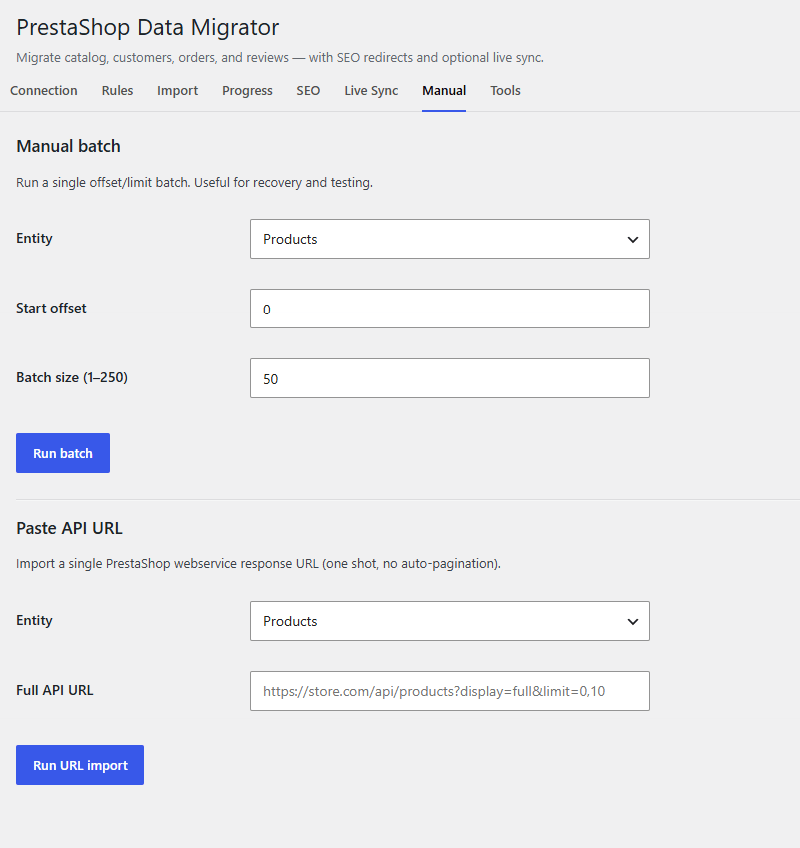
↑ Back to topThe Manual tab provides additional controls for testing, recovery, and large migrations.
Manual batch migration
↑ Back to topSelect:
- Entity
- Starting offset
- Batch size
Supported entities include:
- Products
- Customers
- Orders
Click Run batch to process the selected offset and limit window.
Import using a PrestaShop API URL
↑ Back to topYou can also paste a full PrestaShop Webservice API URL and run a targeted import.
This can be useful for:
- Testing specific records
- Recovering failed data
- Importing selected API results
- Troubleshooting migration issues
- Processing large stores in controlled batches
The pasted API URL is processed as a one-shot request without automatic pagination.
PrestaShop Migration Tools and Logs
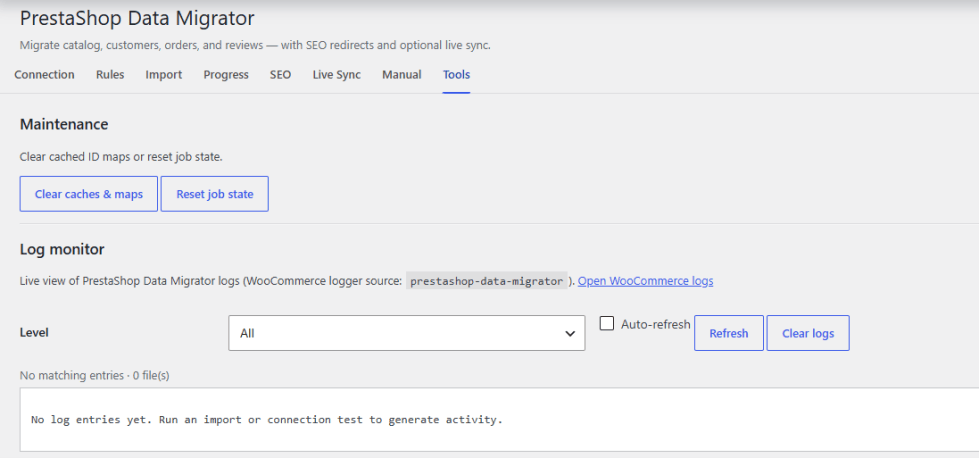
↑ Back to topThe Tools tab provides maintenance and troubleshooting tools.
Clear caches and maps
↑ Back to topClear cached PrestaShop-to-WooCommerce ID mappings when you need to rebuild migration relationships.
Reset job state
↑ Back to topReset import job flags if a migration job becomes stuck.
Migration log monitor
↑ Back to topView migration activity directly from the plugin.
You can filter logs by:
- Error
- Warning
- Notice
- Info
- Debug
Additional controls include:
- Auto-refresh
- Refresh
- Clear logs
- Open WooCommerce logs
WooCommerce logs are available under:
WooCommerce → Status → Logs
Recommended PrestaShop to WooCommerce Migration Order
For the smoothest migration, we recommend the following workflow:
Step 1: Connect PrestaShop
↑ Back to topGo to Connection, save your credentials, and test the PrestaShop Webservice connection.
Step 2: Configure migration rules
↑ Back to topConfigure:
- Products
- Tax mapping
- Customers
- Orders
- Reviews
Save each rules section after making changes.
Step 3: Migrate products
↑ Back to topImport products before orders and reviews so WooCommerce products and IDs are available for matching.
Step 4: Migrate orders and customers
↑ Back to topImport historical orders and customer accounts.
Step 5: Import reviews
↑ Back to topImport reviews through the Product Comments API or CSV.
Step 6: Verify migration
↑ Back to topUse the Progress tab and migration logs to verify completed jobs.
Step 7: Configure SEO redirects
↑ Back to topRegenerate your PrestaShop-to-WooCommerce 301 redirects and export them if required.
Step 8: Enable Live Sync
↑ Back to topAfter cutover, enable webhooks and/or five-minute polling if you need continued updates.
Troubleshooting PrestaShop to WooCommerce Migration
↑ Back to topThe migration is stuck
↑ Back to topCheck that WP-Cron is working correctly.
You can also:
- Reduce the batch size to 5–10.
- Open Tools → Log monitor.
- Check for API errors.
- Check for PHP timeout errors.
- Confirm that your PrestaShop Webservice is accessible.
The PrestaShop connection test fails
↑ Back to topCheck the following:
- Your Store URL is correct.
/apihas not been added to the Store URL.- PrestaShop Webservice is enabled.
- The API key is correct.
- The API key has the required GET permissions.
- Your server can connect to the PrestaShop website.
- HTTPS and SSL certificates are working correctly.
- Firewall rules are not blocking the connection.
Product reviews are not imported
↑ Back to topIf you are importing reviews through the API:
- Import products first.
- Confirm the Product Comments API resources are accessible.
- Run the Reviews import.
If using CSV:
- Upload your CSV.
- Select the correct product matching method.
- Confirm the required columns are present.
- Run the Reviews migration.
Order products are missing
↑ Back to topImport Products before Orders.
WooCommerce needs the migrated product records and mapping information to correctly associate order line items with products.
FAQs
↑ Back to topHelp customers by answering commonly asked questions.
Can I migrate only products?
Yes. You can run a selective migration and import only your PrestaShop products.
Can I migrate only orders?
Yes. Select the Orders migration from the Import tab.
For best results, migrate products first so order line items can be matched correctly.
Can I cancel a PrestaShop migration?
Yes. Go to the Progress tab and click Cancel all to stop running and queued migration jobs.

