Top Features
↑ Back to top- Customer Price Alert Requests – Let users submit their desired price with email and waiting time
- One-Click Special Price Offers – Instantly send personalized discounts via pre-applied links
- Scheduled Offer Campaigns – Create and automate future discount offers for specific users
- Smart Email Integration & Customization – Fully branded, dynamic emails using WooCommerce settings
- Advanced Controls & Role-Based Access – Show alert request form by product, category, or user type
Feature Details
↑ Back to topCustomer Price Alert Requests
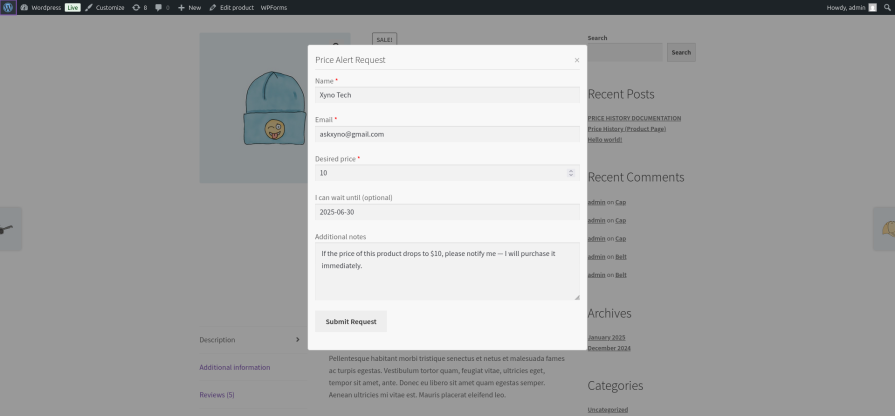
↑ Back to topLet customers submit their desired price for any product, complete with email, expected price, and waiting time. Admin and user both receive instant notifications.
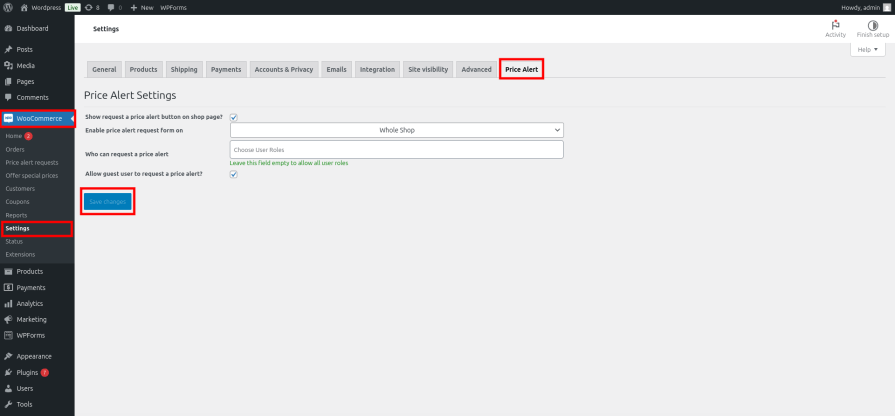
After activating the plugin, go to the WooCommerce menu and click on Settings. In the Price Alert tab, you can enable or disable the price alert request feature. You can configure it for specific user roles or guest users, and choose where the button appears — whether on specific products, categories, or the whole shop.
One-Click Special Price Offers
↑ Back to topRespond instantly to any price alert with a customized special offer. Send users a unique add-to-cart link with the special price pre-applied — no coupons, no hassle.
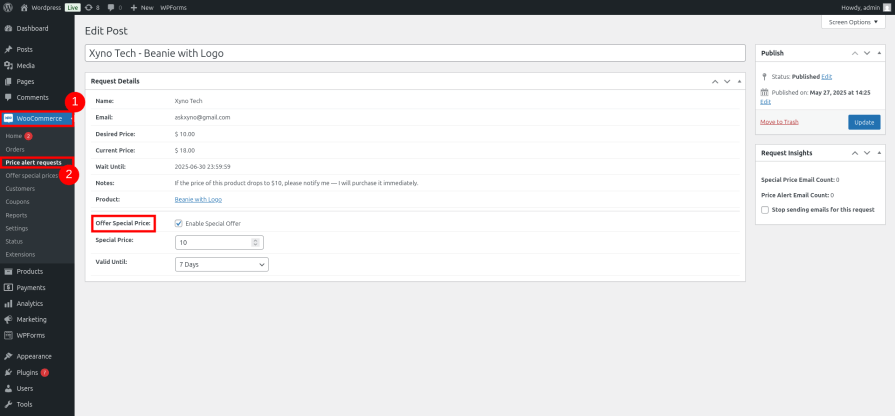
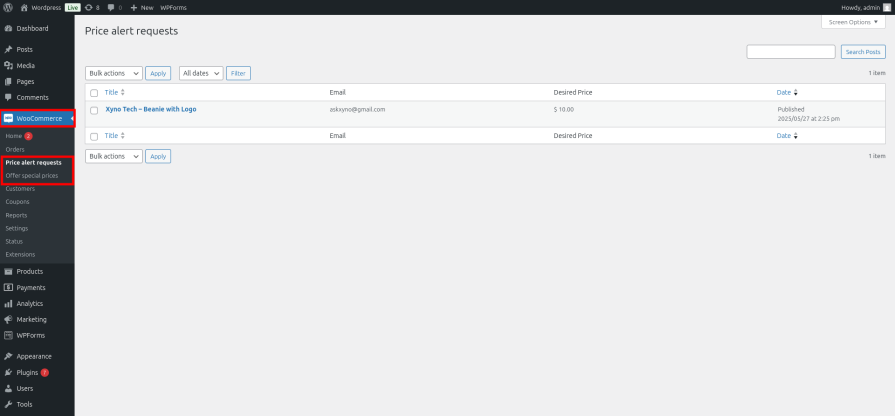
When a user submits a price alert request, the admin receives an email notification. All requests are also listed under the “Price Alert Requests” menu in the WooCommerce dashboard. From there, the admin can view all submitted alert requests. If the admin wants to send a special price offer immediately, they can do so by editing a request and toggling a checkbox to activate the offer.
Scheduled Offer Campaigns
↑ Back to topPlan ahead. Create automated special price offers targeted at selected users or user roles. Assign discounted prices to specific products and schedule emails for future delivery — completely hands-free.
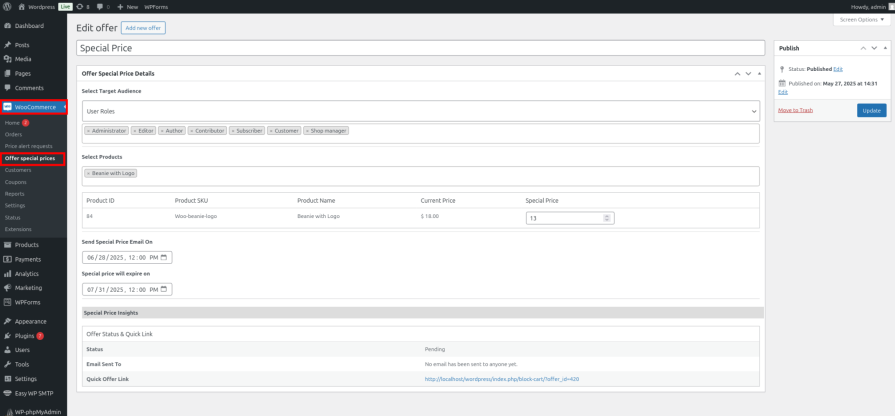
To create a special price offer, go to the “Offer Special Price” option under the WooCommerce menu.
- First, choose the users or user roles you want to send the offer to.
- Then, select the products you want to offer at a special price. Set the validity period for the discount and choose the day you want the system to automatically send the email.
After saving the offer, you will get a special link that you can also send to users manually — through email, chat, or social media.
Smart Email Integration & Customization
↑ Back to topKeep your branding consistent. All customer emails — including price alert confirmations and special offer notifications — are fully customizable using WooCommerce’s native email editor. Use dynamic pricing links and rich content to personalize each message.

To customize emails, go to the WooCommerce menu, then click on Settings. Next, go to the Emails tab, where you can customize the emails sent from your store.
Advanced Controls & Role-Based Access
↑ Back to topTake control over who sees and uses the feature:
- Show/hide the price alert form for specific products or categories
- Limit access to guests, logged-in users, or admin roles
Installation
↑ Back to topTo start using a product from WooCommerce.com, you can use the “Add to store” functionality on the order confirmation page or the My subscriptions section in your account.
- Navigate to My subscriptions.
- Find the Add to store button next to the product you’re planning to install.
- Follow the instructions on the screen, and the product will be automatically added to your store.
Alternative options and more information at:
Managing WooCommerce.com subscriptions.

Configuring the Plugin
↑ Back to top- Go to your WordPress Dashboard
- Under the WooCommerce menu, go to Settings
- Click on the Price Alert tab
Set options according to your preferences and save the settings.
Using the Plugin
↑ Back to topIn the WooCommerce menu:
- Price Alert Requests – View user-submitted price alerts
- Offer Special Prices – Create and send special price offers